Main LogoLight Logo
  • Reviews
  • Top 10
  • How To
  • Tech News
  • OS
    • Windows
    • MAC
    • iOS
    • Android
  • Categories
    • Driver Updater
    • Cyber Security
    • Games
    • Fitness
    • Entertainment
    • Tips & Tricks
Top 10 Windows
by Prachi Dani

11 Best Free Video Call Software For Windows PC (2024)

January 17, 2024
1

Gone are the days when people used to rely on text messages and calls. With the growth of technology, video calling is gaining popularity at a skyrocketing speed.

High-speed video calling is the thing everyone talks about nowadays. Thankfully several online video calling apps for PC are available to cater to this ever-growing need.

These apps offer a great platform to communicate with your loved ones as if you are talking with them face-to-face. Our blog here will talk about some of the best video calling software for PC.

Let’s get started to explore this fabulous and stunning way of communication.

Table of Contents hide
10 Best Video Call Software For Windows in 2024
1. Skype

2. Google Hangouts
3. Facebook Video Chat
4. Line
5. Viber
6. Zoom
7. Imo
8. Talky
9. Zalo
10. Ekiga
11. TokBox
Conclusion

10 Best Video Call Software For Windows in 2024

1. Skype

Best Video Call Software - Skype
Image Source: Skype

First on our list of video call software for PCs is this incredible tool. Skype is a highly popular platform and enjoys a rich user base.

The incredible set of features and offerings of Skype ensures that you get a smooth video-chat experience.

With this power-packed tool, you can do a lot of things, you can do a full-screen video call with it and even mute the video in an ongoing call. Apart from this, it also supports easy networking and finding a friend on it is fairly simple.

Just create your account, find your friends and start video calling.

Read Also: Top 10 Best Video Editing Software for Windows


2. Google Hangouts

Best Video Call Software For Windows - Google Hangouts
Image Source: Techviral

Another best and free video call software that you can pick in 2024 is Google Hangouts. The application first came as an official in-built part of Google’s Hangout social media platform.

With this stunning application, you can enjoy having video chat with up to 10 people at a single time. You can have one-on-one conversations with your loved ones, share photos, GIFs, emojis, and much more. Apart from this, you can use it to send text messages, make audio, and uninterrupted video calls.

With its simple interface, you can find your friends very easily, and the app syncs quite smoothly with various platforms including smartphones, iOS, and Windows.

Use it today to experience a secure way of video calling.


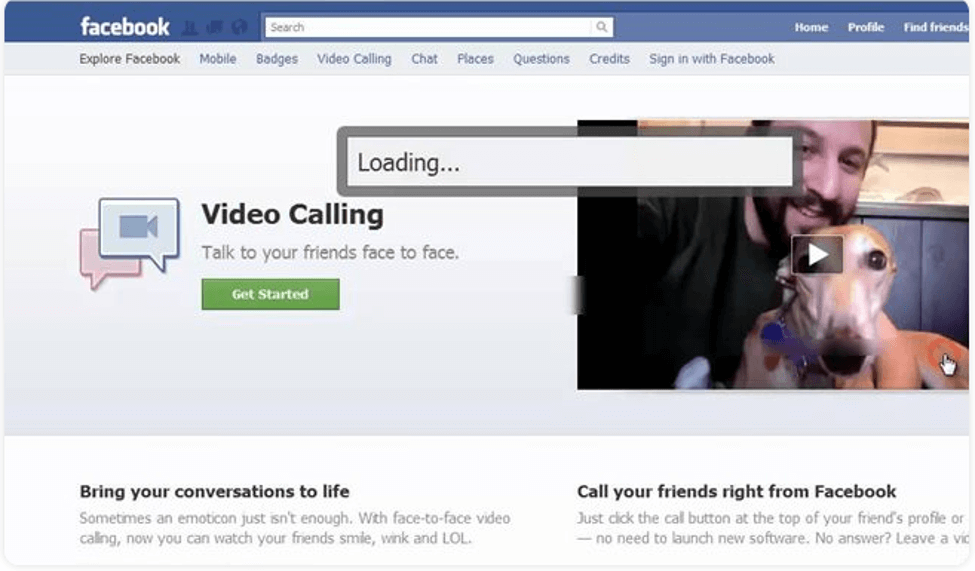
3. Facebook Video Chat
Best Video Call Software - Facebook Video Chat
Image Source: Techviral

Our next pick comes from the Social Media giant, Facebook. Facebook video chat offers a simple and smooth way of exchanging text messages and doing video chats.

See your dull conversations come to life with this feature-rich tool. Creating an account on it is fairly simple, and you can use it to share emojis and reactions with your friends, share stories, send your live location, play games, and whatnot.

All-in-all Facebook Video Chat comes with great functionality and features and can be a good pick for you.


4. Line

Best Video Call Software - Line
Image Source: Techviral

The line is a well-known video-calling app in Asian countries. The application works smoothly on smartphones but also performs incredibly well on desktops. Loaded with multiple high-end features it also ensures to deliver stunning video feeds.

Apart from this you also get a massive collection of emotions with it which adds to your video chat experience. You can also use it to send audio messages and snapshots with your friends and fellow contacts.


5. Viber

Best Video Call Software - Viber
Image Source: Techviral

Next on our list of best video calling software for laptop and desktop PCs is Viber. It is a well-known name in its category of software and provides a good platform for uninterrupted video calling services.

It works fairly well on almost all platforms and comes with a clean and convenient working. On the top, setting up an account on Viber is very simple, just enter your mobile number and you are good to go.

Find and add your friends to your contact list and start video calling.


6. Zoom

Best Video Call Software For Windows - Zoom
Image Source: Zoom

Zoom is a global platform that aims to provide tremendous opportunities to its customers in the field of video calling. Portable display sharing and breakout rooms are two of its distinguishing features.

You can add up to 100 contacts to your profile. Apart from this, a great display screen and high-quality video talk are a few of its other notable features.

Use it for multi-screen video sharing, enterprise remote management, calendar integration to schedule various meetings, and much more.


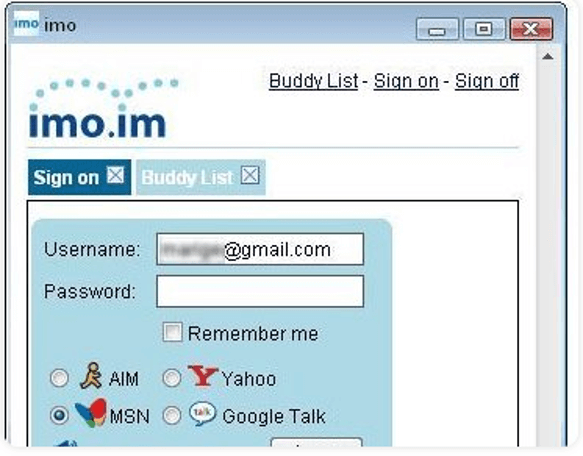
7. Imo
Best Video Call Software - Imo
Image Source: Techviral

Imo is another best video calling software that you can consider for your Windows PC in 2024. The software comes powered with multi-tool support and an easy-to-use interface. You can use it on your smartphones as well as on your desktops.

In addition to this, it also offers several happy and cool stickers that add to your video-calling experience. The app can work well on smartphones, and desktops and also offers an extension for Chrome browsers.

Pick this best and free video call software and enjoy hassle-free video and voice calling with your friends.


8. Talky

Best Video Call Software - Talky
Image Source: Talky

Still finding it difficult to pick the best video call software for your Windows PC, Talky can be of great assistance to you. The application does not ask for any information exchange and is very simple to use.

You can add it and complete the set-up process within seconds. Use this incredible platform to experience high-quality video calling and enjoy added benefits like bolted rooms and screen sharing.


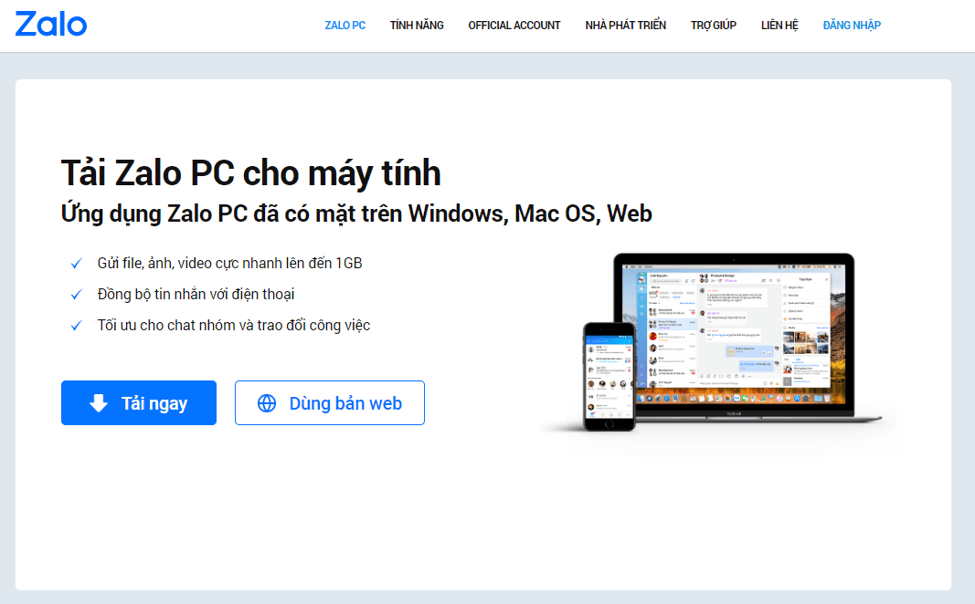
9. Zalo
Best Video Call Software - Zalo
Image Source: Zalo

This is a relatively new video calling software but comes with a lot of useful functionalities and features. It works well on iOS, Android, and Windows platforms.

You can use it to do video calls with your friends, share stickers and emojis, discover other people who are using it in nearby locations, and much more.

All-in-all it is a good choice to make.

Read More: Best Free Video Sharing Sites Like YouTube


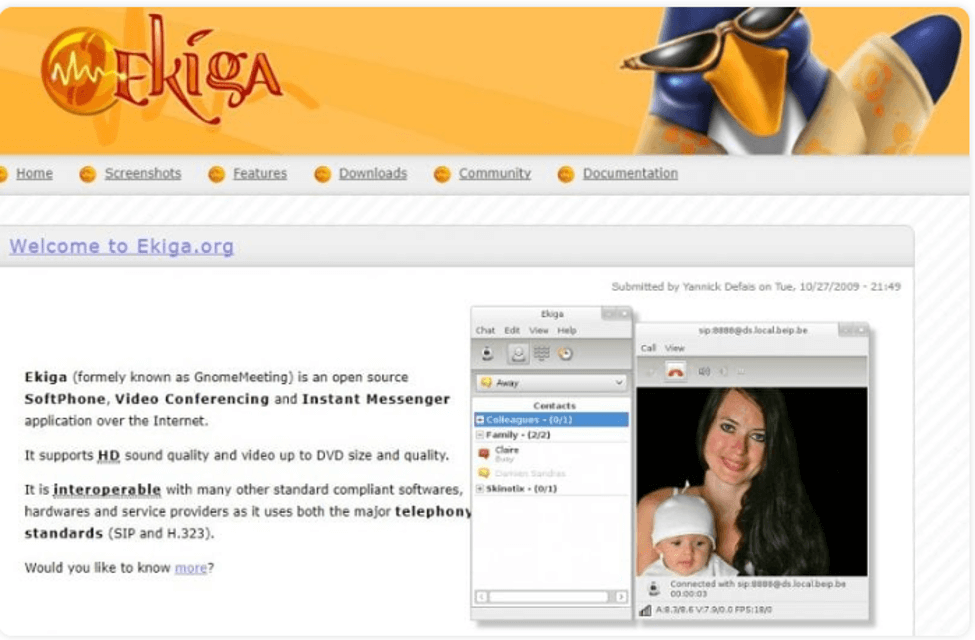
10. Ekiga
Best Video Call Software - Ekiga
Image Source: Techviral

Next on our list of Video chat software is Ekiga, initially known as GnomeMeeting. It is an open-source video calling platform that also works as an instant messaging platform.

If you wish to experience HD sound quality and a great display screen then pick Ekiga.


11. TokBox

Best Video Call Software - TokBox
Image Source: Techviral

Our last pick is this amazing web-based video calling tool. Setting it up is very easy, just log in and you are good to go.

Use it to get a customized video calling experience, it can be set up within any web browser.


Conclusion

That’s all friends, I hope now you have a fair deal of ideas about some of the best video calling software that you can pick in 2024 for your Windows PC.

All the tools mentioned above are excellent in what they do and ensure uninterrupted communication. Make your choice and start video calling your friends.

Author

Prachi Dani

Prachi Dani is a technical content writer who specializes in areas of science and technology. She is highly up to date with technological transitions and transformations. Writing is not her passion but the only thing that carries satisfaction in life. If not writing, you may find her engrossed playing action games on her treasured smartphone.

View all posts

Related Posts
JADENS Thermal Printer Driver Download and Install Windows 10,11

JADENS Thermal Printer Driver Download and Install Windows 10,11

August 2, 2023
0

This article shares the top ways to download and install the updated JADENS Thermal printer driver on Windows 10/11 computers to extract the best printer performance. 

JADENS Thermal printers are well-known for the seamless label printing experience they provide. However, like all other printers, it needs a helping hand in the form of a JADENS Thermal printer driver to deliver the best performance.

A driver is software that links your printer and computer. With an appropriate, compatible, and up-to-date JADENS Thermal printer driver for Windows 11 or 10, the computer can understand and execute your instructions as you may expect. In contrast, you may experience printing errors without it.

Hence, this article brings to light the top ways to download the JADENS Thermal printer driver, install, and update it. Let us begin with them without wasting your extremely precious time.

Methods to Download, Install, and Update the JADENS Thermal Printer Driver

You can apply these methods to download the update for the JADENS Thermal printer driver and get it installed on your computer.

Method 1: Download the JADENS Thermal printer driver via the official website

You can find all the necessary drivers for your Thermal printer on the official website of JADENS. All you need to know is your computer’s make and model to download and update the JADENS Thermal printer driver this way. You can navigate through Settings>System>About path to find the needed information. After noting the required details, you can follow the below steps to download and install the driver you need.

  • Firstly, navigate to JADENS’s official website.
  • Now, hover over the Support tab and choose Download Driver & User Manual from the dropdown menu.
  • Select your printer from the options present on the screen. Ours is JD468BT.
  • Choose Windows (New) from the driver download section.
  • Now, double-click on the downloaded file and follow the on-screen directions to install the JADENS Thermal printer driver for Windows 10/11.

Also Read: How to Download Epson Printer Drivers For Windows 10/8/7


Method 2: Download the JADENS Thermal Printer Driver Update via Device Manager

Device Manager is a utility that comes in-built in Windows to help you download and install driver updates. Below are the steps you can follow to download and install the update for the JADENS Thermal printer driver.

  • Firstly, press Windows and X keys (simultaneously) on your keyboard to open the Quick Access menu.
  • Now, select Device Manager from the options present in the menu on your screen.Open Device manager
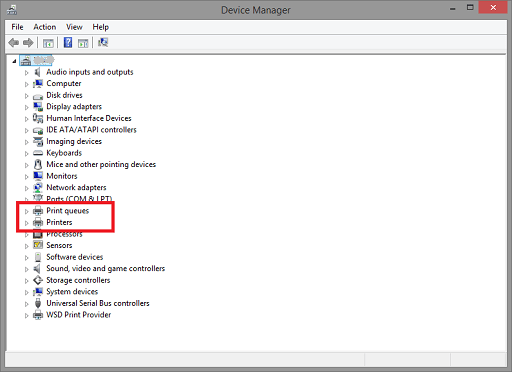
  • After launching the Device Manager, click on the Printers or Print Queues category to get its expanded view.Print Queues
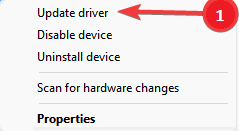
  • Now, right-click on the JADENS Thermal printer and choose Update driver from the on-screen menu.Update driver
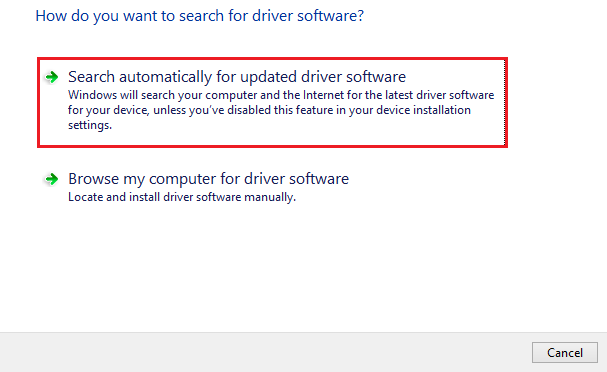
  • Choose Search automatically for updated driver software if you are on Windows 10. If you are using Windows 11, Search for drivers automatically. Search Automatically for Updated Driver Software
  • Now, wait until Windows completes the search, download, and installation of the JADENS Thermal printer driver on your Windows 11/10 computer.
  • Lastly, allow your PC to restart to complete the process.

Method 3: Update the JADENS Thermal Printer Driver Automatically (Recommended)

Manual methods to download the JADENS Thermal printer driver update and install it are complicated and time-consuming. Moreover, a single misstep when manually downloading and installing the driver can result in fatal system crashes and errors.

Hence, we recommend safe, reliable, compatible, and automatic driver updates via software like Bit Driver Updater.

The Bit Driver Updater is among the most trustworthy and best tools to update drivers automatically with only one click. Moreover, it offers many special features, such as driver backup and restoration, driver download speed acceleration, scheduled scans, etc.

You can try this incredible software yourself through the following download and installation link.

Windows-Download-Button

After installation, Bit Driver Updater scans your computer for a few seconds. Once the scan completes, a list of outdated drivers appears on the screen. You can Update All these out-of-date drivers with just a click on the designated button.Update all outdated driver of your windows pc

There is an Update Now tool for those who wish to update only the JADENS Thermal printer driver. However, we favor updating all drivers to get the smoothest computer performance.

Also Read: Printer Driver Is Unavailable On Windows 10, 11 [Fixed]


Method 4: Update Your OS to Download the JADENS Thermal Printer Driver

You can update your operating system to get the missing drivers installed and the outdated ones updated. However, this method to download the JADENS Thermal printer driver update for Windows 11 or 10 may not work if the driver update release is extremely recent. However, you can try your luck with these steps.

  • Firstly, press your keyboard’s Windows and I keys to enter the Settings panel.
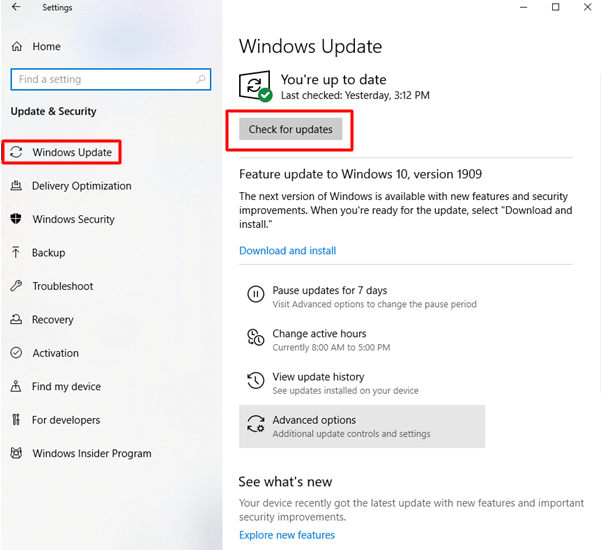
  • Now, choose Update & Security from the on-screen settings.Updates and Security
  • Now, check for updates. Check for Updates Button
  • Download the suggested updates and install them.
  • Lastly, restart your computer to complete the installation of the Windows 11/Windows 10 JADENS Thermal printer driver.

Updated JADENS Thermal Printer Driver Downloaded and Installed

This article highlighted various methods to download, install, and update the Windows 10/Windows 11 JADENS Thermal printer driver. You can follow any method from the above guide to get the needed driver. However, the best way to do so is through Bit Driver Updater, in our opinion.

If you know other better methods or have any questions about this article, always consider yourself free to contact us via the comments section.

Fix Windows 10 Computer Freezes Randomly Issue Easily

How to Fix Computer and PC Freezes Randomly (Top Fixes)

August 1, 2023
0

Randomly occurring Windows freezes are annoying but easily fixable. You can fix Windows 11/10 freezes effortlessly through the fixes shared in this article.

Many users complained their PC freezes randomly, particularly after updating their operating system. If you are also one of those users, we can understand how frustrating it can be if the computer freezes when you are engrossed in some crucial task.

However, now that you have arrived at this article, you can put all your worries aside. This article brings to light the best possible solutions to Windows 11 and Windows 10 freezes.

Before discussing these solutions, it is essential to know what may be the underlying causes behind these PC freezes while gaming and otherwise. If you know what may have caused your computer to freeze, fixing it becomes a cakewalk. Hence, let us first look at the same.

Why Your PC Freezes Randomly

Your computer may be freezing on startup, during gaming, or while performing any task on the PC for these reasons.

  • Too many concurrently running programs
  • Outdated or corrupted drivers
  • Overheating of the processors
  • There is no sufficient RAM
  • Incorrect BIOS settings
  • Virus infections
  • Damaged or missing system files
  • Not enough virtual memory

The above was a list of the most common reasons a computer freezes randomly. Now that you know what may have made your PC freeze, let us move toward the tried and tested fixes to this issue.

Fixes for Random Computer Freezes

You can apply these solutions to fix a Windows 10/11 PC that freezes randomly.

Fix 1: Close Unnecessary Programs

All programs need resources to run on your computer. If too many programs are running on your PC at the same time, your device may not be left with enough resources to support its functions, resulting in issues like the PC freezes randomly. Hence, you should follow these steps to close the programs running unnecessarily.

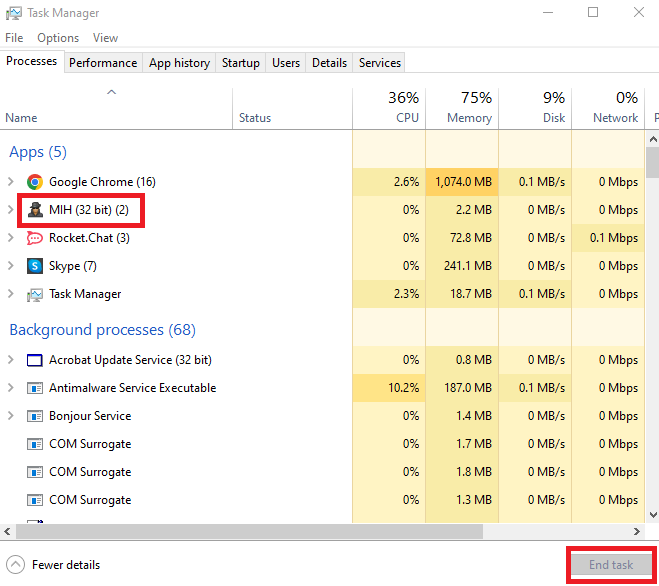
  • Firstly, right-click on the taskbar and choose Task Manager from the on-screen options.
  • After the Task Manager appears, locate the program you do not need (or the one that is frozen) and select it.
  • Lastly, click on the End Task button to close the selected program.End Task - Task Manager

Also Read: Best Junk File Cleaner For Windows


Fix 2: Update Device Drivers (Recommended)

A driver is a piece of software that helps your computer to communicate with the attached peripherals for the correct execution of your commands. Without a correct, compatible, and out-of-date driver, you may experience problems, such as random Windows 10 screen freezes or fatal system errors.

Hence, updating drivers is the most recommended and one of the sure-shot solutions to the problem you are struggling with. You can update the drivers on your computer automatically with a single click using a special program like Bit Driver Updater.

Bit Driver Updater is an automatic tool to update drivers with beneficial features, such as driver backup and restoration, acceleration of the driver download speed, scheduled scans for outdated drivers, and much more.

You can download and install this software from the following link.

Windows-Download-Button

After installing the software, please wait for a couple of seconds until the device scan completes. Once the scan results appear, you can review and Update All drivers with one click automatically.Update all outdated driver of your windows pc

If you want to update only a specific driver, you can select the Update Now button present alongside that driver. However, updating all drivers is always more beneficial to ensure your computer performs smoothly.


Fix 3: Rollback your OS to the previous version

If your Windows freezes randomly after updating the operating system, you can restore the previous version to fix the issue. Below is the series of steps to do it.

Note: Please note that you won’t be able to try this solution if more than ten days have elapsed since the last Windows update.

  • Firstly, bring up the Settings panel using the Windows+I keyboard shortcut.
  • Now, select Update & Security from the on-screen panel.Updates and Security
  • Choose Recovery from the left section of the Update & Security window.
  • Now, click on the Get Started button and follow the on-screen instructions to go back to the previous version of Windows 10.

Also Read: Best RAM Cleaner, Booster and Optimizer for Windows 10 PC


Fix 4: Check your computer for overheating

Excessive heat can damage your computer processor’s integrated circuit and can be a reason your Windows 10/Windows 11 PC freezes randomly. Hence, you should keep your computer adequately ventilated using fans or computer casing. You can use temperature monitor software to check and regulate your device’s temperature.


Fix 5: Upgrade your RAM

Insufficient RAM can cause many problems, including PC freezes while gaming. Hence, upgrading the RAM helps you fix the problem. Below is how to perform a RAM upgrade.

Note: You should read the owner’s manual carefully before trying the below steps and take professional help if required to upgrade the RAM.

  • Firstly, shut down your PC completely after saving your files and documents.
  • Now, unplug the accessories and power cables.
  • Press the power button and hold it for at least five seconds to discharge the remaining electricity in your computer.
  • Now, open the computer case carefully and upgrade the RAM or replace it.

Fix 6: Make adjustments in the virtual memory

Your computer uses virtual memory as temporary storage when it runs out of RAM, as it is an extension of your device’s physical memory. If the virtual memory becomes full, you may experience that your Windows 10 PC freezes randomly. Hence, you should adjust the virtual memory by following the steps below.

  • Firstly, press your keyboard’s Windows and Pause/Break keys simultaneously.
  • Now, select Advanced System Settings from the left pane.
  • Navigate to the Advanced tab and select Settings from the Performance section. 
  • Click on the Advanced tab and select the Change option from the Virtual Memory.
  • Make sure the Automatically manage paging file size for all drives is unticked.
  • Choose your Windows drive, i.e., the drive partition on which Windows is installed (usually it is the C: drive).
  • Now, input your virtual memory’s Initial size and Maximum size. The initial size depends on your computer. However, if you are unsure, you can enter the recommended value. Moreover, the maximum size should be about 1.5 times your physical RAM’s size.
  • Click on the Set button after entering the required values.
  • Lastly, click on the OK button to apply the changes.

Also Read: Best Registry Cleaner Software For Windows 10, 11


Fix 7: Reset BIOS settings to default

Incorrect or modified BIOS settings may be a reason your Windows 10 PC freezes randomly. Hence, you can reset your BIOS settings to default to solve the problem. Here is how to do it.

  • Firstly, click on the Start icon (Windows icon) and click on the Power button.
  • Now, restart your computer while holding the Shift key.
  • Once you enter the Windows Recovery Environment, select Troubleshoot from the on-screen options.
  • Now, go to Advanced Options and then go to UEFI Firmware Settings. 
  • Select restart to go into the BIOS settings.
  • Now, locate the BIOS setup defaults option in the BIOS settings screen using the arrow keys.
  • Once you locate the Load Setup Defaults option, select the same and press the Enter key.
  • Finally, press the F10 key on your keyboard to save the changes and exit BIOS.

Fix 8: Check for virus infections

Virus and other malware infections are also a factor responsible for a computer freezing on startup. Hence, you should use the best antivirus software to check for such infections on your PC.


Fix 9: Repair your system files

If there is anything wrong with the system files, i.e., they are missing or damaged, your computer’s performance is impacted significantly. Most often it becomes a reason your Windows 10 PC freezes randomly on startup. Hence, you may follow these steps to repair these files.

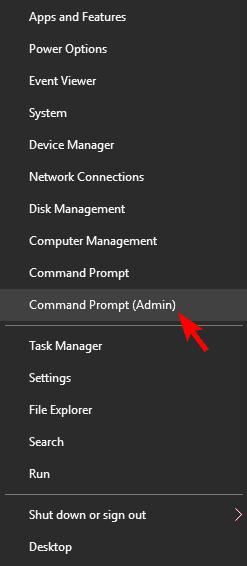
  • Firstly, use the keyboard shortcut Windows+X to bring up the quick access menu.
  • Now, select the option to run PowerShell (Admin) or Command Prompt (Admin).Command Prompt
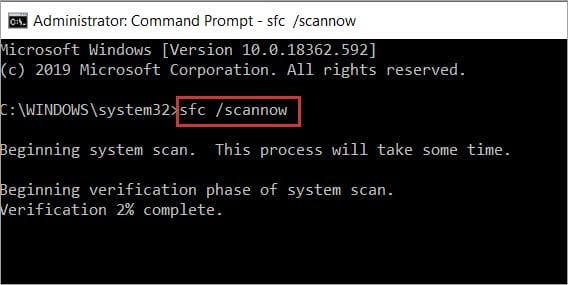
  • Input the command sfc/scannow in the on-screen window and press the Enter key.Command Prompt Open and Then Enter SFC-Scannow Command and Again Hit Enter
  • Lastly, wait for the process to complete and restart your computer after it completes.

Also Read: Best PC Optimizer Software For Windows 10, 11


Fixed PC Freezes Randomly

This article highlighted the fixes for the issues because of which your computer freezes randomly. We hope this article helps you make the most of your PC. However, if you have any questions or suggestions about this write-up, please feel free to share your views in the comments. It is now time for us to take your leave. We will return with another useful post soon. Until then, you can learn more about technology through our other posts.

1 Comment
    Macbeth says: Reply
    December 29th 2020, 12:10 pm

    Hello,

    Thanks for the great article !!

Leave a Reply Cancel reply

Your email address will not be published. Required fields are marked *

Sidebar Image bit G ad1

Latest Posts

  • Anytime Astro: Best Website For Online Astrology Consultation
    Anytime Astro: Connect Now For Online Astrology Consultation
    by Somya Shrimal / March 13, 2026
  • Best-Ways-to-Combine-Images-Into-PDF-Files
    Best Ways to Combine Images Into PDF Files
    by Niharika / March 12, 2026
  • Best FREE VPS Hosting Providers
    7 Best FREE VPS Hosting Providers in 2026
    by Devesh / March 12, 2026
  • Best-McAfee-alternative-software-to-use-for-Virus-Protection
    Best McAfee Alternative Software to use for Virus Protection
    by adminuser / February 11, 2026
  • What-is-Flip-Flop-in-Circuite-and-it's-Types
    What is Flip Flop in Circuit and its Types
    by Meet / February 6, 2026

Categories

  • Cyber Security
  • Driver Updater
  • Entertainment
  • Fitness
  • Games
  • How To
  • laptop
  • OS
  • Reviews
  • Tech News
  • Tips & Tricks
  • Top 10
Sidebar Image bit G ad1
9 Best Shareit Alternative for PC in 2024 - Instant Transfer Files 9 Best Shareit Alternative for PC in 2024 - Instant Transfer Filesby Tanmay Sharma / January 17, 2024
7 Best Pinterest Alternative Sites & Apps You Should Use in 2024by Jyotsana / January 17, 2024Best Pinterest Alternative Sites & Apps You Should Use in 2024
TechPout Footer Logo

We at TechPout promise to put forth stories that help people to learn and simplify their digital life. Our purpose is to share the true essence of technology with our tech-loving community.

Useful Links

  • About Us
  • Contact us
  • Privacy Policy

Popular Posts

  • Best PC Optimizer Software
  • Best Mac Cleaner Apps
  • Best Driver Updater
  • Duplicate Photo Finder and Cleaner Software
  • Best Free Movie Download Sites
  • Best IPTV Players

Follow us

Copyright © 2026 www.techpout.com. All rights reserved
DMCA.com Protection Status