Main LogoLight Logo
  • Reviews
  • Top 10
  • How To
  • Tech News
  • OS
    • Windows
    • MAC
    • iOS
    • Android
  • Categories
    • Driver Updater
    • Cyber Security
    • Games
    • Fitness
    • Entertainment
    • Tips & Tricks
Top 10 Windows
by Snigdha

16 Best Free DVD Burning Software For Windows In 2024

December 21, 2023
1

Wondering which is the best free DVD burning software for Windows 10 to burn data on the DVD? Keep on reading to find out.

Burning data on DVD is certainly old school but still in use because of advantages like the longest data storage capability, thereby serving as an indispensable backup medium to store important data files for a longer period of time. 

Earlier Windows DVD Maker used to support basic disc-burning functions but this facility is unfortunately no longer available. 

With the advent of technology, best DVD burning software has been developed that can offer the disc burning function along with other advanced features. From the ocean of apps, you can select software that is compatible with the OS of your PC, supports a huge range of video formats, and also suits your other needs.

Therefore, to help you find the right tool, we have curated a list of the 16 best DVD burning software in this article. 

Table of Contents hide
List of Best DVD Burning Software For Windows PC
1. BurnAware Free
2. AnyBurn
3. Movavi Video Suite
4. Ashampoo Burning Studio Free
5. Aiseesoft DVD Creator
6. CDBurnerXP
7. Nero Burning ROM
8. InfraRecorder
9. DVDStyler
10. WinX DVD Author
11. DeepBurner Free
12. Wondershare DVD Creator
13. IMGBurn
14. True Burner
15. Express Burn Plus Edition
16. DVDFab DVD Creator

List of Best DVD Burning Software For Windows PC 

With the best free DVD burner software, you can easily burn audio, image, and video files to CDs, DVDs, and Blu-ray discs and store them securely for a long time. 

1. BurnAware Free
BurnAware Free - DVD Burning Software

Compatibility:- Windows XP, Vista, 7, 8, 8.1, or 10

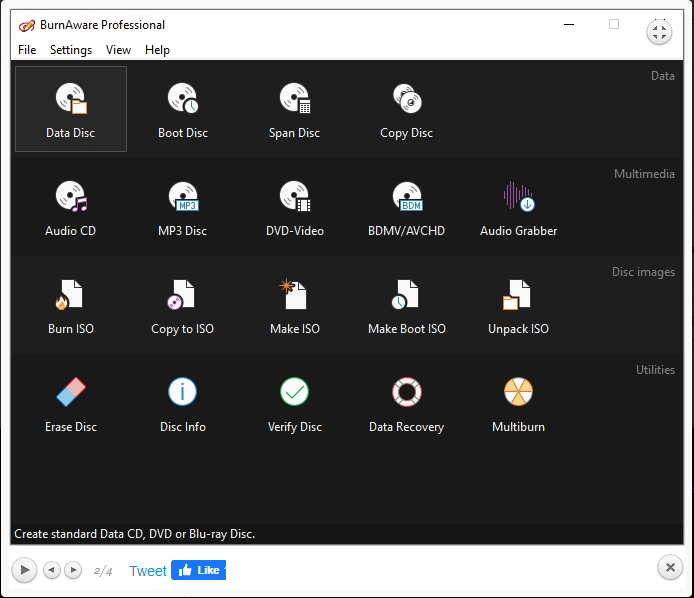
If you are looking for the best DVD burning software with efficient features and enhanced data editing capability, then go for BurnAware Free. Users can write all types of files such as digital photos, documents, archives, music, and videos to CDs, DVDs, and Blu-ray Discs. 

Read Also: Best Free DVD Ripper Software for Windows 10

Key Features:

  • It lets you create high-quality bootable and multisession discs.
  • The tool can also help in extracting audio tracks.
  • You can erase and verify data easily.
  • Copy and backup discs, and burn ISO images with this tool.
  • It can even recover data from the multi-session or unreadable discs.

Pros

  • Easy and Clean interface
  • Absolutely free for personal use
  • Over-loaded with lot of ultimate options to burn files
  • Stable burning process
  • Low CPU usage
  • Multilingual

Cons

  • Not free for commercial use
  • Connects with third party software
REASONS TO BUY REASONS TO AVOID
  • Easy to use
  • Simple UI
  • Different types for Presets
  • Supports DVDs, CDs, Blu-Rays
  • Extra tools required by the installer

2. AnyBurn

AnyBurn

Compatibility:- Windows 7, 8, 10 and Linux 

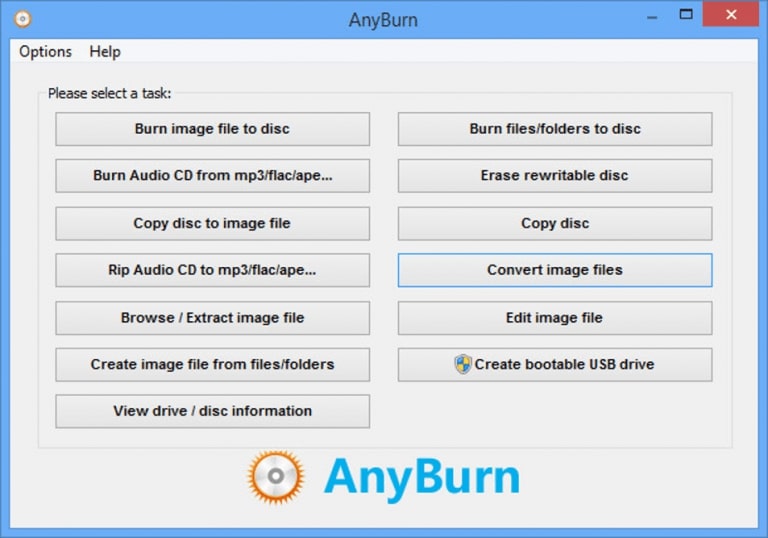
Our next pick is AnyBurn in the list of best free DVD burning software for Windows 10 as it is one of the best freeware available in the market. 

This tool is light on resources, yet it doesn’t deter it from supporting some professional features that are difficult to find even in some other significant freeware tools. 

Key Features:

  • Has a responsive UI.
  • Supports burning all kinds of disc types and all sorts of formats.
  • Available in a fully functional portable version.
  • Lets you burn folders, files, images, etc.

Pros

  • Ad free
  • Lightweight DVD burning software
  • 100% free for both home and business use
  • You can easily convert disc image files between numerous formats easily and quickly
  • Compatible with both 32-bit and 64-bit Windows

Cons

  • Sometimes lags in terms of working
  • Not the best interface
REASONS TO BUY REASONS TO AVOID
  • Quite lightweight
  • Quick execution
  • My show Operation failures and lags

3. Movavi Video Suite

Movavi Video Suite

Compatibility:- Windows 11, 10, 8, 7, macOS

Due to the fact that it includes a large number of menu themes, this free DVD burning software for Windows 10 is the finest option available. On the other hand, it is only concerned with the production of video DVDs and does not support audio. Not only does it have the power to run on several platforms, but it is also open-source shareware that is built on a safe and strong base.

Key Features:

  • You are able to personalize the backdrop, the text, the photographs, and such.
  • The Movavi Video Suite program makes it simple to build menus for DVDs.
  • The Movavi Video Suite installer includes a free copy of Avast Antivirus as part of its package.

Pros

  • It is possible to add a number of different audio tracks and subtitles.
  • enables the creation of picture slideshows
  • Among the parameters of graphic objects and buttons, you have the ability to alter the color, font size, font style, and other factors.
  • has full support for processors with many cores
  • User interface that is simple to operate
  • Functionality that allows for effective drag-and-drop

Cons

  • Extremely Professionals
  • Multiple Software bundles
REASONS TO BUY REASONS TO AVOID
  • Simple and modern user interface
  • Supports a variety of operating systems
  • A variety of menu variations
  • Majorly works as a video suite

4. Ashampoo Burning Studio Free

Ashampoo Burning Studio Free

Compatibility:- Windows 7, 8, 10 

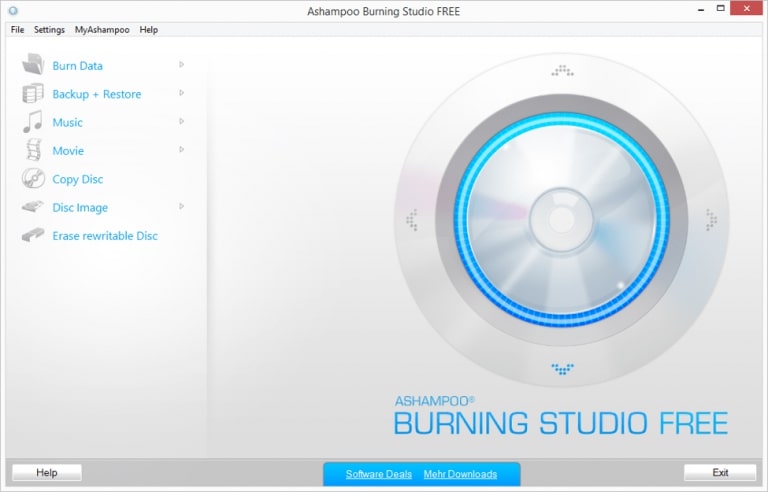
You can do plenty of tasks with this best DVD burning software like you can burn and rip audio CDs, data discs, video discs, and Blu-ray discs. 

It also comes with a scratch protection facility to create data discs which will remain readable even after sustaining scratches and tampering. The built-in compression helps to compress files easily.

Key Features:

  • It is enabled with an in-built video editor.
  • You can also store and create password-protected backups of your data on discs and external drives. 
  • It also lets you burn HD and Full HD movies (720p and 1080p) completely free of cost. 

Pros

  • You can burn multiple formats at a same time
  • Free and fast disc burner
  • Customizable burning settings
  • Powerful backup technology
  • Allows to burn ISO images as well

Cons

  • Interface is quite complex for beginners
  • Free version has limited access
REASONS TO BUY REASONS TO AVOID
  • Simple UI
  • Multiple data presets
  • Supports multiple devices
  • Requires registration

5. Aiseesoft DVD Creator

Aiseesoft DVD Creator

Compatibility: Windows 11,10, 8, 7, and Mac

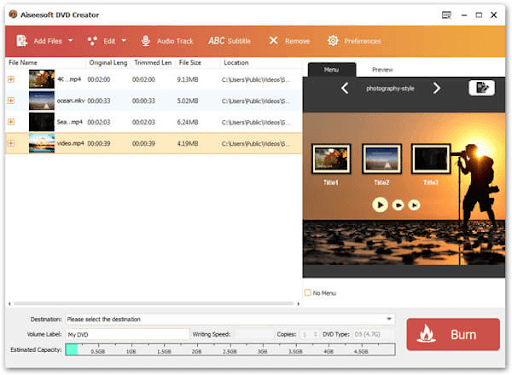
Let us introduce you to Aiseesoft DVD Creator. It is among the best DVD burning software for Windows to burn images, video, and audio to DVD folders/discs with top-notch quality. In addition to high-quality burning and customizable menus, the following features contribute to justifying the position of this software on our list.

Key Features:

  • Adds a customized logo/watermark to the DVD before performing the burning action
  • Support for the addition of SRT, SSA, ASS, and SUB subtitle files
  • Allows adjustment of subtitles
  • Continuous DVD template menu updates

Pros

  • Supports many audio, image, and video formats
  • Availability of a plethora of DVD authoring options
  • Easy-to-use tools for video editing
  • Fast video burning

Cons

  • No Blu-ray disc burning in the free version
  • Video editing or creation is not available for free
  • Supports videos only up to 1080p
REASONS TO BUY REASONS TO AVOID
  • High personalization
  • Greater control over DVD creation
  • Limited features in the free version

6. CDBurnerXP

CDBurnerXP

Compatibility:- Windows XP, Vista, 7, 8, 10, and Windows 2000 

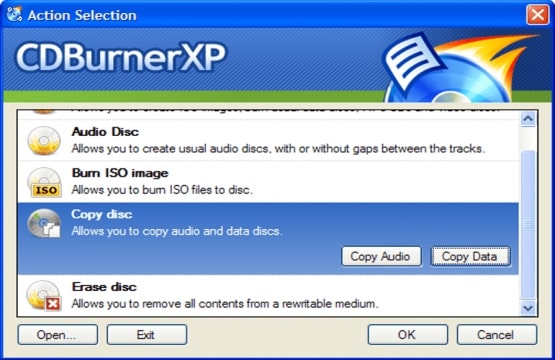
This is an excellent free DVD burning software for Windows. It has a simple, multi-language UI and is lightweight. There is an in-built music player and also lets you add tracks directly to the compilation list without the need to rip them first.

Key Features:

  • The tool supports burning DVDs, CDs, Blu-ray discs, and HD DVDs.
  • It lets you burn and create ISO files to CD. 
  • It supports rewritable discs and is capable of verifying data after completing the burning process.
  • The tool can also burn various types of file formats including MP3, AAC, WAV, OGG, etc.

Pros

  • Supports many disc formats
  • Completely free to use for everyone, even for companies as well
  • Equipped with lots of good features
  • Compatible with multi-session discs
  • Creates bootable discs
  • Multi-language user interface (UI)

Cons

  • Interface looks outdated
  • Video burning capacity is not so good enough
REASONS TO BUY REASONS TO AVOID
  • Optimal performance
  • Supports low-end PCs
  • Unique features
  • Old UI
  • No support for the new OS

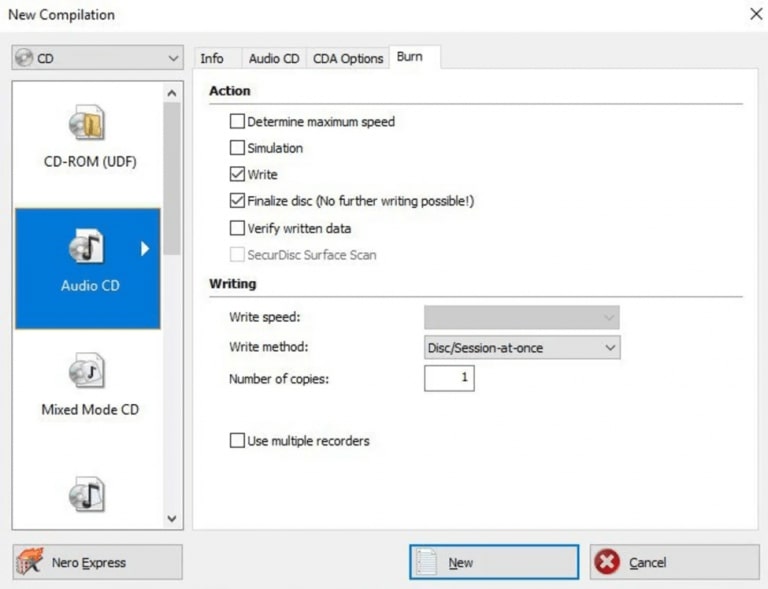
7. Nero Burning ROM

Nero Burning ROM

Compatibility:- Windows 10, 8, 7 

This best free DVD burning software has been in business for quite a long time and is highly suitable for professional use. This software has an intuitive interface with advanced features. The burning process is very fast with this tool.

Key Features:

  • It can be used to copy CDs, DVDs, and Blu-ray discs. 
  • It offers a SecureDisk feature with password/digital signature protection.
  • The DiscSpan feature allows spreading excess content into other discs.
  • The app also offers tech support via live chat. 

Pros

  • Easy and fast access
  • Has a loads of DVD burning options
  • Highly capable to burn every kind of media and file
  • SecurDisc 4.0 technology for data protection

Cons

  • The interface seems outdated
  • No free version available
REASONS TO BUY REASONS TO AVOID
  • One of a kind
  • Multiple OS support
  • Live Support
  • Complicated

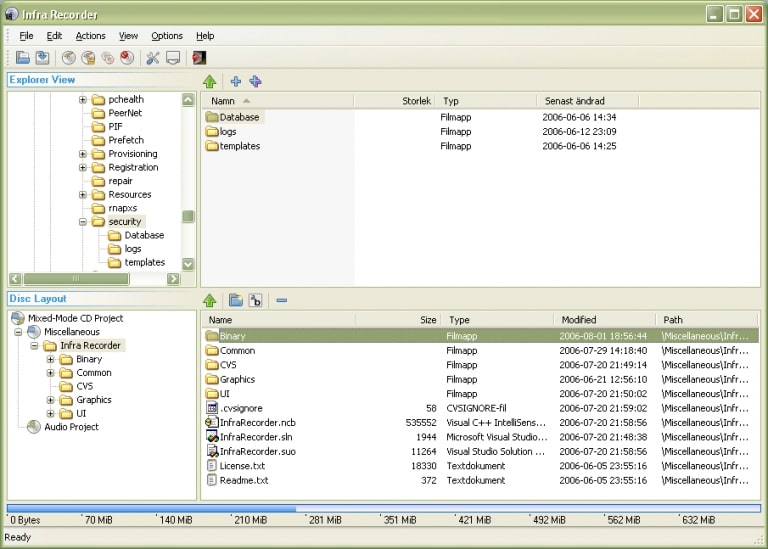
8. InfraRecorder

InfraRecorder

Compatibility:- Windows 10, 8, 7, XP and Vista 

We have included InfraRecorder as our next tool in the list of best DVD burners because it lets you rewrite disks in more than one way. With an interactive and simple UI, you can use this tool very easily. Let us take a closer look at its offerings and features:

Key Features:

  • You can record audio in WAV, WMA, OGG, and MP3 formats.
  • Includes support of dual-layer discs.
  • Lets you create ISO files of DVDs and CDs.
  • You can erase rewritable discs with 4 different methods.

Pros

  • Quick access and easy control
  • Has the full support for dual-layer discs
  • Completely free CD/DVD burning software
  • Erases rewritable discs
  • Detailed disc information

Cons

  • Lacks the advanced features
  • No regular software updates
  • Customer support is not so good
REASONS TO BUY REASONS TO AVOID
  • Attractive UI
  • Easy to Use
  • Multilingual
  • Fixed update
  • Limited functionalities

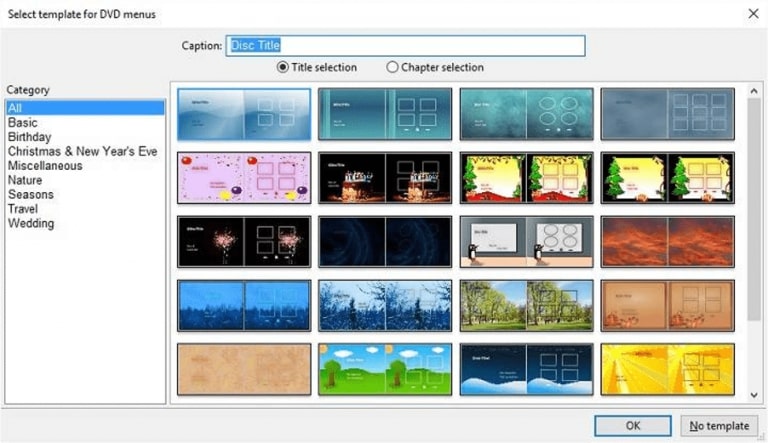
9. DVDStyler

DVDStyler

Compatibility:- Windows 10, 8, 7 and Linux 

This is the best free DVD burning software for Windows 10 as it comes with a lot of menu templates. It doesn’t support audio and focuses completely on the creation of video DVDs. It is also enabled with cross-platform capability and is a Linux-based open-source freeware.

Key Features:

  • The DVDStyler installer comes with a copy of Avast Free Antivirus.
  • You can create DVD menus easily with DVDStyler.
  • You can customize the background, text, images, etc.

Pros

  • Easy to use interface
  • Has a complete support for multi-core processor
  • You can change the color, font size, font style and other parameters of graphic objects and buttons
  • Effective drag and drop functionality
  • Helps create photo slideshow
  • Allows to add multiple subtitles and audio tracks

Cons

  • Not good enough for professionals
  • Bundleware
REASONS TO BUY REASONS TO AVOID
  • Multiple menu styles
  • Supports other OS
  • Easy UI
  • A little outdated
  • Incompatible with audio and data

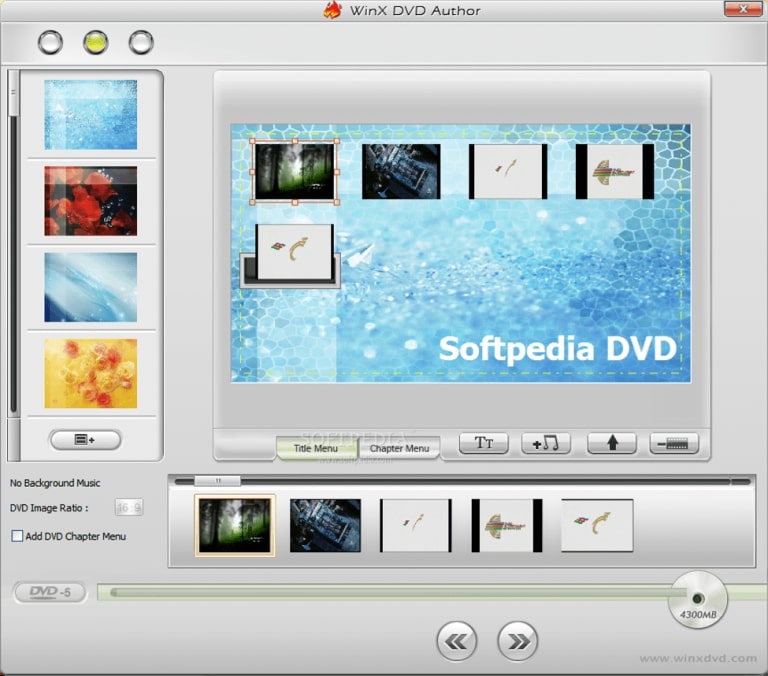
10. WinX DVD Author

WinX DVD Author

Compatibility:- Windows 10 

The DVDs burned with the help of this best free DVD burning software for Windows 10 usually have a high output quality. It is enabled with a powerful in-built video encoder. 

It also lets you add subtitles and can help you set the aspect ratio accordingly. This tool can help create video DVDs and burn data files into discs. 

Key Features:

  • It can easily convert video files into VOB format.
  • It also helps to collect a number of VOBs to make a complete DVD with menus.
  • WinX DVD Author offers a built-in tool to download videos from YouTube. 
  • This tool also supports basic video editing activities like trimming.

Pros

  • With this, you can design menus and add subtitles
  • Quick access and extremely easy to use
  • You can use it at no cost
  • Accurate and stable

Cons

  • Can’t create an ISO file
REASONS TO BUY REASONS TO AVOID
  • Customizable UI
  • Direct support for YT videos
  • Quick Execution
  • No support for audio discs

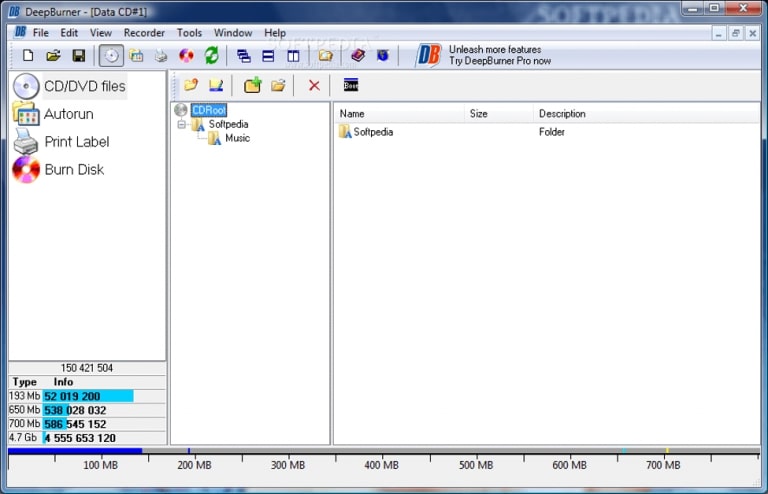
11. DeepBurner Free

DeepBurner Free

Compatibility:- Windows 10 

Being another free DVD burning software for Windows, this program is available as a portable app that makes it easy to be carried on USBs and used across various systems. 

Read More: Best Free DVD Player Software for Windows 10

Key Features:

  • It can be used to burn data CDs, audio CDs, DVDs, and bootable discs.
  • This application can help create multiple disk copies.
  • It also helps to handle external as well as internal CD/DVD writers. 

Pros

  • Can burn CDs, Audio CDs, DVDs, and even a bootable discs
  • You can make multiple disc copies
  • Create disc backups
  • Ability to create video DVDs and ISO images

Cons

  • Little bit tricky for newbies
  • Not compatible with the older versions of Windows
REASONS TO BUY REASONS TO AVOID
  • Portable software available
  • ISO compatible
  • Easy UI
  • Incompatible with video images


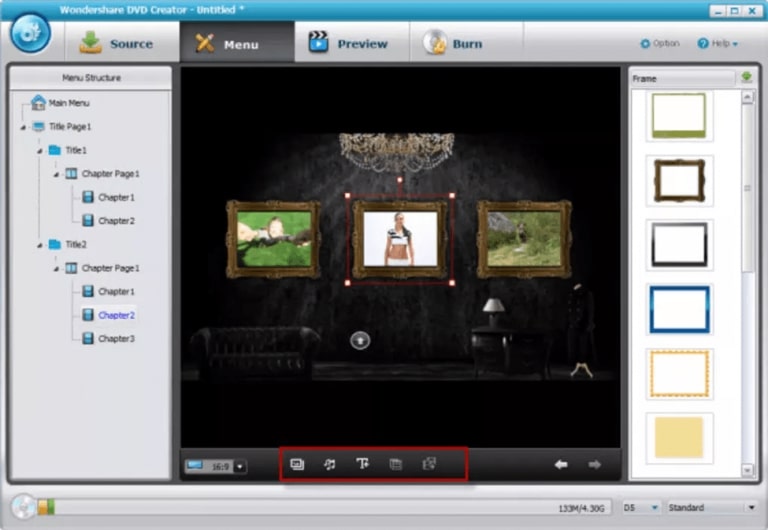
12. Wondershare DVD Creator

Wondershare DVD Creator

Compatibility:- Windows 10, 8, 7, XP, Vista and macOS. 

This is a complete solution for mitigating all DVD related issues and hence we have put it in our list of best DVD burner software. With an attractive UI, you can use this tool to burn videos in 150 formats to DVD/Blu-ray disc/folder/ISO, etc. It is ideally a video converter tool that helps in burning CDs and DVDs.

Key Features:

  • It allows you to edit DVDs with the built-in video editor like trimming, cropping, adding watermark, and also adding subtitles. 
  • It also supports burning music to CD.
  • You can burn the data disc for backup.

Pros

  • Attractive user-interface
  • Equipped with built-in video editor
  • Backup and Restore functionality
  • Can burn videos in more than 140 formats

Cons

  • Complicated interface for beginners
REASONS TO BUY REASONS TO AVOID
  • Up and coming tool with advanced features
  • Multiple system support
  • Complicated for some
  • Fewer advanced features

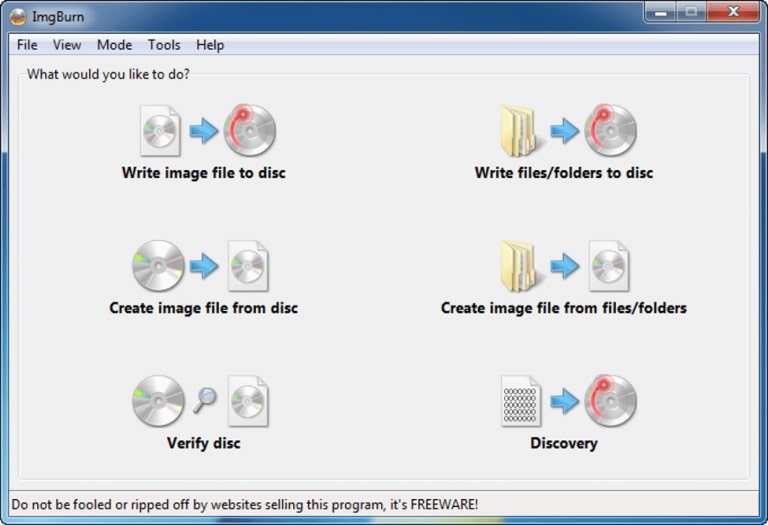
13. IMGBurn

IMGBurn

Compatibility:- Windows 

If you are still in search of a free DVD burning software for Windows, then IMGBurn is worth trying as it burns data and files instantaneously. The application is also capable of verifying if a disc is 100% readable and it can also be used to compare an image file to ensure if the data is correct or not.

Read More: Best Windows 10 Customization Software

Key Features:

  • It also supports Unicode folder/file names. 
  • It supports discs with different sorts of formats.
  • With advanced features, the tool can be customized easily.

Pros

  • Simple and ease navigation
  • Can be accessed by anyone
  • 100% free
  • Lightweight CD/DVD/Blu-ray burning software
  • Supports multiple image file formats

Cons

  • No extra features
  • Not so good interface for professionals
REASONS TO BUY REASONS TO AVOID
  • Supports Unicode
  • Advanced features
  • Old UI

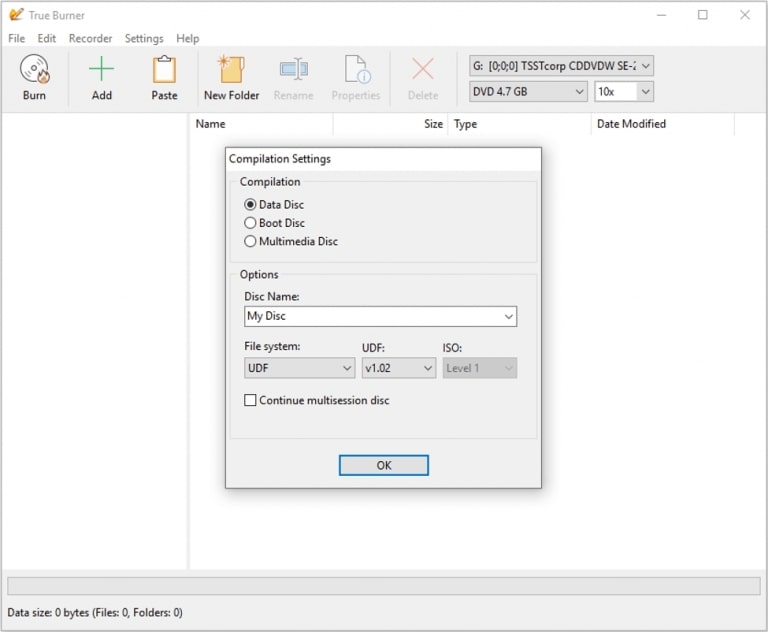
14. True Burner

True Burner

Compatibility:- Windows 10, 8, 7, XP and Vista 

This is an easy-to-use free DVD burning software for Windows that can burn standard and multisession CD/DVD/Blu-ray discs. It is a lightweight app with an attractive interface.

It is capable of checking written files and discs for errors and can also erase rewritable CD, DVD, and Blu-ray discs effortlessly.

Key Features:

  • It supports burning bootable CD/DVD/Blu-ray discs.
  • You can create data, audio, and video discs easily.
  • The tool is easy-to-use.

Pros

  • Can burn multisessions and standard DVDs, CDs, or Blu-ray discs
  • Lightweight application
  • Highly capable of validating discs for errors
  • Absolutely free for personal use

Cons

  • The interface looks outmoded
  • For company use, you need to buy its professional version
REASONS TO BUY REASONS TO AVOID
  • Creates bootable drives
  • Multiple features
  • Simple UI
  • Lack of advanced features

15. Express Burn Plus Edition

Express Burn Plus Edition

Compatibility:- Windows XP, Vista, 10, 8 and 7 

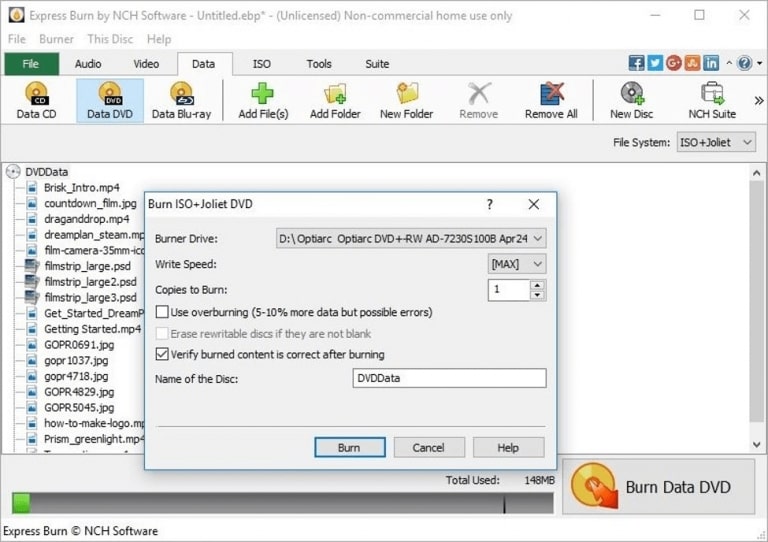
Express Burn disc burning software comes with a user-friendly interface that provides quick and easy access to all the features and tools that are needed to create and record discs easily.

This super-fast, user-friendly best free DVD burner tool burns audio, video, and data files to CD, DVD, or Blu-ray.

Read More: Best Driver Updater Software for Windows PC

Key Features:

  • It is enabled with a myriad of advanced features for automation.
  • Supports integration with other applications. 
  • It also supports dual-layer DVD/Blu-ray burning.

Pros

  • Directly drag & drop files into the application
  • Highly compatible with dual-layer DVDs
  • Extremely fast disc and ISO burner
  • Custom DVD authoring
  • Allows to make bootable data discs

Cons

  • Might confuse the newbies
  • Free version only allows to burn CDs
REASONS TO BUY REASONS TO AVOID
  • Supports low-end PC
  • Works Smoothly
  • Not for beginners

16. DVDFab DVD Creator

DVDFab DVD Creator

Compatibility:- Windows 7, 8, 8.1, 10, and Mac

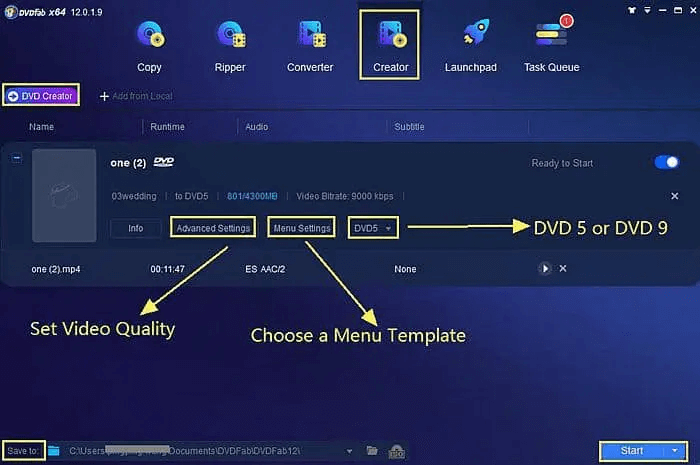
This DVD burn software is free to use for Windows and Mac. It offers a great features list which makes the software a great performer. In the software, you get features like a copier, rippers, and converter. Using the software you can easily convert from Blu-ray, 4K Ultra HD, and DVDs easily. Apart from the offerings, the software has a very easy-to-use interface. Once you launch the software you have to click on the Creator option, then choose DVD Creator mode and at last + button to add videos. By looking at the user review this software can be considered as the best free burning software for Windows 10 and older versions.

Key Features:

  • You can easily burn DVD discs to popular formats easily
  • The free version can read all major file formats
  • The software will be copied in 1:1 file input
  • It offers a menu that is fully customizable according to requirements

Pros

  • Easy to adapt interface
  • Easily create audio DVD in a mainstream format
  • All major file formats supported
  • Free trial available

Cons

  • Not available for older Windows OS
REASONS TO BUY REASONS TO AVOID
  • Attractive UI
  • Multiple OS support
  • Keeps file integrity
  • Not for low-end old PCs

Read More: Best Context Menu Editors For Windows 10


Frequently Asked Questions

Q1. Does Windows 10 offer a DVD burning software?

Yes, Windows 10 includes an in-built CD/DVD burning feature in the File Explorer. The File Explorer pops open as soon as you insert the DVD, CD, pen drive into the system.

You can burn MP3, WMA, WAV, AVI, MP4, MKV, WMA, FLV, etc. files into the DVD disc with the File Explorer.

Q2. Differences between Windows 10 DVD burner and third-party DVD burner software

The major difference that can be observed between Windows 10 DVD burner and third party DVD burner is that users get limited options for burning in the built-in DVD burner. Whereas on the other hand, the third-party software offers loads of features that can be useful in burning DVDs. 

Q3. Can Windows Media Player be used to burn a DVD?

With Windows Media Player, you can certainly burn DVDs but the only limitation is that it can only be played on computers and DVD players that support such file types which you have burned into your disc.

Q4. Is the burning of a DVD a legal process?

Yes, the process of bruins DVD is legal. The copyright law allows the distribution of copyrighted material by the copyright holder. Though, it is not allowed to burn CDs and pass the copy to others.


Conclusion

You have hopefully found the best free DVD-burning software for Windows from this article that can help you perform the day-to-day tasks easily.  

You can also take help of the File Explorer in Windows to burn files into discs. However, third-party DVD burner freeware offers plenty of customized advantages with a myriad of features and benefits.

Do let us know if you have any other suggestions for free burning software that we might have missed to mention in the article above. 

Author

Snigdha

Snigdha is a technical content writer with expertise in the field of science & technology. Though she has a very diverse academic and professional profile yet she finds writing to be a creative form that she was unable to explore so far. When not writing, she can be found indulging in other forms of creativity like painting or travelling.

View all posts

Related Posts
How to Fix DirectDraw Error in Windows 10, 11 (FIXED)

How to Fix DirectDraw Error in Windows 10, 11 (FIXED)

April 3, 2023
0

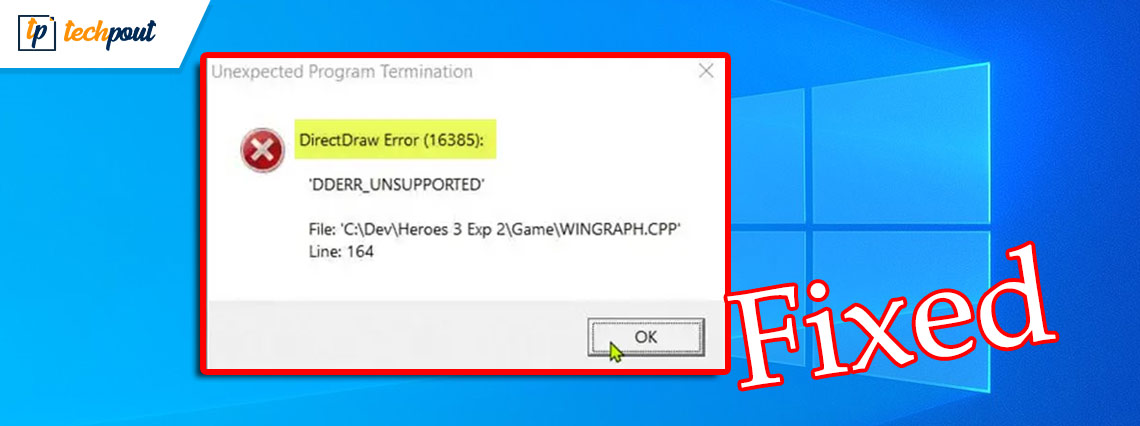
Here is a simple guide that will allow you to fix DirectDraw error on Windows 11/10 very easily. 

DirectDraw is an app or API for Windows devices that enhance the 2D imaging in various apps. Although the API is quite old, some devices still use the same for 2D imaging. You can run various tools and software using this API but, at times, when the system fails to read the API, your system shows the DirectDraw error.

This error is quite common in Windows 11 and Windows 10 devices and appears repeatedly if you don’t do anything to fix it.

With the help of this guide, we will explain some methods to fix DirectDraw Windows 10/11 error with ease.

Solutions to Fix DirectDraw Error Windows 11

Below are some easy solutions that will allow you to get rid of all the errors related to DirectDraw Windows 11/10 and fix the DirectDraw error right away with ease. We suggest that you follow the solutions chronologically until the issue is resolved.

Fix 1: Ensure that DirectX is Updated

The first thing that you should do if the DirectDraw errors appear is to check whether the DirectX installed on your system is up to date or not. DirectX allows the system to make the best out of your graphics cards and run various games, software, and utilities with ease on Windows. You can easily ensure the update using the Windows DirectX Diagnostic Tool. Follow these steps below to know how to use the utility:

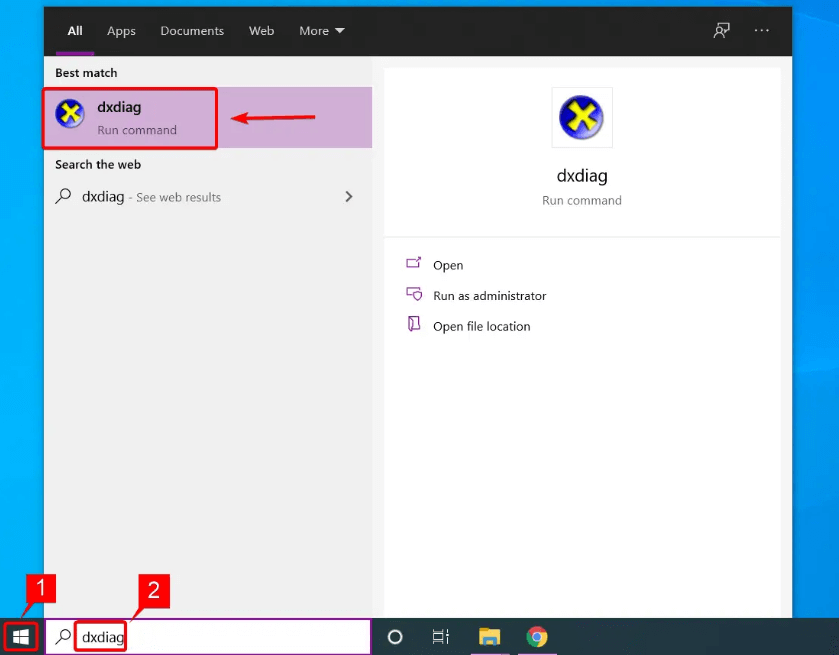
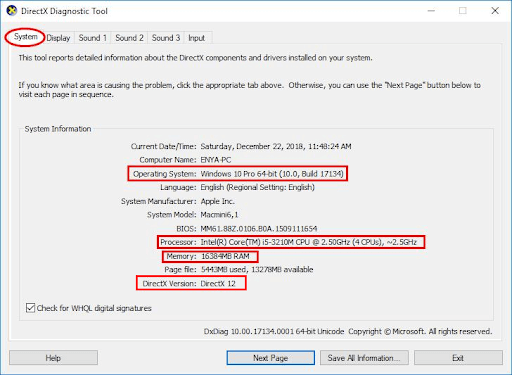
  1. Press the Win+S keys, type dxdiag, and press Enter to proceed.Select Best match Result To Open DirectX Diagnostic Tool
  2. Wait for the DirectX Diagnostic Tool to load. Check for the DirectX Version under the System tab. For your reference, we are sharing the DirectX Version that should be available on Windows with the table below
DirectX Version Windows Version
DirectX V11.3 or V12 Windows 10/11
DirectX V11.2 Windows 8.1
DirectX V11.1 Windows 8
DirectX V11.0 Windows 7

Directx Diagnostic tool window

If the DirectX version is outdated, then you can visit the official website of the provider to download the DirectX End-User Runtime Web Installer and use the same to install the latest and supported version on your Windows device.

If you find that the version of DirectX is already up to date, then you should try the next solution to fix DirectDraw Windows 11.

Also Read: [Fixed] DirectX Encountered an Unrecoverable Error


Fix 2: Enable DirectX, DirectPlay, and DirectDraw

The next solution that you can try to fix the DirectDraw error on Windows 11/10 is to enable some settings related to DirectX and DirectDraw. Sometimes, the system disables certain features of DirectX to make it run properly. However, instead of running proly, it may cause such problems. The best fix for this problem is to enable all the services using the steps below:

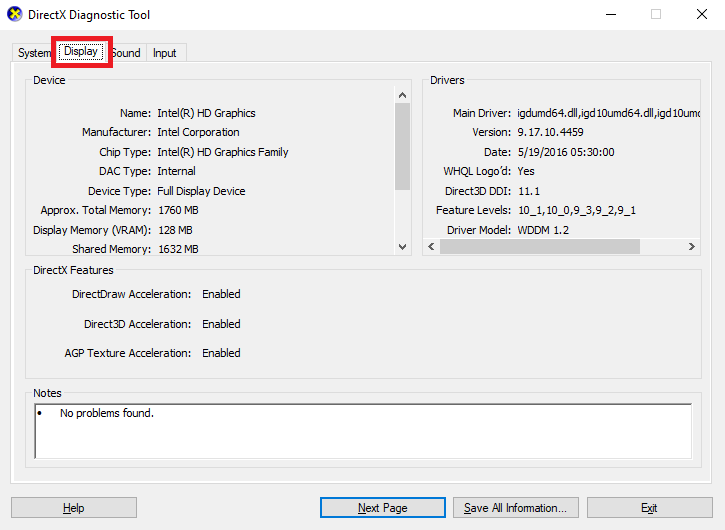
  1. Press the Win+S keys, type dxdiag, and press Enter to proceed.Select Best match Result To Open DirectX Diagnostic Tool
  2. Click on the Display tab.Display - DirectX Diagnostic tool
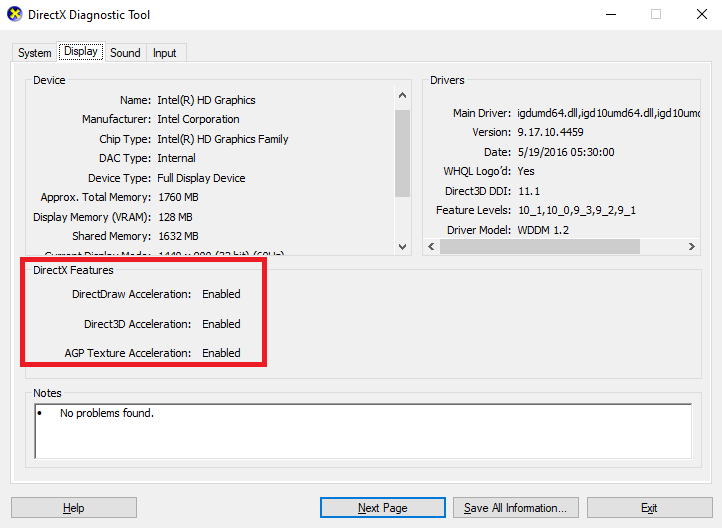
  3. Under the DirectX Features section, look for DirectDraw Acceleration and Direct3D Acceleration and ensure that both are Enabled.DirectX Features
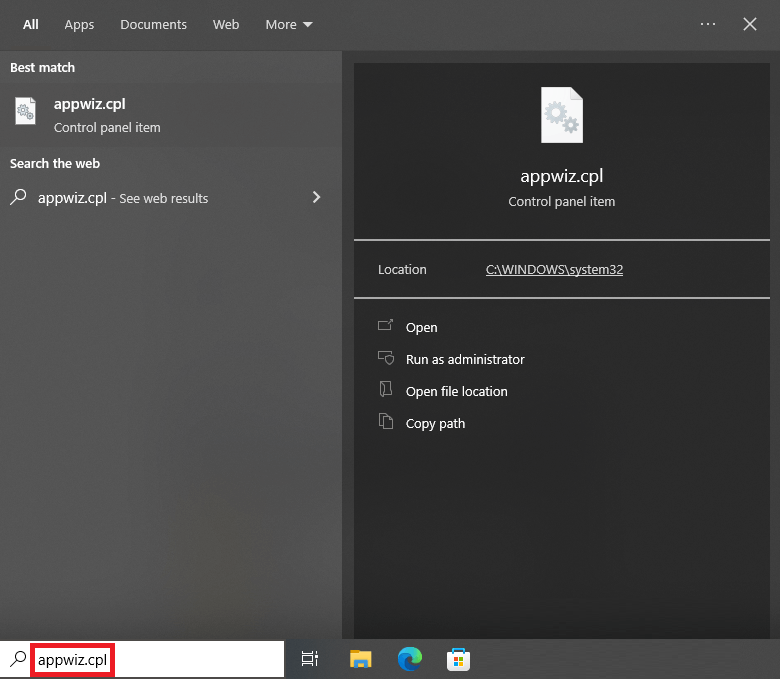
  4. If either of the two is disabled, press the Win+S keys, copy and paste appwiz.cpl, and press Enter.Open appwiz(dot)cpl
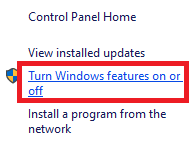
  5. On the left section, click on Turn Windows features on or off.Turn Windows features on or off
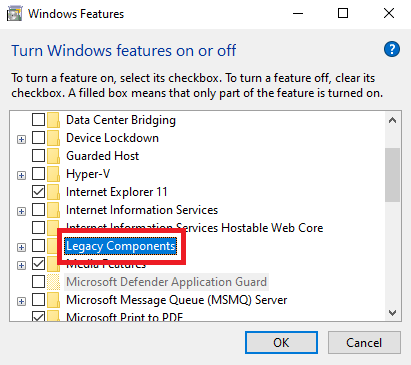
  6. Look for Legacy Components in the menu and click on Plus (+) to expand.Look for Legacy Components
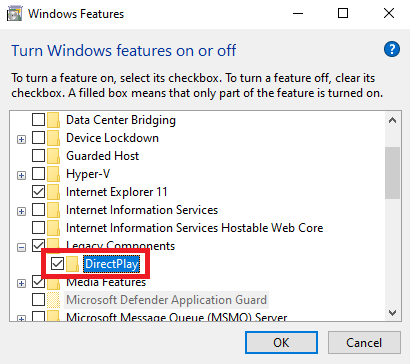
  7. Tick mark the box across DirectPlay to continue and click on Ok.Tick mark the box across DirectPlay

If this solution does not work for you, then you can try the next alternative that will surely fix the problem with ease.

Also Read: How to Update DirectX to Latest Version in Windows 10 {Quick Tips}


Fix 3: Update the Graphics Driver to Fix the DirectDraw Error on Windows

Outdated drivers are one of the most common reasons why the errors related to DirectDraw Windows 11/10 may appear. When the drivers are outdated, the system fails to communicate with the hardware smoothly and starts causing different troubles. So, the best solution to fix such problems is to update the drivers.

There are multiple ways to download and install any driver. For example, you can seek the help of the official website, use the Device Manager, or download a third-party tool. Out of the three, the last one is the perfect and easiest solution to update drivers. There are multiple third-party tools that you can use. However, all of these are not viable or reliable.

Hence, you should use the best driver updater tool named Bit Driver Updater for ease. This is an amazing solution that offers multiple functionalities like single-click updates, active driver backups, options to restore drivers, the facility to ignore the updates for any driver, and more.

Follow the steps provided below to know how to use Bit Driver Updater and fix the DirectDraw error:

  1. Using the below button, download the Bit Driver Updater setup.Windows Download Button
  2. Install the software and run it on the system.
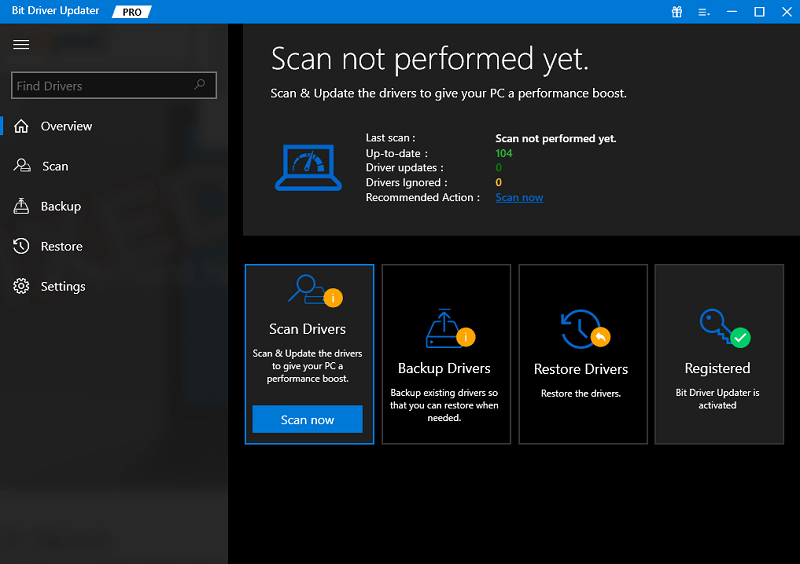
  3. The tool will start scanning your system for the latest updates automatically. If the scan does not start due to any reason, click on the Scan Now button.Scan outdated driver of your windows pc
  4. After the list of updates appears, click on the Update All button to install the newest version of all the drivers.Update all outdated driver of your windows pc
  5. Restart the system when the tool asks you to restart.

The above is an easy solution that allows you to fix the problem right away in most cases. However, if due for one reason or another the DirectDraw problem on Windows persists, follow the last and the ultimate solution.


Fix 4: Run in Compatibility Mode

If you are facing the DirectDraw error in a particular game, app, or software, then you need to run the same in the compatibility mode. This will allow the system to get the required settings to run freely. Follow the steps provided below and run anything you want perfectly:

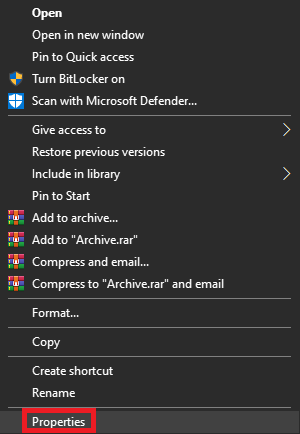
  1. Right-click on the game or app you want to run and open its Properties.Properties
  2. Go to the Compatibility tab to proceed.
  3. Check the box of Run in 640 x 480 screen resolution and click on Ok.

DirectDraw Error in Windows 10, 11: Fixed

Here we are going to sum up this entire thread of articles on how to fix DirectDraw Windows 10. We hope that by using one or more of these solutions, you can easily get rid of the issue. However, if you need any kind of assistance with any topic, then you can seek our help using the comments section below. Explain your doubts and get the perfect solutions for the same.

If you liked this problem-solving guide on DirectDraw error, then subscribe to our newsletter. Follow us on Facebook, Twitter, Instagram, and Pinterest.

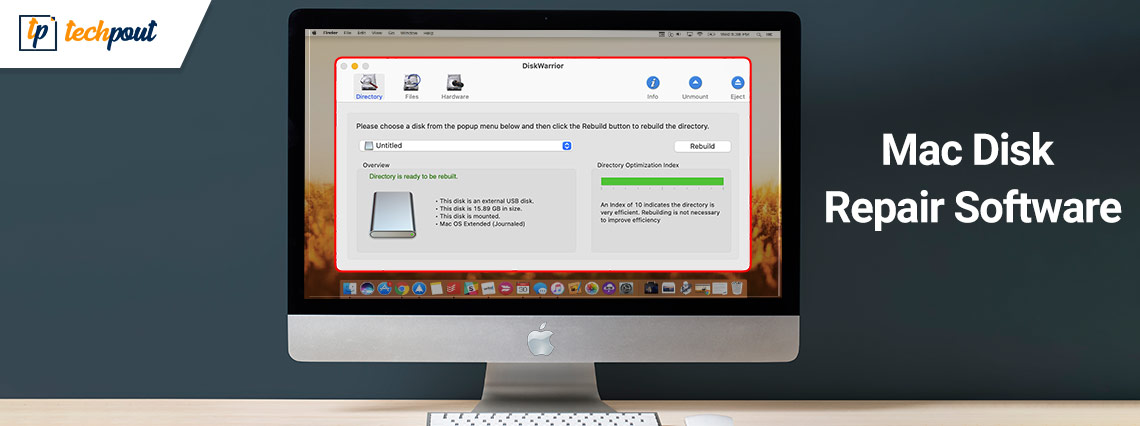
Best Mac Disk Repair Software

7 Best Mac Disk Repair Software in 2024 (That Works)

February 5, 2024
0

Here is the list of the best Mac disk repair software for you in 2024 that can help you run your Mac devices without any problems. 

Just like any other device, your Mac may slow down over time. This happens because the system either gets more and more accumulated files or the disk simply crashes or works while bearing some kind of damage. Sometimes, you may think that your system is running slow because of the accumulation of files but even deleting them won’t help. In such cases, the reason behind a slow working or lagging macOS is disk damage.

A viable Mac disk repair software can help you with this issue. Like the name, the disk repair software for mac will look for the damage on the disk and patch or repair the same for you.

When you surf the internet, you will find a lot of alternatives that will pose as the best Mac Disk Repair software. However, you can not trust all of these tools. Some scammers and hackers may also create and introduce malicious tools to access your data. Hence, to be safe, you can take the help of the Mac disk repair software provided in this guide. We have conducted thorough research and then listed the tools for you. All of these are quite reliable and easily repair your Mac disk within a couple of minutes.

However, before turning into the tools, let’s know the metrics you should use to judge a tool as the best.

What Makes Mac Disk Repair Software As The Best?

Different requirements of different users can affect the judgment for the best disk repairing software for Mac. However, we have summed up some metrics or specifications on which the users generally judge the tool to be the best or the worst, and everything in between. Below are these metrics:

  • Damage Repairing

The first and the most reliable factor that makes any tool the best is the damage-repairing abilities. If a tool offers reliable and trustworthy repairing services, then the user can easily rely on the same for usage. Additionally, the software should also have the properties to fix the corrupted drives if necessary.

  • Ease of Use

Another factor that attracts the user to any Mac disk repair utility is the ease of use. As not every user is a professional or expert in getting the most out of the mac, the tool you choose should have a simple interface that takes care of all your disk repairing requirements with ease.

  • SMART Goals

The software can only be the best if it meets the SMART (Specific, Measurable, Achievable, Relevant, and Time.Bound) metrics. If your tool meets all these criteria, then you can use such a tool for your requirements.

  • Updated Mac Support

As you may know, the creators and developers of the macOS at Apple, release regular updates for the OS. Hence, a good or even the best tool is one that remains compatible with the new updates or offers simultaneous updates as required.

  • SSD/HDD Management and Monitoring

Any good disk repair software for Mac should be able to manage the damages as well as monitor the real-time performance of the system.

  • Economically Priced

Another great attribute of any trustworthy software is affordability. The tool should be priced decently and offer most services at economical prices.

  • Data Security

The tool should have an amazing performance that repairs the disk without affecting the data within. However, if the data is to be affected in any way, the tools should offer backup options for security.

So, these are the main attributes that you can use to compare the tools and judge which one of these is the best disk repair software for Mac in your opinion. Let’s have a look at the list of tools now for ease.

Also Read: How to Update macOS (100% Working Methods)

7 Best Mac Disk Repair Software To Repair Any Damage in 2024

Below are the top 7 tools that are reliable enough to use as disk repair software for Mac. Have a look at the descriptions of all of these tools before selecting any one and then download and use the one you like the most. All the tools offer different features to you hence, pay close attention and decide the best according to your requirements and expectations. Additionally, to help you better, these tools are put together in a list and ranked on the basis of different metrics and features offered.

1. Disk Drill for Mac- Best Disk Utility for Mac Repairing and Recovery

Disk Drill for Mac

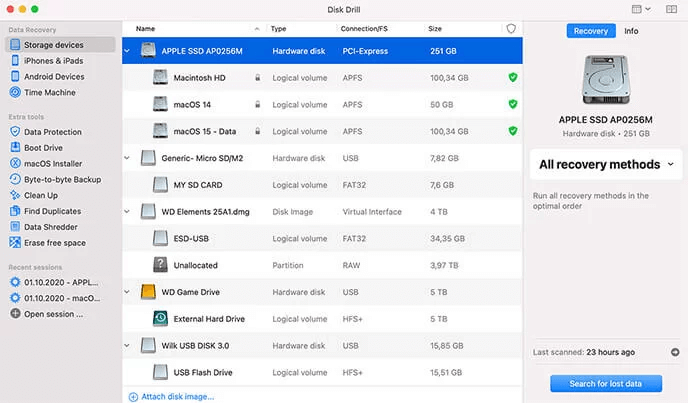
The first name on this list of the best Mac Disk Repair software is Disk Drill for Mac. This is indeed the best solution and a reliable tool that can take care of all your disk repair needs. One of the best features of the tool is that it is more than just a regular disk-repairing tool and works as a recovery tool. You can recover all types of data on the Mac using this alternative. The tool is available for free to use but you can also procure the paid version if necessary. The paid version will allow you to unlock additional features of the software.

Download Now


2. DiskWarrior 5- macOS Repair Disk Tool

DiskWarrior 5- macOS

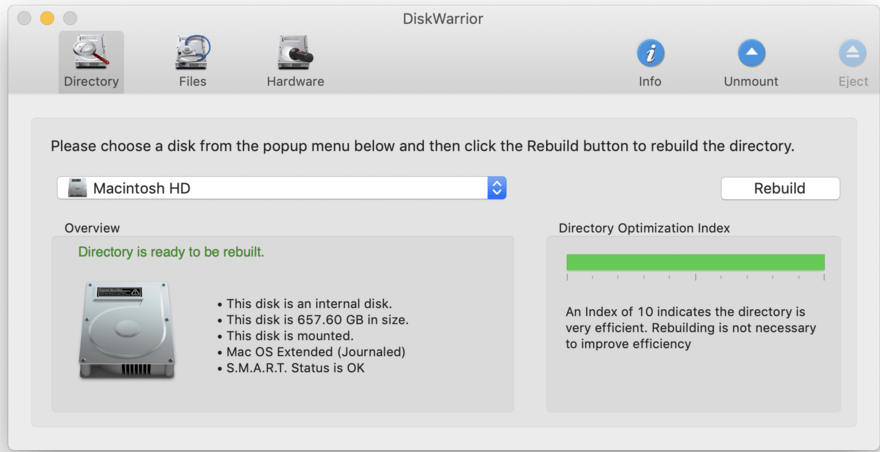
The second comes DiskWarrior 5 as the best Mac Disk Repair software for different macOS. This tool is quite advanced and boasts more than just simple features to repair the drive. The tool can single-handedly improve the performance of your system with a couple of clicks. Even if your system shows some cryptic errors with codes and issues, then also DiskWarriror can reach the root of the cause and fix the error for you. The interface of the app is quite amazing and straightforward to use, even for beginners.

Download Now

Also Read: Best Free Scanning Software For Mac


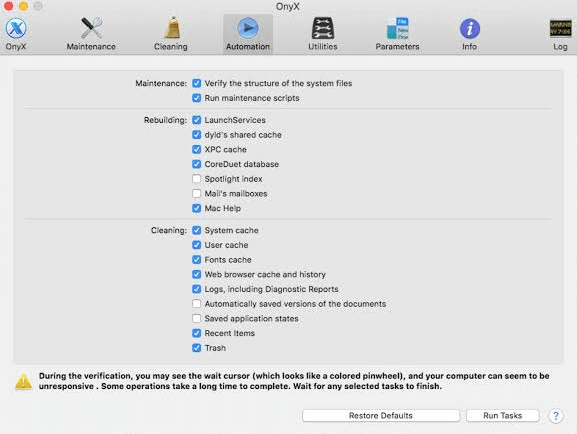
3. OnyX- Mac Disk Repair Utility

OnyX - Mac Cleaning Software

The Next best Mac disk repair software is OnyX. OnyX is a simple and easy-to-use tool from Titanium Software. The performance of the software is quite reliable. The main task of the software is to search across the files and check their integrity for your system. For the same, the software may also take the help of the integrated cleaning functions in the tool for cleaning and maintenance. With a single click of the software, you can easily get rid of the excessive cache files. The tool also ensures that if any folder or file is creating problems for you, it will delete the same after your permission to proceed.

Download Now


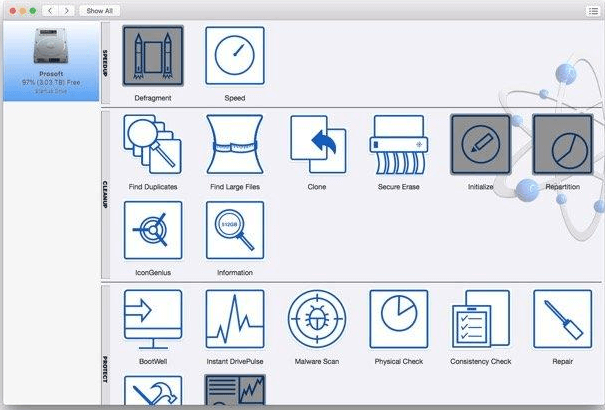
4. Drive Genius- Best Disk Utility for Mac

Drive Genius- Best Disk Utility for Mac

Drive Genius, just like its name, is indeed a genius software to manage the drive. The tool does much more than just take care of the drive for you. With the help of this disk repair software for Mac, you can monitor the performance and crucial system attributes of the Mac at all times. The software offers real-time information about the attributes and provides options to optimize the device performance whenever necessary. Apart from these, functions like disk defragmentation, cloning, complete deletion, and duplicate finder are only a few of the advanced features that you get with the tool.

Download Now

Also Read: Best Free Mac Cleaner Apps to Clean and Optimize


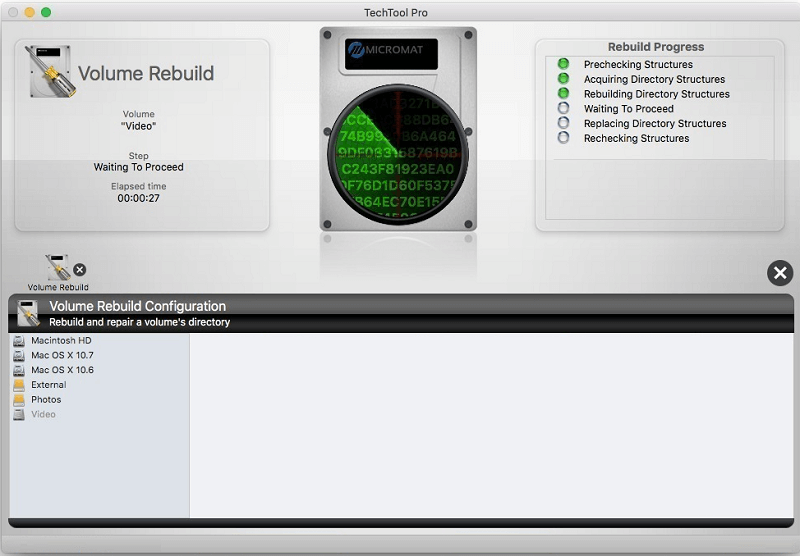
5. TechTool Pro 16- macOS Repair Disk Tool

TechTool Pro 16- macOS Repair Disk Tool

Next tool that you can use if you want the best Mac Disk Repair software is TechTool Pro 16. This software is quite amazing and offers many features that you may not find in other similar tools. The smart build of the tools looks for the files or areas that you can easily affect the performance of the device. The software also has an automated system that allows it to rebuild any database on the Mac to improve its performance. Apart from all this, features like data protection, battery testing, emergency startup, etc. are some additional ones that you get to use with TechTool Pro 16.

Download Now


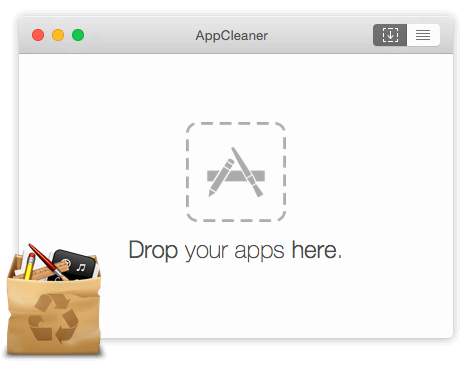
6. AppCleaner

AppCleaner

If you are looking for a simple tool that can get rid of annoying app files for you, then AppCleaner is the best disk repair software for Mac. With the help of this minimalist software, you can uninstall unwanted applications thoroughly. The tool will look for the files created by the app throughout the storage of the Mac. After that, it will delete the same files permanently if you decide to uninstall the app. The uninstallation procedure is quite simple as well. All you need to do is drag the app to the interface of the software and it will take care of the rest for you.

Download Now


7. Carbon Copy Cloner 6- Mac Disk Repair Utility

Carbon Copy Cloner 6- Mac Disk Repair Utility

The last name on this list of the best Mac Disk Repair software is Carbon Copy Cloner 6. This app, from the house of Bombich, does what it says, clone the storage and preferences of the Mac for others. With a single click on the tool, you can back up all the data present in the system. Additionally, the speed of backup that you get is quite amazing and faster than any other disk repair software for Mac. The smart but understandable user interface of the software allows even a beginner to create a backup of the data quite easily.

Download Now

Also Read: Best Uninstaller for Mac to Completely Remove Unwanted Apps


Summing Up- The Best Mac Disk Repair Software and Mac Disk Repair Utility

So, we think that with the help of the tools provided in the above section of this write-up, you must be able to repair the disk of your Mac. All the alternatives listed above are quite viable and feasible for beginners. You can download the best Mac Disk Repair software as per your preferences for free or get the paid version if necessary.

If you want any type of help further, you may seek assistance using the comments section below. Present to us your queries, suggestions, and feedback on the article. Don’t forget to subscribe to our newsletter to get notified about the new additions to the TechPout Blog in real-time. Do let us know which one of the above disk repair software for mac you liked the most.

1 Comment
    Florin says: Reply
    August 4th 2020, 9:42 pm

    Wonderful blog! I found it while surfing around on Yahoo News. Thank you!!

Leave a Reply Cancel reply

Your email address will not be published. Required fields are marked *

Sidebar Image bit G ad1

Latest Posts

  • Best-Free-Online-Portfolio-Websites-in-2026
    Best Free Online Portfolio Websites in 2026
    by adminuser / March 16, 2026
  • Anytime Astro: Best Website For Online Astrology Consultation
    Anytime Astro: Connect Now For Online Astrology Consultation
    by Somya Shrimal / March 13, 2026
  • Best-Ways-to-Combine-Images-Into-PDF-Files
    Best Ways to Combine Images Into PDF Files
    by Niharika / March 12, 2026
  • Best FREE VPS Hosting Providers
    7 Best FREE VPS Hosting Providers in 2026
    by Devesh / March 12, 2026
  • Best-McAfee-alternative-software-to-use-for-Virus-Protection
    Best McAfee Alternative Software to use for Virus Protection
    by adminuser / February 11, 2026

Categories

  • Cyber Security
  • Driver Updater
  • Entertainment
  • Fitness
  • Games
  • How To
  • laptop
  • OS
  • Reviews
  • Tech News
  • Tips & Tricks
  • Top 10
Sidebar Image bit G ad1
Best Free Library Management Software Best Free Library Management Software in 2024 (Open Source)by Harshita / December 21, 2023
Windows Couldn’t Automatically Bind The IP Protocol Stack To The Network Adapter (Fixed)by Harshita / December 21, 2023Windows Couldn’t Automatically Bind The IP Protocol Stack To The Network Adapter
TechPout Footer Logo

We at TechPout promise to put forth stories that help people to learn and simplify their digital life. Our purpose is to share the true essence of technology with our tech-loving community.

Useful Links

  • About Us
  • Contact us
  • Privacy Policy

Popular Posts

  • Best PC Optimizer Software
  • Best Mac Cleaner Apps
  • Best Driver Updater
  • Duplicate Photo Finder and Cleaner Software
  • Best Free Movie Download Sites
  • Best IPTV Players

Follow us

Copyright © 2026 www.techpout.com. All rights reserved
DMCA.com Protection Status