Main LogoLight Logo
  • Reviews
  • Top 10
  • How To
  • Tech News
  • OS
    • Windows
    • MAC
    • iOS
    • Android
  • Categories
    • Driver Updater
    • Cyber Security
    • Games
    • Fitness
    • Entertainment
    • Tips & Tricks
Games How To
by Snigdha

How To Play Snap Games on Snapchat

March 5, 2020
1

Do you like playing games on your smartphone? If yes, then here’s a whole new world of games unveiling in front of you on Snapchat’s gaming platform. Yes, you read that right!   

Intrigued by the idea of what’s waiting for you in Snap Games and wish to know how to play games on Snapchat? Then, here’s a guide to everything that you need to know about Snap Games.

With a sassy pitch, “new way to hang out with your friends on Snapchat,” Snapchat is making its entry in the arena of mobile gaming after several months of speculation.

Snap confirmed all the speculations by revealing its plan for going live with Snap Games at the Snap Partner Summit in Los Angeles.

Table of Contents hide
What are Snap Games?
Which Games are Available on Snapchat?
How to Play Games on Snapchat?
Launching Snap Games
Invite Friends to Play a Game
Exit a Game
How to Gain Rewards From Videos
Control Game Activity Notifications
Summing Up

What are Snap Games?

Snap Games is the name of the all-new gaming platform of Snapchat. The chat feature of Snapchat has received some cosmetic changes to include the game’s icon now. The “rocket” button at the bottom of the screen in the Chat window represents Snap Games. 

Upon hitting the game’s icon, it launches a new game that can be played with your friends in real-time. The games are coded in HTML5. 

The games have already been rolled out but not to all worldwide users at the moment. This is because Snap is rolling them out to the users steadily to prevent server crash downs. Several users have received messages from Team Snapchat if Snap Games has been rolled out to them.

It is to be noted here that certain devices may not support Snap Games. If such a scenario arises, then you can try using Snapchat on a different device or you can also launch a different game on the same device and see if that is working.

Read More: How to View Someone’s Snapchat Story Without Them Knowing

Which Games are Available on Snapchat?
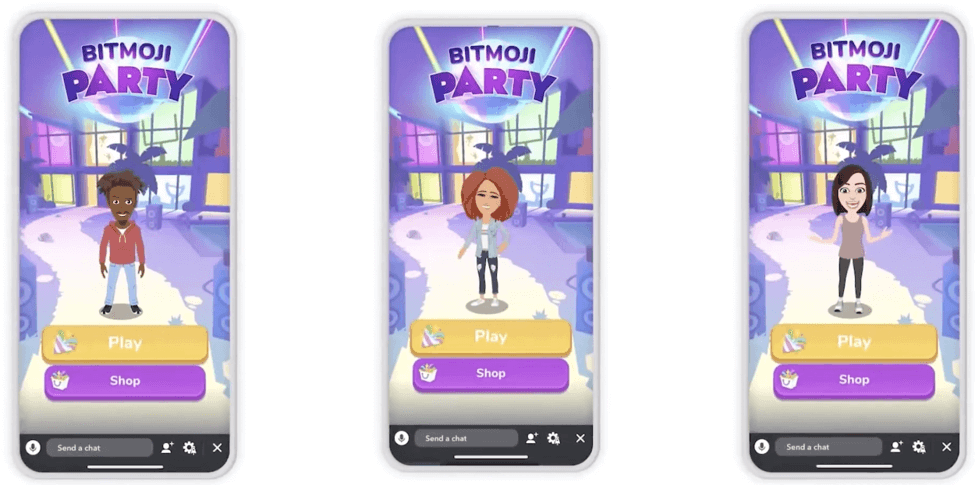
Games are Available on Snapchat
Image Source: iDownloadBlog
Name of the game What’s the game about Developed by
Bitmoji Party  Similar to Mario Party, it consists of five minigames. Prettygreat
Alphabear Hustle Word game SpryFox
CATS Drift Racing Multiplayer racing game ZeptoLab
Snake Squad Reconceptualization of the classic game – Snake Game Closure
Tiny Royale Type of Battle Royale game Zynga
Zombie Rescue Squad Zombie apocalypse game PikPok

How to Play Games on Snapchat?

So, as you already know that games can be accessed from the Chat window, therefore you can launch a game in the following way:

Launching Snap Games

  • As you swipe right to the Friends screen, you can either tap on a single Chat or Group Chat.
  • Here you will be able to see the “rocket” button which you can hit to open the “Game Drawer.” The “Game Drawer” hosts all the games.
  • Finally, you can select a game of your choice and tap it to launch the game.
  • You can assign a display name for yourself before you start playing a game.

Invite Friends to Play a Game

As soon as you launch a game, everyone in the Chat will receive a notification to join the game with you. Additionally, they will receive a message too about the game that you started playing. 

All they need to do is tap the game icon to start playing the game with you. Thus in this way you can play a game on Snapchat with your friends.

Read More: How to Play PlayStation Games on Your PC

Exit a Game

If you wish to quit playing a game, tap on the cross icon at the bottom of the screen. You will further receive a prompt confirming whether you really wish to leave the game; so, you can tap on “Leave” to completely exit from the game.

How to Gain Rewards From Videos

If you are in dire need of points, then you can watch videos to earn rewards like coins or items. These in-game rewards can only be collected by watching a video ad entirely.

Control Game Activity Notifications

If you wish to turn off game activity notifications from your friends or groups, then you can use the below steps:

  • Go to the Chat screen.
  • Tap on friend or Group Bitmoji icon to open that particular profile. 
  • Tap on the three-dotted icon located at the top.
  • Tap the game notifications setting and make the needed changes.

Summing Up

What could be more interesting than playing games on Snapchat? Snapchat was already preferred by people for its chat service, fantastically funny filters, stickers, and the Bitmojis.

The “My Story” feature was first introduced by Snapchat but soon became more popular on other platforms like Instagram and Facebook. 

It is therefore, being presumed that Snapchat is introducing gaming to increase its popularity and user base as it is still not outperforming other social media platforms despite featuring interesting functions. With the arrival of games, Snapchat will assuredly attract more users.

Thus, keep your gaming spirit high as you now know how to play Snapchat games with your friends.

Author

Snigdha

Snigdha is a technical content writer with expertise in the field of science & technology. Though she has a very diverse academic and professional profile yet she finds writing to be a creative form that she was unable to explore so far. When not writing, she can be found indulging in other forms of creativity like painting or travelling.

View all posts

Related Posts
How to Fix Gameloop Crashing on Windows 10

How to Fix Gameloop Crashing on Windows 10

October 27, 2021
0

Read on to know the simple yet quick solutions to fix Gameloop crashing on Windows 10. 

Gameloop, an official Android emulator for games like COD (Call of Duty) and PUBG mobile. No doubt, it’s a wonderful emulator that lets you play thousands of mobile games on your Windows PC for absolutely free. But, recently, we have seen numerous Windows 10 users complaining about Gameloop keeps crashing on their computers. If you have also faced the same problem, don’t worry, we can help you.

In this write-up, we have discussed a few easiest ways to fix Gameloop crashing on Windows 10 quickly. Let’s shift to the next section to know more about the same.

A List of Solutions to Fix Gameloop Crashing on Windows 10 PC

Have a closer look at the below-mentioned tactics to know how to fix Gameloop crashing on Windows 10 without any hassles.

Solution 1: Run under Admin Privileges

Maybe, Gameloop requires some admin privileges to function properly. So, you can try to run the game as an administrator. To do so, all you need to do is just make a right-click on the Gameloop icon on your desktop and then click on Run as Administrator from the quick access menu list.

Once providing the administrator’s rights, check to see if Gameloop crashing on Windows 10 has disappeared. If not, try the next solution.

Also Read: 11 Best Bluestacks Alternatives You Must Try it Out (2021)


Solution 2: End Unnecessary Background Applications

Though, Gameloop is a lightweight tool and can easily function on low-end PCs. But, still, it is advisable to close the unnecessary background running programs. This is one of the best ways to fix Gameloop crashing on Windows 10. To use this method, follow the steps below:

Step 1: Click right on your Taskbar and choose Task Manager.

Window task manager

Step 2: Next, under the Processes option, look for the processes you no longer need and click right on it.

Step 3: Lastly, click on End Task.

End Task Process Option

If you still face Gameloop crashing on Windows 10 even after closing all unnecessary programs, try the next fix.

Also Read: Call of Duty Warzone Crashing on PC {Fixed}


Solution 3: Update your Graphics Driver

Majorly, random crashes occur due to outdated graphics drivers. Hence it is crucial to keep graphics card drivers always up-to-date and in good shape to avoid all driver-related issues. The user can update drivers either manually or automatically.

However, the manual process is a bit daunting and time-consuming, specifically for beginners. Therefore, we recommend you use Bit Driver Updater to perform driver download automatically.

Bit Driver Updater is an ideal solution for repairing all your PC issues related to drivers. It just takes a few clicks of your mouse to update all outdated drivers. Follow the steps below to know how to update outdated graphics drivers using Bit Driver Updater:

Step 1: Before getting started, you will need to download the Bit Driver Updater.

Download Now Button

Step 2: Next, run the downloaded file and follow the on-screen instructions to get the software installed on your computer.

Step 3: After that, launch the Bit Driver Updater and let the driver updater utility scan your machine for broken or outdated drivers.

Step 4: Check the list of outdated drivers provided by the utility.

Step 5: Locate problematic graphics drivers and click on the Update Now button shown next to the driver.

Step 6: Otherwise, you may click on the Update All button, if you want to update other outdated drivers along with graphics drivers.

Update All Driver with Bit Driver Updater

Bit Driver Updater has a default system optimizer that clears all the junk from your PC and enhances the overall speed of your computer. Not only that, but the software possesses an auto backup & restore wizard. Apart from that, you also get a 60-days complete refund policy and 24/7 technical assistance. Furthermore, we advise you to use the premium version of the utility in order to unlock its complete potential.


Solution 4: Turn On Virtualization

Virtualization lets you run two or more operating systems simultaneously on a single system. Turning off the virtualization can enhance Gameloop’s performance which possibly resolves crashing issues. Before getting started, you need to check if the feature is already enabled on your computer. If it is not enabled, you can enable it in BIOS.

Steps to Turn on Virtualization in BIOS

Step 1: Click on the Start menu, then Power, and hold the SHIFT key, and click on Restart simultaneously.

Step 2: This will shut down your PC and then restart.

Step 3: When your computer restarts, the screen displays the manufacturer logo, holding the BIOS hotkey until you insert the BIOS setup.

Note: The hotkey can be F2, F12, F1, Del, or Esc based on the diverse models or brands.

Step 4: Locate the virtualization settings in BIOS.

Step 5: Turn on the virtualization, then save the changes.

Step 6: Lastly, exit.

Also Read: 10 Best Dreamcast Emulator for Windows 10, 8, 7 in 2021


Solution 5: Install Latest Windows Updates

Bugs and outdated versions of Windows OS may cause Gameloop to crash on Windows 10 PC. Hence, consider performing Windows Updates to get rid of unexpected crashes. Follow the instructions shared below:

Step 1: Invoke Windows Settings by altogether hitting the Windows logo + I keys from your keyboard.

Step 2: Next, look for Update & Security and click on it.

Updates and Security

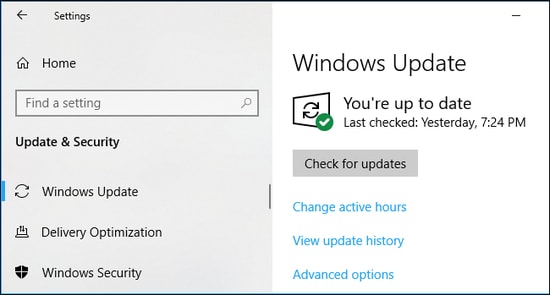
Step 3: Thereafter, choose Windows Update from the left menu pane and then click Check For Updates on the right side of the screen.

Check for Updates on windows settings

If you still face Gameloop crashing issues even after installing the latest patches and updates, try the next solution as a final resort.


Solution 6: Try to Reinstall Gameloop

If nothing has helped you fix Gameloop crashing on Windows 10, try to install the Gameloop again. Reinstalling the most recent version of it may resolve the bugs which eventually stops frequent crashes.

Also Read: Why Do My Games Keep Crashing in Windows 10 {FIXED}


Gameloop Crashing on Windows 10: FIXED

Did you find this troubleshooting guide on how to fix Gameloop crashing on Windows 10 helpful? Please tell us in the comments box below. If you have any questions or further suggestions, share them too in the comments below.

Furthermore, to read more troubleshooting guides just like this one, do subscribe to our Newsletter and follow us on Facebook, Instagram, Twitter, or Pinterest.

Laptop Is Plugged In But Not Charging – Here is How to Fix

Laptop Is Plugged In But Not Charging – Here is How to Fix

November 26, 2021
0

Running into the “Laptop is plugged in, not charging” issue? Don’t worry, this troubleshooting guide can help. Here you will find best practices to fix this problem. 

Have you ever undergone a situation where, you are doing your work on your laptop, and suddenly a notification pops up informing you that your battery is about to die? Afterward, you rush to find your charger and try to plug it in before your screen turns all black. Surely, it’s a very common issue to encounter. Isn’t it? How many times has this occurred to you?

Once the power supply is connected, you can proceed with your ongoing work, but many times you plug in the adapter and you see nothing, no battery charging notification, no charging icon, and no brightened display.

Well, it’s so easy to get worried or irritated when you notice that your laptop is plugged in but not charging. The thought of not being able to use the laptop once the battery dies bothered you to no end. But, don’t worry, in numerous cases, you can easily figure out why you are encountering a “laptop plugged in, not charging and fixing it as well.

To help you in this, we have prepared this guide, here you will learn the most economical tips to fix laptop not charging issues. Doesn’t matter, whether you are using a Lenovo, HP, Dell, or another laptop, you can consider these tips & tricks.

All-In-One Solution to Fix Laptop Is Plugged In But Not Charging (Recommended)

Mainly, an outdated battery driver is responsible for the laptop is plugged in but not charging. Therefore, to resolve this, you should update your laptop battery drivers. Use Bit Driver Updater to perform this task automatically without any hassles. It is a driver updater software that automatically recognizes your system and finds the most compatible drivers for it. Additionally, it only provides WHQL tested and signed drivers. To give this magnificent utility a try, click on the download button below.

Windows-Download-Button

8 Most Workable Tips to Fix Laptop Is Plugged In But Not Charging

In this section, we are going to discuss a few approaches that you can surely give a try in order to fix laptop battery not charging issues. Check out the tips below:

Tip 1: Check All Cable Connections

Before heading into the more complicated solutions, just be sure that you have plugged in the charging cable strongly into the laptop’s charging port. After that, check its connection to the wall outlet, if in case the current one is not working then you should try another socket or wall outlet. In addition to this, don’t forget to ensure that the cable is plugged into the AC adapter brick only.

Also Read: 10 Best Laptop Battery Testing Software for Windows 10


Tip 2: Verify the Integrity of the Battery

Laptop battery not charging? To resolve this, you should first check the integrity of the battery. If you are using a laptop that comes with a removable battery, then take the battery out and hold down the power button for around 30 seconds in order to drain any extra power from the machine. Then, plug in the power supply cable and switch on your laptop.

If you notice that the laptop powers on perfectly, then it indicates that the power adapter is functioning accurately and the actual culprit is the battery. Sometimes, you can try to re-insert the battery, probably the battery was not firmly placed.

And, if in case, your laptop doesn’t have the removable battery chamber on the bottom, it might be built within the laptop like most of the Macs are. In this scenario, you will have two options, either open it by yourself or contact a tech specialist just to test the battery.


Tip 3: Be Sure to Use Correct USB C Port

USB C is a well-known standard cross-platform for connecting hardware devices, transferring data, and charging your battery. No doubt the new standards support thinner devices, but at the same time, it might cause some problems. Many manufacturers have only selected to make specific USB C ports standard, which won’t charge your device.

Additionally, you may find two USB C ports on your device, one is for data transferring and the other is for charging. If you are facing a laptop not charging issue, ensure that you are connected to the right USB C port. Also, to get assured that you are plugged into the right port, find a little charge icon on the side of the port that is meant for charging-only.


Tip 4: Check the Connector

When plugging your cable into the laptop’s power connector, ensure that the connection should be somewhat stable. If there is any dust particle inside the jack, it may not be able to establish a solid or clean connection. In order to clean your jack, you can use a toothpick, and once it is cleaned, then you can try to plug it in again.

Moreover, the jack may have broken or damaged, hence not connecting firmly. In this case, you will need to visit a PC repair store. And, if you are pretty confident about your technical skills then you are good to open it by yourself.

Also Read: [Fixed] USB Port Not Working On Windows 10


Tip 5: Update your Battery Drivers

The prime reason behind all battery-related issues is outdated battery drivers. When the corresponding drivers goes missing and become outdated your laptop starts showing problems like the laptop is not charging. Hence, it is crucial to keep battery drivers always up-to-date. Not only the battery drivers, but you should update all PC drivers from time to time to ensure the smooth running of the entire system and connected hardware.

When it comes to updating the drivers, you have two ways, either do it manually by visiting the official website of the PC manufacturer or using a driver update utility. Finding and installing the drivers manually is a bit tedious or error-prone task, especially for newbies. So, we recommend you use the best driver update utility like Bit Driver Updater.

Bit Driver Updater is one of the leading solutions available for updating all outdated drivers, easily & quickly. The software automatically verifies the Windows OS version your PC is currently running, and then finds the most suitable drivers for your device. Moreover, with this driver update utility, one can update all faulty, outdated, broken, or corrupted drivers at once. Want to know how Bit Driver Updater works? Follow the steps below:

Step 1: To begin the process, first, you need to download the Bit Driver Updater on your laptop. You can do it for free from the button below.

Windows-Download-Button

Step 2: Run its setup file and complete the installation by following the on-screen instructions.

Step 3: Launch the utility on your PC and wait until it completes the scanning.

Step 4: Next, click on the Update Now button shown next to the drivers.

Step 5: Alternatively, you can also click on Update All to fix all faulty drivers in one click.

Update All Driver with Bit Driver Updater

If you are still running into the same issue even after updating your battery drivers, and wondering “how to fix laptop won’t charge, then try another fix explained below.


Tip 6: Reinstall Battery Drivers

Sometimes, updating the drivers does not work, if that is the case, then you should try to reinstall battery drivers. Doing so helps you resolve all issues with the drivers. To do so, you can use Windows in-built utility called Device Manager. Below are the steps one need to follow in order to use this method to fix laptop won’t charge issue:

Step 1: Launch Device Manager by altogether pressing the Windows logo and X keys.

Device manager

Step 2: In the Device Manager window, you need to look for the Batteries category and expand the same by making a double click on it.

Step 3: Next, you will see two devices: Microsoft AC Adapter and Microsoft ACPI – Compliant Control Method Battery. Click right on each and choose Uninstall Device from the context menu list.

Click On The Uninstall Device Option

Step 4: Click YES if a pop-up appears asking for your confirmation.

Wait for the process to finish the uninstallation. This will prevent the PC from interfering with the Battery. And when you reboot your PC the related drivers are reinstalled automatically. So try to start your PC.

Also Read: Best Ways to Fix Common Driver Problems on Windows 10, 8, 7


Tip 7: Reduce Resource Usage

If your laptop is working hard and gets exhausted, your charger might not be replenishing the battery instantly. To cool down your device, the fan has to function harder which will eliminate the resource usage and leads to enough battery power. If you are running too many programs at once, they will get stuck and end up taking more battery power at a higher rate.

Hence, you should try to close the unnecessary programs in order to lessen resource usage. To do the same, you will need to launch the Task Manager by pressing CTRL + SHIFT + Esc keyboard buttons at the same time, and in the Processes tab, you will be able to see how many resources are currently in use. You can also end the program that you longer need.


Tip 8: Use Another Laptop Charger

Last but not least,  if nothing has worked for fixing a laptop plugged in not charging, Try the last resort is to order an all-new laptop charger and check if that works. You can easily find third-party chargers or Amazon or other shopping platforms at a reasonable price.  But we suggest you use an official charger because utilizing a cheap third-party charger might damage your laptop. Before buying a charger, check all the reviews and ratings.

Also Read: How to Fix USB Device Not Recognized Error in Windows 10/8/7


Bottom Line: Plugged In But Not Charging

So, these were some tested and tried solutions that can help you troubleshoot the laptop plugged in not charging issue. Hopefully, one of these should work for you, but, unfortunately, the problems remain the same as earlier, then perhaps a part inside your laptop is damaged and eventually stops the battery from working accurately. If that is the case, we recommend you to visit a PC or laptop repairing center to have an expert look at it.

A technician might suggest a battery replacement. In addition to this, it is also crucial to keep an eye on your battery health to avoid related glitches. If you have any queries or further doubts regarding the same, then do tell us in the comments below.

Lastly, for reading more helpful tech guides do subscribe to our Newsletter and follow us on Facebook, Twitter, Instagram, and Pinterest.

1 Comment
    Khuram says: Reply
    April 16th 2020, 10:14 pm

    Hi, Very good article. Thanks for sharing, keep up the good work.

Leave a Reply to Khuram Cancel reply

Your email address will not be published. Required fields are marked *

Sidebar Image bit G ad1

Latest Posts

  • Anytime Astro: Best Website For Online Astrology Consultation
    Anytime Astro: Connect Now For Online Astrology Consultation
    by Somya Shrimal / March 13, 2026
  • Best-Ways-to-Combine-Images-Into-PDF-Files
    Best Ways to Combine Images Into PDF Files
    by Niharika / March 12, 2026
  • Best FREE VPS Hosting Providers
    7 Best FREE VPS Hosting Providers in 2026
    by Devesh / March 12, 2026
  • Best-McAfee-alternative-software-to-use-for-Virus-Protection
    Best McAfee Alternative Software to use for Virus Protection
    by adminuser / February 11, 2026
  • What-is-Flip-Flop-in-Circuite-and-it's-Types
    What is Flip Flop in Circuit and its Types
    by Meet / February 6, 2026

Categories

  • Cyber Security
  • Driver Updater
  • Entertainment
  • Fitness
  • Games
  • How To
  • laptop
  • OS
  • Reviews
  • Tech News
  • Tips & Tricks
  • Top 10
Sidebar Image bit G ad1
Major-Tech Events Affected by Coronavirus List of All Major Tech Events Affected by Coronavirusby Jay Galiyal / March 5, 2020
How to Delete Gmail Messages in Bulkby Prachi Dani / March 6, 2020Delete Gmail Messages in Bulk
TechPout Footer Logo

We at TechPout promise to put forth stories that help people to learn and simplify their digital life. Our purpose is to share the true essence of technology with our tech-loving community.

Useful Links

  • About Us
  • Contact us
  • Privacy Policy

Popular Posts

  • Best PC Optimizer Software
  • Best Mac Cleaner Apps
  • Best Driver Updater
  • Duplicate Photo Finder and Cleaner Software
  • Best Free Movie Download Sites
  • Best IPTV Players

Follow us

Copyright © 2026 www.techpout.com. All rights reserved
DMCA.com Protection Status