Main LogoLight Logo
  • Reviews
  • Top 10
  • How To
  • Tech News
  • OS
    • Windows
    • MAC
    • iOS
    • Android
  • Categories
    • Driver Updater
    • Cyber Security
    • Games
    • Fitness
    • Entertainment
    • Tips & Tricks
How To Windows
by Snigdha

How To Take a Screenshot on Windows HP Laptop?

May 20, 2020
1

If you are wondering how to take a screenshot on an HP laptop, then refer to our tutorial to learn about some extremely easy ways of taking screenshots.

Taking screenshots in today’s fast track world seems to be an easy option when you want to retain some information, image, etc for a while. 

But the method to take screenshots differs from device to device. For instance, smartphone devices come with some built-in screen capture apps or other third-party screenshot apps are available too. Similarly, for the iPad, there is a separate way to capture the screen.

As a newbie, sometimes it becomes challenging to understand how to do a particular task quickly; therefore, you might be in need of a blog like this to help you out.

For most laptops, the screenshot capturing process is the same. Let us now see how to screenshot on an HP laptop.

Table of Contents hide
Quick & Easy Methods to Take a Screenshot on HP Laptop
Method 1: Take a Screenshot of the Full Screen
Method 2: Take a Screenshot of the Active Window
Method 3: Custom Screenshot
Method 4: Using Microsoft’s Screenshot Tool
Method 5: Using Browser Extensions & Add-ons
Fix Your Screenshot Issue by Updating Device Drivers

Quick & Easy Methods to Take a Screenshot on HP Laptop

Below described are five methods to take a screenshot on the HP system.

Method 1: Take a Screenshot of the Full Screen

When you see a really important piece of information on your screen, an image, a person’s contact information, or wish to retain a chat for future reference, taking a quick screenshot seems like the only feasible option but if you have this question on your mind as to how to screenshot on HP, then we have got you covered with our first solution here.

To take a quick and easy screenshot, see the below steps:

  • Hit the PrtScn or Print Screen key on your laptop keyboard.
  • Launch the image editor apps such as the Paint or Photoshop application or simply open an MS Word file where you can paste the screenshot.
  • Now using the crop feature, edit the screenshot as per your needs and save the image on your HP laptop.

You can now use the screenshot as needed to simply retain it for some future reference or use.

An Alternative Method For Windows 8/10 Users

For Windows 8/10 users, there is another easier option to take a screenshot:

  • Hit the Windows key + PrtScn/Print Screen together on your laptop’s keyboard.
  • Now launch the File Explorer (press Win + E key simultaneously).
  • Navigate to the path: This PC > My Pictures > Screenshots
  • The screenshot would be saved here in this location.
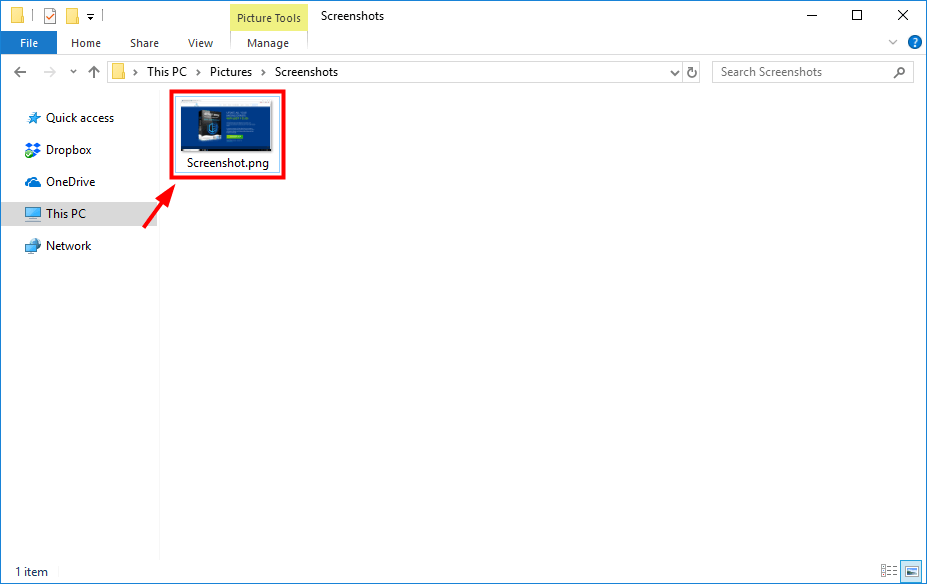
Take a Screenshot of the Full Screen Using Print Screen Key

Read More: Dell vs HP: Which Laptop Brand is Better in 2020


Method 2: Take a Screenshot of the Active Window

Learn how to take a screenshot on HP laptop of the active window i.e. the window which is currently in use; from the below steps:

  • On your HP laptop keyboard, hit the Alt Key + PrtScn or Print Screen key together. 

This action will capture the active window of your system and a copy will be saved to the clipboard.

  • In the image editor app like the Paint or Photoshop application paste the screenshot.
  • Now edit the screenshot as you like with the editing tools and features and use it as required.

Method 3: Custom Screenshot

In order to take a specific screenshot on an HP laptop, you can use the Snipping Tool. Here’s how you can use the tool:

  • Go to the Snipping Tool desktop application and click on the icon “New” of the snipping tool window.
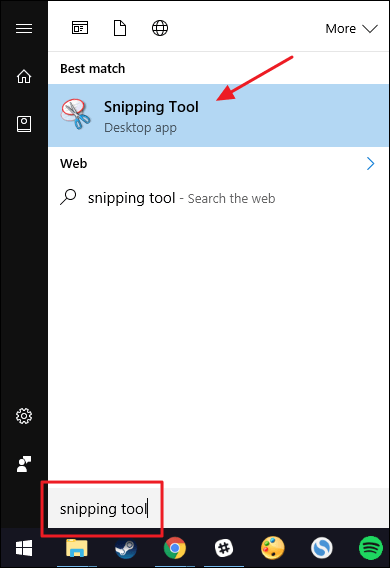
Use Custom Screenshot Method to Take a Screenshot on Windows HP Laptop
  • Now click and drag the mouse pointer over the area of the screen that you want to screenshot on your HP laptop. This will select the region you want to capture.
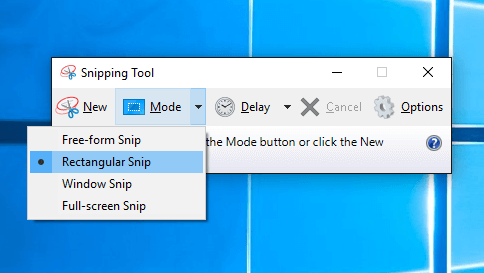
Use Custom Screenshot Method to Take a Screenshot
  • Once you have selected the region, you can then release the mouse.
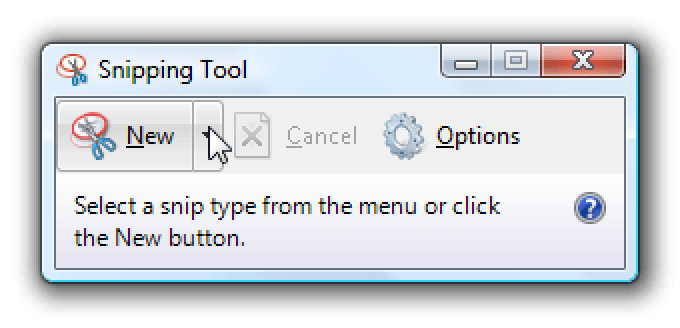
Use Snipping Tool to Take a Screenshot
  • This will open the snippet in the Snipping Tool window, and to save it, you need to hit the Save button.

Method 4: Using Microsoft’s Screenshot Tool

Microsoft’s screenshot tool ‘Snip’ is a handy screenshot tool that you can find in your HP laptop. With this tool you can take screenshots on your HP laptop easily. Following are the steps to do this:

  • You can install “Microsoft Snip” from Microsoft’s Homepage.
  • You can then launch this tool and choose the option of “Capture” from the program interface.
  • Click on the window that you want to screenshot by pressing down the mouse button.
  • The image gets saved in the clipboard automatically.
  • It can further be saved to the albums and shared via email or other messengers.

Read More: How to Track Someone’s Location by Using Phone Number


Method 5: Using Browser Extensions & Add-ons

If you want to know how you can take a screenshot on your HP laptop from a web page, then you can use browser add-ons to capture a screenshot. 

Using an extension makes capturing a screenshot easy which can be pasted onto another webpage or file or can even be saved onto the hard drive. When it comes to choosing the best addons as per your web browser, then you can go with the below choices:

Google Chrome – FireShot, Lightshot, Awesome Screenshot

Mozilla Firefox – Fireshot, Awesome Screenshot Plus

Once you have decided which screenshot browser extension you want to use, you can then go to Chrome Web Store and install the extension by clicking “Add Add-On button.”

Once the installation is complete, you can then see the extension appear in the top right corner beside the search bar. If you want to remove the extension from the browser, then  you use a right-click to open the menu and choose the option of “Remove from Chrome.”

When you want to take a screenshot, you can click on the tool icon from the top bar and select the area that you want to capture. Then, you can either click on the “Copy” button to paste it elsewhere or else press the “Save” button to save it to the albums or My Picture folder.

So, this is all folks about how to screenshot on an HP laptop. However, if you are experiencing some issues while capturing the screenshots, then we have a suggestion to fix your screenshot issue.


Fix Your Screenshot Issue by Updating Device Drivers

When you are taking screenshots on your HP laptop, if you are unable to capture anything, or the screenshot appears to be black or twisted, then it might be happening due to outdated system drivers.

It is a known fact that device drivers play an important role in managing the overall function of your system. So, any issue with the system performance obviously indicates an underlying problem with the device drivers. You can update the device drivers as per the below outlined ways given in the below segment.

You can either opt to download and install the device drivers manually from the manufacturer’s website or else you can make use of a top-notch driver update software like the Bit Driver Updater.
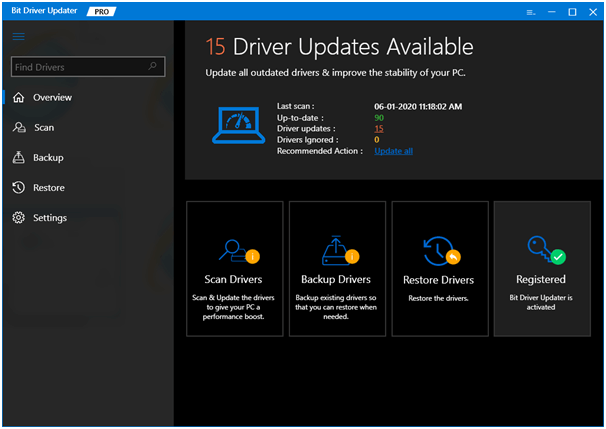
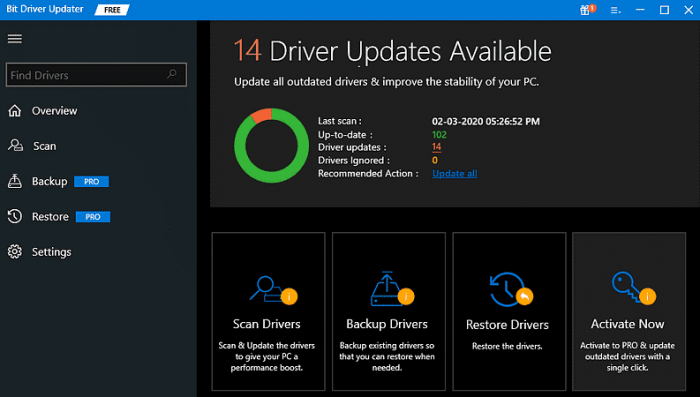
Bit Driver Updater - Best Driver Updater Software

  • You can visit the website and install the tool on your HP system.
  • Once the installation is complete, you can then scan your system with this tool.
  • Upon scanning, the driver updater tool will detect all the potential driver-related issues in your system such as missing, out-of-date, or malfunctioning drivers.
  • It will retrieve the results and also download the updated versions of those drivers.
  • Using the one-click update feature, you can install all your outdated and faulty drivers at once.
  • If you face any issues in handling the tool, you can reach out to their customer support team at any time of the day and they will be able to assist you immediately.

Read More: Best Free Driver Updater Software For Windows 10/8.1/8/7


Summarizing: To Take a Screenshot on HP Laptop

Thus, you learned from this article that taking a screenshot is an extremely simple task and you can easily do so either by capturing the whole screen into the screenshot and then cropping it as per your need or by taking a custom screenshot.

Additionally, you also learned about troubleshooting screenshot capturing issues by automatically updating system drivers from this blog.

Hopefully, you found this article helpful in understanding how to take a screenshot on the HP laptop. Do let us know your thoughts and suggestions in the comments section below.

Author

Snigdha

Snigdha is a technical content writer with expertise in the field of science & technology. Though she has a very diverse academic and professional profile yet she finds writing to be a creative form that she was unable to explore so far. When not writing, she can be found indulging in other forms of creativity like painting or travelling.

View all posts

Related Posts
How to Fix Snapchat Support Code c14a Error

How to Fix Snapchat Support Code c14a Error

October 5, 2023
0

Snapchat is one of the most popular apps of all time. You can share pictures with your friends, make use of a variety of filters, and post stories. The fun app often offers updates to add more to it. However, some users have come across a variety of errors while using the app. One such commonly reported error is Snapchat support code C14A. If you are also experiencing the issue, you have landed on the right page.

The following guide elaborates on the steps that can be applied to fix the support code C14A Snapchat error. However, before moving directly to the solutions let us first understand the Snapchat support code C14A meaning.

Snapchat Support Code C14A Meaning: Explained

Users who try to log in to Snapchat are unable to do so because of the login error code C14A, which prevents them from using the platform’s features. If you are seeing this error number, it is most likely that you have accidentally logged out of Snapchat without receiving any adequate instructions or messages.

This issue might have been brought on by an old application or a cache that has become corrupt. In addition, the utilization of a VPN has been cited by certain users as the cause of error number C14A. In the event that you are getting this issue, the very first thing you need to do is disconnect from your virtual private network (VPN). If it does not work, you can refer to our guide for further instructions.

The problem could potentially be caused by a problem on the server, which is outside of your control. You won’t be able to use Snapchat until the problems it’s now having are fixed. If the problem is not resolved within a reasonable amount of time, you can begin reading the guide and figuring out a solution on your own.

Now that we know the meaning of the Snapchat code C14A issue, let’s move to the solutions to resolve it.

Quick and Easy Fixes for Snapchat Support Code C14A Error

The following order of solutions must be applied to resolve the problem of Snapchat Code C14A. No need to apply them all, you only need to move down the list until the error is fully resolved.

Fix 1: Simply Relaunch the Snapchat App

In order to fix the Support Code C14A error on your Android phone, you will need to restart the Snapchat app. The following is how:

Step 1: To completely quit the Snapchat app, swipe it away from recent applications panel, and press the square button.

Step 2: After a short while has elapsed, you should reopen your Snapchat app.

Step 3: Log in to your account so that you can check whether the problem has been resolved.

Restarting the application will allow you to update its settings and may also resolve any temporary problems. In case you still come across the Snapchat support code C14A error try the next solution.

Also Read: How to Fix the Time-Sensitive Notification on Snapchat


Fix 2. Restart your Phone

On an Android or Apple smartphone, resolving the problem with the Snapchat Support Code C14A can be accomplished by following these steps:

Step 1: Launch the Snapchat app once more:

  • To properly close it, swipe it off the list of recently used applications on your computer.
  • The application should then be restarted to see if the issue has been resolved.

Step 2: Hold the power button down while selecting “Restart” or simply “Reboot” from the appeared menu on your smartphone. This will cause it to reboot.

Step 3: After your mobile reset completes, open Snapchat once more.

Restarting the Snapchat app or your smartphone can fix any temporary issues or conflicts. These temporary glitches might be the cause of the C14A Snapchat code error.

If somehow the support code C14A Snapchat issue continues, try the next alternative.

Also Read: How to Fix Snapchat Keeps Logging Me Out


Fix 3: Examine Current Status of Snapchat Server

In the event that there are problems with the Snapchat server, you will not be able to log into Snapchat. If you are using Snapchat and receive an error message with the support code C14A Snapchat, you should check the server’s current condition. In order to accomplish this, you will need to check the Downdetector website to see whether or not there is an issue with Snapchat.

If there isn’t an issue that’s been reported but you’re still getting the Snapchat code C14A, continue to attempt the following solutions.

Also Read: Best Snapchat Filters To Take Selfies For Boys And Girls


Fix 4: Check Internet Connection and Turn off your VPN

In order to resolve Snapchat Support Code C14A on your Android device, follow these steps:

Step 1: First, make sure that your internet connection is working properly: Connected to the internet in a method that is dependable and consistent, whether it be Wi-Fi or mobile data.

Step 2: Disable VPN: If you’re using Snapchat and your device is connected to a VPN (Virtual Private Network), you might want to temporarily disable the VPN so that you can use Snapchat without interference.

You can improve the performance of Snapchat on your phone and fix the C14A issue by the above steps. If somehow the Snapchat support code C14A error remains, try the next set of fixes.

Also Read: How to Fix Snapchat Can’t Loading Images


Fix 5: Update Snapchat App

You can see if the problem with the Support Code C14A on your Android device can be fixed by updating Snapchat app to the most latest version. You can check to see whether an update for Snapchat is available by searching for it in your Play Store or App Store.

If this is the case, Click on the “Update” button next to it. Once the update is complete, you will need to restart your device and then open Snapchat again. It may be possible to cure the Snapchat support code C14A error by updating your Snapchat app. The latest update on the app typically addresses a variety of issues including bugs, glitches or compatibility issues.

Also Read: How to Get Dark Mode on Snapchat on Android and iOS


Fix 6:Turn off Third-Party Applications

It is possible that you will notice the C14A Snapchat code issue if you use Snapchat in conjunction with any third-party applications or plugins. It is possible for certain third-party applications to breach Snapchat’s terms of service, which can result in your account being restricted. To resolve the issue, try disabling these applications and check if the problem still occurs.

However, if the Snapchat support code C14A issue persists, move on to the next solution.

Also Read: How to Hack Someone’s Snapchat Without Password


Fix 7: Reinstall the Snapchat App

Uninstalling and then reinstalling the Snapchat app on your mobile device is the final step in fixing Snapchat Support Code C14A error. Uninstall the App from your device Settings. Download the Snapchat app again from the Google Play Store or App Store. After that, start Snapchat and check to see if the problem with logging in has been fixed.

Also Read: How to Remove Snapchat Filters from the Saved Photo


Fix 8: Contact Snapchat Support

In the event that none of the other solutions helped in fixing Snapchat code C14A, you should get in touch with the Snapchat Support team. Access Snapchat’s customer care by clicking on the following link, or get in touch with them on Twitter by using the handle @snapchatsupport.

Click Here to Visit Snapchat Support


Closing Lines: 

We hope that this information on how to fix the Snapchat support code C14A error helped. Make sure you follow the order of solutions to save time and resolve the error efficiently. However, if you come across any issues, please leave a remark below in the comments section. Also, for more such tech solutions don’t forget to subscribe to our blog.

HP Pavilion g6 Drivers Download for Windows 10, 8, 7 [Quick Tips]

HP Pavilion g6 Drivers Download for Windows 10, 8, 7 [Quick Tips]

July 9, 2021
0

Here you will learn how to download and install HP Pavilion g6 drivers on Windows 10, 8, 7 PC. Read on the entire downloading guide to know every bit in detail!

If you have recently bought an HP Pavilion g6 notebook, it is crucial to know how to install the most appropriate drivers to ensure its smooth functioning. HP Pavilion g6 drivers are pieces of software that are responsible for leading the functions of the HP Pavilion g6 notebook.

These drivers act as an interface between the HP Pavilion g6 notebook’s operating system and its respective hardware devices. Hence, it is important to install genuine drivers and also, keep them up-to-date always.

If you are worried about how to do so, then don’t worry. We have created this downloading document to guide you on how to perform driver download for the HP Pavilion g6 notebook.

Best Methods to Download, Install and Update HP Pavilion g6 Drivers for Windows 10, 8, 7

If you are searching for the easiest way to download real drivers for the HP Pavilion g6 notebook, then look no further, and just check out the methods shared below.

Method 1: Automatically Get Latest HP Pavilion g6 Drivers via Best Driver Updater Tool (Highly-Recommended)

One of the safest and quickest ways to get the latest drivers updated and installed is using the best driver updater tool. There are numerous driver updaters available to automate this daunting task. Out of all, Bit Driver Updater is setting new standards and benchmarks.

It is a complete automatic driver updater utility that has the potential to replace all broken or outdated drivers with one click of the mouse. The tool is also a good choice for fixing numerous Windows-related issues like BSOD errors, frequent system breakdowns, and many other issues. The software comes with an in-built backup and restore tool.

Below are the steps to use Bit Driver Updater in order to update outdated driver with ease.

Step 1: Get this driver updater utility for Free from the download button given below.

Windows Download Button

Step 2: Next, double click the downloaded file to run it, and then follow the on-screen instructions to get the software installation completed.

Step 3: After the successful installation, launch the Bit Driver Updater on your computer and wait for the scanning to be completed.

Note: If you do not want to perform an automatic scan then you can click on the Scan button from the left pane to start the scanning manually.

Scan your PC with Bit Driver Updater

Step 4: Then, review a detailed list of outdated drivers provided by the Bit Driver Updater and click on the Update All button to download and install the most recent HP Pavilion g6 drivers for Windows 10.

Update All Driver with Bit Driver Updater

That is it! The above procedure will successfully download and install the most appropriate drivers for your HP Pavilion g6 notebook.

Also Read: HP OfficeJet Pro 9010 Driver Download for Windows {Printer & Scanner}


Method 2: Use HP’s Official Website to Download HP Pavilion g6 Drivers

If you have patience, sufficient time, and a good amount of technical knowledge then you can update outdated drivers manually. So, to update the HP g6 Pavilion notebook drivers manually you can visit the official website of HP. Here is how to do that:

Step 1: Click here to visit HP’s official website.

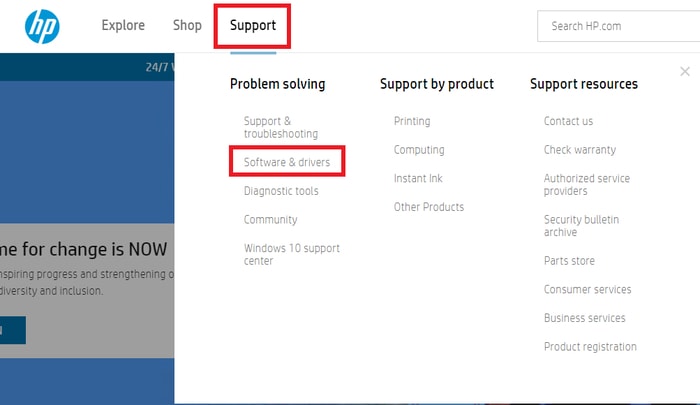
Step 2: Head over to the Support tab.

Step 3: Then, choose Software & Drivers from the drop-down menu list.

Choose Software & Drivers

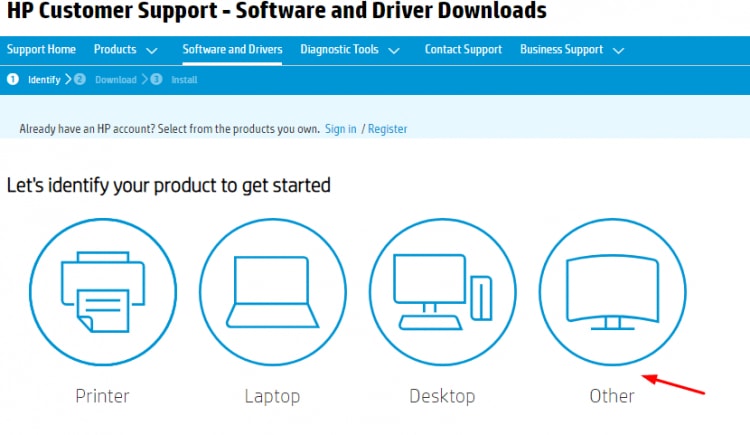
Step 4: Now, from the Product’s category choose Others to identify your product.

Choose other HP Product Category

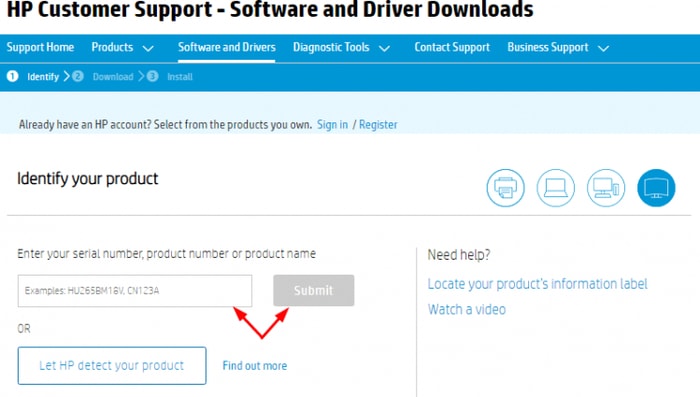
Step 5: After this, to find the most suitable HP Pavilion g6 drivers for Windows 10, enter the product number, serial number, or product name in the search box and click on the Submit button presented next to it.

Enter Serial Number then Submit

Step 6: Click on the Download button to start the download process.

Step 7: Run the downloaded file and follow the on-screen instructions to finish the driver installation.

Also Read: HP Pavilion dv9000 Drivers Download and Install for Windows 10, 8, 7


Method 3: Install and Update HP Pavilion g6 Drivers in Device Manager

Windows has an in-built utility called Device Manager to remote manage the device drivers. So, you can use the Device Manager also, to perform HP Pavilion g6 drivers download Windows 7, 8, 10. Below are the steps to update device drivers via Windows in-built utility tool, Device Manager.

Step 1: Open the Run Dialog box through keyboard shortcuts (Windows Logo + R).

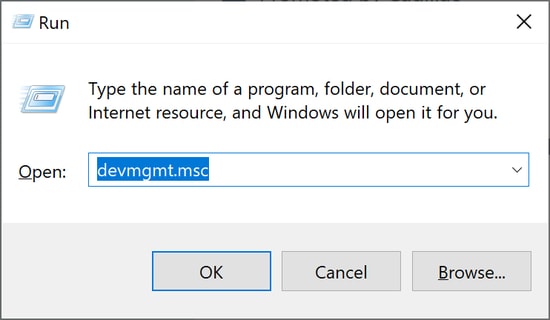
Step 2: Then, input devmgmt.msc in the text field and press Enter key.

Run command devmgmt.msc

Step 3: This will open the Device Manager program, wherein you have to locate the device that is having an issue and expand the category.

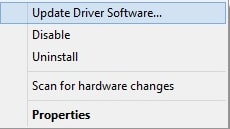
Step 4: Later, right-click on the problematic device and choose the Update Driver Software option.

Choose Update Driver Software

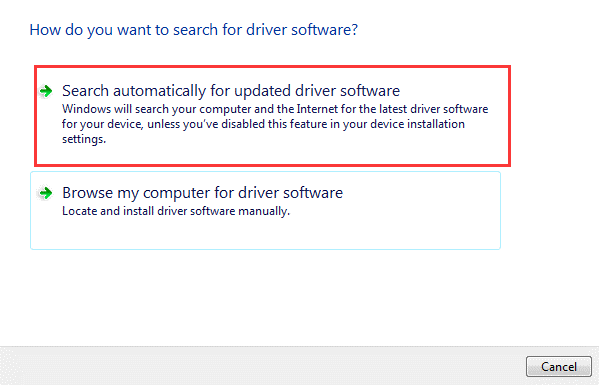
Step 5: The next window will show you two options you need to select the one that says Search Automatically for Updated Driver Software.

Search Automatically for Updated Driver Software

Now, the Windows in-built program, Device Manager will find and perform the HP Pavilion g6 drivers download Windows 7.

Also Read: HP Webcam Drivers Download, Install & Update For Windows 10, 8, 7


Download and Update HP Pavilion g6 Drivers for Windows PC: DONE

So, if you want to enjoy the best performance of your HP Pavilion g6 laptop, then you need to update its drivers from time to time. Otherwise, the laptops become laggy. In this downloading guide, we have mentioned easy tactics to install and update HP Pavilion g6 drivers. You do not need to try them all, just make your way through them and pick the best one.

Leave your queries and further suggestions in the comments section below. We hope you have liked the guide, if so then do subscribe to our Newsletter. Moreover, follow us on Facebook, Instagram, Twitter, and Pinterest for immediate updates.

1 Comment
    Hamilton says: Reply
    May 28th 2020, 8:15 am

    Thanks for sharing the blog. I really like your article. Each & every point you mention clearly. Thanks.

Leave a Reply Cancel reply

Your email address will not be published. Required fields are marked *

Sidebar Image bit G ad1

Latest Posts

  • Best-Free-Online-Portfolio-Websites-in-2026
    Best Free Online Portfolio Websites in 2026
    by adminuser / March 16, 2026
  • Anytime Astro: Best Website For Online Astrology Consultation
    Anytime Astro: Connect Now For Online Astrology Consultation
    by Somya Shrimal / March 13, 2026
  • Best-Ways-to-Combine-Images-Into-PDF-Files
    Best Ways to Combine Images Into PDF Files
    by Niharika / March 12, 2026
  • Best FREE VPS Hosting Providers
    7 Best FREE VPS Hosting Providers in 2026
    by Devesh / March 12, 2026
  • Best-McAfee-alternative-software-to-use-for-Virus-Protection
    Best McAfee Alternative Software to use for Virus Protection
    by adminuser / February 11, 2026

Categories

  • Cyber Security
  • Driver Updater
  • Entertainment
  • Fitness
  • Games
  • How To
  • laptop
  • OS
  • Reviews
  • Tech News
  • Tips & Tricks
  • Top 10
Sidebar Image bit G ad1
Instagram Introduces New Features to Reduce Online Bullying Instagram Introduces New Features to Reduce Online Bullyingby Prachi Dani / May 18, 2020
How to Use Google Authenticator For Your Facebook Accountby Prachi Dani / May 20, 2020How-to-Use-Google-Authenticator-For-Your-Facebook-Account
TechPout Footer Logo

We at TechPout promise to put forth stories that help people to learn and simplify their digital life. Our purpose is to share the true essence of technology with our tech-loving community.

Useful Links

  • About Us
  • Contact us
  • Privacy Policy

Popular Posts

  • Best PC Optimizer Software
  • Best Mac Cleaner Apps
  • Best Driver Updater
  • Duplicate Photo Finder and Cleaner Software
  • Best Free Movie Download Sites
  • Best IPTV Players

Follow us

Copyright © 2026 www.techpout.com. All rights reserved
DMCA.com Protection Status