Managing multiple social media platforms can be overwhelming. Creating and posting content separately for Facebook and Instagram takes time and effort. That is why many creators and businesses look for efficient ways to share Facebook post to Instagram with minimal effort.
Since both Facebook and Instagram are part of Meta, cross-posting between the two has never been easier. With just a few quick settings, you can post an image, Story, or Reel once and have it appear on both platforms doubling your reach while reducing your workload.
In this guide, we will show you exactly how to share a Facebook post to Instagram, step by step. You will also learn how to link your accounts, automate future posts, and use smart tips to boost your content’s performance on both platforms.
Before we talk about the steps on how to share a Facebook post to Instagram, it is important to understand why so many individuals are choosing to cross-post between the two platforms. One of the biggest benefits is saving time. Instead of creating different content for Facebook and Instagram, you can create a single post and publish it on both platforms simultaneously. This simplifies your workflow and ensures that your messaging stays consistent.
When you share Facebook post to Instagram, you also increase your reach and visibility. Not all your followers are active on both platforms. Some may only follow you on Instagram, while others prefer Facebook. By sharing your content across both, you make sure that no important updates are missed and that your content gets seen by a wider audience.
Another major advantage is consistency. Sharing the same post on both platforms helps keep your branding, tone, and visuals aligned. Whether you are managing a business, personal brand, or content page, this consistency makes your profile look more professional and trustworthy.
In short, instead of doubling your work, you can share Facebook post to Instagram and make your content go further. It is an easy way to stay active, save time, and grow your audience on both platforms without the hassle of posting everything.
Linking Facebook to Instagram
To share Facebook post to Instagram, you must first link your two accounts through Meta’s Accounts Center. You can do this from either the Instagram app or the Facebook app.
Link Facebook to Instagram from Instagram
- Open Instagram and go to your profile.
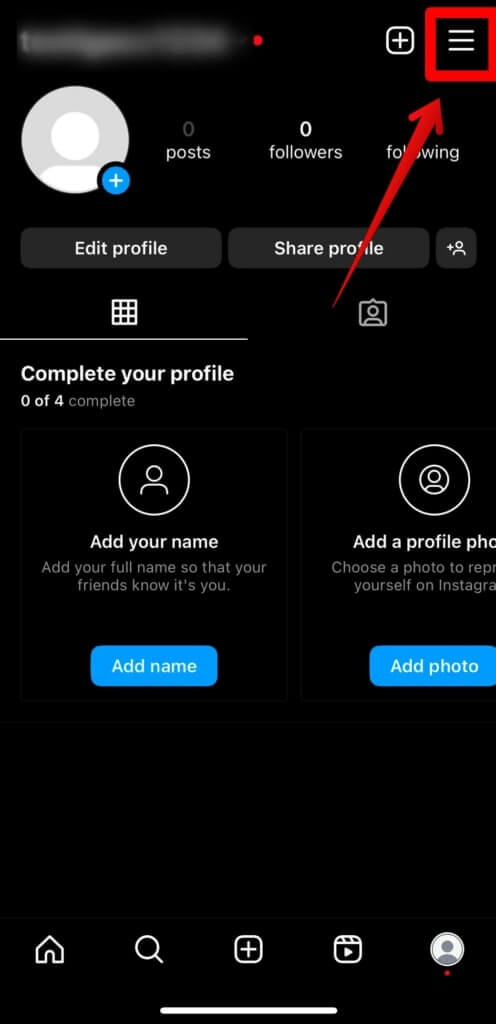
- Tap the three lines (menu icon) in the top right corner.
- Tap Accounts Center.
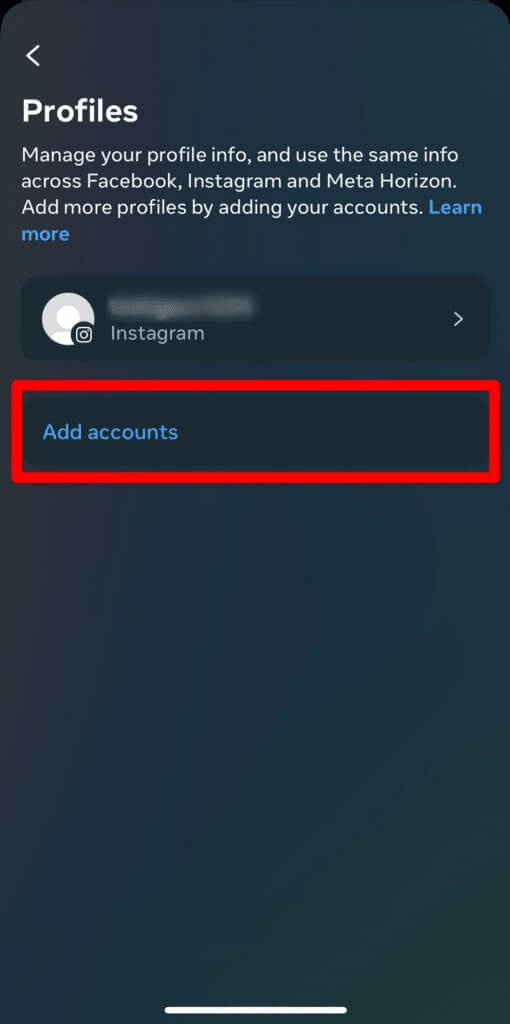
- Tap Profiles, then Add accounts.
- Select your Facebook account and log in.
Now your accounts are connected, and you will be able to post on Facebook and Instagram at the same time.
Link Facebook to Instagram from Facebook
- Open the Facebook app.
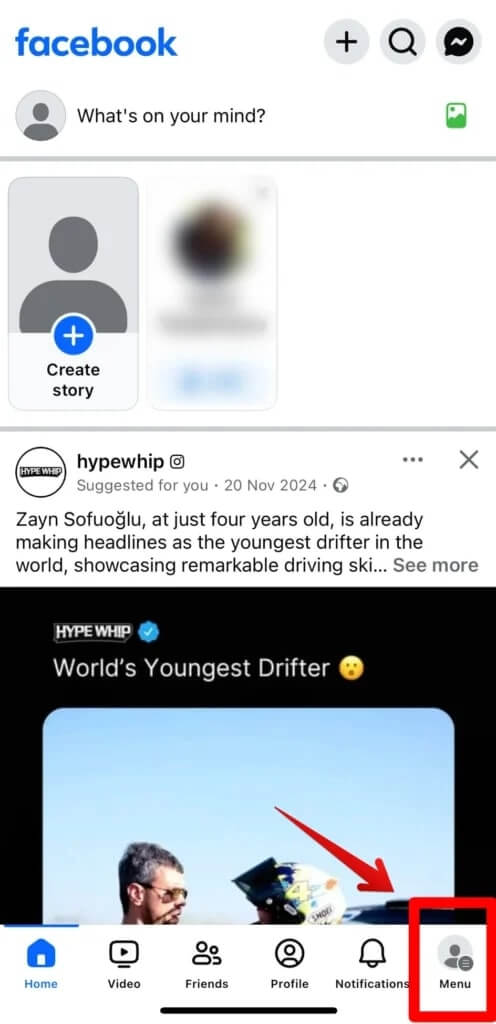
- Tap the Menu button (bottom right).
- Go to Settings > Meta Accounts Center.
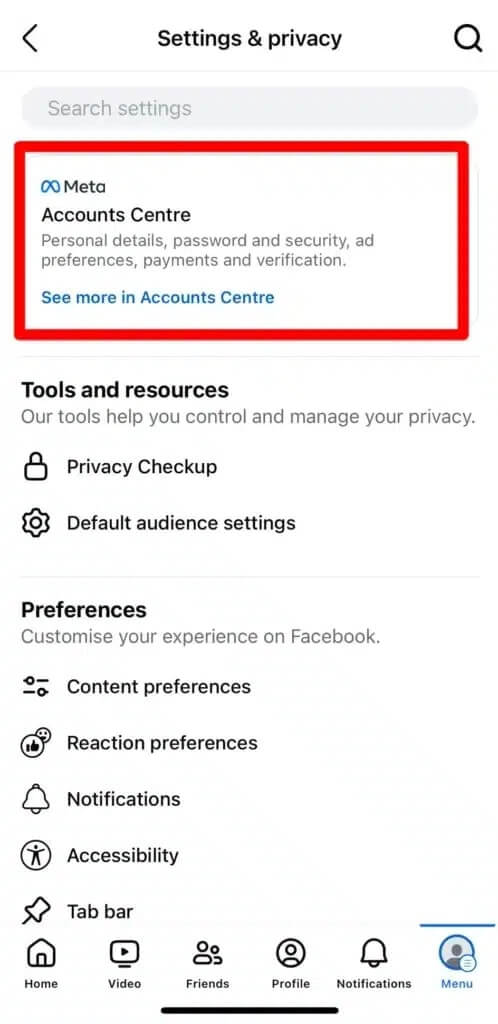
- Tap Add accounts and select your Instagram account.
Once this setup is complete, you can share Facebook post to Instagram with ease.
Also know: How to Recover Deleted Facebook Account
After linking your accounts, here’s how to share Facebook post to Instagram for images, Reels, and Stories.
Image posts are the most common type of content, and cross-posting them is simple:
- On Facebook, tap “What’s on your mind?” to create a new post.
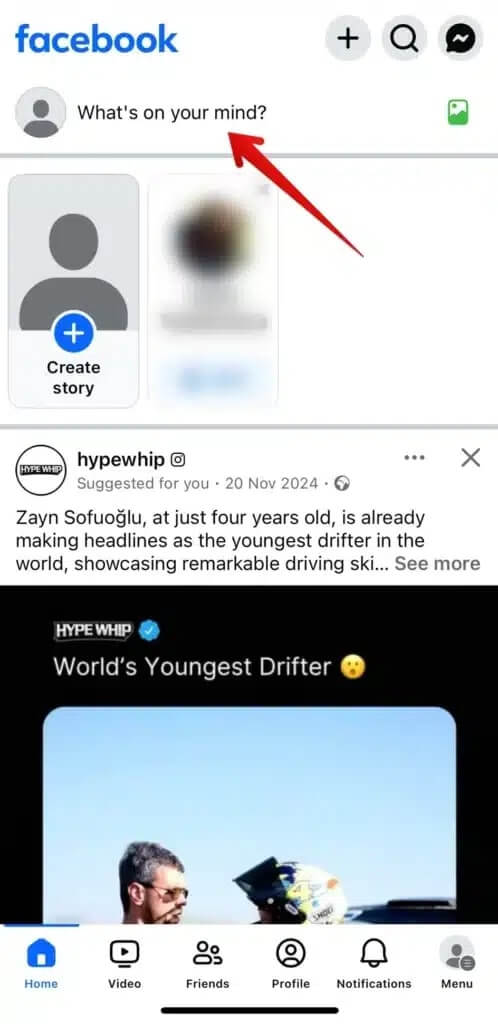
- Choose a photo or take one using your camera.
- At the top of the post, you will see an Instagram icon. Make sure it’s toggled ON.
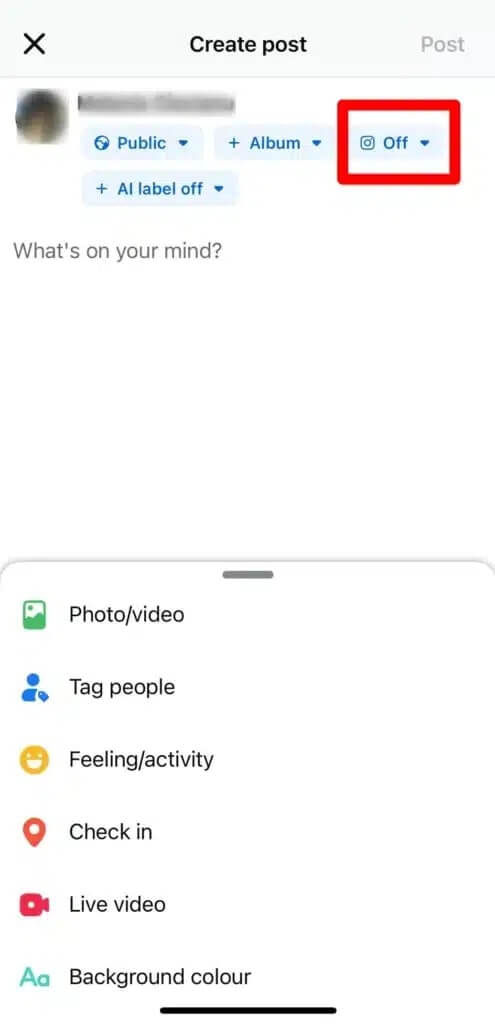
- Add your caption and click Post.
That’s it! Your photo will now appear on both Facebook and Instagram.
Reels are short, engaging videos, and they can be cross-posted too.
- Go to the “Video” tab on Facebook.
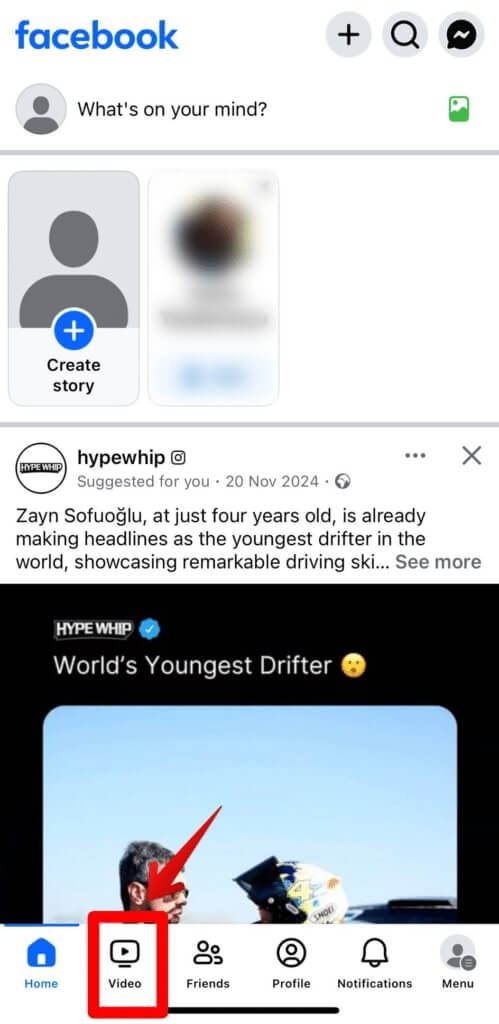
- Tap the camera icon at the top right.
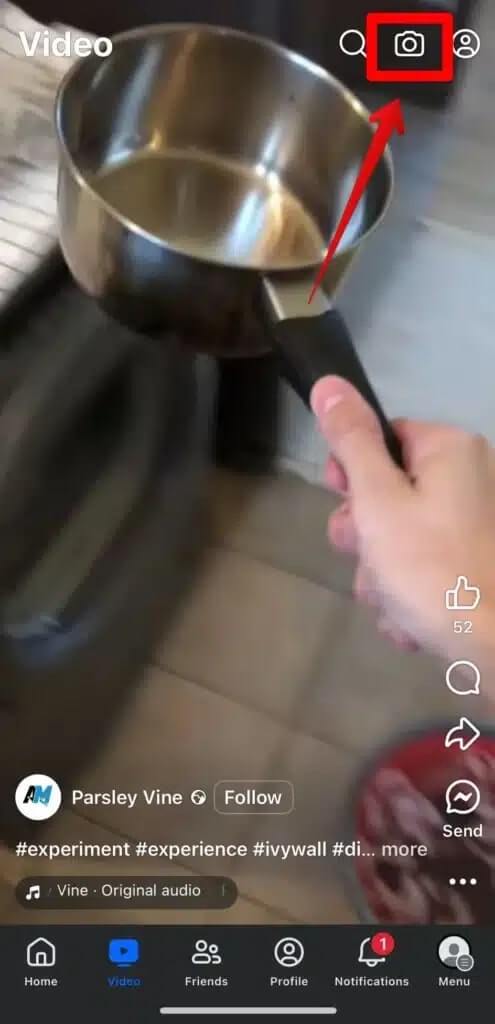
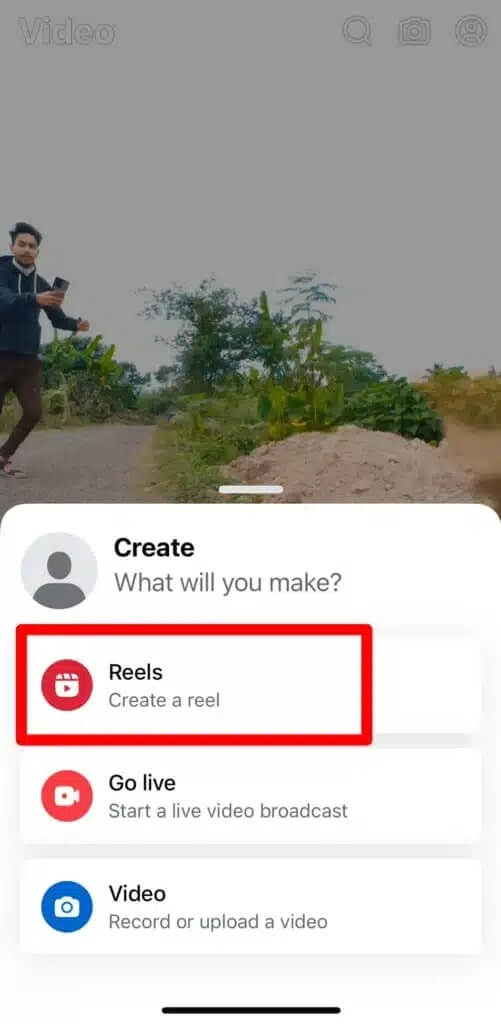
- Select Reels, then record a video or upload from your gallery.
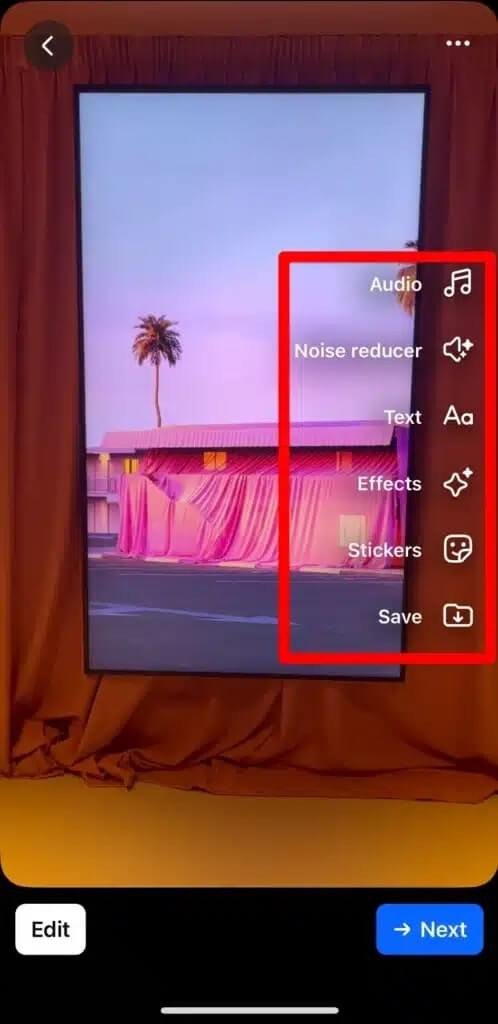
- Edit your video with effects, music, and stickers.
- Tap Next, then toggle on Share to Instagram.
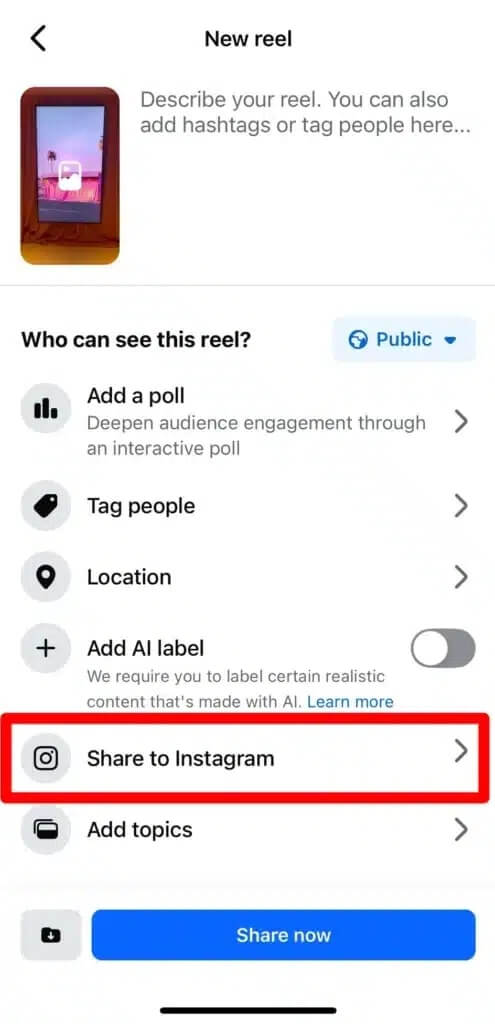
- Post your Reel.
Your Reel will now be visible on both platforms, helping you double your reach.
Stories are temporary posts that stay live for 24 hours. They are great for behind-the-scenes moments or quick updates.
- Open your Facebook app and go to your profile.
- Tap “Add to Story.”
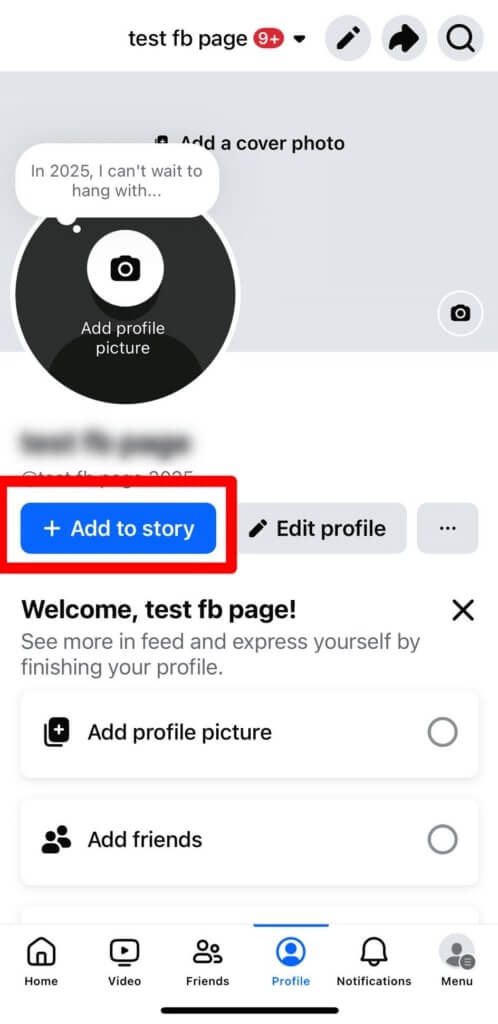
- Choose or take a photo/video.
- Add effects, music, or text as you like.
- At the bottom of the screen, find the option “Share to Instagram.”
- Make sure the toggle is turned On.
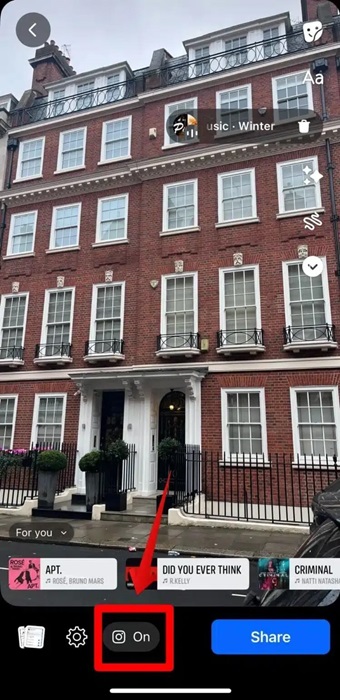
- Tap “Share” to post the Facebook Story to Instagram as well.
Now your Story will automatically appear on both apps.
How to Post on Facebook and Instagram at the Same Time (Automatically)
If you are looking for a way to simplify your social media routine, learning how to post on Facebook and Instagram at the same time can be a game-changer. Thanks to Meta’s built-in Accounts Center, you can now automate cross-posting and make your content strategy more efficient. Instead of manually copying content between platforms, this feature allows you to create a single post that publishes on both Facebook and Instagram automatically.
To set this up, go to the Accounts Center in either the Instagram or Facebook app. From there, tap on “Sharing across profiles.” Select the Facebook account you want to post from and the Instagram profile you want to share to.
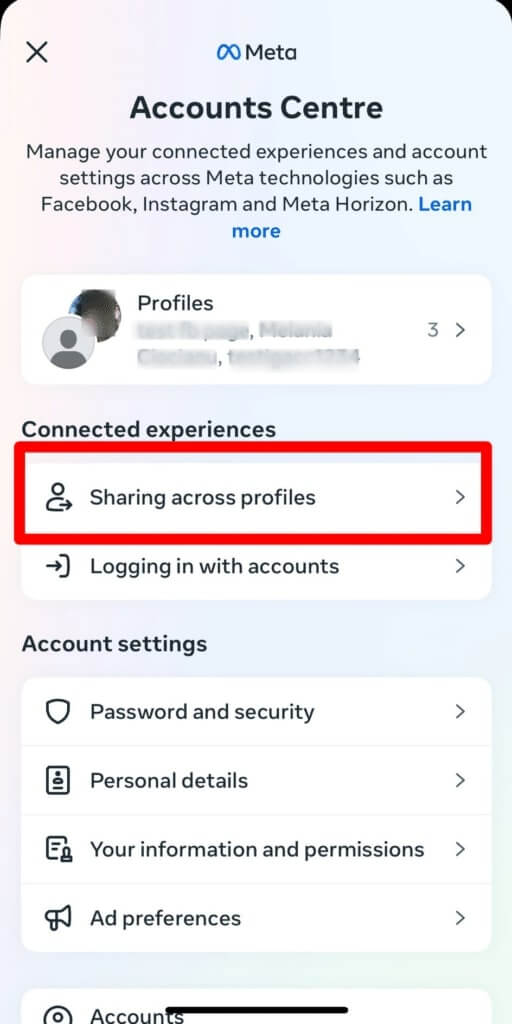
Once selected, you will see toggles for different types of content: Posts, Stories, and Reels. Turn all of them on to enable full cross-posting.
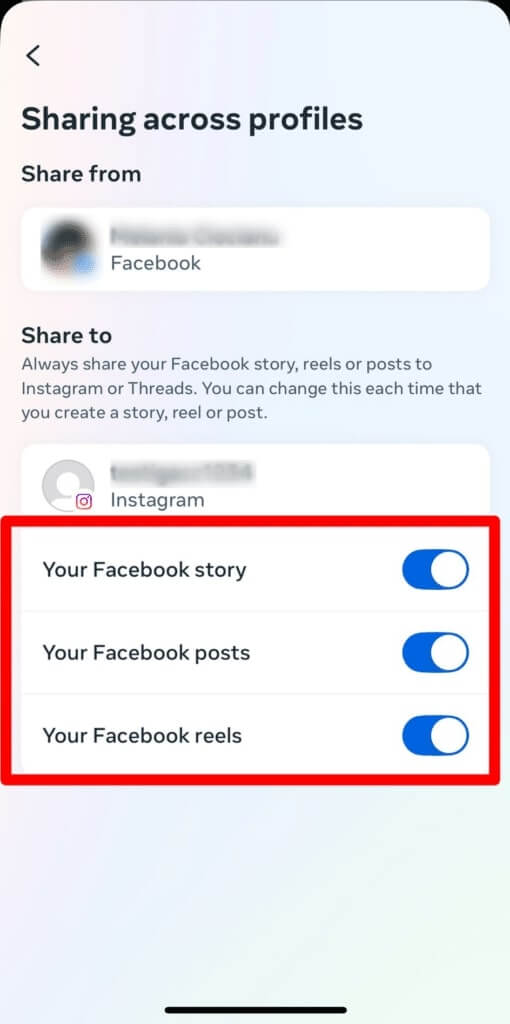
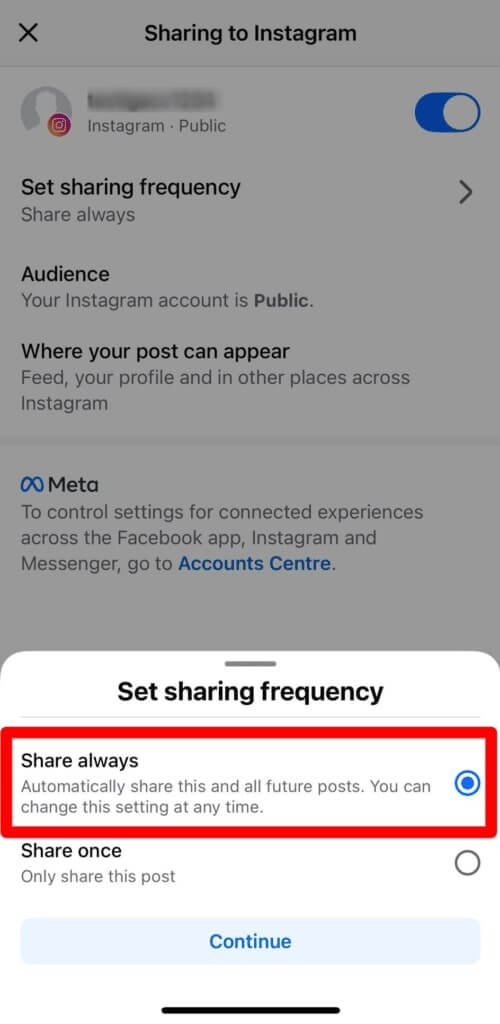
Make sure to adjust the sharing frequency to “Share always.” This ensures that every time you share a post on Facebook, it will automatically be shared to Instagram too, like a product update, news, or a personal photo. Your followers on both platforms will see your content, without you having to do anything extra.
How to Post Facebook Post to Instagram: Best Practices
Now that you know how to share Facebook post to Instagram, let’s look at some useful tips to make your content perform better on both platforms. Cross-posting can save time, but if done strategically, it can also boost your reach and engagement.
Tailor Your Captions for Each Platform
While it is easy to post the same content, your captions should be platform-specific. What works on Facebook might not suit Instagram. For example, links in Facebook captions are clickable, but on Instagram, they are not. Also, Instagram users expect hashtags, while Facebook audiences do not rely on them as much.
If you are wondering how to share Facebook post to Instagram and want it to feel right on both platforms, consider editing the Instagram caption after posting. It is a small extra step but can help increase your visibility and improve engagement on Instagram.
Use Visuals That Stand Out
Instagram is a highly visual platform, so your images and videos should be eye-catching. Whether you are posting Stories, Reels, or feed content, always choose media that looks amazing and tells a clear message on its own.
If you are cross-posting an image or Reel, make sure it’s sized properly for Instagram. Even though you are trying to share Facebook post to Instagram, remember that your visual style should still feel native to each platform. This helps maintain consistency and improves how users engage with your content.
Track Performance and Adjust as Needed
Once you automate and learn how to post Facebook post to Instagram, do not forget to keep an eye on your analytics. Just because a post performs well on Facebook does not mean it will do the same on Instagram. Each platform has its own audience behavior and content preferences.
By reviewing regularly, you will understand which types of posts perform better and can adjust your strategy accordingly.
Also know: Best Tips to Share Instagram Reels to Facebook in Just Few Taps
Conclusion
With your Facebook and Instagram now connected, sharing content between the two has never been easier. You no longer need to spend extra time planning separate strategies for each platform. By using the Account Center and turning on cross-posting, you can share Facebook post to Instagram effortlessly and keep your social media presence consistent.
Just remember, while automation helps save time, checking your post performance and making small updates to captions or visuals can make a big difference. With a little effort and the right setup, you will get better reach, stronger engagement, and smoother content workflow across both Facebook and Instagram.