Operating Windows 10 is easy, but it takes up a lot of space in your system. After Tiny 10 ISO download, your system runs smoother and faster because of its lot less space consumption. Tiny10 ISO download makes more room in your system for other features.
It is smaller in size when compared to Windows, so after Tiny 10 ISO download, the size reduction is significant for your system to work faster and smoother. So here are all the steps you could use to install the Tiny 10 ISO file for Windows PC.
What is Tiny10?
The Tiny 10 is an open source stripped version of Windows to download drivers. The Tiny ISO download aims to remove all the unwanted and unnecessary components for Windows. It makes your system work smoother and debloats the system as well.
It is smaller in size when compared to Windows, so after Tiny 10 ISO download, the size reduction is significant for your system to work faster and smoother. When a 32-bit system takes 22 GB of size in Windows, meanwhile a Tiny 10 only takes 5.2 GB of the total space.
Benefits of Tiny 10 Download
There are various benefits to Tiny 10 ISO downloads you can find for your system. It is believed by a lot of users that the Tiny 10 64-bit ISO file download is much better than traditional Windows 10. And the following are the reasons why it is so.
- Resources usage: This uses very little disk space in your system. It takes only 5.2 GB for a 32 bit of system.
- Requirements for the system: It runs very smoothly on even very low ends and even on old PCs; it requires only a min of 1GB RAM for 32 bits.
- Performance: It offers better performance with a lot of better responsiveness.
- Bloatware: This offers you no stress of engaging with all the unnecessary third-party and all the other unwanted Windows applications.
- Features: It provides you with a very clean and minimalist look and access for only useful options.
Windows 10 Tiny ISO Download
Windows 10 Tiny ISO Download is an easy process but requires attention to configure the important and necessary settings to work on.
The following are the steps for Tiny10 download:
Step 1: You need to download the installation file for Tiny 10 ISO download.
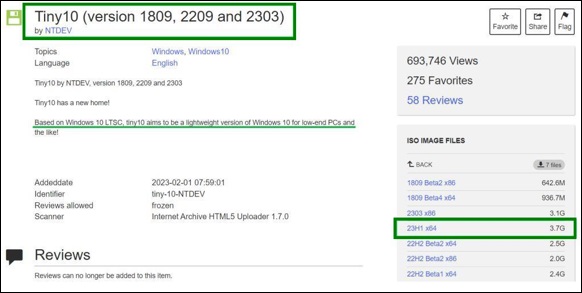
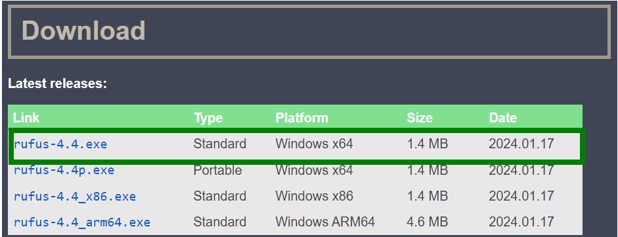
Step 2: For Tiny 10 ISO download, it needs a flashing tool to flash the bootable image. For that, we will use Rufus, which is an open-source tool to use, and it helps in creating a bootable drive for Windows distribution.
Also know: Windows 11 Installation Assistant Download
Step 3: Now you need to create a bootable drive after you have downloaded both. First, you need to insert the pen drive into your system and then run the Rufus software in your system.
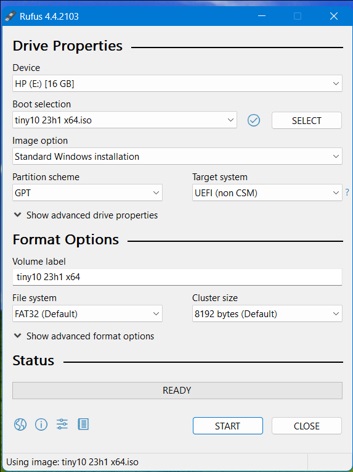
In this Rufus software, go to the ISO files as Boot Selection, then select the partition scheme for GPT. After that do not change any other settings; just leave them as they are as configuration, then click on ‘Start.’
And after the flashing process completes, click on ‘Close.’
Step 4: After Rufus software, you need to change the boot priority for Tiny 10 ISO to download. Go to the manufacturer’s website of your computer and get the BIOS key to your system.
Now go to the Boot priority section and provide the UEFI boot for the highest priority. Along with it, disable the ‘Secure Boot’ if enabled. Because it can cause boot failure, it remains enabled.
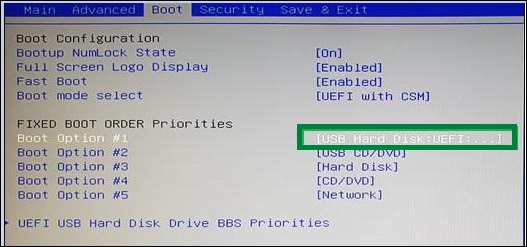
After you make all these changes, select save and then exit. After this, your system automatically restarts.
Step 5: For the next step for Tiny 10 ISO download, you need to configure the installation. After you restart your system, the typical Windows 10 desktop will appear in front of you. But you need to select some of the configurations that are necessary.
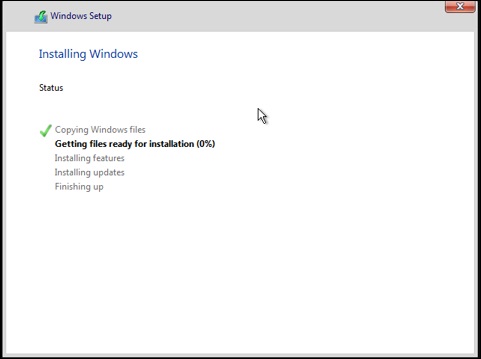
To change any feature like Language, Time, and Currency, or any kind of layout for your keyboards, then you can change it now.
After you are done, click ‘Next’, and on the next screen you will see the storage devices like HDD, SSD, and much more. Select the disk from the device where you want to install the OS.
Step 6: Once the complete process of installation is done, you can set your username and password of your choice. When you try to open it, it will take you to the home screen of Tiny 10.
Likewise, Windows 10, it has a home screen just without any unwanted applications or any kind of advertisements for third-party applications.
Also know: wdcsam64_prewin8.sys Turned Off Core Isolation: FIXED
Frequently Asked Questions (FAQs)
Q1. What is the size of any of the Tiny 10 ISO images?
Ans. The size of a Tiny 10 ISO image is approx. 64-bit, and it takes up to 2.4 GB of space on your drive. And there is also a 32-bit image which takes up to 1 GB of space.
Q2. Is it possible to install Tiny 10 on any 32-bit PC?
Ans. Yes, you can easily download Tiny 10 on a 32-bit PC; it does support the Tiny 10 ISO download.
Q3. Is Tiny 10 64-bit ISO file download safe for the system?
Ans. The Tiny 10 download is not 100% safe because, at the end of the day, it was developed by some anonymous developer. So, Tiny 10 ISO download is not so safe to use for your daily driver usage.
The Tiny 10 is an open source stripped version of Windows to download drivers. The Tiny 10 ISO download aims to remove all the unwanted and unnecessary components for Windows. There can be a lot of risk installing the Tiny 10 OS in your system but installing it in your older systems can make them easy and fast to run.