Think about what happens when you finish your work and turn off your computer. You get “Please Wait for the GPSVC” and your computer is frozen. This please wait for the gpsvc message can appear during startup, login, or shutdown. Wait a few more minutes and the screen remains the same. Your computer will not shut down and may not even restart. Sounds frustrating, right?
This issue may be disruptive to your work and may cause your computer to seem sluggish, especially when you keep seeing please wait for gpsvc on the screen. The fortunate thing is that there are some basic remedies you can attempt. You won’t always require professional help to do this.
GPSVC is a Windows Service that carries Group Policy Settings, Settings that control various parts of your computer. If you are wondering about gpsvc meaning, it simply refers to the Group Policy Client Service in Windows. The service is waiting for one of the settings to be applied so it can continue, and that can take a while.
Let’s take a look at the most common reasons for waiting for gpsvc, along with the ideal method to repair it.
What causes the please wait for the gpsvc message to appear?
Knowing why this happens can be very helpful before trying any of the following solutions, because please wait for gpsvc usually points to a delay in policy processing. Here’s a list of what the most common reasons are:
- Sluggish network connection: Windows might need the network to gather some settings. A poor connection can hinder that.
- Incorrect or corrupted Group Policy configurations can interfere with Windows’ ability to accomplish its tasks.
- Several vital Windows services have random missing or damaged system files.
- Software conflicts: Certain third-party applications can cause disruptions to standard system functions.
- Malware infections: Malicious software can corrupt files or alter system configurations.
- Excessive policy rules: there are a lot of settings. The setting time required to process the policy sets may be high.
Once you find the culprit behind the gpsvc issue, you can select the proper solution. Give these solutions a chance, trying from easiest to the most difficult.
Methods to fix the please wait for the gpsvc message in Windows
Method 1: Shut down your computer using security options
Occasionally Windows hangs when you are closing a session and shows please wait for the gpsvc for longer than expected. You may attempt to shut down your computer through the security screen.
- Press Ctrl + Alt + Delete together.
- Wait for the security screen to appear.
- Find the power icon in the bottom-right corner.
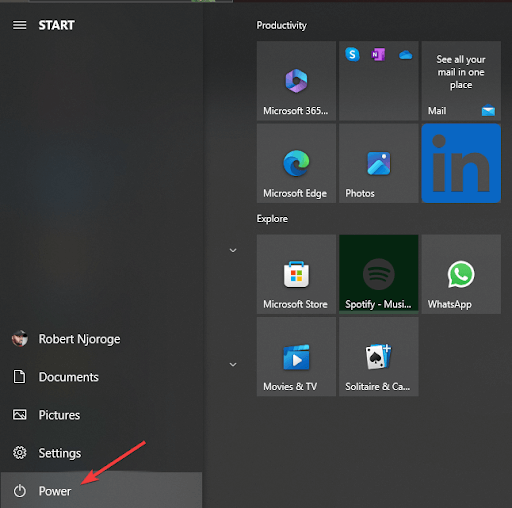
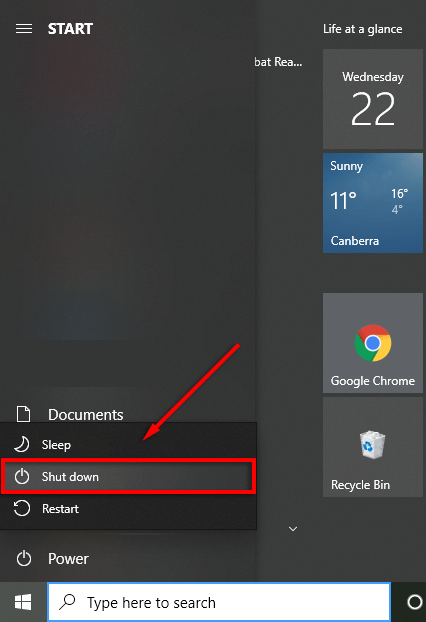
- Click the icon and select Shut down.
- Turn on your computer again.
- Check whether the message appears again.
This trick can be used if the please wait for gpsvc problem happens while shutting down. If you end up with a black screen and frozen desktop, head to the following tip.
Method 2: Restart your computer
A reboot will often clear any temporary system errors behind the please wait for the gpsvc screen. Do not force shutdown when Windows is installing updates or doing other important work.
- If the keyboard does get a response from your PC then bring the power menu and restart the device as you usually would.
- If it has been totally frozen for a long while, you might be required to press the power button to power it down. Use this just as a last resource since you might lose any unsaved work.
- Turn on your computer again and observe the outcome.
Also know: How to Turn Windows Features On or Off in Windows 11/10
Method 3: Repair windows files with SFC and DISM
Windows that search for and repair corrupt system files. These will be useful if your problem is due to corrupt files disrupting key services.
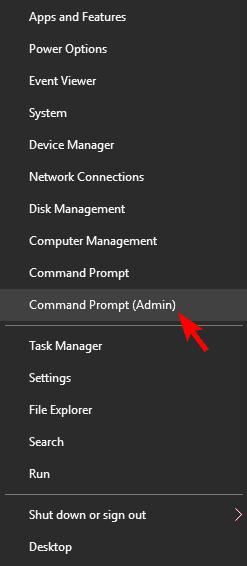
- Start menu, then search for Command Prompt.
- Right click on the result and run as administrator.
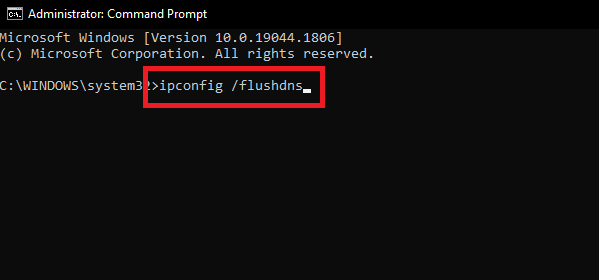
- Enter command: sfc /scannow
- Then press Enter.
- Leave the window running until the scan is complete. Keep this open as it runs.
- Next, enter this command: DISM /Online /Cleanup-Image /Restore Health
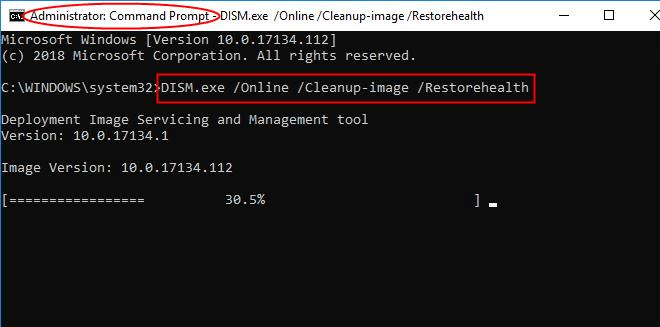
- Wait for the repair to complete. This might be several minutes.
- Repeat the execution of the SFC command and then reboot your computer.
Check whether Windows now starts and shuts down without getting stuck on gpsvc.
Method 4: Reset Local Group Policy Settings to fix gpsvc
- Search for Command Prompt in the Start menu.
- Select Run as administrator.
- Enter the following command: RD /S /Q %WinDir%\System32\GroupPolicyUsers && RD /S /Q %WinDir%\System32\GroupPolicy
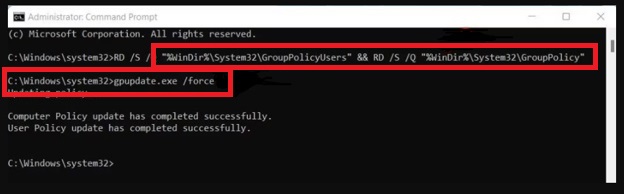
- Press Enter and wait for the command to finish.
- Next, run this command: exe /force
- Wait for Windows to process the policy settings.
- Restart your computer and check whether the issue continues.
Method 5: Check Your Computer for Malware
- Open the Start menu.
- Search for Windows Security and launch it.
- Select Virus & threat protection.
- Click on Scan options.
- Choose Full scan.
- Start the scan and wait for it to finish.
- Follow the recommended actions if threats are found.
Restart your computer after completing any required cleanup. Then check whether the GPSVC message still appears or whether you are still waiting for gpsvc.
Method 6: Use system restore
If the problem started recently, a previous restore point may help. System Restore can return certain system settings and files to an earlier state.
- Press Windows + R to open the Run window.
- Type exe and press Enter.
- Follow the instructions on the screen.
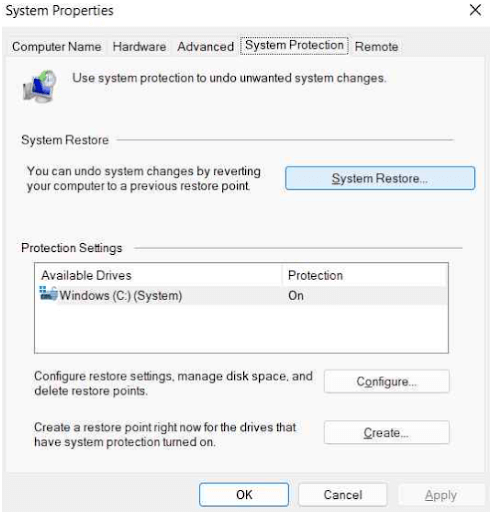
- Select a restore point created before the issue began.
- Review the details and confirm your choice.
- Allow Windows to complete the process.
Review the affected items before proceeding. Back up important files whenever possible.
Also know: How to Fix HYPERVISOR ERROR 0x20001 in Windows 11/10
Method 7: Check the windows registry carefully
- Incorrect registry settings can sometimes affect Windows services.
- However, changing these settings without the correct guidance can make your system unstable.
- Before making any changes, create a backup of your registry. You should also create a restore point if possible.
- If you suspect a registry problem, consult Microsoft support or a qualified technician.
- Avoid copying registry changes from unverified websites. The correct fix depends on your Windows version and the exact error.
Method 8: Get professional help if nothing works
If none of these methods helps and please wait for the gpsvc still appears, the problem may involve deeper Windows configuration or service issues.
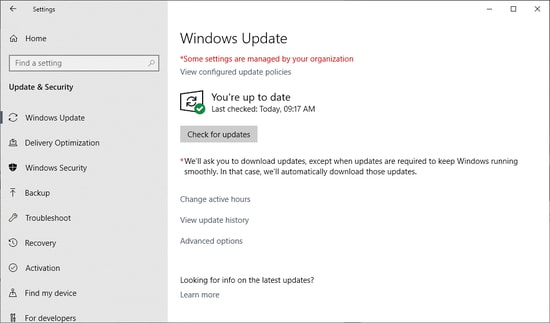
- Check for pending Windows updates.
- Review recent software or driver changes.
- Contact Microsoft Support for further guidance.
- Ask a qualified technician to inspect the computer.
A Windows reset or clean installation may be considered only after other options fail. Back up your important files before attempting either option.
Frequently Asked Questions
Q1. What does GPSVC mean in Windows?
Group Policy Client Service (GPSVC), is a service used by Windows to apply policy settings to user accounts and the system itself. In simple words, gpsvc meaning is the Windows service that manages Group Policy processing.
Q2. Why does my computer freeze on the GPSVC screen?
The delay could be due to corrupt files, policy errors, network issues, or application conflicts.
Q3. Can I turn off the GPSVC service?
Never attempt to disable this service. This is a Windows requirement for the Group Policy settings.
Q4. Will resetting Group Policy wipe out my personal data?
The process above resets local policy folders, not documents. But it deletes custom policy settings. Always back up important documents before trying to reset them.
Q5. What is the solution if the GPSVC message reappears?
Run windows repair scans and scan for malware in first place if please wait for the gpsvc keeps returning. If still not, then get to Microsoft support or to a trusted technician.
The frustrating Windows startup and shutdown can be caused by the please wait for the gpsvc message. But a few easy solutions may help. Begin with easy checks, fix any file corruption, and double-check your policies. Before you make major changes, back up your files.