Have you ever been in the middle of an intense online match, only to lose because your game started lagging or suddenly disconnected? It is one of the most frustrating things for any gamer, and often, it is not your internet speed that is the problem. The real culprit could be your NAT type.
Your NAT type (Network Address Translation type) determines how easily your computer connects to other players and game servers online. A strict NAT type can cause lag, failed connections, and limited multiplayer access, while an open NAT offers smoother gameplay and faster connections.
In this guide, we will explain everything you need to know, from how to check NAT type on PC to how to change NAT type safely on Windows.
What is NAT?
NAT stands for Network Address Translation. It is a process that allows multiple devices in your home to share one public IP address. Think of NAT as a traffic manager for your network. It controls how data moves between your private home network and the wider internet.
When your computer sends a data packet to a game server, the router replaces your private IP address with the public IP address. This step keeps your personal network hidden from the outside world.
Without NAT, your computer would connect directly to the internet, exposing your private IP address. That is why NAT also plays a key role in keeping your system secure.
Why Does NAT Type Matter?
Your NAT type determines how easily your device connects to game servers and other players. A strict NAT can prevent you from joining multiplayer matches or cause connection drops. On the other hand, an open NAT allows smooth, lag-free connections but may reduce your network security.
When you understand how to change NAT type PC, you can tune the balance between performance and protection.
The Different NAT Types
There are generally three types of NAT settings, and each comes with its own advantages and disadvantages for gaming and online connectivity. Understanding them will help you decide which setup works best for your needs.
Open NAT (Type 1)
An open NAT means your device is directly connected to the internet without any restrictions from your router or firewall. This setup offers the fastest and most stable connection, allowing you to connect with anyone and even host online games with minimal lag. However, the downside of an open NAT is that it provides very little security. Since there are no major restrictions, your device becomes more exposed to potential online threats and unauthorized access.
Moderate NAT (Type 2)
A moderate NAT provides a balance between speed and security. It keeps some ports open for smoother connections while still maintaining a basic level of protection through your router’s firewall. With this setup, you can connect to players using either open or moderate NAT types and enjoy fairly stable gameplay. Still, you might experience occasional lag or limitations when trying to host games, as not all connections will be as smooth as with an open NAT.
Strict NAT (Type 3)
A strict NAT type gives the most security but limits connectivity. It blocks most incoming connections, so you can only play with users who have an open NAT. While safer, this setup often causes lag, disconnections, and trouble joining matches. If your games feel unstable, your network may be using a NAT type strict configuration, but you can fix it by changing your NAT settings.
How to Check NAT Type on PC
Before you learn how to change NAT type, it is important to check your current NAT configuration. Here’s how to check NAT type on PC:
- Press Windows + R, type cmd, and press Enter.
- Type ipconfig in the Command Prompt window and press Enter.
- Look for the line that says Default Gateway and note the number.
- Open your browser, enter the Default Gateway number into the address bar, and log in to your router settings.
- Most routers use admin, password, or a blank field as the default password.
- Once you are in your router settings, look for NAT Type under Internet or Advanced Settings.
That’s how you can easily find your current NAT setup. And if you are wondering how to check NAT type Windows 11, the process is the same.
Also know: Easy Methods to Change VPN Location
How to Change NAT Type on PC
Now that you know your NAT status, let’s go over the different methods for how to change NAT type PC. Each method offers a unique way to improve your connection.
Method 1: Enable UPnP on Your Router
UPnP (Universal Plug and Play) allows apps and devices to automatically open ports for communication. This is the easiest way to switch to an open or moderate NAT. Follow these steps:
- Find your router’s IP address using ipconfig.
- Enter it in your browser and log in.
- Go to Advanced Settings.
- Locate Enable UPnP and turn it on.
UPnP makes your connection faster but can slightly reduce security, so enable it only if you trust your network environment.

Method 2: Port Forwarding
If you want more control, port forwarding is a manual way to open specific ports for games. It is safer than UPnP since you decide which ports to open. Follow these steps:
- Visit portforward.com to find the required port numbers.
- Go to your router’s Advanced Settings.
- Enable Port Forwarding.
- Enter the port numbers and your device’s IP address.
Once saved, restart your router and test your connection. This method is reliable and widely used by gamers who want to know how to change NAT type securely.

Method 3: Turn On Network Discovery
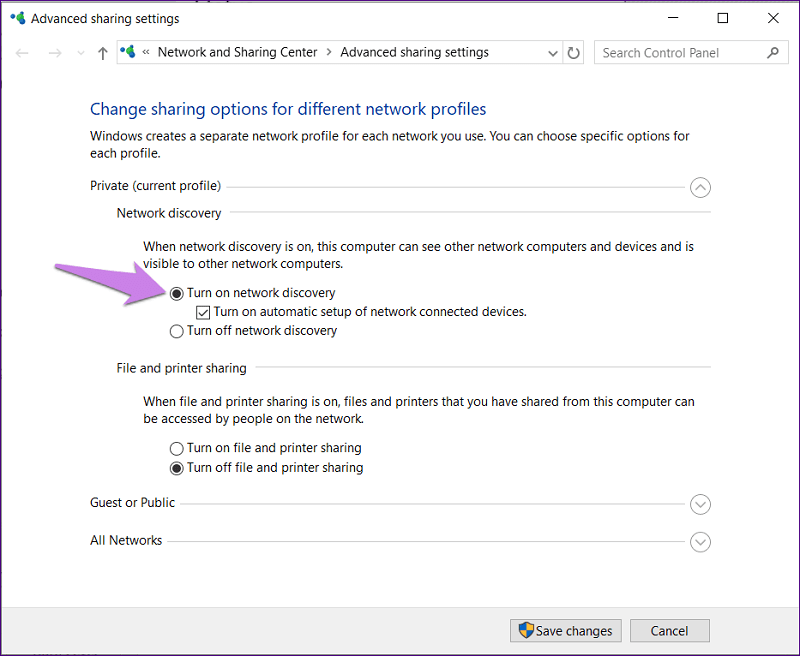
Network Discovery allows your Windows PC to find other devices on your network, like a simplified, computer-side version of UPnP. Follow these steps to enable it:
For Windows 10:
- Open Control Panel > Network and Internet > Network and Sharing Center.
- Click Change advanced sharing settings.
- Turn on Network Discovery.
For Windows 11:
- Open Settings > Network & Internet.
- Select Advanced network settings > Advanced sharing settings.
- Turn on Network Discovery.
This feature helps devices communicate more smoothly, improving local connections.
Method 4: Edit Your Router’s Configuration File
Advanced users can manually edit their router’s configuration file to adjust NAT and port settings. Follow these steps:
- Download your router’s configuration file.
- Open it in Notepad.
- Search for the word “bind.”
- Add a line like this:
- bind application=CONE(UDP) port=XXXX-XXXX
- Replace the X’s with your desired port numbers.
- Save and re-upload the file to your router.
- Restart your computer.
Make sure you back up the original file first in case something goes wrong.
Method 5: Enable DMZ Mode
DMZ (Demilitarized Zone) exposes one device completely to the internet. It is the fastest way to fix NAT issues, but it is not the safest. Follow these steps to enable it:
- Go to your router’s configuration page.
- Find DMZ Settings.
- Enable DMZ and enter your PC’s IP address.
Use DMZ only as a last resort. While it guarantees an open NAT type, it removes most of your router’s firewall protection.
How Different NAT Types Affect Your Gaming Experience
Here’s what each NAT type means for your gaming experience:
- Open NAT – You can play with everyone, chat freely, and host matches. Best for gaming but less secure.
- Moderate NAT – You can play with open and moderate NAT users. A good balance between speed and safety.
- Strict NAT – You can only play with open NAT users. Safe but often causes lag and connectivity problems.
If you have a NAT type strict, switching to a moderate or open NAT will make online gaming much smoother.
Also know: How to Fix No Internet Secured for Windows 10, 11
Why You Might Want to Change Your NAT Type
Knowing how to change NAT type gives you more control over your internet connection and overall gaming experience. A different NAT setup can help reduce lag and latency, make it easier to connect with friends, improve online voice chat quality, and allow you to host multiplayer matches. However, remember that opening ports or enabling UPnP can make your network more vulnerable, so always understand the risks before making any changes.
Is It Safe to Change Your NAT Type?
Changing your NAT type is generally safe if you follow the correct steps. However, an open NAT means fewer restrictions, and fewer restrictions can mean higher risks.
If you are security-conscious, try using a moderate NAT or pair your setup with a trusted VPN. A VPN can mask your IP address and help keep your data safe, even with open ports.
Conclusion
Changing your NAT type can make a big difference in your online experience, especially if you love multiplayer games. By learning how to change NAT type safely, you can enjoy smoother gameplay, fewer connection issues, and better communication with friends. Just remember to balance performance with security. Choose the NAT type that gives you the best mix of speed and protection for your network.