Main LogoLight Logo
  • Reviews
  • Top 10
  • How To
  • Tech News
  • OS
    • Windows
    • MAC
    • iOS
    • Android
  • Categories
    • Driver Updater
    • Cyber Security
    • Games
    • Fitness
    • Entertainment
    • Tips & Tricks
Top 10 Windows
by Prachi Dani

16 Best Free Webcam Software for Windows 10, 11 (2024)

December 27, 2023
1

Video communication services are an integral part of today’s technological world. But do you think that just having a high-end camera with an in-built webcam will be enough for you? Not really. A good camera along with the best webcam software is what will take your experience to the next level.

There is no denying that a lot can be done with a camera, but when clubbed with the right software, it can do wonders. It can be used for clicking wide-angle selfies, recording videos, video calling with your loved ones, and many other thrilling things.

From necessary activities to fancy tasks, the webcam software can be used for “n” number of things. Keeping in mind these varied user requirements, we have compiled a well-researched list of some of the best webcam recording software for you.

Each of our picks stands out on some of the other parameters, which includes a slick user interface, impressive frames, graphic effects, editing tools, and many more.

Let’s now take a quick look at the top webcam software for Windows 7/8/10.

Table of Contents show
What Are The Best Webcam Software for Windows 7, 8, 10, 11 in 2024?
1. ManyCam
2. Yawcam
3. MyCam
4. Cyberlink YouCam
5. Splitcam
6. IP Camera Viewer
7. Photo Broth Pro
8. Webcam Toy
9. Logitech Webcam
10. FakeWebcam
11. Debut Video Capture and Screen Recorder Software
12. GoPlay
13. Movavi Screen Recorder
14. Webcamoid: Ultimate Webcam Suite
15. NVIDIA Broadcast
16. Bandicam Webcam Software
Closing Words: Best Free Webcam Software 2024

What Are The Best Webcam Software for Windows 7, 8, 10, 11 in 2024?

Check out our well-researched list below to know about the top webcam recording software available in the marketplace currently.

1. ManyCam

Many_Cam

With its extensive list of features and offerings, ManyCam surely deserves a place on the list of Best webcam software. It is an incredible tool with simple and convenient working. ManyCam can be easily integrated with your Game Capture features, Skype account, Facebook, Tumblr, Youtube and can also work as a screencast for your PC screen.

You can use it to alter the background of your video stream and for adding multiple effects like stickers, backgrounds, 3D effects, and face masks. In addition to this, it also supports various video sources, picture in picture, playlist, IP Camera, Mobile app, Multiple channel broadcasting, and many more.

Out of the many features, as mentioned above, it Mobile app feature captures everyone’s attention. This feature erases the need of a dedicated webcam, which means your mobile phone camera is sufficient for you. All you need to do, connect your phone with your computer system. With the help of ManyCam’s mobile app feature, you can use your smartphone as a webcam.

Download

2. Yawcam

Yaw_cam

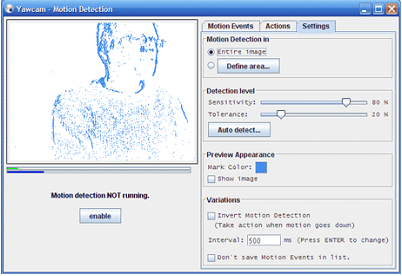
Next on our list of best free webcam software windows 7 is Yawcam. It is a free app, but that does not mean it is less than any high-end paid tool. Its voluminous list of features and benefits makes it a perfect pick. Video streaming, password protection, image snapshot, time-lapse movies, multi-language support, built-in web server, and motion detection are a few of the offerings of Yawcam. But the two most notable features are real-time video streaming and an inbuilt-web-server. You can also set a password for your videos and pictures with Yawcam.

Download

3. MyCam

my_cam

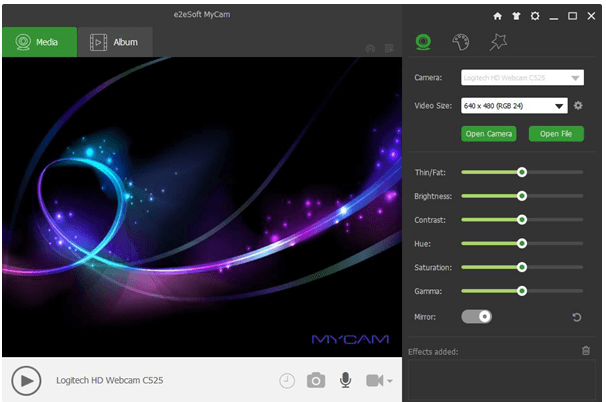
Another most popular and top webcam software for windows 10 is MyCam. It comes with a clean and convenient UI and is known to offer an array of advanced utilities. The “Album” feature is its most distinctive offering and allows you to share recorded files with your smartphone.

Major Benefits

  • It can be used to scan barcodes and QR codes.
  • It supports video broadcasting.
  • You can add videos and sound effects to your recording with My cam.
  • It comes with multiple filters and stunning effects that can be used while clicking pictures and making videos.
  • Enjoy videos without lag and high-quality images with its GPU image processing mechanism.
Download

4. Cyberlink YouCam

Cyberlink_youcam

If you like the overall functionality of MyCam, you will surely be amazed by YouCam7. You can not only use it to record videos and capture images but also add various effects, frames, and color presets to them.

This best webcam recording software comes in both a free and premium version. Its free version lasts for 30 days and offers benefits like:

  • Face beautifying tools and effects.
  • Panorama and HDR photo modes.
  • Smart video enhancement tools.
  • Real-time skin smoothing effects for videos.

For users who want to enjoy advanced features like surveillance, services can opt for its premium version, which costs Standard ($34.95) and deluxe ($44.95).

Download

5. Splitcam

Split_cam

Its ability to support multiple clients makes it different from all the webcam software mentioned above. With Splitcam, you can stream numerous things with your friends on Skype and other platforms. This makes it work more engaging and is not available on any other similar software.

Read Also: How to Fix Video Driver Problems in Windows

  • 3D Masks to give 3D effects.
  • It can easily sync with various streaming platforms like Ustream, TinyChat, etc.
  • It can effortlessly split your videos to several programs.
  • It can be used as an IP camera.
  • It offers multiple webcam effects.
  • It can stream your video files, webcam, and various slideshows.
Download

6. IP Camera Viewer

IP_Camera_Viewer

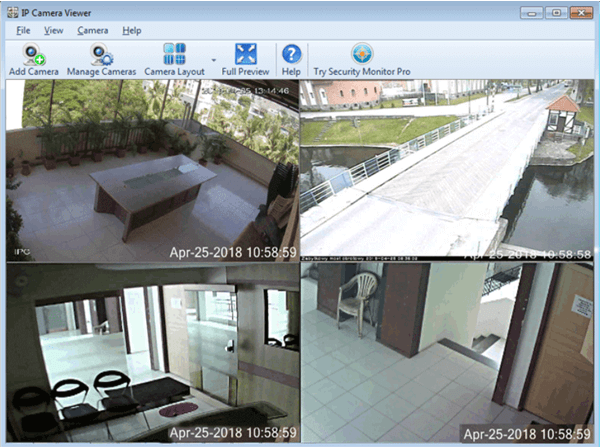
If you think that webcam can only be used for video chatting and live streaming, then you are highly mistaken. Use this best webcam software as an IP camera Viewer to monitor and shield your workplace and house. IP Camera Viewer can support up to 1800 IP camera modules. It also gives its users multiple customization options like coverage area, frame rate, orientation, and many more.

You can use it to record videos in various resolutions and varied sharpness, contrast, and saturation. It works incredibly well on different Windows versions, including 10/8/7/XP/Vista/2012 and 2008.

Download

7. Photo Broth Pro

Photo_Broth_Pro

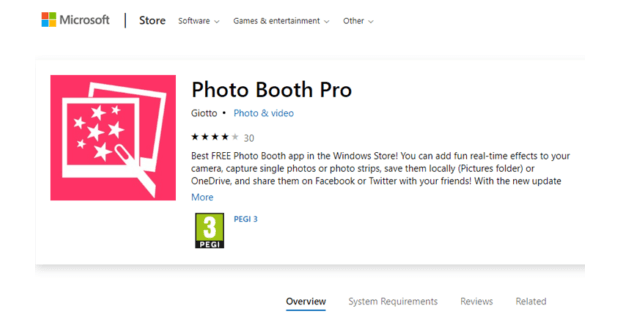
Photo Broth Pro is a highly popular and widely used webcam. This excellent webcam software comes at no price and is perfect for supporting clear and crisp video communications. It takes care of slow loading speed and avoids your camera from lagging.

Its user interface is user-friendly and has many hotkeys attached to its name.

Read Also: How to Update Video Card Drivers in Windows 10

  • You can add filters, effects, and stickers to it.
  • It also offers various beautification tools that can make your videos and photos look good.
  • It can record high-quality pictures with real effects.
Download

8. Webcam Toy

Webcam_Toy

Add a fun quotient to your video calls with Webcam Toy. This browser-based tool comes with a large basket of effects and filters to choose from. It is entirely free of cost and is exceptionally easy to use. Download it today to click pictures, download them, and upload them on your Social media accounts.

Download

9. Logitech Webcam

Logitech_webcam

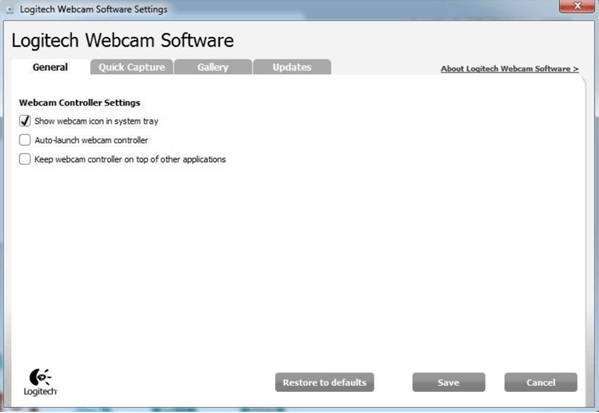
Who doesn’t know about Logitech Webcam? Previously known as Quickcam Express, the Logitech webcam has been in the market for quite some time now and is readily available on the Windows app store. Use it to record videos and take images; additionally, it can also be used to detect motions and for adjusting your camera’s sensitivity. It’s a good pick for users looking for a sound surveillance system.

Download

10. FakeWebcam

Fake_web_cam

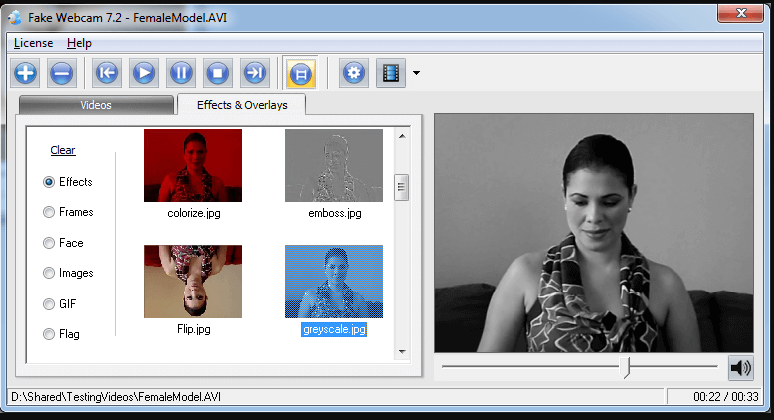
The next tool on our list of best webcam recording software is FakeWebcam. This virtual webcam works just like a real one and is highly easy to use. Use it to add various overlays and effects with the filters it offers.

Download

11. Debut Video Capture and Screen Recorder Software
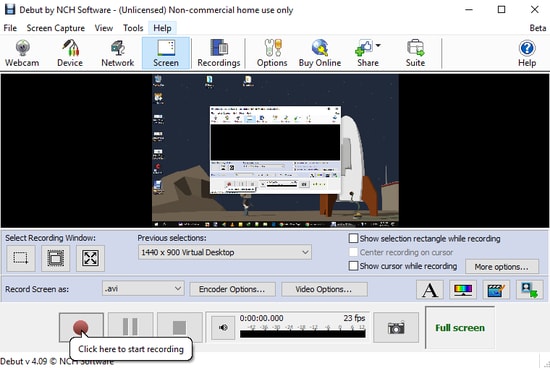
Debut Video Capture and Screen Recorder Software

Debut Video Capture Software is another feature-rich webcam solution for Windows 10, 8, and 7. It allows you to record videos from a network IP camera, webcam, and other external sources. It comes with a screen recorder tool that lets you record your computer screen, gameplay, movies, or any other streaming videos.

You also have the option to use its video overlay feature which helps you to record your webcam and device’s screen simultaneously. This software is available for download for non-commercial use.

Download


12. GoPlay

goplay

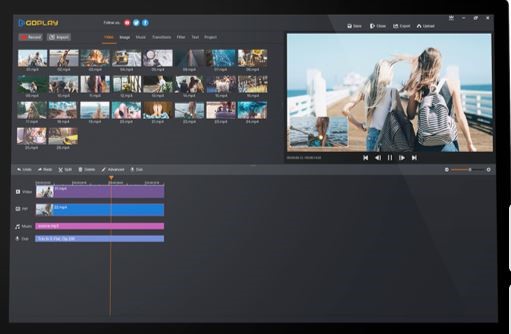
GoPlay is the best webcam software that you can use to record videos with your voice. Plus, with the help of GoPlay, you can also add captions to your videos. And, without any annoyance, you can remove the background noise from the video. Moreover, the tool offers numerous varieties of video effects. You can also share the videos directly to other social media platforms such as Instagram, Facebook, and YouTube. Effectively, it supports HD resolution along with editing the speed of video and audio. Basically, it is a perfect application for recording fast-speed games up to 60fps and GoPlay is an ideal option for streaming too. GoPlay is highly compatible with Windows, Android, and iOS. 

Download


13. Movavi Screen Recorder

Movavi Screen Recorder

Next on this rundown is, Movavi Screen Recorder, one of the leading webcam and screen recording software. This application is used for screen recording, capturing, streaming, video calls, and many more. With this application, you can be able to capture a full HD video at 60 fps (frames per sound). Additionally, this application provides ready-to-use templates. Sounds impressive no! With this amazing tool, you can be able to share the results directly on Google Driver, Movavi Cloud, or YouTube. And, to capture the screen audio with Movavi you do not need extra hardware. Movavi Screen Recorder is highly compatible with Windows and Mac. With this software, you can also record webinars and streaming videos with ease.

Download


14. Webcamoid: Ultimate Webcam Suite

Webcamoid- Ultimate Webcam Suite

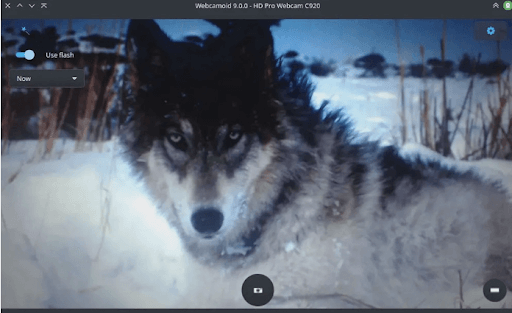
The next best free Webcam software is Webcamoid. It is used for live streaming, capturing screenshots, and recording screens. Moreover, it has advanced adjustment possibilities for pictures and videos. You can edit the contrast, saturation, or brightness of the image using the simple slider or simply entering the number.

Also, it allows automatic adjustment for temperature, backlight compensation, white balance, and gain. The not-so-ordinary flash function automatically brightens the screen before capturing pictures. The software also supports VLC playback support.

As the software is available for free it is a tremendous option for Webcam software for Windows, Mac, and Linux users. However, the only drawback is it lacks the default options.

Download


15. NVIDIA Broadcast

NVIDIA Broadcast

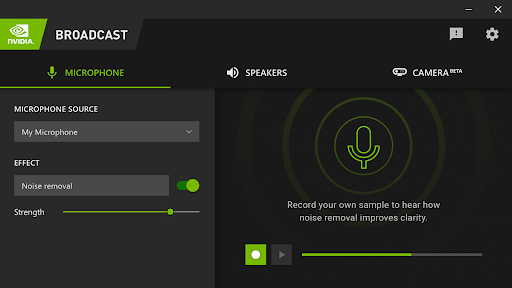
The next name in this list of the best free Webcam software for Windows is NVIDIA Broadcast. This is amazing software that is used by millions of gamers and professionals worldwide. The smart and futuristic features of the tool allow you to get amazing streaming and broadcasting results. Your streamers will get amazing quality with clearer sound with this tool.

The best part about this tool is the AI-enhanced voice and video features. The presence of these features means that the tool ascertains the background audio and video and optimizes the same for the best experience of viewers or streamers.

The tool is available for Windows devices only but makes up for the same with its advanced features.

Download


16. Bandicam Webcam Software

Bandicam Webcam Software

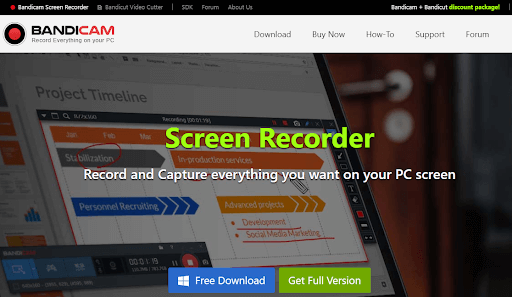
Bandicam is another free webcam software for Windows PCs. Using this lightweight tool, you can directly record games from PlayStation or Xbox with a high compression ratio. In addition to this, it is one of the most popular screen recorder software as well.

The software comes with lots of advanced and excellent features. It supports real-time drawing functionality, allowing you to outline and draw something on your screenshot or video. Not only that, but with the help of this software you can even schedule recording on a daily/weekly basis as per your preference. Bandicam also lets you record your voice and the system audio simultaneously. Moreover, adding animation and mouse effects while recording is another useful feature offered by Bandicam.

Download


Closing Words: Best Free Webcam Software 2024

In this blog, we have discussed some of the best webcam software for Windows 10,11 that you can install right now. We have shortlisted this software based on their ease of usage, versatility, offerings, and UI. Refer to our list and choose the one which suits your requirements.


Author

Prachi Dani

Prachi Dani is a technical content writer who specializes in areas of science and technology. She is highly up to date with technological transitions and transformations. Writing is not her passion but the only thing that carries satisfaction in life. If not writing, you may find her engrossed playing action games on her treasured smartphone.

View all posts

Related Posts
Free-Hotspot-Shield-Alternatives-to-Use-as-VPN

Free Hotspot Shield Alternatives to Use as VPN

September 5, 2024
0

The free Hotspot VPN alternatives listed and explained in this article offer better privacy protection with a high-speed connection and no burning a hole in your pocket by charging a hefty price.

A Virtual Private Network is crucial to protect your system from cyber attacks and online privacy invasion. When searching for the top VPNs, Hotspot Shield is a name that appears almost everywhere. It is a popular VPN for top-notch gaming and streaming. However, this VPN service is expensive and a tad slow, making many users switch to the best Hotspot Shield alternatives.

Are you also finding the Hotspot Shield cons unbearable and looking for a free VPN like Hotspot Shield? If yes, you are in the right place. We have dived deeper into all available VPNs to select and list the best ones you can use in the place of Hotspot Shield.

Our selection is unbiased and made after careful consideration of various factors, such as their reliability, server locations, encryption, privacy policy, ease of use, and speed. Let us save precious time and get started with them right away.

Well-Researched List of the Best Free Hotspot Shield Alternatives

The following are our top choices when it comes to choosing the best free alternatives to Hotspot Shield.

1. Windscribe

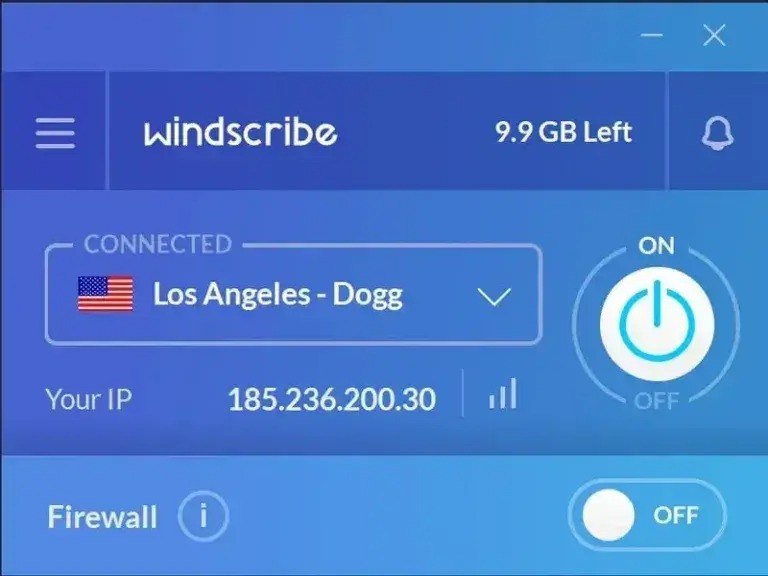
Let us introduce you to Windscribe. It is a free VPN like Hotspot Shield (perhaps even better than it) with servers present in 69+ countries and 134 cities. Moreover, this VPN boasts a browser extension, a malware and adware blocker, a built-in firewall, split tunneling, port forwarding, and the following remarkable features.

Key features of Windscribe

  • It has a strict zero-storage and no-log identification policy
  • Windscribe offers powerful AES-256 encryption, a 4096-bit RSA key, and SHA512 auth
  • The trap wrap feature matches the timezone with the country you are currently connected to
  • There is support for OpenVPN, IKEv2, and WireGuard config generators

Windscribe

Click here for more information


2. Proton

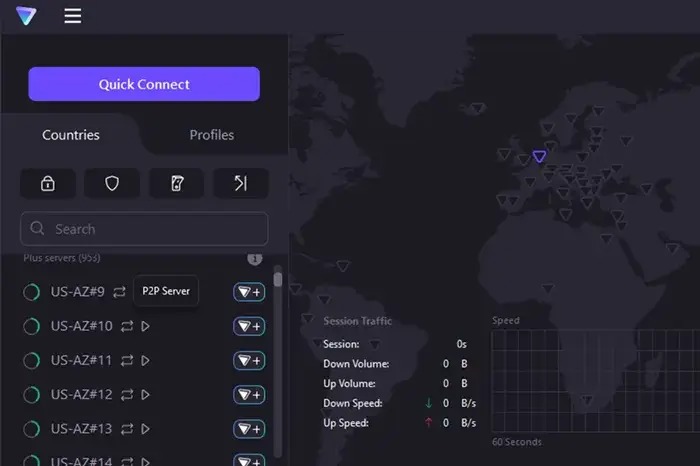
Next, we have Proton on our list of the best free Hotspot Shield alternatives. It is a high-speed VPN with a speed of nearly 10 Gbps and high-end privacy features. Moreover, Proton has a server presence of more than 628 servers in 44+ locations, 10 device support, no-logging policy, encrypted internet connection, integration with the Tor anonymity network, and the following laudable features.

Key features of Proton

  • There is a kill switch to block all network traffic in the event of VPN connection interruption
  • Proton boasts DNS leak prevention with security audits
  • It offers multihop VPN and powerful protocols for better privacy protection
  • Proton has strong malware and ad blocker

Proton

Click here for more information

Also know: Best Free VPN for Binance


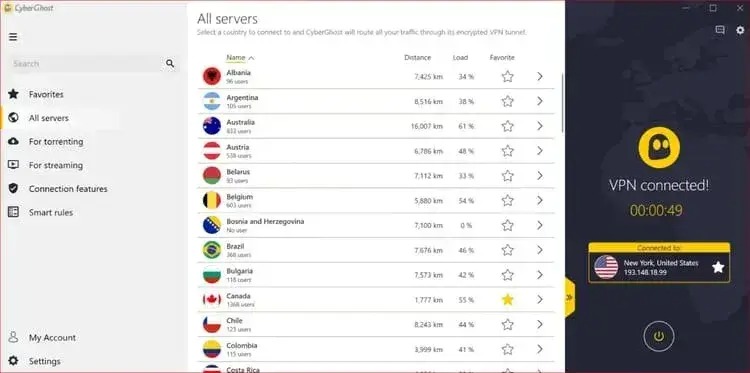
3. CyberGhost

There is no way we can skip CyberGhost when discussing the best alternatives to Hotspot Shield. It has a massive range of servers across Europe, America, Asia, and Africa. Additionally, industry-leading 256-bit AES encryption, round-the-clock support, the no-logs policy, fast speed, and the following features justify this VPN’s position on our list.

Key features of CyberGhost

  • There is torrenting support and a kill switch
  • It boasts a split tunneling feature
  • You can use this VPN to unblock Netflix and other such websites

CyberGhost

Click here for more information


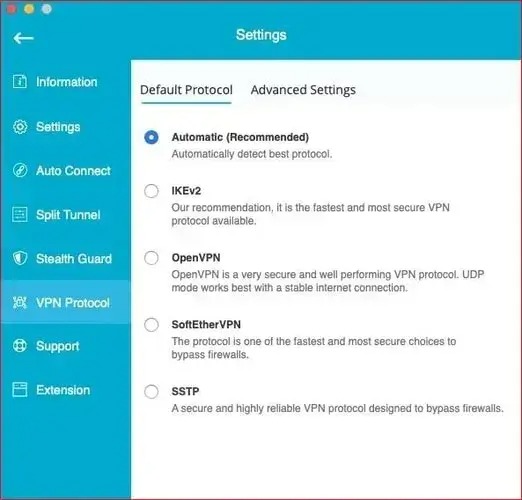
4. Hide.me

Hide.me is another free VPN like Hotspot Shield with more than 2600 servers in 90+ locations, a high 10 Gbps speed, full IPv6 support, WireGuard support, split tunneling, zero logging, and the following notable features.

Key features of Hide.me

  • It boasts P2P support
  • Hide.me allows you to connect up to 10 devices
  • There is a StealthGuard to protect your downloads with an extra layer of security
  • This VPN comes with advanced leak protection through a VPN kill switch

Hide.me

Click here for more information


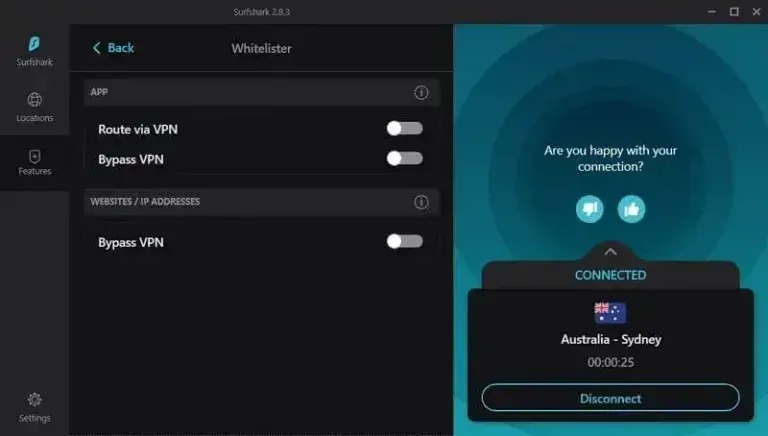
5. Surfshark

Let us take a look at Surfshark. It is another free-to-try Hubspot VPN alternative. This VPN offers 3200+ servers in 100 countries, a no-logging policy, torrenting support, IKEv2 and OpenVPN secure tunneling protocols, 256-bit AES encryption, a kill switch, and the following remarkable features.

Key features of Surfshark

  • There is availability of a P2P connection
  • You can unblock Hulu, Amazon Prime, Netflix, and all other major streaming websites
  • It prevents data leakage with an IPV4 stack and private DNS
  • Surfshark boasts unlimited servers and 24*7 customer support

Surfshark

Click here for more information


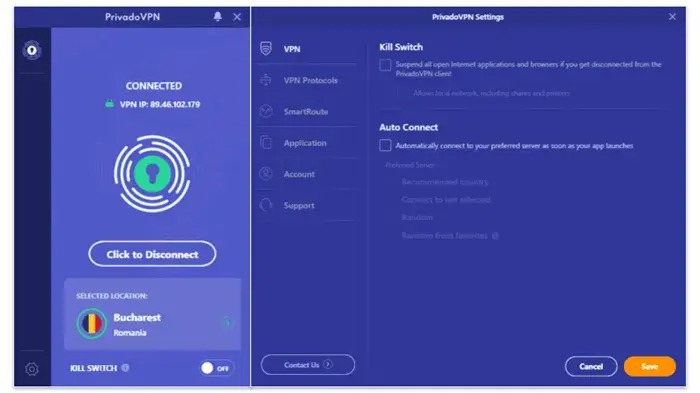
6. Privado

No list of the best free alternatives to Hubspot Shield can be complete without Privado. Based in Switzerland, Privado is one of the best virtual private networks with 330+ servers in more than 40 locations worldwide, zero-log policy, strong 256-bit AES encryption, support for 10+ simultaneous connections, a kill switch, split tunneling, and the following features.

Key features of Privado

  • It blocks advertisements with a powerful ad-blocker
  • There is support for OpenVPN, WireGuard, and IKEv2 protocols
  • It ensures your child’s safety with parental controls
  • Privado lets you use a SOCKS5 proxy for fast and secure file transfers
  • You can unblock Netflix, Disney Plus, Prime Video, BBC iPlayer, and other streaming services with Privado

Privado

Click here for more information

Also know: Best VPNs For Torrenting And uTorrents


7. ZoogVPN

The next name on our list of the best free Hotspot VPNs is ZoogVPN. This VPN is a complete privacy protection solution with a minimal logs policy, servers in more than 35 countries and more than 70 cities, and the following features.

Key features of ZoogVPN

  • This VPN has a no-logs policy
  • It secures your digital life with an AES 256-bit encryption tunnel

ZoogVPN

Click here for more information


Concluding the Best Free Hotspot Shield Alternatives

Hotspot Shield, though a decent VPN, bothers users with an expensive price and slow speed. Hence, you can choose one of the best free Hotspot Shield alternatives from the above options to move past these problems. However, in case of any questions or suggestions about this article, you can contact us through the comments section below.

How to Fix Video Scheduler Internal Error on Windows 10 [Solved]

How to Fix Video Scheduler Internal Error on Windows 10 [Solved]

June 14, 2023
0

A detailed guide on how to fix Video Scheduler internal error on Windows 10. Read the entire write-up to find the ideal way to fix this inconvenience.

It is so annoying to encounter BSOD errors because you can’t do anything until you resolve the error. All you can do is just sit back and wait for your computer to gather the respective information about the error and reboot it.

Lately, many Windows 10 users have got an error code message saying Video Scheduler Internal error. It is one of those blue screens of death errors that prevent the PC from executing any command. But, fortunately, like other BSOD errors, this could also be fixed. And, in this write-up, you will learn some easy tactics to get rid of this BSOD error. But, before we look forward to the solutions, here’s what is video scheduler internal error on Windows 10.

What is Video Scheduler Internal Error?

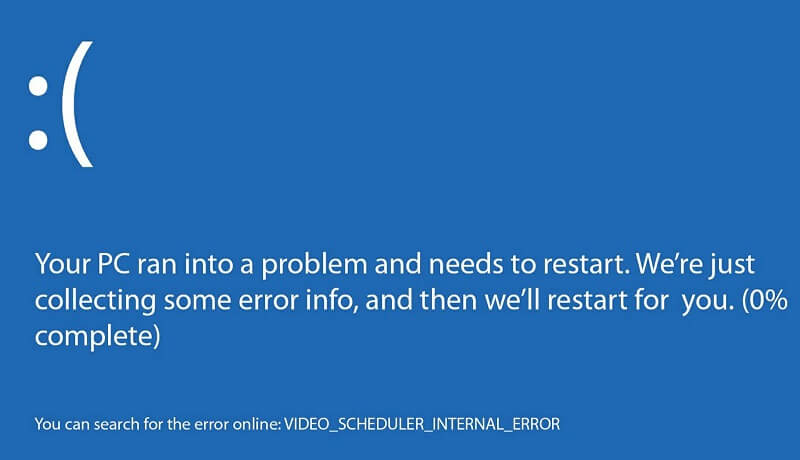
The VIDEO_SCHEDULER_INTERNAL_ERROR is a common stop code error on Windows 10, which demonstrates that the video scheduler has identified a fatal violation.
This error is caused by several things that include changes in hardware or software, virus or malware infection, overclocked graphics card, corrupted or missing Windows registry, obsolete or broken graphics drivers, and conflicting security software. When you experience the BSOD video scheduler internal error, your PC may freeze for a few minutes. And, this can be very frustrating for numerous Windows PC users especially if you did not save your work.

video scheduler internal error

The Easiest Solutions to Fix Video_Scheduler_Internal _Error on Windows 10/11 PC

Here, we have put 5 solutions together on how to fix the blue screen Video Scheduler Internal Error on Windows 10. Though, you do not need to try all of them, just work your way down, until you will get the one that suits you best.

Solution 1: Update your Device Drivers

One of the most workable tactics to fix video scheduler internal error on Windows 10/11 is updating the device drivers. Because, the error mainly occurs due to outdated graphics, display, and other system drivers. Hence, updating these drivers from time to time can fix this issue as well as improve the overall system performance. You can do this task either manually or automatically. But, the manual approach can be a little bit tiring, especially for those who don’t have expertise in the technical realm.

Therefore, we recommend you to use the best driver updater tool like Bit Driver Updater to update the outdated drivers automatically. This driver updater tool offers only WHQL certified drivers. Also, with the help of this tool, you can update all outdated drivers with a single click of the mouse. Not only that, but this driver updater utility offers the solutions to numerous other Windows-related issues like frequent failures, low-security patches, and so on.

Here are the steps which you need to follow in order to update drivers via Bit Driver Updater:

Step 1: Hit the download button given below to get Bit Driver Updater for Free.

Windows Download Button

Step 2: Next, run the setup file and go with the on-screen to get the software installation finished.

Step 3: Launch the one-stop driver updater utility and let it complete the scanning process.

Step 4: Now, it provides a detailed list of outdated drivers, you need to check the entire list and click on the Update All option.

Update All Driver with Bit Driver Updater

That’s it! Within four steps and you have downloaded, installed, and updated the most recent version of drivers. It is advisable to rely on the full/pro version of the utility to use all its features like performance booster, automatic updates, one-click driver update, backup & restore, and whatnot.

Once the latest version of drivers are installed, then try to re-launch your PC and check to see if Video Scheduler Internal Error has been fixed. If not, then move on to the next solution.

Also Read: How to Fix “System Thread Exception Not Handled” Error in Windows 10


Solution 2: Run Full System Scan

This blue screen error can occur due to malware infections. So, it is a wise move to perform a full system scan on your computer. Here are the steps to do so:

 Step 1: In the search bar of your Windows 10, type Windows Defender and choose the best pick.

 Step 2: Now, from the Windows Defender program choose the Virus & Threat Detection option.

Step 3: In the subsequent window, click on the Advanced Scan option.

Step 4: After that, in the Advanced Scan option, choose the Full Scan option to perform a full system scan.

Now, try to re-launch your machine and check to see if the video scheduler internal error on Windows 10 has been fixed. If not, then try the other solutions mentioned below.

Also Read: Windows 10 Update Breaks its Built-in Windows Defender Antivirus Protection


Solution 3: Run Windows Update

You may encounter a blue screen video scheduler internal error on Windows 10 because of the outdated or corrupted system patches. In order to fix this issue, you should perform Windows Update to download and install the latest available system patches. To do so, you need to follow the simple steps shared below;

Step 1: Press Windows + I keys at the same time to trigger the Windows Settings.

Step 2: After this, choose the Update & Security option.

Updates and Security

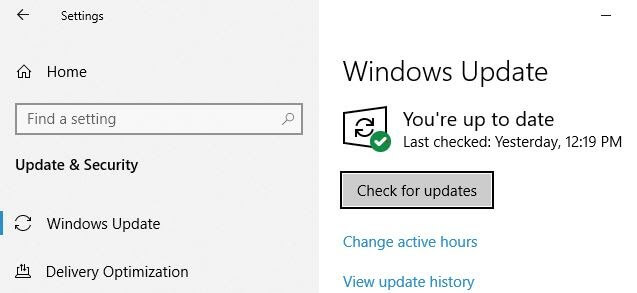
Step 3: In the next window, choose Windows Update from the left pane. And then, click on the Check For Updates option.

Check for Windows Update

Now, Windows will start searching for the latest updates. And, if find any update available, then Windows will install the update on its own. Reboot your PC and check whether the video scheduler internal error on Windows 10 has been fixed or not.

Also Read: Best Ways to Fix ‘Bad System Config Info’ Error in Windows 10


Solution 4: Uninstall Faulty Drivers

If none of the above solutions worked, then try to uninstall the problematic drivers. Sometimes updating the drivers to their latest version isn’t enough. If that is the case, then you need to reinstall the drivers, but before reinstallation, you need to first uninstall the existing drivers. You can seek help from the Device Manager to uninstall the faulty drivers. Follow the steps below to do that:

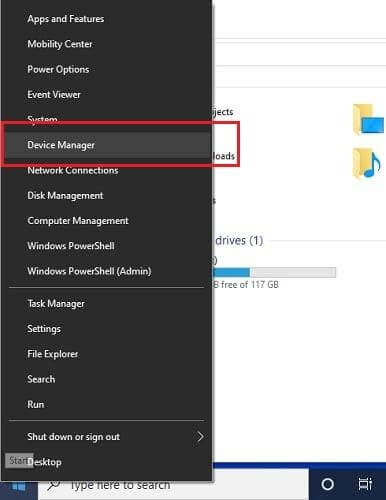
Step 1: From your Keyboard, press Windows + X keys at a time to trigger the Device Manager program.

Choose Device Manager Option

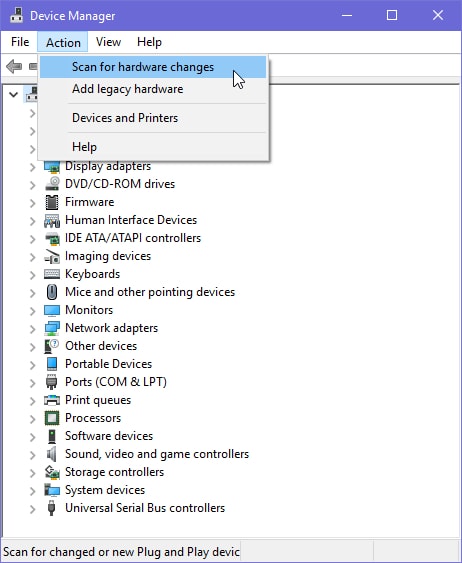
Step 2: Then, make a click on Scan for Hardware Changes.

Device manager Scan for Hardware Changes

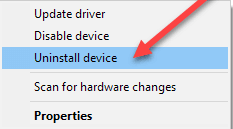
Step 3: Now, locate the device with a yellow exclamation mark next to it. And, right-click on the device that is causing issues to choose the Uninstall Device option.

Click On The Uninstall Device Option

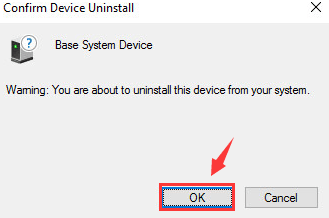
Step 4: If a confirmation box pops up, click on YES to continue.

Confirm Uninstall Device Click Ok

After the uninstallation, visit the official website of the manufacturer to reinstall the drivers. Now, the error should be fixed.

Also Read: [Solved] Inaccessible Boot Device Error On Windows 10


Video_Scheduler_Internal_Error on Windows 10/11- FIXED

We hope that the aforementioned troubleshooting tips help you fix the BSOD video scheduler internal error on Windows 11/10. If you face any sort of issues while executing the above solutions then let us know in the comments box below. Also, share your further suggestions too in the box below.

Before you go, do subscribe to our Newsletter as well as follow us on Facebook, Twitter, Instagram, and Pinterest for quicker responses.

1 Comment
    Exccmubpmw says: Reply
    June 23rd 2020, 1:13 pm

    Like!! Really appreciate you sharing this blog post. Really thank you! Keep writing.

Leave a Reply to Exccmubpmw Cancel reply

Your email address will not be published. Required fields are marked *

Sidebar Image bit G ad1

Latest Posts

  • best grindr alternatives
    Best Grindr Alternatives to Use in 2026 
    by Dikshika Singh / May 2, 2026
  • Best VirusTotal Alternatives for windows in 2026 
    by Dikshika Singh / April 30, 2026
  • Best Ways to Fix Facebook Session Expired Loop Error  (1)
    Best Ways to Fix Facebook Session Expired Loop Error 
    by Gunjita Sompura / April 28, 2026
  • React vs Vue
    React vs Vue Detailed Comparison in 2026
    by Gunjita Sompura / April 23, 2026
  • Top Image Resizing software for Windows PC 
    by Dikshika Singh / April 21, 2026

Categories

  • Cyber Security
  • Driver Updater
  • Entertainment
  • Fitness
  • Games
  • How To
  • laptop
  • OS
  • Reviews
  • Tech News
  • Tips & Tricks
  • Top 10
Sidebar Image bit G ad1
Best Program Launcher for Windows 10 12 Best Program Launcher For Windows 10 in 2024by Snigdha / December 27, 2023
Best Free Image Recognition Software in 2024 [Open Source]by Devesh / December 27, 2023Best Free Image Recognition Software
TechPout Footer Logo

We at TechPout promise to put forth stories that help people to learn and simplify their digital life. Our purpose is to share the true essence of technology with our tech-loving community.

Useful Links

  • About Us
  • Contact us
  • Privacy Policy

Popular Posts

  • Best PC Optimizer Software
  • Best Mac Cleaner Apps
  • Best Driver Updater
  • Duplicate Photo Finder and Cleaner Software
  • Best Free Movie Download Sites
  • Best IPTV Players

Follow us

Copyright © 2026 www.techpout.com. All rights reserved
DMCA.com Protection Status