Main LogoLight Logo
  • Reviews
  • Top 10
  • How To
  • Tech News
  • OS
    • Windows
    • MAC
    • iOS
    • Android
  • Categories
    • Driver Updater
    • Cyber Security
    • Games
    • Fitness
    • Entertainment
    • Tips & Tricks
Top 10 Windows
by Prachi Dani

16 Best Free Webcam Software for Windows 10, 11 (2024)

December 27, 2023
1

Video communication services are an integral part of today’s technological world. But do you think that just having a high-end camera with an in-built webcam will be enough for you? Not really. A good camera along with the best webcam software is what will take your experience to the next level.

There is no denying that a lot can be done with a camera, but when clubbed with the right software, it can do wonders. It can be used for clicking wide-angle selfies, recording videos, video calling with your loved ones, and many other thrilling things.

From necessary activities to fancy tasks, the webcam software can be used for “n” number of things. Keeping in mind these varied user requirements, we have compiled a well-researched list of some of the best webcam recording software for you.

Each of our picks stands out on some of the other parameters, which includes a slick user interface, impressive frames, graphic effects, editing tools, and many more.

Let’s now take a quick look at the top webcam software for Windows 7/8/10.

Table of Contents show
What Are The Best Webcam Software for Windows 7, 8, 10, 11 in 2024?
1. ManyCam
2. Yawcam
3. MyCam
4. Cyberlink YouCam
5. Splitcam
6. IP Camera Viewer
7. Photo Broth Pro
8. Webcam Toy
9. Logitech Webcam
10. FakeWebcam
11. Debut Video Capture and Screen Recorder Software
12. GoPlay
13. Movavi Screen Recorder
14. Webcamoid: Ultimate Webcam Suite
15. NVIDIA Broadcast
16. Bandicam Webcam Software
Closing Words: Best Free Webcam Software 2024

What Are The Best Webcam Software for Windows 7, 8, 10, 11 in 2024?

Check out our well-researched list below to know about the top webcam recording software available in the marketplace currently.

1. ManyCam
Many_Cam

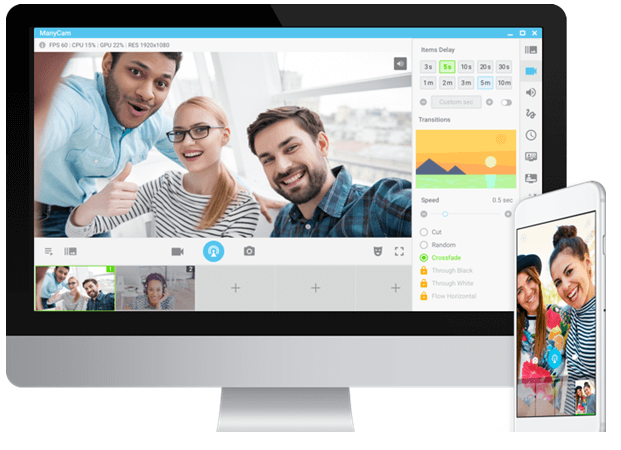
With its extensive list of features and offerings, ManyCam surely deserves a place on the list of Best webcam software. It is an incredible tool with simple and convenient working. ManyCam can be easily integrated with your Game Capture features, Skype account, Facebook, Tumblr, Youtube and can also work as a screencast for your PC screen.

You can use it to alter the background of your video stream and for adding multiple effects like stickers, backgrounds, 3D effects, and face masks. In addition to this, it also supports various video sources, picture in picture, playlist, IP Camera, Mobile app, Multiple channel broadcasting, and many more.

Out of the many features, as mentioned above, it Mobile app feature captures everyone’s attention. This feature erases the need of a dedicated webcam, which means your mobile phone camera is sufficient for you. All you need to do, connect your phone with your computer system. With the help of ManyCam’s mobile app feature, you can use your smartphone as a webcam.

Download

2. Yawcam

Yaw_cam

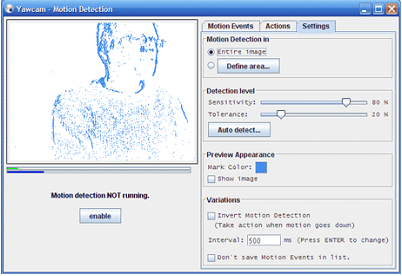
Next on our list of best free webcam software windows 7 is Yawcam. It is a free app, but that does not mean it is less than any high-end paid tool. Its voluminous list of features and benefits makes it a perfect pick. Video streaming, password protection, image snapshot, time-lapse movies, multi-language support, built-in web server, and motion detection are a few of the offerings of Yawcam. But the two most notable features are real-time video streaming and an inbuilt-web-server. You can also set a password for your videos and pictures with Yawcam.

Download

3. MyCam

my_cam

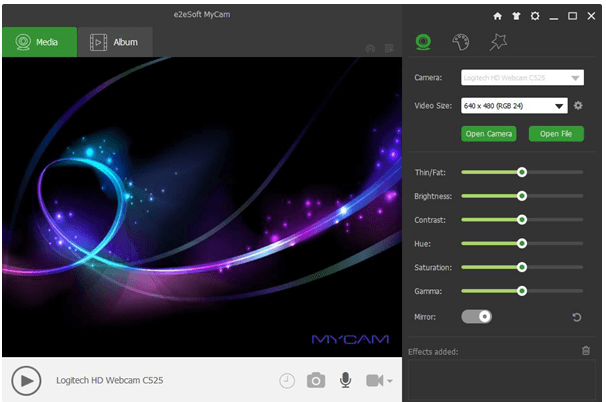
Another most popular and top webcam software for windows 10 is MyCam. It comes with a clean and convenient UI and is known to offer an array of advanced utilities. The “Album” feature is its most distinctive offering and allows you to share recorded files with your smartphone.

Major Benefits

  • It can be used to scan barcodes and QR codes.
  • It supports video broadcasting.
  • You can add videos and sound effects to your recording with My cam.
  • It comes with multiple filters and stunning effects that can be used while clicking pictures and making videos.
  • Enjoy videos without lag and high-quality images with its GPU image processing mechanism.
Download

4. Cyberlink YouCam

Cyberlink_youcam

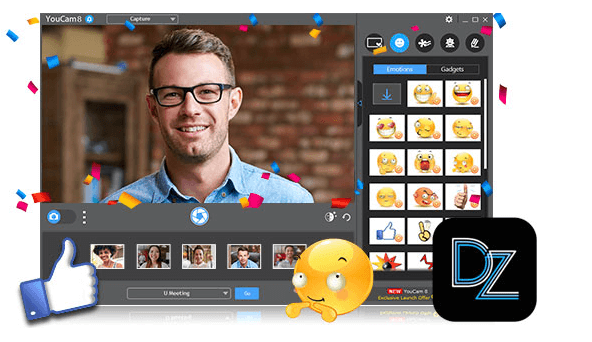
If you like the overall functionality of MyCam, you will surely be amazed by YouCam7. You can not only use it to record videos and capture images but also add various effects, frames, and color presets to them.

This best webcam recording software comes in both a free and premium version. Its free version lasts for 30 days and offers benefits like:

  • Face beautifying tools and effects.
  • Panorama and HDR photo modes.
  • Smart video enhancement tools.
  • Real-time skin smoothing effects for videos.

For users who want to enjoy advanced features like surveillance, services can opt for its premium version, which costs Standard ($34.95) and deluxe ($44.95).

Download

5. Splitcam

Split_cam

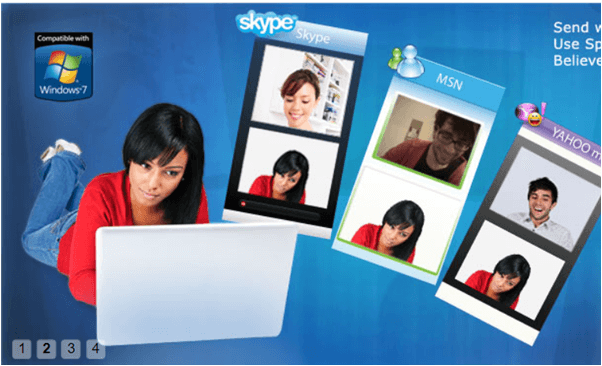
Its ability to support multiple clients makes it different from all the webcam software mentioned above. With Splitcam, you can stream numerous things with your friends on Skype and other platforms. This makes it work more engaging and is not available on any other similar software.

Read Also: How to Fix Video Driver Problems in Windows

  • 3D Masks to give 3D effects.
  • It can easily sync with various streaming platforms like Ustream, TinyChat, etc.
  • It can effortlessly split your videos to several programs.
  • It can be used as an IP camera.
  • It offers multiple webcam effects.
  • It can stream your video files, webcam, and various slideshows.
Download

6. IP Camera Viewer

IP_Camera_Viewer

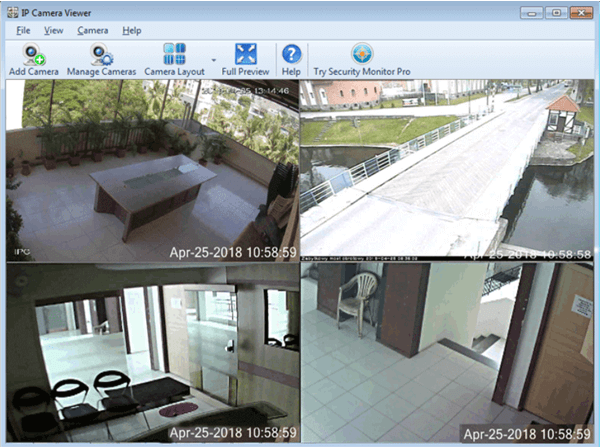
If you think that webcam can only be used for video chatting and live streaming, then you are highly mistaken. Use this best webcam software as an IP camera Viewer to monitor and shield your workplace and house. IP Camera Viewer can support up to 1800 IP camera modules. It also gives its users multiple customization options like coverage area, frame rate, orientation, and many more.

You can use it to record videos in various resolutions and varied sharpness, contrast, and saturation. It works incredibly well on different Windows versions, including 10/8/7/XP/Vista/2012 and 2008.

Download

7. Photo Broth Pro

Photo_Broth_Pro

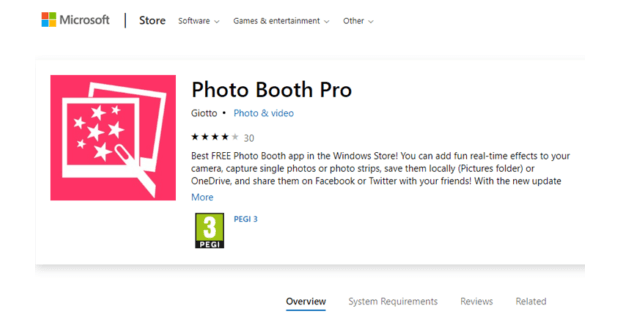
Photo Broth Pro is a highly popular and widely used webcam. This excellent webcam software comes at no price and is perfect for supporting clear and crisp video communications. It takes care of slow loading speed and avoids your camera from lagging.

Its user interface is user-friendly and has many hotkeys attached to its name.

Read Also: How to Update Video Card Drivers in Windows 10

  • You can add filters, effects, and stickers to it.
  • It also offers various beautification tools that can make your videos and photos look good.
  • It can record high-quality pictures with real effects.
Download

8. Webcam Toy

Webcam_Toy

Add a fun quotient to your video calls with Webcam Toy. This browser-based tool comes with a large basket of effects and filters to choose from. It is entirely free of cost and is exceptionally easy to use. Download it today to click pictures, download them, and upload them on your Social media accounts.

Download

9. Logitech Webcam

Logitech_webcam

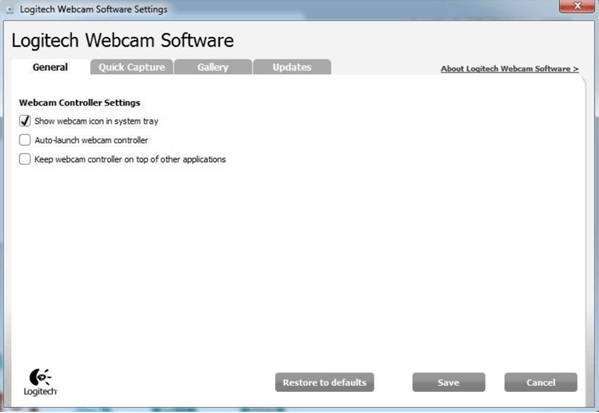
Who doesn’t know about Logitech Webcam? Previously known as Quickcam Express, the Logitech webcam has been in the market for quite some time now and is readily available on the Windows app store. Use it to record videos and take images; additionally, it can also be used to detect motions and for adjusting your camera’s sensitivity. It’s a good pick for users looking for a sound surveillance system.

Download

10. FakeWebcam

Fake_web_cam

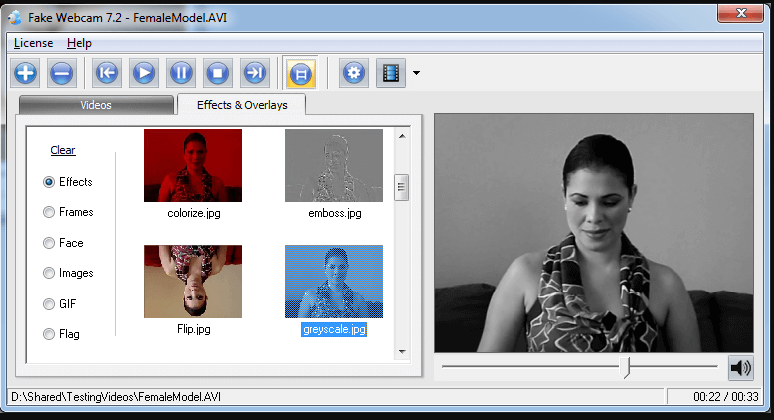
The next tool on our list of best webcam recording software is FakeWebcam. This virtual webcam works just like a real one and is highly easy to use. Use it to add various overlays and effects with the filters it offers.

Download

11. Debut Video Capture and Screen Recorder Software
Debut Video Capture and Screen Recorder Software

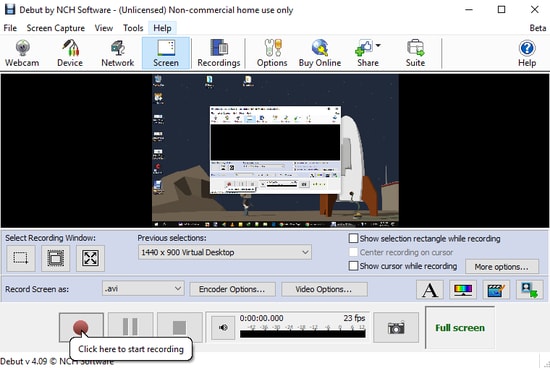
Debut Video Capture Software is another feature-rich webcam solution for Windows 10, 8, and 7. It allows you to record videos from a network IP camera, webcam, and other external sources. It comes with a screen recorder tool that lets you record your computer screen, gameplay, movies, or any other streaming videos.

You also have the option to use its video overlay feature which helps you to record your webcam and device’s screen simultaneously. This software is available for download for non-commercial use.

Download


12. GoPlay

goplay

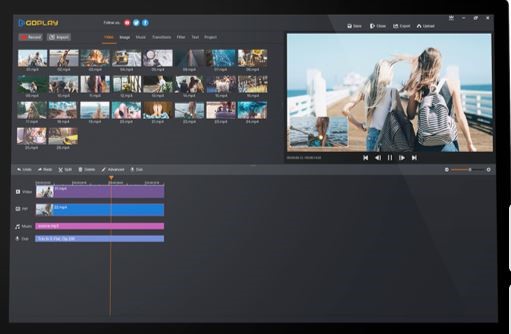
GoPlay is the best webcam software that you can use to record videos with your voice. Plus, with the help of GoPlay, you can also add captions to your videos. And, without any annoyance, you can remove the background noise from the video. Moreover, the tool offers numerous varieties of video effects. You can also share the videos directly to other social media platforms such as Instagram, Facebook, and YouTube. Effectively, it supports HD resolution along with editing the speed of video and audio. Basically, it is a perfect application for recording fast-speed games up to 60fps and GoPlay is an ideal option for streaming too. GoPlay is highly compatible with Windows, Android, and iOS. 

Download


13. Movavi Screen Recorder

Movavi Screen Recorder

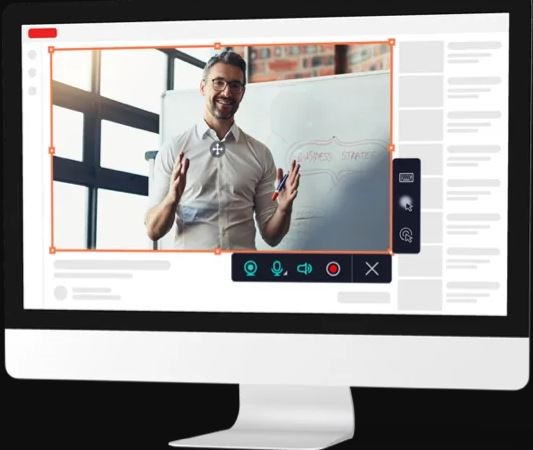
Next on this rundown is, Movavi Screen Recorder, one of the leading webcam and screen recording software. This application is used for screen recording, capturing, streaming, video calls, and many more. With this application, you can be able to capture a full HD video at 60 fps (frames per sound). Additionally, this application provides ready-to-use templates. Sounds impressive no! With this amazing tool, you can be able to share the results directly on Google Driver, Movavi Cloud, or YouTube. And, to capture the screen audio with Movavi you do not need extra hardware. Movavi Screen Recorder is highly compatible with Windows and Mac. With this software, you can also record webinars and streaming videos with ease.

Download


14. Webcamoid: Ultimate Webcam Suite

Webcamoid- Ultimate Webcam Suite

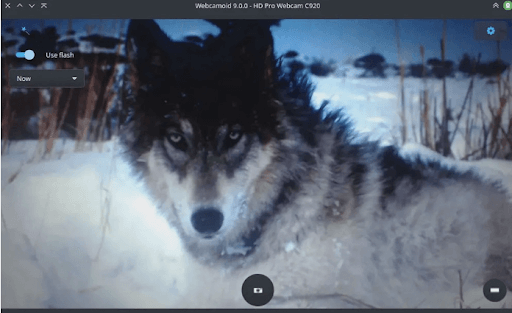
The next best free Webcam software is Webcamoid. It is used for live streaming, capturing screenshots, and recording screens. Moreover, it has advanced adjustment possibilities for pictures and videos. You can edit the contrast, saturation, or brightness of the image using the simple slider or simply entering the number.

Also, it allows automatic adjustment for temperature, backlight compensation, white balance, and gain. The not-so-ordinary flash function automatically brightens the screen before capturing pictures. The software also supports VLC playback support.

As the software is available for free it is a tremendous option for Webcam software for Windows, Mac, and Linux users. However, the only drawback is it lacks the default options.

Download


15. NVIDIA Broadcast

NVIDIA Broadcast

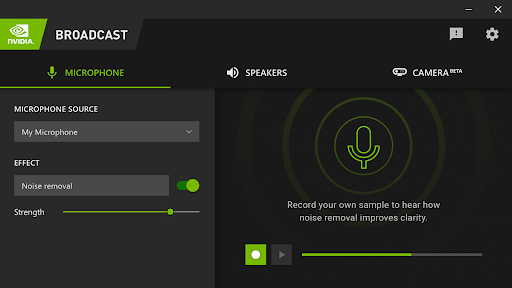
The next name in this list of the best free Webcam software for Windows is NVIDIA Broadcast. This is amazing software that is used by millions of gamers and professionals worldwide. The smart and futuristic features of the tool allow you to get amazing streaming and broadcasting results. Your streamers will get amazing quality with clearer sound with this tool.

The best part about this tool is the AI-enhanced voice and video features. The presence of these features means that the tool ascertains the background audio and video and optimizes the same for the best experience of viewers or streamers.

The tool is available for Windows devices only but makes up for the same with its advanced features.

Download


16. Bandicam Webcam Software

Bandicam Webcam Software

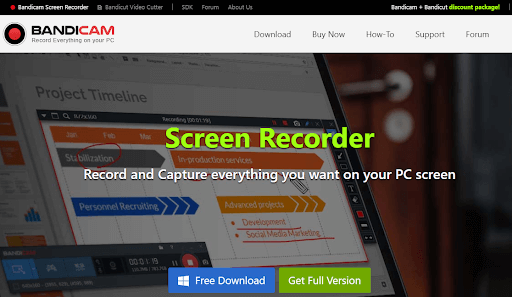
Bandicam is another free webcam software for Windows PCs. Using this lightweight tool, you can directly record games from PlayStation or Xbox with a high compression ratio. In addition to this, it is one of the most popular screen recorder software as well.

The software comes with lots of advanced and excellent features. It supports real-time drawing functionality, allowing you to outline and draw something on your screenshot or video. Not only that, but with the help of this software you can even schedule recording on a daily/weekly basis as per your preference. Bandicam also lets you record your voice and the system audio simultaneously. Moreover, adding animation and mouse effects while recording is another useful feature offered by Bandicam.

Download


Closing Words: Best Free Webcam Software 2024

In this blog, we have discussed some of the best webcam software for Windows 10,11 that you can install right now. We have shortlisted this software based on their ease of usage, versatility, offerings, and UI. Refer to our list and choose the one which suits your requirements.

Author

Prachi Dani

Prachi Dani is a technical content writer who specializes in areas of science and technology. She is highly up to date with technological transitions and transformations. Writing is not her passion but the only thing that carries satisfaction in life. If not writing, you may find her engrossed playing action games on her treasured smartphone.

View all posts

Related Posts
10 Best Payroll Management Software in 2021 [Automate Process]

9 Best Payroll Management Software in 2024 [Automate Process]

January 3, 2024
0

There are many things which you need to manage while being in a business or at a managerial post. The toughest part is to manage expenses and keep a check on them, but to make your life simpler we have shared the best payroll management software to help you save time and effort. Keep reading to know more. 

Whether you are working in a large-scale business or you own one you need to manage a lot of things at the same time. Keeping a track of expenses becomes very tough as with time the numbers keep on growing. So you need to use manpower as well as software to ease the work. Every department requires dedicated tools to help them work effectively and efficiently. 

Here in this article, we are going to help you with the tools using which you can manage payrolls. These HR management and payroll system software can help you in reminding at the time of payment and along with that, you can keep a track of all the payments. Are you impressed by the work? If yes then follow this article till the end as you will find the best Payroll system software. 

Top 9 Best Software for Payroll Management in 2024

Here are the best payroll management system software that you can use to manage all the salary expenses. 

1. Run by ADP

Run by ADP

Run is another great payroll system software but unfortunately, you cannot consider it in the list of free payroll management software. It offers various services under four different plans, you can choose the plan that suits your needs and goes with the work. The plans are as follows: Essential payroll, it offers basic tools for managing tax and salary. Enhanced Payroll, in this plan you get additional insurance compliances and benefits that you need to manage with your annual salary. 

The last two plans are very effective for easing the work as they offer the best features. Here is what the plan offers. In the Complete Payroll plan, you get a dedicated module for HR service whereas on the HR Pro Payroll you get enhanced support with legal assistance and many other tools. Apart from these plans, there are several offerings that might interest you. 

Also Read: Best Server Monitoring Software with GUI-Based Configurations

Notable Offerings of Run by ADP

  • Run offers all HR management and payroll system software features 
  • You can easily use this application on various platforms including PC, mobile, and web 
  • The higher-end plan also includes automatic employee hiring documentation, an online database, and reports. 
  • You get loads of features including HR toolkits, modules, and others

Download Now


2. Quickbooks Pro

Quickbooks Pro

Quickbooks is a great payroll system software that offers various integration. The software is very popular for its convenient interface and offerings which makes the work really easy. The software has ten products including business expenses management, capital flow management, automated accounting, and various others which can help you in every aspect of the business. Apart from this, there are many other features too, we have listed some of them below. 

Notable Offerings of Quickbooks Pro

  • The software offers automatic calculation of taxes and paycheck
  • It has a separate workforce portal where employees can check and monitor salary
  • You can even manage benefits and other compensations
  • It has a dedicated HR support Center
  • Other integrations can help with capital flow management 

Download Now


3. Wave Payroll

Wave Payroll

Wave Payroll is another best payroll management software that offers a complete solution for all your accounts and sales management. The software is very easy to use, all it requires is the knowledge of accounts to identify various sections of the software. You can easily monitor profit/loss, cash flow, and other components of accounts. 

The payroll features ease the work by automatically calculating payments and deductions. It offers the result by calculating every expense with all costs. You should definitely try this software as most of the users have given positive feedback for the software and its functionality.

Also Read: 13 Best Open Source CRM Software For Small Businesses

Notable Offerings of Wave Payroll

  • The software offers you all the payroll tasks including salaries, database, tax deductions, and pay cuts. 
  • You get to use this software for free and at no extra charges
  • It offers a brief report of the data so that you can easily monitor and manage
  • This is a capital management software with tools for payroll management system

Download Now


4. Xero

Xero

Next up on our list of best payroll management software is Xero Payroll. The software has integration with the accounting software of Xero. Though you can use payroll management as it offers a separate tool for that.  The tools offer features that can help you in managing attendance, calendar, reimbursements, and leaves like HR work. 

The best part is that you can easily adapt to the interface as it is very easy and intuitive. The database of the employees makes it really easy for you to track each payment and work effectively. It moreover has a mobile application that lets you manage payslips, leaves, timing, and other day-to-day activity. You can easily monitor it whenever you want with your device. 

Notable Offerings of Xero

  • The software offers a great package for managing all the payrolls and other business activities
  • You can easily add the employee’s data and account for automatic payments
  • It offers features using which you can easily monitor timing and leaves
  • The mobile application even help you track important tasks and activities through your mobile phone
  • The software integrates and managers the salary and expenses to offer a detailed report for capital flow management

Download Now


5. Zenefits

Zenefits

Zenefits is one of the best software for payroll management as it offers features that combine HR and payroll management. You can easily manage and track salaries, changes in salaries, employee work timings, and leaves like important tasks easily. The software even offers features that can be used for keeping track of employee benefits. Later, you can easily have the accurate deductions and addons on the list for better management of the capital. The software is easy and can be used by newcomers too. 

Also Read: 13 Best Invoice Software For Small Businesses

Notable Offerings of Zenefits

  • The software automatically syncs the salary and payment changes
  • You get the freedom to add salary benefits for accurate results
  • It lets you manage various other HR work effectively in no time
  • For leaves, employees can directly use the application than having a face to face communication 

Download Now


6. Patriot Payroll

Patriot Payroll

Patriot Payroll is another great free payroll management software that can be ideal for small and medium businesses. Here in this software, you need to add payroll depending on the time period and amount. Later the software automatically transfers as per the entered amount. The interface is simple and easy. You can easily work with any tutorials. 

For companies having more than 100 employees can face issues with this software as it is not meant for those. Though you have to pay some amount for this software, but the efficiency and accuracy of the software are worth spending. Just like other payroll system software you can perform every day to day activities and manage all your expenses/payments. 

Notable Offerings of Patriot Payroll

  • Patriot Payroll is developed for medium and small businesses
  • The software lets you manage 100 employee portals easily
  • It effectively calculates and automates the tax filings of every employee
  • You can easily maintain separate data for contractual or temporary employees
  • The software can deposit direct salary and printing of checks

Download Now


7. Sage Business Payroll

Sage Business Payroll

UK’s Safe Group developed the Sage Business Payroll software which is great for accounting data of 25 employees. The software might not work properly if the data is increased, the small capacity of accounting is the reason why it is placed at a lower position on the list of best payroll management software. But apart from that, the software works great for small businesses as it offers features that can help in accounting, expenses, and management of inventory. 

This payroll system software is the basic e-payroll platform as compared to other software on the list. Though you get timely monitoring and accuracy with all the tools so that you can easily manage the business work. The interface on the other hand is simple yet descriptive, you can easily use and find all your data. 

Also Read: How To Schedule Emails in Gmail For Free

Notable Offerings of Sage Business Payroll

  • Great software for small businesses with upto 25 employees
  • You can easily monitor and manage salary and tax deductions
  • It offers separate tools for tax filing, and employee leaves for accurate calculation
  • It lets you share payslips directly through email to every employee

Download Now


8. Paychex

Paychex

Paychex is another great free payroll management system software that you can use for all HR and payroll services. The software offers features to manage employee payrolls, hiring, attendance, and other expenses. It works great in filing tax and automatic deduction of tax. It works professionally and with utmost accuracy. You can use this software for all the managerial work and can perform them effortlessly. 

Notable Offerings of Paychex

  • You can keep a track of salary and deductions effectively for all employees
  • The employees can get help through the portal itself
  • It offers automated documentation for new employees 
  • You can track attendance and timing of the employees for record

Download Now


9. Gusto

Gusto

At last on our list of best payroll management software, we have Gusto. The software offers loads of features for keeping track of every account. Using the software you can manage salary accounts, automated deductions/ filings, and other expenses which occur. It offers an integrated platform that can be merged with e-payroll systems like Xero and Quickbooks.  You can easily track salaries and other expenses with Gusto. 

Also Read: 12 Best Free Task Scheduler Software For Windows

Notable Offerings of Gusto

  • The software automatically files for taxes and deductions for every employee
  • You can keep a check on employees timings and attendance for accurate paydays
  • All other benefits and expenses are included in accounts and managed for accurate cash flow
  • You can use it with other accounting software 

Download Now


Final Words on the List of Best Payroll Management Software 2024

Now that you have read about the best software for payroll management you can easily choose the best software and then use them for keeping your accounts. After using the software you can easily relax as the software will work for you with accuracy and efficiency. The list is created on the basis of performance and reviews by the users. If we missed out on any software please let us know in the comments section below. We will add them to the list. 

Download, Install and Update Canon PIXMA G2060 Driver

Download, Install and Update Canon PIXMA G2060 Driver

December 3, 2021
0

Today, we are going to discuss the easy method to download and update Canon PIXMA G2060 printer driver for Windows 10, 8, 7 PC. Read the write-up for further details. 

Does your Canon PIXMA G2060 printer lags? Then, it is time to check its driver’s status. Usually, your printer stops working when its respective drivers goes missing or become outdated. Because drivers are the prime components that let your hardware communicate with the Windows operating system. Hence, it is pretty much crucial to keep the device drivers always up-to-date and in good working shape.

Likewise, in order to get the best outcomes of your Canon PIXMA G2060 printer, you should update its drivers frequently. To help you out, we have prepared this easy & precise downloading guide. Here you will find the most convenient yet effective approaches to do the same task of performing Canon PIXMA G2060 printer driver download without any hassles.

Methods to Download, Install and Update Canon PIXMA G2060 Printer Driver For Windows PC

Let’s have a look at the below-listed methods to install latest Canon printer driver on Windows 10, 8, 7 PC.

Method 1: Use Bit Driver Updater to Automatically Update Canon PIXMA G2060 Driver

There are numerous driver updating programs available that can make this task of finding the latest drivers much easier for you by automating every required operation. However, that’s also true, every software isn’t worthy to give a try. Out of all, Bit Driver Updater is the best utility solution that outshines its counterparts.

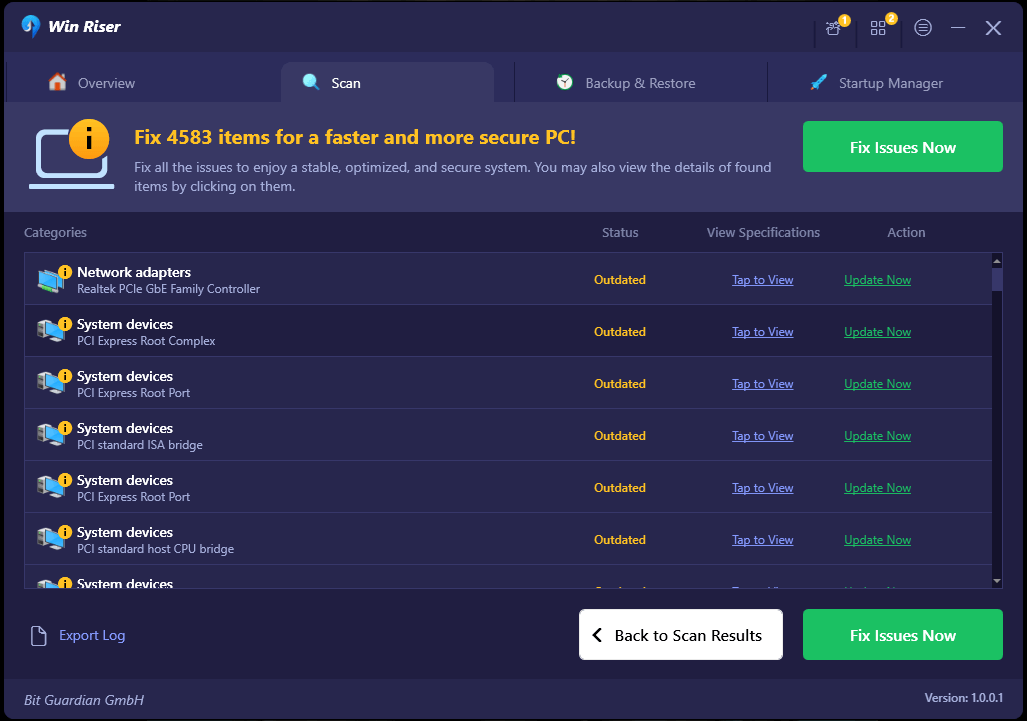
It is a globally recognized software that automatically scans your device and provides you with a detailed list of drivers that need to be updated. You can either use its free version or pro version to update drivers on Windows PC. But, it is suggested to use the pro version so you can enjoy unlimited access to its advanced features. Follow the steps below to automatically get the latest version of printer drivers installed on your PC.

Step 1: Firstly, you need to download the software on your PC. You can even do so for free from the button below.

Windows-Download-Button

Step 2: Double click its setup file and install it by performing the on-screen instructions.

Step 3: On your desktop, make a double-click on the Bit Driver Updater’s shortcut to open it on your PC.

Step 4: On the left menu pane, click on the scan button to initiate the process of scanning.

Bit Driver Updater will scan your PC

Step 5: As said, after the scanning, it displays a list of drivers that requires an update.

Step 6: Locate the Canon PIXMA G2060 printer driver and click on the Update Now button shown beside it.

Step 7: You can also click on the Update All button if you want to update other outdated drivers as well along with the Canon printer driver.

Update All Driver with Bit Driver Updater

Unlike others, Bit Driver Updater provides 24/7 live technical assistance to its users acquiring the pro version. Additionally, offers a complete money-back guarantee but for a limited period. Updating the Windows drivers timely helps you fix common driver problems.

Also Read: Canon Pixma E410 Driver Download for Printer & Scanner on Windows PC


Method 2: Manually Install Canon PIXMA G2060 Printer Driver from Official Support Page

If you are tech-savvy and quite confident about your computer skills, then you can use this method. Canon keeps on releasing the latest driver updates and improvements for their products. So, you can use the official website of Canon to perform Canon PIXMA G2060 scanner driver download. Follow the steps below to use this method:

Step 1: Go to the official website of Canon.

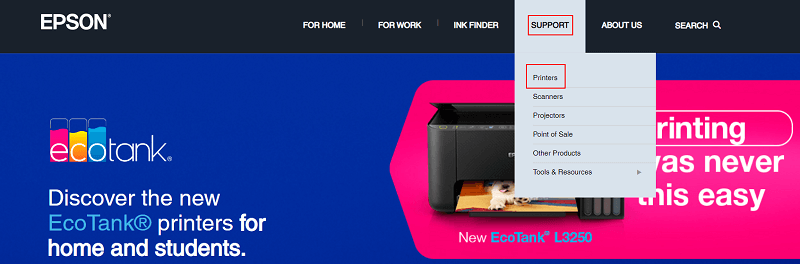
Step 2: Head to the Support tab and select Software & Drivers from the appeared menu list.

Select Software & Drivers in Support Tab

Step 3: Next, select your Product Type, (for instance, Printers).

Select your Product Type as Printer

Step 4: Now, identify your device that’s PIXMA.

Select PIXMA Device

Step 5: Select the series of your printer. In this case, select G.

Select G Series Model

Step 6: After that, find PIXMA G2060 and click on it.

Step 7: Select the compatible operating system version and make a click on the Select button under Recommended Driver’s.

Step 8: Lastly, click Download Button presented next to the required driver file.

Download Canon PIXMA G2060 Printer Driver

Once the complete driver file is downloaded, then, run it and follow the instructions appearing on your screen to complete the installation process.

Also Read: How to Download, Install & Update Canon MX870 Driver for Windows PC


Method 3: Update Canon PIXMA G2060 Printer Driver in Device Manager

Windows has a default utility program called Device Manager, that displays all the information of connected hardware devices and their drivers. The in-built utility can be used to update, uninstall, rollback, and disable the drivers. In this case, follow the instructions outlined below to download the Canon PIXMA G2060 printer driver using this method.

Step 1: Type Device Manager in the search box of Windows, and select the best match from the searched results.

Type Device Manager in the Search Box of Windows

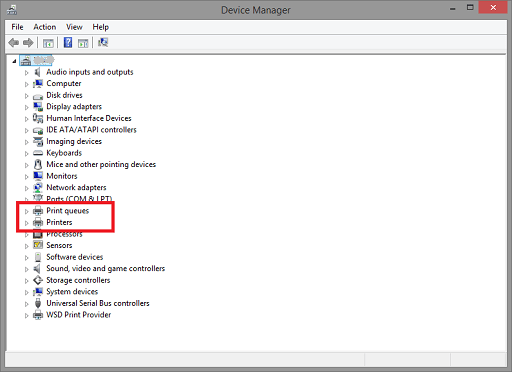
Step 2: Then, in the Device Manager, navigate to the Printer or Print Queues and expand it by making a double click on the same category.

Step 3: Choose Canon PIXMA G2060 from the expanded list and right-click on it.

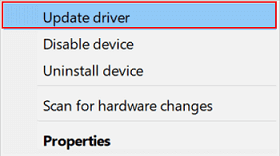
Step 4: Click on Update Driver Software from the context menu list.

Update Driver Software

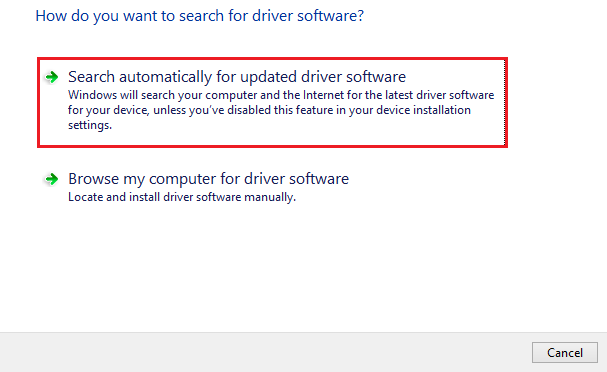
Step 5: The next window will have two options, among them you need to select Search Automatically for Updated Driver Software.

Search Automatically for Updated Driver Software

That’s all! Now, let the Device Manager contact Microsoft’s servers and install the available driver updates.

Also Read: Canon PIXMA MG2522 Drivers Download & Update For Windows 10


Method 4: Run Windows Update to Download Latest Canon PIXMA G2060 Driver

The user can also use Windows Updates in order to update device drivers. Follow the steps below to update printer driver on Windows PC through this method:

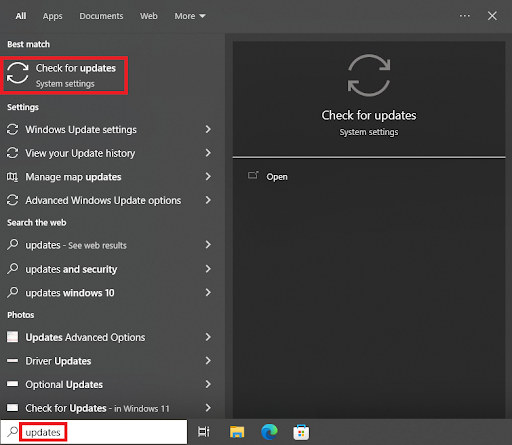
Step 1: Head to the Windows Settings.

Step 2: Locate the Update & Security and click the same.

Updates and Security

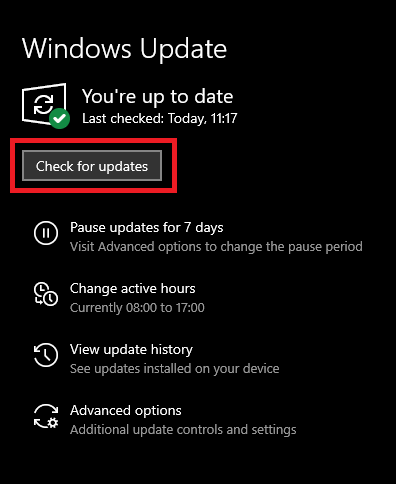
Step 3: After that, on the left pane, choose Windows Update and click on Check For Updates from the right pane.

Check for Updates on Windows Settings

Now, sit back and wait for the Windows operating system to complete the process. Once done, then you need to reboot your computer to save the recent changes.

Also Read: Download Canon Pixma MP287 Printer & Scanner Driver for Windows 10


Canon PIXMA G2060 Printer Driver Download and Update: DONE

To make sure that your Canon PIXMA G2060 printer works correctly, you have to install the correct and compatible drivers. Also, keep them up-to-date for maintaining their consistency. In this downloading guide, we have explained the handy methods that help you easily find, download, and update Canon PIXMA G2060 printer drivers for Windows PC.

Hope you liked the provided information. Share your queries or further suggestions with us through the comments box below. Also, for more tech-related tips, blogs, & news, follow us on Facebook, Twitter, Instagram, Pinterest, and do subscribe to our Newsletter.

1 Comment
    Exccmubpmw says: Reply
    June 23rd 2020, 1:13 pm

    Like!! Really appreciate you sharing this blog post. Really thank you! Keep writing.

Leave a Reply Cancel reply

Your email address will not be published. Required fields are marked *

Sidebar Image bit G ad1

Latest Posts

  • How to Fix Monitor Ghosting – 2021 Step by Step Guide
    What Is Monitor Ghosting and How Do I Fix It?
    by Niharika / April 9, 2026
  • 14 Best Free Tools & Utility Apps For Android in 2024
    15 Best Utility Apps For Your Android Smartphones in 2026
    by Snigdha / April 8, 2026
  • windows 11 installation assistant download
    Windows 11 Installation Assistant Download 
    by Niharika / April 7, 2026
  • Best-vistaprint-alternatives
    Best Vistaprint Alternatives to Use in 2026 
    by Gunjita Sompura / April 1, 2026
  • Best-Data-Labeling-Software-to-use-in-2026
    Best Data Labeling Software to Use in 2026
    by Niharika / March 27, 2026

Categories

  • Cyber Security
  • Driver Updater
  • Entertainment
  • Fitness
  • Games
  • How To
  • laptop
  • OS
  • Reviews
  • Tech News
  • Tips & Tricks
  • Top 10
Sidebar Image bit G ad1
Best Program Launcher for Windows 10 12 Best Program Launcher For Windows 10 in 2024by Snigdha / December 27, 2023
Best Free Image Recognition Software in 2024 [Open Source]by Devesh / December 27, 2023Best Free Image Recognition Software
TechPout Footer Logo

We at TechPout promise to put forth stories that help people to learn and simplify their digital life. Our purpose is to share the true essence of technology with our tech-loving community.

Useful Links

  • About Us
  • Contact us
  • Privacy Policy

Popular Posts

  • Best PC Optimizer Software
  • Best Mac Cleaner Apps
  • Best Driver Updater
  • Duplicate Photo Finder and Cleaner Software
  • Best Free Movie Download Sites
  • Best IPTV Players

Follow us

Copyright © 2026 www.techpout.com. All rights reserved
DMCA.com Protection Status