AppData folder is a hidden folder in Windows that contains application-specific information, such as user-specific installations, configuration files, and cached files. Generally, users may not need to access this folder. However, when troubleshooting a broken program or clearing cached or temporary data from an application, you may need to access it, and it can be frustrating if you cannot find it.
Windows hides the AppData location to protect its contents from accidental deletion. Deleting or modifying an incorrect file can prevent an application from launching or break it. The AppData folder is located at C:\Users\YourUsername\AppData; here “YourUsername” means the name of your Windows account.
You can find and open the AppData folder in three ways; this article walks you through it in detail. To begin, here is an overview of the folder to help you understand it better.
What Is the AppData Folder
The AppData folder in Windows is where applications store their temporary data and settings. All Windows user accounts have their own AppData folders. This folder contains three subfolders: Local, LocalLow, and Roaming.
The Local folder stores data specific to one Windows system, meaning no data is synced between PCs.
The LocalLow folder is for low-integrity apps, i.e., applications that function with more limited security settings. For example, Google Chrome running in Incognito mode can only access the LocalLow folder.
The Roaming folder stores data synced between various Windows systems. It stores settings such as saved passwords, bookmarks, etc.
While moving or deleting files from these folders is not recommended, once you open the AppData folder, you can back up the data, transfer the data from one PC to another, copy the files to cloud storage or a flash drive, or back up any PC game’s saved files or a specific application’s settings.
Accessing this folder is easy in Windows; the following sections explain how to get to the AppData folder in Windows 11.
How to Find the AppData Folder in Windows 11
The easiest and most recommended way to find and open the AppData folder in Windows is through the Run command. Open the Run dialog box and then enter the AppData path. Alternatively, you can use File Explorer or the search bar to access this folder if you are comfortable with those methods. Below are all three methods explained in detail.
Method 1: Use the Run command to get the AppData folder
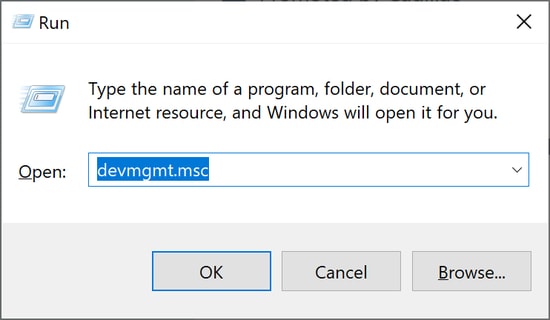
- Press Win + R to access the Run dialog box.
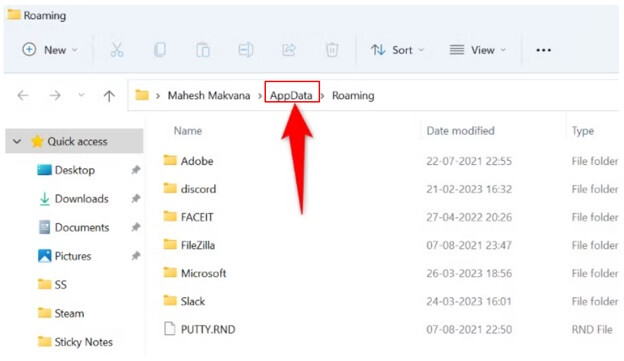
- In the Run box, type %appdata% and press.
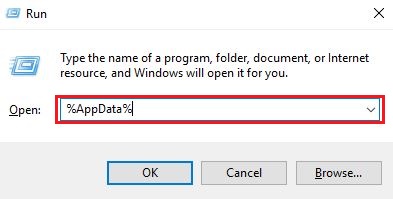
- In the File Explorer window that appears, click AppData to see the contents of your AppData folder.
Also know: How to Solve Exception_Access_Violation Error in Windows PC
Method 2: Access the AppData folder using File Explorer
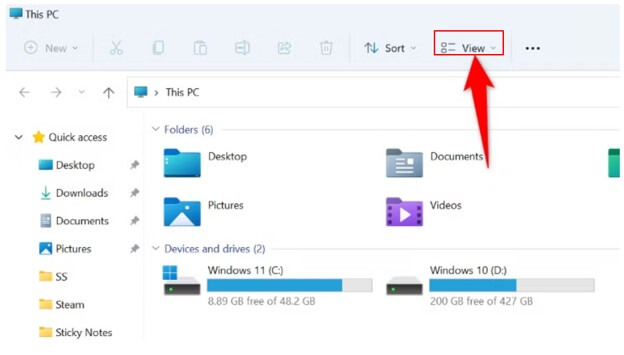
- Press Win + E to open File Explorer.
- Click View at the top of File Explorer.
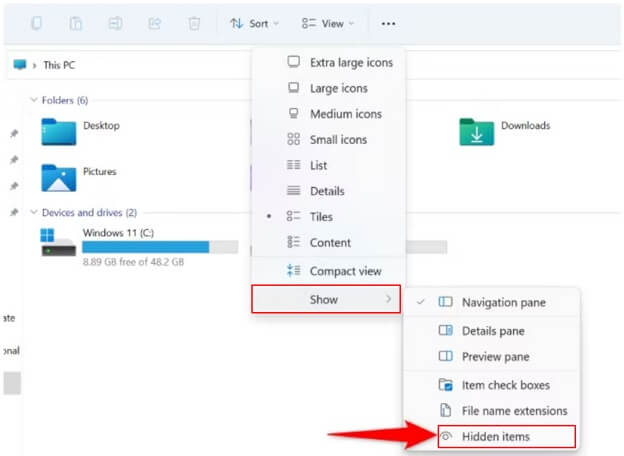
- In the menu that appears, click show.
- Next, click Hidden items in the Show menu options.
- In File Explorer, navigate to the path: C:\Users
- Double-click your account name
- Lastly, double-click the AppData folder to open it and see its contents.
Method 3: Find the AppData folder using the search bar
- Click the Start button.
- In the search bar, type %AppData%.
- Click the matching search result to open the AppData folder.
However, if the AppData folder does not show up, is missing, or you can’t find it, check the solutions below.
Troubleshoot: Can’t Find the AppData Folder on Windows
The AppData folder may be hidden, you may be checking the incorrect user profile, or your user profile may be corrupted if the AppData folder is missing on your PC. Below is how to fix this.
- Unhide the AppData folder in File Explorer. To do this, press Win + E, click View, click Show, click Hidden Items, and then find AppData.
- Every user has a separate AppData folder. If multiple users use the same PC, ensure you are checking the correct profile in C:\Users\[Username].
- A corrupted user profile may be why you are unable to access the AppData folder, leading to lost application settings or missing files. Typical symptoms of a corrupted profile include reset or lost app preferences, missing desktop items, unexpected profile errors, and login problems. In such cases, create a new user account. To create a new user account, log in with an admin account, follow the path: Settings → Accounts → Family & other users, create a new account with admin privileges, transfer files from the corrupted profile (located in C:\Users\[Old Username]), and then delete the old profile after restoring everything.
Below are the answers to some common questions about the AppData folder to clear up persistent confusion.
Also know: How to Fix Winget is Not Recognized (Quickly & Easily)
Frequently Asked Questions
Q1. Where is AppData in the folders?
The AppData folder is located at C:\Users\[YourUsername]\AppData.
Q2. What if I delete the AppData folder?
Deleting the AppData folder deletes the app settings, game saves, sign-ins, and user data, leading to many apps crashing or resetting to factory settings. Hence, it is not recommended to delete the AppData folder.
Q3. How do I access the AppData folder?
To open the AppData folder, press Win + R, type %appdata%, press Enter, and then click AppData. For details and alternative methods, refer to the guide above.
Windows hides the AppData folder to prevent accidental deletion, transfer, or modification of critical application settings or configuration files.
Q5. Why is the AppData folder taking up space?
Apps installed on the computer use the AppData folder to save caches, app data, settings, and other local files. This folder grows significantly over time, consuming a large amount of disk space. To free up space, you can press Win + I, click System, click Storage, click Cleanup recommendations, review the Temporary files, Large or unused files, Files synced to the cloud, and Unused apps, select the items you want to remove, and then click Clean Up.
Q6. Are the AppData folder and the ProgramData folder the same?
No, the AppData folder and the ProgramData folder are not the same. The ProgramData folder stores a single set of settings or files for a program, and multiple users use this data. For example, your antivirus software may store its scan logs and settings in the ProgramData folder and share these logs and settings with all users on the PC.
This clears up all confusion about the AppData folder and how to get it. To work with the AppData folder effectively, back up the folders that matter the most, such as editors, launchers, and browser profiles, instead of copying the entire folder; password-protect files and folders if you share a PC to keep your data safe; and only clear old logs and caches; avoid cleaning current profiles and databases to ensure apps function smoothly. If you have any questions, concerns, or suggestions to improve this guide, leave a comment.