How do I compare two files in Notepad? Notepad cannot help you compare two files, but Notepad++ can. Notepad++ is a practical alternative to the classic Windows Notepad, with advanced options, broad customization, and the ability to compare two files and save the differences. You can download the official Notepad ++ installer from the Notepad ++ Downloads page, double-click the installer, and then follow the setup wizard to install Notepad ++.
You can compare files in Notepad++ in several situations, such as identifying differences before merging files, comparing files side by side when moving them from one location to another, or comparing two versions of a file. This article explains how, and the sections below show how to compare text files in Notepad++ easily.
How to Compare Two Files in Notepad ++ Side By Side
You can compare files in Notepad ++ with or without a plugin. We recommend using a Compare plugin for file comparison, as it gives more accurate results with minimal effort. Below are both methods explained in detail.
Method 1: Compare files in Notepad ++ using a Compare plugin
The Compare plugin in Notepad ++ allows you to view the dissimilarities between two text files side-by-side. Below is how to install and use this plugin to compare two files in Notepad ++.
- Open Notepad ++.
- Click Plugins.
- Click Plugin Admin.
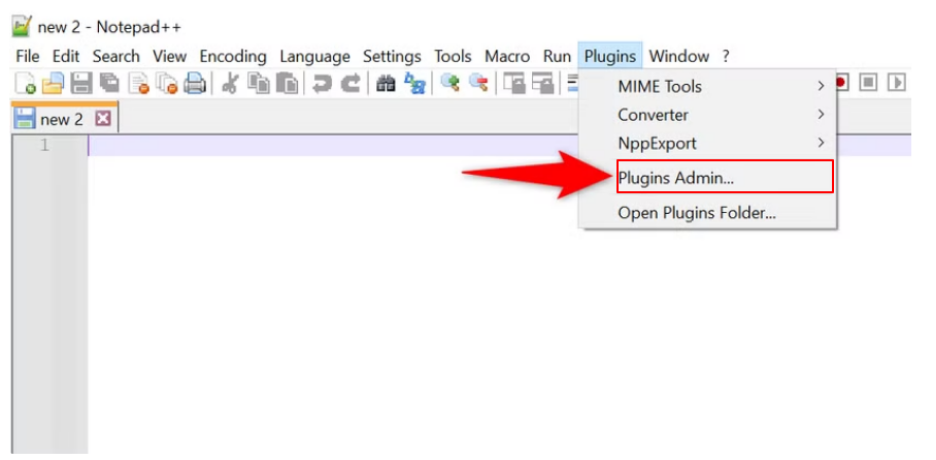
- In the search box, type Compare Plugin and click Next.
- Check the Compare plugin box.
- Click Install.
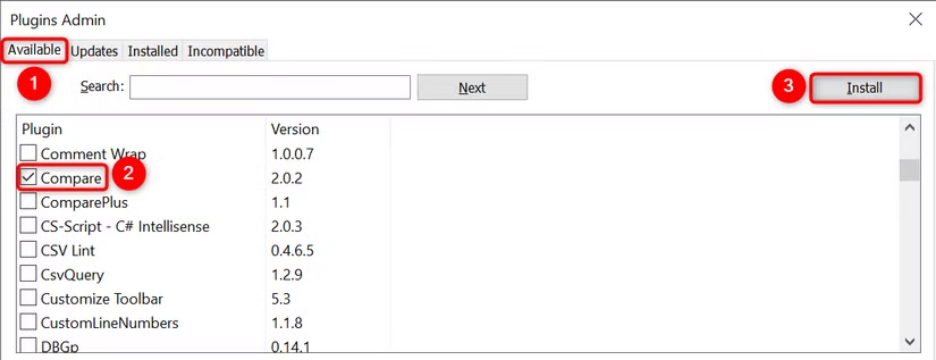
- If prompted to restart Notepad ++ to complete the plugin installation, click Yes.
- Back in the Notepad++ application, click Plugins.
- Click Plugin Admin and ensure you can find Compare in the Installed tab.
- Next, click File in Notepad ++.
- Click Open.
- Select the files you want to compare.
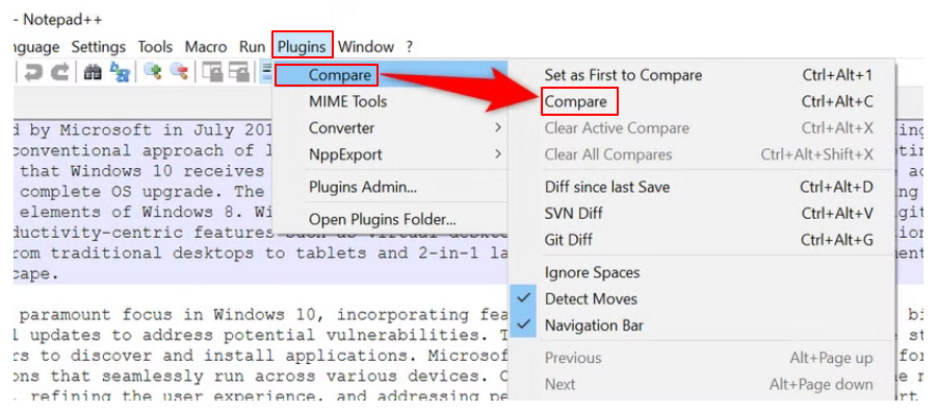
- After opening both files in Notepad ++, click Plugins.
- Click Compare in the Plugins drop-down.
- Next, click Compare to display the two files side by side, with their differences highlighted. Below is how to understand these differences.
Also know: Best Notepad++ Alternatives For Mac
Understanding file differences with a Compare plugin
The Compare plugin in Notepad ++ uses a color-coded system and symbols to display differences between two files. It highlights three main differences: changed sections in lines, added lines, and deleted lines. These differences are highlighted in colors and symbols:
- Green color and a + symbol: Added lines.
- Red color and a – symbol: Deleted lines.
- Red or green color and a ≠ symbol: Changed sections; red color for deletion, green color for addition.
- Blue color: Word case change between the two files.
- Pink whitespace: Whitespace differences between the two files, such as line breaks or spacing changes.
- ↕ Symbol: Text blocks moved up or down as compared to their position in the other file.
- ≈ Symbol: Unchanged lines; identical content between the two files.
Additionally, line numbers help you navigate through these differences. Displayed side by side, the line numbers for both file versions help you track the changes when moving through the lines.
If you do not like the default colors in the Compare plugin, you can even customize it to compare files in Notepad ++ according to your requirements.
Customizing the Compare plugin in Notepad ++
Below is how to customize various Compare plugin settings in Notepad ++, such as colors, text wrapping, and file priority.
- Open Notepad ++.
- Follow the path File > Open to open the files you want to compare.
- Follow the path Plugins > Compare > Compare to compare the files.
- When the comparison starts, follow the path Plugins > Compare > Settings.
- In the Compare Plugin Settings, you can change various comparison features and options, such as file positioning with the First is option, or enable Go to first diff after re-compare to navigate to the first difference in the file.
- To change the color settings, choose one of the available color tabs in the Color settings and then select an alternative. You can also change the transparency levels through the Highlight transparency value from 0 to 100.
- If you want to reset any change, click Reset.
- Click OK to save the changes you have made.
Also know: Best AI Notetaker Software to Use for Meetings
Method 2: Compare two files in Notepad ++ without a plugin
Below are the steps to compare two files in Notepad ++ manually, without a plugin.
- Open the files you wish to compare in Notepad ++.
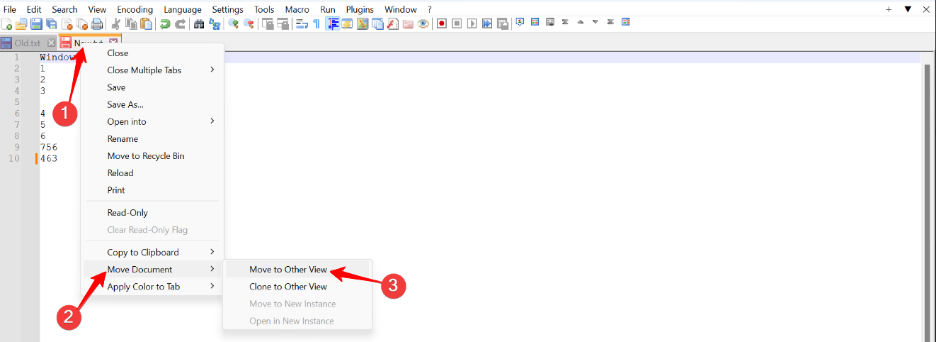
- Right-click the file tab you want to move to the side.
- Click Move Document.
- Next, click Move to Other View to open your files side by side.
Note that there are no clear results when you compare two files in Notepad ++ without a plugin. There is no color coding and symbols to make the comparison easy, making it difficult to ensure that you spot all important differences.
Regardless of how you compare files in Notepad ++, a few simple practices can make the comparison more reliable and error-free.
Best Practices for Comparing Content of Two Files in Notepad ++
Below are a few habits to compare 2 files in Notepad ++ reliably without errors.
- Normalize before comparing files to prevent false positives. To do this, follow the path Edit > EOL Conversion and Encoding.
- If you are comparing code reformatted through Black, Prettier, or a similar tool, use Ignore Whitespace for reformatted code.
- For comparing files with both free-text values and structured lists, split the comparison; compare lists separately from prose.
- Save your comparison results for easy analysis, compliance, auditing, or team review. You can do this through the copy option in the Compare plugin.
If, for some reason, you do not like Notepad ++, Open PowerShell and then run: $file1 = Get-Content “C:\path\to\file1.txt”
$file2 = Get-Content “C:\path\to\file2.txt”
Compare-Object $file1 $file2
Though a complicated process, the above command helps compare two files without Notepad ++.
Check the answers to the commonly asked questions below to clear up any persistent doubts.
Frequently Asked Questions
Q1. How can I compare two files side by side in Notepad++?
To compare files in Notepad ++, follow the path Plugins > Plugins Admin to install the Compare plugin, and then follow the path Plugins > Compare > Compare. For details and alternatives, refer to the guide above.
Q2. What is the shortcut to compare two files in Notepad ++?
Ctrl + Alt + C is the default shortcut to compare 2 files in Notepad ++ using the Compare plugin. For older versions of the Compare plugin, the shortcut to compare files may be Alt + D.
Q3. What file types can I compare in Notepad ++?
You can compare all plain text-based file formats in Notepad ++, such as SQL, CODE, LOG, CSV, JSON, XML, etc.
Q4. Can I compare files in a regular Notepad?
No, you cannot compare files in a regular Notepad, as it does not have a diff feature or a plugin system to open two files side by side. However, you can use the Compare-Object cmdlet in Windows PowerShell to open two Notepad windows side by side for a visual scan.
Q5. Can I compare binary files in Notepad ++?
No, Notepad ++ and the Compare plugin can only compare text files. To compare binary files, you need a hex diff tool.
Hopefully, you can now compare two files in Notepad ++ easily to inspect changes without exiting your editor. If you have questions or need further clarification, leave us a comment.