Main LogoLight Logo
  • Reviews
  • Top 10
  • How To
  • Tech News
  • OS
    • Windows
    • MAC
    • iOS
    • Android
  • Categories
    • Driver Updater
    • Cyber Security
    • Games
    • Fitness
    • Entertainment
    • Tips & Tricks
How To Windows
by Snigdha

How To Setup & Use a VPN in Windows

April 6, 2020
1

Connecting to a Virtual Private Network (VPN) on a Windows 10 PC is the need of the day but do you know how to set up a VPN on your own? VPN is your best chance to secure your sensitive data whether you need to use it for your company or personal use.

You could certainly get your hands on a premium VPN application that only needs to be installed and all you need to do is to switch it on to be protected against online scams and threats. Alternatively, you may need to set up a free VPN and it could be due to the following reasons:

  • You are running Windows 10 PC in the safe mode that prevents you from installing external apps.
  • You are using a VPN without a client.
  • You want to use a VPN protocol that is not supported by your VPN’s client like IKEv2.

VPNs encrypt your data apart from masking your online identity and prevent tracking of your Geo-location. They typically route the internet connection of the device through the chosen VPNs private server rather than the ISP (Internet Service Provider). During transmission of data, it appears to be coming from the VPN rather than the computer.

During the unfortunate times of COVID-19 pandemic, when more than half the world is shut in their homes and the majority of work and business is being carried on from home, it has become very crucial to have VPN protection by your side. 

Most of the VPN connections are either handled by custom software or third-party generic software (i.e. Cisco AnyConnect). Another way is to use Microsoft’s in-built VPN client. So, in this tutorial, we will see how to set up a VPN for Windows 10 effortlessly.

Table of Contents hide
Pre-Requisites of Setting Up a VPN:
Process of Setting Up a VPN:
Steps to Set Up a VPN:
Connecting to a VPN:
Wrapping Up

Pre-Requisites of Setting Up a VPN:

  • Premier VPN Service (ExpressVPN, NordVPN, etc.)
  • Windows 10 OS

Process of Setting Up a VPN:

Before we begin, you need to understand that it is essential to have a VPN profile on your Windows 10 PC in order to establish a connection with a VPN. There are two ways to do so, either create a VPN profile on your own or set up a work account to acquire the VPN profile of your company. You can look at the below-given ways to successfully create a VPN profile:

For Work: You can view the VPN settings or look for the VPN app on your company’s intranet site. Or else, you can get in touch with the support desk of your company.

For Personal Use: If you have subscribed to a VPN service, then look for the Windows-compatible app. You will then have to go to the VPN service’s website to check if the VPN connection settings are given there like the lists of server’s location and the address needed to set up a VPN manually. 

Additionally, you should have manual sign-in info from your VPN provider that will be needed to set up a VPN manually. It can either be in the form of sign-in credentials or a certificate based on the type of service.

Read More: How to Hide Your IP Address For Free

Steps to Set Up a VPN:

Here are the steps that you can use to set up a VPN in your Windows 10 system:

  • Begin by going to the Settings of your Windows 10 computer from the Start menu.
  • You will see an option called ‘Network & Internet.’
  • Once you enter the ‘Network & Internet’ segment of the Settings, you will now see an option called VPN on the left panel.
  • Now, you can click on ‘Add a VPN connection.’
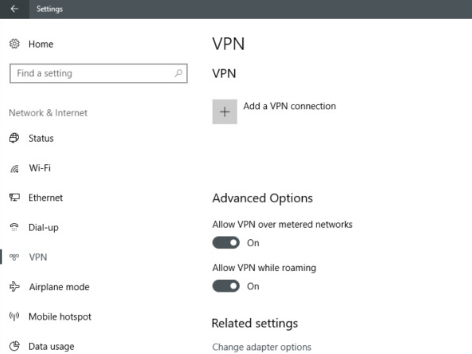
Steps to Set Up a VPN
Image Source: PC World
  • A dropdown menu will appear below the VPN provider that you have to click.
  • Now you can choose the Windows (built-in) option as the VPN provider.
  • Further, you can choose to enter the Connection name, which you can input as per your choice (for example, “Personal VPN”) in the input box.
  • Followed by this, you will have to enter the address for the VPN server in the Server name or address field. It is possible to find the server address in the VPN account.
  • After this, you need to select the VPN type. To do this, you can click on the dropdown menu and select an appropriate option.
  • When you are done with the above steps, you will then need to select a connection protocol.
  • You can Type the sign-in info from the dropdown menu. 
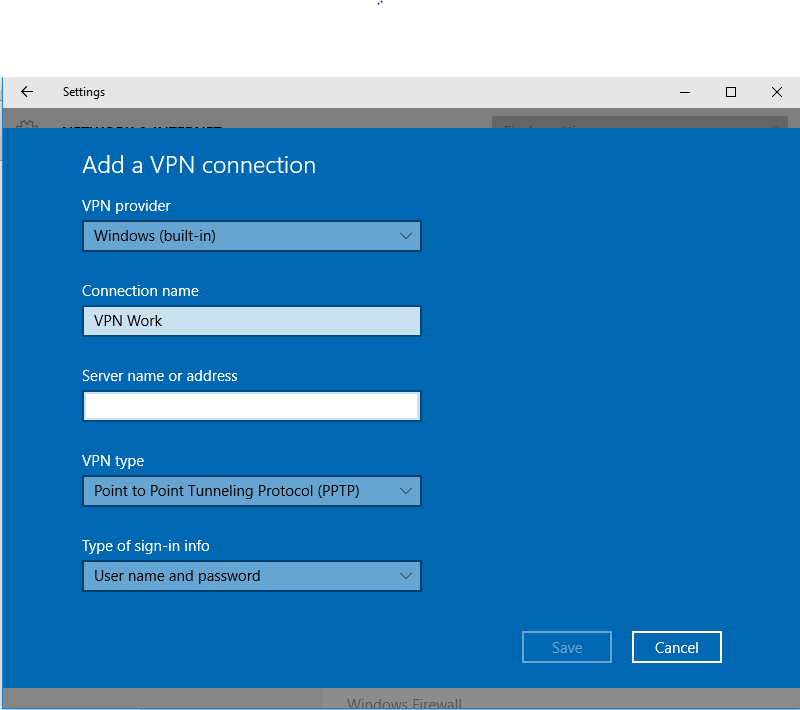
Fill all the required info
Image Source: Server Fault
  • Choose a sign-in method and furnish the username and password, one-time password, certificate, or a smart card (if you are using a VPN for work purposes). 
  • Finally, you can click Save. 
  • If you need to make some changes in the VPN connection info or set up some additional settings, then you can do so with the help of Advanced Options.

Read More: How to Fix Windows Update Problems

Connecting to a VPN:

Once your VPN profile is set up, it’s ready for use. Here’s how you can use a VPN:

  • Click on the Network icon of your system.
  • Then, you can choose the VPN connection that you want to use.
  • Further, you can connect to the VPN by clicking on the Connect button.
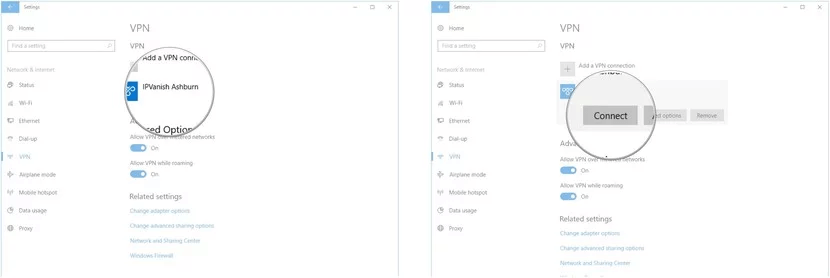
Connect the VPN
Image Source: Windows Central
  • Enter your sign-in info or the username and password as needed.

Thus, this is how you can set a VPN in your Windows computer and you are all set to use your VPN connection and secure your internet connection.

Wrapping Up

Following the above steps can help you set up a VPN for your Windows 10 computer effortlessly. Using Windows built-in VPN client offers a quick solution for gaining online security and anonymity; however, there is only a specific server that you can connect to instead of having a large number of server options.


Author

Snigdha

Snigdha is a technical content writer with expertise in the field of science & technology. Though she has a very diverse academic and professional profile yet she finds writing to be a creative form that she was unable to explore so far. When not writing, she can be found indulging in other forms of creativity like painting or travelling.

View all posts

Related Posts
wdcsam64_prewin8.sys-Turned-Off-Core-Isolation

wdcsam64_prewin8.sys Turned Off Core Isolation: FIXED

June 17, 2024
0

Core Isolation Memory Integrity fails if the wdcsam64_prewin8.sys driver turns it off. However, you can fix this issue effectively by following the solutions in this article.

Wdcsam64_prewin8.sys turned off Core Isolation is a common problem many Windows users experience. However, you can fix this error effortlessly. All you need to do is read this article from beginning to end with the utmost attention.

This write-up is going to guide you through the best possible solutions to the problem. However, before discussing the solutions, allow us to shed some light on this error and its causes to help you troubleshoot better.

What Is Wdcsam64_prewin8.sys Turned Off Core Isolation

Core Isolation is a Windows security feature that provides your computer with added protection from malware attacks by separating the computer processes from the operating system and device.

Most often the error you are experiencing occurs because the Wdcsam64_prewin8.sys driver (a driver that gets installed on your computer if it has any Western Digital hard disk drive or other devices from Western Digital Technologies installed) is outdated, corrupt, incompatible, or missing. In addition to the driver issues, the following factors may contribute to the problem.

Causes of the error

Besides driver issues, the following factors may be responsible for the Core Isolation Memory Integrity error you are trying to fix.

  • Your computer has corrupted system files
  • There are pending operating system updates

Now that you are familiar with the issue, let us walk you through its tried and tested fixes.

Fixes for Wdcsam64_prewin8.sys Turned Off Core Isolation Error

You can solve the problem you are experiencing in the following ways.

Fix 1: Uninstall and remove the problematic WD driver from the driver store

The error you are trying to fix may have resulted from a corrupted WD storage device driver. Hence, uninstalling and removing the driver can solve the problem. Here are the detailed steps to perform the driver uninstallation and removal.

  • First, you are required to power off the system and connect all hardware, particularly the WD storage device used with the computer.
  • Next, power on the computer and use an administrator account to log into the system.
  • In this step, right-click the Windows icon on the taskbar and select Device Manager from the on-screen Quick Access menu.

Open Device manager from windows search

  • After opening the Device Manager, choose View from the on-screen window.
  • You can now select the option to Show hidden devices from the View menu.

Show hidden devices

  • Now, double-click the WD Drive Management Devices category to expand it.
  • Next, right-click WD SES Device and choose Uninstall device from the options available in the context menu.
  • Delete the driver software for this device and Uninstall the device.

Delete the driver software for this device ws

  • Repeat the above steps to disable WD devices in the Storage Controllers, Other Devices, and Disk Drivers category.
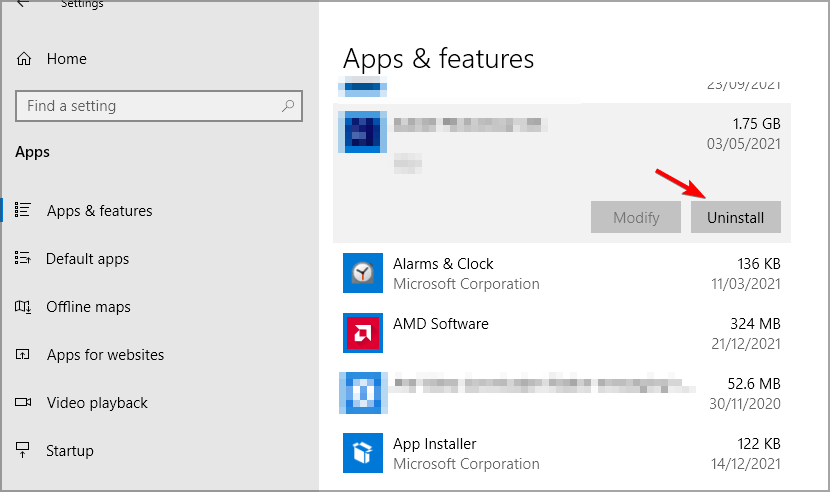
  • You can now right-click the Windows icon and select Apps and Features from the available options.

Apps & Features

  • Now, find and uninstall WD applications, such as WD Backup, Smartware, etc.
  • In this step, you are required to right-click the Windows icon and select File Explorer from the available options.
  • You can now navigate to the C:\Windows\System32\DriverStore\FileRepository\wdcsam.inf_amd64_7ce69fc8798d6116 path.
  • In this step, you are required to take complete control of the wdcsam64_prewin8.sys file. The following note explains how to do it.

Note: You can follow these steps to grant your user account ownership of the wdcsam64_prewin8.sys file.

  1. Input cmd in Cortana, right-click Command Prompt and choose Run as administrator from the context menu.
  2. You will now be asked for permission to open Command Prompt as an administrator, click Yes to proceed to the next step.
  3. Input TAKEOWN /F “<filename>” in the Command Prompt window and press Enter. Please remember to replace <filename> with the name of the file you wish to take ownership of.
  4. Next, input ICACLS “<filename>” /grant %username%:F in the Command Prompt window (please replace <filename> with the name of your file) and press Enter.
  • You can now perform the wdcsam64_prewin8.sys file deletion and repeat the process for any other folders beginning from WDCSAM.INF in the FileRepository.
  • Next, find wdcsam64_prewin8.sys in the File Explorer (with This PC selected in the File Explorer window) and delete all the files that appear in the search results.
  • Lastly, check whether or not the issue is resolved. If the problem remains unresolved, you can try the below solutions.

Fix 2: Use the Autoruns utility to remove incompatible drivers

Autoruns utility from Microsoft allows you to manage all components of the system, such as registries, services, and drivers to solve various problems. This tool can also help you remove incompatible drivers that may be responsible for errors like the one we are fixing in this article. Thus, you can follow these steps to use it.

  • The first step is to navigate to the download page of Autoruns.
  • Secondly, choose to Download Autoruns and Autorunsc.

Download Autoruns and Autorunsc

  • You can now click Save in the Save As prompt to get the Autoruns.zip file downloaded on your computer.
  • Click on the file after it is downloaded and then double-click Autoruns.exe.
  • In this step, extract the Autoruns ZIP file and install the utility on your computer.

extract the Autoruns ZIP

  • After completing the installation, open the utility and navigate to the Drivers tab.

navigate to the Drivers tab. (1)

  • You can now locate the incompatible driver in the Driver tab and right-click on it.
  • Next, choose Delete from the right-click menu to delete the problematic driver.
  • Lastly, you can try to re-enable the Core Isolation features.

Also know: How to Fix Kernel Data Inpage Error in Windows 10,11


Fix 3: Run a System File Checker (SFC) to find and repair the problematic system files

Since system file problems are another reason wdcsam64_prewin8.sys turned off Core Isolation, you can perform these steps to run an SFC scan to repair the system files.

  • First, launch Command Prompt as an administrator on your computer.
  • After opening the administrator Command Prompt, input sfc/scannow in the Command Prompt window and press Enter.

Command Prompt Open and Then Enter SFC-Scannow Command and Again Hit Enter

  • Lastly, exit the Command Prompt window and restart your computer to complete the process.

Fix 4: Update the wdcsam64_prewin8.sys driver

Wdcsam64_prewin8.sys driver is essential for Core Isolation. You may experience problems like wdcsam64_prewin8.sys turned off Core Isolation if this driver is outdated. Hence, keeping this driver up-to-date is of utmost importance.

You can update this and all other problematic drivers automatically with a simple click using Win Riser, one of the best driver updaters. Win Riser updates drivers, backups and restores the existing drivers whenever needed, cleans junk, deletes invalid registries, removes malware, and has many other useful functions. Hence, you can navigate to the following link to download and install this software.

Download-Button

After installing the software, here are quick and easy steps to use it.

  • First, wait for a couple of seconds until Win Riser scans your computer.
  • Next, review the results and click Fix Issues Now to update drivers and solve all problems instantly.

Win Riser Driver Updater to get Epson LQ310 Driver for Windows 10,11

  • Lastly, reinstall your PC to complete the process and save the changes.

Fix 5: Download and install the wdcsam64_prewin8.sys driver manually

The manual download and installation of the driver have fixed the Core Isolation issue for some users. Hence, you can follow these steps to try this solution.

  • First, download the driver setup file.
  • Next, unzip the downloaded file and double-click it to begin the driver installation.
  • Lastly, reboot your PC to complete the driver installation.

Fix 6: Update Windows

If automatic update is disabled, you may have missed crucial Windows updates that could have fixed the issue you are experiencing. Hence, here are the steps to update Windows to solve the problem.

  • The first step is to press your keyboard’s Windows key.
  • Next, input check for updates in the on-screen search text box and click the first result.
  • In this step, click the Check for updates button to detect the available Windows updates.

Check for Updates on windows settings

  • You can now download and install the updates available on your computer.
  • After downloading and installing the available updates, restart your computer to save the changes.

Also know: How to Fix 0xc00000e5 Error Code On Windows PC


Wdcsam64_prewin8.sys Turned Off Core Isolation Issue Fixed

One of the above solutions is going to enable the Memory Integrity on your computer, resolving the error you are struggling with. However, if you have any doubts, questions, or suggestions about this article, you can leave a comment in the comments section without any hesitation.

How to Fix Destiny 2 Servers Not Available on Windows PC

How to Fix Destiny 2 Servers Not Available on Windows PC

April 14, 2023
0

If the Destiny 2 servers are not available on your Windows PC and thus your gaming experience is getting affected again and again, then you should try the solutions provided in this guide to get rid of this issue. 

If you like multiplayer games online, then you surely must have heard about Destiny 2. The amazing gameplay with interactive graphics of this award-winning game has resulted in its popularity. The game is quite amazing and allows you to compete with other gamers as well. Moreover, you can also invite your friends to combat in groups. On a third-world private island, you can team up and kill aliens and their lords to win.

Destiny 2 is undoubtedly loved by various gamers around the world. However, when any problem appears during the gameplay, this love may even convert into hatred. One such error is the “Destiny 2 servers not available on PC”. This is a quite common error that appears during the gameplay repeatedly. Unless you do something about the error, smooth and realistic gameplay with your friends would always be limited to a thought and will never become a reality.

Hence, to help you in getting the perfect and uninterrupted gameplay on Destiny 2, we have brought together this simple guide. Here, you will find all the trustworthy solutions to help you get rid of the error once and for all. So, without any further ado let’s have a look at the solutions right away.

Methods to Fix Destiny 2 Servers Not Available

If the Destiny 2 servers are not available on PC, then there are certain solutions that you can try to fix the error. We have provided some of the best solutions below for the same. You should try these solutions chronologically as explained to get rid of the error permanently. So, stop beating around the bush and get straight to the solutions below.

Fix 1: Restart the Router or Reconnect the Internet

To play Destiny 2, you may either take the help of an ethernet cable or Wifi connectivity for an internet connection. If you face the error of Destiny 2 servers are not available on PC, then the first thing that you need to do is turn off the router and restart it again. Unplug the ethernet cable or disconnect the Wifi, then turn off the router and wait for 5 minutes before restarting and replugging/reconnecting the internet. This will allow the router to clear the temporary files and get a fresh start.

The sequence is quite easy to follow but reassuring. This may very easily fix the error for you. If the problem persists, then you need to take the help of the next solution.

Also Read: How to Fix WiFi Connected But No Internet on Windows


Fix 2: Check If the Server is Down

Another thing that can help you with the Destiny 2 servers are not available errors is to check if the server is down. The developers of the game share regular information with the gamers about the regular maintenance period. During this period, you may be unable to play the game while the team installs the updates. You can visit the official website of Bungie (the developer of the game). Here, you will see the time during which the game will get new updates or the ensure of regular maintenance.

Server Maintenance and Update Status

Try playing the game after the period is over. If this error appears again, then follow the next solution.


Fix 3: Update the Network Driver

One of the best solutions to fix the “Destiny 2 servers not available” on PC error is to update the network driver. As servers are related to the internet servers and the internet is accessed using a network adapter, updating the driver can help you run the game. The driver is the set of files that defines how a device will run on the Windows operating system. Hence, outdated drivers can cause network-related issues.

There are multiple methods to download and update a driver. However, most of these methods are manual and may even fail. Hence, we recommend that you take the help of the Bit Driver Updater utility for ease. This is an automatic solution that allows you to-

  • update drivers with a single click
  • schedule driver updates
  • backup/restore the drivers
  • ignore unnecessary driver updates.
  • get WHQL-certified updates at all times

That’s not all. The tool has tons of qualities and features that you can use. But for now, let’s have a look at the entire procedure to fix the Destiny 2 servers not available error. Follow the steps below to know how to use Bit Driver Updater, update the network adapter driver, and fix the error:

  1. With the help of the button provided below, download the Bit Driver Updater setup. Install the tool on your device.Windows-Download-Button
  2. Once the software installed, run it, and allow the tool to scan the system. Click on the Scan Drivers button if the scanning does not start automatically.Scan outdated driver of your windows pc
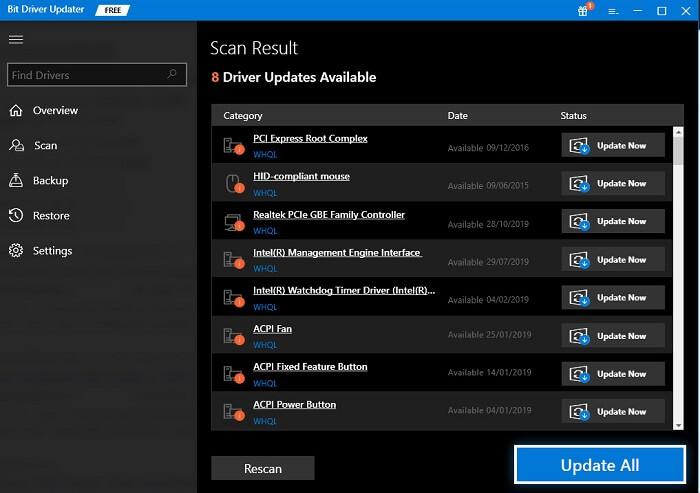
  3. When the list of driver updates appears, either click on the Update All or the Update Now button to get the updates.Bit Driver Updater - Update all the driver
  4. Restart the system when all the required updates are installed.

If this method fails to solve the issue, follow the next method.

Also Read: How to Fix Valheim Dedicated Server Disconnected Error


Fix 4: Modify the Network Connectivity

The last method, if none of the above ones fix the Destiny 2 servers are not available on PC error is to modify the internet connection. If you can, switch from the Wifi to an ethernet connection. The ethernet connectivity is more strong and more stable and hence offers amazing gameplay.


Destiny 2 Servers Are Not Available: Fixed

So, these were the methods that will allow you to get amazing gameplay on Destiny 2, without any internet issues. All the solutions provided above are reliable and do not affect your system or its data in any way. If you have any questions related to the guide or its methods, use the comments section below.

Explain your queries in detail and we will get back to you with reliable solutions for your ease. Moreover, if you liked this article on how to fix Destiny 2 servers are not available errors, then follow us on Facebook, Twitter, Instagram, Pinterest, and Tumblr. Don’t forget to subscribe to the newsletter from our blog for more interesting updates and articles.

1 Comment
    Bitdefender Internet Security Review 2021 says: Reply
    January 4th 2021, 10:41 am

    […] Read More: How To Setup & Use a VPN in Windows […]

Leave a Reply to Bitdefender Internet Security Review 2021 Cancel reply

Your email address will not be published. Required fields are marked *

Sidebar Image bit G ad1

Latest Posts

  • Anytime Astro: Best Website For Online Astrology Consultation
    Anytime Astro: Connect Now For Online Astrology Consultation
    by Somya Shrimal / March 13, 2026
  • Best-Ways-to-Combine-Images-Into-PDF-Files
    Best Ways to Combine Images Into PDF Files
    by Niharika / March 12, 2026
  • Best FREE VPS Hosting Providers
    7 Best FREE VPS Hosting Providers in 2026
    by Devesh / March 12, 2026
  • Best-McAfee-alternative-software-to-use-for-Virus-Protection
    Best McAfee Alternative Software to use for Virus Protection
    by adminuser / February 11, 2026
  • What-is-Flip-Flop-in-Circuite-and-it's-Types
    What is Flip Flop in Circuit and its Types
    by Meet / February 6, 2026

Categories

  • Cyber Security
  • Driver Updater
  • Entertainment
  • Fitness
  • Games
  • How To
  • laptop
  • OS
  • Reviews
  • Tech News
  • Tips & Tricks
  • Top 10
Sidebar Image bit G ad1
The Apple Watch Series 6 Could Get Touch ID & Sleep Tracking Support The Apple Watch Series 6 Could Get Touch ID & Sleep Tracking Supportby Prachi Dani / April 6, 2020
Facebook Messenger Desktop App Launched for Windows & macOSby Monil / April 7, 2020Facebook Messenger Desktop App Launched for Windows & macOS
TechPout Footer Logo

We at TechPout promise to put forth stories that help people to learn and simplify their digital life. Our purpose is to share the true essence of technology with our tech-loving community.

Useful Links

  • About Us
  • Contact us
  • Privacy Policy

Popular Posts

  • Best PC Optimizer Software
  • Best Mac Cleaner Apps
  • Best Driver Updater
  • Duplicate Photo Finder and Cleaner Software
  • Best Free Movie Download Sites
  • Best IPTV Players

Follow us

Copyright © 2026 www.techpout.com. All rights reserved
DMCA.com Protection Status