Main LogoLight Logo
  • Reviews
  • Top 10
  • How To
  • Tech News
  • OS
    • Windows
    • MAC
    • iOS
    • Android
  • Categories
    • Driver Updater
    • Cyber Security
    • Games
    • Fitness
    • Entertainment
    • Tips & Tricks
How To
by Snigdha

How to Remove Your Mobile Number From Truecaller

December 17, 2020
1

Do you know how you can remove your number from Truecaller’s database? There is no direct way available to delete the account from the app; however, it is possible to do so by deactivating your Truecaller account, followed by delisting the number.

Truecaller app was first launched exclusively in 2009 by Blackberry. Later the app was released on Android and iOS platforms that could be used to manage calls with the help of the caller ID function.

It gained popularity as it accurately displayed the contact details of unknown callers and thus helped to avoid or block spam callers and telemarketers. But not many people prefer using Truecaller, considering it to be a privacy threat.

In this blog, we will first look at how Truecaller tracks and identifies all phone numbers, followed by which will be the methods of shutting down the Truecaller account.

Table of Contents hide
Methods to Deactivate Your Truecaller Account
1. Android
2. iOS
3. Windows Mobile

How Truecaller Identifies the Callers?

Truecaller gains access to the address book of users to collect information about their contacts. This way, through crowd-based outsourcing, it collects the data and stores it in the databases. Thereby, it further identifies the number and displays it accordingly.

This means that even if someone doesn’t use the app, still their data will be available on the Truecaller database that is collected from other people’s phones. Therefore, many people prefer to Unlist their numbers from the Truecaller database.

Truecaller also collects and stores addresses associated with a landline number. Truecaller acquires this data from Telecom companies. Due to this reason, the residential address of a landline number can also be displayed to whoever you are calling, which may be far too risky to reveal to unknown people. The risk of exposure is not only limited to this sphere but even to the extent of discoverability on Google’s search engine.

Read Also:  How to Remove Unwanted Pop-up Ads on Android and iOS


Methods to Deactivate Your Truecaller Account

You can follow the below-mentioned steps to disable the Truecaller account for removing traces of your number from Truecaller’s database. This can be done on Android, iOS, or Windows phones, followed by delisting the mobile number from the Truecaller database.

1. Android

  • Go to the application on your Android phone.
  • Tap the icon resembling people that you can spot in the upper left corner of the app screen.
  • Further, go to the Settings.
  • From there, navigate to the ‘Privacy Center’ section.
  • Here you will find the option to Deactivate the account.
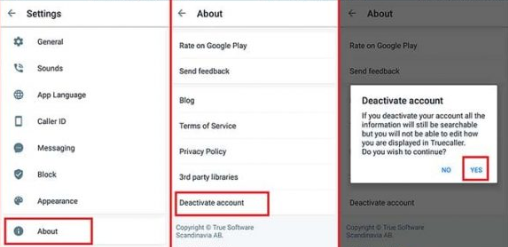
Disable The Truecaller Account From Android Devices


2. iOS

  • Open the application on your iPhone.
  • Tap on the gear icon in the top right corner.
  • Again go to the ‘About Truecaller’ section.
  • As you move down the list, you will be able to locate the option to deactivate your Truecaller account.
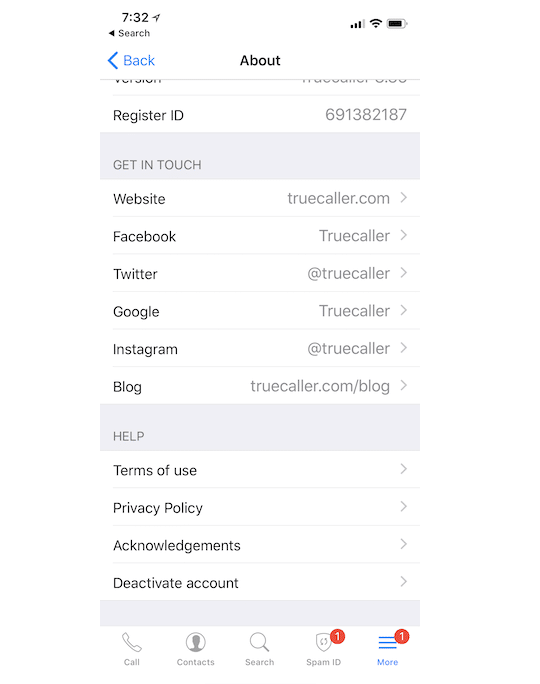
Disable The Truecaller Account From iOS Devices

Read More: Best Truecaller Alternative Apps For Android & iOS


3. Windows Mobile

  • Open the application on your Windows phone.
  • Tap on the three dots located in the bottom right corner.
  • Go to the Settings section of the application.
  • Further tap on the “Privacy Center” option.
  • Here you will find the Deactivate account option.
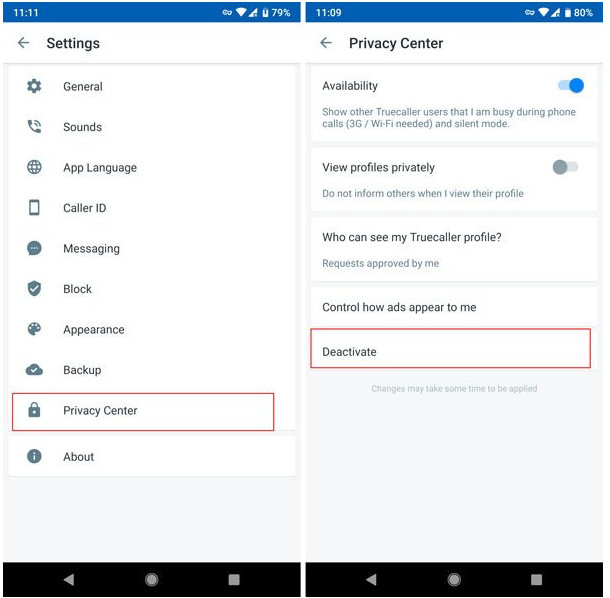
Disable The Truecaller Account From Windows Mobile


Remove Your Number From Truecaller

  • Once the account is deactivated, then you can proceed to erase the number from the Truecaller database.
  • You can go to the Truecaller unlist page.
  • Enter your phone number, preceded by your country code.
  • Select the reason most appropriate reason to unlist your number from Truecaller.
  • Enter the verification captcha.
  • Finally, tick the Unlist option.
  • Usually, it takes 24 hours to complete the delisting request on Truecaller’s part.
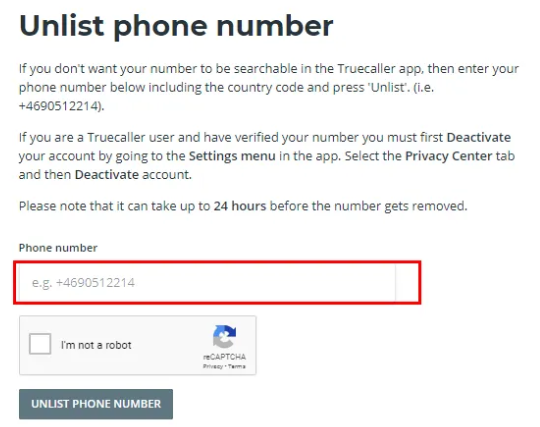
Remove Your Number From Truecaller

Read More:  How To Fix Computer Freezing Problems


Final Thoughts

Therefore, it can be noted that the above-described methods can be used to delete your number from Truecaller and also to remove the account related private information from their databases.

Occasionally, it has been noted that it doesn’t remain off the records forever because tracking continues to happen through other people’s number every time a new person downloads the app and provides access to their contacts list. So, this can lead to the reappearance of the number in the Truecaller database again.

To prevent this from recurring, again and again, you can keep verifying with Truecaller if your number is appearing with them and request them to delete your number.

Author

Snigdha

Snigdha is a technical content writer with expertise in the field of science & technology. Though she has a very diverse academic and professional profile yet she finds writing to be a creative form that she was unable to explore so far. When not writing, she can be found indulging in other forms of creativity like painting or travelling.

View all posts

Related Posts
Brother DCP L2541DW Driver Download

Brother DCP L2541DW Driver Download, Update and Install in Windows 10/11

March 15, 2023
0

An easy & precise write-up on how to download and install Brother DCP L2541DW driver on Windows 10/11. 

Brother DCP-L2541DW is a multifunction monochrome printer based on laser technology and is compatible with a Wi-Fi network. The printer can print, scan and copy documents with ease. However, in order to ensure that your printer works efficiently, you should update its driver frequently.

Drivers are an essential piece of component that let your printer communicate with your Windows operating system. Brother DCP-L2541DW comes with some pre-loaded drivers, but when these drivers either have become outdated or gone missing, you may experience printing glitches or errors. Therefore, it is necessary to keep Brother DCP L2541DW driver up-to-date. For the same purpose, we have prepared this guide to help you easily and quickly find the correct driver for your Brother printer. Continue reading!

Methods to Download, Install & Update Brother DCP L2541DW Driver on Windows 10, 11

There are two main ways to install the latest Brother DCP L2541DW driver updates on Windows operating systems, i.e., manually and automatically. Below we have explained both approaches, you can go through each and choose the best one for yourself. Without further ado, let’s begin!

Method 1: Manually Download Brother DCP L2541DW Driver from Official Site

Manufacturers constantly release new drivers for their products. So, you can get the latest version of drivers for your Brother printer from its official website. To use this method, one must have information about the operating system they are using currently. Follow the steps below to download and manually install Brother DCP L2541DW driver on Windows 11, and 10.

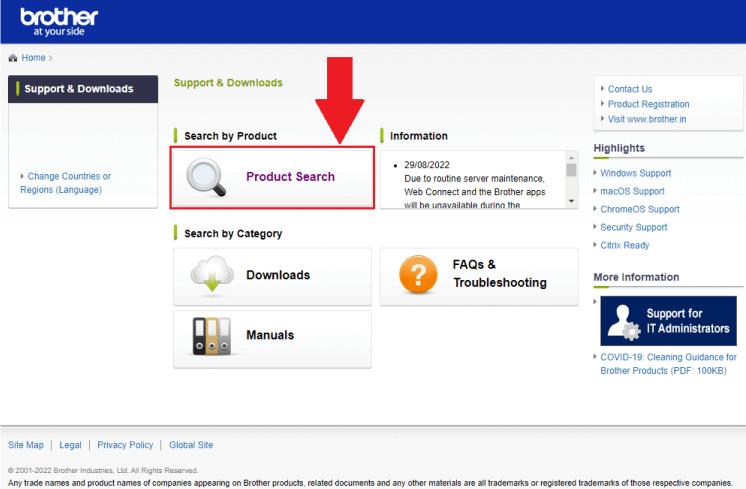
  • First, visit the official Support page of Brother.
  • Then, click on the Product Search option, under Search by Product.Visit the official website of Brother
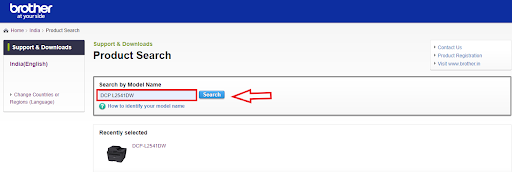
  • Type DCP L2541DW in the search box and click on the Search button available next to it.DCP L2541DW in the search box and click on the Search button
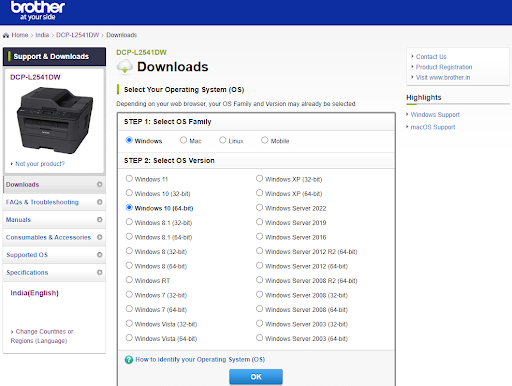
  • Next, click on Downloads. Then, select the OS and compatible OS version, and click OK to proceed.select the OS and compatible OS version
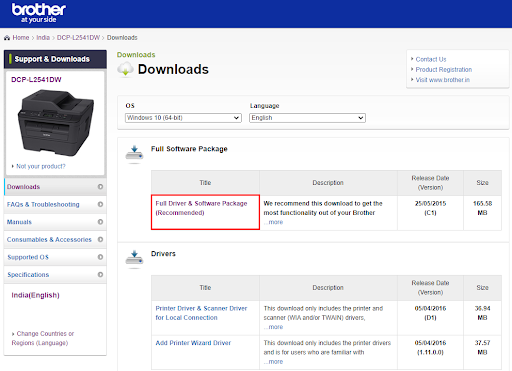
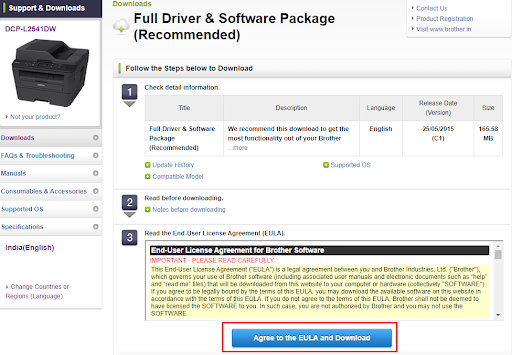
  • After that, click on Full Driver & Software Package (Recommended), under Full Software Package.Full Driver & Software Package
  • Click on Agree to the EULA and Download option.Agree EULA to download DCP L2541DW driver

Once the driver installer is downloaded, double-click on it and follow the on-screen instructions to successfully install the latest Brother DCP L2541DW driver on Windows 10/11 PC. Restart your system to apply new changes.

Also Read: Brother HL-3170CDW Driver Download and Update for Windows


Method 2: Use Bit Driver Updater to Install Brother DCP L2541DW Driver Automatically

If you don’t have the time, patience, or technical skills to update drivers manually, then you can automatically update all outdated drivers with Bit Driver Updater.

Bit Driver Updater is a globally recognized driver updater tool and is specially designed for making the overall process much easier and quicker. The driver updater utility provides a wide range of features to fix all driver-related issues as well as other system problems. It keeps all your PC drivers updated for better hardware performance and to deliver excellent Windows performance.

You can update drivers either with the free or pro version of Bit Driver Updater. But, it’s worth noting that the pro version can update all your outdated or corrupted drivers in one click. In addition to this, the pro version also offers 24/7 technical support and a full money-back guarantee. Whereas, you can update one driver at a time using the free version. So, in order to access all the potential features of Bit Driver Updater including single-click driver update functionality, you will have to upgrade to the pro version.

  • Now, follow the procedure below to perform the Brother DCP L2541DW driver download on Windows 10/11 via Bit Driver Updater.
  • Firstly, download the Bit Driver Updater from the button given below.Windows Download Button
  • Double-click the downloaded file and follow the set-up wizard to complete the installation process.
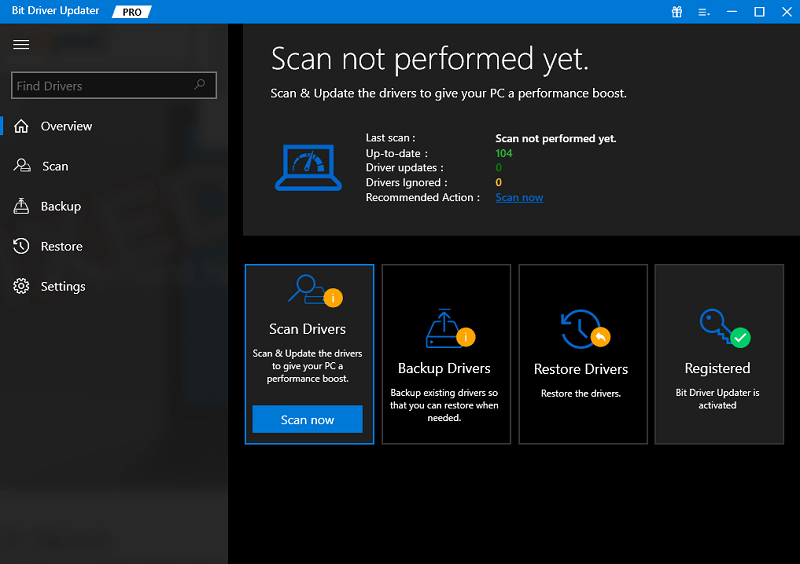
  • Once installed, launch the Bit Driver Updater on your computer and click on the Scan button from the left menu pane.Scan outdated driver of your windows pc
  • Wait for the scanning to be completed. Check the scan result and click on the Update All button. This will install all the latest drivers including Brother DCP L2541DW driver on your Windows 10/11. If in case you are using the free version, then you need to click on the Update Now option available next to the driver you wish to update.Update all outdated driver of your windows pc

Here you go! Once available driver updates are installed on your system, then reboot your device to apply the new drivers. See how simple it is to update outdated, broken, or corrupted drivers with Bit Driver Updater.

Also Read: Brother DCP T710W Drivers Download and Update


How to Download & Update Brother DCP L2541DW Driver on PC: Explained

That is it! Using any of the methods shared in this article, you can easily perform Brother DCP L2541DW driver download without any hassles. However, if you want to install all the available driver updates in one go including the Brother printer driver, then we suggest you update drivers using Bit Driver Updater. This driver updating program has the ability to perform bulk driver downloads at once. You can give it a try for free from the download button provided below.

Windows Download Button

Was this guide helpful? Please share your opinions in the comments section below. For more tech-related tips and information, subscribe to our Newsletter and follow us on Social Media – Facebook, Twitter, Instagram, and Pinterest

How to Fix Graphics Device Driver Error Code 22 (FIXED)

How to Fix Graphics Device Driver Error Code 22 (FIXED)

December 26, 2023
0

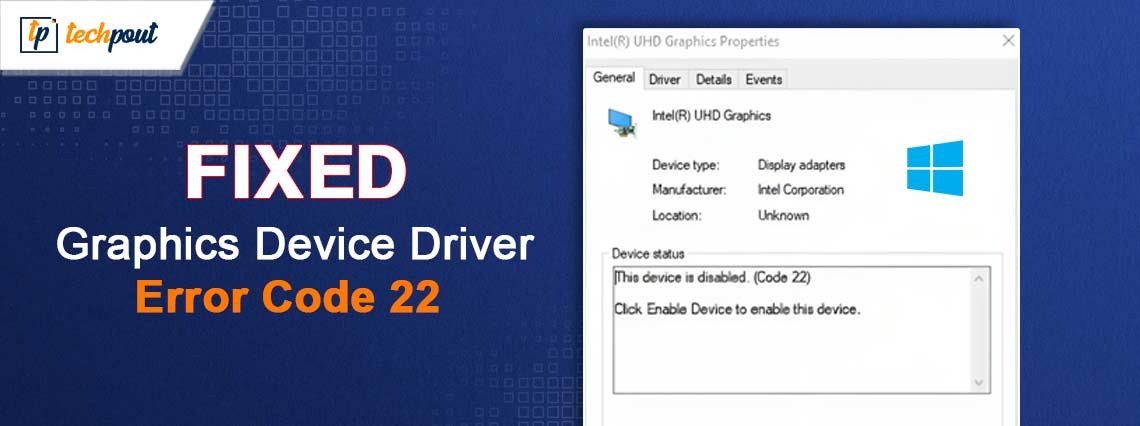
If you are also facing the Graphics Device Driver Error Code 22 on Windows 11/10/8/7 devices, then take the help of the solutions provided in this guide and fix the issue instantly. 

It is possible that the hardware of your computer may experience a variety of problems. It is only when you want to utilize it that you become aware of the problems. However, at first, all you notice is that the item is not functioning as it typically would. But you have no idea why the hardware is unable to function properly.

If you find yourself in a position like this, you may check the status of the device by going to the Device Manager. After that, you can see what occurs to the device you are monitoring. The device will display an error message along with an error code if there is a problem with the hardware. In many ways, Error Code 22 is comparable to the same concept.

There are a number of reasons that may lead to the Graphics Device Driver Error Code 22 Windows 11 issue. Whatever may the reason be, we will list and address some of the best solutions to fix the error with ease. In this article, we will have a look at the same.

Graphics Device Driver Error Code 22 Windows 10/11

Below, there are certain solutions that will allow you to fix the Graphics Device Driver Error Code 22 on Windows 7 and other higher OS. Follow the solutions provided below chronologically and stop when the issue is fixed.

Fix 1: Remove and Reinstall the CMOS Battery

In order to repair your Graphics Device Driver Error Code 22 Windows 10 issue, you may need to remove the CMOS battery in order to reset the BIOS to its factory settings. Some talents are required for it.

But before you go on, you should exercise caution with regard to the following points:

  • Make sure you are aware of the direction in which the battery is put. Face up is the typical orientation of the engraved side, often known as the positive side. Next, take the CMOS battery off of the main board (the majority of them can be easily removed by popping them out).
  • For the CMOS to return to its factory settings, you will need to wait for around one to two minutes.
  • Start your computer once you have reinserted the battery into its housing, sealed the casing of your computer, and powered it on. Your computer’s BIOS ought to have reset itself, thus re-enabling your graphics hardware in the subsequent process.

The following instructions are now available for your perusal to fix the Graphics Device Driver Error Code 22 Windows 10:

  1. You should turn off your computer.
  2. Take out all of the cords and disconnect all of the power sources.
  3. By opening the cover of your computer, you can see the hardware that is on the inside.
  4. Once you have located the CMOS battery, remove it and then replace it in the same position as before.

If you are unable to fix the error using this solution, try the next one.

Also Read: How Do I Know Which Intel Graphics Driver Do I Have


Fix 2: Fix the Error if the Device Is Disabled Mistakenly

Sometimes, you may mistakenly use a setting or the Device Manager to disable the graphics card. If this is the case, then you will not see anything on the device. Hence, to execute the first solution, you need to trust your instincts and navigate the solution on the black screen. Follow the below steps cautiously to fix the Graphics Device Driver Error Code 22 Windows 10 error:

Proceed with the Below Steps Cautiously:

  1. Perform a restart on your computer.
  2. Proceed to step 3 if you are able to log in automatically; otherwise, you will need to wait for a while until you believe the login page displays, after which you will need to enter your credentials to log in.
  3. To ensure that any applications that are running during startup are terminated, hit the Alt key & the F4 key simultaneously using your keyboard many times.
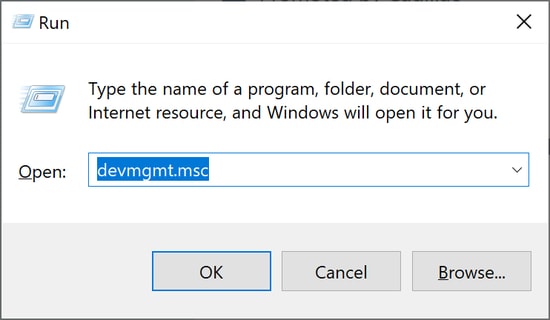
  4. While maintaining pressure on Windows button, hit R one to launch Run.
  5. When you want to launch Device Manager, type devmgmt.msc & then press Enter.Run command devmgmt.msc
  6. First, wait for 10 seconds to ensure that Device Manager launches, & then hit Tab.
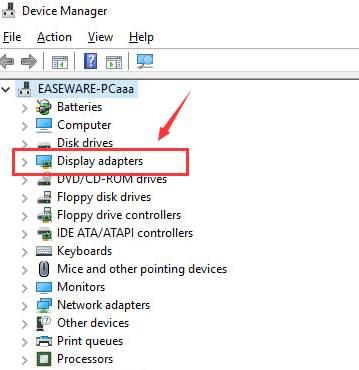
  7. In order to access Display adapters, press the D button twice.
  8. Once you have expanded the category by tapping the right → key, you may then use the right → key once again.
  9. When you want to enter Action, press Alt & A simultaneously.
  10. Click the down ↓ key once to pick the Enable device option (it is important to note that if you are using the incorrect device, it will give you the option to disable that device). Afterward, to activate it, hit the Enter key.

The display on your screen will now show correctly. In the event that it is not functioning properly, you may hit the power key to turn off & reboot your computer. After that, you should execute the procedures described above in a meticulous manner in order to better diagnose the problem.

Also Read: How to Fix GeForce Experience Driver Download Failed


Fix 3: Try Enabling the Device Manually

If you can see the screen perfectly and yet are facing the Graphics Device Driver Error Code 22 Windows 7 error; you can try enabling the disabled device manually. To execute this task, all you need to do is take the help of the Device Manager, as shown in the below process:

  1. To access the Start menu, use the Win & X keys on your keyboard.
  2. Start up the Device Manager.Select Device manager
  3. Make the Display adapter section more extensive.In Device Manager Select Display adapters
  4. To access your graphics driver, double-click on it.
  5. Make sure you are on the Driver tab.
  6. Click the button that says “Enable Device.”
  7. To apply the changes, click the OK button.
  8. Perform a restart on your computer.

In the event that you see the Graphics Device Driver Error Code 22, you have the option of manually activating the graphics application. In the event that the device is already on, you are free to proceed to the subsequent solution.

Also Read: How to Fix Nvidia Driver Crashing Issue in Windows 10, 11


Fix 4: Update the Graphics Driver Using Win Riser (Recommended Bonus Tip)

Problems related to drivers like the Graphics Device Driver Error Code 22 on Windows 11 are quite recurring. Such issues mainly appear because the drivers on the device are outdated. An outdated driver causes multiple performance-related problems on Windows. Hence, the best way to keep such errors at bay and/or fix them is to take the help of Win Riser.

Win Riser is an automatic and reliable tool that allows you to update drivers with a single click automatically. Apart from that, the tool also offers the most advanced protection against malware, faulty Registry entries, and junk. You can get rid of junk, fix Registry, and remove malware from your device with a single click.

The tool, along with the above ones, offers multiple other features to you. You can schedule operations, take system backups, and do a lot more with this tool. For now, let’s understand how to fix the Graphics Device Driver Error Code 22 via driver updates:

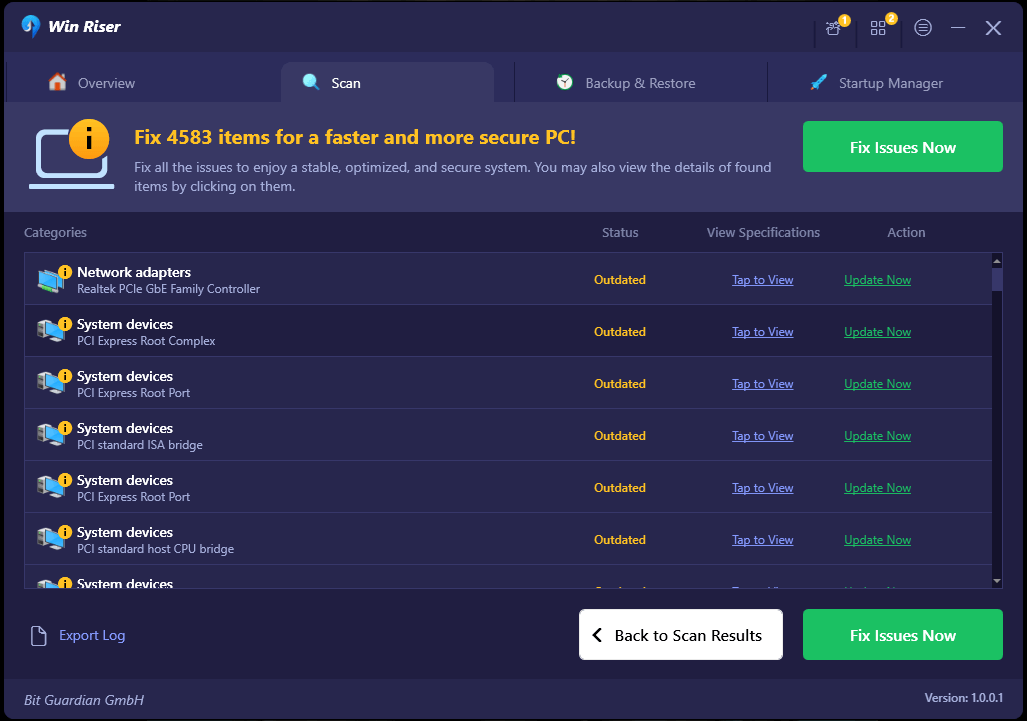
  1. Click on the Download button below and install the executable file that downloads.Download-Button
  2. Run the tool after installation as after this, the tool will automatically start the deep scanning of your system.
  3. When the entire scan results appear, take the help of the Fix Issues Now button to fix everything. (Alternatively, visit individual categories of the error and use the Fix Now button instead.)Win Riser Update the All Outdated Driver Click On Fixes Now
  4. When all the issues are resolved (drivers are updated, malware is removed, etc.) restart the system when advised.

Also Read: How to Fix Valorant ‘Graphics Driver Crashed’ Error {Quick Tips}


Graphics Device Driver Error Code 22 Windows 10: Fixed

It is not necessary for you to be concerned about this device showing the Graphics Device Driver Error Code 22 error. You have the ability to find a solution to the problem by using the solutions that are discussed in this article. It is important to note that the methods that were described above may also be used in order to resolve the graphics device driver error code 43.

That concludes our contribution to this guide. If you are or are not experiencing the Graphics Device Driver Error Code 22 Windows 10/11, please feel free to leave a comment below and let us know which solution you successfully used.

1 Comment
    Praise Anwuta says: Reply
    April 21st 2020, 12:37 pm

    Thanks for sharing the blog! It’s Really Amazing.

Leave a Reply Cancel reply

Your email address will not be published. Required fields are marked *

Sidebar Image bit G ad1

Latest Posts

  • Anytime Astro: Best Website For Online Astrology Consultation
    Anytime Astro: Connect Now For Online Astrology Consultation
    by Somya Shrimal / March 13, 2026
  • Best-Ways-to-Combine-Images-Into-PDF-Files
    Best Ways to Combine Images Into PDF Files
    by Niharika / March 12, 2026
  • Best FREE VPS Hosting Providers
    7 Best FREE VPS Hosting Providers in 2026
    by Devesh / March 12, 2026
  • Best-McAfee-alternative-software-to-use-for-Virus-Protection
    Best McAfee Alternative Software to use for Virus Protection
    by adminuser / February 11, 2026
  • What-is-Flip-Flop-in-Circuite-and-it's-Types
    What is Flip Flop in Circuit and its Types
    by Meet / February 6, 2026

Categories

  • Cyber Security
  • Driver Updater
  • Entertainment
  • Fitness
  • Games
  • How To
  • laptop
  • OS
  • Reviews
  • Tech News
  • Tips & Tricks
  • Top 10
Sidebar Image bit G ad1
Fixed: Black Screen Problems on Windows 10 [Solved] Fixed: Black Screen Problems on Windows 10 [Solved]by Snigdha / December 16, 2020
The Audio Service is Not Running On Windows 10 [Solved]by Harshita / December 18, 2020The Audio Service is Not Running On Windows 10 [Solved]
TechPout Footer Logo

We at TechPout promise to put forth stories that help people to learn and simplify their digital life. Our purpose is to share the true essence of technology with our tech-loving community.

Useful Links

  • About Us
  • Contact us
  • Privacy Policy

Popular Posts

  • Best PC Optimizer Software
  • Best Mac Cleaner Apps
  • Best Driver Updater
  • Duplicate Photo Finder and Cleaner Software
  • Best Free Movie Download Sites
  • Best IPTV Players

Follow us

Copyright © 2026 www.techpout.com. All rights reserved
DMCA.com Protection Status