Windows Settings is a critical tool for personalizing your operating system. It allows you to change the Windows theme, configure display, audio, notifications, power management, manage system storage, and more. However, it may not be easy to open the Settings app on Windows, especially if you are a beginner.
You can open Windows 11 Settings in more than one way. For example, you can access Windows Settings through a keyboard shortcut, the Start menu, File Explorer, Action Center, Quick Settings, or your web browser. This article walks you through how to launch Settings on your computer and easily manage your peripherals and privacy settings on Windows.
How to Open the Settings App on Windows 11
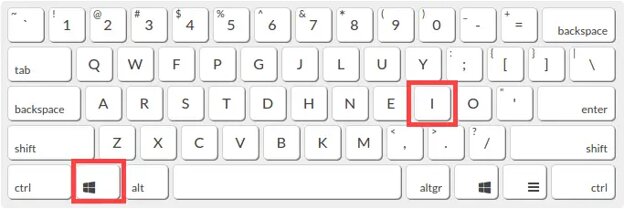
The easiest way to open Windows 11 Settings is by using the keyboard shortcut: simply press the Windows key + I on your keyboard. This is the fastest method and is recommended for beginners who want quick access to their computer settings. If you prefer a different method or want to explore more options, you can also use the Start menu, search function, Power User Menu, Command Prompt (Cmd), Run command, PowerShell, File Explorer, Action Center, your web browser, or Task Manager. Below are all the methods explained in detail.
Method 1: Open computer Settings using a keyboard shortcut
Windows has a dedicated keyboard shortcut that you can use to open Windows Settings. Simply press the Windows key and the I key simultaneously on your keyboard to open Settings; Windows key + I is the shortcut key to open Settings in Windows.
You can search for the Settings app in the Start menu to open it. Here is how.
- Click the Start button.
- Click the gear-shaped icon in the Start menu to open Windows Settings. If you do not see the gear-shaped icon, click the All Apps button, click one of the letters to access the dialer, click S, and then click Settings.
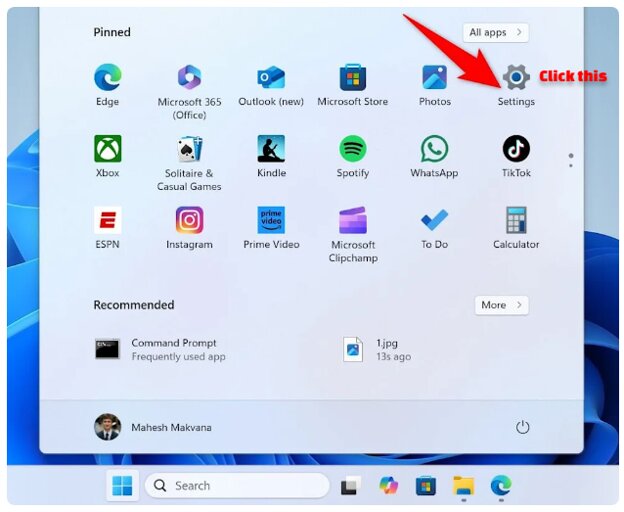
- You can also pin the Settings app to the Start menu for quick access. To do this, type Settings in the search bar, right-click the first search result, and then click Pin to Start.
Also know: How to Change Notification Settings in Windows 10 PC
Method 3: Open Windows Settings using the search function
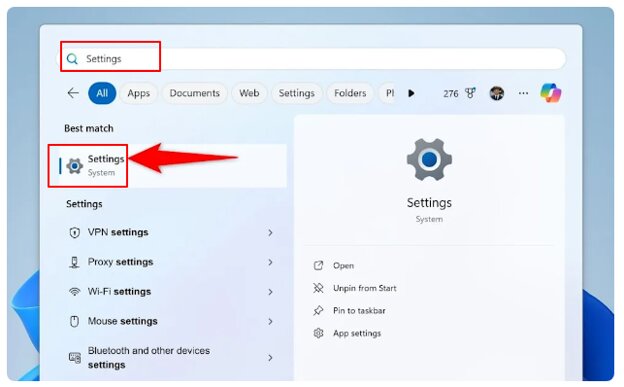
Windows Search helps you find and open various applications and utilities on your computer, including Settings. Below is how to open the Settings app on Windows using the search feature.
- Press the Windows key + S to access the search utility.
- Type Settings in the search bar.
- Click the first search result to open Windows Settings.
Method 4: Use the Power User Menu to open Windows 11 Settings
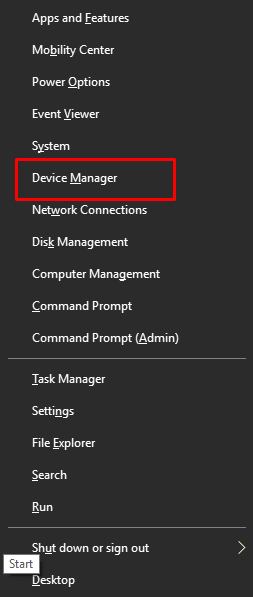
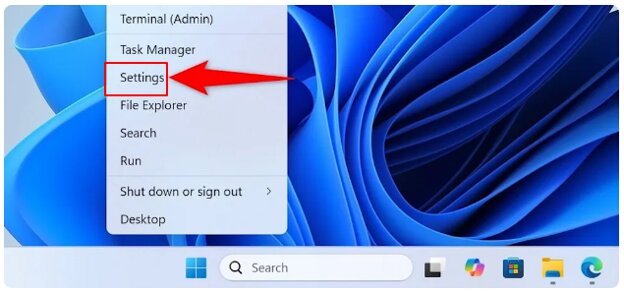
You can use the Power User Menu in Windows 11 to open various system utilities, such as Task Manager, Device Manager, and Windows Settings. The following are the steps for opening Windows Settings using the Power User Menu.
- Right-click the Start button to open the Power User Menu. Alternatively, you can press the Windows key + X.
- Click Settings in the menu that appears.
Method 5: Open the Settings app from Cmd (Command Prompt)
If you are comfortable with command-line methods, you can use Command Prompt to access PC Settings. These steps are safe and only open the Windows Settings app, so you can try them even if you are a beginner. The following steps explain how to do it.
- Click the Start button.
- Type Cmd in the search bar.
- Click Command Prompt in the search results to open it.
- In the Command Prompt window, type the command: start ms-settings:
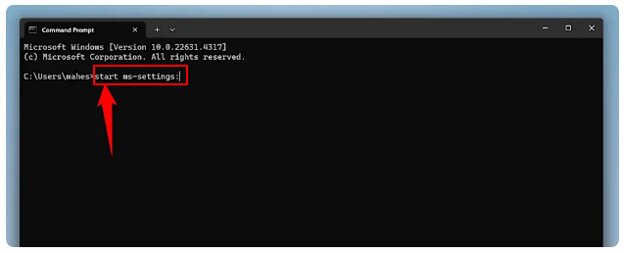
- Press Enter to open Settings.
Method 6: Use the Run command to open Settings
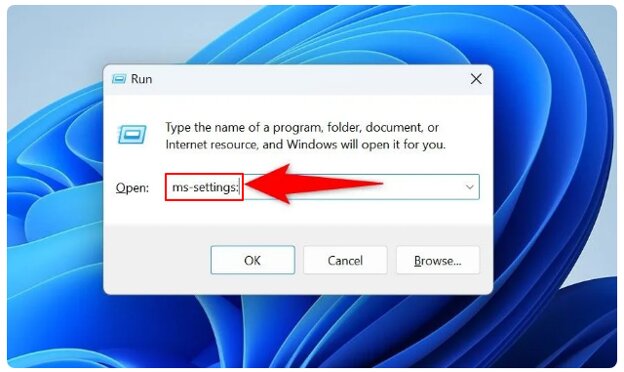
The Run feature in Windows allows you to open different system utilities with their system names. Below is how to open Windows 11 Settings using the Run dialog box.
- Press Windows key + R to open the Run box.
- Type ms-settings: in the Run box and press
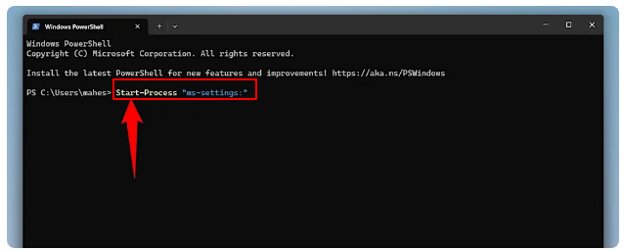
Method 7: Open computer settings using PowerShell
Like Command Prompt, PowerShell is also a command-line utility in Windows to perform various functions, such as opening Windows Settings. The following are the steps to open your device’s Settings using PowerShell.
- Right-click the Start button.
- Click Windows PowerShell in the menu that appears.
- In Windows PowerShell, copy and paste the command: Start-Process “ms-settings:” and press
Also know: Windows Could Not Automatically Detect This Network’s Proxy Settings [Windows 10/8/7]
Method 8: Open Windows Settings from File Explorer
You can also open computer Settings from inside File Explorer. Here is how.
- Press Windows key + E to open File Explorer.
- In File Explorer, click This PC in the left sidebar.
- Click the Computer
- Lastly, click Open Settings.
Alternatively, you can type ms-settings: into File Explorer’s address bar at the top and press Enter to open the Settings app.
Method 9: Use Action Center to open PC Settings
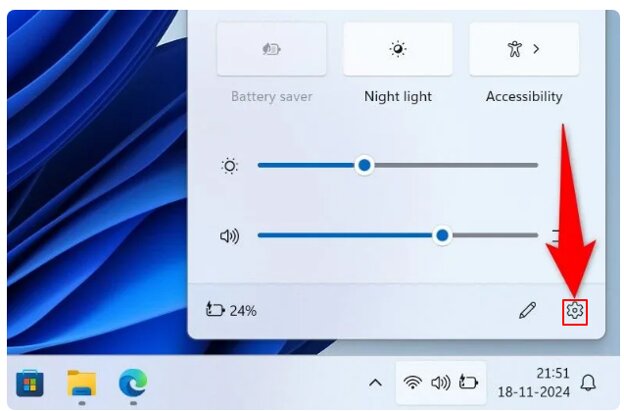
Windows Action Center is where you can access notifications and system options quickly. It also allows you to open the computer Settings. Below is how to open Windows 11 Settings using Action Center.
- Press the Windows key + A to open the Action Center.
- Click the gear icon in the Action Center’s bottom-right corner to open Settings.
Method 10: Launch computer Settings from a web browser
Surprisingly, you can access Settings from your web browser, such as Microsoft Edge, Google Chrome, Mozilla Firefox, or any other browser that you use. The following are the steps to open the Settings app on Windows using a web browser.
- Open your browser.
- In the browser, click the address bar.
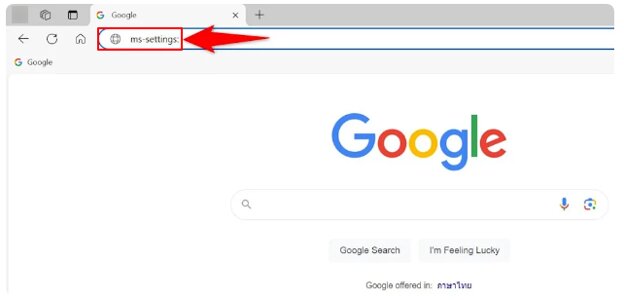
- In the address bar, type the command ms-settings: and press
- Lastly, in the prompt that appears, click Open Settings, Open, Open Link, or an equivalent option.
Method 11: Use Task Manager to open Windows 11 Settings
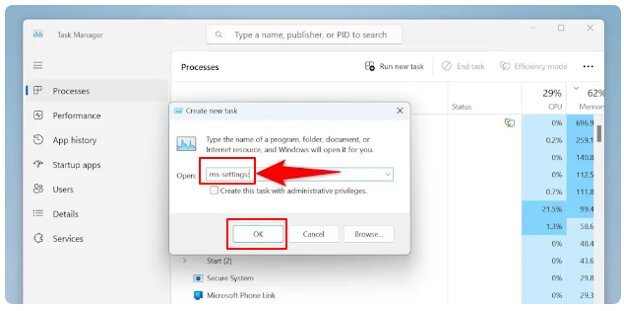
With the Task Manager utility, you can manage processes running on your computer, enable or disable applications, view user accounts, and perform various other functions, such as opening Settings in Windows. The steps below explain how to do it.
- Right-click an empty space on the Taskbar.
- Click Task Manager to open it.
- In the Task Manager window, click Run New Task.
- Type ms-settings: in the Create new task window and click OK to launch Settings.
However, if Windows Settings does not open, you may need to check the solutions below.
What to Do if Settings App Does Not Open
Corrupted system files, a glitch in File Explorer, a broken Settings app cache, or Windows update errors may be why Settings won’t open in Windows 11. To fix this issue, follow the solutions below in order until you can open the Windows 11 Settings app.
- Press Ctrl + Shift + Esc, click Processes, right-click Windows Explorer, and then click Restart.
- Press Win + R, type ms-settings:troubleshoot, press Enter, find Windows Store Apps in Additional Troubleshooters, and follow the instructions that appear.
- Click the Windows icon, right-click the Settings app, click More, click App Settings, click Reset, and then click Reset again.
- Right-click the Start button, click Windows PowerShell (Admin), and copy and paste Get-AppxPackage windows.immersivecontrolpanel | Reset-AppxPackage, and press Enter.
- Press Win + S, type cmd, right-click Command Prompt, click Run as administrator, copy and paste sfc /scannow, press Enter, and then restart your PC.
- Press Win + R, type Control Panel, press Enter, click Programs, click View installed updates, sort the latest updates by Installed On, right-click the latest update, click Uninstall, and then restart your PC.
- Press Win + R, type ms-settings:windowsupdate-action, press Enter, click Check for Updates, and install pending updates.
Once the Windows 11 Settings opens, you can use it for a variety of purposes.
How to Use Windows Settings
You can use your computer Settings to:
- Access recommended and frequent operations, such as actions related to OneDrive storage, Bluetooth devices, personalization, etc., from the Settings home.
- Control actions related to display, notifications, audio, and other core Windows functions in System settings.
Below, we answer a few related questions to clear up any persisting doubts.
Also know: Best Monitor Settings for Gaming (Easy & Simple Ways)
Frequently Asked Questions
Q1. How do I open the Settings app?
You can quickly open the Windows 11 Settings app using the Windows key + I keyboard shortcut or the methods in the guide above.
Q2. Why can’t I find the Settings app in Windows?
Issues with the immersive Control Panel or system files may be why you can’t find the Windows 11 Settings. To fix this issue, press Ctrl + Shift + Esc, click File, click Run new task, type powershell, click Create this task with administrative privileges, click OK, and copy and paste Get-AppxPackage *windows.immersivecontrolpanel* | Reset-AppxPackage, press Enter, and restart your computer. If this does not work, open Command Prompt as an administrator, copy and paste sfc /scannow, press Enter, and restart your PC.
Q3. Which shortcut opens the Settings app?
Windows key + I is the keyboard shortcut to open the Windows Settings.
Hope this helps you open the Settings app on Windows to make the most of your computer. You can also right-click the Settings icon and then click Pin to taskbar to access the Settings app quickly from the Taskbar itself the next time. If you have any questions, concerns, or suggestions to improve this guide, leave us a comment.