A clear or translucent Taskbar makes your desktop aesthetically pleasing and clutter-free, makes your wallpaper stand out more, and gives your PC a modern, unique look. You can easily learn how to make the Taskbar transparent through the best methods in this guide. While these methods do not hide the Taskbar, they make it see-through. Let’s get started.
Best Methods to Make the Windows 11 Taskbar Transparent
You can create transparency in the Windows 11 Taskbar through built-in Windows Settings, Registry Editor, or reliable third-party tools. Windows Settings is the easiest approach to make the Taskbar transparent. Third-party tools such as the TranslucentTB app are also a good option if you are comfortable installing a Microsoft Store app. Registry Editor is the best for advanced users. Below, all these methods are explained in detail.
Method 1: Use Settings to get a transparent Taskbar
You can use Windows Settings to create a transparent Windows 11 Taskbar in two ways: using Windows Personalization or the Visual Effects option. Below are both methods explained; you can choose the one you find most convenient.
Making the Taskbar transparent using personalization settings
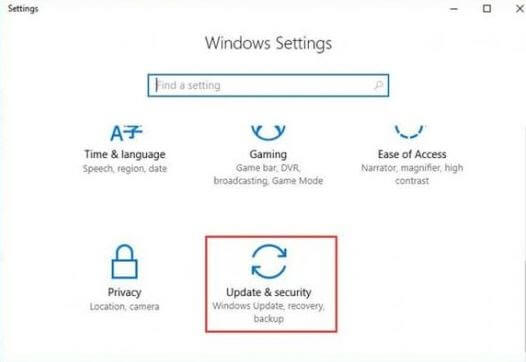
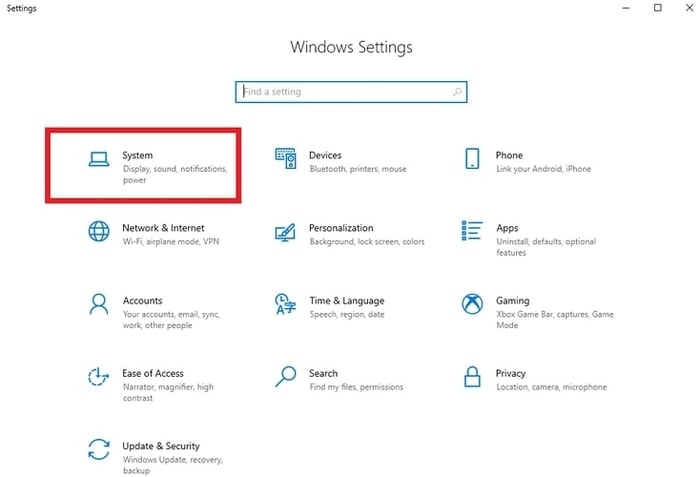
- Press Win + I to open Settings.
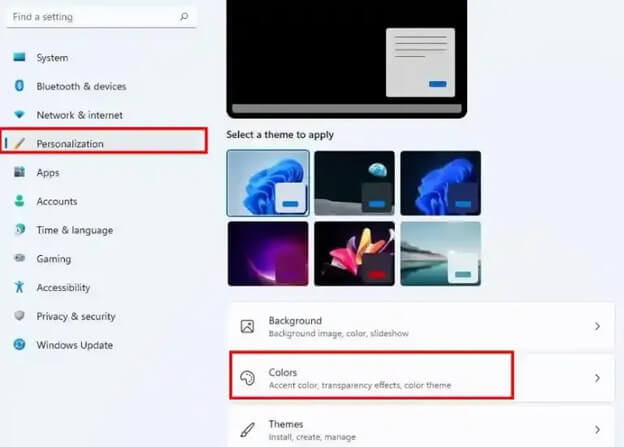
- In the left pane of the Settings window, click
- Scroll down and click Colors in the Personalization menu.
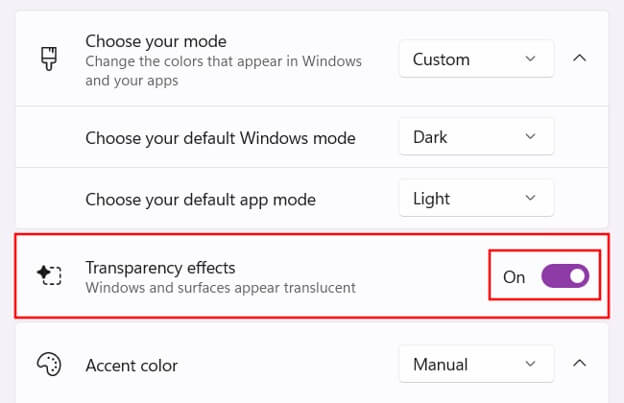
- Next, toggle on Transparency effects to enable it. Your Taskbar will now turn semi-transparent with a blurry background. You can bring it back to the normal state by following the same steps as above; the only change is that you will be required to toggle off Transparency effects to get a normal Taskbar.
Making the Taskbar transparent using Visual Effects
- Press Win + I to access Windows Settings.
- In the Settings panel, choose the Accessibility option from the left pane.
- Next, click Visual effects in the Accessibility menu.
- Toggle on Transparency effects to enable it. If you want to disable this effect to get the normal Taskbar back, toggle off the Transparency effects button.
Also know: How to Fix Windows 10 Taskbar Not Working
Method 2: Clear the Windows 11 Taskbar using Registry Editor
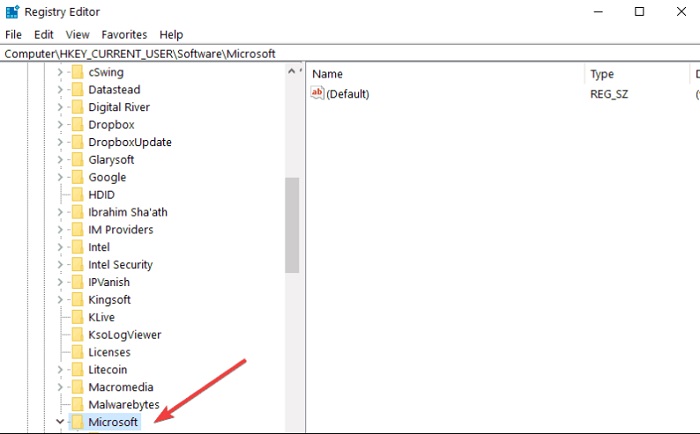
Registry Editor also offers two ways to activate the transparency effect. You can get a transparent Taskbar in Windows 11 by modifying the ForceEffectMode or OLED Taskbar transparency in the Registry Editor. However, be very careful while following any of these methods, as a single wrong change in the Registry Editor can damage your system. To be on the safe side, back up the Registry. To back up your Windows Registry, press Win + R, type regedit, press Enter, click Yes when prompted, click File in the Registry Editor, click Export, and save the backup at a desired location on your computer. Next, follow one of the methods below to make your Taskbar transparent.
Altering the ForceEffectMode
- Click the Start button.
- Type Registry Editor in the search bar.
- Click Run as administrator in the Registry Editor options.
- Click Yes when a User Account Control prompt appears.
- In the address bar at the top of the Registry Editor, enter: HKEY_LOCAL_MACHINE\Software\Microsoft\Windows\DWM.
- Go to the DWM folder, right-click in the right pane, select New, and then click DWORD (32-bit) Value.
- Double-click to change the new DWORD Value’s name to
- Next, double-click the new value.
- Set 1 as the Value Data.
- Click OK and then restart your computer to apply the changes.
Modifying OLED Taskbar transparency
- Press Win + R, type exe, and press Enter to open Registry Editor.
- Click Yes when a User Account Control prompt appears.
- In the Registry Editor’s address bar, enter HKEY_LOCAL_MACHINE\Software\Microsoft\Windows\CurrentVersion\Explorer\Advanced.
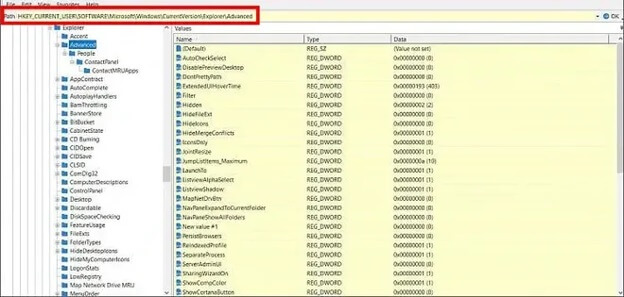
- Right-click the empty space in the right pane, click New, and then select DWORD (32-bit) Value.
- Double-click the new DWORD Value and change its name to
- In the Value Data field, type 1 and click
- Lastly, restart your computer to apply the changes.
Method 3: Use a third-party tool to get a transparent Taskbar in Windows 11
Many tools, such as Microsoft TaskbarX, Classic Shell, Taskbar Tools, and Microsoft TaskbarX, allow you to enable the transparency effect. To give you an example of how to make the Taskbar transparent in Windows 11 using these tools, below is how to download and use TranslucentTB.
- Click the Start button.
- Type Microsoft Store in the search bar and click the matching result.
- In the Microsoft Store, search for TranslucentTB or Taskbar Customizer.
- After finding the app, click Get to download it.
- Click Continue in the TranslucentTB system tray icon.
- Next, click Desktop and then choose Clear from the available options to create a transparent Taskbar. To turn off the transparent Taskbar, click Normal.
If there is any confusion, check the answers to the commonly asked questions below to clear your doubts.
Also know: How to Turn Windows Features On or Off in Windows 11/10
Frequently Asked Questions
Q1. How can I make the Taskbar transparent in Windows 11?
To make your Windows 11 Taskbar transparent, press Win + I, click Personalization, click Colors, and then toggle on Transparency effects. For details and alternative methods, refer to the guide above.
Q2. Does making the Taskbar transparent affect Windows 11 functionality?
No, making the Taskbar transparent in Windows 11 does not affect your operating system’s overall functionality; Taskbar transparency is only an aesthetic feature.
Q3. Is there a keyboard shortcut to get a transparent Taskbar in Windows 11?
There is no direct built-in keyboard shortcut to toggle the Taskbar transparency in Windows 11.
Hope this clears up all the confusion about how to make the Taskbar transparent in Windows 11. However, leave us a comment if any doubts persist.