Many people think that using incognito mode in Google Chrome means their browsing activity is completely private. While it is true that incognito mode does not save your history, cookies, or form data on the browser, it does not make you invisible online. Your internet activity can still be seen through system logs, network tools, and sometimes even by your Google account.
In this guide, we will show you how to see incognito activity on different devices and explain how to delete incognito history when possible. If you are looking for ways to manage your privacy better, especially with Google Chrome, this post will help you take the right steps.
What Is Incognito Mode Really Hiding?
When you open an incognito window in Google Chrome, the browser stops saving certain types of data, such as your browsing history, cookies, site data, and any information you enter in forms. This helps keep your activity hidden from other users on the same device. However, incognito mode does not make you completely invisible online. Your internet activity can still be seen by your internet service provider (ISP), network administrators, and the websites you visit.
In addition, system-level tools like DNS logs may record domain lookups, and if you are signed into your Google account, your activity could still be saved there as well. So even though your browser does not display your incognito sessions, records might still exist elsewhere. This is why many users look for ways to understand how to see incognito history and how to manage or erase those hidden traces effectively.
How to See Incognito History
Here’s how you can check for any hidden logs of incognito browsing across different devices:
On Windows – Check the DNS Cache
Even though Chrome’s incognito mode does not save history in the browser, your system may store DNS lookups (which websites your system visited). Follow these steps:
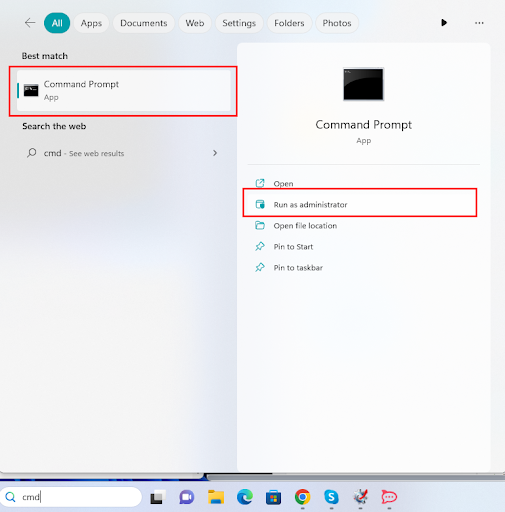
- Click the Start menu and type cmd.
- Right-click Command Prompt and select Run as Administrator.
- In the window, type ipconfig /displaydns and press Enter.
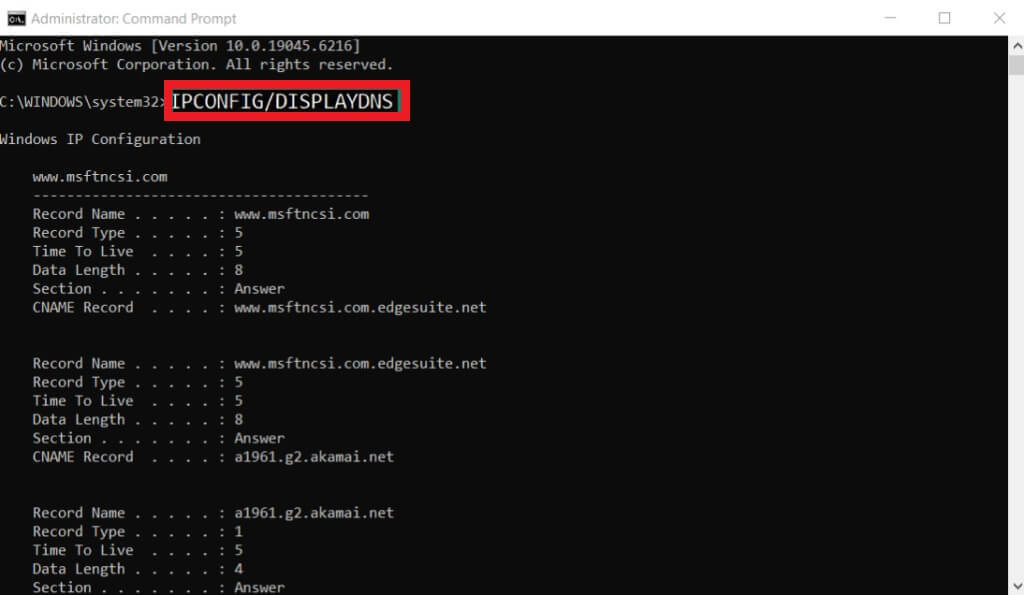
You will see a list of websites your system accessed, including those opened in incognito mode.
On macOS – View DNS Queries
DNS queries can also be seen on a Mac, showing domain names you accessed. Follow these steps:
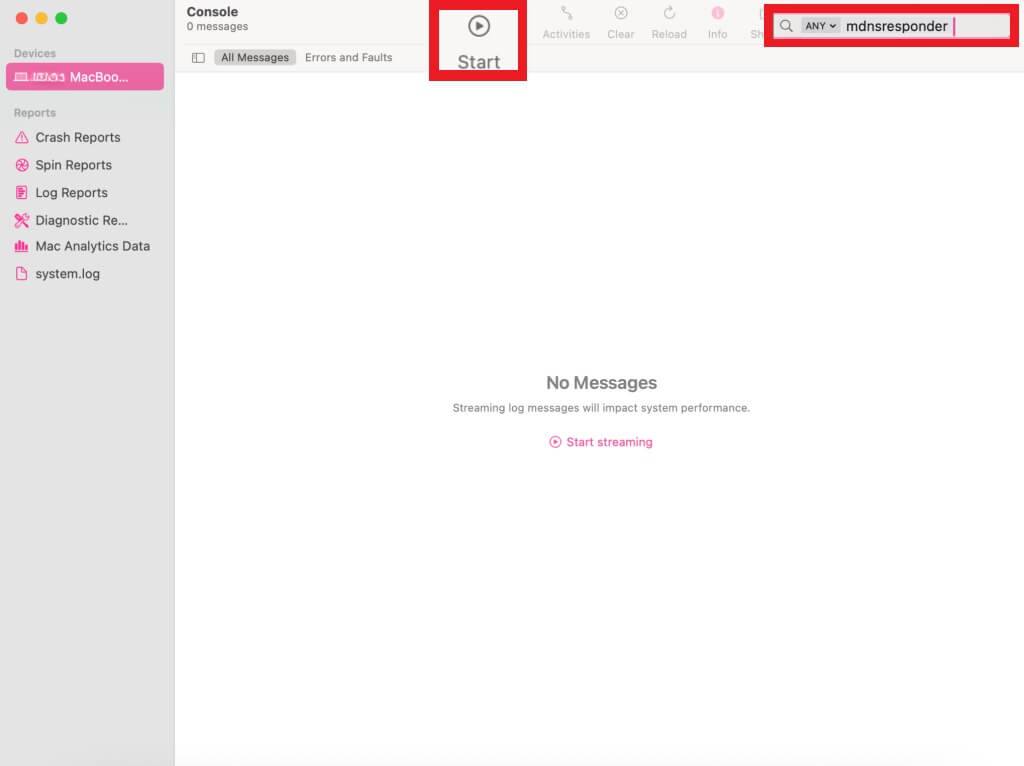
- Open Applications > Utilities > Console.

- In the search bar, type: any:mdnsresponder and click Start.
- Open Terminal and enter: sudo killall -INFO mDNSResponder
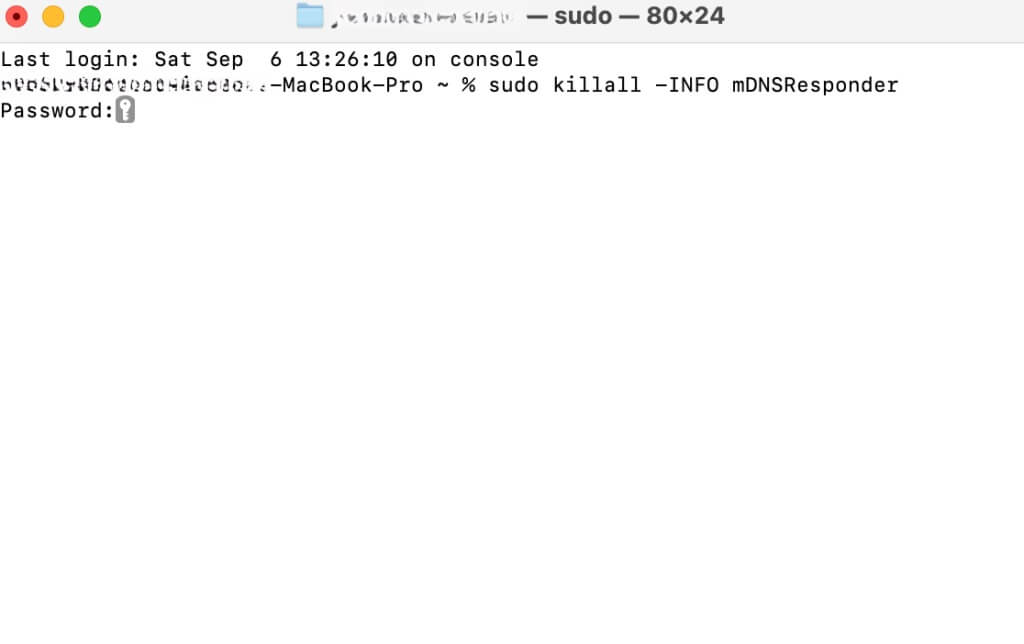
- Enter your password if asked.
- Go back to Console to view DNS logs under com.apple.mDNSResponder.
These are technical entries, but they can show websites visited, even in incognito mode.
On Android and iPhone
Incognito history is not saved directly on your phone, but there are still ways it can be tracked. Parental control apps or monitoring tools may log activity, even in incognito. If your Google account is active, your searches and visited websites may be saved in Web & App Activity. Steps to view it:
- Open a browser and go to Google My Activity.
- Sign in with your Google account.
- Tap Web & App Activity.

- Under See and delete activity, tap Chrome to view logs.

This is one of the easiest ways to see incognito history, especially if you are logged into your Google account while browsing.
Also know: How to Clear Search History From Any Browser?
How to Delete Incognito History
Now that you know incognito activity can leave behind traces, let’s go over how to delete incognito history on different platforms.
Incognito History Delete on Windows
To remove stored DNS records (which may include incognito sites):
- Open Command Prompt as Administrator (as shown earlier).
- Type: ipconfig /flushdns and press Enter.
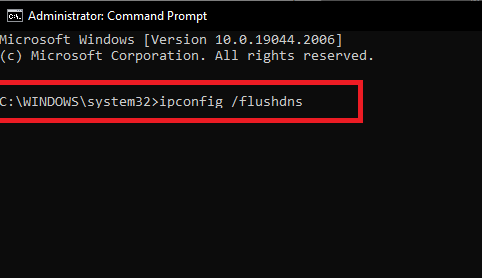
This will clear the DNS cache and delete incognito history that may have been stored in system memory.
Incognito History Delete on macOS
To clear incognito-related DNS entries:
- Open Terminal.
- Enter the command: sudo killall -HUP mDNSResponder
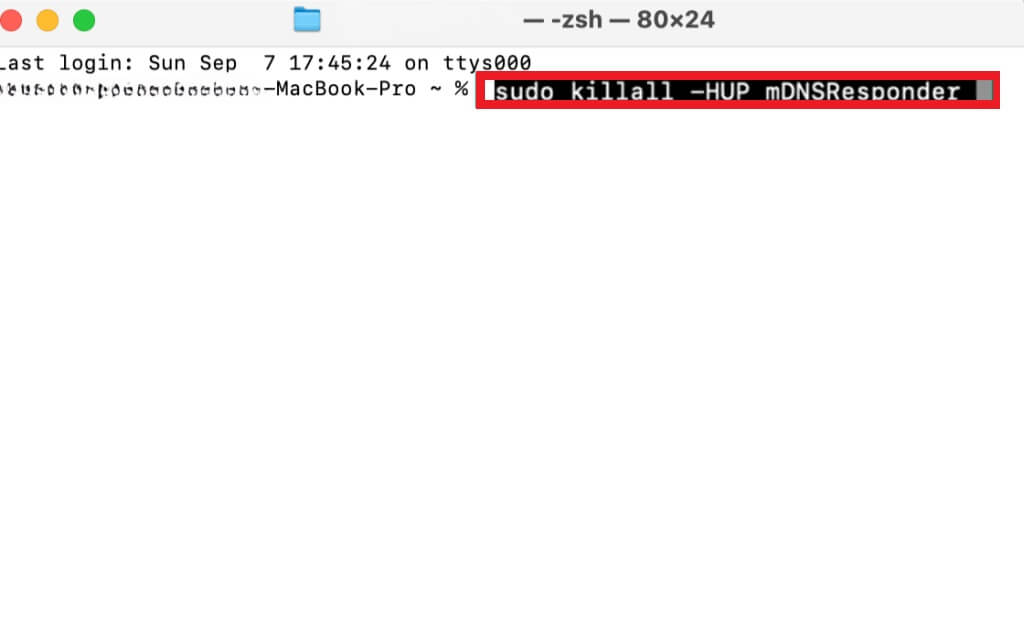
- Press Enter and type your password if prompted.
This command refreshes the DNS cache and helps with incognito history delete on Mac systems.
Incognito History Delete Chrome (Google Account)
If you were signed into Chrome or Google during incognito browsing, some activity may still be saved in your account. Steps to clear them:
- Visit Google My Activity.
- Click on Chrome under activity types.
- Select the items you want to remove and click Delete.
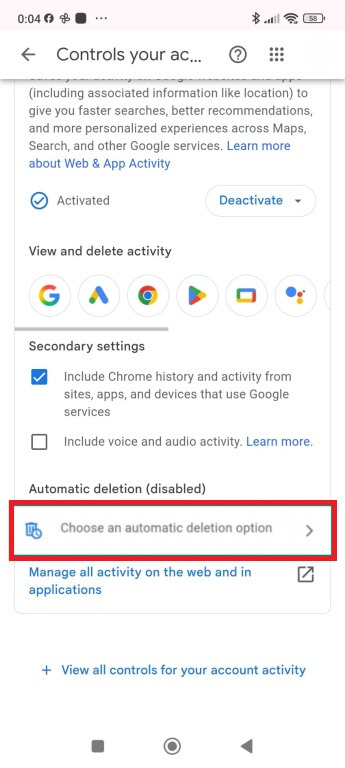
You can also set automatic deletion rules here. This is one of the best ways to manage incognito history delete Chrome settings if you are logged into your account.
How to Clear Incognito History on Android
Most modern browsers on Android clear in-memory DNS data after incognito tabs are closed. However, if you are using a browser like Firefox, DNS logs may remain longer. To clear everything:
- Go to Settings > Apps > Chrome (or your browser).
- Tap Storage > Clear Data to reset all browser data (note: this affects normal and private modes).
How to Clear Incognito History on iPhone
The simplest method is to restart your iPhone, which flushes temporary memory and DNS cache.
- Press and hold the power button.
- Turn off the device.
- Wait a few seconds, then restart it.
This helps with how to delete incognito history in Safari or Chrome, especially since iOS does not provide direct tools for DNS clearing.
Final Tips for Better Privacy
If you are serious about protecting your privacy online, it is important to understand that incognito mode alone is not enough. While it can prevent your browsing history and cookies from being saved on your device, it does not hide your activity from internet providers, websites, network administrators, or even your own accounts if you are logged in. It also does not protect you from malware, spyware, or other forms of online tracking.
To strengthen your privacy, consider taking additional steps. Using a VPN is one of the most effective ways to encrypt your internet traffic and hide your IP address, making it harder for others to track your online activity. You should also review your Google settings and turn off Web & App Activity to stop your account from saving your searches and site visits. Privacy-focused browsers like Brave or Firefox Focus offer built-in tools that block trackers and ads. Lastly, if you are using a desktop, make it a habit to regularly clear your DNS cache to remove any system-level traces of your browsing sessions.
Also know: How to Delete Temporary Files Safely in Windows
Conclusion
Incognito mode offers basic privacy, but it does not erase every trace of your activity. If you have ever wondered how to see incognito history, now you know where to look. And if you are asking how to delete incognito history, clearing DNS cache or managing your Google account are your best options.
Whether you are using Windows, Mac, Android, or iPhone, you now have the tools to manage and delete incognito history effectively. For extra protection, combine incognito mode with a good VPN and privacy settings in your browser and Google account.

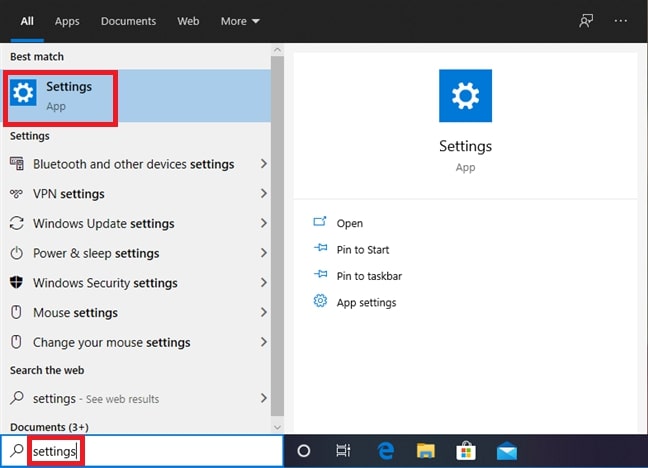


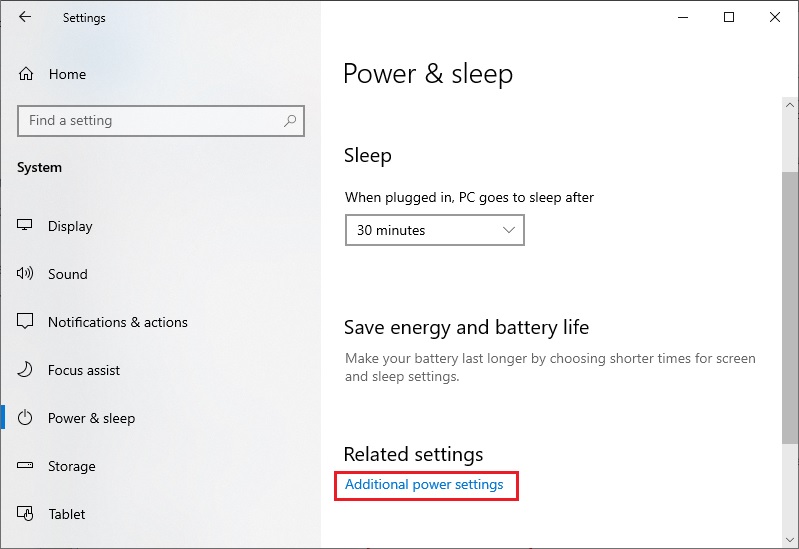 Step 4: Choose Change settings that are currently unavailable.