Main LogoLight Logo
  • Reviews
  • Top 10
  • How To
  • Tech News
  • OS
    • Windows
    • MAC
    • iOS
    • Android
  • Categories
    • Driver Updater
    • Cyber Security
    • Games
    • Fitness
    • Entertainment
    • Tips & Tricks
Android How To
by Diksha Lalwani

How To Create An App For Android

August 4, 2019
1

With the fast-paced journey of the technology around us, day-by-day we are becoming more and more dependent and skewed towards digital resources of living, aka gadgets and applications. 

The creative soul inside all of us comes alive once in a while for different purposes. Building an app from scratch is one of those purposes. We are surrounded by apps completely (that’s literally so true), and it isn’t a guess that we would like to have one of our own apps at some point.

And hence, we’ll tell you how to create an app using app builders.

Why You Might Want to Create a Mobile App?

There can be a multitude of reasons for your decision to jump into the app development world. You might have the greatest idea the world has seen in a long time. Or an idea that could help a lot of people. Maybe you just want to have fun and not looking forward to an extensively made application. But for many, it’s a way to boost up their business and build a more profound consumer-based network. 

Why an Android App is Necessary for Your Business?

  • You can build better customer relationships easily
  • Your online app business can stay open 24/7
  • You can reach to your customers all day, every day without fault
  • You can create better business plans by tracking your customers’ choices and needs
Table of Contents hide
Some Basic Steps to Create an App (For Mid-Range to Advanced Developer):
How to Create an App Without Coding?
1. Appy Pie
2. Mobile Roadie
3. Andromo App Maker
4. App Makr
5. MIT App Inventor
Best App Builders With and Without Coding Requirements
1. GoodBarber
2. Buzztouch
3. Xamarin

Some Basic Steps to Create an App (For Mid-Range to Advanced Developer):

Step 1. Having a great idea for the app.

Step 2. Having a wireframe/ blueprint of all the features in the app.

Step 3. Picking IDE and learning the basics of Java (you have to!)

Step 4. Building the layout and acquiring the images.

Step 5. Finally, writing the code and implementing advanced functionalities.

Step 6. Adding some final finishes and touch-ups.

Step 7. Admiring, publishing, and using your app.

How to Create an App Without Coding?

Not all of our work at Silicon Valley and have great computer skills (and by great, I mean, extraordinary). To be truthful here, heavy coding looks like alien jargon to me. Now don’t come at me, I know it’s the same for many of you. But that doesn’t mean we can’t dream, right? 

Keeping us mere mortals in mind, the gods of the tech sector have blessed us with various applications and software that deliver our app dreams to us, without asking for any coding or technical knowledge in return. Some of those incredible creations are:

1. Appy Pie

This is undoubtedly one of the best free app builders out there, regardless you are a coder or not. Even though it has different price points for different tiers of functions, its free version makes up for most of the basic needs of amateur app developers.

This DIY and super easy to use tool helps in making app creation, a fast and unique experience. It comes with an array of unique features and competitive analytical abilities. 

It has dragged and dropping a building ecosystem that makes it a favorite of app developers, old and new, all over the world. 

2. Mobile Roadie

Mobile Roadie is the big star amongst all the app makers. Its list of clients includes Universal, Disney, and TED.org. Because of such a clientele, it charges quite a bit for its services. 

But in its defense, it provides its users with a collection of design choices, amazing templates, and their customization space. It even has community features like chats and fans walls.

However, small businesses and amateur developers hesitate to invest in it just because of its heavy pricing.

3. Andromo App Maker

With a user base of more than 1 million, there are no doubts regarding Andromo App Maker’s supremacy and excellence.

It allows access to its users to build their first apps completely free of cost; they just need to sign up with Andromo. They can inculcate all their desired activities like music, videos, surveys, maps, and a lot more features. And with one-click, the app is created and ready to be uploaded.

To all those who always think and ask, “How to create an app and make money?” Andromo app is your solution, people (It claims earnings of around $10,000 for top apps). It has features like polls and ads that you can affix to your app. This way, you build a paying app with ease and simplicity.

4. App Makr

This one is a really basic and humbly interfaced application for people who are miles away from coding knowledge – regarded as one of the best app builders for 2018 and 2019.

One can simply go to the website, enter the preferred app name, and begin to follow the steps by using its easy modules. The designs can be changed or tweaked as per the user’s wishes. 

App Makr is surely a great app developing a tool for doubtful beginners.

5. MIT App Inventor

Children love it, school kids love it, college students love it, and we love it too. MIT App Inventor has a very basic and user-friendly interface that aids you in developing a high impact and complex app. 

It is a block-based tool and doesn’t require coding basics for a fully-functional and intuitive app creation. 

One of the very best features of MIT App Inventor is that you can see the working of your developed app in real-time by connecting your mobile phone to it.

Best App Builders With and Without Coding Requirements

1. GoodBarber

GoodBarber is the next best friend to those newbies who don’t know the ABCs of coding but want a marketable app. It consists of around 50 professional themes, incredible content creation tools, and customization tools.

The interface is similar to a website creating a platform, and the app is highly impactful for organizations like NGOs, restaurants, local businesses, etc.

2. Buzztouch 

It is another great comprehensive online tool that allows the user to operate with pre-written plugins and even customize them to form new features without any restrictions. 

On its website, one can go through a complete guide about its working and learn a great deal from it.

Buzztouch is a sure shot solution for many Android app developers.

3. Xamarin

Xamarin is a cross-platform tool that is used to build apps using Visual Studio. It lets the user create programs using a single code base (with C#) and ensures a fast and flawless experience. It has comprehensive hardware support and has code reusability attached to it too. 

It obviously comes with a bit of a learning curve but is perfect for novices in the coding world.

Now you can put questions like “How to create an app for free?”, and “How to create an app and make money?” to rest. These app builders are a great addition and decision to make in your budding app developer life.

app buildersbest free app builderhow to create an app and make moneyHow to create an app for AndroidHow to create an app for freehow to create an app without coding
Author

Diksha Lalwani

Diksha Lalwani is an aspiring content marketer and a self-declared bibliophile. An English honors graduate, she likes to keep up with the recent happenings around the world and form an opinion. Her interest in anything and everything tech made her follow the path into becoming a technical writer.

View all posts

Related Posts
How To Get Verified On Instagram

How To Get Verified On Instagram

October 24, 2019
0

As an Instagrammer, you might have come across identical profiles when you have tried following your favorite celebrity on Instagram. How do you tell the difference between an authentic profile of a celebrity or a business brand from the fake ones and imposter accounts? Surely, when various search results appear, you go by the small blue check appearing after the name of the concerned profile, to distinguish it from the fake ones. 

This small blue check represents that a user profile is an Instagram verified account to represent the authenticity of the account. Now, you must be wondering how to get verified on Instagram? Below is the step by step guide on the process to obtain the Instagram verification badge.

Instagram Verification Badge

Benefits of Instagram Verification

Before jumping onto the steps of obtaining the Instagram verification badge, let us look at some of the benefits that can be gained from this verification.

Instagram Verification Helps to Gain Trust

If you are famous on Instagram or even have some level of social recognition, you can avoid being impersonated. Thereby, you can ensure that people who wish to become your followers can easily reach the right profile of yours if your account gets verified.

Instagram Verification Helps to Link Stories

If your Instagram account is verified, then you can link your Instagram stories to your blog posts, landing pages, product listings, etc. But if the account is not verified, then at least 10000 followers would be needed to have access to this feature.

Number of Followers Needed for Instagram Verification

There is no specific number; however, the higher the number of followers, the greater your reach and recognition.

Must Read: How To Start An Instagram Business? 10 Simple Ways

Steps to Obtain Instagram Verification?

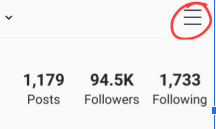
Step 1: Tap the menu icon in the top right corner of your Instagram profile page.

obtain Instagram Verification

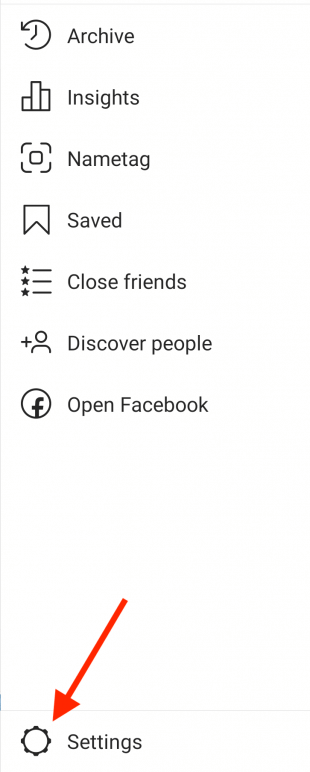
Step 2: You can then go to the Settings option of the menu.

obtain Instagram Verification - 1

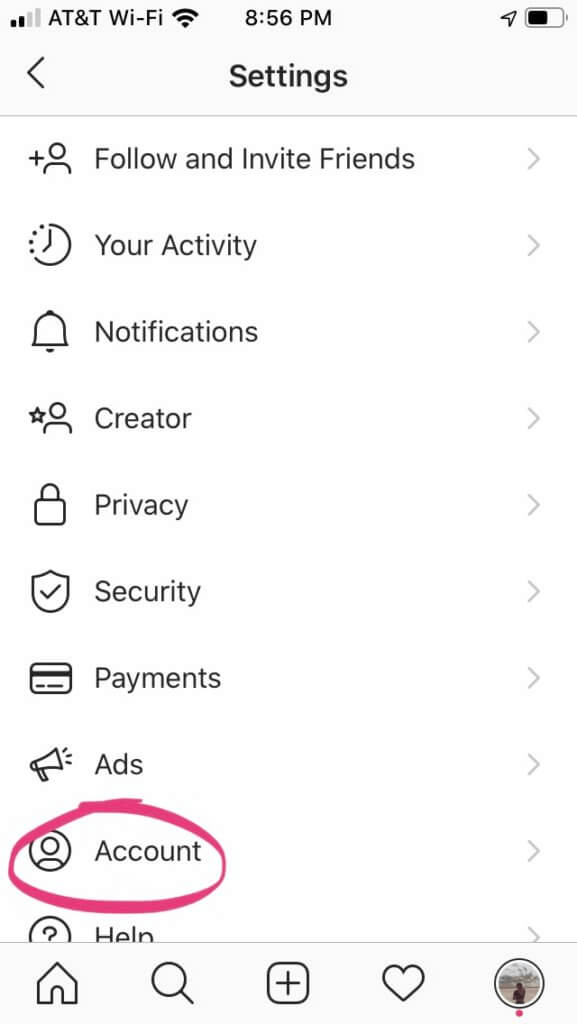
Step 3: After this, you can select the Account option under the Settings menu.

obtain Instagram Verification - 2

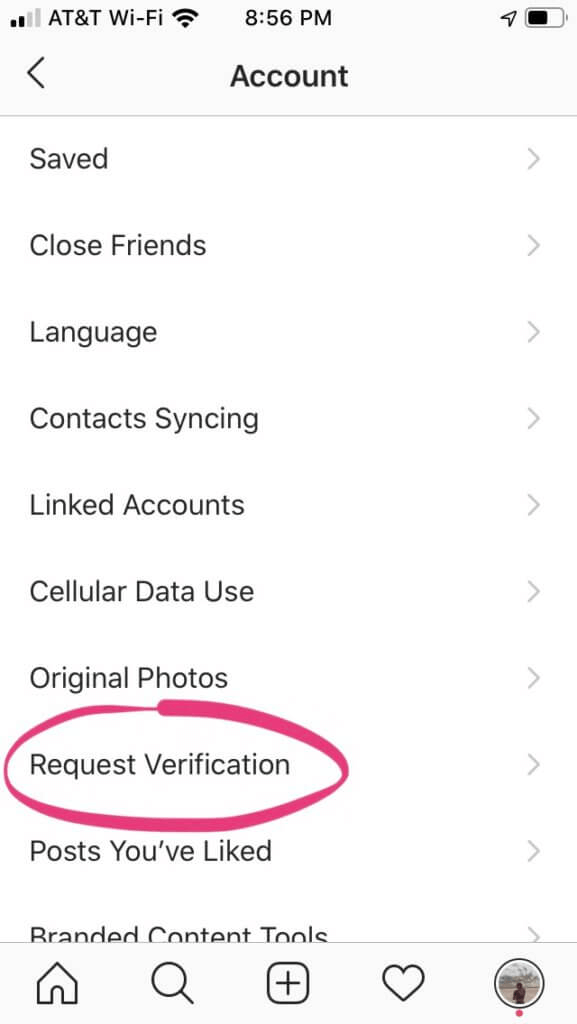
Step 4: The “Request Verification” option can be selected from the Account menu to obtain Instagram verification.

obtain Instagram Verification - 3

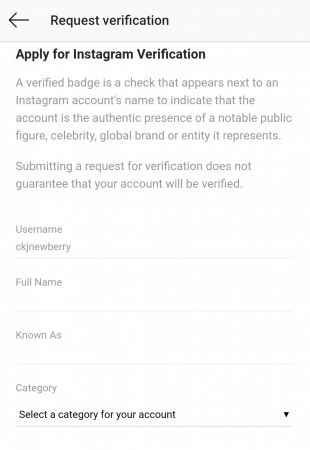
Step 5: Once you  go to the “Request Verification” section, you need to fill up the verification form wherein; you have to provide the below details:

  • Your full name
  • Your professional name (“Known As”)
  • Your category (closest to your niche, career or industry)

obtain Instagram Verification - 4

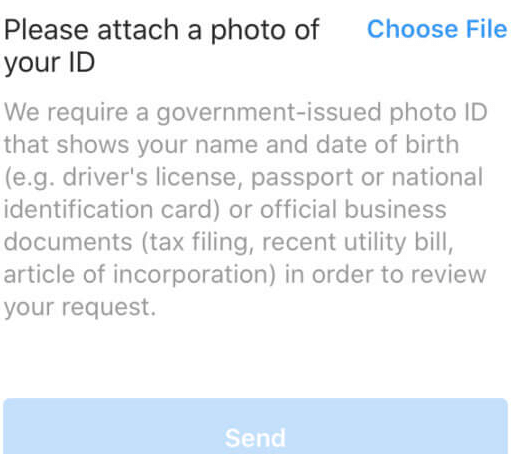
Step 6: Post this you need to upload a photo of your government ID which should clearly state your name and date of birth. In case of a business account, documents like tax filings or a utility bill should be uploaded if you’re requesting verification for a business or brand. You can then tap on the “send” icon.

obtain Instagram Verification - 5

Once you have completed all the above steps, mostly you can receive an official reply from the Instagram team after three days about the acceptance or rejection of the verification process. In case your application gets rejected due to the unfulfillment of some specific acceptance criteria, you can again apply for the verification in 30 days.

Verification Criteria:

Now that you are familiar with the steps to obtain Instagram verification, let us also look at the requirements to apply for a verified badge in detail. 

  • Your account must be compliant with Instagram’s “Terms of Service” and “Community Guidelines”.
  • Authentic Account – The account should represent a real person, registered business brand or entity.
  • Unique Account – Only one account belonging to a person or business may be verified. The only exception is given to language-specific accounts if an entity wants to have more than one account to facilitate the account followers of some different regions with different languages and dialects.
  • Complete Account – You can’t keep your account private. This account has to be a public account with an effective bio, profile photo, and frequent posts. The profile should be devoid of any “add me” links to other social media services.
  • Notable Account – The account should represent a well-known person, entity or business brand.

Thus, we looked at the steps that need to be followed to acquire Instagram verification. It can be extremely beneficial for those who have a professional or business accounts to promote their work and business by reaching the targeted audience and followers. You can also refer to Instagram’s help center guidelines.

How to Connect Your Apple iPad to Your TV

How to Connect Your Apple iPad to Your TV

April 23, 2020
0

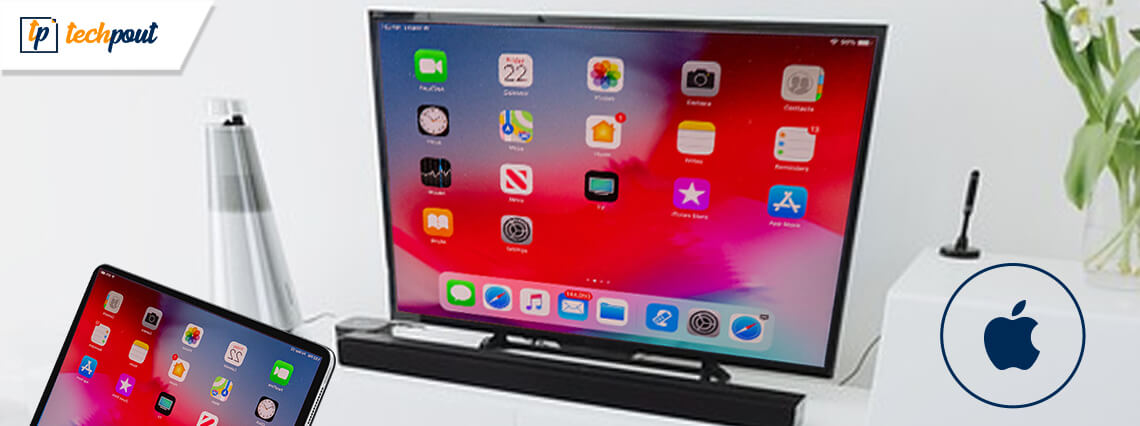
Streaming movies is so easy on your iPad but often the resolution and the small screen size make us look for better alternatives. Connect your Apple iPad to the TV and enjoy watching the latest shows and HD movies on your HDTV.  

Even if you don’t have a smart TV, don’t worry because there are multiple ways of linking your Apple devices to your TV screen. 

In this post, we will specifically focus on how to establish a connection between an iPad and your TV. There are multiple ways to do so and the options vary from going wireless to using cables. 

Whatever method is most feasible to you from the ones given below, you can utilize the steps that we have explained to catch all your favorite online streaming sites directly on your TV from your iPad.

Simple Ways to Connect Your Apple iPad to TV:

There is obviously more than one way to connect your Apple iPad to the TV and they are described vividly below:

#1. Connect Your Apple iPad to HDTV via AirPlay

AirPlay is all about mirroring video content from your Apple iPad on your Apple TV wirelessly. It supports content mirroring from any Apple device that uses iOS version 4.3 or above. 

Read ahead to know the way of connecting your Apple device with Apple TV using AirPlay:

  • Ensure that your iPad and Apple TV are connected to the same WiFi network.
  • Then, ensure that your TV is set on display mode.
  • Go to the settings of the iPad and tap on screen mirroring.
  • Then, you need to choose the option of Apple TV.
  • Finally, you will be able to view the Home screen of the iPad on your Apple TV.

So, there it is, a simple and effective way to connect your iPad wirelessly to your TV screen.

#2. Connect your Apple iPad to the TV via Google Chromecast

In three simple steps, you can connect your Apple device to your HDTV via Chromecast and watch all the Cast-enabled apps from your iOS device on your TV.

  • The Chromecast device and the iPad should be connected to the same WiFi for this method to work.
  • You need to also ensure to switch the TV input to HDMI by pressing the HDMI button on your TV remote.
  • You need to then download and install the Google cast app on your iPad.
  • Using the WiFi settings, you will then need to install, configure and set up the Chromecast device on your Apple iPad.

That’s all! You are now all set to stream and watch content from your iPad on your HDTV.

Read More: How to Set Up Google Chromecast on Your TV

#3. Connect Apple iPad to the TV via Adapters 

Apple devices that run on iOS version 4.0 and above and have a 30-pin connector can be used to connect to a TV with an adapter. 

Connect Apple iPad to the TV via cables and adapters as described below:

  • Plug the adapter to your iPad or iPhone
  • Connect HDMI cable to the cable adapter
  • Connect the HDMI cable to your HDTV and you are all set.

#4. Connect Apple iPad to the TV via VGA Input

A VGA adapter is a way in which iPad and iPhones can be connected to your televisions and computers. If you need to hear the broadcast, then you have to externally connect them to the speakers.

If you want to connect an Apple device by VGA Adapter then, use the below steps:

  • Attach the iPad by the VGA Adapter.
  • Connect the VGA adapter to the VGA cable.
  • Plug the VGA cable into the television. 

Read More: How to Connect Your Wireless Headphones to TV

#5. Connect Apple iPad to the TV with a DLNA App 

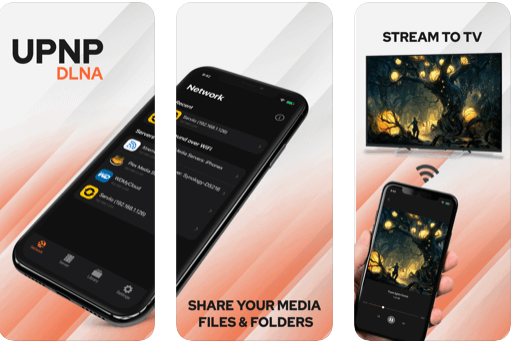
Connect Apple iPad to the TV with a DLNA App
Image Source: App Store

DLNA (Digital Living Network Alliance) is a way in which media streaming can be done effortlessly. If you have the right kind of app you can always listen to continuous music streaming. 

It does not work for those files (music or video) that are bought from the iTunes store basically since the digital rights of those files are protected under the Digital Rights Management (DRM). 

You can also use the app to connect your TV with other devices like your PC, iPad to stream movies and TV series.

You need to install the app on the iPad and select your TV. Then, using WiFi-direct it will stream selected content from your iPad on your TV.

Summarizing

So, you saw that connecting your Apple iPad with your TV is no big deal. All you need to do is have a medium that can help you effectively establish such a connection without any hassles.

So, now you can enjoy Apple TV, Disney+, Netflix, Amazon Prime Video, Hulu, and YouTube from your iPad on your big screen HD television easily.

If you are opting for wireless methods like Chromecast or AirPlay, then you need to ensure that all the devices which you want to link are connected to the same WiFi.

1 Comment
    John Merashi says: Reply
    May 12th 2020, 8:37 pm

    Wow, Great. Such a nice article. It clears my concepts about app development. Really great. Thanks for sharing.

Leave a Reply Cancel reply

Your email address will not be published. Required fields are marked *

Sidebar Image bit G ad1

Latest Posts

  • How-to-get-help-with-file-explorer-in-windows
    How to Get Help With File Explorer in Windows 11/10
    by Niharika / March 20, 2026
  • Easy Online Video Editors to Try in 2024
    10 Easy Online Video Editors to Try in 2026
    by Remy Thomas / March 20, 2026
  • how-to-export-bookmarks-from-edge
    How to Export Bookmarks From Edge
    by Niharika / March 18, 2026
  • Best-Free-Online-Portfolio-Websites-in-2026
    Best Free Online Portfolio Websites in 2026
    by Niharika / March 16, 2026
  • Anytime Astro: Best Website For Online Astrology Consultation
    Anytime Astro: Connect Now For Online Astrology Consultation
    by Somya Shrimal / March 13, 2026

Categories

  • Cyber Security
  • Driver Updater
  • Entertainment
  • Fitness
  • Games
  • How To
  • laptop
  • OS
  • Reviews
  • Tech News
  • Tips & Tricks
  • Top 10
Sidebar Image bit G ad1
5 Best Duplicate Photo Finder Tools 5 Best Duplicate Photo Finder Tools to Delete Duplicate Photosby Prachi Dani / August 3, 2019
How To View Private Instagram Profiles?by Prachi Dani / August 4, 2019How To View Private Instagram Profiles
TechPout Footer Logo

We at TechPout promise to put forth stories that help people to learn and simplify their digital life. Our purpose is to share the true essence of technology with our tech-loving community.

Useful Links

  • About Us
  • Contact us
  • Privacy Policy

Popular Posts

  • Best PC Optimizer Software
  • Best Mac Cleaner Apps
  • Best Driver Updater
  • Duplicate Photo Finder and Cleaner Software
  • Best Free Movie Download Sites
  • Best IPTV Players

Follow us

Copyright © 2026 www.techpout.com. All rights reserved
DMCA.com Protection Status