Main LogoLight Logo
  • Reviews
  • Top 10
  • How To
  • Tech News
  • OS
    • Windows
    • MAC
    • iOS
    • Android
  • Categories
    • Driver Updater
    • Cyber Security
    • Games
    • Fitness
    • Entertainment
    • Tips & Tricks
How To
by Harshita

[Fixed] Embedded Videos Not Playing In Google Chrome

January 20, 2021
1

Learn how to fix Embedded videos not playing in Google Chrome in a few minutes!

Undoubtedly, Google Chrome is one of the best web browsers available currently. As per the sources, Google Chrome is the most popular and accessed browser among desktop or mobile users. Doesn’t matter how far it is the best and popular web browser, still, sometimes even the ideal software can have glitches too. The same is happening with Google Chrome currently.

Many users have reported that Google Chrome is not supporting Embedded videos. When they try to play or download the embedded videos at that time videos not playing on Chrome. However, luckily, this issue can be fixed quite easily. Just read along to know how you can fix Embedded Videos not playing in Google Chrome.

Table of Contents hide
Advanced Solutions To Fix Embedded Videos Not Playing In Google Chrome
Solution 1: Clear Browsing History & Cache Data In Chrome
Solution 2: Switch Off Hardware Acceleration In Chrome
Solution 3: Update Google Chrome
Solution 4: Disable AdBlock On Chrome

How To Fix Embedded Videos Not Playing In Google Chrome

Google Chrome is the most widely used web browser among macOS, Windows, Android, Linux, and iOS users. But, technical issues can occur anytime. Frequently Chrome users complain that it does not load, shows black screen, runs slower than expected, often crashes, and many more. But, this time, the issue is a little bit more frustrating as it prevents playing web videos on Chrome.

However, this can be fixed with much ease. The post explains the best solutions to fix Embedded videos not playing in Google Chrome. But, before moving towards the solutions, be sure that your system has the following to play the video.

  • High and active internet speed.
  • Up-to-date drivers.
  • The most recent version of Chrome.
  • Upgraded Adobe Flash Player.

That is what you have to ensure that your computer has the following. After ensuring that, still embedded videos won’t play, then here are several smart and advanced solutions to fix the same issue.

Read Also: How To Disable Autoplay Videos in Chrome and Firefox


Advanced Solutions To Fix Embedded Videos Not Playing In Google Chrome

Now, have a look at the below mentioned advanced ways to fix embedded videos not playing in Chrome!

Solution 1: Clear Browsing History & Cache Data In Chrome

Temporary or junk files can be the culprits because of which this issue is occurring. Clearing junk or temporary files and browsing history in Chrome can fix the web videos playing issues. Plus, it will also fix the other browser-related issues too. Here is how to do it!

Step 1:- Firstly, open the Google Chrome browser, and then click on the three-dot icon presented at the right top corner of the screen. Then, click on Settings from the dropdown menu.
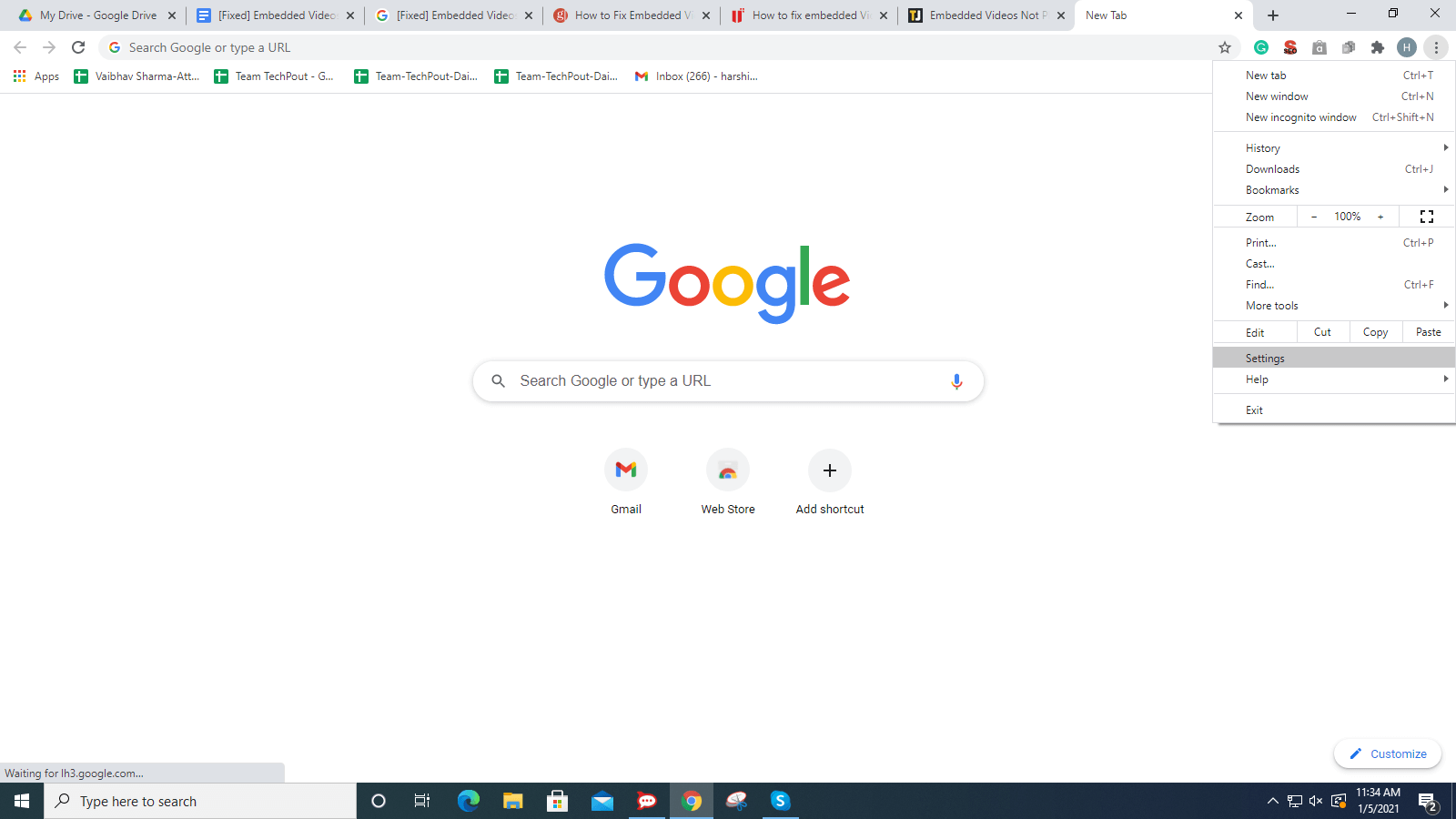
Click On Settings From The Dropdown Menu

Step 2:- After this, scroll down and locate Privacy & Security option, then choose Clear Browsing Data.
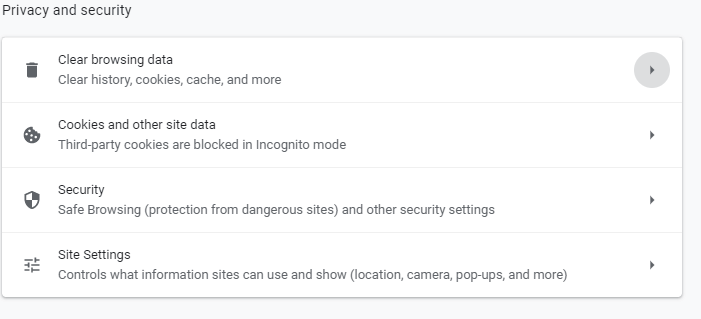
Choose Clear Browsing Data Option

Step 3:- Now, select the time range of eradicating the browsing data.
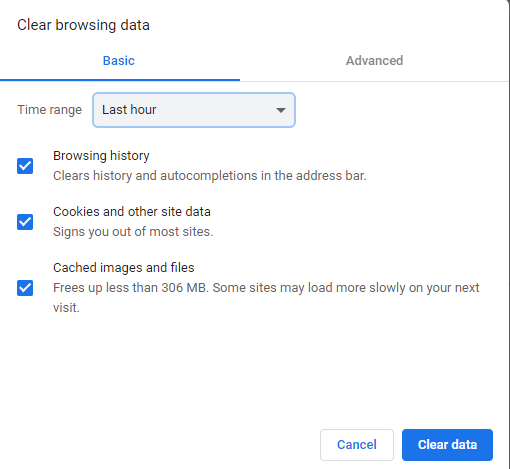
Select Time Range Of Eradicating The Browsing Data

Step 4:- Later on, click on the Clear Data.

Thereafter, open Google Chrome again and check if the issue is fixed or not.

Read More: How To Delete Duplicate Photos On Windows 10


Solution 2: Switch Off Hardware Acceleration In Chrome

After clearing up the cache data, browsing history, or cookies still the issue continues, then try to switch off the Hardware Acceleration in Chrome. This can be solved this annoying issue. Steps to switch off Hardware Acceleration in Google Chrome.

Step 1:- Again, go to the Settings.

Step 2:- Then, scroll down to Advanced and then choose System.

Step 3:- Unmark the checkbox of Use Hardware Acceleration When Available.
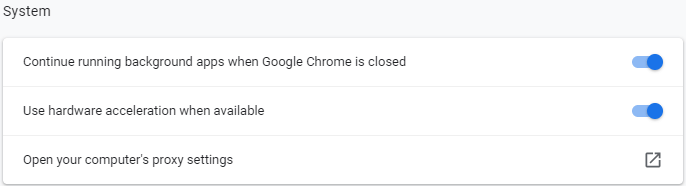
Unmark Checkbox Of Use Hardware Acceleration When Available

After turning off the Hardware Acceleration then check whether the issue solved or not. If it still remains the same as earlier, then move towards other solutions.


Solution 3: Update Google Chrome

What’s more, you can do, in order to fix embedded videos not playing in Google Chrome is – updating the web browser. Updates solve the bugs and improve the performance too. And, mostly fixes the numerous browser-related issues as well including web videos not playing. So, always make sure that you are accessing the updated Chrome. Here are ways to update Google Chrome.

Step 1:- Head to the Settings.

Step 2:- And, then and from the left pane side of the window navigate to About Chrome and click on it.
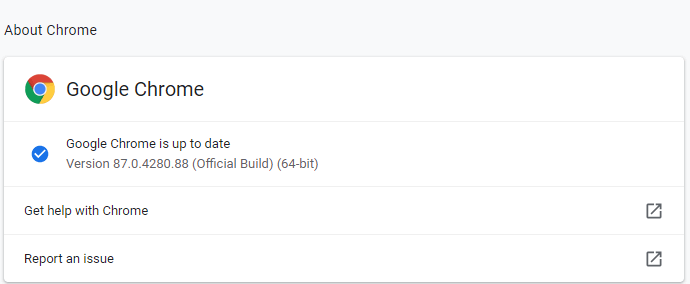
From Left Pane Side Of Window Navigate To About Chrome and Click On It

Then, this will let you know about the update. If the new update is available then install it.

Read More: Best Lightweight Browser for Windows 10/8/7


Solution 4: Disable AdBlock On Chrome

If you are utilizing the AdBlock version on Chrome, then uninstall it. However, the AdBlock prevents ads over the web but sometimes it hinders the functioning too. So, disable the AdBlock can solve videos not playing on Chrome. All that you need to do!

Step 1:- Switch to the Settings of Chrome.

Step 2:- Then, from the left pane side locate Extensions.

Step 3:- Now, detect AdBlock and set its status to off. Or, if you want to remove it then click on the Remove button to eradicate it completely.
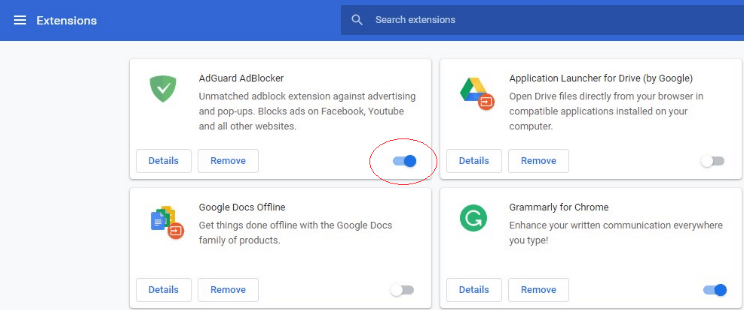
Click On Remove Button To Eradicate It Completely

That’s how to fix Embedded videos not playing in Google Chrome by disabling or uninstall the AdBlock on Chrome.

Read More: How To Update Video Card Drivers In Windows 10


Embedded Videos Not Playing in Google Chrome [Fixed]

Above mentioned methods can fix the Embedded videos not playing in Google Chrome. Eradicating browsing history, cache data, disabling Hardware Acceleration, updating Chrome to its newest version, removing AdBlock extension works for most of the individuals who were facing the same issue. However, you do not need to try them all, just read along until you find the best bet. And, then give a try to the best method according to your preference.

So, that is all, hopefully, now you can easily download embedded videos from Chrome. Still, just in case, if you stuck in any situation where you don’t know how to move further then do tell us in the comment box below. We will surely make every possible effort to help you out in the best ways. Want more such informative and helpful write-ups? Then, do subscribe to our Newsletter to stay updated. Lastly, stay in touch with us, we’ll back shortly!

Author

Harshita

Harshita Sharma is a technical writer with quite a distinct understanding of the tech realm. She is a tech enthusiast who believes that tech knowledge should reach one and all and tries to convert the sketchy knowledge into the simplest possible form for making people understand the tech world better. When not playing with words, she loves to travel and explore new places. And, is a coffee & cricket connoisseur.

View all posts

Related Posts
iPhone and Android Phone Randomly Vibrating? How To Fix it

iPhone and Android Phone Randomly Vibrating? How To Fix it

April 1, 2024
0

Is your iPhone or Android phone randomly vibrating? Don’t panic, you have come to the right place. Here you will find numerous workable solutions to this problem. Continue reading!

Whether it be alerts, text messages, or voicemails, your mobile phone is continuously buzzing you with its notifications. Why, however, is it doing more than it normally would? Or may it be that your Android/iPhone is more likely to experience this?

When you feel a vibration on your iPhone, your first assumption could be that you have received a notification. However, what happens if you end up finding nothing when you go through it? Was it a vibration that was a phantom? Even if it is feasible, there is a greater likelihood that there’s something with the device. In this post, we will demonstrate what you can do if your phone vibrates randomly and for no apparent reason.

Why Does My Phone Randomly Vibrate?

Your phone may vibrate for a variety of reasons, and these causes might be rather unpredictable. There are a variety of possible explanations for why your mobile phone is acting eccentrically. There are several instances in which it can be the consequence of a failure in the hardware. However, in many instances, there’s something in the background that is more ominous.

There are occasions when the phone may be in quiet mode, and possibly there’s something else going on in background that is causing your smartphone to vibrate. When you see Facebook, email, or just browse the internet for fun, this is something that typically occurs. However, you are not the only one who experiences this problem. In order to prevent your mobile phone from buzzing for no apparent cause, here are a few suggestions.

Ways to Fix iPhone & Android Phone Randomly Vibrating in 2024

Below are a few tried and tested solutions that you can consider in order to solve the phone’s randomly vibrating issue.

Way 1: Restart Your Mobile Device

If you are experiencing a problem with your iPhone or Android device vibrating randomly for no apparent reason, the quickest and most obvious option is to reboot your device. The process of renewing each gadget may be somewhat different from one another, but the technique is more or less the same.

  • Hold down the power button until the menu of available power settings appears.
  • When using an Android device, choose restart and then tap on the restart option again.
  • If you want to restart or turn off your iPhone, you may do it by holding down the power button for a long time and then sliding the power option that appears on the screen.

Also Read: How to Download Videos from Any Site to Android Phones? (3 Best Ways)


Way 2: Disable All Vibrations

Disabling all vibrations is another simple way to disable the aggravating vibrations for most mobile phones. The following is a guide that will show you how to disable the vibration settings on your iPhone or Android device.

For iPone:

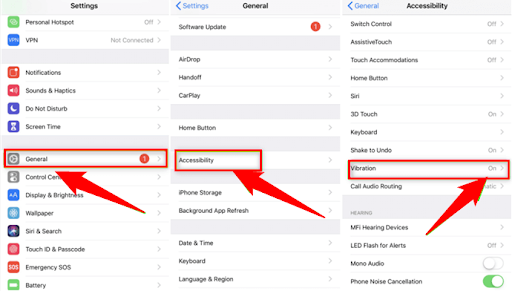
Step 1: Launch the settings menu and go to the ‘General’ section.

Step 2: Then, go to the General menu and choose the ‘Accessibility’ option.

Step 3: Next, scroll down until you reach the ‘Vibration’ section, and then turn it off.

 'Vibration' section

For Android:

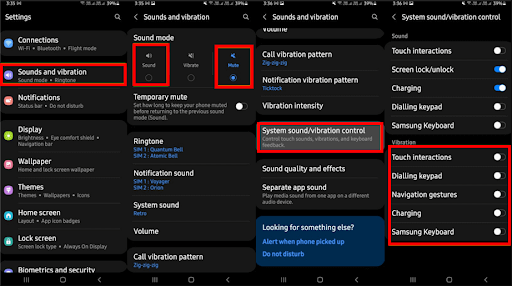
Step 1: Proceed to the Settings menu on your Android device and choose the “Sound & Vibration” option.

Step 2: Set the Sound Mode from the Sound to Mute.

Step 3: Next, scroll down until you see the “System sound/vibration control” option and tap on it.

Sep 4: On the Vibrations menu, disable all of the available settings.

Sound & Vibration


Way 3: Close All Open Apps

Some rogue applications on your Android or iPhone might be responsible for your phone’s randomly vibrating issue. If an application is running in background, you should close it.

To do that, tap on the three vertical lines available on the lower-left corner of your mobile screen. It will display all of your recent applications. Simply tap the Close All option or swipe them upwards to get the task done.

Also Read: How to Use Apple Maps on Android and Windows PC


Way 4: Software Update

If a software fault is the cause of the random vibrations that are occurring on your phone, then updating the software will most likely resolve the problem. Follow the procedures below to solve the problem that causes the phone to randomly vibrate.

For iPhone:

Step 1: Launch the settings menu on your iPhone. Choose the ‘General‘ option.

Step 2: Tap the ‘Software Update‘ option. It will determine whether or not there is any update available.

Step 3: Choose the option to “Download and Install.” This will install the available software update.

For Android:

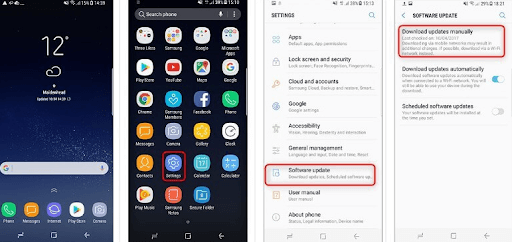
Step 1: Go to the Settings menu on your phone. Scroll down until you find the Software Update option.

Step 2: Choose the “Download and install” option in order to determine whether or not there is an update available.download updates manually

Step 3: If a software update is available, tap on the Install Now option to automatically download it.


Way 5: Factory Reset your Phone

If your smartphone continues to vibrate after the update, the last option is to reset it. Your smartphone will lose all of its content or data if you do a factory reset, which includes all of its applications, images, music, movies, and other media. You must create a backup of your smartphone before you reset it if you do not want to risk losing any important data.

On iPhone:

Open the Settings app on your iPhone, then choose the ‘General’ option. Scroll down until you reach the ‘Reset’ option > There are a few other reset options available; choose the one that says “Erase All Content and Settings.”

On Android:

Launch Settings and scroll down until you see General Management and then click on it. To reset, choose Reset option > Among the available choices, choose “Factory data reset”.

Also Read: How to Get Dark Mode on Snapchat on Android and iOS

When your phone vibrates for no apparent reason and you are not touching it, you probably find yourself wondering what may be the cause of the vibration. As was noted before, there are various reasons why something like this may occur. However, in this post, we have brought a few tried and tested solutions to resolve the problem.

We hope that the information shared in this write-up helps you quickly resolve this issue. If you have any doubts, suggestions, or additional information regarding the same, please feel free to tell us in the comments section below. Lastly, do subscribe to our Newsletter so you never miss any tech updates.

How To Use iPhone As Webcam

How to Use iPhone as Webcam

August 15, 2019
0

Video calling is the new audio calling. Everyone seems to do it. Be it for work purposes, or for connecting with loved ones, video calling is there everywhere. 

Now, a webcam (the one attached to your computer) is also a necessity these days. Many budding YouTubers and gamers rely on this piece of technology for their pursuits. And for the video call lovers, they require it too.

But what happens when it is broken or is not working anymore? Do you sit around feeling remorse? NO! You don’t. 

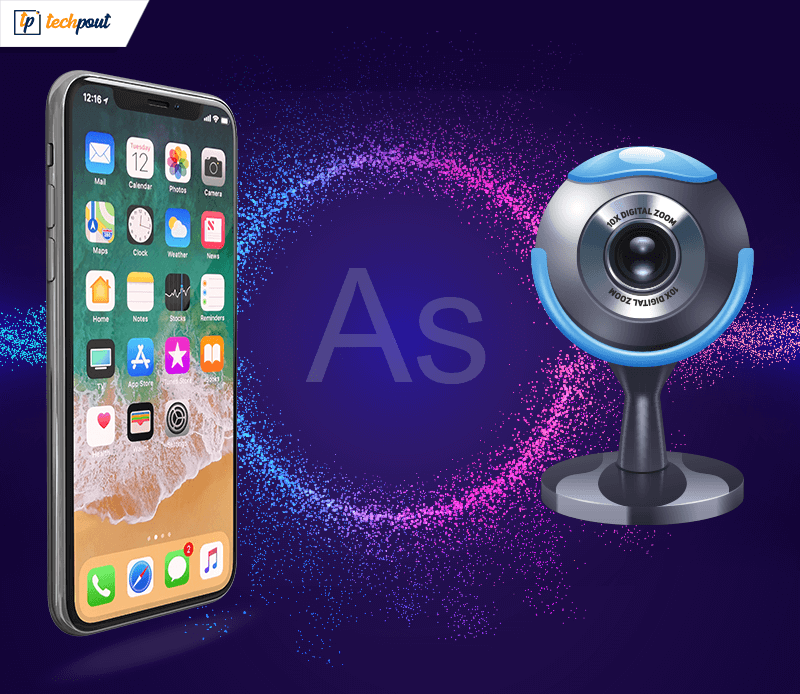
What if I tell you that there are ways to gain back a webcam again? Just use your iPhone.

What to Do When You Want to Use Your iPhone as a Webcam?

Your iPhone is capable of doing anything, well almost. It helps you out in almost every possible issue you face. And when your webcam is broken, it would help you there too. There are various apps that would allow you to use your iPhone as a webcam. They are: 

1. EpocCam

One of the best and most frequently downloaded applications to use an iPhone as and in place of a USB webcam. Who liked those old webcams anyway? 

With great raving reviews about its competence and reliability, EpocCam has made a special place in every video call user’s heart. 

It comes with two versions: free (with ads and limited functionality), and a paid one called EpocCAM HD which has all unlocked features.

These amazing features include audio support, flashlight ability, focus and autofocus modes, and improvement in video resolution (to 1920×1080 pixels from 640×480 pixels).

It is also a near-perfect app to use the iPhone as a security camera, baby monitor, and spycam. It is very easy to set up and supports both Mac OS X and Windows, but it requires iOS 8.0 or higher for compatibility.

2. WebCamera

WebCamera is a very powerful and staggeringly popular iPhone webcam app. It costs less than $5, way less than what you’ll pay for even an off the shelf and no-name webcam. 

It uses the local Wi-Fi connection and presents a really good set of video quality, modes, and latency. It lacks HD resolutions, only able to capture videos in resolutions of 640х480, 480×360, and 192×144.

But still, it copes really well with fast-moving objects and low light.

It has compelling and formidable compatibility with Skype, Windows Live Messenger, Google Hangouts, and other instant messaging apps. Along with them, this app also boasts of a great connection with video production software such as Camtasia and Boinx TV (A definite win-win situation!).

3. PocketCam by Senstic

PocketCam is a very well-designed and nifty tool that dabbles in almost everything. It is multi-faceted, multi-talented, and multi-amazing! 

It transforms your iOS device effortlessly so that your iPhone can be used as a USB webcam for your Windows or Mac PC. 

Setting up the application is a fluent cakewalk; using and configuring it is even easier.

It is the real deal because of its top-notch, yet easy-to-use features and high video quality.  

Read More: How To Use Google Maps And Get Traffic Updates

4. iCamSource Pro

iCamSource Pro is another great application that can turn an iPhone into a webcam. The only tag associated with it is a price tag, as it doesn’t have a “lite” or a “free” feature-reduced version. 

But once you purchase this, you’ll need to get the iCam Pro Webcam Streaming app installed too. As soon as you have both the apps involved, streaming live audio and video from any iOS device will be a piece of cake.

You can also employ the assistance of this app to create a neat set up and use the iPhone as a security camera. It sends instant alerts when it detects motion or sound. 

Stream multiple live videos instantly, record and playback the motion events, backup the motion event, and do a lot more instantly after recording.

5. iVCam

iVCam is a highly proficient application to turn your iPhone into a wireless webcam. 

It is capable of delivering high quality (HD) videos with low latency and supports all standard sizes, including 080p, 360p, 480p, and 720p. The user also has the option to configure the frame rate and audio/video quality.

It comes with two versions as well: a free and a paid one ($5). Although they both share the exact same features, the only difference is that the paid version comes without a watermark embedded in the video. 

All one needs to do to use it is, download the application to the phone, download the driver from the app’s website to the computer, and finally pair both of them together. 

iVCam also supports landscape and portrait modes, face beautification, video flipping/mirroring, and many more incredible features. 

The biggest shortcoming of this fully-featured application is that it’s not compatible with Mac, only with Windows. So Mac users would have to rely on some other software.

6. Instant Webcam

Instant Webcam streams full-screen videos and audios on devices existing in the common Wi-Fi network. 

Its CD-quality AAC audio, sub-100-millisecond latency, and 30 FPS videos make it a favorite amongst many. It also lets users choose their preferred video resolution.

Based on your preference, you can either opt for a front or for the rear camera to shoot videos. Although you would have to record and download the MPG videos in the browser only.

And this is how you can get rid of your worries about an inoperative webcam, and employ the use of the above-mentioned apps to carry on with your video creation and calling.

1 Comment
    Sherlyn Ohme says: Reply
    August 31st 2021, 6:32 pm

    Appreciated! Thank you for sharing such a wonderful piece of information. The post really helped me a lot to fix embedded videos not playing in Google Chrome.

Leave a Reply Cancel reply

Your email address will not be published. Required fields are marked *

Sidebar Image bit G ad1

Latest Posts

  • Anytime Astro: Best Website For Online Astrology Consultation
    Anytime Astro: Connect Now For Online Astrology Consultation
    by Somya Shrimal / March 13, 2026
  • Best-Ways-to-Combine-Images-Into-PDF-Files
    Best Ways to Combine Images Into PDF Files
    by Niharika / March 12, 2026
  • Best FREE VPS Hosting Providers
    7 Best FREE VPS Hosting Providers in 2026
    by Devesh / March 12, 2026
  • Best-McAfee-alternative-software-to-use-for-Virus-Protection
    Best McAfee Alternative Software to use for Virus Protection
    by adminuser / February 11, 2026
  • What-is-Flip-Flop-in-Circuite-and-it's-Types
    What is Flip Flop in Circuit and its Types
    by Meet / February 6, 2026

Categories

  • Cyber Security
  • Driver Updater
  • Entertainment
  • Fitness
  • Games
  • How To
  • laptop
  • OS
  • Reviews
  • Tech News
  • Tips & Tricks
  • Top 10
Sidebar Image bit G ad1
How to Fix Discord Screen Share Audio Not Working [Solved] How to Fix Discord Screen Share Audio Not Working [Solved]by Snigdha / January 20, 2021
16 Best Free TV Streaming Sites To Watch Online TV Shows (2021)by Prachi Dani / January 21, 202116 Best Free TV Streaming Sites To Watch Online TV Shows 2021
TechPout Footer Logo

We at TechPout promise to put forth stories that help people to learn and simplify their digital life. Our purpose is to share the true essence of technology with our tech-loving community.

Useful Links

  • About Us
  • Contact us
  • Privacy Policy

Popular Posts

  • Best PC Optimizer Software
  • Best Mac Cleaner Apps
  • Best Driver Updater
  • Duplicate Photo Finder and Cleaner Software
  • Best Free Movie Download Sites
  • Best IPTV Players

Follow us

Copyright © 2026 www.techpout.com. All rights reserved
DMCA.com Protection Status