Main LogoLight Logo
  • Reviews
  • Top 10
  • How To
  • Tech News
  • OS
    • Windows
    • MAC
    • iOS
    • Android
  • Categories
    • Driver Updater
    • Cyber Security
    • Games
    • Fitness
    • Entertainment
    • Tips & Tricks
Driver Updater How To Windows
by Snigdha

Fixed: Black Screen Problems on Windows 10 [Solved]

December 16, 2020
1

Did you just come across the Windows 10 black screen of death error? Windows 10 has always been engulfed by several performance problems like freezing issues, blue screen of death, black screen issues, etc. In fact, the black screen of death error is not a new problem as this has been a persistent problem since the time of Windows 7.

Users have time again tried troubleshooting one or the other issues but fixing black screen problems has particularly been challenging as it does not give an error code that gives a hint as to where to start troubleshooting. In this article, we will take an exhaustive look at this problem and also learn about how to solve it.

Table of Contents hide
How to Fix the Black Screen Problems on Windows 10
1. The Trouble with the Windows Explorer
2. Update the Graphics Driver
3. Fix Black Screen Problem via the Advanced Options
4. Reset the PC
5. Other Fixes

What is Black Screen Issues on Windows 10?

To put it simply, black screen error on Windows PC happens when there is some error with the GUI.

Black screen error on Windows 10 can be due to problems with the Windows Explorer or the user account profile. This kind of issue could also be triggered by a malfunctioning graphics driver or if there is any disturbance in the physical connection between the display and video adapter. Sometimes, it may also be the result of some faulty feature update patches.

However, you can be at peace because a black screen error doesn’t lead to any sort of data loss.


How to Fix the Black Screen Problems on Windows 10

There could be a number of approaches to resolving black screen issues which have been outlined below.

1. The Trouble with the Windows Explorer

The trouble with the Windows Explorer is indicated when you are able to sign in to your account but still see a black screen. You can troubleshoot the black screen of death problem related to Windows Explorer with the help of the following steps:

  • Open Task Manager.
  • Go to the Processes tab.
  • Then, using right-click action, select the ‘Restart’ option on the Windows Explorer service. This should enable you to access the desktop again.
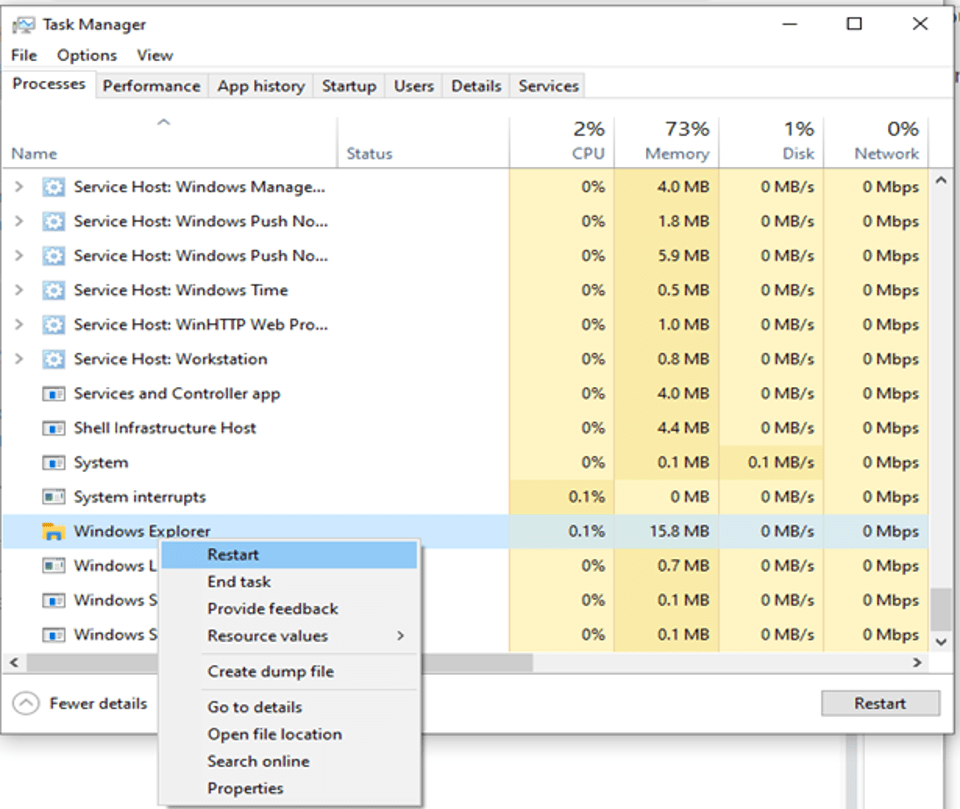
Open Task Manager and Click on Restart Button
  • Alternatively, if the above steps have not resolved the issue, then you could also choose to end the Windows Explorer process and run it again.
  • To run it, you need to go to the ‘File’ menu and select ‘Run new task’.
  • Then, enter ‘explorer.exe’ and click ‘Ok.‘
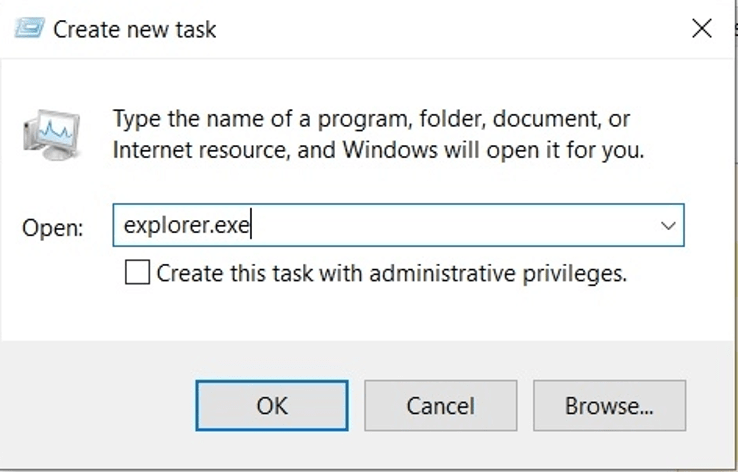
Select Run New Task and Enter explorer.exe
  • This should resolve the issue.

Read Also: How To Fix Flickering Screen Issues on Windows 10


2. Update the Graphics Driver

Many times the heavy games can cause stress on the GPU, which may lead to black screen problems. Graphics drivers can be updated in two distinct phases. The first step is to boot the system in safe mode, followed by fixing the graphic drivers.

  • First, you need to open a new window and then click on Restart while holding the shift key simultaneously. Once the screen shows the “Please Wait” message, then release the shift key.
  • Then, click on Troubleshoot first, followed by opening the Advanced Options.
  • Boot in safe mode by going to the “Startup Settings” option.
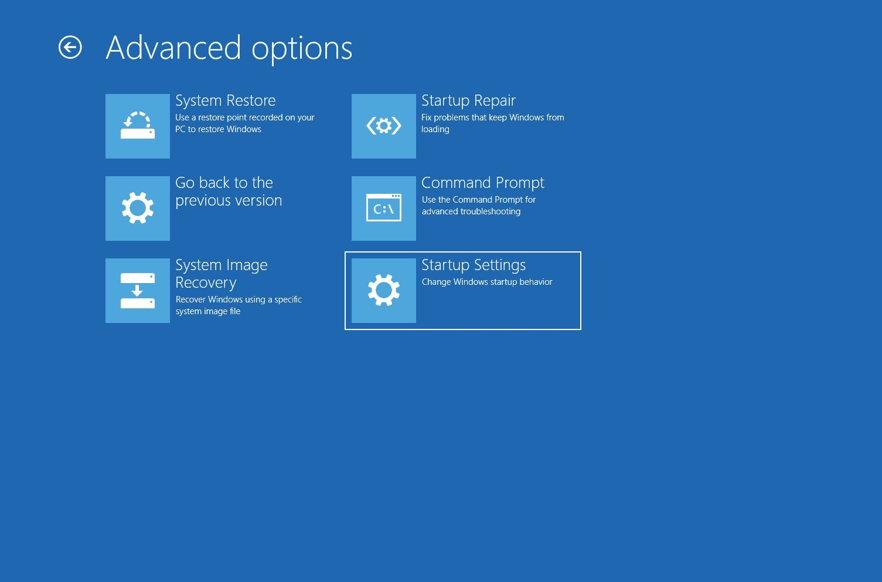
Go to the “Startup Settings" Option
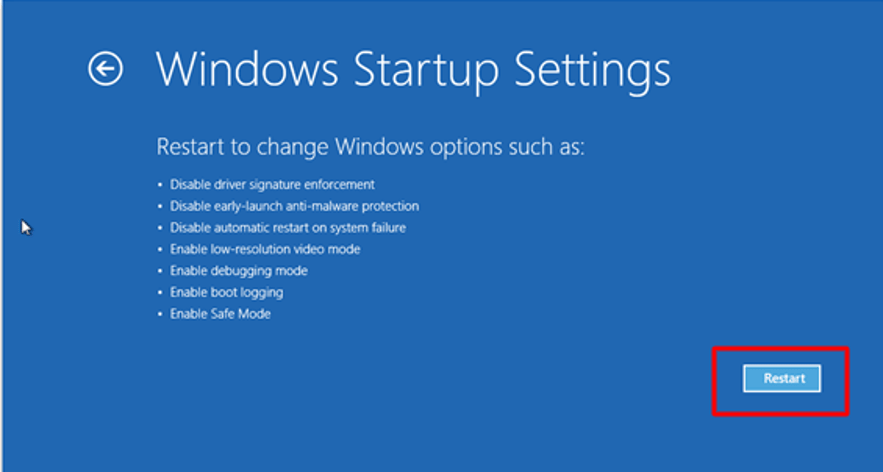
  • Then, click on the ‘Restart’ button.
In Windows Startup Setting Click on Restart Button
  • Finally, you can press F5 or 5 key to choose the option of “Enable Safe Mode with Networking.”
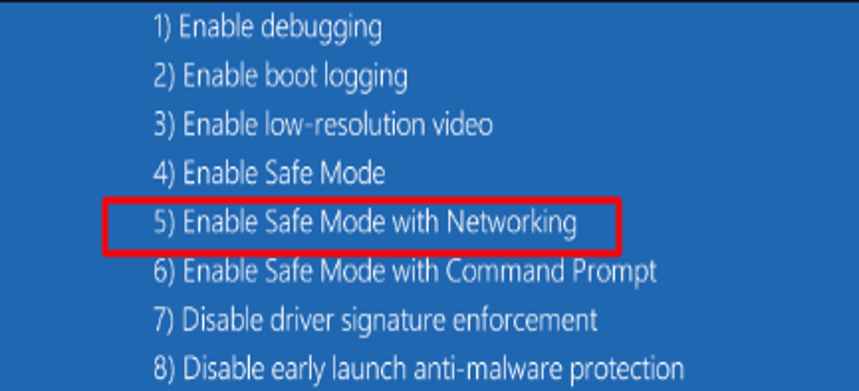
Enable Safe Mode with Networking
  • Now you can go to the Device Manager and open the Display Adapters section.
  • Here, you can go for the following options:

Uninstall the Graphics Driver 

You can right-click on the graphic driver to select the option of ‘Uninstall Device.’ Once the uninstallation completes, you can restart your system. Post this, Windows 10 should automatically reinstall the graphics driver and resolve the black screen issue.
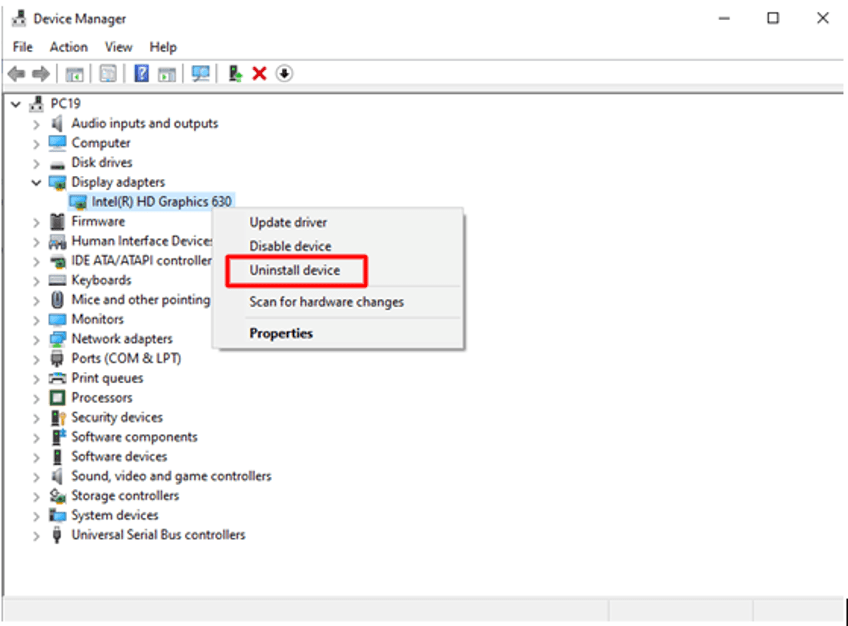
Uninstall the Graphics Driver

Update the Graphics Driver 

If the issue of the black screen still persists then, you can opt to download the graphics driver from the manufacturer’s website or else, update the driver directly from the Device Manager.

For this, you can go to the Device Manager and expand the graphics driver section. 

You can then right-click on the name of the graphic driver and choose the ‘Update driver’ option. 

You can then choose the “Search automatically for updated driver software” in the following prompt and then restart your system

If the problem still persists, you can always go for an automatic driver update software which will really make your job much easier for sure.
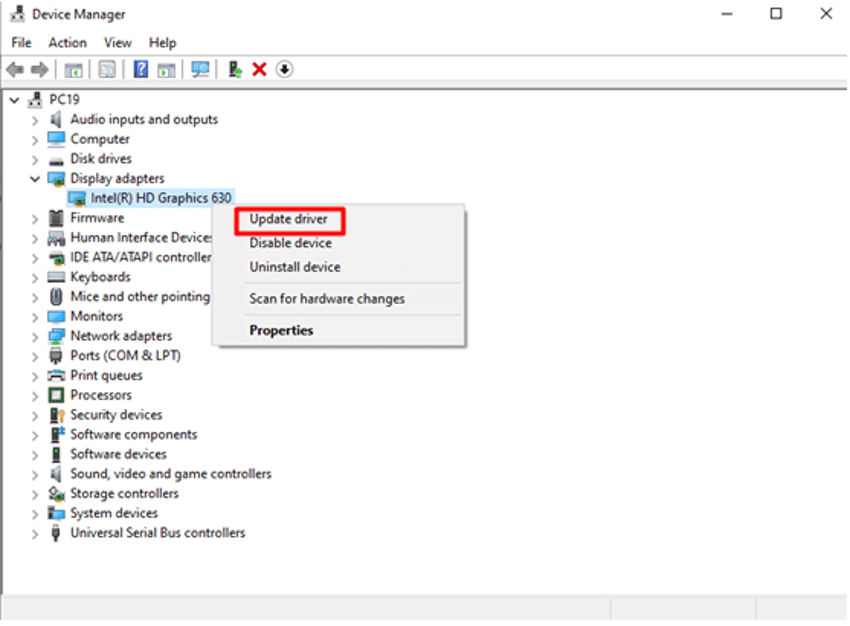
Update the Graphics Driver

Driver Updater Tool

Updating device drivers manually can be a tedious task and requires a lot of computer knowledge and patience. Therefore, you can always use a potent driver updater software, i.e., Bit Driver Updater to find the ideal drivers for your computer and update them automatically. 

Here’s how to update the graphics driver automatically using Bit Driver Updater.

  • Download Bit Driver Updater setup file by clicking on the button below.

    Windows Download Button
  • Run the downloaded setup file and then follow some simple on-screen instructions to install the application on your system.  
  • After this, open the application and click on the “Scan Drivers” button to get a complete list of all missing, faulty, or outdated drivers present on your computer.
  • Once you get the list, go to the graphics card driver and select the “Update Now” option to download and install its most updated version automatically. 

3. Fix Black Screen Problem via the Advanced Options

If none of the above options has solved your black screen of death problem so far, then you can go for two other alternative options viz; use “System Restore” or “Go to the Previous Version.” 

System Restore can take your computer to the most recent system restore point but there are chances that you lose programs and files that you have installed on your system post that point.
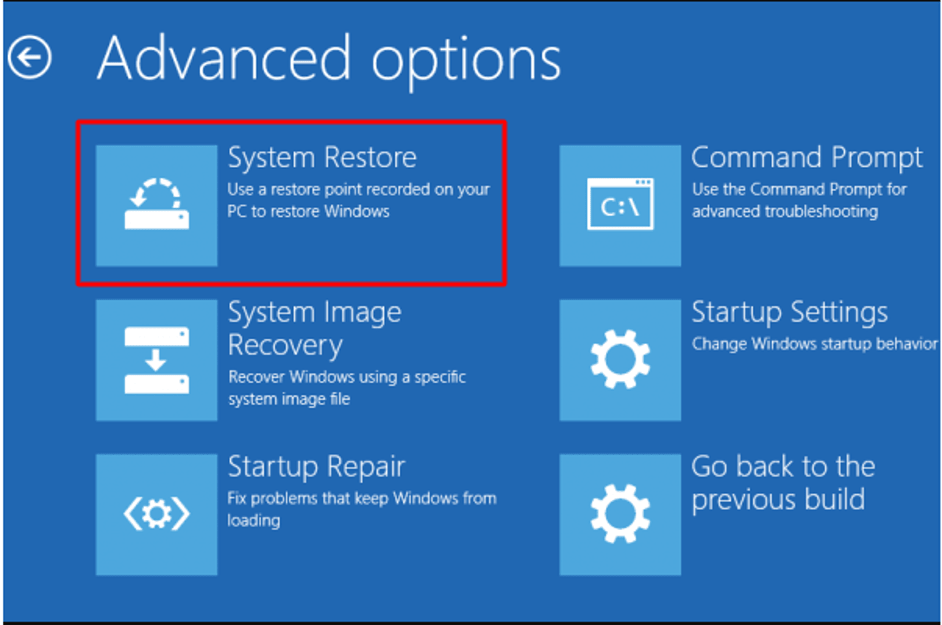
Use System Restore To Fox Black Screen Problem

On the other hand, rolling your PC back to the previous stable version will not impact your personal files.
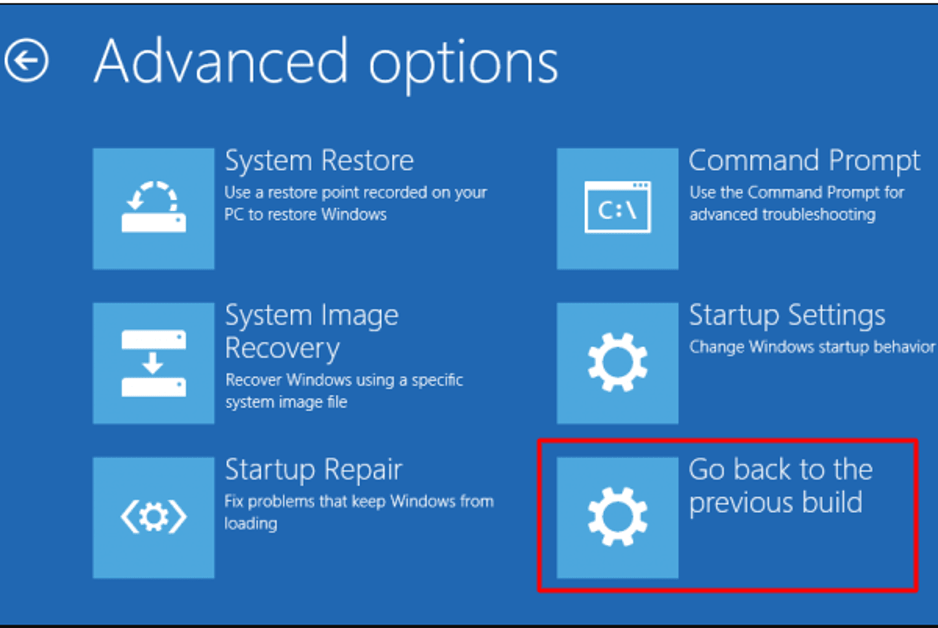
Go Back to the Previous Build

4. Reset the PC

If you are viewing a black screen just after switching on the computer, then you can choose to reset your computer as the final way to resolve the black screen problem. 

  • For this, you can go to the ‘Update and Security’ of Windows Settings.
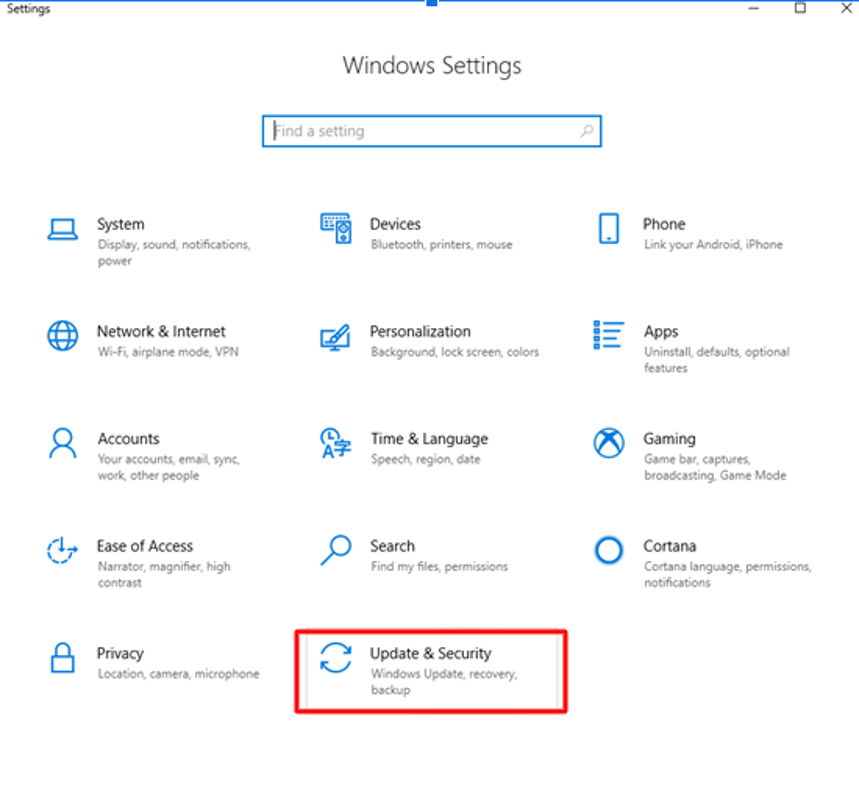
Go To 'Update & Security' Option
  • Then, go to the Recovery tab and click on “Get Started.”
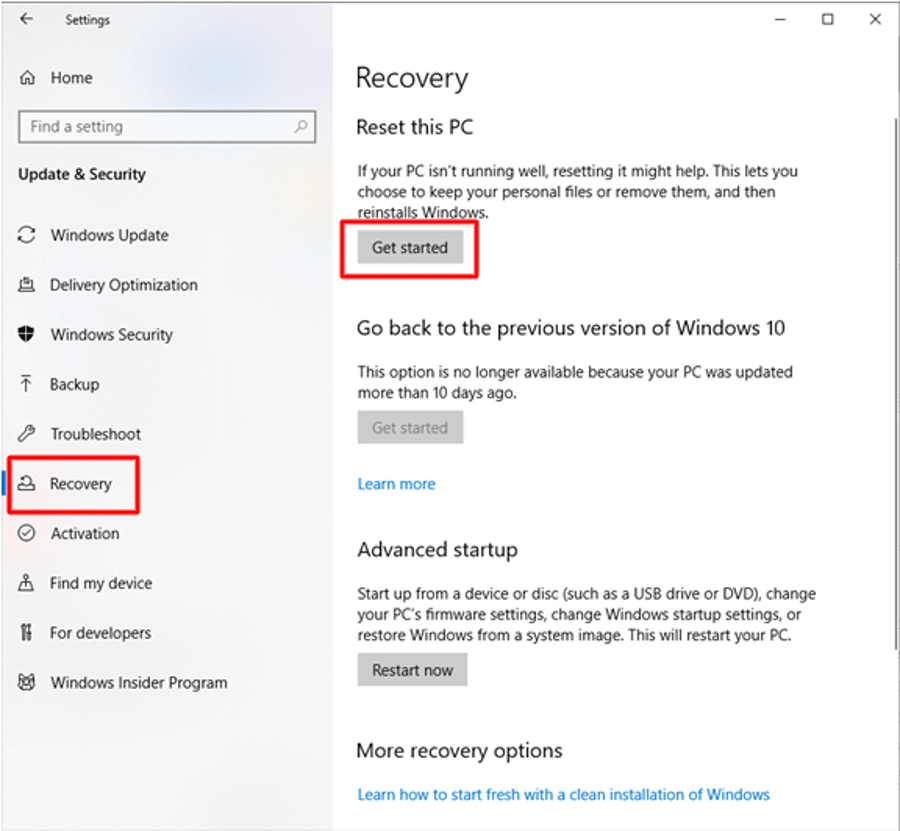
Go To Recovery Tab and Get Started
  • This will further lead you to two options viz; “Keep my files” and “Remove Everything.” You can choose the option which is most suitable for you.

5. Other Fixes

As it is known that there could be multiple reasons behind a black screen problem, therefore based on the various causes of issues, here are some other fixes for the black screen problem.

Disable High Contrast

Settings > Ease of Access > High Contrast > Turn it off > Restart

Uninstall Updates

Start > Control Panel > Programs and Features > View installed updates > Uninstall the most recent updates > Restart the PC

Uninstall Security Software

Settings > Apps > Apps & Features > Security Software > Uninstall > Restart the PC

Create a New User Profile

  • Go to Command Prompt and run as administrator.
  • Then, type “net user tempuser / add,” and further press Enter. Give the name of the account in place of the “tempuser.”
  • Followed by this, type “net localgroup administrators tempuser / add” to change the account type.
  • Finally, restart your computer and sign in with the newly created account.

Read More: How to Remove Junk Files From Windows 10


Black Screen Problems on Windows 10 – [Solved]

Therefore, with the help of this post, you can hopefully troubleshoot your PC’s black screen of death problem and get your PC back in the normal state. The use of an impressive driver updater tool can always help to deal with issues related to graphics drivers. It is quite an established fact that any problem with the graphic driver often leads to multiple problems associated with the display of the system. Hence it is very essential to always have them updated with the help from an all-round driver update software.

Author

Snigdha

Snigdha is a technical content writer with expertise in the field of science & technology. Though she has a very diverse academic and professional profile yet she finds writing to be a creative form that she was unable to explore so far. When not writing, she can be found indulging in other forms of creativity like painting or travelling.

View all posts

Related Posts
How to Set up VPN on Chromecast

How to Set up VPN on Chromecast

May 24, 2022
0

If you want to know how to set up a VPN on Chromecast and surf anonymously, then everything explained in this article will help you do the same with ease. 

VPN or a Virtual Private Network allows you to connect to different servers worldwide for anonymity. Using a VPN tool, you easily access blocked websites and play games using the servers of other countries, cities, and locations. Additionally, the third-party hackers and privacy meddlers would also not be able to access your location and IP address.

You can also use the VPN on Chromecast very easily. The procedure to do the same is explained in this article. You can use the same as you want and connect with any server worldwide as required. As Chromecast uses the local servers to connect, it becomes quite important to use the Chromecast VPN. So, let’s have a look at how you can connect to the VPN in the next section.


How to Connect to a VPN with Chromecast?

Below are some effective ways that allow you to connect a VPN to Chromecast with ease. Use any of the methods below to run the Chromecast VPN perfectly.

Method 1: Use a VPN-Enabled Router

Tomato firmware and DD-WRT routers allow you to connect to any VPN with ease. Hence, if you can, get a router for you that provides either one of the two bases for connection. However, if you can’t change the existing router with a new one, you can also use the virtual router to get the benefits of the same.

The installation procedure of every VPN brand is different. This method is somewhat similar for all kinds of routers and may require some changes accordingly.

  1. Ensure that your router has Tomato firmware and a DD-WRT base that supports a VPN.
  2. Now select the VPN you want. (Should be compatible with Chromecast)
  3. Follow all the instructions present in the router guide to set up the device.
  4. Sign-up on the VPN if required then Connect to a server of your choice.

Also Read: Reasons Why You Should Have a VPN On Your PC


Method 2: Create a Virtual Router to Use Chromecast with VPN

The next thing you can try to get a VPN for Chromecast is to create a virtual router. If your router does not have an integrated router, you can seek the help of this method for ease. This means that your router will assume there is a VPN integrated even when there isn’t. Take the help of the below steps to know what you need to do:

  1. Search for Command Prompt in the taskbar and select the option to Run as administrator.Choose Run As Administrator
  2. When the tool appears, enter the following command followed by the Enter key.
    netsh wlan set hostednetwork mode=allow ssid=(a network name of your choice) key=(a password for the network as per your choice)enter the following command
  3. You will find the following messages in the result:
    • The hosted network mode has been set to allow.
    • The SSID of the hosted network has been successfully changed.
    • The user key passphrase of the hosted network has been successfully changed.Command prompt - Result
  4. Now type the following command followed by the Enter key.
    netsh wlan start hostednetworknetsh wlan start hostednetwork
  5. You will see a message reading: The hosted network started
  6. Right-click on the Wifi button in the taskbar and launch Open Network & Sharing Center.Open Network & Sharing Center
  7. Select the option to Change Adapter Settings to proceed.Change Adapter Settings
  8. Your system will list the virtual VPN along with other networks. Right-click on the Virtual Network and open its Properties.Right-click on the Virtual Network and open its Properties
  9. Click on Sharing and check the boxes named:
    • Allow Other Network Users to connect through this computer’s Internet connection.
    • Allow other network users to control or disable the shared Internet connection.Allow Other Network Users to connect through this computer’s Internet connection
  10. From the list of Home Network Connections, select the Virtual VON you created.Home Network Connections
  11. Click on Apply and then on OK.
  12. Now, open the Chromecast from the Google Home app on your device and connect to the required device using the Virtual VPN and the password created previously.

Also Read: How to Boost Slow VPN Speed


Bonus Tip: The Best VPN for Chromecast

To help you with how to use the VPN on Chromecast, we are listing some of the best VPN apps that you can with the device. These VPNs can be easily used with Chromecast for the best services. Use any one or more of those listed below to connect with ease:

1. NordVPN

NordVPN is indeed the best VPN for Chromecast. The tool has over 5000 servers worldwide. Using these servers, you can connect with the desired area within seconds. The cross-platform tool is available for download on Windows, Chromecast, Android, Mac, Linux, iOS, Firefox, Android TV, Xbox, Kindle, and numerous other platforms.

Try the trial of the VPN on Chromecast first and then purchase the paid tool if required.

Download NordVPN

2. ExpressVPN

Another best VPN for Chromecast is ExpressVPN. The tool is available for multiple platforms that include Windows, Chromecast, Android, Mac, Linux, iOS, Firefox, Android TV, Xbox, PlayStation, Kindle, and many more. The tool has servers in 90+ different countries for you to connect anywhere freely.

Use this VPN for Chromecast under the trial version and purchase the paid subscription afterward if required.

Download ExpressVPN

Also Read: Best ExpressVPN Alternatives


How to Use Chromecast with VPN: Explained Successfully

So, using the easy techniques and methods explained above, you can easily connect a VPN on Chromecast. Using the procedure, you can surf the content from other territories as well as maintain your privacy at all times. If you face any kinds of problems in using the methods, write to us in the comments. We will assist you in every way possible.

Fastest Browsers for Windows

Fastest Browsers for Windows 10, 11 in 2024 [Latest Updated]

December 18, 2023
0

Which are the fastest browsers for Windows in 2024? How can I get the fastest & secure browsing experience on Windows PC? If you are also asking such questions, then look no further! Here’s a list of 12 more secure and fastest web browsers for Windows that you can consider. Read more!

Whenever we want to run a quick search, we use a web browser to take what we need from the “abyss of knowledge” known as the internet. Web browsers are quite a handy tool when it comes to the daily life of a dynamic digital era. But, what if we say that there are far better alternatives available that can outflank your current browser? The web browsers we’ll be talking about are some of the fastest browsers for windows 10. But, how do we know if these browsers are potent enough to satiate the needs of a modern moody user? Well, for that part we’ve evaluated each browser on some must-have standards and characteristics.

How to Decide Which is the Fastest Browser for Windows 10?

The following constraints help in determining whether a browser is fast or not:

Speed- Speed; It’s a must-have ingredient for a web browser for Windows 10. Cause, hey! Who doesn’t get annoyed and irritated when the web pages aren’t loaded in a blink? Right.

Privacy- In today’s digital world where any sort of information can be accessed with a few taps. The danger of your information getting leaked always lurks around while you watch those cat videos. BTW cats are cute, Aren’t they?

Extensions- Who doesn’t wanna get those super-useful extensions at their disposal while browsing the net? So, the best fast browser for Windows 10 comprises all the cool and handy extensions.

User-Experience- Technology has been developing in every instance just to make human lives easier and more convenient. Similarly, a web browser should be simple and less complex yet robust and secure. Is this too much to ask for?

To determine the accountability of the above factors in the browsers, we took the help of the following benchmark tools. 

Speedometer 2.0- Speedometer 2.0 is one of the most reliable benchmark websites ever created. This website allows you to ascertain the responsiveness of the browser to any website quite easily. With the help of over 480 different JavaScript standards, the benchmark can easily determine the reliability of the tool.

JetStream 2- Jus like Speedometer, the JetStream 2 also allows you to ascertain the speed of the browser by cross-checking the tool again different benchmarks.

MotionMark- MotionMark is different from Speedometer and JetStream as it ascertains the browser’s ability to load graphics instead of speed.

All you need to do is compare the Runs per Minute as generated from the tests run on these tools to ascertain which one is the best.

So, these were some metrics that we used to evaluate these browsers for windows. So, enough beating around the bush, Here we present the Fastest Browsers For Windows 10, 11.

Best & Fastest Web Browsers for Windows 10,11 in 2024

Speed, weight, general performance, navigation, extension support, lightness, privacy, and security are some of the significant features we look for when choosing the right web browser. Based on these features, we have prepared a list of the 12 fastest browsers for Windows that you should check out. Without further ado, let’s get started!

1. Google Chrome

google chrome

Platform Supported:  Windows: Windows 7, Windows 8, Windows 8.1, Windows 10, Windows 11/ Apple Mac / Linux /Android

The finest and most commonly used cross-platform and fastest browser for PC 2024, Google Chrome has a varied user base. Although the browser consumes comparatively higher system resources it is easy to use. With regular updates, Google keeps on adding exceptional features to Chrome, like the Best Google Chrome Themes.

This fastest browser for windows 10 can be customized easily depending on the user’s needs. Also, it has a mechanism that is highly reliable and maximizes the speed of the browser. This is also one of the fastest mobile browsers for android. You can also get the best out of the browser using Effective Tips and Tricks for a Better Google Chrome Experience.

Notable Features

  • Huge Library of extensions
  • Cross Platform
  • Available for free
  • The user interface is completely customizable
  • Advanced features for power users

Download Now

Also Read: Google Chrome vs Mozilla Firefox: Which Web Browser is Better


2. Opera

Opera Browser

Platform Supported: Windows / macOS / iOS / Linux / Android

Opera is one of the most commonly used and trusted browsers around the world. The interface of the browser is quite straightforward which makes it one of the fastest browsers. The browser is available in two versions viz. Opera and Opera Mini. Both versions are very effective but the latter one is faster than the former.

If you are a beginner then Opera can be the best alternative for you. The tool is quite amazing and also provides advanced features like ad blocking, integrated VPN, and whatnot. You will find some of the most amazing features of this tool below:

Notable Features:

  • Free to download and use
  • Cross-platform base
  • Allows interface personalization
  • Contains a smart dashboard with multiple options
  • Consumes less data

Download Now


3. Brave Browser

Brave Browser

Platform Supported: Windows / macOS / iOS / Linux  / Android

If you’re the type of person who gets paranoid regarding their privacy and safety on the net Brave Browser is the fastest browser in 2024. To all the internet users out there, if you’re concerned about who’s tracking you and want your browsing history and activity to stay hidden even from your ISP(Internet Service Provider), Brave Browser is especially for you. The browser is also the best and fastest browser for mac.

With all the basic features of a web browser and the best and fastest browser for Windows 11, it also has a strict anti-ad policy which ensures that your browsing session doesn’t get interrupted by annoying ads; result, faster browsing by a lot. So, Say Hello to the lightning-fast browsing experience and Bye to slow-loading pages. Know more about the features of this one of the Most Secure Web Browsers For Private Browsing and the fastest browser for windows 10 below.

Notable Features:

  • Aggressive anti-ad policy
  • Earn through watching ads
  • Consumes less data than many browsers for Windows
  • Privacy is guaranteed while using Brave Browser

Download Now


4. UR Browser

UR Browser

Platform Supported: Windows 11, 10, 8, 8.1, 7 / macOS

For users who truly want to experience privacy, faster web browsing, and security, we present you UR browser. UR browser is one of the fastest web browsers available on the net as it blocks trackers, ads, and cookies which otherwise slows down a website. Various alerts are also present to notify you if there’s a danger lurking around your identity or credentials. UR browser protects holds a powerful suite of tools to render optimum security to all its users.

Notable Features:

  • A gamut of privacy-protection tools
  • Light yet robust and fast at the same time
  • Various privacy modes to choose from

Download Now

Also Read: Best Lightweight Browser for Windows


5. Vivaldi

Vivaldi

Platform Supported: Windows / Linux

Vivaldi might sound like a new name in the fastest browser for PC market, but it has started to gain the limelight quite swiftly. Vivaldi was built under the Chromium project. It uniquely combines some of the best features of browsing giants like Google and Opera. Vivaldi also possesses marvelous multi-tab management. The trait which aids Vivaldi to stand in this list; Vivaldi is super-customizable. Users can tweak even the smallest thing to obtain a more personalized experience. The tool can also work effectively as the Best People Search Engine and the below features justify the same.

Notable Features:

  • Lightest and fastest browser for pc
  • Has built-in notes features to scribe your ideas. thoughts, and all.
  •  Custom shortcuts and keyboard shortcuts are at your disposal.

Download Now


6. WaterFox

WaterFox

Platform Supported: Windows / Mac / Linux

WaterFox is a privacy-oriented and secure browser. It is an open-source fastest browser for PC that blocks trackers and other similar threats to prevent them from gobbling up your data and personal information. WaterFox is based on Firefox and also uses the same engine. But, it tapers the privacy risks the users had with Firefox. WaterFox collects a negligible amount of data from its users only to keep the browser up-to-date and secure.

Notable Features:

  • No telemetry
  • Privacy Protection
  • Protection from trackers
  • Improved browsing experience

Download Now


7. Tor Browser

Tor Browser

Platform Supported: Windows / Mac OS / Linux

Tor browser renders your privacy needs over the top. Hence, is one of the top 12 fastest browsers for windows 10, 11 in 2024. Privacy is the motto of the Tor browser. Surfing the net without any worries about privacy and being completely anonymous is what Tor helps you with. Tor browser helps you to stay hidden in the realm of the internet and keep tracking, surveillance, and censorship at bay. While using the Tor browser privacy is not a thing to worry about. Various tools of this fastest browser for PC cloak your IP address and cover your digital footprints.

Notable Features:

  • Multiple layers of Encryption
  • Defends users against surveillance and digital fingerprinting
  • Blocks trackers and other privacy-threats
  • Access the Dark web, deep web, and even blocked sites using the Tor browse

Download Now

Also Read: Best Fastest Web Browser for Mac


8. Slim Browser

Slim Browser

Platform Supported: Windows

Next, you can give SlimBrowser a try. However, it isn’t the most feature-rich browser on this rundown, but if in case, you are searching for a lightweight and fast browser for Windows 11. Then, it may be the potential one.

With this web browser, users can build individual accounts or groups for particular sites and even can open all of them at once. The browser will also let you enjoy interruption or distraction-free browsing by turning on its ad blogger. Plus, you’ll love to access its amazing spell check feature. Talking about the downside, then you may find its interface cluttered.

Additional Features of SlimBrowser:

  • One-click Facebook integration.
  • Webpage & text translation.
  • Quick and effective Download Manager.
  • Compatible with most mainstream extensions of Firefox.

Download Now


9. Maxthon

Platform Supported: Windows / macOS / Linux / Android / iOS

If you are wondering what is the fastest browser in 2024 then Maxathon is the answer. This browser is developed by the Chinese conglomerate Xiaomi and is used by many Windows users around the world. The tool offers some of the best and most advanced features for any browser. The tool has some advanced features integrated into tool to Clear Browser Cache and do a lot more with ease.

Additionally, using this one of the top 12 fastest browsers for windows in 2024, you can retain your privacy as it’s built on blockchain technology.

Additional Features of Maxthon:

  • One-click Facebook integration.
  • Webpage & text translation.
  • Quick and effective Download Manager.
  • Compatible with most mainstream extensions of Firefox.

Download Now


10. Chromium

Platform Supported: Windows / macOS / Linux / Android / iOS

The last name on this list of the top 12 fastest browsers for windows 10, 11 in 2024 is Chromium. The browser is quite lightweight and allows you to run huge websites on your device with ease. Apart from this, you can download and use Chromium on Windows, OS X, Linux, or Android devices as required.

Additional Features of Chromium:

  • Open-source but lightweight browser.
  • More stable than multiple other browsers.
  • Developers can also build browsers using Chromium.

Download Now


11. Mozilla Firefox

Platform Supported: Windows / macOS / Linux / ChromeOS / Android / iOS

Still looking for the fastest browser in 2024 then Mozilla Firefox is the next one that you can try. After Google Chrome, Firefox is one of the most commonly used browsers of all time. The browser is quite feasible and allows you to surf content very quickly and easily.
Let’s have a look at some of the features of this tool that make it one of the fastest browsers for Windows in 2024.

Additional Features of Mozilla Firefox:

  • Blocks trackers smartly
  • Multilingual UI
  • History sharing
  • Primary pa

12. Epic Browser

Platform Supported: Windows / macOS / Android / iOS

Epic Browser is the next pick for you in this list of the best free and fastest browsers for Windows. This is an amazing and lightning-fast browser of all time. The browser is very private and keeps your data safe without leaks.

Additional Features of Epic Browser:

  • Multilingual UI
  • Allows sharing of bookmarks
  • Free integrated VPN
  • Customizable interface
  • Supports Chrome extensions

Also Read: Speed up Your Web Browser & Internet Speed


Secure & Fastest Browsers for Windows 11/10/8/7: Final Words

So, the above were some of the best browsers that you can use on your Windows PC. If you ask us, “which web browser is better for Windows?” Then, based on security, speed, performance, benchmark outcomes, and privacy tests, we suggest you choose Opera. And, if you are using Windows 11, then Opera is all you need to enjoy the fastest browsing experience. Apart from Opera, Google Chrome is also an ideal choice for Windows PC.

With all that, now you have the names of the most secure and fastest web browsers for windows 10, 11, and you can choose the one that suits you the best. We hope the article helps you make a better decision. Do you have any doubts or questions? Please feel free to reach out to us through the comments box below. In addition to this, you can also share your suggestions or further tips regarding the same. We look forward to your feedback.

Before you go, don’t forget to subscribe to our Newsletter for more technical information, blogs, news & updates. Furthermore, you can also follow us on Facebook, Twitter, Instagram, and Pinterest.

1 Comment
    5 Reasons Why You Should Have a VPN On Your PC says: Reply
    December 29th 2020, 5:40 pm

    […] you use your PC for work or leisure, and you’ve spent time making it as stable as it can be, you want to make sure it’s safe as well, which is why we’ve put together five of the best […]

Leave a Reply Cancel reply

Your email address will not be published. Required fields are marked *

Sidebar Image bit G ad1

Latest Posts

  • Anytime Astro: Best Website For Online Astrology Consultation
    Anytime Astro: Connect Now For Online Astrology Consultation
    by Somya Shrimal / March 13, 2026
  • Best-Ways-to-Combine-Images-Into-PDF-Files
    Best Ways to Combine Images Into PDF Files
    by Niharika / March 12, 2026
  • Best FREE VPS Hosting Providers
    7 Best FREE VPS Hosting Providers in 2026
    by Devesh / March 12, 2026
  • Best-McAfee-alternative-software-to-use-for-Virus-Protection
    Best McAfee Alternative Software to use for Virus Protection
    by adminuser / February 11, 2026
  • What-is-Flip-Flop-in-Circuite-and-it's-Types
    What is Flip Flop in Circuit and its Types
    by Meet / February 6, 2026

Categories

  • Cyber Security
  • Driver Updater
  • Entertainment
  • Fitness
  • Games
  • How To
  • laptop
  • OS
  • Reviews
  • Tech News
  • Tips & Tricks
  • Top 10
Sidebar Image bit G ad1
[Fixed] Windows Update Error Code 0x80073712 On Windows 10 PC [Fixed] Windows Update Error Code 0x80073712 On Windows 10 PCby Jyotsana / December 16, 2020
How to Remove Your Mobile Number From Truecallerby Snigdha / December 17, 2020How to Remove Your Mobile Number From Truecaller
TechPout Footer Logo

We at TechPout promise to put forth stories that help people to learn and simplify their digital life. Our purpose is to share the true essence of technology with our tech-loving community.

Useful Links

  • About Us
  • Contact us
  • Privacy Policy

Popular Posts

  • Best PC Optimizer Software
  • Best Mac Cleaner Apps
  • Best Driver Updater
  • Duplicate Photo Finder and Cleaner Software
  • Best Free Movie Download Sites
  • Best IPTV Players

Follow us

Copyright © 2026 www.techpout.com. All rights reserved
DMCA.com Protection Status