Main LogoLight Logo
  • Reviews
  • Top 10
  • How To
  • Tech News
  • OS
    • Windows
    • MAC
    • iOS
    • Android
  • Categories
    • Driver Updater
    • Cyber Security
    • Games
    • Fitness
    • Entertainment
    • Tips & Tricks
Driver Updater Reviews
by Prachi Dani

Bit Driver Updater – Top Utility Tool to Update Drivers with Ease

April 19, 2023
1

Are you facing regular issues with your hardware components due to outdated device drivers? Do you need a comprehensive driver update utility to fix and repair faulty drivers? Then, you require a feature-rich driver utility tool like Bit Driver Updater, that can help you manage the task easily.

If you want to enjoy uninterrupted system performance and smooth hardware functioning then we advise you to download Bit Driver Update. It is one of the best driver updaters available on the web that can scan and repair all the outdated and broken drivers in no time. Apart from this, it also helps in keeping your device drivers up-to-date and boosts system performance.

Windows Download Button

Just install this stunning application and leave the rest to it. But before we move on to learn about Bit Driver Updater in detail, let’s have a quick understanding of device drivers.

Table of Contents hide
What Are Device Drivers And Why Do We Need Them?
Bit Driver Updater: An Intelligently Programmed Utility to Update Windows Drivers
Key Features of Bit Driver Updater:
How to Fix Corrupted Drivers Using Bit Driver Updater?
Frequently Asked Questions (FAQs)

What Are Device Drivers And Why Do We Need Them?

Device Drivers play an important role in the overall functioning of any computer system. They are a group of files that ensure proper communication between the operating system and the hardware components of your device like a printer, webcam, scanner, USB devices, video cards, and many more.

Outdated and corrupt device drivers can take a toll on the overall working of your device and should be kept in proper health.

So, now that you are well aware of the needs and purpose of a driver updater tool, let’s explore Bit Driver Updater in detail.


Bit Driver Updater: An Intelligently Programmed Utility to Update Windows Drivers

OS Compatibility: Windows 10, 8.1, 8, and 7

File Installer Size: 7.36 MB

Driver Scanning Time: 49 Seconds

Free Version: Available

Windows Download Button

Bit Driver Updater is a troubleshooting tool that helps to identify, install, and repair all the missing, broken, and outdated device drivers in an effortless manner. It can optimize and boost system performance in a few simple clicks.

Unlike Windows updates, keeping a track of outdated drivers requires a lot of manual effort and can look like a never-ending task. Therefore, to keep a regular track of the outdated drivers and repair them regularly we need a smart and comprehensive tool.

The features that have made Bit Driver Updater everyone’s go-to tool includes automated working, regular system scanning, one-click functionality, user-friendly interface, and much more. Its smart system scanning algorithm backs it class-apart functioning and working.


Key Features of Bit Driver Updater:
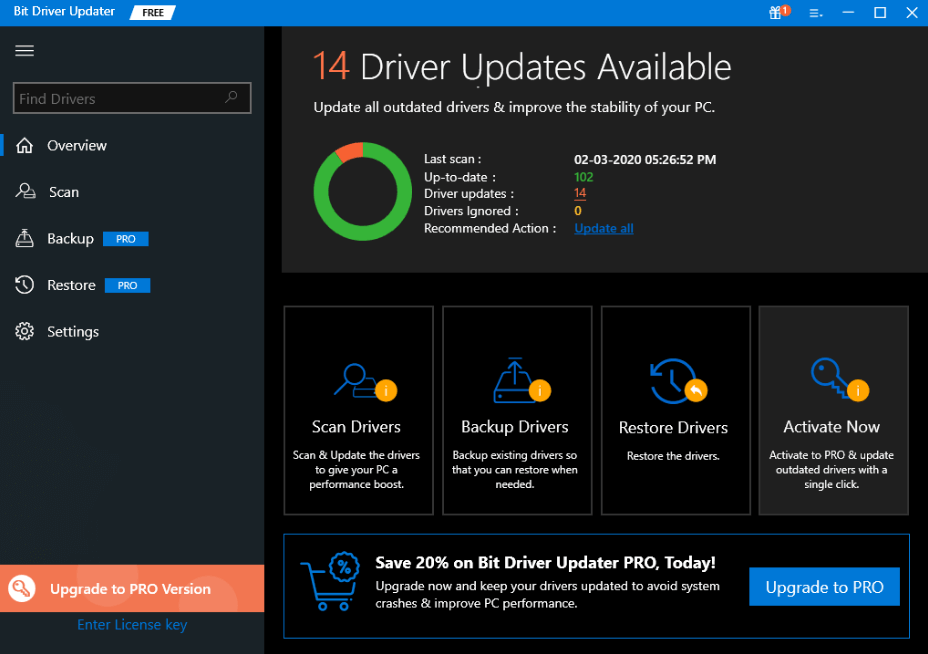
Bit Driver Updater Tool

Bit Driver Updater is the most popular and best driver updater for Windows 10 devices in 2023. It comes in user-friendly design, is loaded with class-apart features, and can fix corrupted drivers easily and quickly. Pick it today to optimize the overall performance and working of your Windows PC.

  1. Time Saver: This power-packed tool saves you a lot of time which you would otherwise spend in looking for the latest and the most compatible drivers for your system.
  2. One-Click Driver Updates: It works wonders and can scan your device for outdated/broken/faulty drivers, and automatically update all outdated drivers in a single tap.
  3. Enhanced System Performance: It ensures that all your device drivers are updated from time to time and keeps them in better health to deliver unmatched performance.
  4. Complete and Deep System Scan: This incredible driver utility tool also helps you to perform scheduled system scans. It displays a detailed list of all the device drivers along with their date of release, version number, and publisher. This helps you to check outdated drivers and other problematic areas. Facts and figures show that, Bit driver updater can scan your entire system in 1 minute and 2 seconds.
  5. Backup and Restore: Bit Driver updater also allows you to create restore points and take system backup before updating them Thus will help you restore the current drivers if anything goes wrong during the update process.
  6. Round the Clock Support: What adds on to the beauty of this unbeatable driver update utility is 24/7 customer support.  Get free and expert advice by contacting [email protected].

Apart from the above-mentioned features of Bit Driver Updater, here are some of the pros and cons of the utility tool that you might want to know.

Pros

  • User-friendly interface
  • Deep scan each and every corner of your PC
  • Helps repair and update all outdated drivers in a single click
  • Enhances overall system performance
  • Allows to customize scans and exclude the drivers that you do not wish to update
  • It works seamlessly well with Windows 7, 8, 8.1, and 10.
  • Lightweight application

Cons

  • The only downside of this tool is that it doesn’t support older Windows versions, i.e., Vista & XP.

How to Fix Corrupted Drivers Using Bit Driver Updater?

Using this stunning tool is quite simple. A few simple steps and your job will be done in no time.

Step 1: Download and install Bit Driver Updater using the link given below.

Windows Download Button

Step 2: Once installed, launch the tool and click on the ‘Scan’ button.

Step 3: A detailed list of all the corrupted and outdated drivers will get displayed on your screen, click on the ‘Update Now’ button to update your device drivers.

The free version of Bit Driver Updater has a lot to offer but misses on few advanced features. So, if you want to enjoy high-end features like driver backup and restore, bulk update, accelerated driver download speed then you need to opt for the Pro version of Bit Driver Updater.


Frequently Asked Questions (FAQs)

Given below are the answers to some of the commonly asked questions by users regarding the Bit Driver Updater tool.

Q 1. Is Bit Driver Updater Safe?

Yes, the Bit Driver Updater is one of the safest and most effective tools to update system drivers automatically. All you need to do is install the software on your device, scan for pending driver updates, and click on the Update All option. With just one click all the driver updates will be downloaded on your PC.

Q 2. Can I delete Bit Driver Updater?

Yes, you can easily uninstall the Bit Driver Updater tool using the Apps and Features section present in the Settings App. However, we recommend using the tool to keep all your devices up to date with just a single click.

Q 3. What is the use of Bit Driver Updater?

The amazing tool Bit Driver updater can download all the system driver updates instantly. Manual driver updates can be time-consuming and difficult when you lack basic technical skills. Therefore, install the latest Bit Driver Updater and update drivers automatically on your Windows devices.


Bit Driver Updater – The Ultimate Driver Utility Tool in 2023

Bit Driver Updater is a wonderful software and is packed with a plethora of functionalities and offerings. It comes with a user-friendly interface, easy working, and an intelligent scanning and repair mechanism.

With this multi-tasking, you can easily identify all the faulty drivers on your windows device, repair and update them easily and simply. So, if you want to update all the corrupted drivers, elevate and boost PC performance Bit Driver Updater is your go-to tool.

Author

Prachi Dani

Prachi Dani is a technical content writer who specializes in areas of science and technology. She is highly up to date with technological transitions and transformations. Writing is not her passion but the only thing that carries satisfaction in life. If not writing, you may find her engrossed playing action games on her treasured smartphone.

View all posts

Related Posts
Lexmark Printer Drivers Download & Update for Windows 11, 10, 8, 7

Lexmark Printer Drivers Download & Update for Windows 11, 10, 8, 7

March 11, 2022
0

The post focuses on the simple methods to download and update Lexmark printer drivers for Windows 11, 10, 8, 7. Read on for more information.

Lexmark is an American-based company that is popular for manufacturing imaging products and laser printers. Irrespective of being one of the best manufacturers, many users who have acquired Lexmark printers recently complained about the unresponsive or bad performance of the printer. Don’t worry, if you are also experiencing issues with your Lexmark printer. Because the good news is that the issue can be solved easily & quickly just by updating the printer drivers.

Therefore, we have prepared this guide highlighting the best ways to download Lexmark printer drivers for Windows 10, 11 (64 bit/32 bit).

Methods to Download, Install and Update Lexmark Printer Drivers for Windows PC

No matter which Lexmark printer model you are using, there are always some methods available for you to update the related drivers. In this section, we put together 3 different ways to perform Lexmark printer drivers download on Windows 11, 10, 8, 7 PC. You can choose the one that suits you best.

Method 1: Manually Install Lexmark Printer Driver from Manufacturer’s Website

Like others, Lexmark also provides regular driver support for their devices. So, if you are familiar with the technical specifications or the model that you are using. Then, you can use this method to download and install Lexmark printer drivers for Windows 7, 8, or higher versions. However, this may take some more time than usual. But, still, if you want to try this, follow the steps outlined below:

  1. Visit the official website of Lexmark.
  2. Scroll down until you see the Driver & Downloads option. Then, click on it to proceed.
    Lexmark Official Website - Click on Drivers and Download
  3. In the search box, enter the model name or a serial number of your Lexmark product and hit the Enter key from your keyboard. Search for lexmark driver you want
  4. Next, choose the compatible version of Windows OS and Language type. Later, click on the Submit option.
  5. Now, find the relevant driver file for your Lexmark printer and click on the Download button.

Once done, then click double on the downloaded driver file and comply with the installation wizard to install the required drivers for Lexmark printers.

Also Read: Printer Driver Is Unavailable On Windows 10 [Fixed]


Method 2: Run Windows Update to Download Lexmark Printer Drivers

The user can also try to download and install the latest version of Lexmark printer drivers by Windows Update. To use this method, all you need to do is just follow the steps below:

  1. Go to the Start, then hover over the gear (Settings) icon and click on it.
    Click on Windows Setting
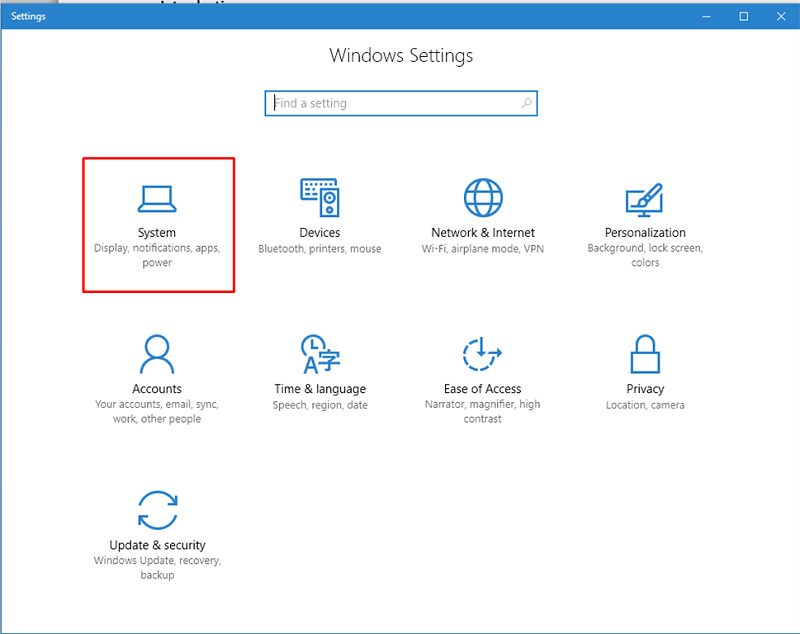
  2. In the Windows Settings, find and click on the Update & Security option.
    Updates and Security
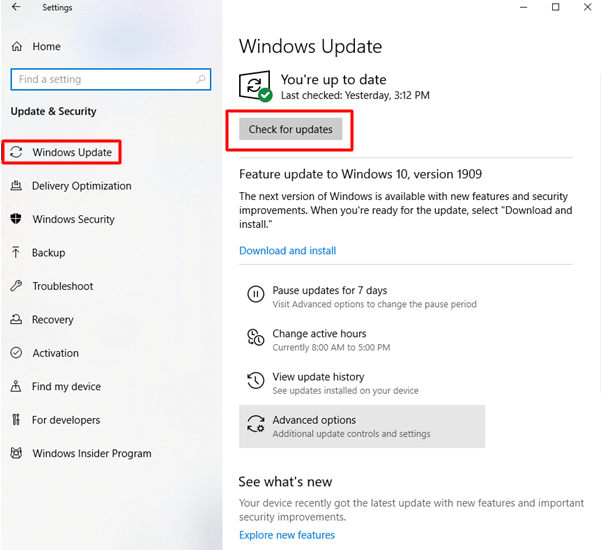
  3. Make sure Windows Update is selected from the left menu pane in the next window. If not, then choose to proceed.
  4. Next, click on the Check For Updates.
    Click on Check for Updates on windows settings

Now, let the Windows Update process take effect, and install the latest Lexmark driver updates on your PC. Once everything is done, then reboot your computer.


Method 3: Use Bit Driver Updater to Automatically Update Lexmark Printer Driver (Recommended)

Sometimes, Windows lags finding the compatible or most up-to-date drivers. And, installing the drivers manually from the official website of the manufacturer can be error-prone or daunting. Hence, we recommend you use any reliable third-party driver updater program to automatically and hassle-free update the PC drivers.

Anyways, there are plenty of driver updater tools available in the market, and it’s very hard to find the ideal one. Isn’t it? Nothing to worry about, you can give Bit Driver Updater a try. It is one of the most accessed driver updater utility tools and is popular for efficient functioning.

Bit Driver Updater automatically finds the system and then searches for the most suitable drivers for it. Not only that, but the utility also has the potential to maximize the overall performance of the PC. Furthermore, with the pro version of Bit Driver Updater, one can easily update all outdated PC drivers with two easy clicks of the mouse. Otherwise, you can continue with the free version, however, it takes a longer time than usual because the free version is partly manual. That means you need to update drivers one by one.

Here are the steps that you need to follow in order to update Lexmark printer drivers using Bit Driver Updater:

  1. Download Bit Driver Updater from the button below.
    Windows Download Button
  2. Double click the downloaded file and follow the installation wizard to complete the process.
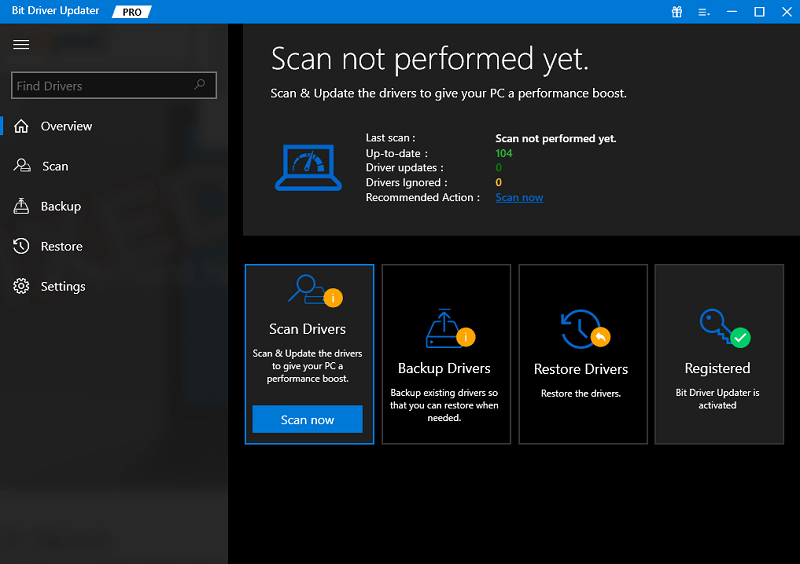
  3. After installation, run the driver updater solution on your computer system and click on the Scan button from the left panel.
  4. Next, you need to wait for the scanning to be finished.
    Bit Driver Updater - Best Driver Updater Software
  5. Once done, then go through the scan results, and find the problematic Lexmark printer driver. Then, click on the Update Now button shown next to the printer driver.
  6. As said, if you are using the pro version, then you can also click on the Update All button. This will help you install the latest version of all system drivers. Bit Driver Updater - Update all the driver

That’s all! See how simple it is to perform driver update via Bit Driver Updater. Undoubtedly, this is the best and non-cumbersome approach to deal with driver errors or problems.

Also Read: Best Free Driver Updater for Windows


Frequently Asked Questions (FAQs)

Here we are going to answer the most commonly asked questions regarding Lexmark printer driver free download for Windows 10, 11, or older versions.

How Do I Scan From a Lexmark Printer to My Computer?

For scanning a document from your Lexmark printer to your PC, you need to first make sure that your system and printer both are firmly connected to the same network. Thereafter, follow the steps below:

  • Invoke the printer’s folder, then choose your preferred printer.
  • Launch the properties of the printer and then change the settings as required.
  • Next, go to the Control Panel and then choose the right scan setting.

A Point to Remember: If your printer device isn’t mentioned in the list, then first add your printer.

How Do I Install Lexmark Printer Software?

Head to Lexmark’s official website and then choose your printer model and operating system. Then, run the software installer and go with the onscreen instructions to complete the Lexmark printer software installation process on your Windows PC. Apart from this, you can also install the software with the help of an installation CD that came with your printer at the time of purchase.

How Do I Update My Lexmark Printer Driver? 

To update the Lexmark printer drivers on Windows PC you can either use Windows default tool Device Manager or visit the official website of Lexmark. Apart from that, you can also use any reliable third-party driver updater program like Bit Driver Updater to automatically and hassle-free complete the task of updating the Lexmark printer drivers.

Download, Install and Update Lexmark Printer Driver on Windows: Performed

In sum, through this driver-guide, users can detect, download, and install the correct Lexmark printer driver for Windows 11, 10, 8, 7 (32-bit and 64-bit). We hope you find this installation guide helpful. Please let us know in the comments below if you have any questions or further suggestions regarding the same.

For more tech-related articles or information, do subscribe to our Newsletter and also follow us on our Social Media accounts: Facebook, Twitter, Instagram, and Pinterest.

How to Fix Video Memory Management Internal in Windows 10, 11

How to Fix Video Memory Management Internal in Windows 10, 11

June 9, 2024
0

Are you getting a blue screen error with the “VIDEO_MEMORY_MANAGEMENT_INTERNAL” stop code? Don’t worry, it is a common BSOD error that numerous Windows PC users encounter. And, the good news is that various solutions are available to solve this issue. Read the entire article for the details!

Just imagine, you’re working on an important project, and you’re just about to complete the task, but your PC abruptly shuts down. You restart it and receive nothing except a video memory management internal blue screen error message. You do not have an idea what occurred and no additional information but a value 0x0000010E that displays on your computer screen along with the error message.

This is really frustrating, especially when you have no clue how to solve this problem. Therefore, we have prepared this handy guide providing you with the most workable solutions for this BSOD error. Not only this but here you will also learn what this error exactly means and what are the causes of this blue screen error.

What is Video Memory Management Internal Error?

The VIDEO_MEMORY_MANAGEMENT_INTERNAL is a blue screen of death error which means that your computer has some issues because your video memory manager has undergone a situation from which it’s almost impossible to recover. Because of this BSOD error, you can encounter frequent system crashes, slower performance than usual, or even hardware malfunction.

What Causes Video Memory Management Internal in Windows 10, 11?

Following are some most common causes of stop code video memory management internal error in Windows 11, 10.

  • Outdated, broken, or missing graphics card drivers.
  • Damaged or corrupted system files.
  • Hardware issues.
  • Increased or unstable clock speeds.

Fixes for VIDEO_MEMORY_MANAGEMENT_INTERNAL Error in Windows 10, 11

According to the numerous Windows PC users, listed below are a few tried and tested solutions to solve stop code video memory management internal error in Windows 10, 11. However, you do not need to try them all, simply work your way down until you find the best trick. Now, without further ado, let’s get started!

Fix 1: Restart your Computer

If your PC is displaying the video_memory_management_internal BSOD error, then try shutting down it and then restarting it. Many times, a simple restart could help you diagnose the problem. In case, if it does not work, we recommend you boot your system in safe mode. Safe mode lets your computer start with only a few necessary programs and assists you in finding the exact source behind the problem. Unfortunately, if this also doesn’t work for you then you can use other solutions mentioned below to bypass the problem.

Also Read: [FIXED] UNEXPECTED KERNEL MODE TRAP Error in Windows 10, 11(BSOD)


Fix 2: Update your Graphics Drivers

Most of the time, outdated, incompatible, or corrupted graphics card drivers are responsible for the BSOD errors. So, it is possible to encounter blue screen video memory management internal error due to outdated graphics drivers. If that is the case, then you should update your graphics card drivers to solve the error.

You can do it either manually from the official website of the graphics card manufacturers or automatically using the best driver updating software like Win Riser Driver Updater. Manufacturers keep releasing the latest driver updates for their products. Undoubtedly, it is the safest way to get driver updates, but the process is a bit time-consuming and error-prone, especially for newbies since it requires expertise in a technical niche. So, if you are a newbie, there might be chances of installing incorrect drivers. Therefore, we recommend automatically updating drivers with all-in-one solutions like Win Riser Driver Updater.

Win Riser is one of the most popular and robust driver updating tools currently available. The software automatically detects your system, thoroughly scans it for outdated drivers, and replaces them with the necessary drivers. Not only a driver updating tool, but Win Riser is a one-stop shop for all your Windows performance and security issues. Moreover, it comes with a built-in malware detection and removal utility tool.

Follow the instructions below to automatically download and install the latest graphics drivers as well as other device drivers on your Windows 10, 11 PC.

Step 1: Download and install Win Riser Driver Updater from the button provided below.

Download-Button
Step 2: After installation, launch Win Riser and scan your device for outdated, broken, or corrupted drivers.

Step 3: Wait for the scanning to be completed. Check the scan results and click on the Fix Issues Now option to install the latest PC driver updates. This will install all the latest versions of PC drivers in one click including graphics drivers.Win Riser Driver

Step 4: Lastly, restart your PC to apply new drivers.

After installing the latest graphics drivers, check to see if the video memory management internal BSOD error is solved. If not, proceed to another solution.


Fix 3: Run SFC Scan

SFC aka System File Checker is a built-in tool in Windows OS that scans your PC for damaged or corrupted system files & replaces them with the correct ones. Running SFC helps you fix video memory management internal blue screen error on Windows 10, 11. Here is how to do that:

Step 1:  Open Command Prompt with the administrator’s privileges.

Step 2: In the Command Prompt (Admin) window, enter SFC/scannow and press the Enter key from your keyboard.

Step 3: Now, the system scanning process will be started. Wait for the process to be completed.

Once it’s done, check the results. If there are no other instructions to comply with, simply close the program and check to see if the blue screen video memory management internal error persists.

Also Read: How to Fix Kernel Data Inpage Error in Windows 10,11


Fix 4: Reset your Computer

None of the above solutions worked? Don’t panic, you can try our last resort i.e., resetting Windows. Resetting your PC will enable Windows to restore its original state, and default settings, which might be responsible for the Video memory management internal blue screen error. However, before proceeding with the method, we recommend creating a backup of your data so you can later restore all your crucial data. Now, follow the steps below to reset your PC:

Step 1: On your keyboard, press the Win Logo + I keys together to open the Windows Settings app.

Step 2: Locate and click on the Update & Security option.Updates and Security

Step 3: Choose the Recovery option from the left panel. And, then click on the Reset PC option available under Reset this PC on the right.

Step 4: If necessary, provide the administrator’s credentials.

Step 5: After that, choose the Remove Everything option to proceed.

Step 6: Next, select the Local reinstall option.

Step 7: Check the current settings, and if you are okay with the settings, click on the Next option. If not, then click on the Change Settings option to tweak settings.

Step 8: After changing the settings, click on Confirm, and restart your system.

This will reset your PC to the default settings which definitely help you solve the problem.


How to Fix Video Memory Management Internal BSOD Error in Windows 10, 11: Explained

The aforementioned are some of the most potential solutions to fix the VIDEO_MEMORY_MANAGEMENT_INTERNAL blue screen error on Windows 11, 10. Hopefully, these troubleshooting tips will help you solve this BSOD error on the Windows operating system.

Also Read: MACHINE CHECK EXCEPTION BSOD in Windows 10 [SOLVED]

Do you have any questions regarding this blue screen error? If yes, then feel free to drop us a comment in the box below. Was this guide helpful? Do you want to receive daily tech updates? If yes, then you can subscribe to our Newsletter, additionally, you can follow us on Facebook, Twitter, Instagram & Pinterest so you never miss any tech trend.

1 Comment
    Bitdefender Internet Security Review 2021 says: Reply
    December 31st 2020, 12:25 pm

    […] Read More: Bit Driver Updater – No. 1 Utility Tool to Update Drivers […]

Leave a Reply Cancel reply

Your email address will not be published. Required fields are marked *

Sidebar Image bit G ad1

Latest Posts

  • Best-Free-Online-Portfolio-Websites-in-2026
    Best Free Online Portfolio Websites in 2026
    by Niharika / March 16, 2026
  • Anytime Astro: Best Website For Online Astrology Consultation
    Anytime Astro: Connect Now For Online Astrology Consultation
    by Somya Shrimal / March 13, 2026
  • Best-Ways-to-Combine-Images-Into-PDF-Files
    Best Ways to Combine Images Into PDF Files
    by Niharika / March 12, 2026
  • Best FREE VPS Hosting Providers
    7 Best FREE VPS Hosting Providers in 2026
    by Devesh / March 12, 2026
  • Best-McAfee-alternative-software-to-use-for-Virus-Protection
    Best McAfee Alternative Software to use for Virus Protection
    by adminuser / February 11, 2026

Categories

  • Cyber Security
  • Driver Updater
  • Entertainment
  • Fitness
  • Games
  • How To
  • laptop
  • OS
  • Reviews
  • Tech News
  • Tips & Tricks
  • Top 10
Sidebar Image bit G ad1
What is VPN Encryption and How VPN Encryption Works What is VPN Encryption and How VPN Encryption Works?by Akshara Parnami / April 18, 2023
How to Fix Your IP has Been Temporarily Blocked (FIXED)by Akshara Parnami / April 19, 2023How to Fix Your IP has Been Temporarily Blocked (FIXED)
TechPout Footer Logo

We at TechPout promise to put forth stories that help people to learn and simplify their digital life. Our purpose is to share the true essence of technology with our tech-loving community.

Useful Links

  • About Us
  • Contact us
  • Privacy Policy

Popular Posts

  • Best PC Optimizer Software
  • Best Mac Cleaner Apps
  • Best Driver Updater
  • Duplicate Photo Finder and Cleaner Software
  • Best Free Movie Download Sites
  • Best IPTV Players

Follow us

Copyright © 2026 www.techpout.com. All rights reserved
DMCA.com Protection Status