Working together as a team has changed a lot in recent years. With more people working remotely from home, different cities, or even different countries, staying connected and productive can be a challenge. Thankfully, there are many team collaboration tools designed to help teams communicate, share work, and manage projects easily, no matter where they are.
In this blog, we will look at the best online team collaboration tools for Windows that can help your team stay connected, work well together, and get more done.
Why Use Team Collaboration Tools?
Before we look at some of the best team collaboration tools, let’s talk about why these tools are important:
- Remote work can feel lonely. With team collaboration tools, you can chat, call, or video with your teammates quickly.
- You can save files to one place. No need to email documents back and forth.
- Some tools let many people edit a file at the same time. This is great for real-time teamwork.
- You can see who does what and when. Everyone knows the plan and deadlines.
- No more searching for files. Good team collaboration software keeps everything in one place.
Top Online Team Collaboration Tools for Windows
Here are the best team collaboration software options for Windows. We group them by type to help you pick the most suitable fit.
1. Microsoft Teams
Microsoft Teams is one of the most popular team collaboration tools for Windows users. It is part of Office 365, which many businesses already use, making it easy to connect with other Office apps like Word, Excel, and Outlook. Teams lets you chat, make audio and video calls, and hold meetings with small groups or large teams. It also allows easy file sharing through SharePoint or OneDrive and includes a digital whiteboard for drawing and planning together. Plus, it supports many app integrations such as Planner and Forms to boost productivity.
While Microsoft Teams offers strong internal collaboration tools and good security for businesses, new users might find the interface a bit crowded at first. Also, large video meetings may require a good internet connection due to high bandwidth use. Overall, Teams is ideal for offices already using Office 365 and looking for a reliable team collaboration software that brings together chat, meetings, file sharing, and task management all in one place.

Also know: How to Set Out Of Office in Microsoft Teams
2. Slack
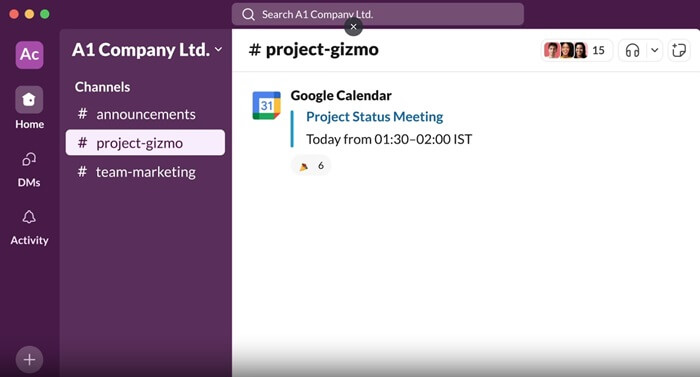
Slack is a popular team collaboration app designed for fast messaging and easy connections. It lets teams create channels for different groups or topics and send direct messages for private conversations. Slack also supports voice and video calls, file sharing, and a powerful search feature to find past messages quickly. It integrates with many other tools like Trello, Google Drive, and Zoom, making it a flexible choice for teams.
While Slack is easy to use and quick to set up, its free version only keeps recent messages, and video calls are limited to small groups unless you upgrade. Despite this, Slack remains a strong option for teams looking for simple, effective team communication tools.
3. Asana
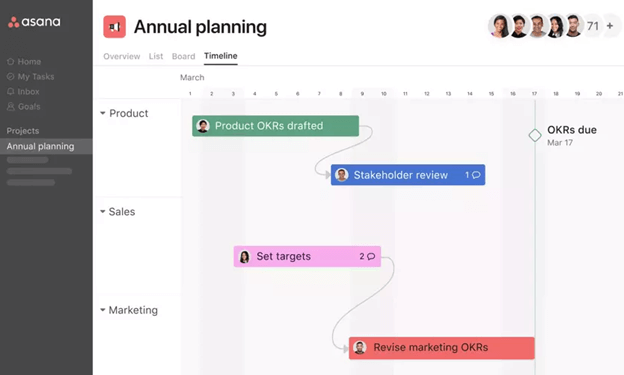
Asana is a powerful team collaboration tool designed to help teams manage tasks and projects with ease. It uses boards and lists to organize work, allowing users to assign tasks, set deadlines, and track progress in real time. The timeline view gives a clear picture of project plans, helping teams stay on schedule. Each task also includes a chat area, so team members can discuss work directly where it is happening. Asana integrates well with tools like Slack, Microsoft Teams, and Google Drive, making it easy to fit into your existing workflow.
One of Asana’s biggest strengths is its clear and simple task tracking, which helps everyone know what they need to do. It is also easy to turn conversations into action by creating tasks from chat. However, Asana is not built for real-time chat, so you may need another team communication tool for instant messaging. Some features may also require training, especially for new users. Still, it is a great choice for teams needing strong internal collaboration tools.
4. Trello
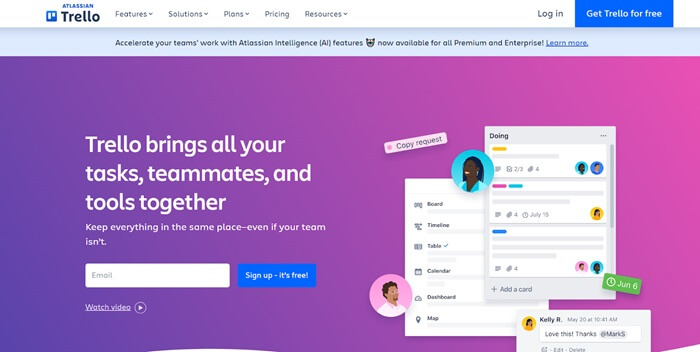
Trello is a simple yet powerful team collaboration app that uses a board-and-card system to help teams organize their work. Each board represents a project, and cards represent tasks. You can add due dates, attachments, comments, and labels to each card, making it easy to track details. Trello’s drag-and-drop feature allows users to move tasks through different stages of a project quickly. It also offers “power-ups,” which are add-ons like calendar views or integrations with tools such as Google Drive, helping you customize the experience based on your needs.
Trello is easy to learn and great for visual thinkers who like seeing their work in columns. Its free plan includes many useful features, making it ideal for small teams or simple projects. However, Trello does not have built-in chat or video tools, so you may need other team communication tools alongside it. Also, larger or more complex projects might require paid power-ups to handle more advanced needs. Still, it remains a great pick for easy task tracking and planning.
Also know: Best Software for Collaborative Learning of Teachers and Students
5. ClickUp
ClickUp is a powerful all-in-one team collaboration tool that brings tasks, documents, chat, goals, and reminders into one easy-to-use platform. It allows teams to create and manage tasks, write and store documents, and communicate through comments and built-in chat, all in one place. Users can choose from different views like board, list, or calendar, depending on how they prefer to work. ClickUp also integrates with popular tools like Slack, Microsoft Teams, Google Drive, and GitHub, making it a flexible solution for many workflows.
ClickUp is great for large teams and complex projects thanks to its wide range of features and high level of customization. Its free plan includes a lot, which is perfect for teams just starting out. However, the many features can feel overwhelming at first, and setting everything up may take some time. Still, if you are looking for a single team collaboration app to manage everything from planning to reporting, ClickUp is a strong choice.

With so many team collaboration tools out there, how do you choose the one that is best for your team and the way you work?
How to Pick the Right Tool
With multiple team collaboration tools out there, picking the suitable one can be confusing. The first step is to think about what your team needs. Do you need a tool for chatting, video calls, task tracking, or visual boards? Make a list of the features that are most important.
Next, check if the tool works well on Windows and with the other apps your team already uses. It is smart to start with the free version so you can see how the tool looks and how easy it is to use. Try using it with a small project to see if it fits your team’s way of working.
Also, help your team learn how to use these internal collaboration tools by sharing simple tips or a short guide. After a few weeks, ask your team how it is going. If the tool helps everyone work better, keep using it. If not, it is okay to try a different one until you find the best fit.
Conclusion
Choosing the right team collaboration tools can make working together much easier and more fun. The best tool is one that fits your team’s needs and helps everyone communicate and stay organized. Try different tools, start small, and listen to your team’s feedback. With the right internal collaboration tools, your team can work better, no matter where everyone is. Finding the right app will help your team get more done and feel connected every day.