Main LogoLight Logo
  • Reviews
  • Top 10
  • How To
  • Tech News
  • OS
    • Windows
    • MAC
    • iOS
    • Android
  • Categories
    • Driver Updater
    • Cyber Security
    • Games
    • Fitness
    • Entertainment
    • Tips & Tricks
Games How To
by Snigdha

How To Play Snap Games on Snapchat

March 5, 2020
1

Do you like playing games on your smartphone? If yes, then here’s a whole new world of games unveiling in front of you on Snapchat’s gaming platform. Yes, you read that right!   

Intrigued by the idea of what’s waiting for you in Snap Games and wish to know how to play games on Snapchat? Then, here’s a guide to everything that you need to know about Snap Games.

With a sassy pitch, “new way to hang out with your friends on Snapchat,” Snapchat is making its entry in the arena of mobile gaming after several months of speculation.

Snap confirmed all the speculations by revealing its plan for going live with Snap Games at the Snap Partner Summit in Los Angeles.

Table of Contents hide
What are Snap Games?
Which Games are Available on Snapchat?
How to Play Games on Snapchat?
Launching Snap Games
Invite Friends to Play a Game
Exit a Game
How to Gain Rewards From Videos
Control Game Activity Notifications
Summing Up

What are Snap Games?

Snap Games is the name of the all-new gaming platform of Snapchat. The chat feature of Snapchat has received some cosmetic changes to include the game’s icon now. The “rocket” button at the bottom of the screen in the Chat window represents Snap Games. 

Upon hitting the game’s icon, it launches a new game that can be played with your friends in real-time. The games are coded in HTML5. 

The games have already been rolled out but not to all worldwide users at the moment. This is because Snap is rolling them out to the users steadily to prevent server crash downs. Several users have received messages from Team Snapchat if Snap Games has been rolled out to them.

It is to be noted here that certain devices may not support Snap Games. If such a scenario arises, then you can try using Snapchat on a different device or you can also launch a different game on the same device and see if that is working.

Read More: How to View Someone’s Snapchat Story Without Them Knowing

Which Games are Available on Snapchat?
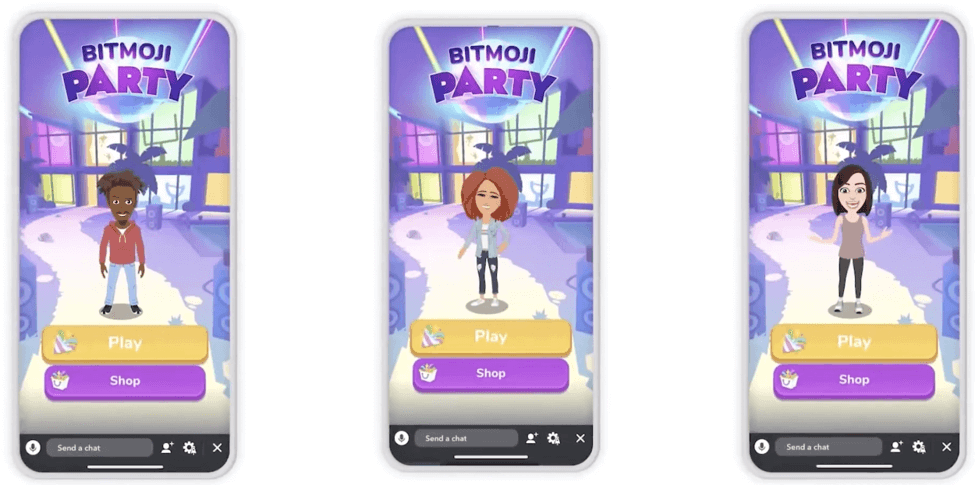
Games are Available on Snapchat
Image Source: iDownloadBlog
Name of the game What’s the game about Developed by
Bitmoji Party  Similar to Mario Party, it consists of five minigames. Prettygreat
Alphabear Hustle Word game SpryFox
CATS Drift Racing Multiplayer racing game ZeptoLab
Snake Squad Reconceptualization of the classic game – Snake Game Closure
Tiny Royale Type of Battle Royale game Zynga
Zombie Rescue Squad Zombie apocalypse game PikPok

How to Play Games on Snapchat?

So, as you already know that games can be accessed from the Chat window, therefore you can launch a game in the following way:

Launching Snap Games

  • As you swipe right to the Friends screen, you can either tap on a single Chat or Group Chat.
  • Here you will be able to see the “rocket” button which you can hit to open the “Game Drawer.” The “Game Drawer” hosts all the games.
  • Finally, you can select a game of your choice and tap it to launch the game.
  • You can assign a display name for yourself before you start playing a game.

Invite Friends to Play a Game

As soon as you launch a game, everyone in the Chat will receive a notification to join the game with you. Additionally, they will receive a message too about the game that you started playing. 

All they need to do is tap the game icon to start playing the game with you. Thus in this way you can play a game on Snapchat with your friends.

Read More: How to Play PlayStation Games on Your PC

Exit a Game

If you wish to quit playing a game, tap on the cross icon at the bottom of the screen. You will further receive a prompt confirming whether you really wish to leave the game; so, you can tap on “Leave” to completely exit from the game.

How to Gain Rewards From Videos

If you are in dire need of points, then you can watch videos to earn rewards like coins or items. These in-game rewards can only be collected by watching a video ad entirely.

Control Game Activity Notifications

If you wish to turn off game activity notifications from your friends or groups, then you can use the below steps:

  • Go to the Chat screen.
  • Tap on friend or Group Bitmoji icon to open that particular profile. 
  • Tap on the three-dotted icon located at the top.
  • Tap the game notifications setting and make the needed changes.

Summing Up

What could be more interesting than playing games on Snapchat? Snapchat was already preferred by people for its chat service, fantastically funny filters, stickers, and the Bitmojis.

The “My Story” feature was first introduced by Snapchat but soon became more popular on other platforms like Instagram and Facebook. 

It is therefore, being presumed that Snapchat is introducing gaming to increase its popularity and user base as it is still not outperforming other social media platforms despite featuring interesting functions. With the arrival of games, Snapchat will assuredly attract more users.

Thus, keep your gaming spirit high as you now know how to play Snapchat games with your friends.

Author

Snigdha

Snigdha is a technical content writer with expertise in the field of science & technology. Though she has a very diverse academic and professional profile yet she finds writing to be a creative form that she was unable to explore so far. When not writing, she can be found indulging in other forms of creativity like painting or travelling.

View all posts

Related Posts
How to Fix DirectDraw Error in Windows 10, 11 (FIXED)

How to Fix DirectDraw Error in Windows 10, 11 (FIXED)

April 3, 2023
0

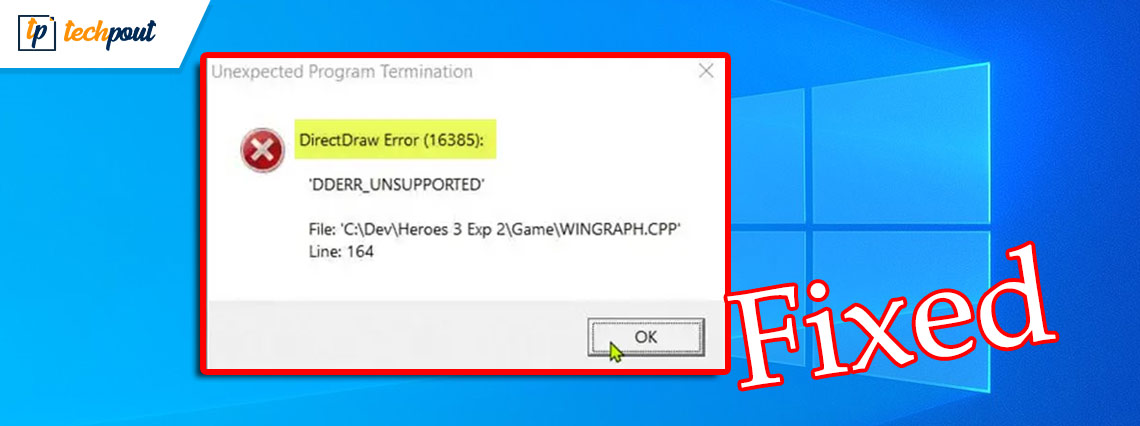
Here is a simple guide that will allow you to fix DirectDraw error on Windows 11/10 very easily. 

DirectDraw is an app or API for Windows devices that enhance the 2D imaging in various apps. Although the API is quite old, some devices still use the same for 2D imaging. You can run various tools and software using this API but, at times, when the system fails to read the API, your system shows the DirectDraw error.

This error is quite common in Windows 11 and Windows 10 devices and appears repeatedly if you don’t do anything to fix it.

With the help of this guide, we will explain some methods to fix DirectDraw Windows 10/11 error with ease.

Solutions to Fix DirectDraw Error Windows 11

Below are some easy solutions that will allow you to get rid of all the errors related to DirectDraw Windows 11/10 and fix the DirectDraw error right away with ease. We suggest that you follow the solutions chronologically until the issue is resolved.

Fix 1: Ensure that DirectX is Updated

The first thing that you should do if the DirectDraw errors appear is to check whether the DirectX installed on your system is up to date or not. DirectX allows the system to make the best out of your graphics cards and run various games, software, and utilities with ease on Windows. You can easily ensure the update using the Windows DirectX Diagnostic Tool. Follow these steps below to know how to use the utility:

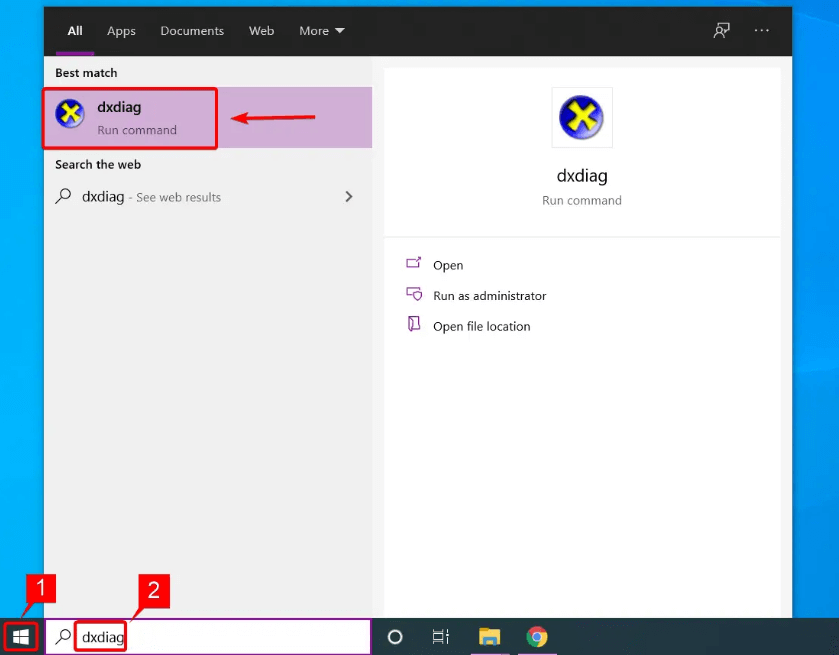
  1. Press the Win+S keys, type dxdiag, and press Enter to proceed.Select Best match Result To Open DirectX Diagnostic Tool
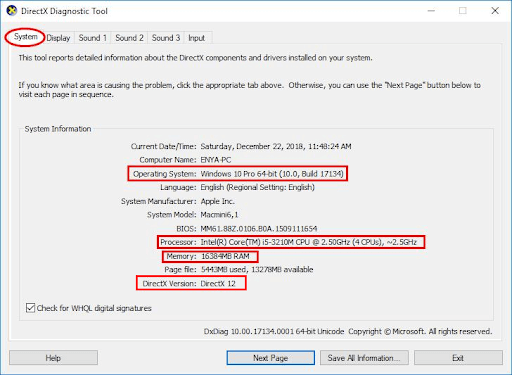
  2. Wait for the DirectX Diagnostic Tool to load. Check for the DirectX Version under the System tab. For your reference, we are sharing the DirectX Version that should be available on Windows with the table below
DirectX Version Windows Version
DirectX V11.3 or V12 Windows 10/11
DirectX V11.2 Windows 8.1
DirectX V11.1 Windows 8
DirectX V11.0 Windows 7

Directx Diagnostic tool window

If the DirectX version is outdated, then you can visit the official website of the provider to download the DirectX End-User Runtime Web Installer and use the same to install the latest and supported version on your Windows device.

If you find that the version of DirectX is already up to date, then you should try the next solution to fix DirectDraw Windows 11.

Also Read: [Fixed] DirectX Encountered an Unrecoverable Error


Fix 2: Enable DirectX, DirectPlay, and DirectDraw

The next solution that you can try to fix the DirectDraw error on Windows 11/10 is to enable some settings related to DirectX and DirectDraw. Sometimes, the system disables certain features of DirectX to make it run properly. However, instead of running proly, it may cause such problems. The best fix for this problem is to enable all the services using the steps below:

  1. Press the Win+S keys, type dxdiag, and press Enter to proceed.Select Best match Result To Open DirectX Diagnostic Tool
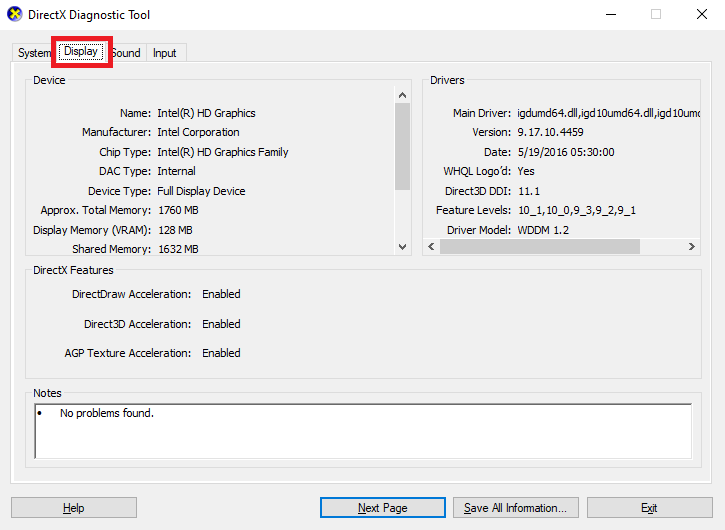
  2. Click on the Display tab.Display - DirectX Diagnostic tool
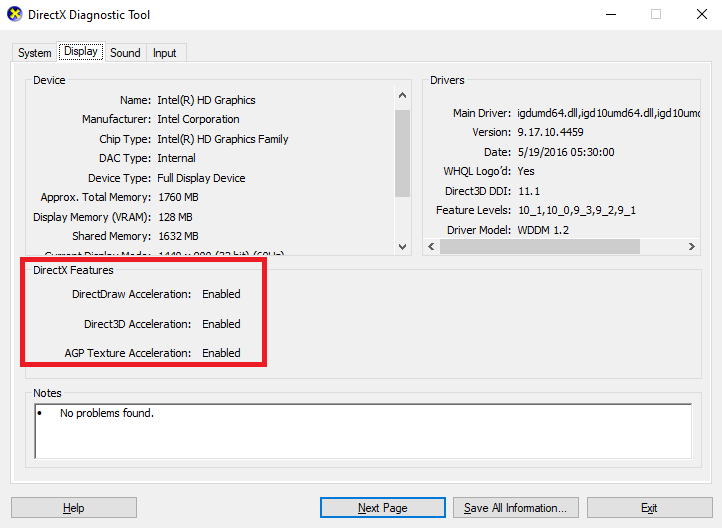
  3. Under the DirectX Features section, look for DirectDraw Acceleration and Direct3D Acceleration and ensure that both are Enabled.DirectX Features
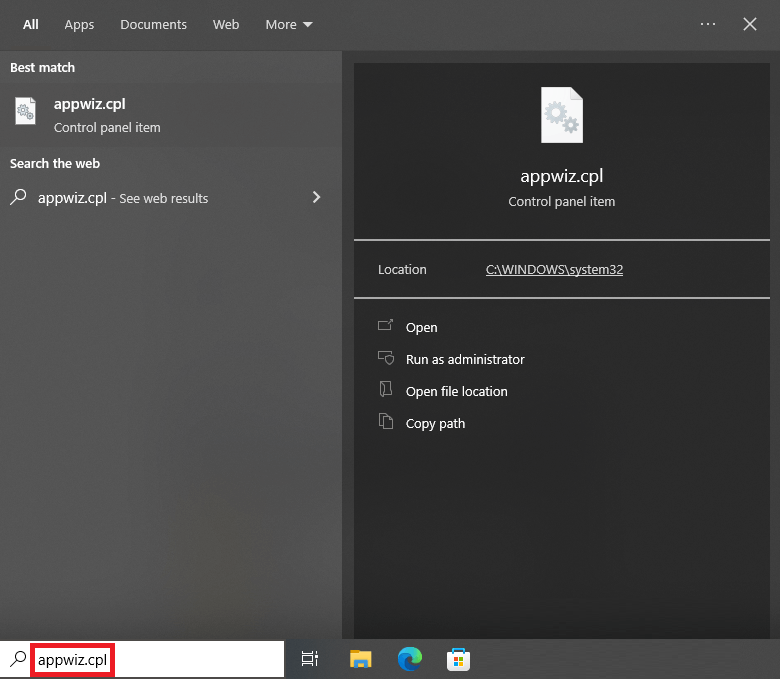
  4. If either of the two is disabled, press the Win+S keys, copy and paste appwiz.cpl, and press Enter.Open appwiz(dot)cpl
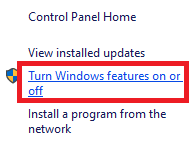
  5. On the left section, click on Turn Windows features on or off.Turn Windows features on or off
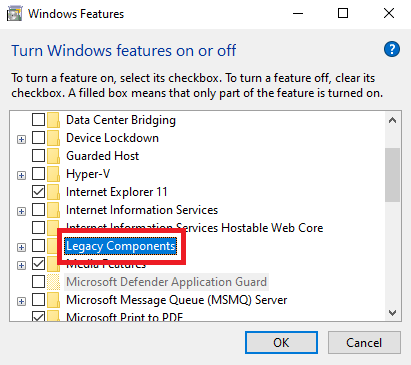
  6. Look for Legacy Components in the menu and click on Plus (+) to expand.Look for Legacy Components
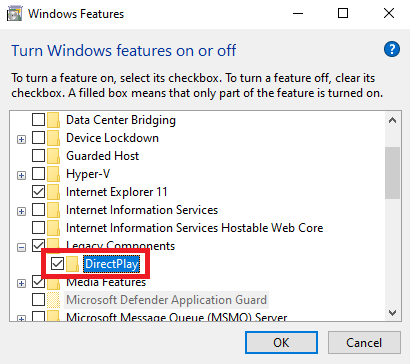
  7. Tick mark the box across DirectPlay to continue and click on Ok.Tick mark the box across DirectPlay

If this solution does not work for you, then you can try the next alternative that will surely fix the problem with ease.

Also Read: How to Update DirectX to Latest Version in Windows 10 {Quick Tips}


Fix 3: Update the Graphics Driver to Fix the DirectDraw Error on Windows

Outdated drivers are one of the most common reasons why the errors related to DirectDraw Windows 11/10 may appear. When the drivers are outdated, the system fails to communicate with the hardware smoothly and starts causing different troubles. So, the best solution to fix such problems is to update the drivers.

There are multiple ways to download and install any driver. For example, you can seek the help of the official website, use the Device Manager, or download a third-party tool. Out of the three, the last one is the perfect and easiest solution to update drivers. There are multiple third-party tools that you can use. However, all of these are not viable or reliable.

Hence, you should use the best driver updater tool named Bit Driver Updater for ease. This is an amazing solution that offers multiple functionalities like single-click updates, active driver backups, options to restore drivers, the facility to ignore the updates for any driver, and more.

Follow the steps provided below to know how to use Bit Driver Updater and fix the DirectDraw error:

  1. Using the below button, download the Bit Driver Updater setup.Windows Download Button
  2. Install the software and run it on the system.
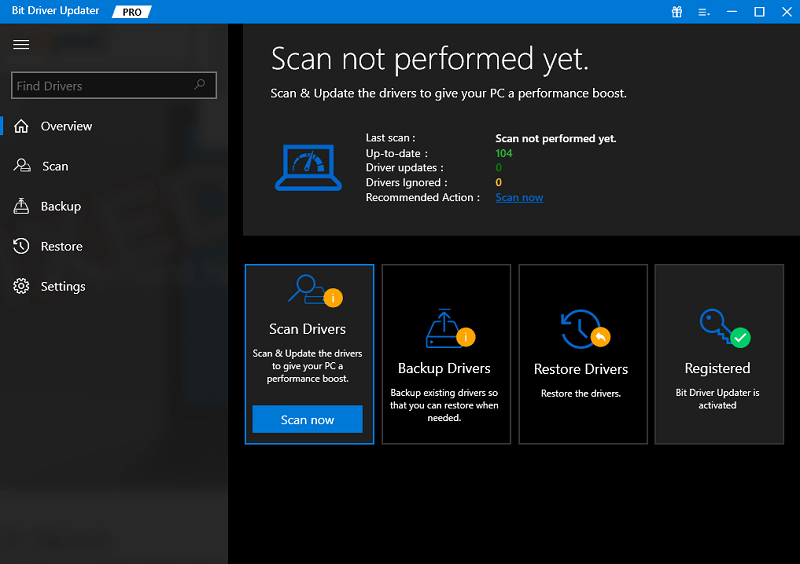
  3. The tool will start scanning your system for the latest updates automatically. If the scan does not start due to any reason, click on the Scan Now button.Scan outdated driver of your windows pc
  4. After the list of updates appears, click on the Update All button to install the newest version of all the drivers.Update all outdated driver of your windows pc
  5. Restart the system when the tool asks you to restart.

The above is an easy solution that allows you to fix the problem right away in most cases. However, if due for one reason or another the DirectDraw problem on Windows persists, follow the last and the ultimate solution.


Fix 4: Run in Compatibility Mode

If you are facing the DirectDraw error in a particular game, app, or software, then you need to run the same in the compatibility mode. This will allow the system to get the required settings to run freely. Follow the steps provided below and run anything you want perfectly:

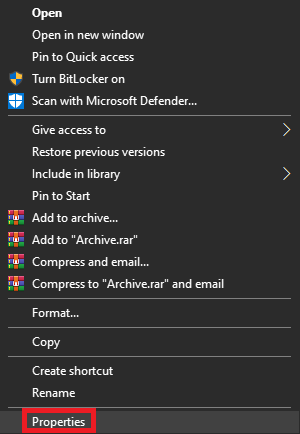
  1. Right-click on the game or app you want to run and open its Properties.Properties
  2. Go to the Compatibility tab to proceed.
  3. Check the box of Run in 640 x 480 screen resolution and click on Ok.

DirectDraw Error in Windows 10, 11: Fixed

Here we are going to sum up this entire thread of articles on how to fix DirectDraw Windows 10. We hope that by using one or more of these solutions, you can easily get rid of the issue. However, if you need any kind of assistance with any topic, then you can seek our help using the comments section below. Explain your doubts and get the perfect solutions for the same.

If you liked this problem-solving guide on DirectDraw error, then subscribe to our newsletter. Follow us on Facebook, Twitter, Instagram, and Pinterest.

Logitech G430 Gaming Headset Driver Download for Windows 10, 11

Logitech G430 Gaming Headset Driver Download for Windows 10, 11

February 12, 2024
0

Here’s the complete guide to help you download and update the Logitech G430 gaming headset driver for Windows 10/11 with ease and run the gaming headset perfectly.

Logitech is one of the most popular brands offering different gaming devices. The electronics giant is world-renowned for offering affordable gaming devices globally. From keyboards, mice, and more to headsets, microphones, and more, Logitech offers everything to you. One such device from the brand is the Logitech G430 gaming headset.

This is an amazing gaming headset that allows you to enjoy the most realistic audio experience while playing games. Moreover, the built-in mic of the headset is noise-reducing as well. It’s quite easy to use the headset as all you need to do is plug it in and enjoy. However, at times you may face some problems while using it.

The most common solution to any problem related to the headset is to update the driver for the Logitech G430 gaming headset. Doing this will ensure that your system runs the headset perfectly. So, check out the ways to do the same below.

How to Download and Update the Logitech G430 Headset Drivers

In the coming sections of this guide, you will find four different methods to execute the Logitech G430 gaming headset driver for Windows 11/10. You can use any of the solutions as suited to download the required driver and install it.

Method 1: Take the Help of the Official Website

One of the most trusted ways to download the driver for the Logitech G430 gaming headset is using the official website. You can visit the official website of Logitech and download the driver from there. For this, follow the instructions provided below:

  1. Visit the official website of Logitech.
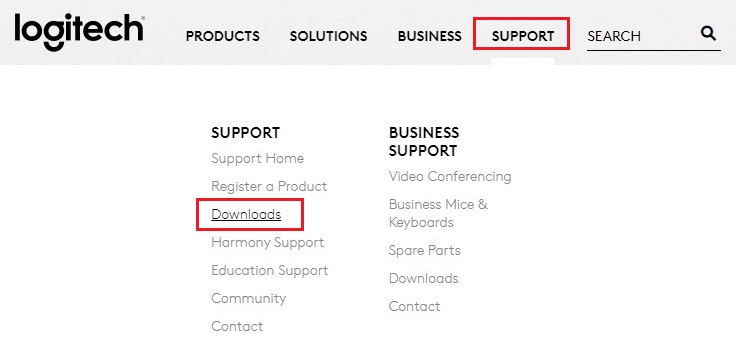
  2. Take the cursor to Support and then click on Downloads.support and download logitech
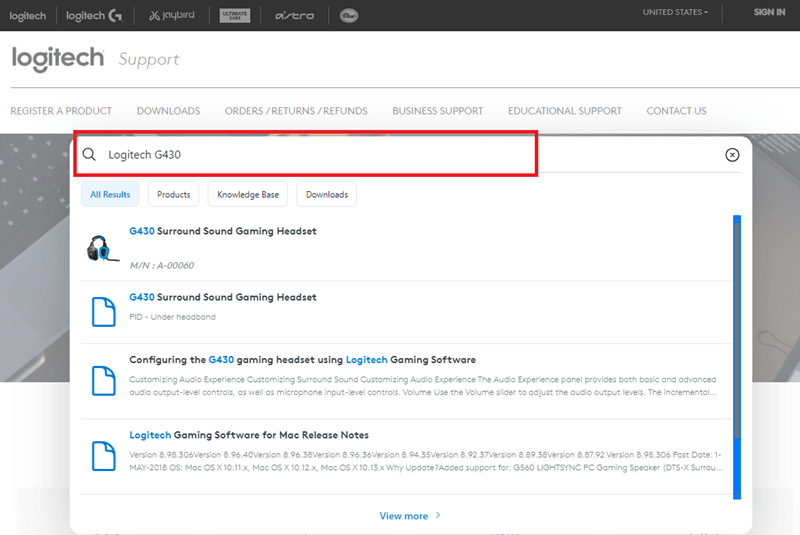
  3. Search for Logitech G430 and press Enter.Search for Logitech G430
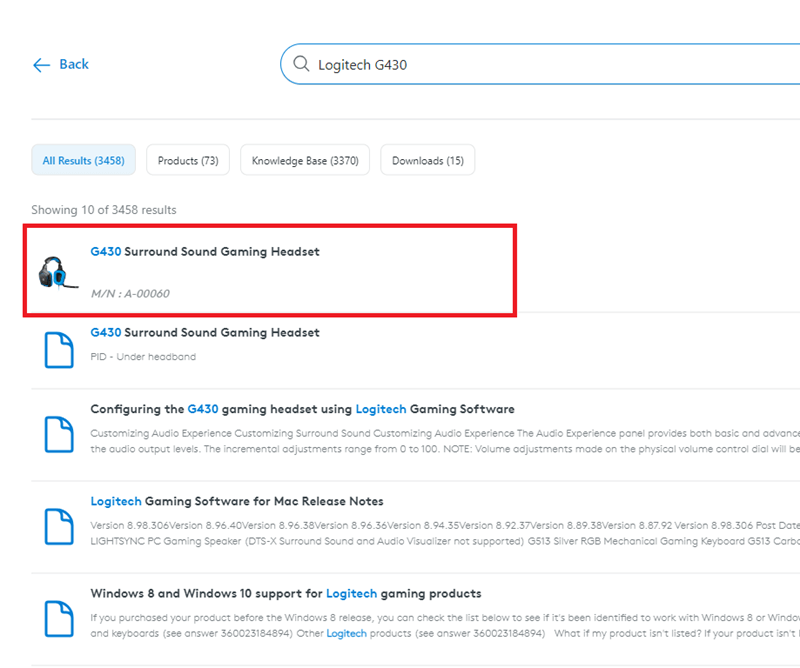
  4. Click on the first result stating G430 Surround Sound Gaming Headset.G430 Surround Sound Gaming Headset
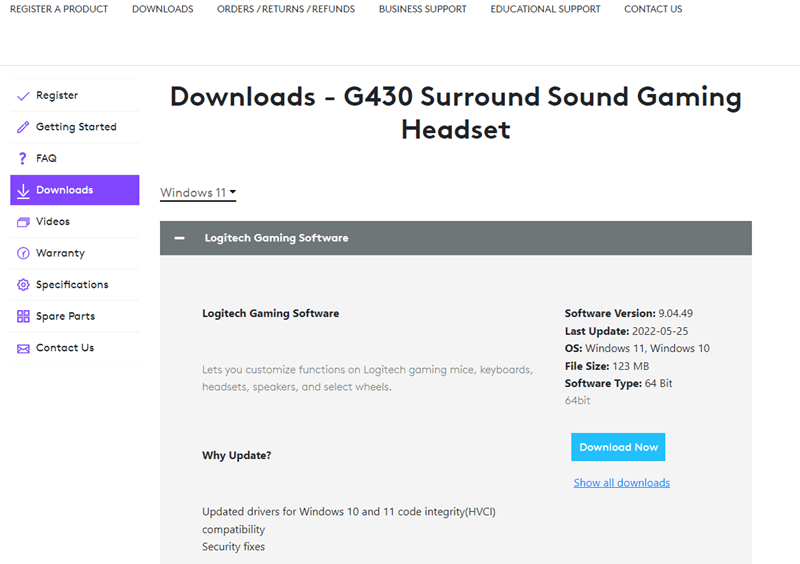
  5. Click on Downloads and then download the required driver from the results.G430 Surround Sound Gaming Headset Download driver
  6. When the driver is downloaded, install it.

If you want another method to execute the Logitech G430 gaming headset driver download, then check out the next section.

Also Read: How to Update Logitech Mouse Driver In Windows 11,10 PC


Method 2: Take the Help of the Device Manager for Logitech G430 Headset Drivers

So, another great solution to update the driver for the Logitech G430 gaming headset is to use the Device Manager. This is a simple yet effective solution that requires you to follow the below steps:

  1. First, press the Win+X to bring up the Windows context menu and open the Device Manager from there.Select Device manager
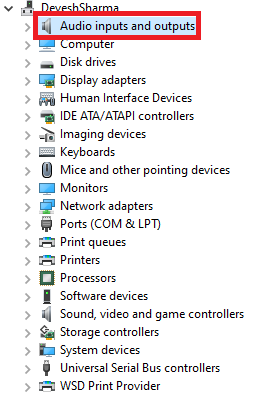
  2. When the tool appears, double-click on the Audio Inputs and Outputs category.Audio inputs and outputs
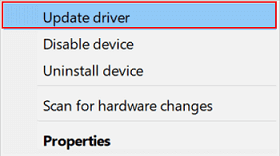
  3. Look for the Logitech G430 device, right-click on it, and select Update Driver.Update the Driver in windows 10, 11 PC
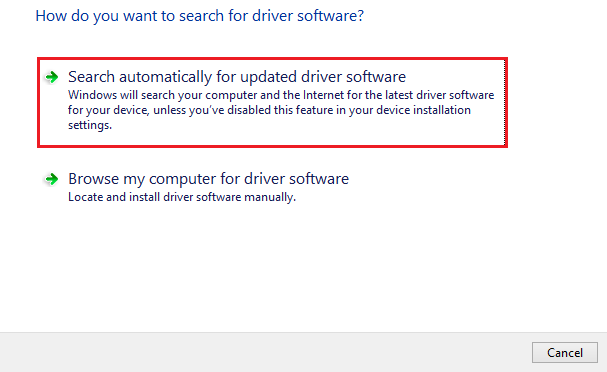
  4. To proceed, click on Search for Driver Updates Automatically.Search Automatically for Updated Driver Software
  5. Now, all you need to do is follow the instructions that appear and restart the system afterward.

If you want another solution to execute the Logitech G430 gaming headset driver update for Windows 10/11, try the next one.

Also Read: How to Fix Logitech G930 Headset Driver Problems on Windows 10


Method 3: Use the Windows Update Utility for Driver Updates

Here’s another optimal solution to execute the Logitech G430 headset drivers download and update. You can take the help of the Windows Update utility to update any kind of driver. Follow the instructions provided below to learn more:

  1. First, press the Win+S keys and type Settings. Press Enter to open Windows Settings.
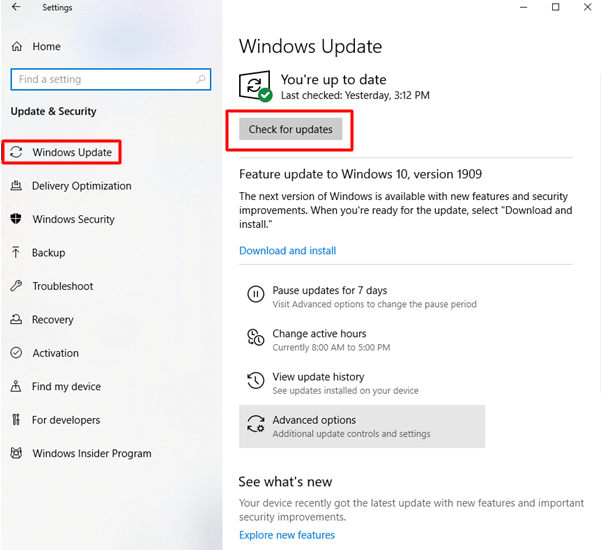
  2. Click on Update and Security to proceed.Click on Updates and Security
  3. When the utility launches, click on the Check for Updates button.Check for Updates Button
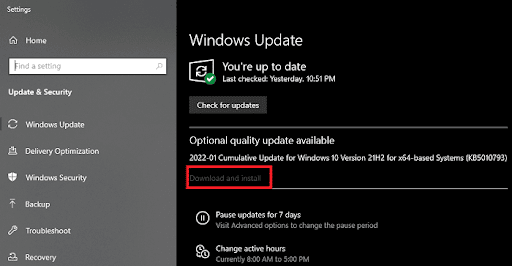
  4. The tool will now look for the system and other available updates. Download and install the updates that appear.Click on Download and Install

All the above methods to execute the Logitech G430 gaming headset driver update are manual. Hence, it may take a lot of time and effort. Try the automatic method provided below for ease.

Also Read: How to Fix Logitech G935 Mic Not Working in PC


Method 4: Download and Use Win Riser for Driver Updates (Automatic)

Here’s the best solution to execute the Logitech G430 headset drivers download and update. Win Riser is an automatic tool that allows you to update drivers, delete malware, remove junk, and fix the registry. Thus, all in all, this is an ultimate tool that gets rid of driver-related problems as well as improves the overall performance of the device. The tool offers a plethora of other features and functionalities. Follow the instructions below to learn more:

  1. Click on the button below to download the Win Riser tool and install it.Download-Button
  2. When the installation is complete, the tool will automatically launch and start scanning the system for errors.
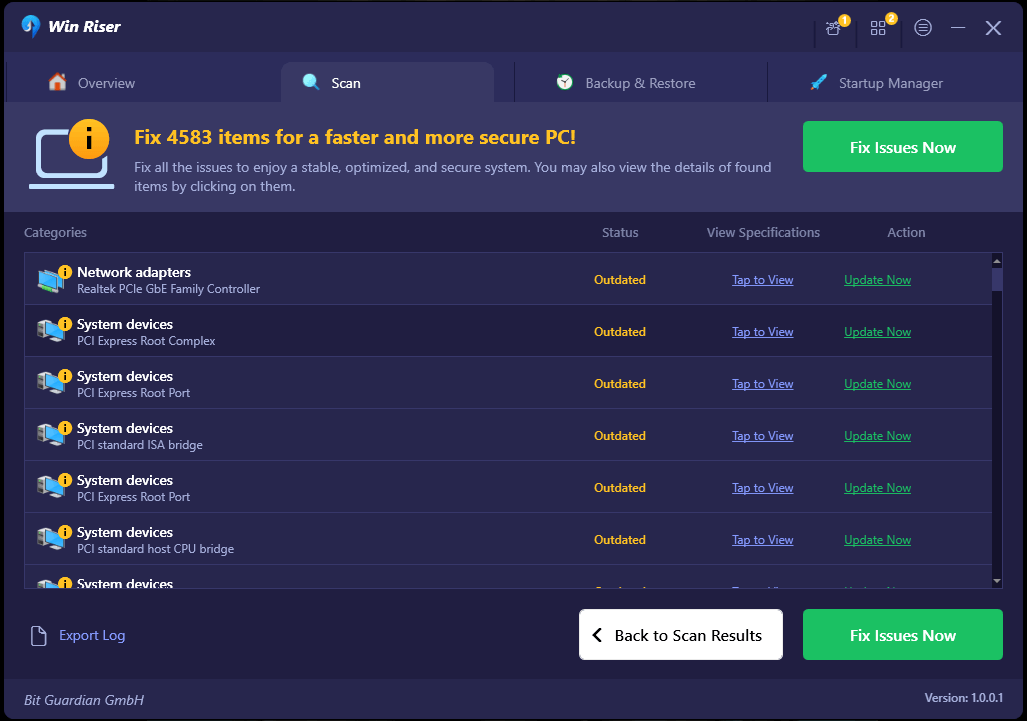
  3. When the errors or issues appear, click on the Fix Issues Now button to update the Logitech G430 gaming headset driver.Win Riser Update the All Outdated Driver Click On Fixes Now
  4. Restart the system when the entire process is complete.

Also Read: How to Fix Logitech G HUB Not Loading on Windows 11, 10, 8, 7


Logitech G430 Headset Drivers Download and Update: Completed

So, above are some of the best ways to download and install the Logitech G430 gaming headset driver for Windows 11/10. Follow any solution to download the required driver. However, for better ease and results, use the automatic one. If you are satisfied with the above guide on how to install the Logitech G430 headset drivers, then follow our social media pages and subscribe to our newsletter. Also, ask your queries or share suggestions in the comments below.

1 Comment
    Khuram says: Reply
    April 16th 2020, 10:14 pm

    Hi, Very good article. Thanks for sharing, keep up the good work.

Leave a Reply Cancel reply

Your email address will not be published. Required fields are marked *

Sidebar Image bit G ad1

Latest Posts

  • Anytime Astro: Best Website For Online Astrology Consultation
    Anytime Astro: Connect Now For Online Astrology Consultation
    by Somya Shrimal / March 13, 2026
  • Best-Ways-to-Combine-Images-Into-PDF-Files
    Best Ways to Combine Images Into PDF Files
    by Niharika / March 12, 2026
  • Best FREE VPS Hosting Providers
    7 Best FREE VPS Hosting Providers in 2026
    by Devesh / March 12, 2026
  • Best-McAfee-alternative-software-to-use-for-Virus-Protection
    Best McAfee Alternative Software to use for Virus Protection
    by adminuser / February 11, 2026
  • What-is-Flip-Flop-in-Circuite-and-it's-Types
    What is Flip Flop in Circuit and its Types
    by Meet / February 6, 2026

Categories

  • Cyber Security
  • Driver Updater
  • Entertainment
  • Fitness
  • Games
  • How To
  • laptop
  • OS
  • Reviews
  • Tech News
  • Tips & Tricks
  • Top 10
Sidebar Image bit G ad1
Major-Tech Events Affected by Coronavirus List of All Major Tech Events Affected by Coronavirusby Jay Galiyal / March 5, 2020
How to Delete Gmail Messages in Bulkby Prachi Dani / March 6, 2020Delete Gmail Messages in Bulk
TechPout Footer Logo

We at TechPout promise to put forth stories that help people to learn and simplify their digital life. Our purpose is to share the true essence of technology with our tech-loving community.

Useful Links

  • About Us
  • Contact us
  • Privacy Policy

Popular Posts

  • Best PC Optimizer Software
  • Best Mac Cleaner Apps
  • Best Driver Updater
  • Duplicate Photo Finder and Cleaner Software
  • Best Free Movie Download Sites
  • Best IPTV Players

Follow us

Copyright © 2026 www.techpout.com. All rights reserved
DMCA.com Protection Status