The issue of stick drift might be very frustrating because it leads to the characters moving on their own. This issue can affect the entire game of yours, and you end up with questions like ‘How to Fix Stick Drift’. There are some methods you can use by yourself without any professional interference. Those methods involve a lot of temporary and permanent solutions with methods you can use to fix the issue.
And here are the primary causes that lead you to this, and more of that in this article you will find the temporary and permanent fixes for this issue.
Causes to Fix the Stick Drift
There are several reasons that might cause interference in the gaming experience, and it might lead to results in moving errors of characters in the games. And it is very important to be aware of all the reasons for this issue.
1. Mechanical Causes
These are the main causes for the issues with stick drift and most of the gaming controllers which rely on physical contact. After some time, you will face a lot of internal parts that will tear down and the electrical signals become unstable.
2. Dust & Debris
There are a lot of dust particles piled up under the thumb sticks after some time and micro debris interfere with the sensors on the controller.
3. Signal Issues
Unstable calibration and connections can lead to an unclear drift behavior and mainly with the unstable Bluetooth connections.
How to Fix Stick Drift
There are some methods you can use by yourself without any professional interference. To fix a stick drift on a PC, you can follow the steps and process mentioned below.
For Console Controller
To fix stick drift on ps5, there are some methods you can use by yourself without any professional interference.
1. Reset to Fix Stick Drift on PS5
To answer the question ‘How to fix stick drift in Xbox?’ you need to rest your controller as your first step to fix a stick drift on ps5. For that, you can press and hold the button present on the back of the controller for 5 seconds.
2. Clean The Controller
There can be dust and dirt piled up in the controller which needs to be cleaned regularly so that it does not disturb the usage.
To clean your controller, you can use these following things:
- Compressed air
- Cleaning alcohol like Isopropyl
- You can also use a cotton swab to clean your controller
3. Update the Firmware
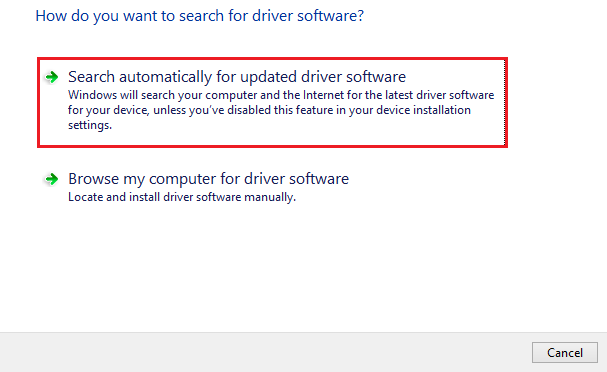
An outdated controller can be a problem to even use in the very first place. You can do update the firmware by using these steps:
Step 1: Plug in the controller into your system. You can also use a USB universal driver or connect using Bluetooth.
Step 2: You will see the option of Update on your screen if your controller needs one. Click on the update button and if you see and if not then your controller is up to date.
4. Adjust the Input Threshold
Another method to resolve the question ‘How to fix stick drift in Xbox?’ You can simply adjust the input for the threshold and make sure that dead zone settings are not available in every game.
5. Replace the Analog Sticks
Another method to fix the stick drift in game controller, but this needs to have a very good amount of skill because you need to be taking part and resembling the controller.
6. Clean your Joystick
Before you set up USB joystick on pc, you need to clean it thoroughly. And to clean your joystick, you need to follow the given steps:
Step 1: Turn off the controller.
Step 2: You can use some compressed air around to clean the stick thoroughly.
Step 3: Make sure to rotate the joystick while cleaning it with compressed air.
Also know: How to Download Gamepad Driver For Windows PC
Meta Controller
You can also fix stick drift on PS 5 even if you use a meta controller.
1. Reset Controller
The most basic process to fix the stick drift in a game controller is to reset the controller, which helps in eliminating all the minor glitches.
2. Recalibrate the Controller
To recalibrate the controller, you need to follow the given steps:
Step 1: You need to press the Oculus button present on the right side of the controller. It will take you to the main menu.
Step 2: Find ‘Settings’ and open it. Then aim the controller to the item like select menu.
Step 3: From the search bar, search for ‘Dead zone’ and press enter.
Step 4: Select the ‘Thumb Stick Range and Dead zone’ and this will bring you to the controller menu.
Step 5: Look for ‘Reset Left’ or ‘Reset Right’ present next to the ‘Thumb Stick Range and Dead zone’ by this you can allow your controller to reset the calibration.
3. Re-pair the Controller
To re-pair the controller, you should follow these steps:
Step 1: Open the Menu.
Step 2: And go to the ‘Device’ option and select the name of your headset.
Step 3: Go to the controller. Select your Controller and unpair them.
And to re-pair those controllers, here are the steps:
Step 1: Open the Menu.
Step 2: And go to the ‘Device’ option and search for the name of your headset.
Step 3: Go to the controller. Select the name of your controller and select ‘Connect’.
Some Permanent Fixes
Although even after using some methods mentioned above these are some of the temporary fixes for the question, ‘How to fix stick drift?’. There are some of the permanent fixes you can try to fix your controller.
1. Hall Effect Technology
The hall effect technology is used to fix the stick drift in controllers without physical contact because it uses magnetic sensors. It requires no mechanical wear. And it provides you with more stable signal outputs. It has a longer lifespan. Using this technology, the issue of stick drift significantly reduced.
2. TMR Technology
This method is called Tunneling Magnetoresistance which is the improved technology from the hall effect. It provides you with a controller with a higher university. And there will be more precise micro movements after using this technology. This technology also provides you with a better and longer-term consistency. And offers more stable signal detection when you use this technology also.
Also know: How to Connect a USB Gamepad to a Laptop
Frequently Asked Questions (FAQs)
Q1. Is there any way to fix the controller without disassembling it?
Ans. Yes, you can clean the controller with compressed air and alcohol. You can also use the method to recalibrate through the console settings and updating the firmware. Apart from this, you can also increase the number of dead zones.
Q2. Are there any ways to prevent the controller from drifting completely?
Ans. You can keep your controller safe from drifting completely by taking proper care of traditional controllers. But you can truly prevent the controllers by preventing it with all the mechanical measures as well.
Q3. What are the primary reasons for the controller to cause thumb to stick to drift?
Ans. The main reason for the controller to cause thumb stick drift is the dust piled up on the controller and multiple calibration errors.
The problem with the controller gets too frustrating a lot of times, but it is controllable and fixes stick drift on PC using methods like cleaning, calibration, and dead zones. Ad modern gaming demands more precision and much more reliability. This might provide some temporary relief to the gamers, but you might seek professional interference for some permanent help and solution.