Main LogoLight Logo
  • Reviews
  • Top 10
  • How To
  • Tech News
  • OS
    • Windows
    • MAC
    • iOS
    • Android
  • Categories
    • Driver Updater
    • Cyber Security
    • Games
    • Fitness
    • Entertainment
    • Tips & Tricks
Driver Updater How To Windows
by Snigdha

Xbox One Controller Driver Download and Update for Windows 10, 11

January 6, 2023
1

This post shares the quick and easy ways to download, install, and update Xbox One Controller driver on Windows 10, 8 and 7. Read on to know more.

Xbox One controller is the ultimate game controller that you could lay your hands upon to play the most interactive virtual games on your computer. But when you connect the controller to your PC and discover that you are not able to play your favourite games with the controller, then it might be disheartening for you.

If you are wondering what could be the reason, then there is a high possibility that the Windows 10 Xbox One controller driver is not installed on your computer. Yes, you read that right!

Though drivers automatically install in the Windows PC as soon as the controller is connected to it yet at times it may not install on its own. So, this blog is going to help you learn how to download Microsoft Xbox controller driver for Windows 10 and install it step by step.

Highly Recommended Method to Download & Update Xbox One Controller Driver

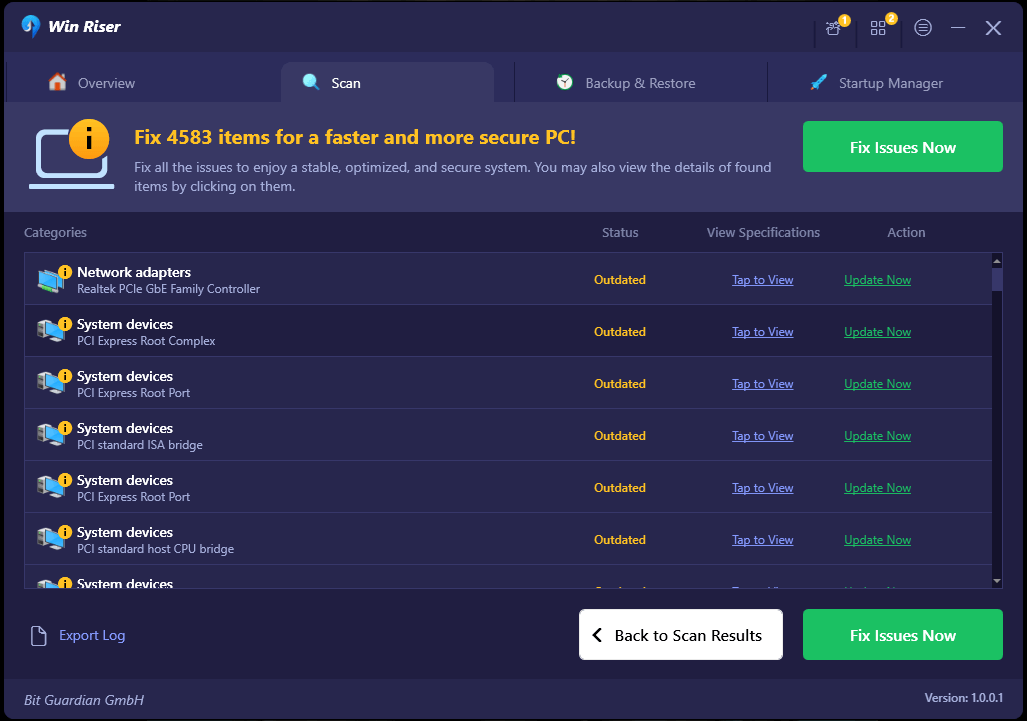
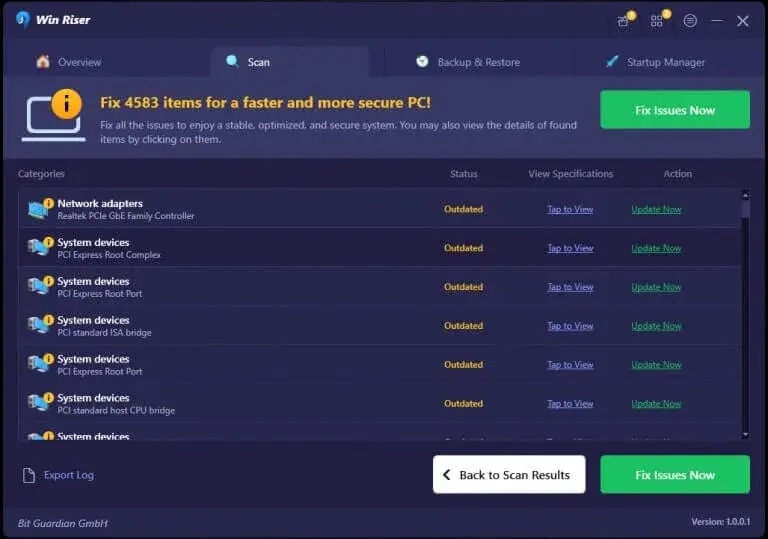
Win Riser a Driver Update tool is the ultimate experts-recommended solution to perform the Xbox Controller driver download task in just a matter of moments. It not only helps update outdated drivers but also accelerates the performance of your whole system. Additionally, you can even create a backup of the drivers and use them to restore an earlier version if the need ever arises. Get this magnificent tool for free, by clicking on the below download tab!

Windows-Download-Button

Table of Contents show
How to Download and Install Xbox One Controller Driver for Windows 10, 8, 7
Way 1: Get Microsoft Xbox One Controller Driver Using The Driver CD/DVD
Way 2: Get Microsoft Xbox Controller Driver With Windows Update
Way 3: Get Microsoft Xbox One Controller Driver Using Device Manager
Way 4: Download & Update Xbox One Controller Drivers Automatically With Bit Driver Updater (Experts-Recommended)
Way 5: Download the Xbox Controller Driver via Microsoft Update Catalog Site
Way 6: Update the Xbox Controller’s Firmware Using the Using Xbox Accessories App
Way 7: Update the Xbox One Controller Driver Using a USB Cable
Frequently Asked Questions (FAQs)

How to Download and Install Xbox One Controller Driver for Windows 10, 8, 7

In the below segment, let us focus on the ways to download, install, and update the Xbox One controller PC driver.

Way 1: Get Microsoft Xbox One Controller Driver Using The Driver CD/DVD

Although an ancient method, yet sometimes it might come as a handy option for downloading and installing the Xbox controller driver for Windows 7. If you have the driver CD or DVD for the controller, then you can utilize the below steps to install it:

  • Open the computer’s CD drive and insert the Xbox One controller driver CD/DVD in it.
  • Launch “My Computer” on your Windows 7 PC.
  • Double-click on the new CD drive to run it for installation. If it fails to launch, then double-click the “.exe extension” file from the CD directory.
  • Keep navigating through the on-screen instructions to complete the installation of the Xbox One controller driver for Windows 7.

Way 2: Get Microsoft Xbox Controller Driver With Windows Update

Another way of installing and updating drivers on your computer is offered by Microsoft itself.

As Windows constantly checks for the latest available updates of various drivers and Microsoft applications, therefore you can conveniently utilize this method to get the right drivers for your PC. You can follow the below steps to download Xbox One controller driver and install it using the Windows built-in update functionality.

  • You have to first go to the Settings app of your Windows 10 PC.
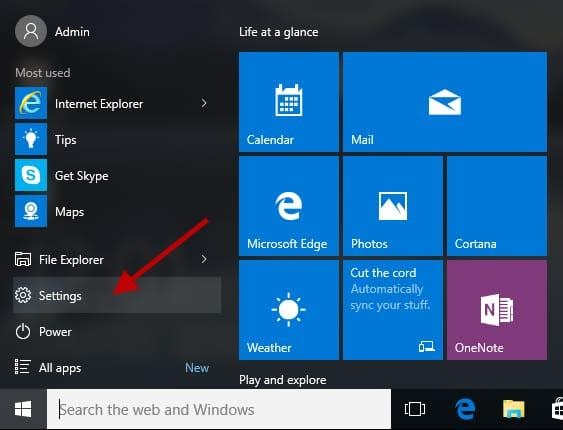
    Select The Settings Option
  • In the Settings window, we will find a number of options in front of us from which you have to click on Update & Security.
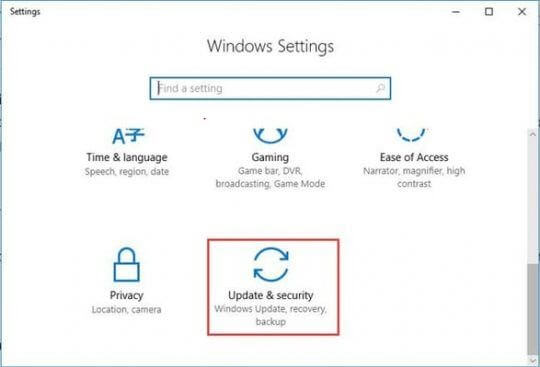
    Click On The Update & Security Option
  • Next, tap on Windows Update located on the side panel.
  • On the main window, hit the Check for Updates button.
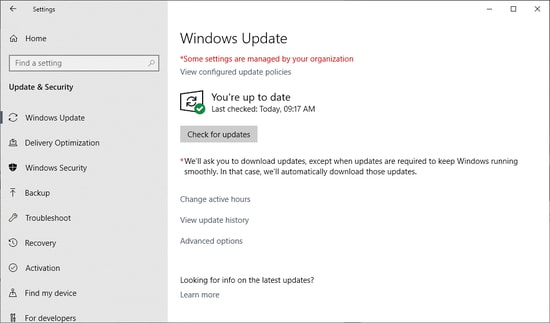
tap on Windows Update

  • Wait till the installation process of the Xbox controller driver gets over and then reboot the computer.

Read Also: Best Game Booster for Windows PC


Way 3: Get Microsoft Xbox One Controller Driver Using Device Manager

You can also make use of the Control Panel applet named Device Manager to manually download Xbox controller driver and install it on your Windows laptop or desktop computer. You can follow the below steps for the same.

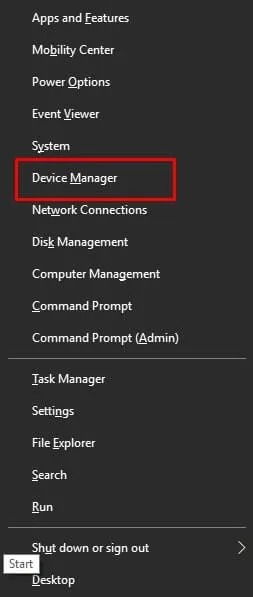
  • Type device manager in the Windows search box near the Start button and select the Best match result.
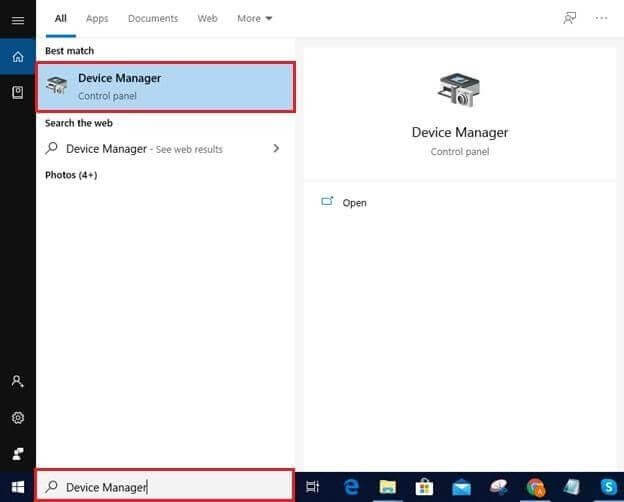
    Type Device Manager In Search Box Near Start Button
  • After the Device Manager opens, expand the “Microsoft Xbox One Controller” category by clicking on it.
  • Right-click on the device and choose the “Update Driver Software” option from the context menu.
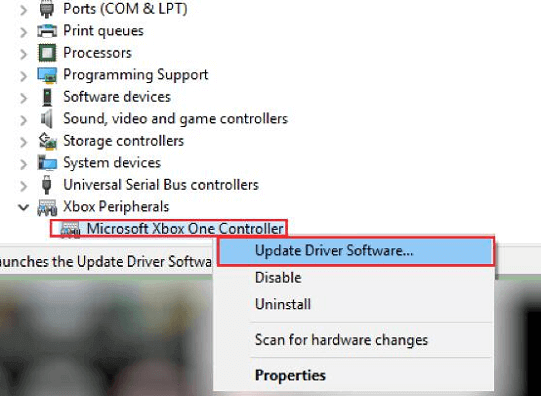
    Choose Update Driver Software From The Menu List
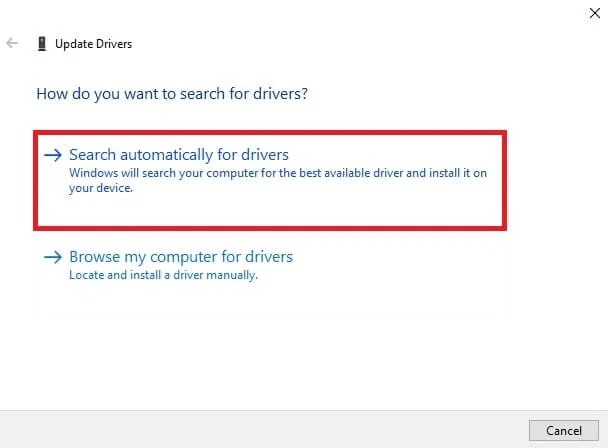
  • Then, choose the “Search automatically for updated driver software” option.
  • Now, wait for Windows to find and install the latest version of Xbox controller driver for your device.
  • After the completion of the installation process, restart your computer.

Also Read: Solve Xbox One Controller Keeps Disconnecting Issue


Way 4: Download & Update Xbox One Controller Drivers Automatically With Bit Driver Updater (Experts-Recommended)

Are you looking for a robust, timesaving, and reliable method to download and install Windows 10 Xbox controller driver?

If so, then get the Bit Driver Updater tool to download Xbox One controller driver and install it on your computer so that you can enjoy smooth and hassle-free gameplay, always. The important steps for the same have been outlined below:
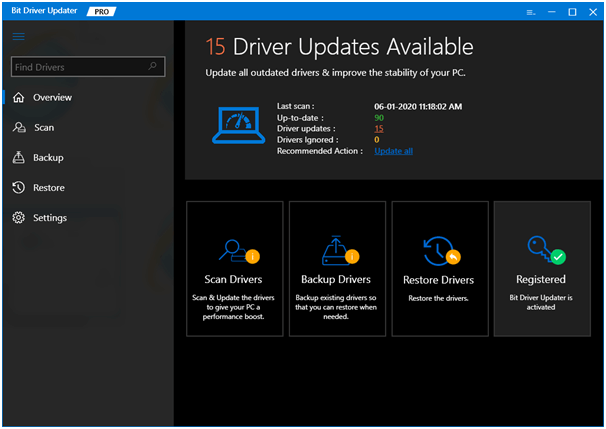
Bit Driver Updater - Best Driver Updater Software

  • Install Bit Driver Updater by clicking the download button.

Windows Download Button

  • Then, hit the Scan button to initiate scanning and detection of missing drivers.
  • After scanning is complete, then tap on the Update Now button to initiate and complete the auto-installation of Xbox controller driver for Windows 10.
  • Restart the system once to make the installation effective.

Read Also: Top Free Driver Update Program


Way 5: Download the Xbox Controller Driver via Microsoft Update Catalog Site

The Microsoft Update Catalog website is a great place to download and install Xbox One controller drivers on Windows 10. Here are the steps you need to perform for the same.

  • Visit the Microsoft Update Catalog page.
  • Type Xbox controller driver in the search box and click on the Search button.
  • Click the “Download” button next to the Xbox controller update you wish to download for your system.
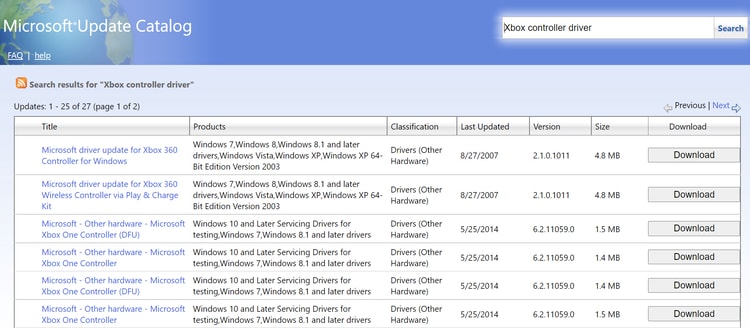
    micorosoft update catalog
  • Follow some on-screen instructions to install the latest driver update for Microsoft Xbox Controller for Windows.

Way 6: Update the Xbox Controller’s Firmware Using the Using Xbox Accessories App

You can also install the latest firmware updates for your Xbox controller wirelessly through the Xbox Accessories app. Here are the step-by-step instructions for the same.

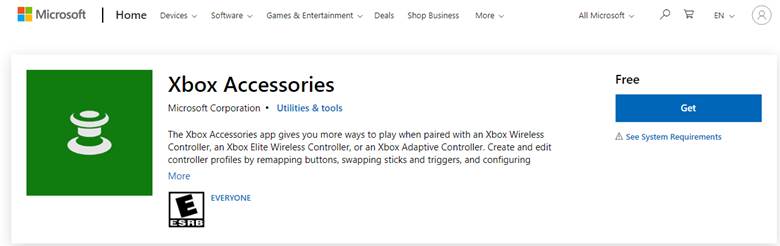
  • First, you need to download the Xbox Accessories app from the Microsoft store.Xbox Accessories app download screen
  • After the application is installed, launch it and click on the three horizontal dots button to access more options.
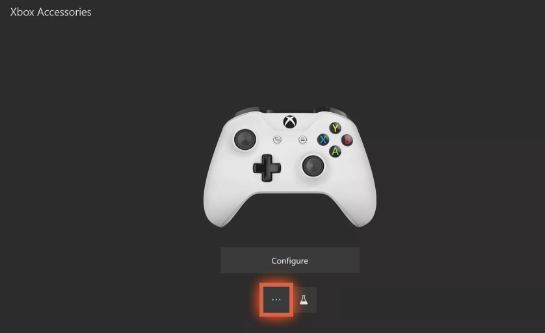
    Xbox accessories option
  • Click on the Firmware version box available on the top-left of the screen.
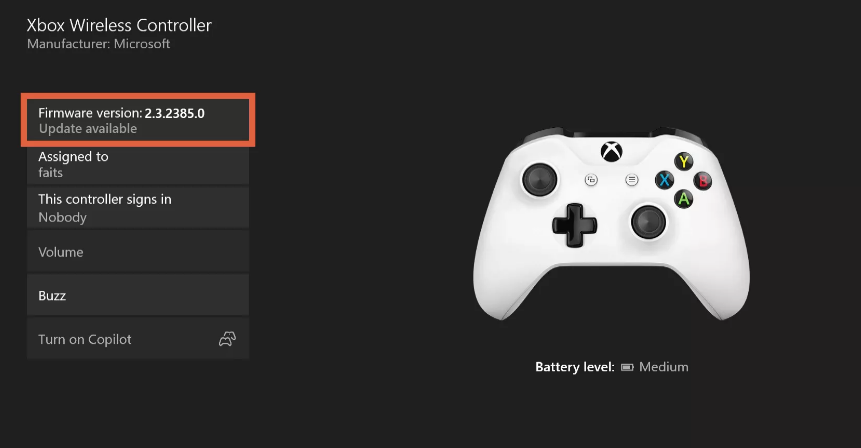
    check Xbox firmware version

Note: If this Firmware version box says ‘no update available’, then it means you already have the latest firmware update installed for your Xbox controller.

  • Next, click the Update now button to begin the process.
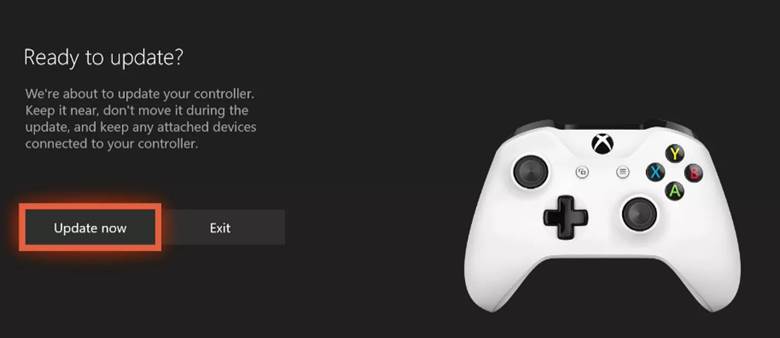
    update Xbox controller
  • After the update process is finished, click the Close button.

Also Read: Download and Update Xbox 360 Controller Driver for Windows 10 PC


Way 7: Update the Xbox One Controller Driver Using a USB Cable

If you wish to manually download Xbox One controller driver for Windows 10 and older operating systems, you can do so by connecting the controller to your gaming console via a USB cable. Follow the easy steps listed below and know how you can use a USB cable to update the controller quickly:

  • Connect the controller to the console via USB.
  • A pop-up for the process to update the controller will appear on your screen. In case you do not get these, press the Xbox button on your controller.
  • Now follow the following path to continue: Settings > Devices & streaming > Accessories > Device info.
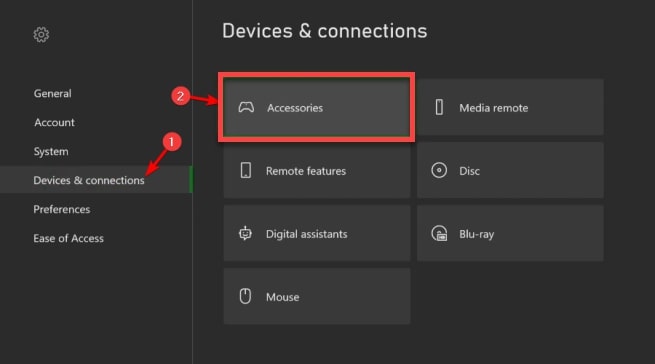
    Choose Accessories under Devices & Connections Menu in Xbox One Controller Setting
  • Open the Firmware version settings and click on Continue. The controller will automatically update now.

Frequently Asked Questions (FAQs)

Q1. Do I need drivers for Xbox One Controller?

The Xbox One drivers runs on the computer’s operating system and enables it to communicate with the controller device you use. Your Microsoft’s Controller won’t connect or pair up with your console if its driver software hasn’t been updated or properly installed on your computer system.

Q2. Is Xbox One controller compatible with PC?

Xbox One is compatible with Windows 10, 8.1, and 7 operating systems. You can use a USB cable, wireless adapter, or Bluetooth to connect a controller to your PC.

Q3. Does my Xbox controller have Bluetooth?

To determine whether you have a Bluetooth-supported Xbox controller or not, you need to look at the plastic around the Xbox or Guide button. If it’s the same plastic as the rest of the controller’s color, then it means you have a controller with bluetooth feature.

Q4. Why my Xbox controller won’t stay on?

Dead batteries, faulty charging cable, outdated driver, or internal faults are some of the most common problems that prevent the Xbox controller from turning on.

Q5. How do I update my Xbox One controller driver?

You can download and update the Xbox Controller drivers on PC either manually or automatically. To install the updated driver version automatically, you can use a potent and well-trusted driver update utility like Bit Driver Updater. In case you choose to do it manually, you can either use Device Manager or visit the Controller Search page.

Q6. How do I connect my Xbox One controller to my PC?

You can connect your controller to the Windows PC with the help of USB cables, wireless adapters offered by Xbox, or through a Bluetooth connection. For more info, you can visit the official Xbox Support page.

Also Read: How To Connect Xbox One Controller To PC

Q7. How to check Xbox controller driver version?

To check the driver version of your Microsoft controller, follow the steps shared below:

  • Open the Device Manager tool on your computer.
  • Expand the Xbox Peripherals category.
  • Double-click on Microsoft Xbox One Controller.
  • On the Properties window, go to the Driver tab and view the driver version.

Q8. How do I fix Xbox One Controller Not Working on PC?

A wrong, outdated or faulty driver is one of the major reasons why your controller won’t connect or work on your PC. The best way to solve this problem is to update your Microsoft controller driver to its most recent version.

Q9. How Do I Know Which Xbox Controller I have?

There is one way to find the difference between the two generations of the Xbox Controllers. On the upper middle side of the controller, there will be an Xbox logo button that triggers up your home screen. Talking about the original controller, this button is noticeably polished. Whereas on the White original controllers the button will be black and white for the S controller.

Q10. Why Does the ‘Xbox One Controller Won’t Sync’?

If you are experiencing Xbox Controller won’t sync or connect issues while trying to pair it with the Windows PC or console, then it might be happening due to signal interference, hardware malfunction, weak batteries, and console bug.

Q11. How to Reset Xbox One Controller?

In order to reset Xbox Controller on Windows PC, you need to follow the steps shared below:

Step 1: First of all, altogether press Windows + I keys from your keyboard to invoke Windows Settings.

Step 2: In Windows Settings, find and click on Devices from the available options.

Step 3: Now, you will see a list of all the devices connected to your PC.

Step 4: From the list, locate your Xbox Controller and click on Remove Device.

Step 5: This will delete the Xbox Controller from your list of Bluetooth Devices.

Step 6: After that, take out the batteries from your controller and try to re-connect your Xbox Controller to your PC via a USB cable.

This will reset the overall wireless connection between your computer system and the preferred Xbox controller. Once it’s done, then you can connect your controller again to your PC.

Q12. Where is Xbox controller driver?

You can find the Xbox controller driver in the Device Manager. This is a Windows-integrated utility that allows you to manage different devices connected to your system. Under the Xbox Perhiphrals category of the Manager, you can find the required Xbox driver.

Q13. How do I reinstall Xbox One controller drivers on PC?

You can reinstall Xbox Controller driver using the Device Manager. Right-click on the driver present under the Xbox Peripherals category of the Device Manager. Select Uninstall Driver and follow the instructions that appear to remove the driver. Lastly, Restart the system and use any of the above methods to download or update the driver.

Also Read: Why is My Xbox Controller Blinking and Flashing? How to Fix it


Accomplished: Xbox One Controller Driver Download for Windows 10, 8, & 7

Through this article, we informed you about the manual as well as automatic methods to download, install, and update Xbox One controller drivers for Windows 10 and older editions. Going the automatic way has its various advantages but we would still be eager to hear from you which method worked wonders for you.

After installing the Xbox One controller PC driver with the help of the aforementioned methods, you can then enjoy your gaming session. Do follow us on social media and subscribe to our newsletters. We also invite you to reach out to us by dropping your comments, suggestions, and queries in the comments box.

Author

Snigdha

Snigdha is a technical content writer with expertise in the field of science & technology. Though she has a very diverse academic and professional profile yet she finds writing to be a creative form that she was unable to explore so far. When not writing, she can be found indulging in other forms of creativity like painting or travelling.

View all posts

Related Posts
Canon Pixma E410 Driver Download for Printer & Scanner on Windows PC

Canon Pixma E410 Driver Download for Printer & Scanner on Windows PC

November 9, 2021
0

In this write-up, we are going to explain how to find, download and install Canon Pixma E410 driver for Windows 10, 8, 7 PC.

Get a new Canon Pixma E410 multi-functional printer? Does it lag in responding properly? Don’t worry, you can fix this issue easily just by updating its respective drivers. A printer driver is an essential component for channelizing effective communication between Windows OS and printer. When corresponding drivers goes missing or out-of-date your device abruptly stops working properly. Therefore, it is mandatory to keep device drivers updated and in good working order.

Keeping the printer or other Windows drivers up-to-date not only helps you solve annoying printing errors but also improves the overall PC performance. To help you with this, we have discussed a few easiest approaches to perform Canon E410 printer driver download for Windows PC.

Quickest Way to Download & Updater Canon Pixma E410 Printer Driver for Windows PC (Strongly-Recommended)

Don’t have sufficient time to read the complete article? Nothing to worry about, you can try Bit Driver Updater. It is a highly advanced and globally recognized driver updater utility that automatically verifies your system and finds the most appropriate drivers for your device. Also, the utility just takes a click to repair all broken or corrupted drivers. Below is a download link to try the Bit Driver Updater for Free.

Windows Download Button

A List of Methods to Download, Install and Update Canon Pixma E410 Driver for Windows 7, 8, 10

Below listed are some of the handiest methods that you can consider to download Canon E410 scanner drivers on Windows PC for ensuring a way better printing experience.

Method 1: Manually Download and Install Canon Pixma E410 Driver from Official Support

Canon keeps introducing the latest driver updates for themselves. So, you can get the correct version of drivers for your Canon Pixma E410 multifunction printer from the manufacturer’s official website. Below are the steps to download Canon Pixma E410 driver software using this method.

Step 1: To begin with the process, visit Canon’s official website.

Step 2: Head over to the Support tab and then click Software & Drivers to get the Canon Pixma E410 installer file.
Software & Drivers Menu from Support

Step 3: In the search box, type your product name that’s Pixma E410, and choose the suitable result.
Type your product name in search box

Step 4: Next, select the correct version of the Windows operating system and click on the E410 series Full Driver & Software Package (Windows).
Click on the E410 series Full Driver & Software Package

Step 5: After that, click Download.
Download E410 series Full Driver & Software Package

Step 6: Once the Canon Pixma E410 setup download process gets finished, double click the downloaded file and follow the on-screen instructions to install the drivers on your PC.

Also Read: Install and Update Latest Canon Printer Drivers For Windows 10, 8, 7


Method 2: Update Canon Pixma E410 Printer Driver using Device Manager

The user can also use the Windows built-in utility called Device Manager to perform Canon printer driver download. Here is how to do that:

Step 1: Press the Windows logo + R keyboard buttons at the same time to invoke the Run dialog box.

Step 2: Then, type devmgmt.msc inside the Run dialog box and hit the Enter key from your keyboard.
Type devmgmt.msc in Run Dialog Box

Step 3: This will take you to the Device Manager window, wherein, you will need to navigate to the Printers or Print Queue category and double click on it to expand the category.

Step 4: Locate the Canon Pixma E410 printer and right-click on it to choose Update Driver Software.
Update driver software

Step 5: In the next window, choose the option saying Search Automatically for Updated Driver Software.
Search Automatically for Updated Driver Software

Step 6: Now, wait for the Windows default functionality to finish the process. Once done, reboot your PC.

Also Read: Canon G2010 Printer Driver Download, Install & Update for Windows 10


Method 3: Use Bit Driver Updater to Automatically Get Latest Canon Pixma E410 Printer Driver

If you find the aforementioned methods a bit tedious or time-consuming, then you can use Bit Driver Updater. As we have said above, the software automatically detects your Windows and then finds the most compatible version of drivers for you. Below is how to use Bit Driver Updater for updating the outdated drivers.

Step 1: Download Bit Driver Updater on your computer.

Download Button

Step 2: Run its setup file and complete the installation by executing the on-screen instructions.

Step 3: Summon Bit Driver Updater on your system and wait until it finishes the scanning on your device.

Step 4: Review the scan results.

Step 5: Click on the Update Now button presented next to the printer drivers.

Step 6: Alternatively, click on the Update All button to update the other outdated drivers too along with the Canon Pixma E410 driver.
Update All Driver with Bit Driver Updater

See how convenient and quick it is to update old or faulty drivers with Bit Driver Updater. It is the best driver update utility available in the market. The software also possesses round-the-clock technical help and a 60-days complete money-back guarantee.

Also Read: Download Canon Pixma MP287 Printer & Scanner Driver for Windows 10


Download and Install Canon Pixma E410 Driver for Windows PC: DONE

Thus, you can easily perform Canon Pixma E410 driver free download for Windows 10, 8, 7. We hope the installation guide helps you. Please let us know in the comments section below if you have any queries.

In addition to this, do tell us in the comments if you have any suggestions or further tips. Want to read more downloading or troubleshooting guides? If yes, do subscribe to our Newsletter, plus, follow us on Facebook, Twitter, Instagram, or Pinterest.

How to Open Folder with Command Prompt in Windows 10, 11

How to Open Folder with Command Prompt in Windows 10, 11

January 10, 2024
0

This article guides you through the simplest possible process to open any folder on Windows 10/11 using Command Prompt with or without accessing File Explorer.

Command Prompt (CMD) is a command line application present in all Windows computers. You can use this tool to execute various commands for different purposes, such as troubleshooting any issue with the system files. However, not many people know they can also open a folder with Command Prompt.

Even if they know they can do it, they are unsure about how to do it when the need to do so arises. Are you one of those people? If yes, you have found your favorite article of the day.

This article presents a simple guide on how to open a folder in CMD on Windows 11/10 with the easiest possible way to do it. Let us begin with the same without wasting your extremely valuable time.

Guide to Open a Folder with Command Prompt

Below we share the methods you can use to open any folder with Command Prompt on Windows 10 and 11. However, it is crucial that you learn the way to access CMD or Command Prompt on your computer before learning how to open a folder with it. Hence, here is a quick explanation of the same.

Opening Command Prompt

No matter whether your computer runs Windows 10 or 11, the easiest way to access Command Prompt is by using the Windows search. Here are the steps to do it.

  • To begin with, type CMD or Command Prompt in the search bar on your computer.
  • Secondly, click on the first result that appears on your screen.
  • Now, choose Run as administrator from the options present in the right section of the search panel.type CMD and Run as administrator

Now that you have learned how to access Command Prompt, let us proceed toward this article’s agenda, i.e., learning the methods to open a folder in Command Prompt in Windows 11/10.

Also Read: How To Fix Faulty Hardware Corrupted Page Windows 10, 11


Opening a folder in CMD from Explorer

Here is a simple series of steps you can follow to open a folder with Command Prompt on your computer.

  • To begin with, use the Win+E keyboard shortcut to launch the File Explorer window.
  • After accessing the File Explorer window, navigate to the folder you wish to open through Command Prompt. You can browse for the desired folder using the File Explorer.
  • Now, click the desired folder to access it.
  • Input cmd in the address bar of the Command Prompt window and press the Enter key to open the folder you want in the File Explorer.

Above, we learned how to access a folder through CMD from File Explorer. Now, let us discuss how to do it without File Explorer.


Opening a folder in Command Prompt without Explorer

Below are the step-by-step directions you can follow to open a folder with Command Prompt on Windows 11/10.

  • To begin with, open Command Prompt on your device. You can follow the instructions shared in this article to do it effortlessly.
  • After accessing the Command Prompt window, input the cd / in the command line to navigate to the root C: drive.
  • Now, input the change directory command cd\folder\subfolder\subfolder to change the directory. Remember to include your root folder and this folder’s subfolders in the path to access the desired folder via Command Prompt.subfolder to change the directory
  • Hit the Return key once you have entered the change directory command.
  • Now, input dir and hit the Enter key to open a folder’s file content using Command Prompt.

Note: You can also access files using Command Prompt without going through the folders. Simply, run the command that has the full folder path and file title of the desired file to open it.

Also Read: How to Restore Missing Power Plans Options on Windows 10, 11


To Sum Up

This article guided you through how to open a folder in CMD on Windows 11/10 with and without File Explorer. We hope you find this article helpful and no longer feel confused about accessing folders and files via Command Prompt.

However, you can always drop us a comment if you have any questions, confusion, or suggestions regarding this post. We will be pleased to address all your queries as soon as possible. Also, do not forget to bookmark this blog and follow us on social media platforms for such informative tech guides.

1 Comment
    9 Best Xbox Emulators For Windows PC In 2021 | TechPout says: Reply
    January 1st 2021, 3:26 pm

    […] Also Read: Download Xbox One Controller Driver for Windows 10 […]

Leave a Reply to 9 Best Xbox Emulators For Windows PC In 2021 | TechPout Cancel reply

Your email address will not be published. Required fields are marked *

Sidebar Image bit G ad1

Latest Posts

  • Anytime Astro: Best Website For Online Astrology Consultation
    Anytime Astro: Best Website For Online Astrology Consultation
    by Somya Shrimal / February 13, 2026
  • Best-McAfee-alternative-software-to-use-for-Virus-Protection
    Best McAfee Alternative Software to use for Virus Protection
    by adminuser / February 11, 2026
  • What-is-Flip-Flop-in-Circuite-and-it's-Types
    What is Flip Flop in Circuit and its Types
    by Meet / February 6, 2026
  • Best-Data-Labeling-Software-to-use-in-2026
    Best Data Labeling Software to Use in 2026
    by Meet / February 2, 2026
  • Best-Google-Slides-tools--to-add-as-extension-in-2026
    Best Google Slides Tools to Add as Extension in 2026
    by Meet / January 30, 2026

Categories

  • Cyber Security
  • Driver Updater
  • Entertainment
  • Fitness
  • Games
  • How To
  • laptop
  • OS
  • Reviews
  • Tech News
  • Tips & Tricks
  • Top 10
Sidebar Image bit G ad1
Why is My Xbox Controller Blinking and Flashing - How to Fix it Why is My Xbox Controller Blinking and Flashing? How to Fix itby Niharika / January 5, 2023
Transfer Photos from Mac and Windows PC to iPhone or iPad [With and Without iTunes]by Harshita / January 6, 2023Transfer Photos from Mac and Windows PC to iPhone or iPad [With and Without iTunes]
TechPout Footer Logo

We at TechPout promise to put forth stories that help people to learn and simplify their digital life. Our purpose is to share the true essence of technology with our tech-loving community.

Useful Links

  • About Us
  • Contact us
  • Privacy Policy

Popular Posts

  • Best PC Optimizer Software
  • Best Mac Cleaner Apps
  • Best Driver Updater
  • Duplicate Photo Finder and Cleaner Software
  • Best Free Movie Download Sites
  • Best IPTV Players

Follow us

Copyright © 2026 www.techpout.com. All rights reserved
DMCA.com Protection Status