You can check installed apps on your Windows device to stop unused background processes, improve performance, add or remove programs, uninstall outdated software to ensure security, and remove bloatware to declutter your system.
No matter why you may want a list of programs installed on your Windows computer, you can easily check installed apps on your Windows 11/10 PC through the methods below.
How to Check Installed Apps on Your Windows 10/11 Device
You can view installed apps and programs on Windows through the Start Menu, Settings, Control Panel, Microsoft Store, Applications folder, Windows PowerShell or Command Prompt, Microsoft Store CLI, or Windows Package Manager tool (WinGet). The Start Menu is best for beginners who want a quick look at their installed apps. The Settings app is the most user-friendly option for those wanting to manage or uninstall apps. The Control Panel is best for finding an older desktop program. The other methods are best for advanced users. Below are all methods explained in detail.
Method 1: Use the Start Menu to view all installed apps and programs
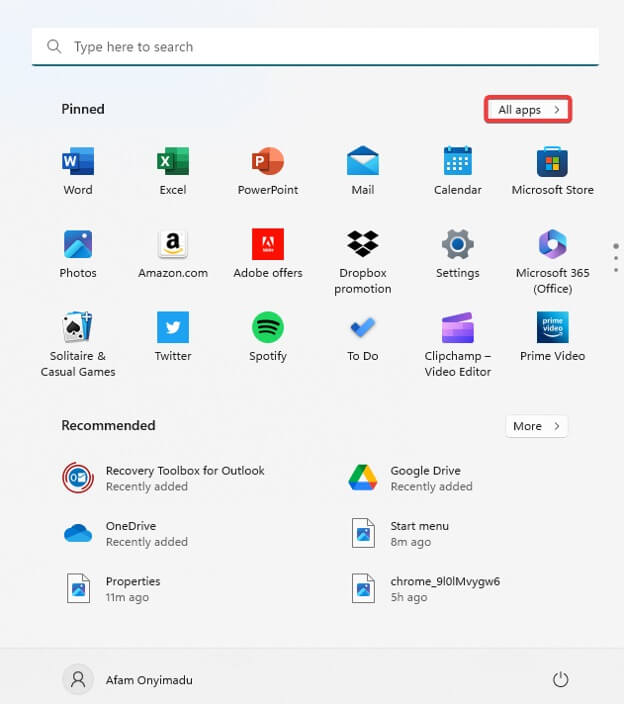
- Click the Start button.
- Click All apps in the upper-right corner. Windows 10 users scroll through the alphabetical list of all installed apps and programs.
Method 2: Find all apps and programs on your device in Settings
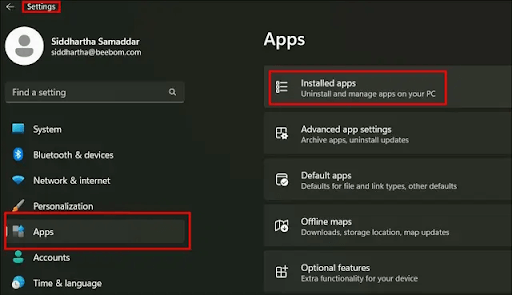
- Press Win + I to open the Settings
- Click Apps in the Settings menu.
- Click Installed apps. Windows 10 users: click Apps & features to view all the installed apps on your PC.
Also know: Best Wallpaper Apps for Windows 11/10
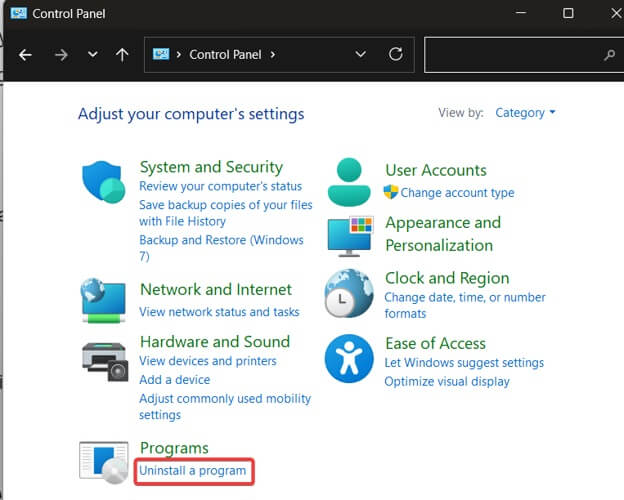
Method 3: Use Control Panel to find all installed programs
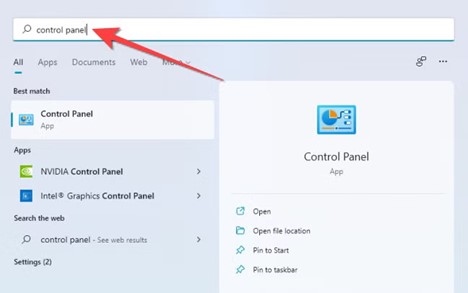
- Click the Start button.
- In the search bar, type Control Panel and click the matching search result.
- In the Control Panel, click the View by drop-down and select
- Click Uninstall a program in the Programs category to view a list of all your installed applications in the Programs and Features
Method 4: View all installed apps in Microsoft Store
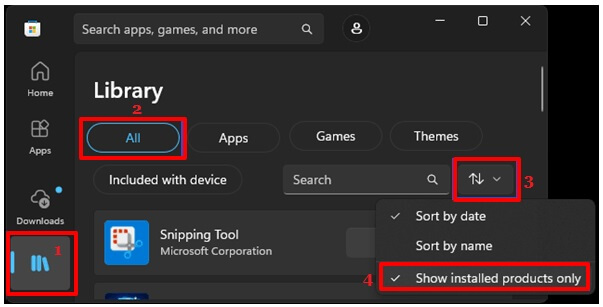
- Search for Microsoft Store and open it on your computer.
- In the left pane of the Microsoft Store, click
- You can see a list of applications in the Library. Click All to view apps.
- Click the Sort and filter button, and then click Show installed products only to view the apps installed from the Microsoft Store on your PC.
Method 5: Check the Applications folder to find all installed apps and programs
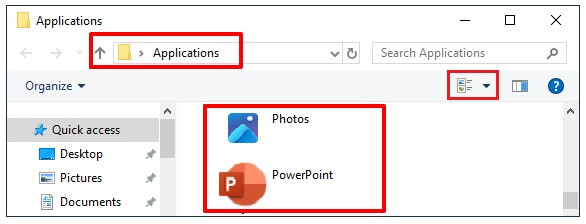
- Press Win + R to open the Run dialog.
- In the Run box, type Shell:AppsFolder and press
- View all the apps and programs installed on your computer on the Applications screen. If you want, you can sort the listed applications and change the layout to match your requirements.
Method 6: Use Windows PowerShell or Command Prompt to check installed apps
Steps to check installed apps using Command Prompt
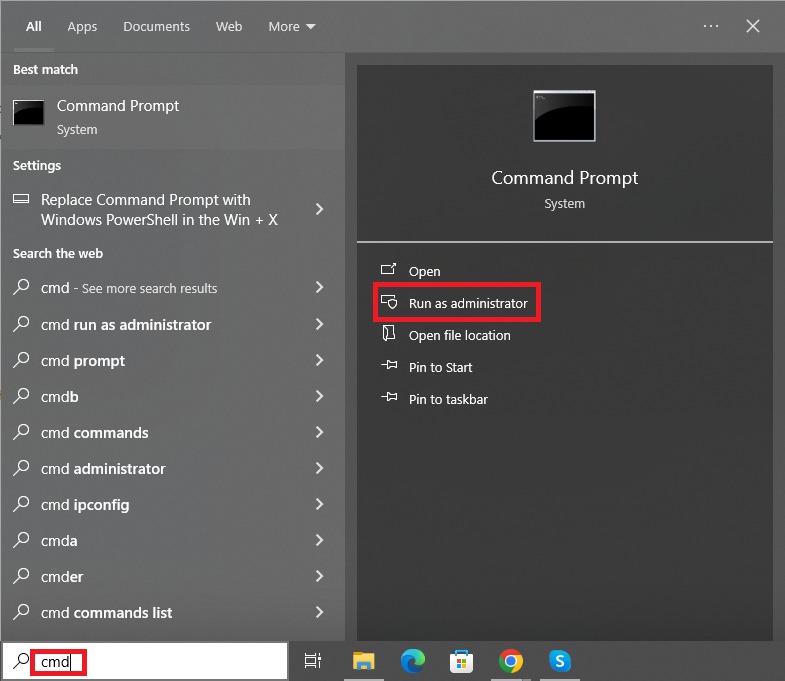
- Click the Start button.
- Type cmd or Command Prompt in the search bar.
- Right-click Command Prompt in the search results.
- Click Run as administrator.
- In the Administrator Command Prompt, type the command: wmic product get name,version,vendor and press Note that Command Prompt does not list Microsoft Store applications.
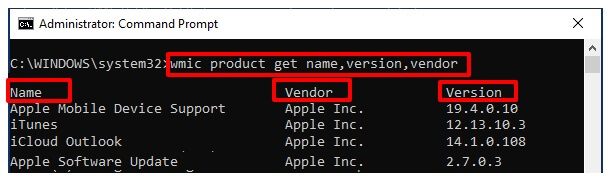
Steps to find installed apps using PowerShell
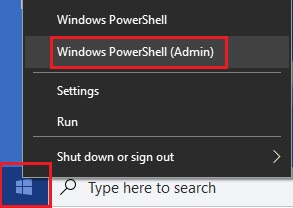
- Right-click the Start button.
- Click Windows PowerShell (Admin).
- In the Terminal or Administrator Windows PowerShell, copy and paste the commands below.
To view Microsoft Store applications: Get-AppxPackage | Select-Object Name, Version, Publisher | Sort-Object Name | Format-Table -AutoSize
To view 64-bit apps: Get-ItemProperty “HKLM:\Software\Microsoft\Windows\CurrentVersion\Uninstall\*” |
Where-Object DisplayName | Select-Object DisplayName, DisplayVersion, Publisher, InstallDate | Sort-Object DisplayName | Format-Table -AutoSize
To view 32-bit apps: Get-ItemProperty “HKLM:\Software\Wow6432Node\Microsoft\Windows\CurrentVersion\Uninstall\*” | Where-Object DisplayName | Select-Object DisplayName, DisplayVersion, Publisher, InstallDate | Sort-Object DisplayName | Format-Table -AutoSize
To view current user applications: Get-ItemProperty “HKCU:\Software\Microsoft\Windows\CurrentVersion\Uninstall\*” |
Where-Object DisplayName | Select-Object DisplayName, DisplayVersion, Publisher, InstallDate | Sort-Object DisplayName | Format-Table -AutoSize
- Press Enter to view the desired apps.
Also know: How to Disable Background Apps in Windows 11/10
Method 7: See all installed apps in Microsoft Store CLI (a list of Microsoft Store apps)
- Click the Start button.
- Type cmd in the search bar.
- Right-click Command Prompt in the search results.
- Click Run as administrator.
- In the Administrator Command Prompt, type the command store installed and press Enter to view a list of all the Microsoft Store apps on your computer.
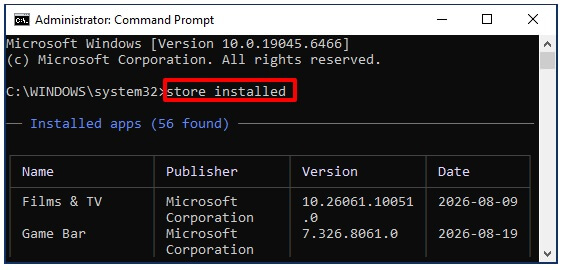
Method 8: Use Windows Package Manager tool (WinGet) to list installed programs
- Download and install the latest WinGet preview version.
- Search for and open Command Prompt as Administrator.
- In the Administrator Command Prompt, run the winget command to open the WinGet tool.
- In the Windows Package Manager tool (WinGet), use the command winget list to check installed apps on your Windows device.
- To view only applications installed from the WinGet repository, use the command winget list –source winget.
- To export the installed apps to a structured JSON, use the command winget export -o C:\Temp\apps.json –accept-source-agreements.
Note that WinGet primarily checks applications installed via Windows Package Manager repositories and may not list all legacy software. Despite that, this method is especially helpful for automation scripts, developer workstations, package lifecycle management, and modern Windows 11 environments.
Once you can check installed apps on your Windows 10/Windows 11 device, you can decode your app list easily by understanding a few key concepts about PC apps.
Understanding Your Installed Apps on Windows
You can install a desktop application only for the current user or for all users i.e., system-wide access). Moreover, a Windows application can be a desktop application or a Microsoft Store application.
- App installed for current user only: The application is only available and viewable to the current user who installed it.
- App installed for all users: The app installed for all users is installed in a central location such as C:\Program Files and is available to all user accounts on the computer.
It is because of this distinction in the app installation that the app lists can be different for different user accounts on the same computer.
- Desktop applications: Desktop apps are traditional programs such as Google Chrome that appear in both Settings and the Control Panel.
- Microsoft Store applications: Microsoft Store apps are applications from the Microsoft Store such as Netflix. These apps are managed primarily via the Settings application.
Once you know the types of applications on your computer, you can easily manage and export your apps list.
How to Manage and Export Your Apps
After checking installed apps on your Windows device, you can run the following command in Administrator Windows PowerShell to export your installed programs to a file.
Get-ItemProperty HKLM:\Software\Wow6432Node\Microsoft\Windows\CurrentVersion\Uninstall\* | Select-Object DisplayName, DisplayVersion, Publisher, InstallDate | Export-Csv -Path “C:\Your\Folder\Path\InstalledApps.csv” -NoTypeInformation
Remember to change the path to your desired save location.
If you want to uninstall an application, follow the path: Win + I > Apps & features > three-dot menu next to the app you want to uninstall > Uninstall.
However, if you encounter problems such as “the app is not in the list but I know it is installed,” a failed or stuck uninstallation, “I uninstalled an app, but it still shows up,” or “I see apps I never installed,” check below for solutions.
Also know: How to Put Apps to Sleep Windows 10/11
Troubleshooting Common Issues with Apps on Your Device
Below are the solutions to some common app problems.
- An app you know you installed is not in the list: The application may be installed for another user account or be portable. To find the app, check C:\Program Files manually.
- Failed or stuck app uninstallation: Uninstall the app using the Control Panel. If this fails, use a reliable uninstaller software such as BCUninstaller to uninstall stubborn apps.
- An uninstalled app still shows up: If you uninstalled an application but it still appears in the app list, restart your computer or use trustworthy software to clean up the app’s registry entry if the restart fails to remove the app.
- You see apps you never installed: Apps you never installed but visible in the app list can be Windows components, manufacturer bloatware, or driver utilities. If the publisher column has Microsoft Corporation, the app is most likely a system component.
Here are a few common questions answered about checking installed apps on your Windows device to clear persistent doubts.
Frequently Asked Questions
Q1. How can I see all the apps installed on my device?
You can check all apps installed on your Windows device through the Start Menu. On Windows 11, click the Start button and then click All Apps. On Windows 10, click the Start button and then scroll through the list of applications. For details and alternative methods, refer to the guide above.
Q2. What is the command to view all installed apps on my PC?
Press Win + R and then run the Shell:AppsFolder command in the Run utility to see all applications installed in your Windows account.
Q3. Can I export my installed programs list to a file?
You can export your installed programs to a file through the PowerShell command: Get-ItemProperty HKLM:\Software\Wow6432Node\Microsoft\Windows\CurrentVersion\Uninstall\* | Select-Object DisplayName, DisplayVersion, Publisher, InstallDate | Export-Csv -Path “C:\Your\Folder\Path\InstalledApps.csv” -NoTypeInformation
Q4. How can I use the Windows GUI to view installed programs?
To check installed apps on your Windows device through the Windows GUI, press Win + R, type appwiz.cpl, and press Enter to see all desktop apps, their versions, and publishers. Alternatively, on Windows 11, right-click the Start button and then click Installed Apps; on Windows 10, right-click the Start button and then click Apps & Features.
Q5. Can I see programs installed only for the current user?
Yes, you can view programs installed only for the current user through Windows PowerShell. In Administrator Windows PowerShell, run the command: Get-ItemProperty “HKCU:\Software\Microsoft\Windows\CurrentVersion\Uninstall\*” |
Where-Object DisplayName | Select-Object DisplayName, DisplayVersion, Publisher, InstallDate | Sort-Object DisplayName | Format-Table -AutoSize.
Q6. Why can’t I find an installed program in the Settings list?
You may be unable to find a portable app or an older program in the Settings list. Portable apps are not installed formally, and older programs may be listed only in the Control Panel.
Q7. How is uninstalling an app different from turning off a Windows feature?
Uninstalling an app means removing a separate piece of software from your computer. Turning Windows features on or off means enabling or disabling built-in Windows components, such as Hyper-V (a virtualization platform) or Internet Information Services (IIS).
Q8. How do I find where a program is installed on a Windows device?
To find where a program is installed on your computer, click the Start button, click All Apps, right-click the app, click More, and then click Open file location.
Q9. How do I see install dates for every app?
To check the install dates for every app, in the Control Panel, click Installed On. In Windows PowerShell, include the InstallDate property in the command to check installed apps on your Windows device.
Q10. Can I check the apps installed by another user on the same PC?
While a standard user account cannot see another user’s installed applications, administrators can view C:\Users\OtherUser\AppData\Local and the HKEY_USERS registry keys to find apps installed for that user profile.
Hope this helps you check apps installed on your Windows device easily to ensure smooth app management on Windows 11/10 and glitch-free PC performance. If you have any questions, need additional clarification, or have any feedback about this guide, leave us a comment.