Failed attestation status Call of Duty error in Warzone or Black Ops appears if your system does not meet or verify the game’s RICOCHET Anti-Cheat system security requirements. RICOCHET Anti-Cheat is a system of processes and tools that detect, deter, and remove cheaters from Call of Duty.
A failed attestation status error message appears when RICOCHET Anti-Cheat fails to verify your computer’s security settings. This article explains in detail what this error is, its causes, and how to fix it step-by-step.
What Is the Failed Attestation Call of Duty Error
Call of Duty failed attestation status is an error that appears if the game’s RICOCHET Anti-Cheat cannot confirm your computer is secure. The Anti-Cheat system, through a process called Remote Attestation running via Microsoft Azure Attestation (MAA) as part of Call of Duty’s TPM 2.0 implementation, verifies that your PC supports TPM 2.0 and Secure Boot and has all essential security features enabled and trusted. A failed verification results in error messages such as attestation status failed, your PC does not meet security requirements for Call of Duty, or BIOS firmware update required.
What Causes Call of Duty Warzone Failed Attestation Status Error
TPM 2.0 and Secure Boot are essential requirements for Call of Duty. A disabled TPM 2.0 or Secure Boot can trigger a failed attestation status in Call of Duty. Moreover, outdated BIOS firmware, system booting in Legacy/CSM mode, a drive using an MBR partition, or a non-compliant party member’s PC can contribute to the error. If the attestation fails, you will only have limited playlist access in a separate matchmaking pool. However, the error is fixed easily with solutions in the guide below.
How to Fix Failed Attestation Status Call of Duty Error
Ensure TPM 2.0 is enabled, enable Secure Boot, make sure Windows uses UEFI mode, update BIOS firmware, and confirm a valid Windows security configuration to fix a failed attestation status Call of Duty Warzone PC error. Below are these solutions explained step by step; follow these fixes sequentially until the problem disappears.
Fix 1: Enable Secure Boot
Secure Boot is a mandatory Call of Duty requirement. Ensure it is enabled to avoid and fix Call of Duty failed attestation status errors. Here is how.
- Press Win + R to access the Run utility.
- In the Run box, type msinfo32 and press Enter.
- Locate BIOS Mode. The BIOS Mode should be set to UEFI.
- Find Secure Boot State. The Secure Boot State should be on.
- If the above conditions are not met, follow the path Win + S > Search for and open Change advanced startup options > click Restart Now in Advanced Startup > Troubleshoot > Advanced Options > UEFI Firmware Settings > Restart. Then, in BIOS, locate Secure Boot in Security or Boot, change it to Enabled, save, and exit.
Fix 2: Enable TPM
TPM is another crucial requirement for Call of Duty. Below is how to check if this feature is enabled and enable it if it is not.
- Press Win + R.
- Type tpm.msc in the Run box and press Enter.
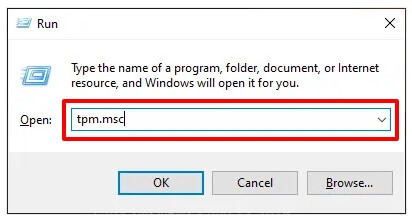
- If you get Compatible TPM cannot be found, TPM is disabled in the BIOS.
- To enable TPM, reboot your PC into BIOS/UEFI (press F2 or Del at startup) and turn on the appropriate setting. For Intel CPUs, turn on Intel PTT (Platform Trust Technology); for AMD CPUs, activate AMD CPU fTPM (firmware TPM); for Discrete TPM, set the TPM device to the dTPM option if your board has a TPM header or chip. Then, save, exit, and run tpm.msc again.
Also know: How to Fix BIOS Not Detecting SSD in Computer PC
Fix 3: Ensure Windows uses UEFI mode
Sometimes Windows runs in Legacy BIOS mode even if TPM and Secure Boot are active. Follow the steps below to make sure Windows uses UEFI mode. Here is how.
- Press Win + R.
- In the Run box, type msinfo32 and press
- Locate BIOS Mode.
- Check if the BIOS Mode shows UEFI or Legacy.
Fix 4: Make sure your drive uses GPT partition formatting
UEFI systems need GPT partition formatting; otherwise, you may experience Call of Duty failed attestation status errors. Below is how to verify your drive uses GPT.
- Click the Start button.
- In the search bar, type Disk Management and click the first result.
- Right-click Disk 0 and then click Properties.
- Click the Volumes tab.
- Make sure the Partition Style is GPT.
Fix 5: Update BIOS
Some motherboards need newer BIOS firmware to ensure TPM attestation functions smoothly. You may encounter attestation status failures if the firmware is outdated. Hence, update the BIOS using one of the BIOS update software programs, such as UEFI BIOS Updater, BIOSAgentPlus, and ASUS Live Update Utility.
Fix 6: Clear and re-verify TPM
If the attestation failed error persists even if everything is enabled, clear the TPM and re-verify it. Here is how.
- Press Win + R.
- Type msc and press Enter.
- Click Clear TPM and allow your computer to reboot.
- Once your PC reboots, open tpm.msc and ensure the TPM is ready for use.
- Right-click the Start button.
- Click Windows PowerShell (Admin).
- In PowerShell, copy and paste the command Get-Tpm and press Enter.
- Ensure TpmPresent and TpmReady are True.
Also know: What Is Firmware and How to Update It in Windows
Fix 7: Verify your game files
Corrupted game files may be another reason you get the Call of Duty failed attestation status error. Below is how to verify game files on Steam and Battle.net to solve the problem.
Verifying game files on Steam
- Go to the Steam Library.
- Right-click on Call of Duty.
- Click Properties.
- Next, click Installed Files.
- Select the option to Verify Integrity of Game Files and allow the process to complete.
Verifying game files on Battle.net
- Navigate to Battle.net.
- Click Call of Duty.
- Next, click on the gear icon.
- Lastly, click Scan and Repair, and then let the process complete.
Fix 8: Update Windows
Outdated Windows security components may be responsible for Call of Duty attestation failures. Hence, follow the steps below to update Windows.
- Click the Start button.
- Type Windows Update in the search bar.
- Click the first search result.
- Next, click Check for updates.
- Click Download & Install for all available updates (including security updates and optional driver updates).
- Allow the process to complete and then restart your computer.
Fix 9: Disable conflicting programs
Some software and apps may interfere with Call of Duty’s anti-cheat verification, causing problems like the one you are trying to fix. Thus, temporarily disable programs such as RGB control software, VPN software, system overlays, hardware monitoring utilities, and third-party security tools.
Hope this fixes the Call of Duty failed attestation status. Below, we answer some common questions to clear up any persistent doubts.
Also know: How to Turn Off BitLocker, Disable it, or Remove it Permanently
Frequently Asked Questions
Q1. What does failed attestation status mean in Call of Duty?
Call of Duty failed attestation status means Microsoft Azure Attestation (MAA) was unable to verify that your computer is running in a trusted state before allowing you to access all multiplayer playlists.
Q2. How do I fix a Call of Duty attestation error?
To fix the attestation status failed error in Call of Duty, enable Secure Boot, activate TPM, ensure Windows runs in UEFI mode, make sure there is GPT partition formatting for the drive, update BIOS, clear and verify the TPM again, verify your game files, update Windows, and disable conflicting programs, as explained in the guide above.
Q3. Is a failed attestation status error a ban?
No, an attestation status failure in Call of Duty is not a ban. If the attestation status fails, you are only placed in a limited matchmaking pool or blocked from accessing some game modes.
Q4. Does every Call of Duty game need TPM 2.0 and Secure Boot?
No, you need TPM 2.0 and Secure Boot only for Warzone and Black Ops 7.
Q5. Does turning on Secure Boot or TPM delete files?
No, enabling TPM or Secure Boot does not delete files. However, a disk conversion from MBR to GPT alters the partition table. Hence, back up your important files before making any changes.
Hope this clears the confusion about the Call of Duty attestation status failed error. To avoid the error in the future, re-check TPM and Secure Boot after every BIOS update, refrain from queuing with non-compliant friends, and keep Windows up-to-date. If any questions persist, leave us a comment.