Main LogoLight Logo
  • Reviews
  • Top 10
  • How To
  • Tech News
  • OS
    • Windows
    • MAC
    • iOS
    • Android
  • Categories
    • Driver Updater
    • Cyber Security
    • Games
    • Fitness
    • Entertainment
    • Tips & Tricks
MAC Top 10
by Snigdha

9 Best Free VPN For Mac in 2024 (Protect Your Mac With Fast VPN)

February 5, 2024
1

Read the complete guide to find out the best free VPN for Mac in 2024 and browse without any risk of getting tracked by hackers or losing your crucial data.

Hackers are increasingly targeting Macs. One of the core attractions of Apple products is the Security of data offered by the developers. But lately, hackers have begun to target Mac users more frequently as the business has grown in popularity. Unfortunately, there are very few VPN Safari extensions available, especially free ones. Therefore, choosing the best VPN for Mac can be a tough choice. If you are also having trouble finding the best VPN for MacBook your search ends here. 

Entire data on your Mac, Mac Mini, or other Apple devices, is protected while using a VPN program, including all of your Safari activity. But before selecting the best free VPN for Mac make sure you have read the data retention policy of the VPN. To make it simpler for you we have summarized and compiled the best free VPN for MacBook that can be used in 2024. 

Table of Contents hide
List of Best Free VPN for Mac
1. PrivadoVPN – Best VPN for Mac
2. Nord VPN – Overall Good Mac VPN
3. Express VPN – Best Free VPN for Mac
4. Surf Shark – VPN for Mac
5. ProtonVPN – Top Mac VPN
6. Private Internet Access – Vpn for Mac
7. Windscribe – Best Free VPN for Mac
8. CyberGhost VPN– Best Free VPN for Macbook
9. Atlas VPN

List of Best Free VPN for Mac

Given below is a well-analyzed list of VPN for Mac. Read the features of each and then make the best choice that is suitable for your device. 

1. PrivadoVPN – Best VPN for Mac
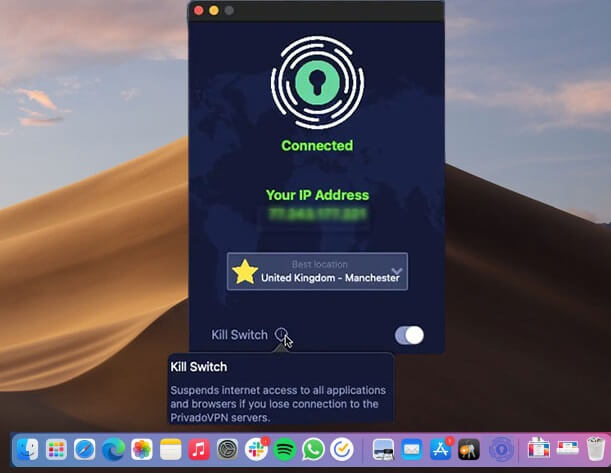
PrivadoVPN for mac

The first one on our list of best free VPN for Mac is PrivadoVPN. This popular free VPN also offers a paid version. Based in Switzerland the Virtual Private Network guarantees the utmost security and privacy. 

With the help of this VPN for Mac, you can browse websites that are not available in your geographical location. Moreover, all your data is safe without any exceptions. Just one click and connect to the server of any other country. Let’s know more about this Best VPN for Mac free below.

Key Features of PrivadoVPN

  • With over 330 servers and 40+ server locations, the VPN offers unlimited device support. 
  • Good internet speed when compared to other VPNs
  • Strict no data log policy to keep your data safe
  • Kill the switch feature to turn off the internet as soon as VPN is interrupted. 
  • User-friendly interface

Pros

  • No logs policy
  • Offers strong data security
  • Unblock Netflix & other video streaming platforms
  • Allows Torrenting
  • Simple and easy interface
  • Complete money-back guarantee
  • Cross-platform i.e compatible with Mac, Windows, iOS, and Android

Cons

  • Free version offers limited features

Mac Download Button

Also Read: Best VPNs For Torrenting And uTorrents


2. Nord VPN – Overall Good Mac VPN

NordVPN for mac

Another one here in our list of best free VPN for Mac is NordVPN. The cross-platform VPN service has proven expertise in obtaining online privacy despite being very simple to use. Access Netflix anywhere using NordVPN and obtain its membership via cash and also through cryptocurrencies. 

With a military-grade encryption facility, this Mac free VPN can offer end-to-end security. No personal information is tracked, recorded, or stored by the Nord VPN.

All forms of information are transmitted using the 256-bit encryption provided by the Advanced Encryption Standard (AES). Your data remains protected by the automatic kill switch even if internet connectivity is suddenly lost. Let’s know more about this free VPN Mac OS

Key Features of NordVPN

  • One of the fastest VPNs for MacBook and Windows devices
  • No data tracking
  • Select from 5400+ servers located in over 60 countries. 
  • Split tunneling and Kill Switch feature
  • Dedicated IP with the ability to mask it. 
  • 24*7 customer support is available

Pros

  • Incredible download & upload speed
  • AES 256 encryption 
  • Simultaneous connection for up to 6 devices
  • Huge Server network
  • Around-the-clock assistance from the customer support team
  • Additional features such as Password Manager, NordLocker, etc with the Premium version.

Cons

  • Paid tool 

Mac Download Button


3. Express VPN – Best Free VPN for Mac
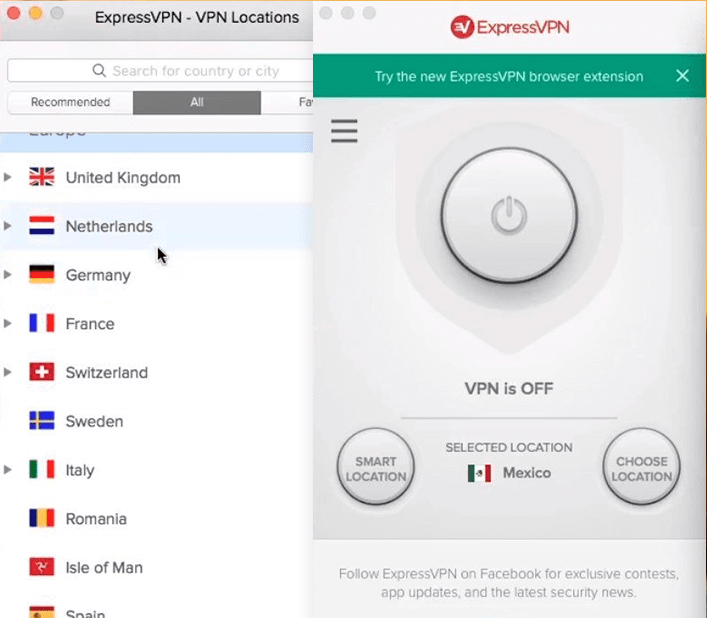
Express VPN for mac

Yet another best free VPN for Mac is ExpressVPN. Despite not being a completely free VPN for Mac, it is a fantastic option because of its user-friendly features and bilingual design. This program is compatible with desktop and mobile versions.

This is the best mac free VPN for getting over geographic restrictions and accessing any content with the best possible data encryption and total data security.

The ability to choose which apps need to access the VPN and which apps can be excluded from the list of choices because they don’t require VPN protection is provided by the split tunneling function.

This best free VPN for Macbook offers superior capabilities for all types of enterprises to safeguard their privacy and delivers a government-grade encryption facility. With a 30-day money-back guarantee and 24-hour technical support, this VPN for Mac is unquestionably the best.

Therefore, if you are looking for the best VPN for MacBook, ExpressVPN can be a great choice. Due to its extended features don’t mind spending an extra amount to switch to the Pro version. Let’s know more about this Best VPN for Mac free below. 

Key Features of Express VPN

  • High-level encryption of data with no logs policy
  • Easy-to-use interface with major platform support. 
  • 24/7 customer support and 30-day money back guarantee
  • Kill Switch, Split Tunneling, and DNS leak protection

Pros

  • Server network in more than 90 countries
  • User privacy maintained through the No logs policy
  • Highly secure Encryption 
  • Ensures anonymity of users
  • 24*7 support
  • Powerful and highly secure VPN

Cons

  • Paid subscription required for additional features 
  • Can’t work with Linux

Mac Download Button

Also Read: Best Free VPN for Spotify


4. Surf Shark – VPN for Mac
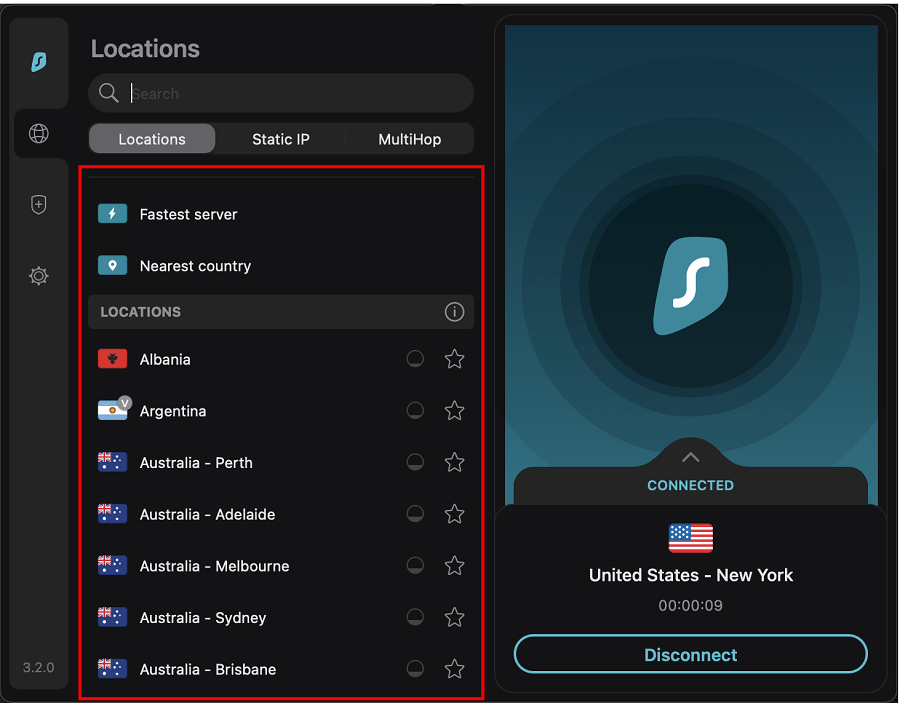
Surf Shark vpn for mac

This is yet another top-notch free VPN for Mac that offers limitless access. While using Surf Shark, even from your internet network provider, your identity is hidden when using the camouflage mode. All you need to do is download it to get started and access different browsing platforms.

In addition to this, the best free VPN for Mac can whitelist the trusted applications or web pages that will automatically be bypassed by the VPN. Your actions are not tracked by it. For complete security, each server has private DNS and IPV4 stack that prevents data leakage. Despite not being a free VPN for MacBook, Surf Shark VPN is very reasonably priced and has a lot to offer. Let’s know more about this free VPN Mac OS.

Key Features of Surf Shark: 

  • Offers high privacy and security to user data
  • Cross-platform support (Windows, Linux, Android, macOS, and iOS)
  • The speed of the VPN is extensively fast when compared to other VPN service providers. 
  • Smooth video streaming of even the blocked content in your geographical location
  • Nifty extraordinary features such as No border mode, CleanWeb, etc. 

Pros

  • Highly safe and secure to use
  • Simple interface
  • Support assistance around the clock
  • Unlimited server support
  • Almost all streaming platforms support

Cons

  • Only Paid version can unlock additional features
  • Free trial available only for Mac & Mobile applications

Mac Download Button


5. ProtonVPN – Top Mac VPN

ProtonVPN for mac

The next one here in our list of best free VPN for Mac is ProtonVPN. It is one of the strongest VPN for Mac. Proton VPN adheres to a no-logging policy. This VPN service provider doesn’t engage in any data retention practices keeping all your data safe from threats and leaks. ProtonMail features powered by a straightforward Interface and DNS leak prevention are some of its key features. Let’s know more about this Best VPN for Mac free below. 

Key Features of ProtonVPN: 

  • Three state kill switch to prevent data leak and Split tunneling
  • Custom profiles to select country, server, and protocol. 
  •  Supports P2P torrenting and downloading by using P2P capable servers
  • Port Forwarding firewall to block ports that are not in use. 
  • Tor over VPN 

Pros

  • Economical pricing with customizable plan options
  • Regular security audits
  • Multihop & Tor connection 
  • Can unblock Amazon Prime, Disney +, iPlayer, Netflix, and other similar browsing platforms. 

Cons

  • Performance issues
  • Restrictions on additional features and servers

Mac Download Button

Also Read: Best Free ChatGPT VPN


6. Private Internet Access – Vpn for Mac
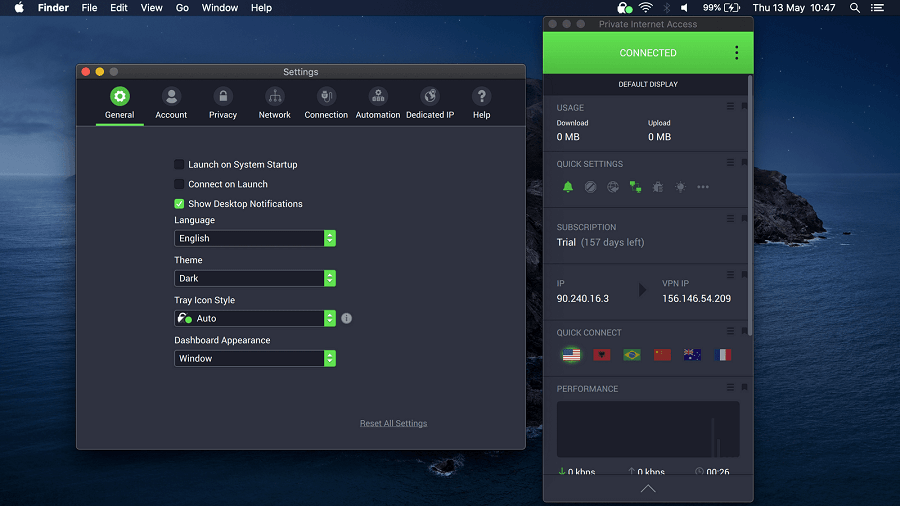
Private Internet Access for mac

Private Internet Access is yet another best free VPN for Mac 2024. It is one of the most trusted VPN with a strict no logs policy. In addition to this, it offers a variety of customizations for your privacy. The best free VPN for Macbook has unlimited device protection without any cost

PIA has a dedicated application for each browser, platform, and OS. To unlock the additional features of the VPN service switch to the Paid plan with a 30-day refund policy if the users are not satisfied. Let’s know more about this free VPN Mac OS. 

Key Features of Private Internet Access

  • It has a strict policy of No logs for your browsing history. 
  • In-built ad blocking to avoid malicious attacks
  • 100% open source VPN that makes it transparent and secure
  • Additional features such as torrenting support, split tunneling, kill switch, and more. 
  • Easy and quick configuration 

Pros

  • Cross Platform support: Windows, macOS, Android, and iOS
  • Lightning fast speed
  • 24*7 customer support
  • 100% open source and transparent
  • 30 day money back guarantee
  • Unlimited device support

Cons

  • Lack of International servers
  • Free version contains ads

Mac Download Button


7. Windscribe – Best Free VPN for Mac

Windscribe for mac

Windscribe, one of the top free VPN for Mac, offers 10 GB of data for use. For individuals who tweet about their app, an additional 5 GB is made available.

For increased security, they also have a firewall and an ad blocker for mac. This free VPN for Mac ensures users can experience great privacy by deleting all of their data within three minutes of logging out.

Your GPS location can be fooled using the Location Warp function. The Time Warp feature does the same thing, adjusting your timezone to that of the country you are connected to. Let’s know more about this Best VPN for Mac free below

Key Features of Windscribe: 

  • Large network spread across servers in 63+ countries. 
  • AES-256 encryption
  • Free version available for users tight on their budget
  • Static IP
  • Port forwarding to access internal resources safely
  • Split tunneling 

Pros

  • Easy to use
  • In-built ad blocker
  • Cross-platform support
  • Highly reliable VPN for MacBook

Cons

  • Consistency issue 
  • No technical support

Mac Download Button


8. CyberGhost VPN– Best Free VPN for Macbook

CyberGhost VPN

The last name on this list of the Best VPN for Mac free is CyberGhost VPN. If you want to use a professional VPN tool with utmost security and privacy, you can take the help of the CyberGhost VPN.

The tool offers unlimited bandwidth to you. Moreover, with the 256-bit AES Encryption feature of the tool, you get strong and unbreachable security. Let’s know more about the best free VPN for Macbook free below.

Key Features of CyberGhost VPN:

  • Strict anti-logging policies
  • Allows streaming and torrenting
  • Integrated Kill Switch
  • Customer Support 24/7
  • Over 100 countries and over 9000 servers

Pros

  • Cross-platform tool
  • Money-Back Guarantee
  • Automatic Wi-Fi Protection
  • Personalization features
  • Multiple plans

Cons

  • Confusing privacy norms
  • Better alternatives available
  • Limited and very short trial period

Mac Download Button


9. Atlas VPN

Atlas VPN

Atlas VPN is an excellent user-friendly VPN service for macOS. Atlas VPN allows you to use as many devices as you want with a free version. It provides over 1000 ultra-fast premium, secure, and video-optimized servers worldwide. Atlas VPN polishes its tunnels in order to provide an uninterrupted and stable experience. Moreover, it comes with a built-in Data Breach Monitor feature that notifies you whether your personal information was leaked in data breaches. In sum, it is the best free VPN for Mac that you can use to control your digital life and keep all your devices safe.

Key Features Of Atlas VPN:

  • Allows you to quickly change your locations.
  • More than 1000 super-fast and secure servers.
  • The Data Breach Monitor feature informs you whether your personal data or details were leaked.
  • Its shield feature prevents you from entering any potentially malicious sites.

Pros

  • Attractive and user-friendly interface.
  • Unlimited simultaneous connections.
  • Network kill switch.
  • Free subscription.

Cons

  • No support for browser extensions.
  • Lack of customization options.
  • 3 free server locations.

Mac Download Button


Closing Lines:

Here we end our descriptive guide on the best free VPN for Mac. Hopefully, you will now have a fair idea to select a suitable VPN for your Mac. If you have any further questions or suggestions don’t hesitate to connect with us in the comments below. 

If you found our list helpful, don’t forget to subscribe to our blog for more informative tech write-ups. Also, to never miss any updates follow us on Facebook, Instagram, Pinterest, and Twitter.

Author

Snigdha

Snigdha is a technical content writer with expertise in the field of science & technology. Though she has a very diverse academic and professional profile yet she finds writing to be a creative form that she was unable to explore so far. When not writing, she can be found indulging in other forms of creativity like painting or travelling.

View all posts

Related Posts
Best Free Word Processors

7 Best Free Word Processors in 2024 (Word Processing Software)

January 16, 2024
0

You can create, edit, format, and collaborate on documents without any software license using the best free online and offline word processors shared in this article.

Document composition and editing are core tasks we perform on our computers. And when talking about documents, Microsoft Word is a name that comes to mind. It has ruled the world of word processing (writing, editing, and printing of documents) since 1983. However, over the years, Microsoft Word has witnessed a steep decline in popularity after the emergence of the best free word processors of the modern era.

The new-age word processing software programs have replaced Microsoft Word for many users due to their refreshed feel, ease of use, low or no price, and a lot of other features.

Hence, if you are also looking for the best offline or online word processors to use instead of Microsoft Word, this article is for you.

This write-up shares our carefully curated list of the best free word-processing programs. We created this list after a lot of research and analysis of all the available software. While selecting a program, we analyzed whether or not it is user-friendly, reliable, and feature-rich.

Let us now walk you through the list without further ado.

List of the Best Free Word Processors in 2024

Below is a rundown of the best free offline and online word processors for users who seek ease of use but won’t settle for only the basic features.

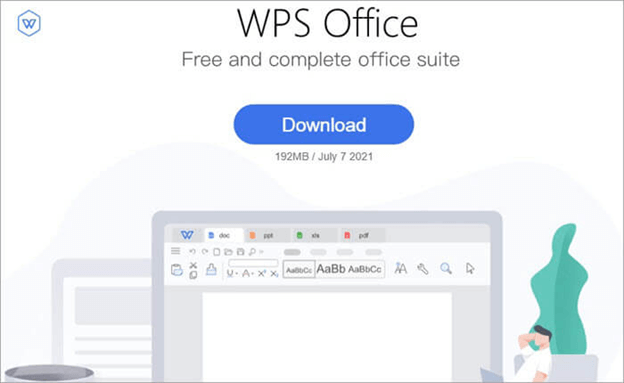
1. WPS Office Free Writer

WPS Office Free Writer

Let us kickoff our list of the best word processors with WPS Office Free Writer. It is a lightweight program renowned for its excellent PDF editing capabilities.

Moreover, features like team collaboration to collaborate and synchronize with your team members on various platforms (Linux, Android, Windows, and macOS) make it even more helpful.

Furthermore, the following are all of its delightful features.

Key features of WPS Office Free Writer

  • A complete PDF editor allowing you to fill in, annotate, and export annotations
  • Free PDF extension with options to sign, merge, split, combine, and convert PDFs from one format to another
  • Top-notch document management with easy identification of file sources from various drives
  • High-end search functions allow you to find file types and content keywords
  • 100,000+ templates to help you customize your documents
  • Supports over 46 languages on the mobile version and 13 languages on desktop

Download Now

Also Read: Best Free Document Scanner Software for Windows 10


2. LibreOffice Writer

LibreOffice Writer

Next, we have LibreOffice Writer as one of the best free word processors. It is simple and open-source software to create and edit all types of documents.

With LibreOffice Writer’s comprehensive functionality, you can even compose entire books with attractive graphics. Some helpful features of this software include automatic spelling checking when you type, templates and wizards for common document types, and the following.

Key features of LibreOffice Writer

  • AutoComplete suggests commonly used phrases and words to complete what you have begun to type
  • Formula editor to help you insert scientific and mathematical formulas
  • Grammar checking with language tool APIs
  • ODF, i.e., Open Document Format extensions

Download Now


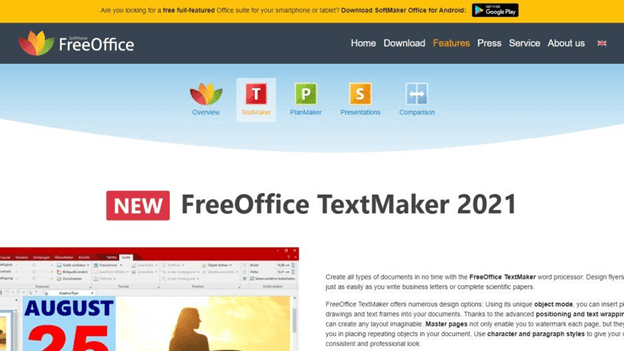
3. FreeOffice TextMaker

FreeOffice TextMaker

SoftMaker FreeOffice’s word processing element FreeOffice TextMaker is our third pick for the best word processing programs. With this software’s user-friendly templates, you can hassle-freely create flyers, brochures, business letters, scientific papers, and other everyday documents.

Moreover, it allows you to make your documents more impactful using the object mode. The object mode lets you add drawings, pictures, and text frames to the documents. Furthermore, the following are its other notable features.

Key features of FreeOffice TextMaker

  • Positioning and text wrapping options to create the desired document layout
  • You can export files in PDF and EPUB
  • Allows you to choose from a classic or ribbon menu style
  • Lets you create chapters and footnotes
  • Supports document previewing, change tracking, objects/shapes insertion
  • Allows you to open many types of document files, such as WRI, PWD, SXW, and others
  • Checks for spelling errors via Hunspell dictionaries

Download Now


4. FocusWriter

FocusWriter

Do you often get distracted while writing? If yes, you should try FocusWriter. It is among the best word processors for its distraction-free writing environment. It shows no distracting toolbars or buttons on the screen. You can access the hidden controls by moving the cursor to the edges of your screen.

Additionally, portability, target and alarm setting, and the following are among the most likable features of this one of the best word processing software.

Key features of FocusWriter

  • Shows live statistics about your document
  • Supports ODT, RTF, and TXT formats
  • Customizable colors and layouts
  • Availability of sound effects
  • Basic formatting options like strikethrough, bold, and text aligning

Download Now

Also Read: Best Free PDF Editing Software For Windows


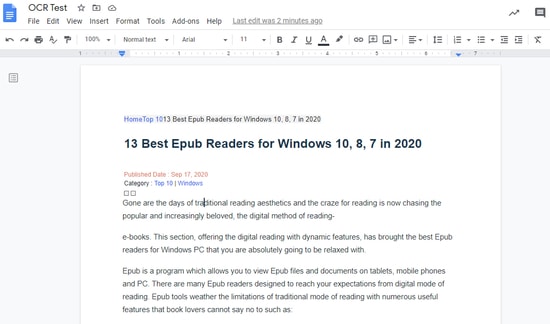
5. Google Docs

Google Docs

Do you know this article is composed on Google Docs? We write our articles on Google Docs as it is among the best free online word processors with support for hundreds of fonts and excellent collaboration options.

As far as features are concerned, it delights users with free templates, online document sharing via Google Drive, and many other offerings. Below are some key ones.

Key features of Google Docs

  • A Chrome extension for offline writing
  • Supports many third-party add-ons
  • Allows you to collaborate with team members in real-time
  • You can convert your Word documents to Google Docs
  • Lets you search Google for quotes, images, and text

Download Now


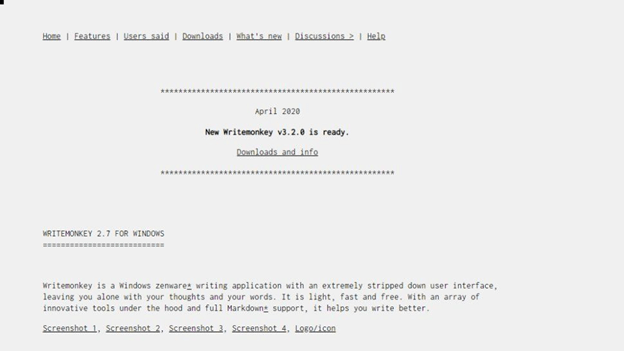
6. WriteMonkey

WriteMonkey

If you are looking for fewer distractions and more productivity during your writing sessions, you can choose WriteMonkey. This portable and one of the best word processing programs hides its set of tools to keep the environment distraction-free (similar to FocusWriter).

Moreover, simplicity and support for plugins are other reasons for including WriteMonkey on our list of the best word processors. Furthermore, below are some other noteworthy features of this software.

Key features of WriteMonkey

  • Customizable interface
  • Support for ANSI, Unicodes, and UTF-8
  • Availability of support for multiple languages
  • Markup and keyboard shortcuts support

Download Now


7. Zoho Writer

Zoho Writer

We would like to conclude the best free word processing software with Zoho Writer. We got fascinated by its clean yet feature-rich interface.

Moreover, it helps you write better with contextual grammar, style, and readability suggestions, feedback and change-tracking tools, and the following features.

Key features of Zoho Writer

  • Lets you insert images
  • You can change the indentation position and fonts
  • Allows you to choose a document creation template
  • Lets you convert DOCX/DOC documents without affecting the document formatting
  • Multiple users can collaborate on a document in real-time
  • Document automation and sign collection capabilities
  • Boasts WordPress integration

Download Now

Also Read: Best PDF Search Engine Sites to Get Free PDF eBooks


Concluding the Best Free Word Processors

This write-up acquainted you with the best word processors you can use for free as a replacement for Microsoft Word. You can go through all the above-listed programs and their features to pick the one that fits your needs perfectly.

If you find any other offline or online word processor worth listing in this article or have any other suggestions/questions, kindly write us a comment. We will happily address all your concerns.

How to Fix Frozen Mac or Macbook

How to Fix Frozen Mac or Macbook (2024 Guide)

February 1, 2024
0

Even though it is unusual for a Mac to become unresponsive or frozen Mac, Macs are not immune to the flaws that are common to other types of computers. During the course of a hectic workday, every one of us has, at some point or another, experienced the loss of documents, the crashing of programs, and the appearance of the spinning beachball of doom.

The greatest thing you can do is to be calm and follow some basic steps to get back up and running once something unexpected has occurred. If anything like this, MacBook frozen keeps happening, it’s probably time to look into more permanent alternatives. It’s possible that you haven’t updated your operating system in quite some time. Or maybe your hard disk is completely full and you are running out of space?

Whatever the cause may be behind the frozen Mac, by the time you’ve finished reading this article, you’ll be familiar with an excellent collection of diagnostic tools that may “unfreeze” your Mac immediately. But before we get into the hows and whats, let’s start with the whys, since this will assist you in avoiding experiencing the same issues in the future.

Primary Causes of Your Frozen Mac State

Macs are gadgets that provide a reasonable amount of power. But even relatively minor issues, such as simultaneously using an excessive number of applications, programs, and browser tabs, may eventually cause your Mac to lock up, become unusable, and present the iMac frozen error. You’re trapped with a spinning wheel, and your cherished frozen Mac and not responding to clicks and requests if you have too much data saved on it and too many applications vying for the same amount of processing capacity on the central processor unit. This is true of any computer.

The following are some of the most common causes of macOS systems to become unresponsive.

  • Too many applications are now active, which might negatively influence memory and CPU thus causing the MacBook frozen error.
  • Too many processes running in the background (the same).
  • A crash in an application (even just one crash in an application may do considerable harm to Mac’s performance).
  • A sluggish browser due to having an excessive number of tabs open.
  • An overworked email client (with an excessive number of attachments).
  • macOS, which is either overloaded with unnecessary system trash or in need of an update.
  • Insufficient free space on the hard disk.
  • There is a problem with the disk or the RAM in your computer (diagnostics are necessary).
  • Malicious software.

Now that we had a look at the most common reasons behind the MacBook frozen error, let’s understand how to fix this problem with ease.

Solutions for Frozen Mac or Mac is Frozen on the Startup Screen

In the coming sections of this guide, you will find the best solutions to fix the frozen Mac. Follow the solutions chronologically until the issue is resolved.

Fix 1: Exit Any Applications That Aren’t Responding

If an application on the frozen Mac and not responding, the best course of action is to quit the program and restart your computer instead. Moreover, there are a few different methods to exit an app, the most visible of which are through your menu bar & the dock. Other options are also available. If you are unable to use your cursor, you may exit the program by hitting the Command key and the letter Q simultaneously.

Also Read: How to Fix Safari Crashing, Freezing on Mac


Fix 2: Use Activity Monitor to Close Down Resource-Intensive Applications

The MacBook frozen error may sometimes appear if you are using an application that is either problematic or heavy. Heavy applications include browsers that have numerous tabs open. Activity Monitor provides a real-time view of your Mac’s currently running apps as well as information about their use, allowing you to locate and terminate any applications that are no longer required.


Fix 3: Restart Your Apple Computer to Fix the MacBook Air Frozen

If the issue is still present, you could try restarting your computer. You may click the Mac’s Apple logo in the top left corner of the screen and select the Restart option. If the cursor is not responding, you may force your Mac to shut down by pressing and holding the Mac power key for ten seconds.

You also have the option of using the Control ()  Option Command & Power keys combination to correctly terminate any open applications before turning off your computer. If you don’t hit the Option key during the previous keys, your Mac will turn off without correctly closing the applications you have open.

Also Read: AirDrop Not Working on Mac, iPhone, and iPad


Fix 4: Make Some Room on the Disk to Fix iMac Frozen

For the next solution for frozen Mac remove any applications that aren’t essential. There is a possibility that insufficient free space on your hard drive is the cause of your Mac operating more slowly than it formerly did. To improve the efficiency of your Mac, you should uninstall any applications that you haven’t used in a while.

You can determine how much space is available on your drive by selecting About This Mac > Storage from the Apple menu.

Use Apple’s iCloud to store all of your files. Apple’s platform for storing data in the cloud is known as iCloud. The iCloud service allows you to upload files from your Mac & then access those files from any other iOS device. This will free up a significant amount of space that is required and fix the MacBook frozen error.


Fix 5: Update the macOS

To fix a frozen Mac, you should upgrade your Mac’s operating system if it is running with an earlier version of macOS. Newer versions of macOS provide bug fixes as well as enhancements to the operating system’s stability, which may help address your issue.

It’s possible that the problem you’re seeing with the software freezing up was caused by a known flaw that was addressed in a more current version of the program or the operating system for OS X. It’s possible that bringing your software up to date will address the issue you’re facing.


Fix 6: Start the Computer in the Safe Mode

A Safe Boot is an option to try if none of the aforementioned solutions have been successful in resolving the frozen Mac problem you are experiencing. This will only load the necessary files that are required for OS X to work, and it will automatically execute a number of programs to debug any issues that may arise.

Restarting your Mac & holding Shift as soon as you hear the startup sound will get you started with a Safe Boot and take you further for fixing the frozen Mac. The Safe Boot mode will load whenever you press this button. If your Mac restarts on its own while you are in Safe Boot mode, it is probably trying to address an issue with the boot disk at the time.

Whether you are unable to get your computer to freeze while it is in Safe Boot mode, you may try to restart it normally to see whether the issue was resolved while it was in Safe Boot mode. If this solution does not work, follow the next one to fix the MacBook frozen issue.


Fix 7: Revert to an Older Version of Apple’s Operating System

This is another reason behind frozen Mac. If the Mac is using a Developer Preview of a version of macOS that hasn’t been published yet, there’s a strong probability that the build you’re using isn’t stable. This is especially true if the version of macOS hasn’t been released yet. You might consider downgrading to an older version of macOS that is more stable in order to prevent your Mac from freezing up again.

Also Read: How to Fix iMessage Not Working on Mac, iPhone and iPad


Fix 8: Disconnect Any Expendable Accessories to Fix the iMac Frozen Error

Next, to fix the frozen Mac you need to disconnect the peripherals. External peripherals like USB flash drives, hard drives, or portable SSDs may occasionally include damaged data, corrupted apps, or malware, which can cause your Mac to freeze and not perform correctly. Remove the external accessory and check to see whether the issue still exists when you do so.


Fix 9: Resetting the SMC (Only for Macs Based on Intel)

Macs that use Intel feature a unique circuit known as the SMC. This System Management Controller can be responsible for a variety of tasks, including the regulation of power and fan speed. If the System Management Controller is causing the frozen Mac problem, you can assist in finding a solution to the predicament and reset the tool. In order to reset your System Management Controller:

  1. Turn off your Mac & remove any external gadgets you may have connected to it.
  2. Connect your Mac to the power.
  3. Maintain pressure on Power while simultaneously pressing the Control, Shift, and Option keys for ten seconds.
  4. When Mac starts up, you may let go of the keys.

Head over to the last solution of this one fails to fix the MacBook Air frozen error.


Fix 10: Head on over to the Service Center with Your Mac

Do not give up hope; rather, take the Mac to the nearest Service Center and ask the specialists at the nearby Genius bar to identify the issue and fix the frozen Mac. If the Mac is still protected by its manufacturer’s warranty or has an active Apple Care+ plan, you may be eligible for a free-of-cost replacement of a brand-new Mac computer if the problem cannot be fixed.

Also Read: How to Unzip Files on Mac (Complete Guide)


Unfreeze Your Mac Without Much Effort: Summed Up

If the Mac is frozen on the startup screen or frozen Mac, it can be fixed very effectively; & the most apparent solutions are also the simplest and least complicated to implement: emptying the system storage, leaving resource-intensive applications, & running a couple of scans. Some Advanced options, such as running device diagnostics and using the Disk Utility program, are reserved for unusual circumstances. Lastly, if you face any problem, the best way to tackle the same is to take the device to Apple Care.

1 Comment
    Fiona_d says: Reply
    May 18th 2020, 4:05 pm

    It would be super nice to find a free service, but it’s quite hard to do that without getting scammed. Out of all the VPNs mentioned above, I have only tried out Surfshark. Pretty decent service. The subscription is about to end, but I’m quite sure I’m going to renew it.

Leave a Reply Cancel reply

Your email address will not be published. Required fields are marked *

Sidebar Image bit G ad1

Latest Posts

  • Best-Free-Online-Portfolio-Websites-in-2026
    Best Free Online Portfolio Websites in 2026
    by adminuser / March 16, 2026
  • Anytime Astro: Best Website For Online Astrology Consultation
    Anytime Astro: Connect Now For Online Astrology Consultation
    by Somya Shrimal / March 13, 2026
  • Best-Ways-to-Combine-Images-Into-PDF-Files
    Best Ways to Combine Images Into PDF Files
    by Niharika / March 12, 2026
  • Best FREE VPS Hosting Providers
    7 Best FREE VPS Hosting Providers in 2026
    by Devesh / March 12, 2026
  • Best-McAfee-alternative-software-to-use-for-Virus-Protection
    Best McAfee Alternative Software to use for Virus Protection
    by adminuser / February 11, 2026

Categories

  • Cyber Security
  • Driver Updater
  • Entertainment
  • Fitness
  • Games
  • How To
  • laptop
  • OS
  • Reviews
  • Tech News
  • Tips & Tricks
  • Top 10
Sidebar Image bit G ad1
Best Free Property Management Software Best Free Property Management Software to Use in 2024by Harshita / February 5, 2024
Best Free VPN for Omegle in 2024 [100% Working]by Akshara Parnami / February 5, 2024Best-Free-VPN-for-Omegle
TechPout Footer Logo

We at TechPout promise to put forth stories that help people to learn and simplify their digital life. Our purpose is to share the true essence of technology with our tech-loving community.

Useful Links

  • About Us
  • Contact us
  • Privacy Policy

Popular Posts

  • Best PC Optimizer Software
  • Best Mac Cleaner Apps
  • Best Driver Updater
  • Duplicate Photo Finder and Cleaner Software
  • Best Free Movie Download Sites
  • Best IPTV Players

Follow us

Copyright © 2026 www.techpout.com. All rights reserved
DMCA.com Protection Status