Main LogoLight Logo
  • Reviews
  • Top 10
  • How To
  • Tech News
  • OS
    • Windows
    • MAC
    • iOS
    • Android
  • Categories
    • Driver Updater
    • Cyber Security
    • Games
    • Fitness
    • Entertainment
    • Tips & Tricks
Driver Updater How To Windows
by Harshita

Unable to Connect to World Minecraft On Windows 10 [Solved]

December 21, 2020
1

Have you ever encountered an error message unable to connect to the world in Minecraft? We know, it is hampered, but it is easy to fix too. Hence, this post elucidates to you how to fix the Unable to Connect to World Minecraft error. 

There is no doubt in admitting that Minecraft is one of the most relishing games which takes you into the virtual fantasy world. Moreover, it lets you create or design your own world and promotes you to play in distinct modes that lead your way from modeling to survival. But, presently, many users have complained that whenever they are trying to connect with their friend’s world in Minecraft, they get one error message that reads Unable to connect to world Minecraft.

Are you in a trap of this error? If yes, then we can help! But before reaching solutions, here is a briefing about the causes because of which this issue occurs. So, let’s read them!

All-In-One Solution to Fix Unable to Connect to World Minecraft on Windows 10

The outdated network driver is one of the most common reasons behind this annoying error. Therefore, to deal with this error, one can use Bit Driver Updater. It is the world-class driver updater utility that ensures automatic & frequent driver updates. This utility comes with an in-built system optimizer that can elevate the performance pace of the PC by around 50%. What you need to do is just click on the button below to download Bit Driver Updater for Free.

Windows Download Button

Table of Contents hide
What Causes the Error “Unable to Connect to World” in Minecraft?
Best Fixes to Resolve Unable to Connect to World Minecraft on Windows 10
Fix 1: Adding Your Friend Again
Fix 2: Turn Off Windows Firewall
Fix 3: Temporarily Turn Off Antivirus Application
Fix 4: Update Network Drivers

What Causes the Error “Unable to Connect to World” in Minecraft?

Well, there are numerous reasons because of which this error occurs. But, so far now, after reading all the complaints, here are the major causes of this error. 

  • Problem in the friend list.
  • Outdated version of the game.
  • Third-party Antivirus software may conflict.
  • Problems with ISP.
  • Outdated network drivers.

So, these are the core causes of this error. But don’t worry, as now it is extremely easy to deal with this issue. Step forward towards our next section that explains to you how to fix unable to connect to world Minecraft windows 10. 

Read Also: Fix Minecraft Won’t Launch on Windows 10


Best Fixes to Resolve Unable to Connect to World Minecraft on Windows 10

Within a matter of moments, you can easily fix the annoying unable to connect to world Minecraft error on Windows 10. Here, at Tech Pout, we’ve brought up a list of troubleshooting solutions to fix the same issue. Without wasting more time, let’s start the discussion. 

Fix 1: Adding Your Friend Again

After restarting your computer and then the Minecraft game if still, it shows an “unable to connect to world Minecraft” error. Then, here is one thing, that you can do in order to fix the issue and that is re-adding the friend. Your friend list is the core part because of which you might encounter this error if there is some sort of corruption in your friend list. Issues in your friend list may prevent you from connecting to the friend’s Minecraft world. 

What you can do to fix this issue is – removing the friends from the friend list and then again adding them back. To do that you just need to know the username of the friend and then input the following (/f remove <username>) command and hit the Enter key from the keyboard. But, we suggest you before implementing this fix, try to visit the unknown person’s Minecraft world. If you can, then it will get clear that there is an issue with your friend list. After that, you can move ahead!

Read More: How to Fix Minecraft LAN Not Working Issue


Fix 2: Turn Off Windows Firewall

If the Minecraft executable file is not allowed in Firewall, then, it may be the reason for unable to connect to world Minecraft. However, you can still link to the game but can’t be able to connect to a friend’s Minecraft world. Hence, to prevent this make sure that Minecraft executable file must be allowed in Firewall. Here is how to do it!

  • Hit the Windows start button and input Control Panel in the search box then hit the enter key from your Keyboard to launch Control Panel.
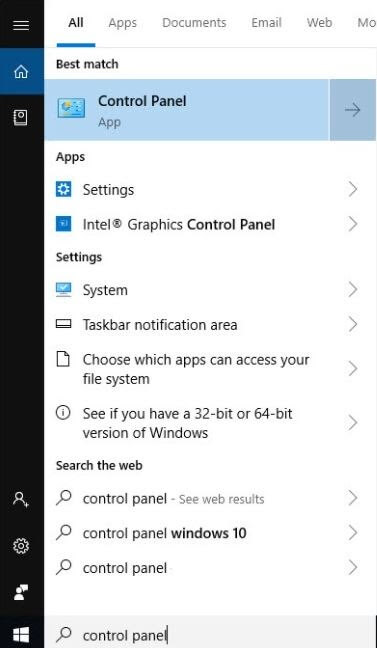
Launch Control Panel

  • Then, make sure to set the View By section as Large icons, after this click on the Windows Defender Firewall option.
  • From the next pop-up window, click on the Allow an app or feature through Windows Defender Firewall.
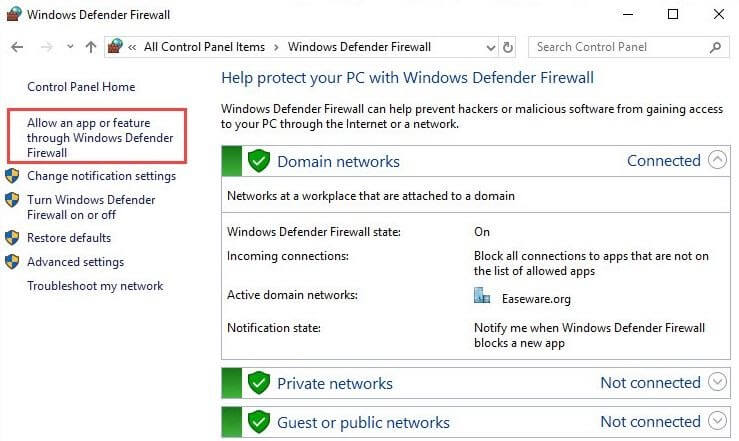
Click On Allow App Or Feature Through Windows Defender Firewall

  • Thereafter, be sure that javaw.exe is marked. If it isn’t then click on the Change Settings option and then mark the checkbox. If you find more than one javaw.exe records then mark them all. Make sure that the private and public both checkbox are marked. 
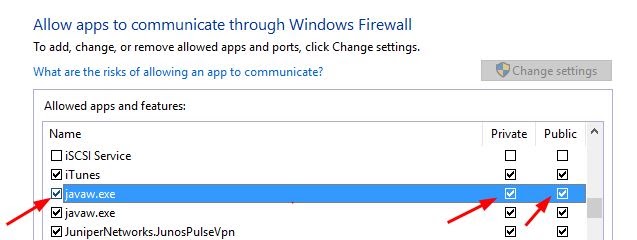
Private and Public Both Checkbox Marked

Do as so, and check whether the “Minecraft unable to connect to world” problem is solved or not. If it still remains like earlier, then move to our next fix. 


Fix 3: Temporarily Turn Off Antivirus Application

Sometimes, your Antivirus software can be the major cause because of which you are encountering the Minecraft unable to connect to world issue on windows 10. Rarely, your antivirus software can block some features in Minecraft so you may confront this annoying issue where you are helpless to connect to your friends’ world.

But, you do not need to panic, as this can be solved just by disabling the antivirus software for a temporary period of time. So, what are you looking for, try this hack and then connect to your friend’s world in Minecraft. 


Fix 4: Update Network Drivers

So, here is one of the most common yet bit impactful reasons why do you get an “unable to connect to world Minecraft” error on Windows 10 while connecting. The biggest culprit behind the occurrence of this issue is your outdated, old, broken, or corrupt network drivers. Hence, if you want to experience a breakthrough and smoother experience while playing Minecraft or any other game then you have to make sure that your network drivers must be always updated to their latest version.

Here, is one tool to do this task much easier and that is Bit Driver Updater. It is one of the leading driver updater tools currently which lets you update all the drivers with ease. Want to know how it works? Then, read the below-listed steps!

  • Download Bit Driver Updater from the download tab given below and launch it on your system.

Windows Download Button

  • Then, keep patience until the whole Automatic Scanning procedure gets finished.
  • Once, it will get over then examine the whole list of drivers.
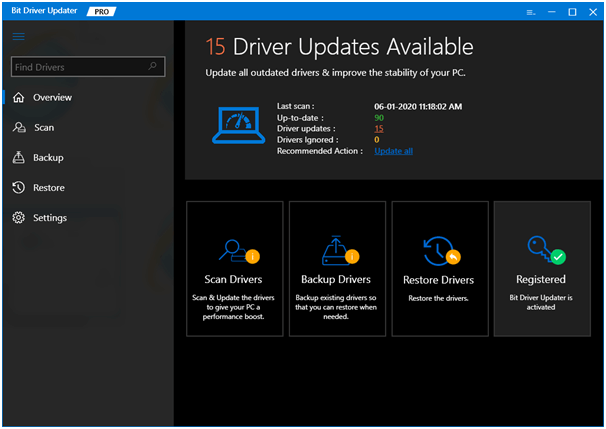
Bit Driver Updater - Best Driver Updater Software

  • After this, hit the Update Now option presented next to the drivers, to update the drivers.

That’s all, what you need to do, in order to update drivers using Bit Driver Updater. Isn’t it so facile? Undoubtedly, yes! So, hit the download tab and install this amazing software now!

Read More: How to Solve Discord Overlay Not Working on Windows 


Unable to Connect to World Minecraft On Windows 10 [Fixed]

So, with all this, we have come to the end. Through this write-up, we have tried to explain to you every bit possible to fix Minecraft unable to connect to world issue on Windows 10. Hopefully, the above-listed fixes can help you a lot. And, just in case, if you have any queries regarding this then feel free to ask in the comment box below. We’ll hear you and will answer your every query too.

In sum, do not forget to subscribe to our Newsletter for getting the latest tech information instantly. So, that’s all as for the present heat of the moment, we’ll back on board sooner with yet another informative post. Till then, stay in touch with us to stay in touch with the tech realm! 

Author

Harshita

Harshita Sharma is a technical writer with quite a distinct understanding of the tech realm. She is a tech enthusiast who believes that tech knowledge should reach one and all and tries to convert the sketchy knowledge into the simplest possible form for making people understand the tech world better. When not playing with words, she loves to travel and explore new places. And, is a coffee & cricket connoisseur.

View all posts

Related Posts
Omegle Error Connecting to Server- Fixed

Omegle Error Connecting to Server: Fixed

June 10, 2023
0

It’s possible that you’ve encountered Omegle error connecting to server before if you’ve been using the service for a significant amount of time. It appears to occur at random every once in a while, and there is no obvious explanation as to why it does so. This only adds to the confounding nature of the situation.

Omegle is not immune to glitches; in fact, several users have stated that the website repeatedly prompts them to enter their Captcha code. In the given article we have mentioned solutions for Omegle error connecting to server. Follow the simple procedures that we have provided below in the given order to address the error and use Omegle without any interruptions.

Possible Reasons for Omegle Not Connecting:

According to the issues listed online, there are a few scenarios that can end up on error connecting to server Omegle:

  • Your Internet Protocol address has been flagged, and no longer enables you to use Omegle.
  • Omegle is experiencing some problems on the back end of its server that you have no control over.
  • It’s possible that your computer or internet service provider will prevent you from connecting to Omegle.
  • Settings of web browser or on your computer that are outdated. These include DNS, cookies, and cache settings.

At first glance, these explanations appear straightforward; nonetheless, the solutions to each problem are extremely diverse.

Therefore, to save your crucial time and effort, it’s extremely vital to eliminate potential causes of the Omegle error connecting to server issue.


What causes Omegle Lead to Omegle Error Connecting to Server?

Although endless reasons can run into this issue, notable ones are either because of a shaky Internet connection or because of surfing data that prevent Omegle from functioning properly. The error message wth connection issues and try again can be associated with DNS servers.

Although the issue can be frustrating but thankfully have effective solutions which are listed below.

Also Read: Best Free Omegle Alternative


Solutions for Omegle Error Not Connecting to Server:

In the very first place before directly moving to solutions, make sure you Wait for some time. Although this is not a particularly well-liked method, some users have claimed that the problem disappeared after waiting for about a month.

If error connecting to server omegle continues try applying the following solutions.

Solution 1: Establish a connection using a different network

You need to disconnect from the network you’re currently using. Switch to a different network once you’ve finished. Try using the network at a different area to see if it helps. After you have successfully connected, attempt to access Omegle once more.

This will somehow fix the Omegle error connecting to server issue. Some users have stated that they were able to work around this problem simply by utilizing their phone as a hotspot.


Solution 2: Try Different Web Browser

A number of people indicated that switching to a new web browser was the solution that worked for them. You are free to use any other web browser that is installed on your personal computer.

Make sure the browser you pick is well equipped with built-in networking functions. Additionally, the web browser also has a virtual private network (VPN) that provides an additional degree of protection while surfing the web. This means that the browser does not collect your information or keep a log of your activities.

Additionally, check if the browser has an ad blocker feature that not only prevents adverts that are disruptive to your browsing experience but also protects your privacy and speeds up your browsing.

Once you switch to a different browser check if the Omegle error connecting to server issue is resolved.

Also Read: How to Get Unbanned from Omegle


Solution 3: Delete all Stored Web page data

To resolve the Omegle error connecting to server, clear the data stored on a webpage. Here are the steps to do so.

Step 1: To access the menu, select the button located in the upper right corner.

Step 2: Proceed to the More Tools section. After that, select Erase all data from the list.Delete all Stored Web page data

Step 3: Make sure that the “All time” option is chosen and then select the data that you wish to delete. After that, select the option to Clear data.

Step 4:  Verify that you really do want to delete all of the data.

This is a rather straightforward approach, and many users have indicated that it was successful for them. In case this method does not fix the Omegle error connecting to server problem, move on to the next step.


Solution 4: Make use of VPN service that Allows Usage of Omegle

If you’re having trouble connecting to an Omegle server on your personal computer, you might find that using a virtual private network (VPN) is helpful.

Any reliable virtual private network (VPN) will help you prevent problems like this one while also protecting your privacy. Because your IP address is visible to other users on Omegle, using a virtual private network (VPN) is an excellent approach to conceal your online activity and maintain your anonymity.

Using a reliable free vpn such as NordVPN provides high level encryption in addition to a no-logs policy, your online activities will be completely anonymous.

Moreover, the service provides protection against DNS leaks, duplicate VPN connections, and automatic kill switches. All of these features contribute to the service’s already impressive level of overall security. In general, this Virtual Private Network (VPN) is excellent for using with Omegle and web browsing in general.

If why does Omegle say error connecting to server question remains unanswered move on to the next solution.

Also Read: Best Free VPN for Omegle


Frequently Asked Questions (FAQs):

The following are the answers to some of the most frequently asked questions regarding the Omegle error connecting to server issue.

Q.1 Why does Omegle not work with VPN? 

In most of the cases the Omegle not working with VPN error can come up if your system’s IP was identified by the server and was blocked. However, the issue can also occur if the VPN is prohibited.

Q.2 Why Omegle is not working on WiFi? 

The Omegle error not connecting to server issue can be associated with your internet connection. If the issue occurs on WiFi try connecting to a different network. Many users resolved the issue by simply switching to another internet connection.

Q.3 What does error connecting to server means? 

The error connecting to server Omegle signifies that the browser fails to connect to Omegle servers. This can end up hampering your Omegle experience or even blocking the usage of the website. However, these connection issues can be resolved by using the aforementioned solutions.

Q.4 Why does Omegle not work on Google Chrome? 

All modern browsers including Google Chrome support Omegle. However, if the error connecting to server Omegle occurs try clearing cookies and cache on your browser. In case the error is browser specific, switch to a different web browser.


Omegle Error Connecting to Server: FIXED

This brings us to the end of our guide on solutions to fix error connecting to Server Omegle. Hopefully, the above-listed methods have helped you in resolving the issue. If you have any more questions or suggestions feel free to connect with us in the comments below. Also, for more troubleshooting guides subscribe to our blog.

How to Turn Off the Firewall on Windows 10,11

How to Turn Off the Firewall on Windows 10,11

October 8, 2022
0

Check out the complete guide and know how to turn off the firewall Windows 10/11 with the help of some easy methods. 

A firewall is a great security feature on Windows and other operating systems. The feature allows you to protect yourself and your network from the attacks of hackers and other meddling attackers. So, it’s very important to keep the feature up and running at all times for security.

Although the firewall can protect you from attacks, it may also cause problems for your device. Sometimes, the firewall may prohibit you from accessing a website to run software on your Windows PC. This is because even if the app or website is clean and harmless, the feature mistakes the same to be harmful. In such a case, you will not be able to access the website or app until you turn off the firewall.

If the firewall is causing a lot of problems for you, you can disable it with ease. There are some procedures that allow you to turn off the feature and use your device and its attributes as you may.

In this guide, we will list a couple of methods to help you turn off the Windows Firewall. All you have to do is follow any of the methods provided, as required, and disable the security feature. That’s enough of the introduction part, let’s head over to the solutions now.

How to Disable the Firewall in Windows 10 and Windows 11

To know how to turn off the firewall Windows 10/11, you can take the help of the upcoming sections of this article. Below, you will find a couple of procedures allowing you to turn off the feature. You should take the help of the specific method(s) according to the operating system installed on your device and other requirements.

Use the Control Panel to Disable the Firewall in Windows 10

The best and the most secure way to turn off the Windows firewall is using the Control Panel. This is a Windows-integrated utility that allows you to get a hold of different attributes and working of the Windows operating system. Follow the steps below for precision:

  1. Press the Win+S keys, type Control Panel, and hit the Enter key.Type Control Panel in Search Box Of Windows
  2. Click on System & Security.click on System and Security
  3. Select Windows Defender Firewall to get on with the procedure.
  4. From the left side, click on the Turn Windows Defender Firewall on or off button.turn windows defender firewall on or off
  5. Within the categories named Private Network Settings and Public Network Settings, check the box named Turn off Windows Defender Firewall and click the Ok button.Turn Off Windows Defender Firewall

The procedure is quite the same for Windows 11.

Also Read: Best Firewall Software For Windows


Take the Help of Windows Settings

The next method that you can try to turn off the firewall is to use the Settings of your operating system. For the same, you can follow the steps provided right below:

  1. Firstly, right-click on the Start/Windows icon on the taskbar and open Settings.windows setting
  2. Click on Update and Security to proceed.update and security
  3. From the left pane of the window, click on Windows Security.
  4. Click on the option named Firewall & network protection.
  5. Select from the networks available: Domain, Private, or Public network.
  6. Lastly, Turn off the Defender for the network.

Use Command Prompt and Turn Off the Firewall in Windows 10

You can also seek the help of the Command Prompt to disable the firewall in Windows 10. For this, you will need to use the steps provided below:

  1. Press Win+S keys, search for Command Prompt and click on Run as administrator.Command Prompt run as administrator
  2. Click on Yes to proceed.
  3. When the tool appears, enter the below command and hit the Enter button.
    netsh advfirewall set currentprofile state off (for current network profiles)
    netsh advfirewall set allprofiles state off (for all network profiles)
    netsh advfirewall set domainprofile state off (for domain network profiles)
    netsh advfirewall set privateprofile state off (for private network profiles)
    netsh advfirewall set publicprofile state off (for public network profiles)
  4. Wait while the procedure completes.

How to Disable the Firewall in Windows 10? (Notifications Only)

Sometimes, you are just fed up with the notifications from the Firewall. So, in such a situation, you can easily turn off the notifications from the feature. Follow the procedure shown below for precision:

  1. Firstly, press the Win+S keys, type Control Panel, and hit the Enter key.Type Control Panel in Search Box Of Windows
  2. Click on System & Security.click on System and Security
  3. Open the Security and Maintenance options.Security and Maintenance
  4. From the left pane, click on Change Security and Maintenance settings.
  5. Look for Security Messages and unmark the boxes named Virus protection and Network firewall. Virus protection and Network firewall
  6. Lastly, click on the Ok button to apply the changes.

Also Read: [Fixed] Network Discovery is Turned Off Windows


How to Turn Off the Windows Firewall on Multiple Devices?

Sometimes, you have more than just one computer and want to turn off the Windows firewall on all of these. In such a case, it will take a lot of time and effort to do the same individually. However, you can take the help of Windows PowerShell to do this. Below is the detailed procedure for the same:

  1. Press the Win+S keys, type Windows PowerShell, and hit the Enter key.Windows PowerShell
  2. Lastly, enter the below command and hit the Enter key.
    Enter-PsSession -ComputerName desktop1          Set-NetFirewallProfile -All -Enabled False
    You may need to use the below command if there are more than just some computers.
    $computers = @(‘desktop1’) $computers | ForEach-Object {
    Invoke-Command -ComputerName $_ { i. Set-NetFirewallProfile -All -Enabled False
    } }

Also Read: How to Fix Remote Desktop stops working in Windows


How to Turn Off the Firewall Windows 10/11: Executed Successfully

So, this was everything related to how to disable the firewall in Windows 10/11. We think we were able to help you precisely as you expected. However, if you have any queries related to the topic, you can ask them in the comments below. We will be happy to help you. Your suggestions are well appreciated.

If you liked this guide on how to turn off the firewall, subscribe to the newsletter of the blog.

1 Comment
    [Fixed] World of Warcraft Was Unable to Start Up 3D Acceleration says: Reply
    December 24th 2020, 1:22 pm

    […] Read Also: Fix to Resolve Unable to Connect to World Minecraft On Windows 10 […]

Leave a Reply Cancel reply

Your email address will not be published. Required fields are marked *

Sidebar Image bit G ad1

Latest Posts

  • Best-Free-Online-Portfolio-Websites-in-2026
    Best Free Online Portfolio Websites in 2026
    by adminuser / March 16, 2026
  • Anytime Astro: Best Website For Online Astrology Consultation
    Anytime Astro: Connect Now For Online Astrology Consultation
    by Somya Shrimal / March 13, 2026
  • Best-Ways-to-Combine-Images-Into-PDF-Files
    Best Ways to Combine Images Into PDF Files
    by Niharika / March 12, 2026
  • Best FREE VPS Hosting Providers
    7 Best FREE VPS Hosting Providers in 2026
    by Devesh / March 12, 2026
  • Best-McAfee-alternative-software-to-use-for-Virus-Protection
    Best McAfee Alternative Software to use for Virus Protection
    by adminuser / February 11, 2026

Categories

  • Cyber Security
  • Driver Updater
  • Entertainment
  • Fitness
  • Games
  • How To
  • laptop
  • OS
  • Reviews
  • Tech News
  • Tips & Tricks
  • Top 10
Sidebar Image bit G ad1
How To Install Windows 10 On Mac How To Install Windows 10 On Mac? Simple Guide!by Jyotsana / December 20, 2020
15 Best Christmas Tech Gifts & Gadgets For Kidsby Prachi Dani / December 21, 202015 Best Christmas Tech Gifts & Gadgets For Kids
TechPout Footer Logo

We at TechPout promise to put forth stories that help people to learn and simplify their digital life. Our purpose is to share the true essence of technology with our tech-loving community.

Useful Links

  • About Us
  • Contact us
  • Privacy Policy

Popular Posts

  • Best PC Optimizer Software
  • Best Mac Cleaner Apps
  • Best Driver Updater
  • Duplicate Photo Finder and Cleaner Software
  • Best Free Movie Download Sites
  • Best IPTV Players

Follow us

Copyright © 2026 www.techpout.com. All rights reserved
DMCA.com Protection Status