Main LogoLight Logo
  • Reviews
  • Top 10
  • How To
  • Tech News
  • OS
    • Windows
    • MAC
    • iOS
    • Android
  • Categories
    • Driver Updater
    • Cyber Security
    • Games
    • Fitness
    • Entertainment
    • Tips & Tricks
Driver Updater How To Windows
by Harshita

[Fixed] USB Port Not Working On Windows 10, 11

October 6, 2023
1

The problem of “USB ports not working on Windows 11, 10” can be fixed in a few different ways, and this article will walk you through those solutions. Continue reading!

The availability of USB ports in a Windows machine is absolutely necessary. They make it possible for users to connect a variety of devices to their computers, including printers, cameras, and smartphones, amongst others. When using a computer running Windows 11, 10, having problems with the USB ports can be an extremely frustrating experience for the user. If you are having such issues, there is no need to panic, you are not alone. This issue has been reported by a significant number of Windows PC users. But there is no need to be concerned. This post might help you out.

Table of Contents hide
Why is USB Ports Abruptly Stopped Working?
Solutions to Fix USB Ports Not Working on Windows 10, 11
Solution 1: Verify your Device
Solution 2: Update Outdated Device Driver
Solution 3: Checking Power Supply (For Laptop)
Solution 4: Verify your Power Management Settings
Solution 5: Repair Damaged USB Ports
USB Ports Not Working on Windows 10, 11: SOLVED

Why is USB Ports Abruptly Stopped Working?

Listed below are a few prominent reasons why USB ports not working on Windows 10, 11. Have a look at them below:

  • Incompatible or outdated drivers: It’s possible that malfunctioning or out-of-date USB drivers are to blame for this issue in some instances. The best way to fix this issue is to either completely reinstall your drivers or update them.
  • Incorrect Power Settings: The quick-launch option, according to the findings of certain users, is to blame for this problem. This feature can cause your startup time to increase tremendously, but it also has the potential to cause this problem. In order to resolve this issue, you will need to disable this functionality.
  • Outdated computer: An outmoded operating system is yet another factor that can be contributing to this issue. You can resolve this issue by installing the most recent version of Windows on your computer.

Solutions to Fix USB Ports Not Working on Windows 10, 11

So, whatever issue you’re having with USB ports, this article will definitely help you resolve USB ports not working on Windows 10, 11. Here you will find 4 best possible ways to deal with the issue. However, you don’t need to test them all, just make your way through each until you get the perfect bet. Now, without further ado, let’s get started!

Solution 1: Verify your Device

It is improbable that the USB device is broken if it was functioning normally before you switched to Windows 10. However, coincidences can occur. It is not impossible that the failure of your device was coincidental with the installation of the new version of Windows that you downloaded. Therefore, before devoting effort to debugging more complicated issues, it is advisable to confirm that this possibility cannot be the cause.

You can quickly determine if a USB device has a problem by removing it from the computer, selecting the “Eject” option if it is a USB storage device, and then plugging it into a different computer. If it is functioning properly, the device is fine. In the event that it does not, you have found the source of the issue! You will simply need to get a replacement.

Also Read: USB 3.0 Driver Download and Update for Windows 10, 11


Solution 2: Update Outdated Device Driver

If you are using outdated, broken, or corrupted system drivers, then you may experience numerous issues with your device, regarding slow performance, USB not working, and much more. Therefore, to avoid every possible technical glitch, you need to update drivers from time to time. 

There are two main ways to install the latest version of drivers on a PC, i.e., manually or automatically. To update drivers manually, you can visit the official website of the manufacturer, and then search for and download the available driver updates. However, this approach can be tiring and error-prone, especially for newbies. Therefore, we suggest you automatically perform driver downloads on your PC with the help of the best driver updater tool like Win Riser Driver Updater. 

Win Riser Driver Updater is one of the most popular and safe-to-use utility tools that helps you quickly find and install the drivers on a Windows PC. It automatically scans your system for problematic, broken, or outdated drivers and provides you with new ones. The program only provides authenticated and WHQL-certified drivers. Not only that, but Win Riser Driver Updater also comes with an in-built malware detection and removal tool that keeps your device safe from malware or any other kind of threats. Using this tool, you can replace all the outdated device drivers on your PC with just one click on the mouse. Here is how to use Win Riser Driver Updater to fix numerous PC problems including USB device not working.

Step 1: Download and install Win Riser Driver Updater from the button provided below. Windows-Download-Button

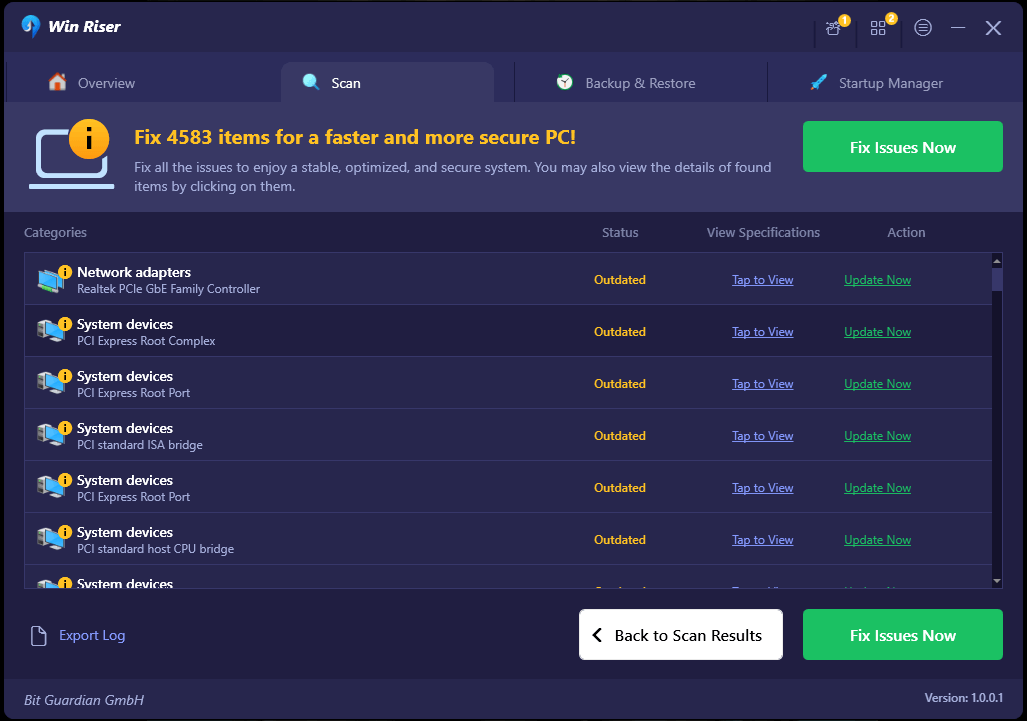
Step 2: Once successfully installed, the tool automatically starts scanning your device for outdated drivers and, later on, provides you with a comprehensive list of drivers that need to be updated. 

Step 3: Next, go through the scan results and click on the Fix Issues Now option to install all the available PC drivers in one click.Win Riser Update the Driver
Step 4: Once done, reboot your PC to apply new drivers.


Solution 3: Checking Power Supply (For Laptop)

As you know, the power supply of your laptop produces power to your USB ports. In the event that it is unable to complete this task correctly for whatever reason, the USB devices that have been plugged into those ports may become inoperable. To fix the issue, you can check the power supply of your laptop.

This might help you fix USB ports not working on laptops. Here is how:

Step 1: Remove the power supply plug as well as the plug for the charger from your laptop.

Step 2: Start your laptop all over again.

Step 3: Reconnect the USB device you want to use to the laptop.

Step 4: Reconnect the power source. Once done, then test the issue, and if you still encounter USB ports not responding to Windows 10, 11, proceed with the other solutions below.

Also Read: How to Download and Update MTP USB Driver On Windows PC


Solution 4: Verify your Power Management Settings

Windows will turn off your USB controllers when they are not being used and will enable them again when they are required. This is done in an effort to save power consumption. Unfortunately, this strategy does not always function as intended, and Windows may fail to turn your respective USB controllers back on when it should have done so. To resolve this, you need to verify that your power management settings are correct.

To do so, comply with the on-screen instructions:

Step 1: Launch Device Manager by entering “Device Manager” into the search bar on your Windows computer.Open Device manager

Step 2: Find and double-click on the Universal Serial Bus controllers in order to expand the category.In Device Manager Window Pops Up, Go To Universal Serial Bus Controllers Category
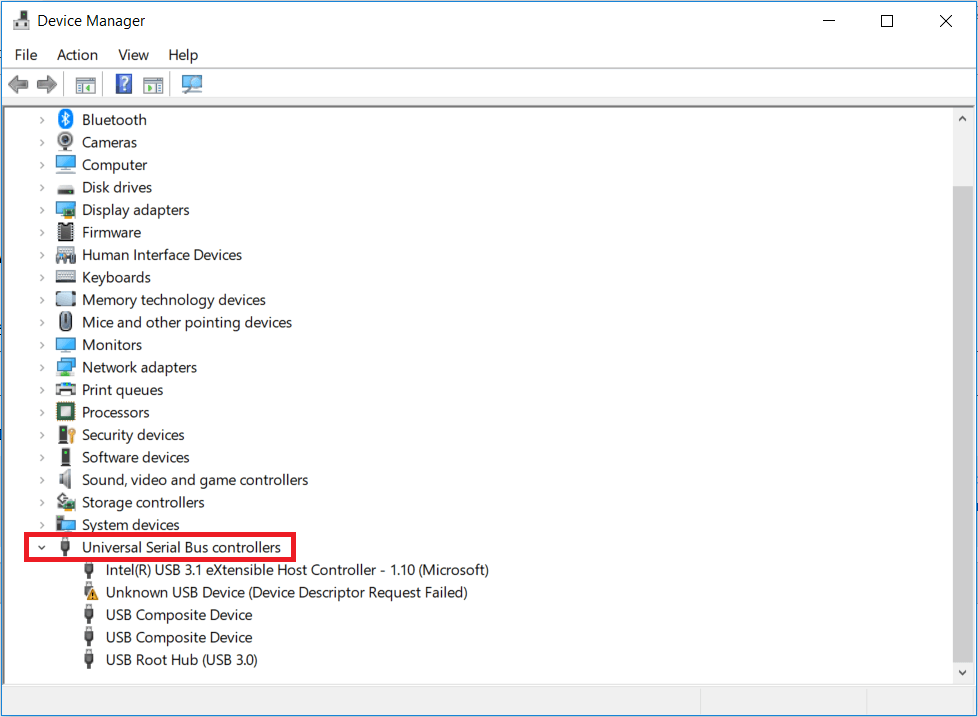
Step 3: In the list of devices, locate the first USB Root Hub device and double-click it. It’s okay if there’s just one USB Root Hub device.

Step 4: Navigate to the tab labeled Power Management and click on it.USB Root Hub Properties
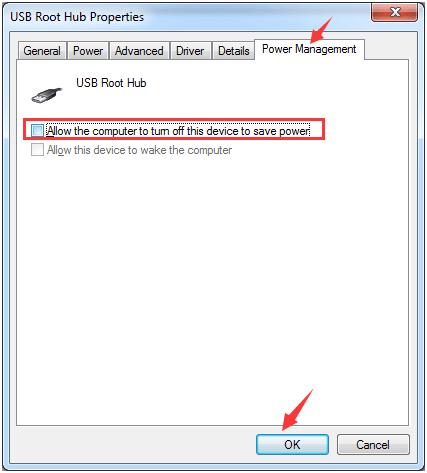
Step 5: Remove the checkmark from the box that says “Allow the computer to turn off this device to save power,” and then click the OK button.Allow the Computer to Turn off this device to save power
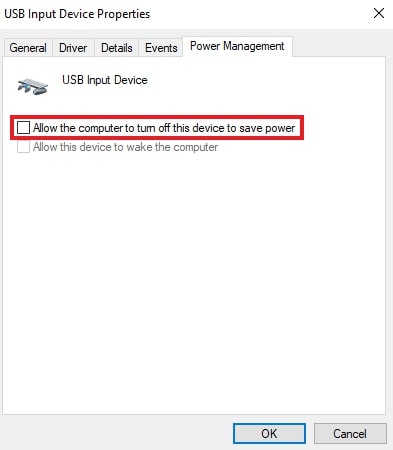
Step 6: Perform steps 3-5 once more for every USB Root Hub device shown on the list of Universal Serial Bus controllers you have.

Once everything is done, check if the USB ports not working on Windows 10, 11 is resolved. If persisting, try our last resort.


Solution 5: Repair Damaged USB Ports

None of the aforementioned solutions have worked for you? Don’t worry, your USB ports may be damaged. If that is the case, you can try to contact a technician or take your system to a repair store for further assistance. If in case your USB ports are broken or damaged, the technician will be able to repair or replace them.

Also Read: How to Download WD SES Device USB Device Driver for Windows 10


USB Ports Not Working on Windows 10, 11: SOLVED

So, that was all about how to fix USB ports not responding to Windows 10, 11 PCs. Hopefully, the information shared in this guide will help you apply the right solution for your USB ports not working problem. Please feel free to drop your queries, or better suggestions regarding the same in the comments section below. For more tech-related information, you can subscribe to our Newsletter and follow us on Social Media (Facebook, Twitter, Pinterest & Instagram) so you never miss any updates.

USB Driverusb driver windows 10usb ports not working windows 7What to do when your USB port is not working?windows 10 usb not recognized
Author

Harshita

Harshita Sharma is a technical writer with quite a distinct understanding of the tech realm. She is a tech enthusiast who believes that tech knowledge should reach one and all and tries to convert the sketchy knowledge into the simplest possible form for making people understand the tech world better. When not playing with words, she loves to travel and explore new places. And, is a coffee & cricket connoisseur.

View all posts

Related Posts
Epson L3251 Driver Download and Update

Epson L3251 Driver (Printer and Scanner) Download for Windows

March 9, 2024
0

Read to learn different ways to find, download, and install the Epson L3251 driver on a Windows 10/11 PC.

Among Epson printers, the Epson L3251 is an all-in-one multi-function printer and is specially designed for printing with true convenience at home. The printer supports Wi-Fi connectivity. In addition to this, you can expect high-quality prints. Not only this, but it can also print borderless photos up to 4R in size. However, to ensure the smooth operation of all the features, you should keep the respective printer drivers up-to-date.

The driver is a crucial component that ensures communication between the printer and the Windows operating system. When these drivers either goes missing or become obsolete, your printer stops working properly. Hence, to avoid glitches, updating printer drivers from time to time is recommended. In this post, you will find multiple methods for Epson L3251 printer driver download for Windows 11/10.

Methods to Download, Install & Update Epson L3251 Driver on Windows 10/11

Have a look at the below-mentioned ways to download the Epson L3251 driver for Windows 10, 11. Let’s get started!

Method 1: Download & Manually Install Epson L3251 Driver from Official Support

Epson provides regular driver updates for their products to ensure better functionality and performance. So, you can simply go to the official website of Epson, search for your printer model, and then manually install the compatible drivers for it. To do so, follow the steps provided below:

  1. Visit the Epson’s official website.
  2. Go to the Service tab, then choose Drivers from the drop-down menu. After that, click Printer to proceed.Service menu on the homepage of Epson IN and click on Printers under Drivers
  3. Scroll down the page, enter your printer model in the search box, and hit the Enter key from your keyboard.Search Epson L3251 Driver on Official Website
  4. Check if the automatically detected Windows OS version is correct. If not, choose the correct Windows version from the drop-down menu.Choose Operating system to download Epson l3251 Driver
  5. Expand the Drivers option, click on the Download button available next to the driver installer package you want to download.Download the Epson l3251 Driver from Official site
  6. Once done, double-click the downloaded file and follow the on-screen instructions to finish the process.
  7. Once drivers are installed successfully, simply reboot your computer to apply new drivers.

Also Read: Epson L3210 (Printer & Scanner) Driver Free Download


Method 2: Automatically Get the Latest Epson L3251 Driver Updates With Win Riser Driver Updater (Recommended)

Are you unable to manually download drivers for your Epson L3251 printer? No worries, you can automatically find and install the latest drivers for your Epson printer with the help of the best third-party driver updating tool, Win Riser Driver Updater.

Win Riser is one of the most popular and dedicated driver updating software available in the market. This is a globally recognized utility tool that automatically detects your system and finds the latest drivers for it. With Win Riser, you can ensure updated and enhanced PC performance. You can automatically update drivers either with the free version or the pro version of Win Riser Driver Updater. However, the pro version helps you unlock the full potential of the tool. The pro version provides single-click driver update functionality, additionally round-the-clock technical support. On the other hand, the free version enables you to update one driver at a time.

Now, here is how to install the Epson L3251 scanner driver for Windows 10/11 using Win Riser Driver Updater.

  1. To get started, simply download and install Win Riser from the button below.Download-Button
  2. After installation, launch the utility tool on your PC and let it scan your device for outdated, problematic, or missing drivers.
  3. Once scanning is complete, check the scan results and click on the Fix Issues Now button. This will automatically install all the available drivers on your PC.Win Riser Update the All Outdated Driver Click On Fixes Now
  4. Lastly, restart your computer to implement these drivers.

Also Read: Epson L3110 Driver and Software Free Download and Update


Method 3: Update Epson L3251 Driver in Device Manager

Device Manager is another way to find and download the pending driver updates on Windows PCs. Below is how to download the Epson L3251 scanner driver using Device Manager.

  1. On your keyboard, press Windows + X keys together and then choose Device Manager from all available options.Select Device manager
  2. On Device Manager, find and double-click on the Printer or Print Queues category to expand.Select Print Queues in Device manager
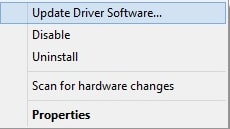
  3. Right-click on your Epson L3251 printer and select Update Driver Software to proceed.click on update driver software
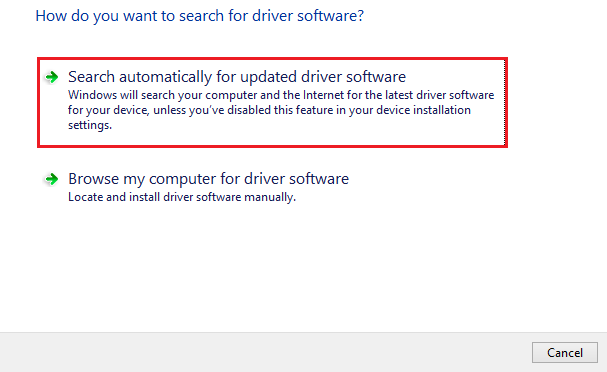
  4. From the next prompt, choose the Search Automatically For Updated Driver Software option.Search Automatically for Updated Driver Software

This procedure will search for the latest driver updates and automatically install the available ones. Once new drivers are installed, you need to reboot your computer so these drivers come into effect.

Also Read: Epson L5290 Driver (Printer & Scanner) Download for Free


How to Download & Update Epson L3251 Driver for Windows 11/10: Explained

Using either of the following methods you can quickly find, download, and install the available drivers for your Epson printer. We hope you found this driver download guide helpful. If you have any questions or additional information related to the Epson L3251 driver download, then do tell us in the comments section below.

Lastly, before you go, do subscribe to our Newsletter so you never miss a tech update.

HP Envy 4520 Driver Download and Update for Windows 10,11

HP Envy 4520 Driver Download and Update for Windows 10,11

November 28, 2023
0

Your HP Envy 4520 printer/scanner performs smoothly if you have the correct and compatible driver to support it on your Windows 11/10 system. Hence, in this article, we take a look at how to download and install the driver quickly and easily

Envy 4520 is a renowned all-in-one printer from HP. It boasts the best-in-class features and specifications, such as an in-built quiet mode, a print resolution of 4800*1200 dpi, a print speed of 9.5 ppm, and more. However, despite the top-notch specs, it can only deliver the expected performance with the helping hand of the HP Envy 4520 driver.

The driver for the HP 4520 printer/scanner connects your Envy 4520 device to the computer. It helps your PC understand and execute your instructions perfectly by translating them into binary codes.

If there is no HP Envy 4520 printer driver on your computer, you may experience various problems like the printer or scanner not working.

Hence, this article introduces you to the best possible methods to download, install, and update the HP Envy 4520 driver for Windows 11 and 10. Let us begin with them in the following section.

How to Download and Install the Updated HP Envy 4520 Driver

Below are the automatic and manual methods you can apply to get the updated driver for the HP 4520 printer downloaded and installed on your Windows 11/10 computer.

Method 1: Download the HP Envy 4520 driver from HP’s website

The official HP website has all the drivers you may need for the HP printing and scanning machines. You can download and install all the required drivers from there if you know your device’s operating system. If you are not aware of the operating system details, you can know them by following the path Settings>System>About. After noting the needed information, you can follow these steps to get the driver.

  • Firstly, navigate to the HP’s website.
  • Input Envy 4520 in the search box and press your keyboard’s Enter key.
  • Click on the Support option.
  • Now, select Software & Drivers from the available support categories.HP Official Support - Click on Software and Driver
  • You can now choose a different OS if the detected operating system is not correct.
  • Click on the Download button to get the driver package downloaded to your system.
  • Double-click on the downloaded package and follow the directions to install the HP 4520 Envy driver.

Also Read: HP Printer Driver Download, Install, and Update for Windows 11,10,7


Method 2: Download and install the HP 4520 printer driver via Device Manager

Device Manager is an in-built Windows utility with various peripherals neatly categorized, allowing you to download, install, and update device drivers to solve associated problems. You can use the Device Manager to get the updated drivers for different devices like graphic cards, printers, etc. Here is how to use it to download the HP Envy 4520 driver for Windows 10/11.

  • Firstly, right-click the Windows icon and select Device Manager from the on-screen options.Select Device manager
  • Select the category of Printers/Print queues to expand it.Select Print Queues in Device manager
  • Right-click your HP Envy 4520 driver and select the Update driver option.Update the Driver in windows pc
  • Choose to Search automatically for updated driver software. Search Automatically for Updated Driver Software
  • Wait until your operating system downloads the driver for the HP 4520 device and installs it.

Also Read: HP ENVY 4500 Printer Driver Download and Update on Windows PC


Method 3: Download and install the HP Envy 4520 driver update automatically (Recommended)

The manual methods discussed above have some demerits. For example, you may download a driver not compatible with your operating system from the official website and the driver download process from Device Manager is extremely lengthy and complicated.

Hence, downloading and installing driver updates automatically through a program like Win Riser is a quick and safe option. The Win Riser software is an excellent driver updater tool to update outdated drivers and optimize the computer performance with a few clicks.

Moreover, it boasts a lot of helpful features. For example, with Win Riser, you can create and restore driver backups, run scheduled and in-depth scans, ignore drivers you do not want to update, remove junk, and scan your device for malware.

The following is the link that allows you to download and install Win Riser on your PC.

Download-Button

After installing Win Riser, you can follow these steps to download the latest HP Envy 4520 driver for Windows 10/11.

  • Firstly, run the software.
  • Now, select the Scan option to perform the device scan.Win Riser Update the All Outdated Driver Click On Fixes Now
  • Review the drivers flagged as outdated.
  • Lastly, choose Fix Issues Now to get all the problems solved instantly.Win Riser Update the All Outdated Driver Click On Fixes Now

Also Read: HP Envy 7640 Driver Download and Install for Windows 10, 11


HP Envy 4520 Driver Downloaded and Updated

Through this article, we discussed various methods you can follow to download and install the updated HP Envy 4520 printer driver for Windows 10/11. You can get the required drivers through any of the ways mentioned in the above guide. However, if you wish to update drivers quickly and safely, we recommend automatic driver updates through Win Riser.

In case you know better ways to download and install the needed drivers, have any questions or wish to suggest something about this article, feel free to leave us a comment. We will see you soon with another helpful tech guide. Until then, stay connected with us.

1 Comment
    How To Format Pen Drive In Windows 7, 8 and 10 | TechPout says: Reply
    January 1st 2021, 6:36 pm

    […] Read Also: Fix USB Port Not Working On Windows 10 […]

Leave a Reply to How To Format Pen Drive In Windows 7, 8 and 10 | TechPout Cancel reply

Your email address will not be published. Required fields are marked *

Sidebar Image bit G ad1

Latest Posts

  • Anytime Astro: Best Website For Online Astrology Consultation
    Anytime Astro: Connect Now For Online Astrology Consultation
    by Somya Shrimal / March 13, 2026
  • Best-Ways-to-Combine-Images-Into-PDF-Files
    Best Ways to Combine Images Into PDF Files
    by Niharika / March 12, 2026
  • Best FREE VPS Hosting Providers
    7 Best FREE VPS Hosting Providers in 2026
    by Devesh / March 12, 2026
  • Best-McAfee-alternative-software-to-use-for-Virus-Protection
    Best McAfee Alternative Software to use for Virus Protection
    by adminuser / February 11, 2026
  • What-is-Flip-Flop-in-Circuite-and-it's-Types
    What is Flip Flop in Circuit and its Types
    by Meet / February 6, 2026

Categories

  • Cyber Security
  • Driver Updater
  • Entertainment
  • Fitness
  • Games
  • How To
  • laptop
  • OS
  • Reviews
  • Tech News
  • Tips & Tricks
  • Top 10
Sidebar Image bit G ad1
How to Solve exception_access_violation Error How to Solve Exception_Access_Violation Error in Windows PCby Niharika / October 5, 2023
Asus Camera Driver Download and Update For Windows 10, 11by Harshita / October 6, 2023Asus Camera Driver Download and Update For Windows 10, 11
TechPout Footer Logo

We at TechPout promise to put forth stories that help people to learn and simplify their digital life. Our purpose is to share the true essence of technology with our tech-loving community.

Useful Links

  • About Us
  • Contact us
  • Privacy Policy

Popular Posts

  • Best PC Optimizer Software
  • Best Mac Cleaner Apps
  • Best Driver Updater
  • Duplicate Photo Finder and Cleaner Software
  • Best Free Movie Download Sites
  • Best IPTV Players

Follow us

Copyright © 2026 www.techpout.com. All rights reserved
DMCA.com Protection Status