One of the most essential and easiest solutions for error of the cloud file provider is not running is to use a Microsoft OneDrive that helps in storing, syncing, and accessing all the files. And after you encounter the same issue of cloud provider is not running, then you must fix the issue of 0x8007016a in Windows.
And there are several methods you can fix this issue, and it always prevents the cloud files from loading and opening important documents. Many times, outdated Windows also creates errors like this, and missing updates also create lots of compatibility issues, like recent Windows updates causing drive malfunctions.
Ways to Fix the Cloud File Provider Not Running
To resolve the issue of the cloud file provider is not running, there are several fixes you can easily perform on your own, and these are most effective ways.
Method 1: Keep the Windows Updated
An outdated or faulty Windows can cause the issue of ‘the cloud file provider is not running’ while working on your system, and you will be surprised because you were not aware of the updating Windows. So here is thing to make sure to keep your Windows up to date with the latest version.
And to install the latest version of the Windows you are using here to resolve the issue of cloud provider is not running are the steps you can use:
Step 1: Go to the settings of your system and open the ‘Updates & Security’.
Step 2: Open the ‘Windows update’ and go to the ‘Check for updates.
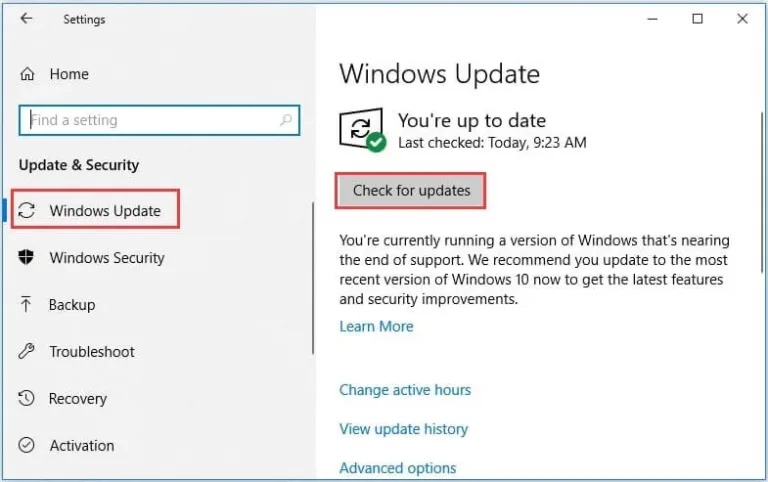
Step 3: And if you need to update your system to the latest version of your Windows, then click on the download. Your system will automatically install the latest version.
Step 4: Then you need to restart your system once.
Then go to the OneDrive and make sure the issue of ‘Cloud file provider is not running’ is resolved. If not, then you can try another mentioned here to help yourself.
Method 2: Reset your OneDrive
To fix the error of cloud provider is not running, you can also make sure to reset the One
Drive you are using. This step helps manage connectivity and data syncing. And following are the steps for you to reset the OneDrive you are using currently:
Step 1: Press together the keys ‘Windows + R’. This will open the Run dialog box.
Step 2: And type:’% localappdata%\Microsoft\OneDrive\onedrive.exe.exe/reset’ in that dialog box.
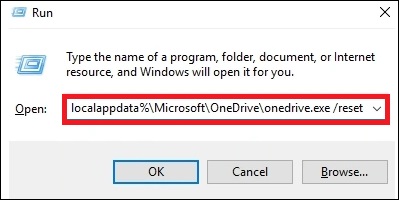
Step 3: Press Enter to Run this command.
Step 4: Open the OneDrive once, if it does not start automatically.
Step 5: Login to your OneDrive account and open settings in OneDrive.
Step 6: And check for the feature’ Start OneDrive automatically when I sign in to the Windows. Then click ‘OK’.
If your error of cloud file provider not running is yet remains unresolved, then follow the next method to fix it.
Also know: How to Choose Backup Software – A Complete Guide
Method 3: Re-enable OneDrive
You can fix the error the cloud provider is not running, then try to disable and enable the OneDrive you are using. The following steps can be used to resume and re-enable the OneDrive in the system:
Step 1: Right-click on the OneDrive you are using in your system.
Step 2: Click on ‘More’ and then select the ‘Resume Syncing’.
If your error of cloud file provider not running is yet remains unresolved, then follow the next method to fix it.
Method 4: Keep Off the Power Saving Mode
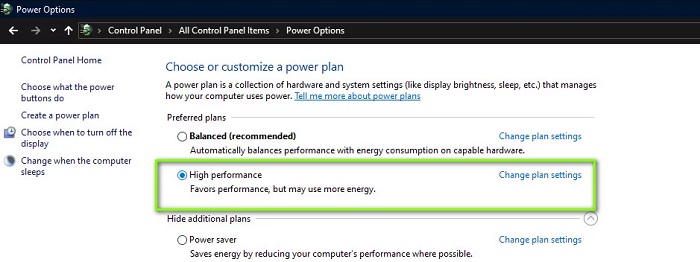
If you run the Power Saving Mode, then it limits all the other applications that run in the background. And it mainly prevents and limits the OneDrive to run and work properly.
Make sure to follow these steps and fix the issue of error the cloud provider is not running:
Step 1: Open your system and go to the OneDrive icon and right-click on it from the system tray and click on ‘More.’
Step 2: Go to the Settings tab and uncheck the option for ‘Files’.
Step 3: And then restart the system and check the OneDrive.
Even if the cloud file provider is not running, then you must follow another method.
Method 5: Disable Files with On-Demand Feature
To fix the issue of the cloud file provider is not running, you can follow these steps to trigger the errors and disable the files with an on-demand feature.
Step 1: Go to the system tray and right-click on the OneDrive icon and click on the ‘More’ option.
Step 2: Go to the op-up Windows and click on the ‘Settings’ option. Click on the check box and uncheck all options after Files On-Demand.
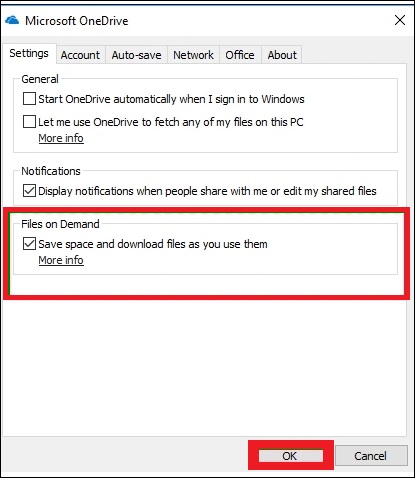
Step 3: And then restart your system and the OneDrive.
Method 6: Re-install your OneDrive
To fix this error you can also re-install the OneDrive you are using, and to do so you can follow the given steps:
Step 1: Go to the start option on the bottom left corner of the taskbar and type ‘Add or Remove’ programs.
Step 2: Then open the ’Microsoft OneDrive’ in ‘Apps & Features’ and then click uninstall.
Step 3: And then go to the official website of OneDrive and install the latest version.
Step 4: Sign in to the Microsoft account and set it up all over once.
Even if after you follow these methods the cloud file provider is not running is not fixed then you might follow another method to fix it.
Also know: Cloud Security Best Practices: Protecting Your Business in the Digital Era
Method 7: Remove All the Corrupted Files
To fix this error you can re-install all the corrupted files from the folder of OneDrive you are using, and to do so you can follow the given steps:
Step 1: Press Windows + E and open the File Explorer
Step 2: Then go to the OneDrive folder and right-click on it.
Step 3: Create a folder and name it accordingly inside the OneDrive folder.
Step 4: Drag all the corrupted files present in the OneDrive folder, and after the transfer, delete the entire folder. In addition to fixing corrupted files, ensure you have appropriate cloud security tools and technologies in place to keep your files safe on the cloud.
Frequently Asked Questions (FAQs)
Q1. Can the error of the cloud file provider not running be fixed on MacOS?
Ans. Yes, the error of the cloud file provider is not running can be resolved in MacOS as well.
Q2. What are the main causes for the issue of the cloud file provider not running?
Ans. The main cause of issue of the cloud file provider is not running is when you are unable to the Files On demand or the outdated OneDrive. Other reasons could be background syncing, power saving mode, and restricted access to OneDrive.
To make sure about the safety and privacy of your data on OneDrive, use reliable and trusted backup tools. The main reason for the cloud file provider is not running is when you are unable to the Files On demand or the outdated OneDrive. Other reasons could be background syncing, power saving mode, and restricted access to OneDrive.