Main LogoLight Logo
  • Reviews
  • Top 10
  • How To
  • Tech News
  • OS
    • Windows
    • MAC
    • iOS
    • Android
  • Categories
    • Driver Updater
    • Cyber Security
    • Games
    • Fitness
    • Entertainment
    • Tips & Tricks
Driver Updater How To Windows
by Snigdha

Xbox One Controller Driver Download and Update for Windows 10, 11

January 6, 2023
1

This post shares the quick and easy ways to download, install, and update Xbox One Controller driver on Windows 10, 8 and 7. Read on to know more.

Xbox One controller is the ultimate game controller that you could lay your hands upon to play the most interactive virtual games on your computer. But when you connect the controller to your PC and discover that you are not able to play your favourite games with the controller, then it might be disheartening for you.

If you are wondering what could be the reason, then there is a high possibility that the Windows 10 Xbox One controller driver is not installed on your computer. Yes, you read that right!

Though drivers automatically install in the Windows PC as soon as the controller is connected to it yet at times it may not install on its own. So, this blog is going to help you learn how to download Microsoft Xbox controller driver for Windows 10 and install it step by step.

Highly Recommended Method to Download & Update Xbox One Controller Driver

Win Riser a Driver Update tool is the ultimate experts-recommended solution to perform the Xbox Controller driver download task in just a matter of moments. It not only helps update outdated drivers but also accelerates the performance of your whole system. Additionally, you can even create a backup of the drivers and use them to restore an earlier version if the need ever arises. Get this magnificent tool for free, by clicking on the below download tab!

Windows-Download-Button

Table of Contents show
How to Download and Install Xbox One Controller Driver for Windows 10, 8, 7
Way 1: Get Microsoft Xbox One Controller Driver Using The Driver CD/DVD
Way 2: Get Microsoft Xbox Controller Driver With Windows Update
Way 3: Get Microsoft Xbox One Controller Driver Using Device Manager
Way 4: Download & Update Xbox One Controller Drivers Automatically With Bit Driver Updater (Experts-Recommended)
Way 5: Download the Xbox Controller Driver via Microsoft Update Catalog Site
Way 6: Update the Xbox Controller’s Firmware Using the Using Xbox Accessories App
Way 7: Update the Xbox One Controller Driver Using a USB Cable
Frequently Asked Questions (FAQs)

How to Download and Install Xbox One Controller Driver for Windows 10, 8, 7

In the below segment, let us focus on the ways to download, install, and update the Xbox One controller PC driver.

Way 1: Get Microsoft Xbox One Controller Driver Using The Driver CD/DVD

Although an ancient method, yet sometimes it might come as a handy option for downloading and installing the Xbox controller driver for Windows 7. If you have the driver CD or DVD for the controller, then you can utilize the below steps to install it:

  • Open the computer’s CD drive and insert the Xbox One controller driver CD/DVD in it.
  • Launch “My Computer” on your Windows 7 PC.
  • Double-click on the new CD drive to run it for installation. If it fails to launch, then double-click the “.exe extension” file from the CD directory.
  • Keep navigating through the on-screen instructions to complete the installation of the Xbox One controller driver for Windows 7.

Way 2: Get Microsoft Xbox Controller Driver With Windows Update

Another way of installing and updating drivers on your computer is offered by Microsoft itself.

As Windows constantly checks for the latest available updates of various drivers and Microsoft applications, therefore you can conveniently utilize this method to get the right drivers for your PC. You can follow the below steps to download Xbox One controller driver and install it using the Windows built-in update functionality.

  • You have to first go to the Settings app of your Windows 10 PC.
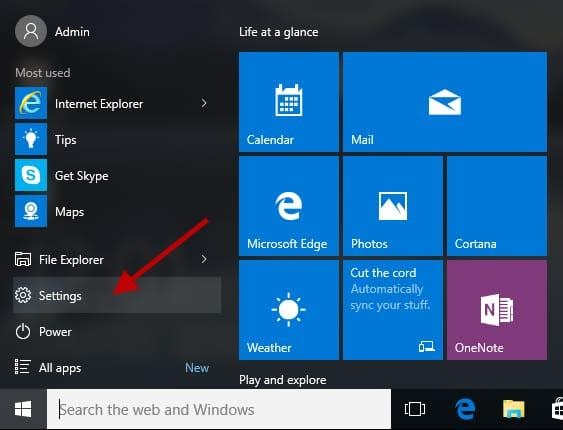
    Select The Settings Option
  • In the Settings window, we will find a number of options in front of us from which you have to click on Update & Security.
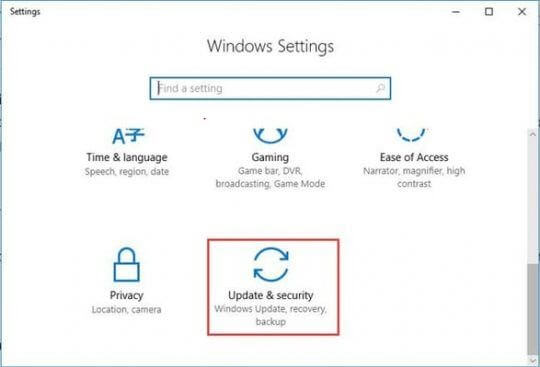
    Click On The Update & Security Option
  • Next, tap on Windows Update located on the side panel.
  • On the main window, hit the Check for Updates button.
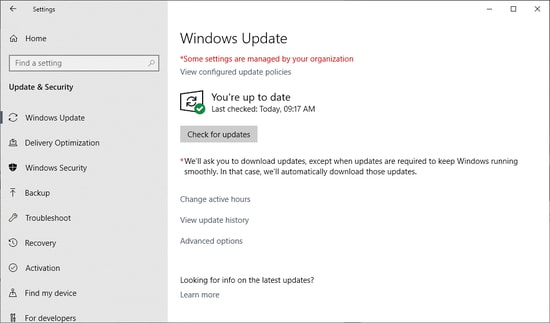
tap on Windows Update

  • Wait till the installation process of the Xbox controller driver gets over and then reboot the computer.

Read Also: Best Game Booster for Windows PC


Way 3: Get Microsoft Xbox One Controller Driver Using Device Manager

You can also make use of the Control Panel applet named Device Manager to manually download Xbox controller driver and install it on your Windows laptop or desktop computer. You can follow the below steps for the same.

  • Type device manager in the Windows search box near the Start button and select the Best match result.
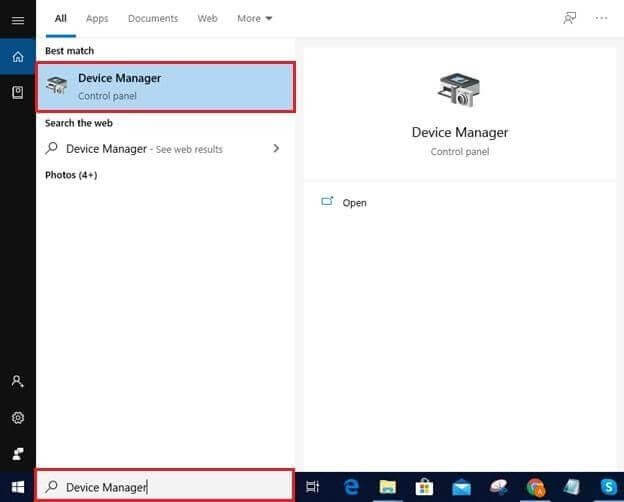
    Type Device Manager In Search Box Near Start Button
  • After the Device Manager opens, expand the “Microsoft Xbox One Controller” category by clicking on it.
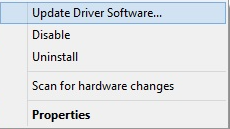
  • Right-click on the device and choose the “Update Driver Software” option from the context menu.
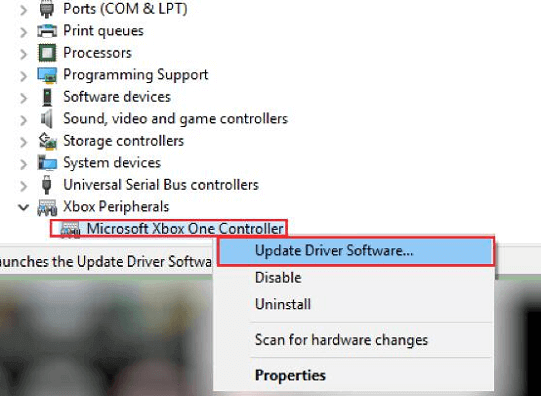
    Choose Update Driver Software From The Menu List
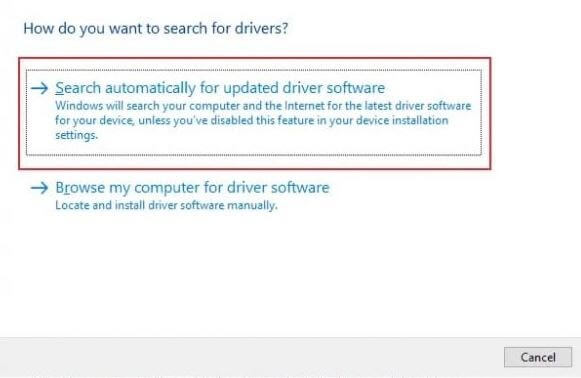
  • Then, choose the “Search automatically for updated driver software” option.
  • Now, wait for Windows to find and install the latest version of Xbox controller driver for your device.
  • After the completion of the installation process, restart your computer.

Also Read: Solve Xbox One Controller Keeps Disconnecting Issue


Way 4: Download & Update Xbox One Controller Drivers Automatically With Bit Driver Updater (Experts-Recommended)

Are you looking for a robust, timesaving, and reliable method to download and install Windows 10 Xbox controller driver?

If so, then get the Bit Driver Updater tool to download Xbox One controller driver and install it on your computer so that you can enjoy smooth and hassle-free gameplay, always. The important steps for the same have been outlined below:
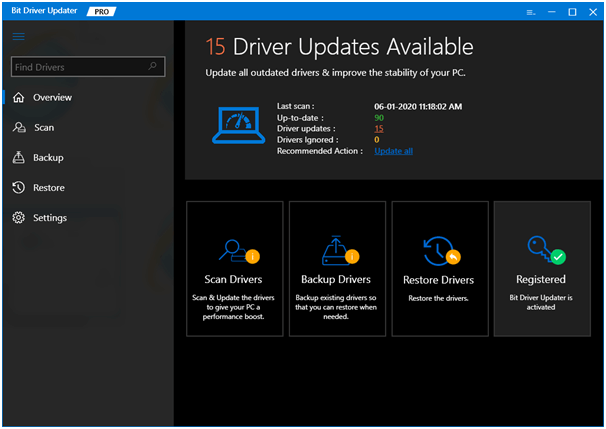
Bit Driver Updater - Best Driver Updater Software

  • Install Bit Driver Updater by clicking the download button.

Windows Download Button

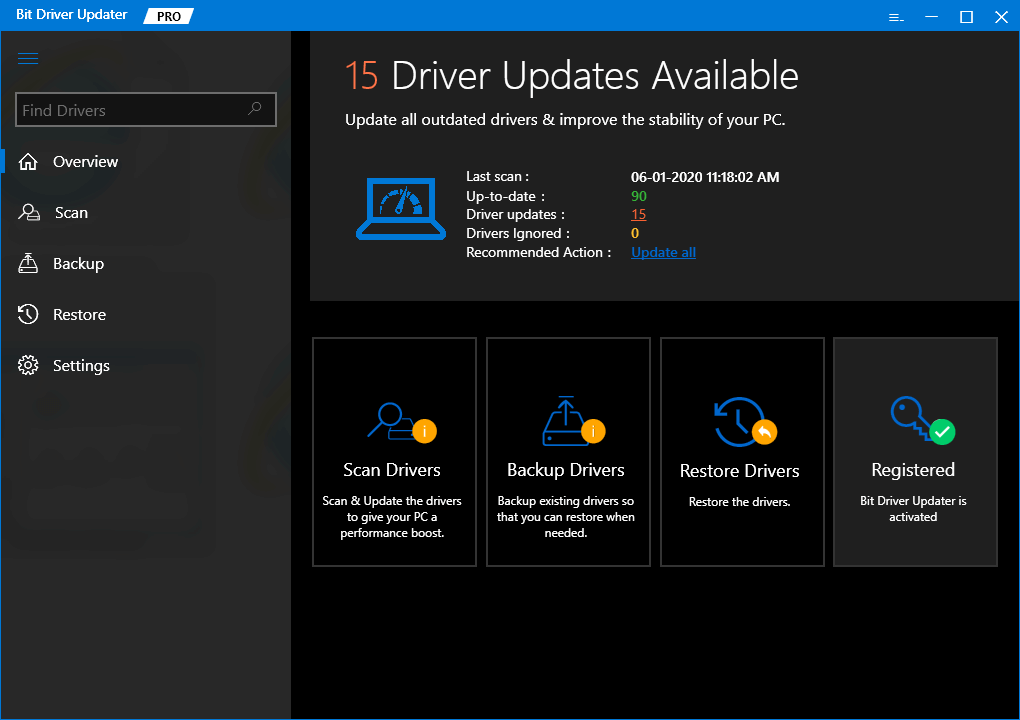
  • Then, hit the Scan button to initiate scanning and detection of missing drivers.
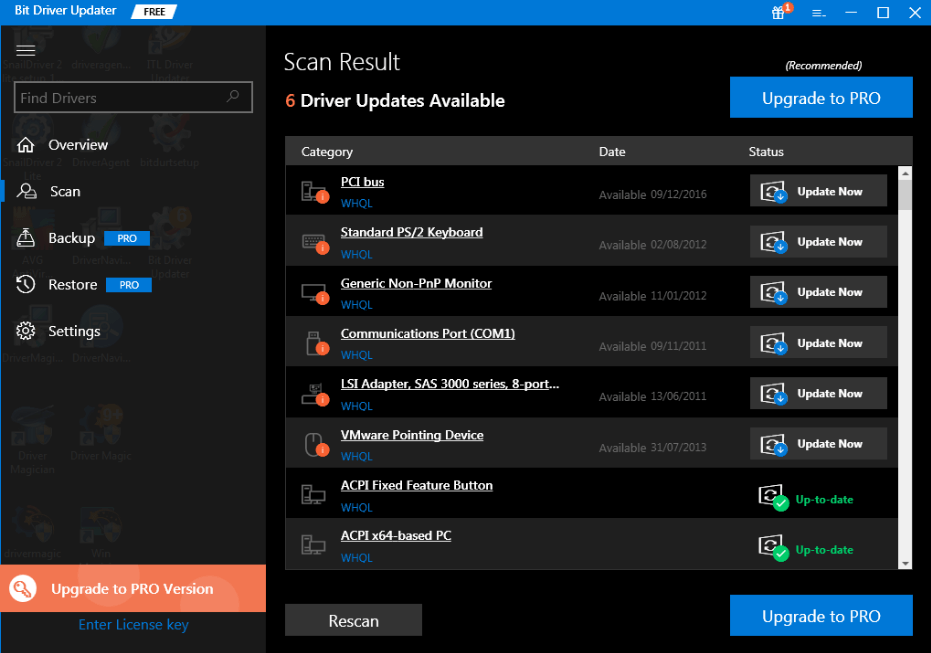
  • After scanning is complete, then tap on the Update Now button to initiate and complete the auto-installation of Xbox controller driver for Windows 10.
  • Restart the system once to make the installation effective.

Read Also: Top Free Driver Update Program


Way 5: Download the Xbox Controller Driver via Microsoft Update Catalog Site

The Microsoft Update Catalog website is a great place to download and install Xbox One controller drivers on Windows 10. Here are the steps you need to perform for the same.

  • Visit the Microsoft Update Catalog page.
  • Type Xbox controller driver in the search box and click on the Search button.
  • Click the “Download” button next to the Xbox controller update you wish to download for your system.
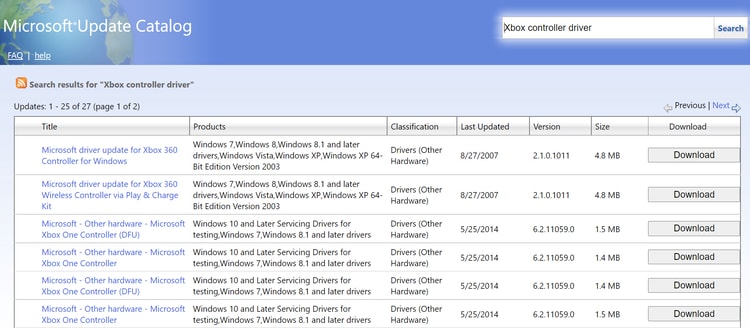
    micorosoft update catalog
  • Follow some on-screen instructions to install the latest driver update for Microsoft Xbox Controller for Windows.

Way 6: Update the Xbox Controller’s Firmware Using the Using Xbox Accessories App

You can also install the latest firmware updates for your Xbox controller wirelessly through the Xbox Accessories app. Here are the step-by-step instructions for the same.

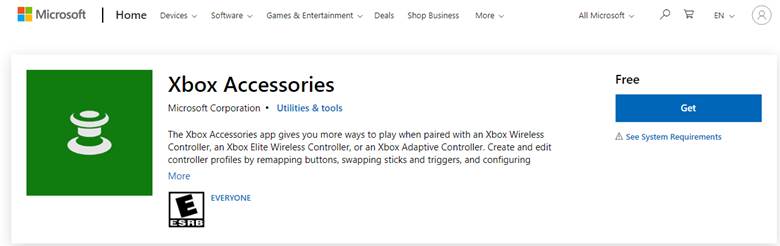
  • First, you need to download the Xbox Accessories app from the Microsoft store.Xbox Accessories app download screen
  • After the application is installed, launch it and click on the three horizontal dots button to access more options.
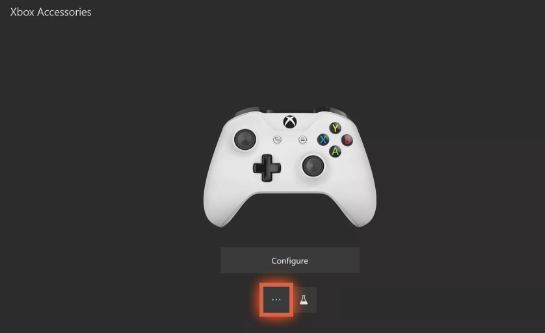
    Xbox accessories option
  • Click on the Firmware version box available on the top-left of the screen.
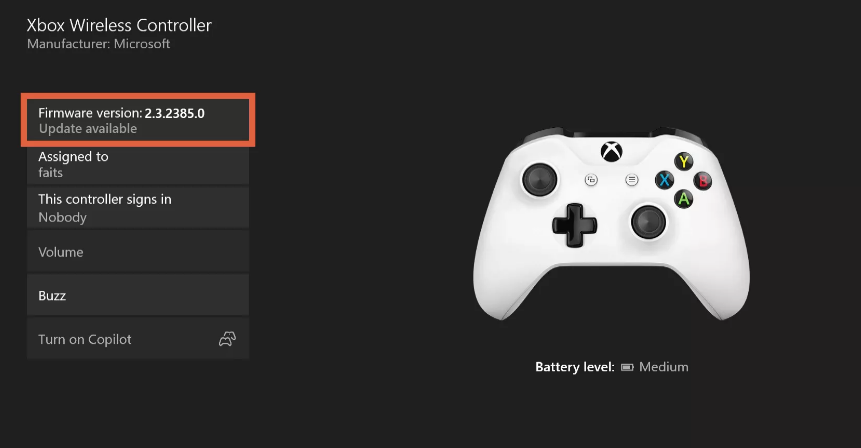
    check Xbox firmware version

Note: If this Firmware version box says ‘no update available’, then it means you already have the latest firmware update installed for your Xbox controller.

  • Next, click the Update now button to begin the process.
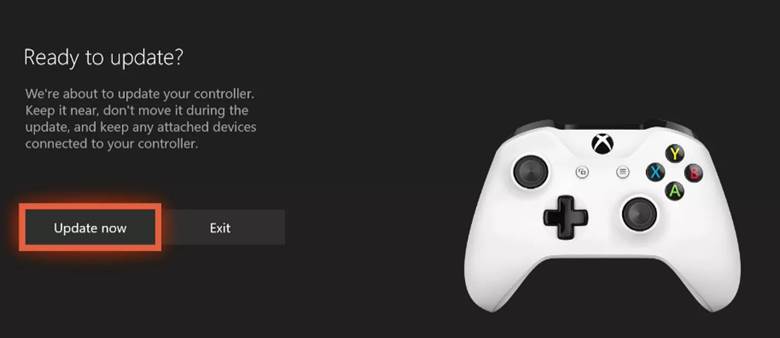
    update Xbox controller
  • After the update process is finished, click the Close button.

Also Read: Download and Update Xbox 360 Controller Driver for Windows 10 PC


Way 7: Update the Xbox One Controller Driver Using a USB Cable

If you wish to manually download Xbox One controller driver for Windows 10 and older operating systems, you can do so by connecting the controller to your gaming console via a USB cable. Follow the easy steps listed below and know how you can use a USB cable to update the controller quickly:

  • Connect the controller to the console via USB.
  • A pop-up for the process to update the controller will appear on your screen. In case you do not get these, press the Xbox button on your controller.
  • Now follow the following path to continue: Settings > Devices & streaming > Accessories > Device info.
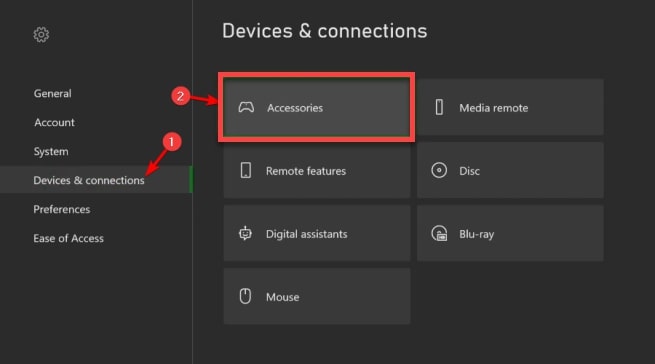
    Choose Accessories under Devices & Connections Menu in Xbox One Controller Setting
  • Open the Firmware version settings and click on Continue. The controller will automatically update now.

Frequently Asked Questions (FAQs)

Q1. Do I need drivers for Xbox One Controller?

The Xbox One drivers runs on the computer’s operating system and enables it to communicate with the controller device you use. Your Microsoft’s Controller won’t connect or pair up with your console if its driver software hasn’t been updated or properly installed on your computer system.

Q2. Is Xbox One controller compatible with PC?

Xbox One is compatible with Windows 10, 8.1, and 7 operating systems. You can use a USB cable, wireless adapter, or Bluetooth to connect a controller to your PC.

Q3. Does my Xbox controller have Bluetooth?

To determine whether you have a Bluetooth-supported Xbox controller or not, you need to look at the plastic around the Xbox or Guide button. If it’s the same plastic as the rest of the controller’s color, then it means you have a controller with bluetooth feature.

Q4. Why my Xbox controller won’t stay on?

Dead batteries, faulty charging cable, outdated driver, or internal faults are some of the most common problems that prevent the Xbox controller from turning on.

Q5. How do I update my Xbox One controller driver?

You can download and update the Xbox Controller drivers on PC either manually or automatically. To install the updated driver version automatically, you can use a potent and well-trusted driver update utility like Bit Driver Updater. In case you choose to do it manually, you can either use Device Manager or visit the Controller Search page.

Q6. How do I connect my Xbox One controller to my PC?

You can connect your controller to the Windows PC with the help of USB cables, wireless adapters offered by Xbox, or through a Bluetooth connection. For more info, you can visit the official Xbox Support page.

Also Read: How To Connect Xbox One Controller To PC

Q7. How to check Xbox controller driver version?

To check the driver version of your Microsoft controller, follow the steps shared below:

  • Open the Device Manager tool on your computer.
  • Expand the Xbox Peripherals category.
  • Double-click on Microsoft Xbox One Controller.
  • On the Properties window, go to the Driver tab and view the driver version.

Q8. How do I fix Xbox One Controller Not Working on PC?

A wrong, outdated or faulty driver is one of the major reasons why your controller won’t connect or work on your PC. The best way to solve this problem is to update your Microsoft controller driver to its most recent version.

Q9. How Do I Know Which Xbox Controller I have?

There is one way to find the difference between the two generations of the Xbox Controllers. On the upper middle side of the controller, there will be an Xbox logo button that triggers up your home screen. Talking about the original controller, this button is noticeably polished. Whereas on the White original controllers the button will be black and white for the S controller.

Q10. Why Does the ‘Xbox One Controller Won’t Sync’?

If you are experiencing Xbox Controller won’t sync or connect issues while trying to pair it with the Windows PC or console, then it might be happening due to signal interference, hardware malfunction, weak batteries, and console bug.

Q11. How to Reset Xbox One Controller?

In order to reset Xbox Controller on Windows PC, you need to follow the steps shared below:

Step 1: First of all, altogether press Windows + I keys from your keyboard to invoke Windows Settings.

Step 2: In Windows Settings, find and click on Devices from the available options.

Step 3: Now, you will see a list of all the devices connected to your PC.

Step 4: From the list, locate your Xbox Controller and click on Remove Device.

Step 5: This will delete the Xbox Controller from your list of Bluetooth Devices.

Step 6: After that, take out the batteries from your controller and try to re-connect your Xbox Controller to your PC via a USB cable.

This will reset the overall wireless connection between your computer system and the preferred Xbox controller. Once it’s done, then you can connect your controller again to your PC.

Q12. Where is Xbox controller driver?

You can find the Xbox controller driver in the Device Manager. This is a Windows-integrated utility that allows you to manage different devices connected to your system. Under the Xbox Perhiphrals category of the Manager, you can find the required Xbox driver.

Q13. How do I reinstall Xbox One controller drivers on PC?

You can reinstall Xbox Controller driver using the Device Manager. Right-click on the driver present under the Xbox Peripherals category of the Device Manager. Select Uninstall Driver and follow the instructions that appear to remove the driver. Lastly, Restart the system and use any of the above methods to download or update the driver.

Also Read: Why is My Xbox Controller Blinking and Flashing? How to Fix it


Accomplished: Xbox One Controller Driver Download for Windows 10, 8, & 7

Through this article, we informed you about the manual as well as automatic methods to download, install, and update Xbox One controller drivers for Windows 10 and older editions. Going the automatic way has its various advantages but we would still be eager to hear from you which method worked wonders for you.

After installing the Xbox One controller PC driver with the help of the aforementioned methods, you can then enjoy your gaming session. Do follow us on social media and subscribe to our newsletters. We also invite you to reach out to us by dropping your comments, suggestions, and queries in the comments box.

Author

Snigdha

Snigdha is a technical content writer with expertise in the field of science & technology. Though she has a very diverse academic and professional profile yet she finds writing to be a creative form that she was unable to explore so far. When not writing, she can be found indulging in other forms of creativity like painting or travelling.

View all posts

Related Posts
Why Hard Drive Not Showing Up in Windows 10 and How to Fix it

Why Hard Drive Not Showing Up In Windows 10 And How To Fix It

August 2, 2022
0

The importance of data backup cannot be overstated. While cloud storage has become popular in recent years, there is still nothing quite like having everything saved on a physical device. Furthermore, external drives are easy to use: you connect them in, they show up on your computer, and you can simply drag files over. But what if your Internal hard drive is not showing up on Windows 10 computer when you plug it in?

Windows 10 can usually detect and automatically set up an external USB hard drive, solid-state drive, or hard disk drive when one of these devices is connected to a computer. However, the absence of a freshly inserted disk or new hard drive not showing up in disk management of Windows 10 computers might occasionally be a sign of several issues.

So, why your new hard drive isn’t showing up in windows, and how to fix it? It might imply that the data or power link is physically broken. It may also indicate that a device is offline, deactivated, or doesn’t have a drive letter if your new HDD is not showing up in disk management.

Additionally, you might be trying to connect a drive that has already been installed on another computer, the USB drive’s partition might be damaged, or you might be working with a raw drive that has never been set up.

No matter the cause, Windows 10 offers several solutions to resolve the problem and restore drive access. This post will discuss some practical reasons and signs of the common Windows 10 issue where Windows is not detecting the hard drive. We’ll also see solutions for the internal hard drive not showing up on Windows 10 error. So without any delay, let’s begin.

How To Fix Hard Drive Not Showing Up In Windows 10

So, if you are wondering why is my hard drive not showing up in windows, there could be multiple reasons. Still, you can follow these simple tips to resolve the typical issue preventing File Explorer from displaying a hard disk.

How To Fix Hard Drive Not Showing Up Error Using Physical Troubleshooting

There are a variety of reasons why a new hard drive is not showing up in disk management on Windows 10 computers, but before you examine and change the system settings, you can try these simple  troubleshooting steps:

  • Verify that the hard drive is powered and properly connected to the computer.
  • Disconnect the external USB hard drive and try another USB port if it is one. If you use a USB hub, attach the disk straight to the computer.
  • Ensure the data and power cables are properly attached to the storage device, motherboard, and power supply if it is an internal hard drive. Power down and unplug the computer before starting the internal component inspection process.
  • Attach the drive to a different computer to confirm that the device is not the issue.
  • Ensure the firmware recognizes the storage by logging into the computer’s Basic Input Output System (BIOS) or Unified Extensible Firmware Interface (UEFI). Check the manufacturer support website for more detailed instructions because the motherboard firmware varies by manufacturer and device model.

Also Read: Icons Not Showing on Desktop in Windows


How To Fix Hard Drive Not Showing Up Error Using Device Manager

When HDD is not showing up in Disk Management or File Explorer, it may indicate that the hard drive appears to be disabled. If so, you may immediately enable it using Device Manager.

Follow these steps to enable a hard disk in Device Manager:

  1. Click Start.
  2. To start the app, search for Device Manager and select the top result.
  3. Expand the disk drives tab.
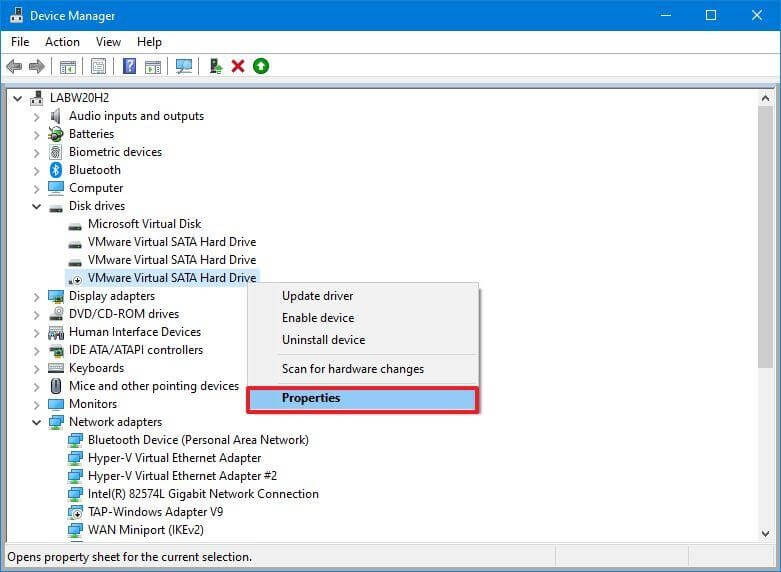
  4. Right-click the hard disk and choose Properties.Right-click the hard disk and choose Properties
  5. Click on the Driver tab.
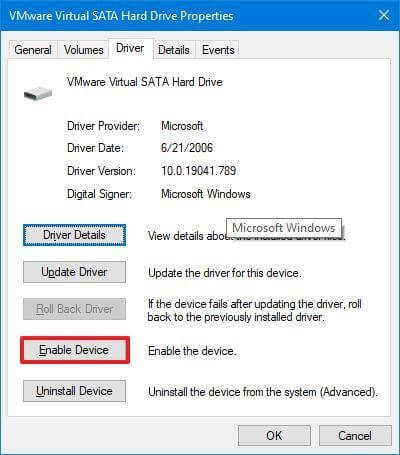
  6. Select the button Enable Device.hard disk Properties - Enable Device
  7. Press the OK button.

The hard drive and data should be accessible on the computer after you complete these steps.


How To Fix HDD Not Showing Up Error Using Disk Management

A hard drive must meet a few conditions in order to be accessible in File Explorer. The hardware must be turned on and initialized. A partition must be correctly configured. Additionally, it must be mounted as a folder or have a drive letter assigned to it.

The techniques listed below will assist you in troubleshooting and resolving the most typical Disk Management problems if you are experiencing any of these issues.

  • Set Drive Online

Use these steps to set a hard drive online:

  1. Press the Start button.
  2. Perform a search for “Disk Management” and select the first result to launch the application.
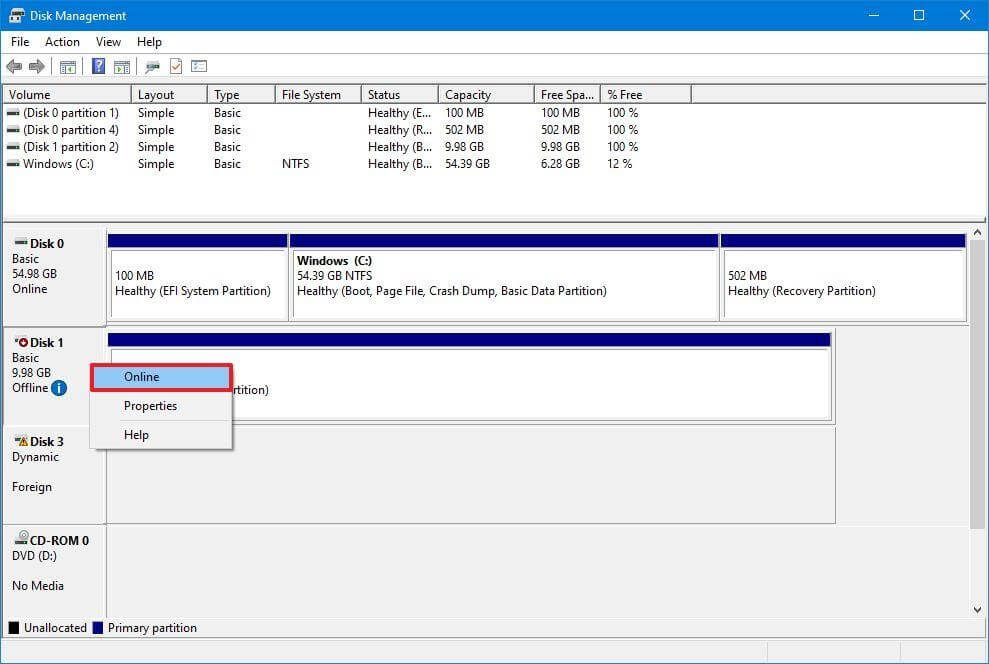
  3. Right-click the disk that says “Offline” and select the Online option.Disk Management - Online the disk

If the hard disk was offline and previously set up, it should show up in File Explorer after you finish the instructions. Follow the steps below if the drive was offline but never set up.

  • Initialize Drive

To initialize a hard drive on Windows 10, use these steps:

    1. Click Start.
    2. To open the app, search for disk management and select the top result.
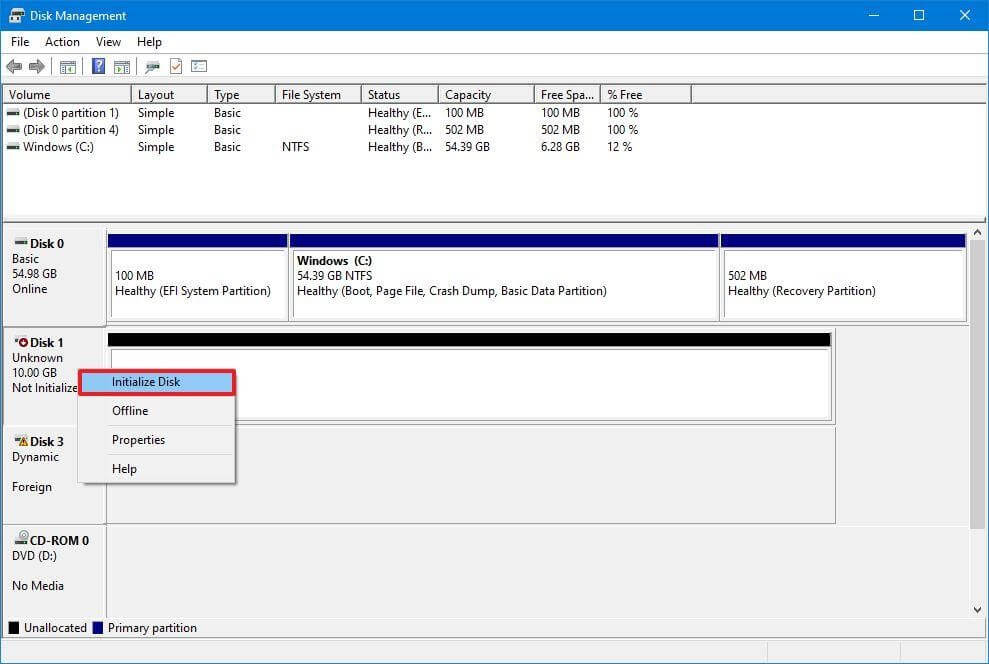
    3. Right-click the disk with the “Unknown” label and choose Initialize Disk from the context menu.Initialize Drive
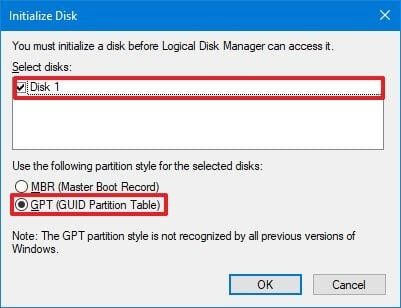
    4. Select the drive you want to initialize under the “Select disks” section.
    5. Click on GPT (GUID Partition Table).GPT (GUID Partition Table)
    6. Click on OK.

If the storage wasn’t initialized, this procedure will delete everything on the drive and get it ready to be formatted after you’ve finished.

  • Import Foreign Drive

You would need to import the drive using the Disk Management tool if the drive you are attempting to access was set up on another computer as a dynamic disk because it would show up as a foreign drive on that device. However, the data should be accessible to you during this procedure without being lost, although making a backup of the data is still advised before moving on.

Use these steps to import a hard disk with a dynamic configuration so that File Explorer may access it:

  1. Launch Start.
  2. To launch the app, type in “disk management” and click the first result.
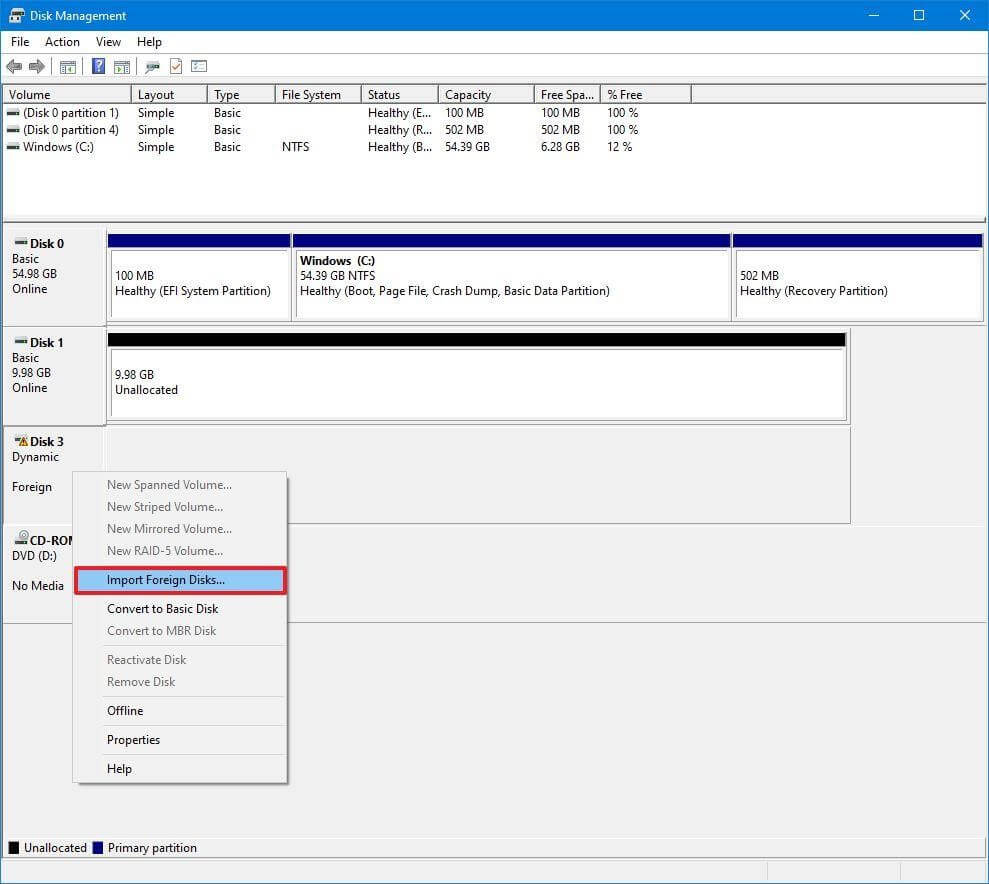
  3. Right-click the disk with the “Dynamic” label and choose Import Foreign Disks from the context menu.Import Foreign Drive
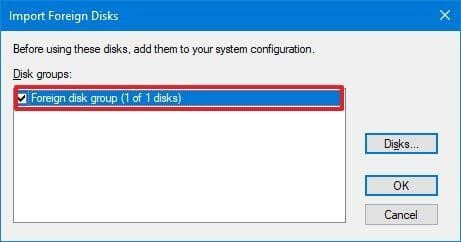
  4. Select the Foreign disk group (1 of 1 disks) option in the “Disk groups” section.Disk groups
  5. Click on OK.
  6. Click on the OK button again.

The hard disk will be imported after you finish the instructions, and File Explorer or any other program will be able to access the data.

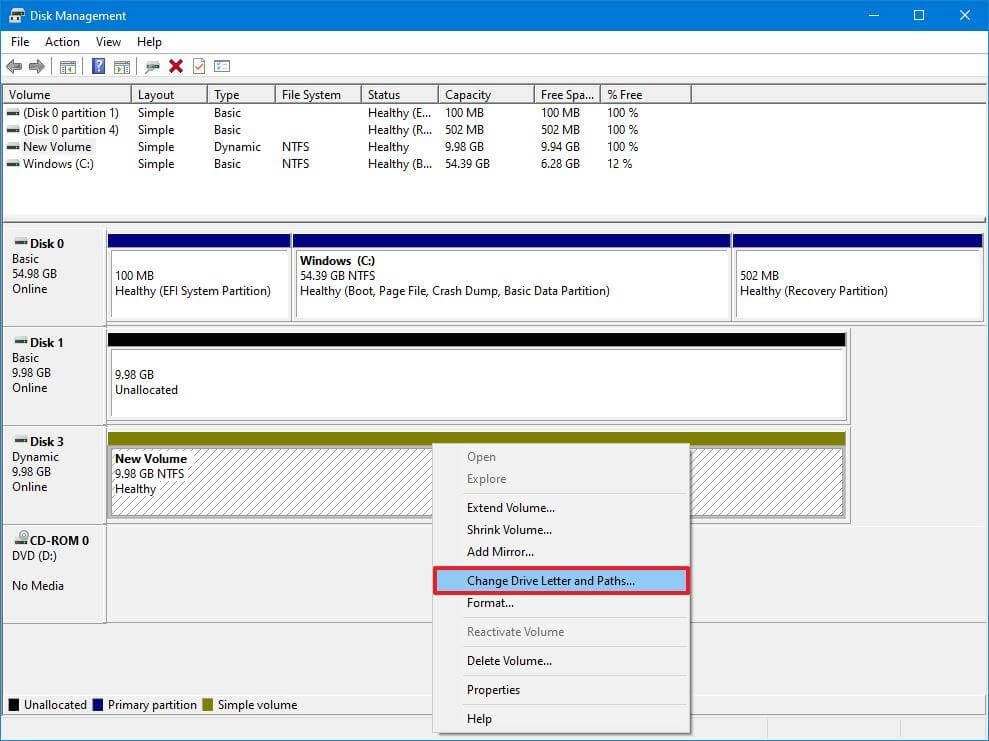
  • Configure Drive Letter

When the hard disk is online and initialized on Windows 10 but does not show up in the system, there are two potential causes. First, the drive doesn’t have a drive letter to start. Alternatively, if it was linked to a different computer, the new system attempts to assign the same drive letter already assigned to another disk on the machine.

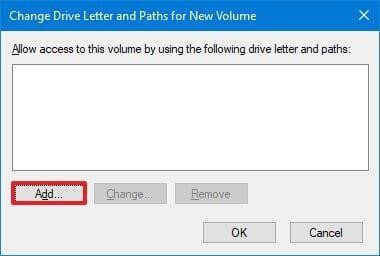
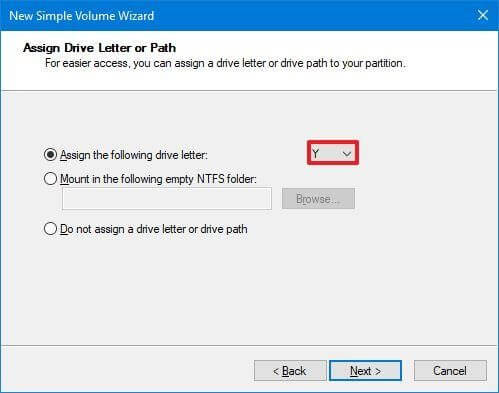
Follow these instructions to assign a drive letter to storage media on Windows 10:

  1. Press Start.
  2. Type “Disk Management” and select the top result to launch the application.
  3. Use the Change Disk Letter and Paths menu option when you right-click the partition on the hard drive that lacks a drive letter.Change Disk Letter and Paths
  4. Click on the Add button.Change Disk Letter and Paths - Add
  5. Select the option Assign the following drive letter.Assign the following drive letter to volume wizard
  6. Select a drive letter from a drop-down menu – for example, Z, X, or Y.
  7. Click on OK.

When you finish the instructions, the hard disk data should now be reachable using File Explorer.

  • Configure New Partition

If the device is online and initialized, you might be dealing with a disk without a formatted partition. In this situation, you can configure the partition and give it a letter using the Disk Management wizard.

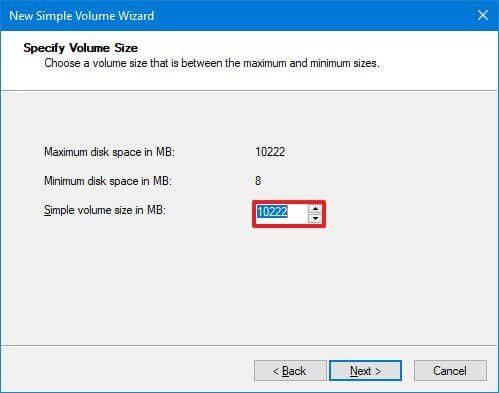
Use these steps to configure and format a hard disk so that it may be seen in File Explorer:

  1. Click Start.
  2. To open the app, search for disk management and select the top result.
  3. Choose the New Simple Volume option from the context menu when you right-click the hard disk partition that lacks a drive letter.
    A quick tip: The “basic” drive will typically have a blue line denoting the Start and finish of the partition. Choose the appropriate storage option because the next few steps will delete everything on the selected hard drive.
  4. Press Next.
  5. To utilize all of the partition’s space, click the Next option. If not, enter the desired size in the Simple volume size in the MB option.New Simple Volume Wizard
  6. Select the option Assign the following drive letter.
  7. Select a drive letter from a drop-down menu – for example, Z, X, or Y.
  8. Click on Next.
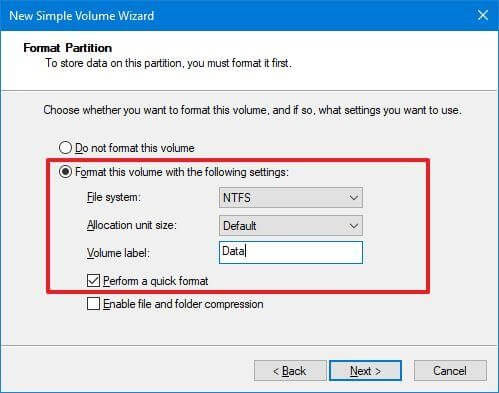
  9. Select the option Format this volume with the following settings.
  10. Choose the NTFS option from the drop-down selection for “File system.”
  11. Choose Default from the “Allocation unit” size drop-down menu.
  12. Confirm a descriptive name for the drive in the “Volume label” field – for example, data.
  13. Select the option Perform a quick format.Format Partition
  14. Click on Next.
  15. Click on the Finish button.

Once you complete the steps, the hard drive will be listed on the “This PC” page of File Explorer, and you can start saving files in it.

Also Read: How to Fix Run as Administrator Not Showing in Windows


How To Fix HDD Not Showing Up In Disk Management By Updating Driver

If the storage driver causes the issue, you can fix it by reinstalling or updating the driver to the most recent version.

Follow these steps to reinstall the hard drive driver:

  1. Click Start.
  2. To start the app, search for Device Manager and select the top result.
  3. Widen the branch for disk drives.
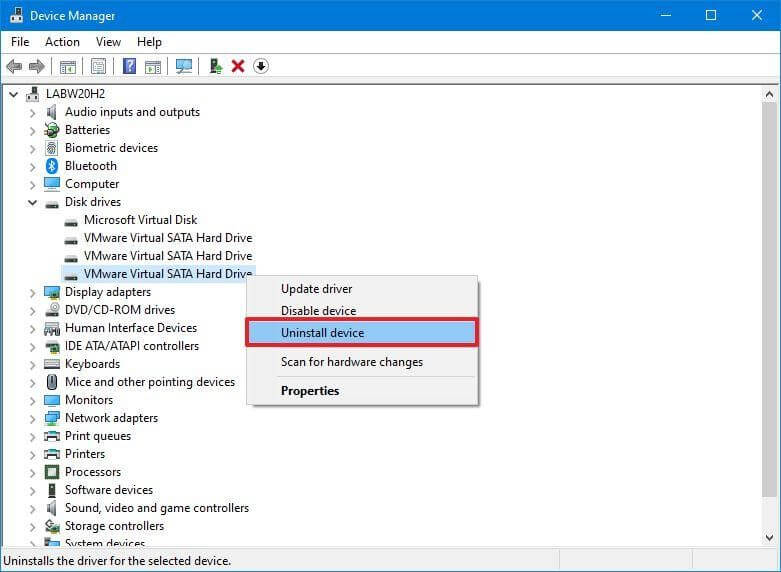
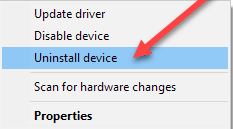
  4. Right-click the problematic hard disk and choose the Uninstall device menu item.Uninstall problematic hard disk
  5. Click on the Uninstall button.
  6. Restart the computer

After you finish, Windows 10 restore the driver, and the hard disk should now appear in File Explorer.

  • Update Hard Drive Driver

It is advised to get the most recent driver from the drive manufacturer’s support website and follow their instructions to update the driver if the issue of the Internal hard drive not showing up in Windows 11 continues.

If the support page does not provide instructions, use these steps after extracting the driver zip folder:

  1. Click Start.
  2. To start the app, search for Device Manager and select the top result.
  3. Expand the disk drives tab.
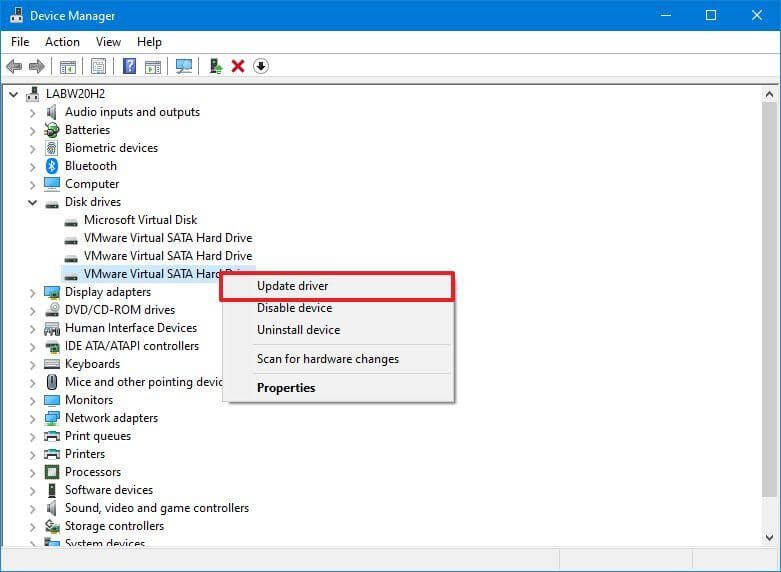
  4. Click the Update Driver option from the context menu of the problematic hard drive.Update Hard Drive Driver
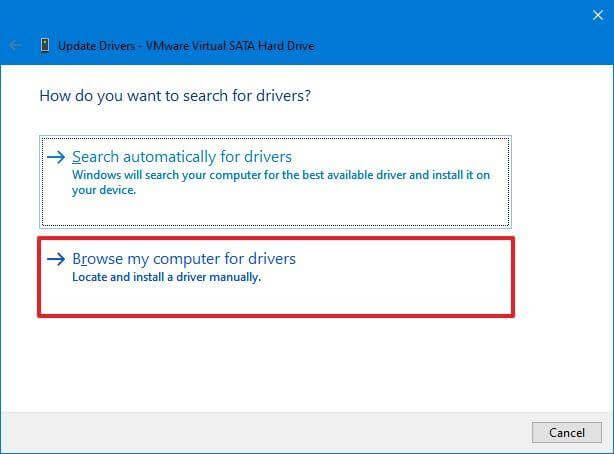
  5. Choose the option Browse my computer for drivers.Browse my computer for drivers
  6. Click on the Browse button.
  7. Choose the folder with the extracted driver files.
  8. Click on OK.
  9. Select the option Include subfolders and click on Next.
  10. Click on the Close button.

When you finish, Windows 10 should be able to access the hard drive, and the driver will have been installed.


How To Fix Hard Drive Not Showing Up In Disk Management Using Diskpart

If the hard drive is visible in Disk Management, but the storage is unusable—that is, you cannot access the data, use the format option, or assign a drive letter—there may be a logical issue. If this is the case, you can clear the drive and reinstall everything using the command-line utility -diskpart.

The disk may occasionally be visible in the Disk Management software, but you cannot configure it for several reasons. DiskPart can be helpful in this situation. Remember that there won’t be any warnings when you use this command-line program. However, it would be preferable if you were sure about whatever procedure you carried out.

Use these procedures to use diskpart to replace a missing hard drive in File Explorer:

  1. Click Start.
  2. In the search box, enter “Command Prompt,” then right-click the top result and select “Run as administrator.”
  3. To start the diskpart tool, type the following command and hit Enter.
    diskpart
  4. To list the available discs, use the following command and hit Enter.
    list disk
  5. To pick the hard disc that isn’t visible in File Explorer, type the following command and hit Enter.
    select disk 1
    Note: Make sure to select the correct drive in the command. Otherwise, you can accidentally erase data from the incorrect storage, which is irreversible.
  6. To erase the drive, type the following command and click Enter.
    cleanWarning
    Note: The “clean” command will completely wipe out all information, including data, partitions, and drive types. The drive will then look blank with an unidentified and uninitialized label.
  7. Enter the command to make a partition using the available space after you type it.
    create partition primary
  8. To choose the newly created partition, type the following command and click Enter.
    select partition 1
  9. To make the partition active, type the following command and press Enter.
    active
  10. In order to format the partition with the NTFS file system, use the following command and hit Enter.
    format FS=NTFS
  11. To assign a drive letter, type the following command and click Enter.
    assign letter=Z
    Note: Change “Z” to a different drive letter not currently used in the command.
  12. To shut down diskpart, enter the following command and click Enter.
    Exit
  13. When you’re done, the hard disc should be formatted, have a new drive letter assigned to it, and be visible in File Explorer.

Also Read: USB Drive Not Showing Up on Windows 10


Conclusion:

The hard disk is a crucial part of your computer. However, before fixing it, you should refrain from saving files or starting programs if it is broken, corrupted, or missing. Utilizing defective drives could lead to data loss or system failure.

However, after applying all these tips, you still face the problem of Windows not detecting the hard drive. It can be a possibility that your hard drive is dead. So, ensure your other hard disks are in good working order and check with the manufacturer to determine whether your product is still covered by warranty.

How to Fix “System Thread Exception Not Handled” Error in Windows 10

How to Fix “System Thread Exception Not Handled” Error in Windows 10

May 17, 2021
0

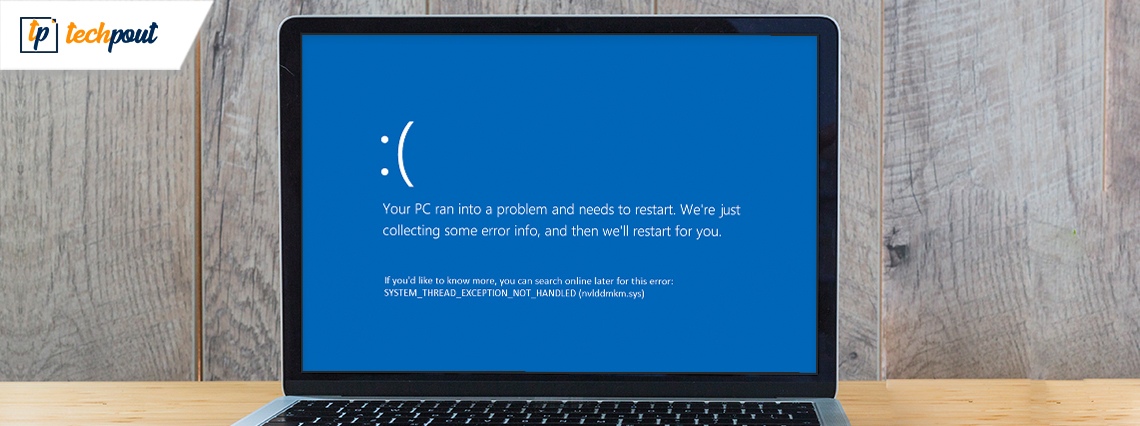
The error “SYSTEM THREAD EXCEPTION NOT HANDLED” can be considered a common error in Windows 10 PC which is mainly caused by outdated and incompatible drivers. The thing that makes it trickier than other BSOD errors is that multiple drivers can cause this issue and it is possible that many times your computer may not be able to detect them at all. That’s why the first step to take is to find the specific driver which is the cause of this problem.

Now, before we step forward, here is an important suggestion for you. Many users find it much daunting to install drivers manually. If you also find it difficult, then you can try Bit Driver Updater. It is a one-stop solution for fixing all the driver-related queries in just a single click. Plus, it also lets you back up the older driver file so that if in case any act of misconduct occurs then you can effortlessly restore the backed up driver file. The icing on the cake is – the user can try the Bit Driver Updater for absolutely free from the download button given below.

Windows Download Button

Now without wasting much time, let’s dive into the vast ocean to know the easiest and quickest solutions to fix the system thread exception not handled error in Windows 10.

Effective Solutions to Fix System Thread Exception Not Handled Error in Windows 10

Have a look at the below-mentioned verified simple and quick troubleshooting ideas to resolve the System_Thread_Exception_Not_Handled in Windows 10 PC.

Solution 1: Repair System Files

It might be possible that Windows 10 system thread exception not handled error is occurring due to the stored corrupted system files. Hence, repair the system file to get rid of this inconvenience. Here is how to do that:

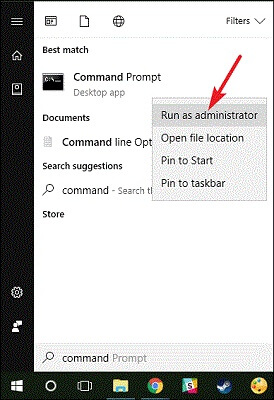
Step1: In the search box of Windows, type Command Prompt and right-click on the suitable match.

Step 2: Next, choose the Run as Administrator.

choose the Run as Administrator

Step 3: Once the Command Prompt opens in the administrator’s privileges then enter the following command.

exe/Online/Cleanup-Image/

 Scanhealth

 exe/Online/Cleanup-Image/

 Restorehealth

Step 4: And, press the Enter keyboard button after each command.

This should fix the system_thread_exception_not_handled error in Windows 10. If in case after running the DISM command still, the error remains the same as earlier, then move on to the other solutions.

Also Read: How To Update Graphics Drivers In Windows 10 {Simple Guide}


Solution 2: Update Firmware

If the above solution doesn’t work, then you can try to upgrade the firmware. Because upgrading the firmware can improve the overall performance and stability of the PC. Below are the steps to upgrade Firmware:

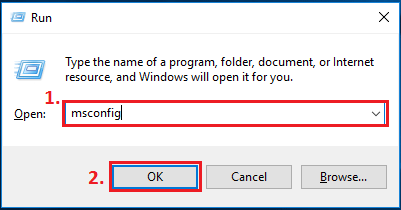
Step 1: Open the Run dialog box by pressing the Windows logo + R keys at the time.

Step 2: Next, type in the box and hit the Enter key.

type msconfig in run utility

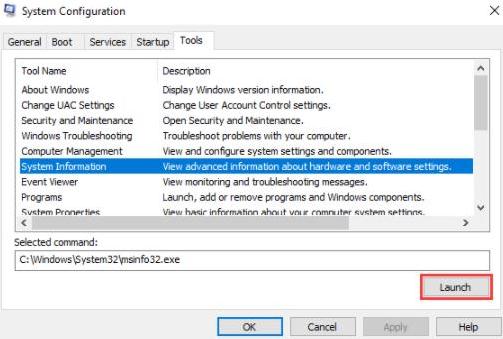
Step 3: After this, you will be landed on the System Configuration window, wherein you need to switch to the Tools tab.

Step 4: Then, choose System Information and thereafter click on the Launch option.

click on the Launch option

Step 5: Check the current BIOS version or date.

Step 6: Now, go to the official website of the manufacturer and install the most recent BIOS version.

Step 7: Plug in the USB containing the most recent BIOS version and enter BIOS to upgrade the firmware.

That’s it! The above procedure will help you in order to deal with the System Thread Exception Not Handled on Windows 10.

Also Read: How to Install and Update Bluetooth Drivers in Windows 10


Solution 3: Update Device Drivers

As we have illustrated above, this error mainly occurs due to outdated, missing, or faulty drivers. Therefore, to fix this error you need to keep the drivers always in good condition and that can happen by keeping the driver up-to-date. You can update the drivers either manually or automatically via Bit Driver Updater. Below are the steps to both of the methods.

Steps to Update Drivers using Device Manager

Step 1: Launch the Device Manager.

Step 2: Then, expand the category for which you want to update the driver.

Step 3: After that, click right on the driver you want to update. And, then choose Update Driver Software from the context menu list.

choose Update Driver Software

Step 4: Select the Search Driver Automatically for Updated Software from the next prompt.

Click On Search Automatically For Updated Driver Software

Now, wait till the Windows operating system searches for the latest drivers online. If in case Windows finds any driver update available then it will install the update automatically.

Important: If you have already downloaded the driver file and extracted it on your system too, then you need to choose the Browse my computer for driver software option.

Also Read: 5 Smart Ways to Improve Gaming Performance on Windows PC


Steps to Update Driver Automatically via Bit Driver Updater

For many users, it is quite tougher to install the most up-to-date drivers manually. Therefore, we have above recommended you to use Bit Driver Updater for installing the latest drivers in no time. Bit Driver Updater is the best globally renowned driver updater tool that not only lets you update the drivers but also enables you to fix the other Windows-related issues.

With this tool, you can also empower the overall performance of your PC. The tool comes in two variants i.e., free or pro version. It is advisable to choose the pro version as it gives you unlimited access to the advanced features of Bit Driver Updater. Here are the steps you need to follow in order to update drivers through Bit Driver Updater:

Step 1: Download the Bit Driver Updater from the button shared below.

Windows Download Button

Step 2: After this, run the setup and follow the onscreen instructions to get the software installed on the system.

Step 3: Then, launch the driver updater tool on your PC, and click on the Scan button from the left.

Bit Driver Updater-Best Driver Updater

Step 4: Wait till scanning is completed, then it shows you an entire list of drivers that need an update. Wherein, you need to find the problematic driver and click on the Update Now button to get the latest update installed.

list of all drivers using bit driver updater

In addition to this, you can update all the faulty drivers in one click by relying on the premium version of Bit Driver Updater.


Solution 4: Uninstall or Reinstall Drivers

A lot of users reported that due to some incompatibility issues updating the drivers doesn’t fix the “system thread exception not handled” issue. If that is the case, then try to reinstall the drivers. For performing the clean reinstallation of drivers, you need to first uninstall the existing drivers. Here are the steps you must have to follow:

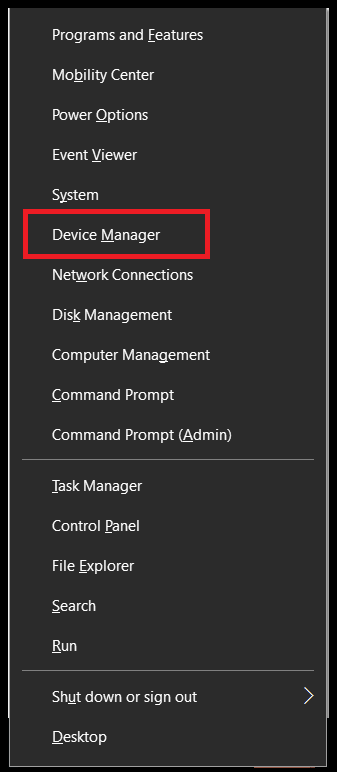
Step 1: Go to the Device Manager by pressing the Windows + X keyboard buttons.

Click On Device Manager Option

Step 2: Later than, locate the problematic driver and then make a double click on it to expand the category.

Step 3: After this, click right the driver you want to reinstall.

Step 4: Then, choose Uninstall from the available options.

Choose Uninstall

Now, wait until the existing drivers are uninstalled. Once the uninstallation gets done, then restart your PC and try to reinstall the drivers. This should work for you and fix the system thread exception not handled in Windows 10. If it doesn’t heal the issue, then move on to another advanced solution explained below.

Also Read: How to Update Drivers on Windows 10,8,7 – Update Device Drivers


Solution 5: Rollback to the Older Drivers

Many users have reported that they are still encountering the same error in their Windows 10 PC even after uninstalling or then reinstalling the drivers successfully. If you are also one of them then you need to roll back to the previous drivers. Because possible there are many incompatible issues which eventually result in the system thread exception not handled error. As you know that Windows has an in-built utility to roll back, uninstall, and update the drivers so, you can use the Device Manager to roll back the driver. Follow the steps shared below to do so:

Step 1: Summon Run Dialog box by tapping the Windows logo + R keys from the keyboard.

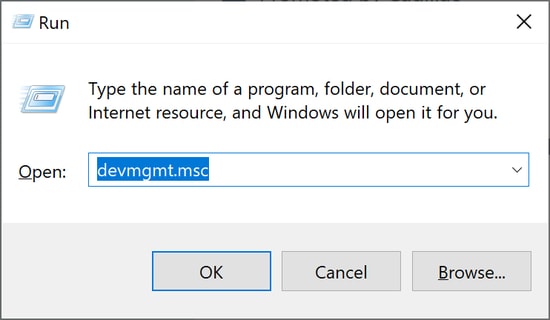
Step 2: Then, type devmgmt.msc in the Rub box and press the Enter keyboard button.

Run command devmgmt.msc

Step 3: The above step will take you to the Device Manager window. Wherein, you need to expand the category of the driver which has problems, by making a double click on that particular category.

Step 4: After this, right on the driver you want to roll back.

Step 5: Then, choose Properties from the context menu list.

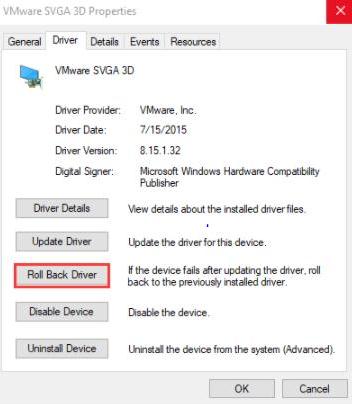
Step 6: Next, switch to the Driver tab from the subsequent prompt and click on the Roll Back Driver option.

click on the Roll Back Driver

There you have successfully rolled back to the previous drivers. Now, the system thread exception not handled error in Windows 10 should be fixed.


Solution 6: Reinstall Operating System

Unfortunately, if none of the above-mentioned fixes worked in your case, then as a final ploy you just have one solution left and which is to reinstall the operating system. Quite a few users found that the System Thread Exception Not Handled error has been fixed by performing a clean reinstallation of the operating system.

For doing so, you must use reliable and globally renowned partition management software to backup or then recover the entire data when needed. After that, you can be able to do the precise reinstallation of the Windows 10 operating system.

Also Read: 22 Best Free Driver Updater for Windows 10, 8, 7 in 2021 [Updated]


System_Thread_Excepion_Not_Handled on Windows 10 – FIXED

The tips and steps that are listed above can be considered enough to deal with nuisances of BSODs like system thread exceptions not handled. The solutions that are mentioned above should also be qualified for other BSOD errors as well. Hopefully, you have liked the information provided by us above.

Now, let us know which solution worked in your case through the comment box below. Plus, comment down below if you have any additional suggestions, tips, or even queries as well. Apart from this, if you want to read more troubleshooting guides just like this one, then don’t forget to subscribe to TechPout. Additionally, you can also stay in touch with us through Instagram, Facebook, Twitter, and Pinterest.

1 Comment
    9 Best Xbox Emulators For Windows PC In 2021 | TechPout says: Reply
    January 1st 2021, 3:26 pm

    […] Also Read: Download Xbox One Controller Driver for Windows 10 […]

Leave a Reply Cancel reply

Your email address will not be published. Required fields are marked *

Sidebar Image bit G ad1

Latest Posts

  • best grindr alternatives
    Best Grindr Alternatives to Use in 2026 
    by Dikshika Singh / May 2, 2026
  • Best VirusTotal Alternatives for windows in 2026 
    by Dikshika Singh / April 30, 2026
  • Best Ways to Fix Facebook Session Expired Loop Error  (1)
    Best Ways to Fix Facebook Session Expired Loop Error 
    by Gunjita Sompura / April 28, 2026
  • React vs Vue
    React vs Vue Detailed Comparison in 2026
    by Gunjita Sompura / April 23, 2026
  • Top Image Resizing software for Windows PC 
    by Dikshika Singh / April 21, 2026

Categories

  • Cyber Security
  • Driver Updater
  • Entertainment
  • Fitness
  • Games
  • How To
  • laptop
  • OS
  • Reviews
  • Tech News
  • Tips & Tricks
  • Top 10
Sidebar Image bit G ad1
Why is My Xbox Controller Blinking and Flashing - How to Fix it Why is My Xbox Controller Blinking and Flashing? How to Fix itby Niharika / January 5, 2023
Transfer Photos from Mac and Windows PC to iPhone or iPad [With and Without iTunes]by Harshita / January 6, 2023Transfer Photos from Mac and Windows PC to iPhone or iPad [With and Without iTunes]
TechPout Footer Logo

We at TechPout promise to put forth stories that help people to learn and simplify their digital life. Our purpose is to share the true essence of technology with our tech-loving community.

Useful Links

  • About Us
  • Contact us
  • Privacy Policy

Popular Posts

  • Best PC Optimizer Software
  • Best Mac Cleaner Apps
  • Best Driver Updater
  • Duplicate Photo Finder and Cleaner Software
  • Best Free Movie Download Sites
  • Best IPTV Players

Follow us

Copyright © 2026 www.techpout.com. All rights reserved
DMCA.com Protection Status