Main LogoLight Logo
  • Reviews
  • Top 10
  • How To
  • Tech News
  • OS
    • Windows
    • MAC
    • iOS
    • Android
  • Categories
    • Driver Updater
    • Cyber Security
    • Games
    • Fitness
    • Entertainment
    • Tips & Tricks
How To
by Snigdha

8 Best Ways to Fix YouTube Black Screen Problem

May 27, 2020
1

YouTube seems to be the best place to get all the latest videos and music, but if you have come across the YouTube black screen error, then you definitely won’t be able to enjoy YouTube videos.

It usually occurs when you click on a video for watching and then the video player pops open with a black screen. Your video doesn’t play and there is no picture on YouTube. Sometimes the image doesn’t appear for a short whereas sometimes it stays like that for the entire video.

It can be frustrating but don’t worry as we are here to help you deal with this problem in smarter ways. 

Our blog will guide you through fixing the YouTube video black screen error. We have rounded up many solutions so you can try them and figure out which one would work the best for you.

Table of Contents hide
How to Fix YouTube Black Screen Problem? Try These Fixes:
Fix 1: Refresh Your Web Page
Fix 2: Verify the Internet Connection Status
A.) Check Your Internet Connectivity and Internet Usage
B.) Try a VPN Service
Fix 3: Sign Out of The Google Account You are Using to Watch YouTube
Fix 4: Clear Browsing Cache and Cookies
Fix 5: Disable the Browser Extensions
Navigate to the extension settings as per the below path and disable the ad blockers.
Fix 6: Update the Web Browser Application
Fix 7: Try Another Browser
Fix 8: Update the Graphics Card Drivers Automatically
Conclusion

How to Fix YouTube Black Screen Problem? Try These Fixes:

If your YouTube videos are appearing black, then here’s what you can do to watch your videos again.

Fix 1: Refresh Your Web Page

The simplest solution to try out once you are facing the YouTube black screen issue is to refresh your web page. You can press F5 or the reload icon on your web browser to refresh the web page. This will refresh the YouTube video as well and your video might start playing readily.

Refresh Your Web Page to Fix YouTube Black Screen Problem

You can also restart your browser by closing the application and then open the web browser again. Post this try accessing YouTube and see if the videos are playing appropriately or not.

Fix 2: Verify the Internet Connection Status

You may experience black screen YouTube videos if the network connection is not functioning correctly. There could be many scenarios that may be causing this issue and therefore you can try a number of solutions to get rid of the YouTube black screen error.

A.) Check Your Internet Connectivity and Internet Usage

First of all check your internet connection and troubleshoot issues related to outdated network drivers with the help of a driver updater tool. Also, check your WiFi router or modem for loose connections. You can restart your router and see if that fixes the problem of internet connection and also the black screen of YouTube.

Additionally, you may also disable the network connection of the programs or devices that may be interfering with your network connectivity and slowing down your network speed.

Read More: Best Ways to Speed up Your Internet Speed

B.) Try a VPN Service

If your local internet connection is giving you some kind of trouble and you are unable to view any image or video on YouTube, then you can try connecting to a VPN service which can resolve the issue for you.

We recommend using ExpressVPN and NordVPN as they are the most popular and trusted VPN providers available in the industry.

You can also manually connect to a VPN server and set up the VPN connection but if you are not proficient in it then, you can install a tool as per the above recommendations and stream your YouTube videos seamlessly and enjoy them. 

ExpressVPN is a simple tool that comes with a lot of data encryption and protection techniques. It also streams your videos at a greater speed without interruptions.

After installing the application on your computer, you can connect to a server of your choice and then access YouTube to watch your videos peacefully.

Fix 3: Sign Out of The Google Account You are Using to Watch YouTube
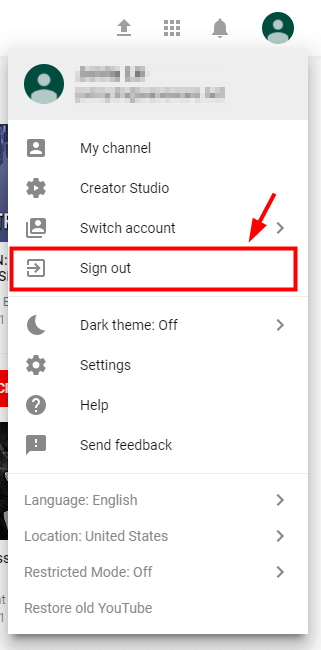
Sign Out of The Google Account You are Using to Watch YouTube

YouTube is generally accessible with our Google account. If you are experiencing YouTube video black screen, then you can sign out of the Google account and sign in again to fix the issue.

Alternatively, you can also try to login with another Google account to see if that is also able to help in solving the YouTube video playing issue.

Fix 4: Clear Browsing Cache and Cookies

When you have a black screen while you are attempting to play a very important You-tube video, it’s not only irritating but it is also a moment of worry. If you think, what could have created such a black screen for you? You would probably stumble upon facts like clearing cache and historical data. It could be that you have piled up a lot of cache; your browser has thus gone slow.

Thus, all you may simply have to do is clear the cache and browsing data history.

It could also be some kind of changes in the browser settings that could make your YouTube black screen.

So one of the exercises you need to perform in this process would be clearing out all the browsing histories, caches and all other places where junk is stored including clearing your passwords.
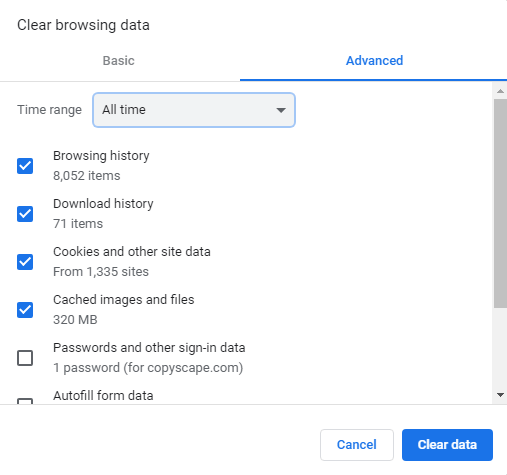
Clear Browsing Cache and Cookies to Fix YouTube Black Screen Problem

Follow the steps to clear your browsing history:

  • Ctrl, Shift and Delete keys all at the same time that will give way to the pop up window screen.
  • Now in that pop up screen select all that you think could be the cause.
  •  While doing so, set the time span for browser clearance as “All time.”
  • Now click on the option “Clear Data.” This one command will clear all your browsing and download history, form and search history, cookies and cache, activity logins, Offline Website data, Site Preferences all together, all at once.
  •  This should reboot your You-tube, and make it functional once again.

Now check if your You-tube Videos are up and running. Unless, there are more complexities, this single act should be sufficient to make your You-tube up and running.

Fix 5: Disable the Browser Extensions

So far if you haven’t experienced any luck in getting rid of the black screen of the YouTube video player, then you may try to disable the various browser extensions. At times, browser extensions can interfere with the YouTube player especially if you are using an ad blocker extension.

Disabling the browser extension momentarily can solve the problem. You can refer the below steps to know how to disable the browser extensions on your web browser.

Navigate to the extension settings as per the below path and disable the ad blockers.

For Google Chrome –

  • Input the following in the address bar of the browser and hit the Enter key: “chrome://extensions”
  • Uncheck the box adjacent to “Enabled” status to disable it.
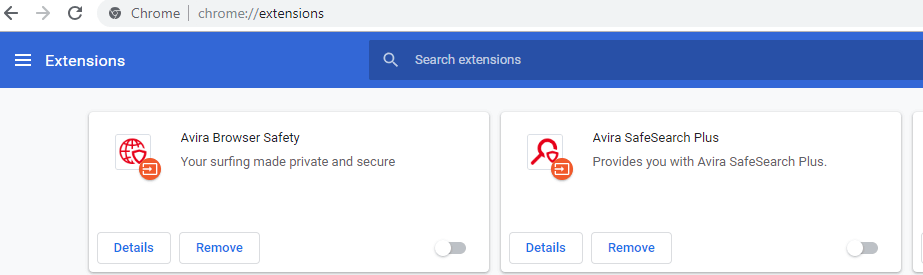
Disable the Browser Extensions to Fix YouTube Black Screen Problem

For Firefox –

  • Click on the menu button and then click on Add-ons.
  • You will see a Disable button next to the ad blocker. You can click it to disable it temporarily.

Ultimately, open the YouTube video and see if you are having a smooth video viewing experience or not. If you still have not had any luck then jump to the next solution.

Read More: Best Free Adware Removal Tools For Windows

Fix 6: Update the Web Browser Application

You can easily update the web browser to solve the black screen problem of YouTube videos. If the web browser is outdated or there is some configuration issue apart from some specific features of the browser that might be interfering with the YouTube player.

Under this circumstance, you can update the browser by uninstalling it and then downloading its most updated version on your computer. Once the installation completes, then you can check to see if the YouTube video black screen issue is resolved. If not, then try the next fix.

Fix 7: Try Another Browser

Last but not the least, if all the above fixes failed, then you can change your browser and see if the YouTube black screen error gets resolved or not. 

It could be that your browser is not compatible with the YouTube platform, therefore, you are experiencing this issue. It could be the plugins, extensions, or simply the web configuration that’s causing the YouTube video black screen error.

You can install a new browser and open YouTube to see if you are able to play the videos well now.

Fix 8: Update the Graphics Card Drivers Automatically

Ultimately, if you are still seeing YouTube black screen error then try updating the graphics driver to get rid of the problem for once and all.

To do this, you can install the best driver updater software in your system. These software can automatically scan and detect outdated graphics drivers or faulty graphics drivers and download the updated versions of the graphics driver for you. You can easily install them in a single click and then try to access YouTube to see if now you are able to play videos normally.

Another alternative method is to update the graphics driver manually. For this you can go to Manufacturer’s website and search for the accurate version of the graphics driver.

You can download the self executable file and then follow the on-screen steps to complete the installation procedure.

If the installation does not successfully happen on its own then you can also complete the installation process via the Device Manager.

Conclusion

Hopefully, with the above methods you have now been able to resolve your YouTube black screen trouble. The solutions that we have provided above are extremely feasible and easy to implement. 

In general it is a good practice to update the browser and clear cookies and cache data on a regular basis to maintain optimum performance of the browser. 

Besides, checking the internet connection, trying a VPN service can also help you to watch YouTube videos smoothly.

You can also sign in from a new Google account or try a new web browser to watch YouTube without facing the black screen error.

So, I am wrapping up this article with this. If you have any other tips and tricks, then you may let us know in the comments section below. 

Author

Snigdha

Snigdha is a technical content writer with expertise in the field of science & technology. Though she has a very diverse academic and professional profile yet she finds writing to be a creative form that she was unable to explore so far. When not writing, she can be found indulging in other forms of creativity like painting or travelling.

View all posts

Related Posts
How to Find the Windows 11 Startup Folder Location [Step by Step Guide]

How to Find the Windows 11 Startup Folder Location [Step by Step Guide]

June 2, 2022
0

If you do not know where your Windows startup folder location is, you may read this article to find it effortlessly.

Windows 11 feels like a breath of fresh air to everyone. However, with a lot of things changed from the last operating system versions, many users are left wondering where the Windows 11 startup folder is.

If you are also finding it difficult to get the startup folder location, do not panic. We are here to help.

Through this write-up, we introduce you to the easiest ways to find the Windows 11 start menu folders.

Without further ado, let us jump straight into finding the Windows startup folder location so that you can close the unnecessary apps to boost the device’s performance.

Methods to Locate the Windows 11 Startup Folder (Quickly and Easily)

You may follow the below quick and easy methods to get the startup folder location on your Windows 11 computer.

Method 1: Use the File Explorer

You may reach the Windows startup folder location through File Explorer. However, you first need to activate the hidden files to get the needed folder on Windows 11. Below we share the required steps to do it.

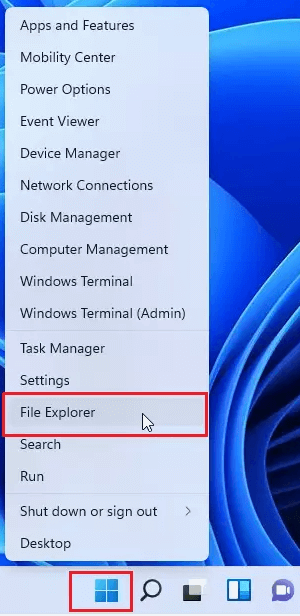
  • Right-click your taskbar’s Start icon.
  • Choose File Explorer from the options that appear.Choose File Explorer in Windows 11
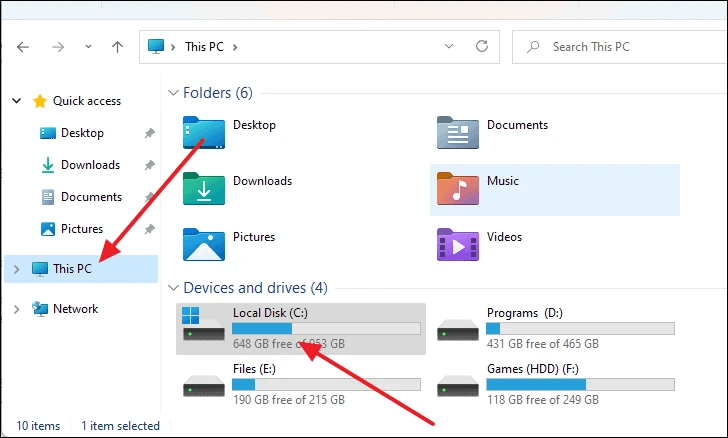
  • Select This PC from the left pane and then your system drive (generally, it is the C: drive).system drive
  • From the on-screen folders, select the Users folder.
  • Choose your User folder from the folders displayed on your screen.
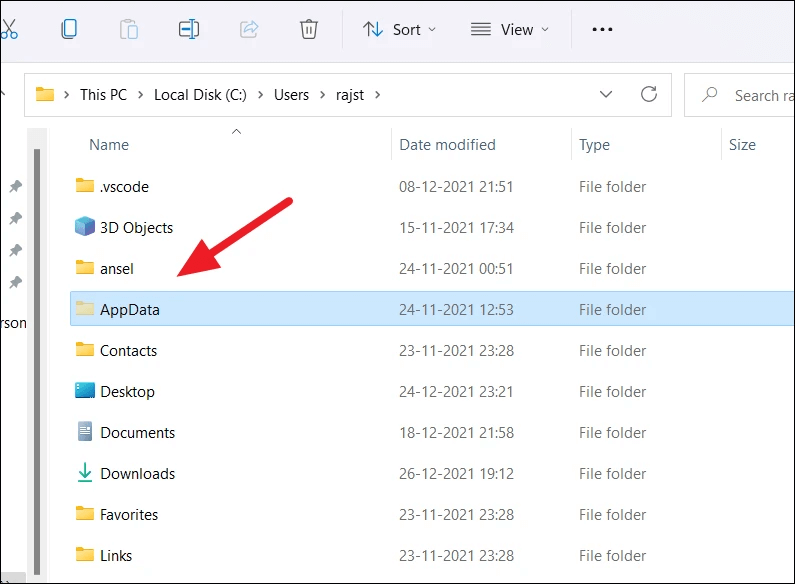
  • Select the AppData folder. However, if you have “do not show hidden items” as the folder visibility, you need to change the File Explorer’s View settings.AppData folder
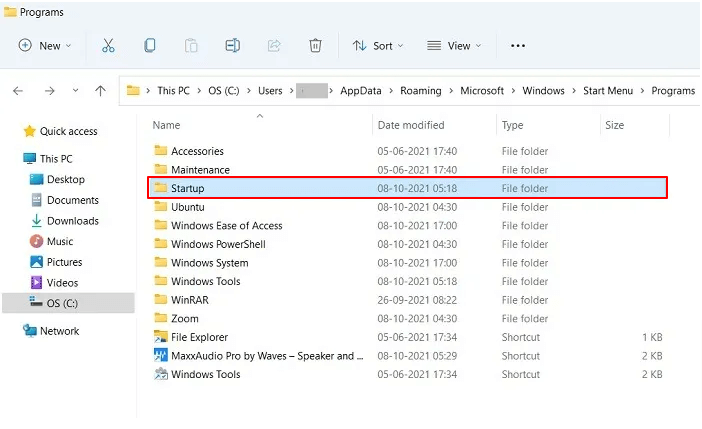
  • Follow along the path Roaming>Microsoft>Windows>Start Menu>Programs. 
  • Locate and click on the Startup folder.click on the Startup folder
  • Now, you can view a few programs for your selected user.

Method 2: Use the Run command to open the Windows 11 file location of the startup folder

The Run command can help you open the Windows startup menu folder in just a few simple steps. Hence, you may follow the below directions to use it.

  • Launch the Run dialog box using the Windows+R shortcut of Windows 11.
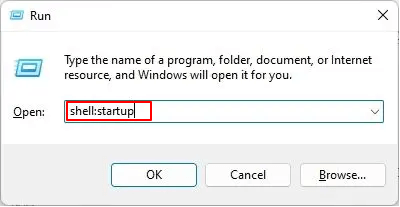
  • Type shell:startup in the box on your screen and press the keyboard’s Enter key.Run box in windows 11 and type shellstartup
  • After the Windows 11 startup folder opens, you can add shortcuts or remove them according to your preference.
  • Moreover, you can open the Run dialog box and enter the following to launch the Windows 11 start menu folder.

Now that you know how to open the Windows 11 startup folder, we think you might also wish to know the way to use it. Well, the next section acquaints you with various uses of the startup menu.

Also Read: How to Update Drivers on Windows 11


How to Use the Windows 11 Startup Folder

You can use the Windows startup menu folder for a variety of purposes, such as creating shortcuts and deleting applications. Let us discuss them below.

1. Add application shortcuts

Adding shortcuts to the most commonly used applications is one of the things you can accomplish after finding the Windows startup folder location. If you wish, you may follow these steps to do it.

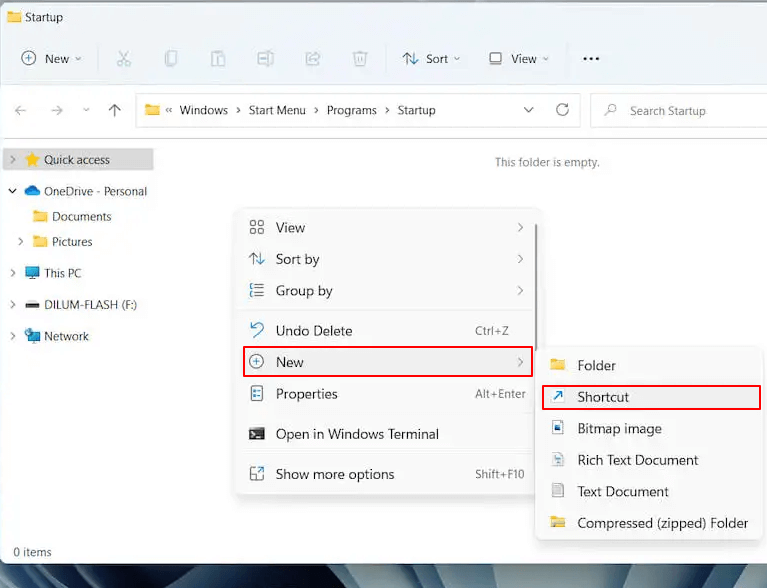
  • Right-click the blank space in the Windows startup menu folder and choose New from the available options.
  • Select Shortcut from the options that become available.Shortcut
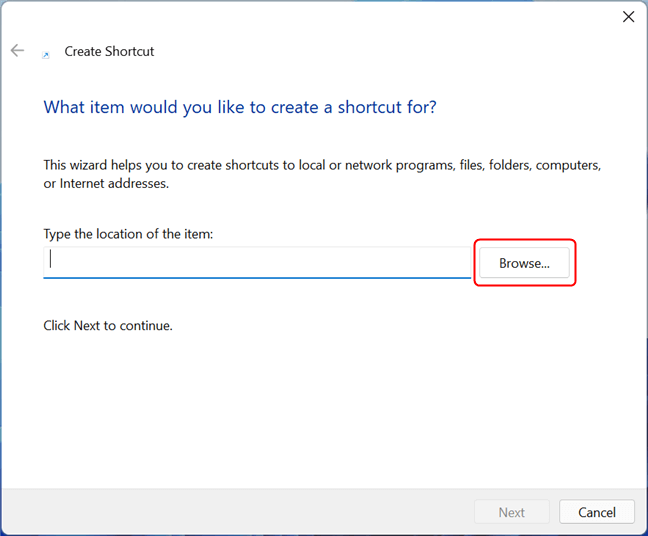
  • Mention the location of the application for which you need a shortcut and click the Browse button.Mention the location of the application for which you need a shortcut
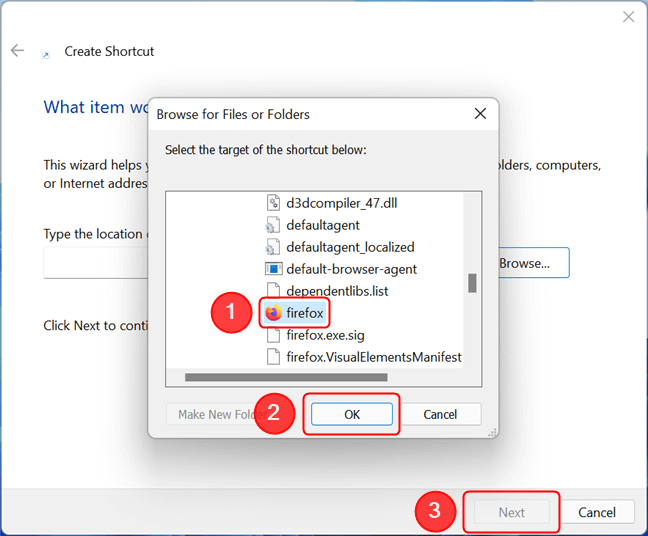
  • Select the target of the shortcut from the on-screen list of applications. In our case, we wish to create a shortcut to open Mozilla Firefox.
  • After selecting the application, click on OK, and then choose Next. create a shortcut to open Mozilla Firefox
  • If you wish, change the name of the shortcut and click on the Finish button.

2. Deleting applications from the menu

If you want to stop any application from starting with Windows, you only need to delete its shortcut from the Windows 11 startup folder. Here are the step-by-step directions to do it.

  • Launch the Windows 11 startup menu folders.
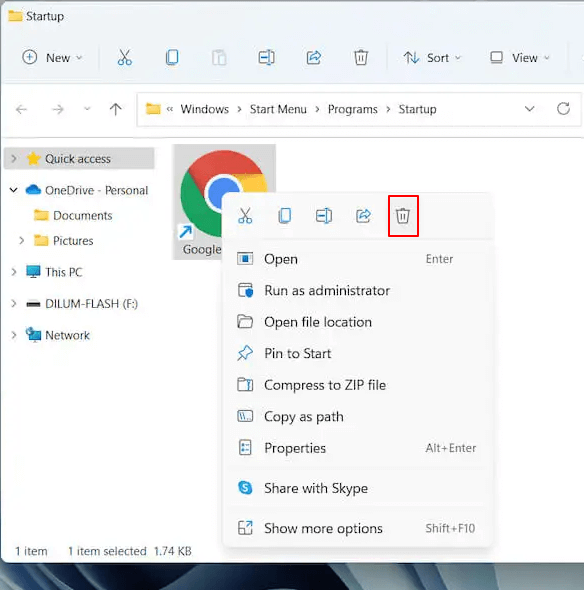
  • Find the program you do not want to open at startup. Here, we wish to prevent Google Chrome from launching at the computer startup.
  • Right-click the program and choose the Trash icon from the context menu.Google Chrome trash button

Above, we discussed how to access the Windows 11 startup folder location and its prominent uses. If you have any questions left, you may check the following section for their answers.


Frequently Asked Questions

Below we answer a few most common questions about the Windows 11 startup folder.

Q1. What is the Windows 11 startup folder?

In simple terms, the Windows startup folder is the place where your operating system keeps the shortcuts for applications to run with Windows. After opening the Windows startup menu folder, you see a list containing shortcuts to applications that start automatically when your system boots up.

Q2. Where is the startup folder in Win 11?

In the above section, we shared the two most common ways to access the Windows startup folder location. You may follow them to find the needed folder for the startup menu.

Q3. Can you change the Windows 11 start menu location?

You can change the location of the start menu in Windows 11. Below is how to do it.

  • Go to your computer’s Personalization menu.
  • Select Taskbar from the options on your screen.
  • Choose Taskbar behaviors. 
  • Now, you can move the start menu to the left or re-center it according to the available options.

Q4. Is it possible to disable the startup items from Task Manager?

You can disable the items present in the startup menu using the Task Manager. Below are the directions to do it.

  • Use the combination of keys Ctrl, Shift, and Esc to open the Task Manager.
  • Navigate to the Startup tab and right-click on the app you wish to disable.
  • Select Disable from the menu on your screen.
  • Repeat the above process for all applications you wish to disable.

Windows 11 Startup Folder Location Found

Through this article, we brought to light different methods to find and open the Windows 11 start menu folders. We also discussed its most common uses.

After all the above discussion, if you have any doubts or confusion about the Windows 11 start menu folders, you may drop us a comment to clear it.

We hope you will remain connected to TechPout for more Windows guides, troubleshooting tips, and updates. We will see you soon with another article of your interest.

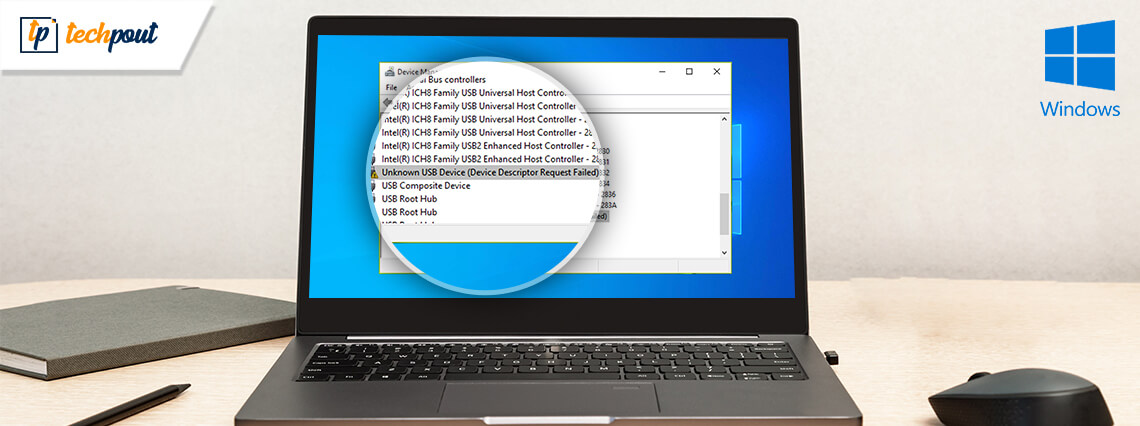
How to Fix Unknown USB Device (Device Descriptor Request Failed)

How to Fix Device Descriptor Request Failed (Unknown USB Device)

April 6, 2023
2

USB devices such as flash drives, pen drives, or SD cards are frequently used for the purpose of easy and quick data transfer. But they are quite prone to errors like the unknown USB device. So, if you are facing the “device descriptor request failed error” in Windows 10 and 11, then you can cheer up because this is a fixable error that can be resolved with the help of some workarounds.

We have prepared a blog to describe these methods in detail, apart from informing you about what causes the unknown USB device error.

Quick & Easy Way to Fix Unknown USB Device (Device Descriptor Request Failed)

Before starting, we would like to suggest the best method to resolve the unknown USB device error. Several users who have encountered this issue were able to fix it by updating their USB drivers with the help of Bit Driver Updater.

To update out-of-date USB drivers for free, click the link below!

Windows Download Button

What is a Device Descriptor?

The USB_DEVICE_DESCRIPTOR forms the main base of the descriptor tree. It holds primary device information. There are specific numbers such as the idVendor and idProduct which are responsible for identifying the connected devices in a system.

So, when a device is connected to the Windows 10 operating system, then it uses these specially designated numbers to understand which device driver has to be loaded.

idVendor – Every company that produces USB devices is assigned this number which is basically a Vendor ID.

idProduct – This particular number is assigned by the manufacturer to a specific product for the purpose of identifying it. It is a 16-bit field containing the number.


What Causes Unknown USB Device Error (Device Descriptor Request Failed)?

After gaining some familiarity with the device descriptor, let us now see what causes the unknown USB device (device descriptor request failed) error.

  • The USB device could be faulty or corrupted.
  • The BIOS (basic input/output system) system is not updated.
  • If the USB device is infected with a virus or some form of malware, then it may cause this error.
  • Another cause is when the USB device is unable to communicate with the system.
  • If the USB device driver is not found by Windows 10, or 11, then also it could lead to this error.

5 Ways To Fix Unknown USB Device Descriptor Request Failed Error

If you want to know how to fix the device descriptor request failed error, then read ahead to find the hacks and various troubleshooting methods in detail.

Before we explain the advanced methods, let’s take a look at some quick hacks that can resolve the unknown USB device (device descriptor request failed) easily.

Method 1: Quick Hacks To Try

You can try these hacks and tips to resolve some temporary glitch or issue easily:

  • Reboot your computer and then reconnect the USB device to see if it is now functioning normally.
  • Change and connect the USB device to another USB port of the system.
  • Remove the power supply of the system and then connect it again.
  • Check if the USB device is functioning in another system, then it would indicate if its a device issue or system driver issue.

If these hacks could not fix the problem and you are still wondering how to fix the unknown USB device (device descriptor request failed), then move onto the next methods.

Read Also: How to Fix “Printer Not Responding” Error on Windows


Method 2: Disable The Fast Startup Option

If the above methods did not resolve the device descriptor request failed error then try to disable the fast startup option. Because if windows boot instantly then the external device may not be recognized before the completion of the boot so this may cause such kind of issue. So, disabling the fast startup can fix the issue. Here is what you need to do! 

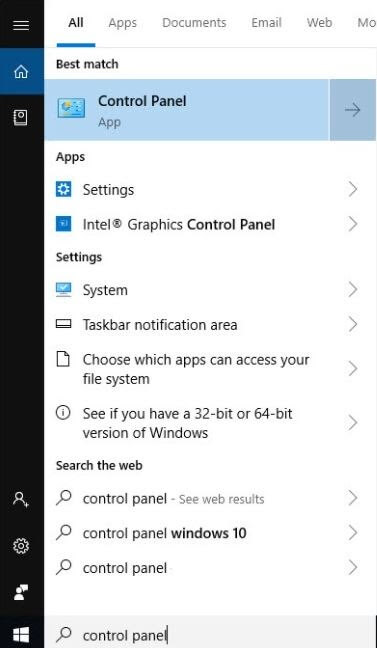
Step 1:- To open the Control Panel type Control in the search box of the Windows and then select the best match of it. 

Launch Control Panel

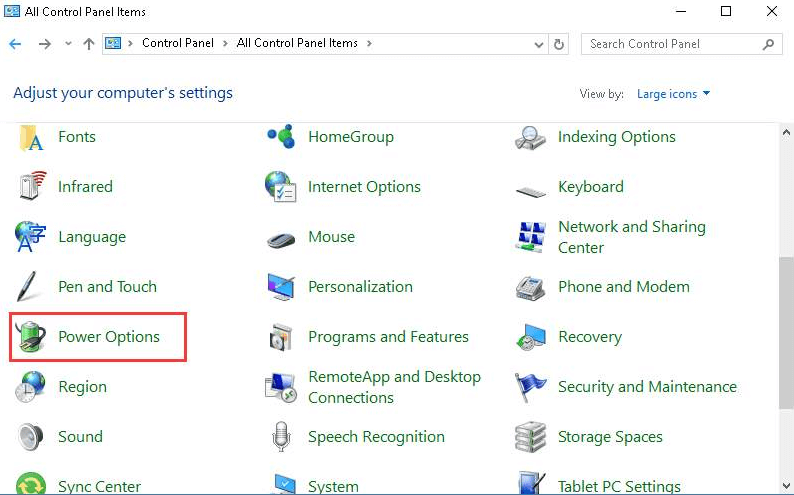
Step 2:- It will land you on the Control Panel Window. Now, set View By as Large icons then, locate Power Options, and click on it. 

Set View By As Large Icons Then Locate Power Options

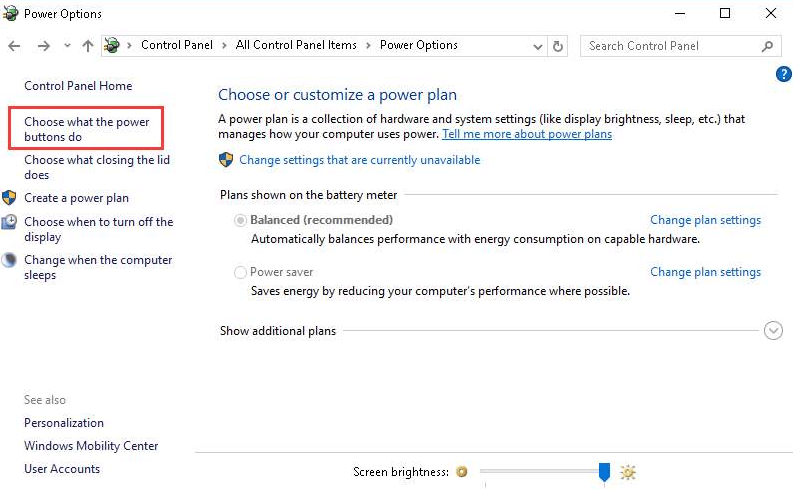
Step 3:- After this, from the left pane side of the window, pick choose what the power buttons do. 

Choose What The Power Buttons Do

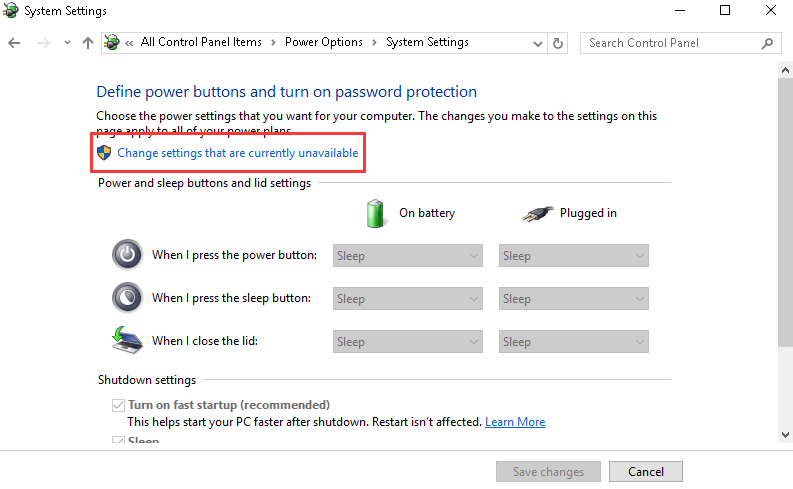
Step 4:- Now, head to Change Settings that are Currently Unavailable and click on it. 

Head To Change Settings That Are Currently Unavailable

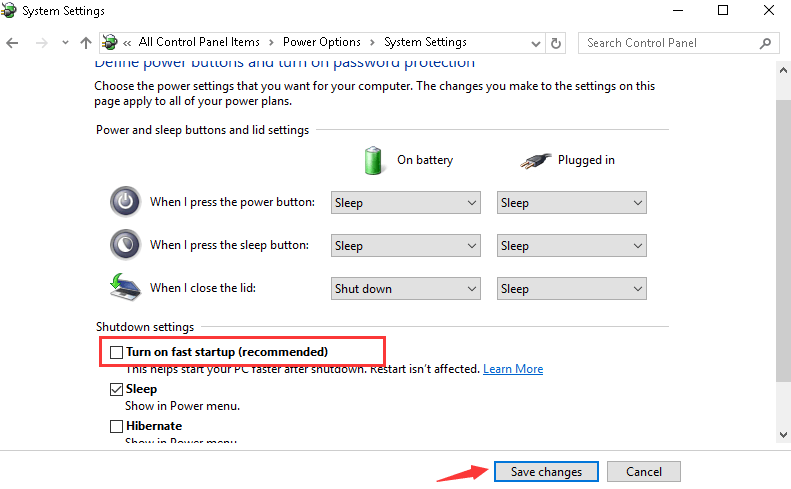
Step 5:- Unmark the box named Turn on Fast startup. Then, click on the Save Changes to proceed further.

Unmark The Box Named Turn On Fast Startup

After this, start your computer system again and see whether the error has appeared or not. Now, your PC will boot a bit slower than usual. 

Read More: Download and update USB 3.0 Driver for Windows 10/8/7


Method 3: Reinstall The USB Device Driver

If you are fed up with the problem of device descriptor request failed, then uninstall and reinstall the USB device driver from the Windows 10, 11 Device Manager to rectify the issue.

  • Type Device Manager in the Windows search box and click on it to launch the Device Manager.
  • Scroll down to find the Universal Serial Bus controllers component and expand the section to find the USB device driver.
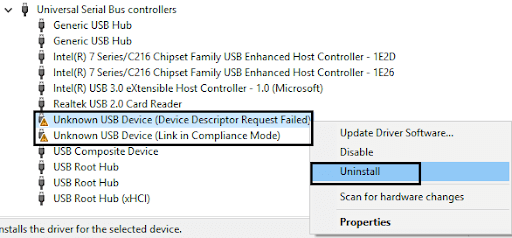
  • You will notice a yellow exclamation indicator mark on the Unknown USB Device driver.
  • Using the right-click action on the Unknown USB Device name, open the context menu to select the “Uninstall device” option.

Reinstall USB device driver to Fix Unknown USB device

  • Wait for the uninstallation to complete and then unplug the USB device.
  • After this, reconnect the USB device into the system.
  • Finally, go to the Action option in the Device Manager window to select “Scan for hardware changes” and let Windows download the USB device
  • drivers on the system again.
  • Alternatively, you can also go to the manufacturer’s website to install the USB drivers.

Read More: How to Create a Bootable USB Drive for Windows 10


Method 4: Update The USB Device Driver With Bit Driver Updater Tool

If reinstalling the USB device did not resolve the device descriptor request failed error, then another way to fix it is by updating the USB drivers. You can do so automatically with the Bit Driver Updater tool. This is an excellent free driver updater tool that can update all your system drivers from time to time besides backing up the drivers.

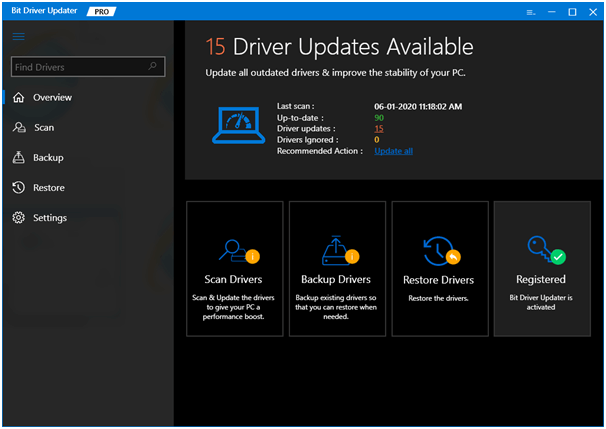
Bit Driver Updater - Best Driver Updater Software

Steps to Update the Unknown USB Device With Bit Driver Updater:

Step 1: Install the Bit Driver Updater tool from its website.

Step 2: Run a quick scan with it to detect defective, missing, or outdated drivers.

Step 3: Click the “Update” option beside the name of the USB driver (from the list of the drivers which need to be updated, appearing after the scan).

Step 4: The tool will now download the official version of the USB driver and install them on the system.

Step 5: Restart your system after this.

Windows Download Button


Method 5: Launch Hardware Troubleshooter

If none of the above methods worked in fixing the Device Descriptor Request Failed error try using the in-built troubleshooter on your Windows 10, 11 device. This troubleshooter can identify the HArdware errors and fix them automatically. All you need to do is apply the following steps.

Step 1: Use the combination of Windows and I keys to open the Settings App on your device.

Step 2: Expand the Update and Security section.Click on update and security

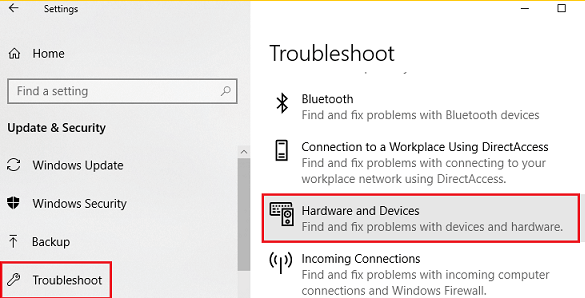
Step 3: Scroll to the end and click on Troubleshoot option from the left panel.

Step 4: Now click on Hardware & Device Troubleshooter and Run it on your Windows device.Hardware and Devices on the right pane

Now apply the instructions that pop up on your screen to find the problem with the USB port or other respective hardware. Now apply the recommended action to resolve the issue. Check if this could fix Device Descriptor Request failed error.


Device Descriptor Request Failed Fixed in Windows 10, 11

Thus, whenever you see a message like the “USB DEVICE_DESCRIPTOR_FAILURE Error” or “USB device malfunctioned Error” in Windows 10 and 11 then you can now fix the device descriptor request failed error with the help of the aforementioned methods and hacks.

1 Comment
    Susana William says: Reply
    May 28th 2020, 3:59 pm

    Thanks for the solutions, I found this error many times in my mobile when using YouTube. Here I get the complete solutions to resolve this YouTube black screen error. So thank you.

Leave a Reply Cancel reply

Your email address will not be published. Required fields are marked *

Sidebar Image bit G ad1

Latest Posts

  • Best-Free-Online-Portfolio-Websites-in-2026
    Best Free Online Portfolio Websites in 2026
    by adminuser / March 16, 2026
  • Anytime Astro: Best Website For Online Astrology Consultation
    Anytime Astro: Connect Now For Online Astrology Consultation
    by Somya Shrimal / March 13, 2026
  • Best-Ways-to-Combine-Images-Into-PDF-Files
    Best Ways to Combine Images Into PDF Files
    by Niharika / March 12, 2026
  • Best FREE VPS Hosting Providers
    7 Best FREE VPS Hosting Providers in 2026
    by Devesh / March 12, 2026
  • Best-McAfee-alternative-software-to-use-for-Virus-Protection
    Best McAfee Alternative Software to use for Virus Protection
    by adminuser / February 11, 2026

Categories

  • Cyber Security
  • Driver Updater
  • Entertainment
  • Fitness
  • Games
  • How To
  • laptop
  • OS
  • Reviews
  • Tech News
  • Tips & Tricks
  • Top 10
Sidebar Image bit G ad1
Fix: USB OTG Issues in Android Devices Fix: USB OTG Issues in Android Devicesby Prachi Dani / May 26, 2020
Technology Leads the Way in Educating Mortgage-Holdersby Remy Thomas / May 27, 2020Technology Leads the Way in Educating Mortgage-Holders
TechPout Footer Logo

We at TechPout promise to put forth stories that help people to learn and simplify their digital life. Our purpose is to share the true essence of technology with our tech-loving community.

Useful Links

  • About Us
  • Contact us
  • Privacy Policy

Popular Posts

  • Best PC Optimizer Software
  • Best Mac Cleaner Apps
  • Best Driver Updater
  • Duplicate Photo Finder and Cleaner Software
  • Best Free Movie Download Sites
  • Best IPTV Players

Follow us

Copyright © 2026 www.techpout.com. All rights reserved
DMCA.com Protection Status