Main LogoLight Logo
  • Reviews
  • Top 10
  • How To
  • Tech News
  • OS
    • Windows
    • MAC
    • iOS
    • Android
  • Categories
    • Driver Updater
    • Cyber Security
    • Games
    • Fitness
    • Entertainment
    • Tips & Tricks
How To
by Snigdha

8 Best Ways to Fix YouTube Black Screen Problem

May 27, 2020
1

YouTube seems to be the best place to get all the latest videos and music, but if you have come across the YouTube black screen error, then you definitely won’t be able to enjoy YouTube videos.

It usually occurs when you click on a video for watching and then the video player pops open with a black screen. Your video doesn’t play and there is no picture on YouTube. Sometimes the image doesn’t appear for a short whereas sometimes it stays like that for the entire video.

It can be frustrating but don’t worry as we are here to help you deal with this problem in smarter ways. 

Our blog will guide you through fixing the YouTube video black screen error. We have rounded up many solutions so you can try them and figure out which one would work the best for you.

Table of Contents hide
How to Fix YouTube Black Screen Problem? Try These Fixes:
Fix 1: Refresh Your Web Page
Fix 2: Verify the Internet Connection Status
A.) Check Your Internet Connectivity and Internet Usage
B.) Try a VPN Service
Fix 3: Sign Out of The Google Account You are Using to Watch YouTube
Fix 4: Clear Browsing Cache and Cookies
Fix 5: Disable the Browser Extensions
Navigate to the extension settings as per the below path and disable the ad blockers.
Fix 6: Update the Web Browser Application
Fix 7: Try Another Browser
Fix 8: Update the Graphics Card Drivers Automatically
Conclusion

How to Fix YouTube Black Screen Problem? Try These Fixes:

If your YouTube videos are appearing black, then here’s what you can do to watch your videos again.

Fix 1: Refresh Your Web Page

The simplest solution to try out once you are facing the YouTube black screen issue is to refresh your web page. You can press F5 or the reload icon on your web browser to refresh the web page. This will refresh the YouTube video as well and your video might start playing readily.

Refresh Your Web Page to Fix YouTube Black Screen Problem

You can also restart your browser by closing the application and then open the web browser again. Post this try accessing YouTube and see if the videos are playing appropriately or not.

Fix 2: Verify the Internet Connection Status

You may experience black screen YouTube videos if the network connection is not functioning correctly. There could be many scenarios that may be causing this issue and therefore you can try a number of solutions to get rid of the YouTube black screen error.

A.) Check Your Internet Connectivity and Internet Usage

First of all check your internet connection and troubleshoot issues related to outdated network drivers with the help of a driver updater tool. Also, check your WiFi router or modem for loose connections. You can restart your router and see if that fixes the problem of internet connection and also the black screen of YouTube.

Additionally, you may also disable the network connection of the programs or devices that may be interfering with your network connectivity and slowing down your network speed.

Read More: Best Ways to Speed up Your Internet Speed

B.) Try a VPN Service

If your local internet connection is giving you some kind of trouble and you are unable to view any image or video on YouTube, then you can try connecting to a VPN service which can resolve the issue for you.

We recommend using ExpressVPN and NordVPN as they are the most popular and trusted VPN providers available in the industry.

You can also manually connect to a VPN server and set up the VPN connection but if you are not proficient in it then, you can install a tool as per the above recommendations and stream your YouTube videos seamlessly and enjoy them. 

ExpressVPN is a simple tool that comes with a lot of data encryption and protection techniques. It also streams your videos at a greater speed without interruptions.

After installing the application on your computer, you can connect to a server of your choice and then access YouTube to watch your videos peacefully.

Fix 3: Sign Out of The Google Account You are Using to Watch YouTube
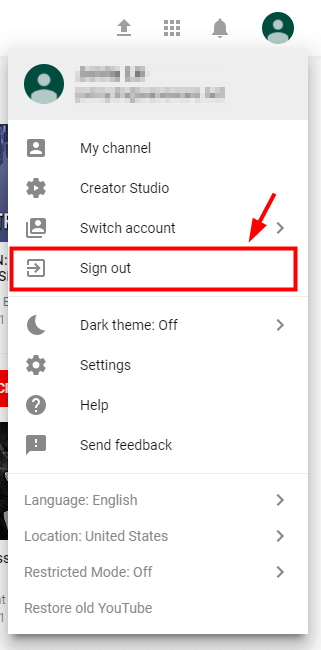
Sign Out of The Google Account You are Using to Watch YouTube

YouTube is generally accessible with our Google account. If you are experiencing YouTube video black screen, then you can sign out of the Google account and sign in again to fix the issue.

Alternatively, you can also try to login with another Google account to see if that is also able to help in solving the YouTube video playing issue.

Fix 4: Clear Browsing Cache and Cookies

When you have a black screen while you are attempting to play a very important You-tube video, it’s not only irritating but it is also a moment of worry. If you think, what could have created such a black screen for you? You would probably stumble upon facts like clearing cache and historical data. It could be that you have piled up a lot of cache; your browser has thus gone slow.

Thus, all you may simply have to do is clear the cache and browsing data history.

It could also be some kind of changes in the browser settings that could make your YouTube black screen.

So one of the exercises you need to perform in this process would be clearing out all the browsing histories, caches and all other places where junk is stored including clearing your passwords.
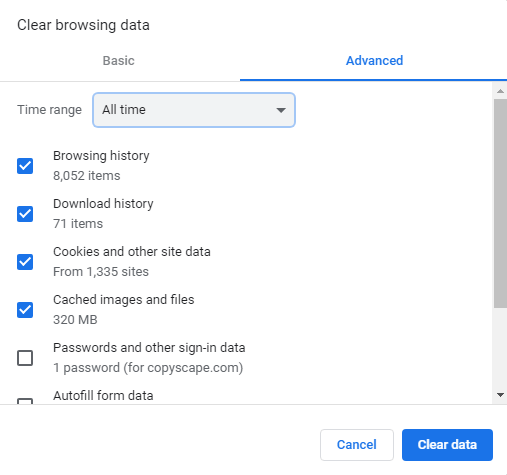
Clear Browsing Cache and Cookies to Fix YouTube Black Screen Problem

Follow the steps to clear your browsing history:

  • Ctrl, Shift and Delete keys all at the same time that will give way to the pop up window screen.
  • Now in that pop up screen select all that you think could be the cause.
  •  While doing so, set the time span for browser clearance as “All time.”
  • Now click on the option “Clear Data.” This one command will clear all your browsing and download history, form and search history, cookies and cache, activity logins, Offline Website data, Site Preferences all together, all at once.
  •  This should reboot your You-tube, and make it functional once again.

Now check if your You-tube Videos are up and running. Unless, there are more complexities, this single act should be sufficient to make your You-tube up and running.

Fix 5: Disable the Browser Extensions

So far if you haven’t experienced any luck in getting rid of the black screen of the YouTube video player, then you may try to disable the various browser extensions. At times, browser extensions can interfere with the YouTube player especially if you are using an ad blocker extension.

Disabling the browser extension momentarily can solve the problem. You can refer the below steps to know how to disable the browser extensions on your web browser.

Navigate to the extension settings as per the below path and disable the ad blockers.

For Google Chrome –

  • Input the following in the address bar of the browser and hit the Enter key: “chrome://extensions”
  • Uncheck the box adjacent to “Enabled” status to disable it.
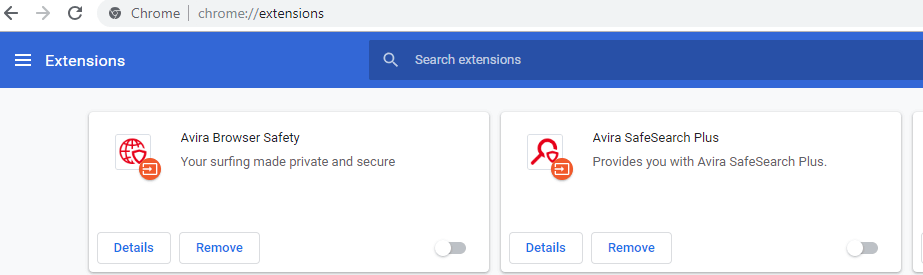
Disable the Browser Extensions to Fix YouTube Black Screen Problem

For Firefox –

  • Click on the menu button and then click on Add-ons.
  • You will see a Disable button next to the ad blocker. You can click it to disable it temporarily.

Ultimately, open the YouTube video and see if you are having a smooth video viewing experience or not. If you still have not had any luck then jump to the next solution.

Read More: Best Free Adware Removal Tools For Windows

Fix 6: Update the Web Browser Application

You can easily update the web browser to solve the black screen problem of YouTube videos. If the web browser is outdated or there is some configuration issue apart from some specific features of the browser that might be interfering with the YouTube player.

Under this circumstance, you can update the browser by uninstalling it and then downloading its most updated version on your computer. Once the installation completes, then you can check to see if the YouTube video black screen issue is resolved. If not, then try the next fix.

Fix 7: Try Another Browser

Last but not the least, if all the above fixes failed, then you can change your browser and see if the YouTube black screen error gets resolved or not. 

It could be that your browser is not compatible with the YouTube platform, therefore, you are experiencing this issue. It could be the plugins, extensions, or simply the web configuration that’s causing the YouTube video black screen error.

You can install a new browser and open YouTube to see if you are able to play the videos well now.

Fix 8: Update the Graphics Card Drivers Automatically

Ultimately, if you are still seeing YouTube black screen error then try updating the graphics driver to get rid of the problem for once and all.

To do this, you can install the best driver updater software in your system. These software can automatically scan and detect outdated graphics drivers or faulty graphics drivers and download the updated versions of the graphics driver for you. You can easily install them in a single click and then try to access YouTube to see if now you are able to play videos normally.

Another alternative method is to update the graphics driver manually. For this you can go to Manufacturer’s website and search for the accurate version of the graphics driver.

You can download the self executable file and then follow the on-screen steps to complete the installation procedure.

If the installation does not successfully happen on its own then you can also complete the installation process via the Device Manager.

Conclusion

Hopefully, with the above methods you have now been able to resolve your YouTube black screen trouble. The solutions that we have provided above are extremely feasible and easy to implement. 

In general it is a good practice to update the browser and clear cookies and cache data on a regular basis to maintain optimum performance of the browser. 

Besides, checking the internet connection, trying a VPN service can also help you to watch YouTube videos smoothly.

You can also sign in from a new Google account or try a new web browser to watch YouTube without facing the black screen error.

So, I am wrapping up this article with this. If you have any other tips and tricks, then you may let us know in the comments section below. 

Author

Snigdha

Snigdha is a technical content writer with expertise in the field of science & technology. Though she has a very diverse academic and professional profile yet she finds writing to be a creative form that she was unable to explore so far. When not writing, she can be found indulging in other forms of creativity like painting or travelling.

View all posts

Related Posts
How to Jailbreak a Firestick in 2020

How to Jailbreak a Firestick in 2020 (Updated Guide)

June 17, 2020
0

Learn how to jailbreak firestick with our step-to-step tutorial and enjoy accessing your favorite online streaming apps.

Amazon Fire Stick is not a new word for us and is highly popular amongst the masses as a feature-rich online streaming device. It is a low-cost tool that lets you stream movies, videos and TV shows from popular sites including Hulu, Netflix, Amazon Prime, and much more.

However, it is not completely free from drawbacks and demands a subscription fee to access online content from entertainment and movie websites.

In such scenarios jailbreaking comes to your rescue and helps you bypass all the restrictions imposed by its manufacturer.

So, before moving on our step-to-step guide on how to jailbreak FireStick, let’s have a quick insight into the concept as a whole.

What is a Jailbroken Firestick?

Jailbreaking means bypassing the default restriction packed with your device. It means breaking the walls that separate you from unlimited entertainment and unrestricted streaming.

The process involves the use of a third-party application or a modified firmware. Once you have jailbroken your firestick you can easily side-load any application on your device which is impossible to download from Amazon App.

What’s the Need for Firestick Jailbreak?

You jailbreak your Firestick for accessing the ocean of online streaming without paying a hefty amount. From TV series to online movies, Live TV, Sports channel Jailbreaking ensures easy and instant access to your favorite entertainment channels.

Point to Note: The process of jailbreaking your firestick is completely safe and legal as it does not make any hidden charges in your device. However, you need to ensure that the site that you’re picking does not fall under infringement of copyright issues.

How to Jailbreak Firestick – Complete Guide

A fully loaded Fire stick promises unlimited enjoyment but comes at a premium price. Jailbreaking gives us an easy rescue and does not require any technical expertise. Closely refer to our guide to jailbreak your Firestick.

Step 1: Set Up FireStick For Jailbreaking

Few Prerequisites:

  • Firestick
  • Remote control and
  • A fast-running internet connection

1. Plugin your Amazon Fire TV stick

2. Wait for the Home screen to load.

3. Select the Settings option from the Menu bar.

Select Settings option from Menu

4. From the displayed options pick My Fire TV.

5. In the next step choose Developers option.

choose Developers option

6. Now turn on the ADB Debugging plug followed by activating the “Apps from unknown sources” option (Doing this will allow you to install multiple apps outside the Amazon App store directory)

Activate Apps from unknown sources Option

7. A prompt message stating “Apps from unknown sources” will be displayed on your screen, click on the Turn on button to continue.

click on the Turn on button

8. Now go back to the Setting option by clicking on the back button on your Amazon remote.

9. From the Settings menu open the Preferences option.

open the Preferences option

10. Next, choose the Privacy Settings tab.

choose Privacy Settings tab

11. Turn off “Device Data Usage” and “Collect App Usage Data” to prevent data sharing.

Turn off Device Data Usage

12. Now go back to the Preferences window by pressing the back button and click on Data Monitoring.

click on Data Monitoring

13. Form the displayed window turn off Data monitoring.

turn off Data monitoring

Read More: Best Free TV Streaming Sites To Watch Online TV Shows

Step 2: Install Alternative Application on Firestick

Jailbreaking Firestick involves downloading third-party apps outside the Amazon App Store. Since Amazon does not support direct download you will require an alternative application known as ‘Downloader’ for it. To install Downloader follow simple steps as mentioned below:

1. Launch Amazon Fire Stick home screen.

2. Click on the lens icon to open the Search box.

open the Search box

3. Type Downloader in the search box.

4. From the drop-down menu choose Downloader.

choose Downloader From drop down

5. From the next window click on the Download option.

Click on download Option

6. Post successful download install the application on your device.

Download Application on Your Device

7. Now launch the Downloader app by clicking on the Open button.

Launch Downloader App

8. You are now ready to download files or websites that you wish to download.

Enter URL For Download

Step 3: Jailbreak Firestick

Once you follow the above-mentioned steps, you can download any streaming app. For your convenience we have picked Kodi 18.

Here we will learn how to jailbreak Amazon Firestick with Kodi 18:

1. Launch the Downloader app on your device and enter the URL https://www.firesticktricks.com/kapk in the https:// tab.

2. Press the Go button for downloading KODI 18.

Downloading KODI 18

3. Let the download complete, and then click on the Install button.

After Download, Click on Install

Click on Install Button

4. A successful installation will confirm the jailbreak of your firestick.

Read More: Best Netflix VPN 2020: Watch Unlimited Movies & TV Shows

How to Use Jailbroken Amazon Firestick?

So, this is it, movie lovers, you have successfully jailbroken your Amazon Firestick, but what’s next? Let’s learn how to use it to enjoy a bottomless ocean of the online streaming world.

Ensure that you are using a powerful VPN connection to avoid falling into legal issues related to copyright infringement. You can consider using NordVPN, it not only will ensure complete anonymity but is fully compatible with Kodi 18.

To set up NordVPN on your firestick follow simple steps:

  • To start with, subscribe to NordVPN, alternatively you can also Sign up to avail its services.
  • Open Search box.

Open Search Box

  • In the Search box type NordVPN using your firestick remote.
  • From the dropdown menu select NordVPN.

Select NordVPN

  • Now from the app screen select NordVPN.

App Screen Select NordVPN

  • Now press the Get or Download button to download it on your device.

Press Download Button

  • Select the open button to launch NordVPN. Login into your account with your user id and password.

Launch NordVPN

Prerequisites Check

  1. Jailbroken Firestick – check
  2. fast internet connection – check
  3. VPN connection – check

What you need now are a few Kodi Add-ons and builds. Since Kodi does not stream any of its own content. Its media needs are dependent on other online sources for which you need an Add-on. Here we have listed some of the most popular Add-ons for you.

  1. Covenant: It is a highly reliable gem of the Kodi inventory and works impressively well with Online movies and TV shows.
  2. The Crew: It is best suited for HD quality content. The Crew let you stream online movies and TV shows smoothly.
  3. Venom Addon: It promises easy access to recent and on-demand content. In addition to this, it also hosts a massive library of popular movies and online series.
  4. Limitless: It is a lightweight and multipurpose Kodi add-on. It serves as an all-in-one platform for streaming online movies, documentaries, TV series, sports, and much more.

In addition to this you can also consider using Click Sville, FEN, Exodus Redux & V8, The Magic Dragon etc to elevate your experience.

Kodi Add-ons are essential for online streaming, however on the other hand Kodi builds are more useful in ensuring a smoother streaming experience. They polish Kodi with a more effective and exciting interface.

Apart from this most of the Kodi builds come with pre-installed Add-ons which means you don’t have to worry about individual downloading. Here are some of our best picks for you.

  1. Titanium Build: This lightweight build holds a massive ocean of Kodi add-ons and easily syncs with Kodi supported devices and tools.
  2. No Limits Magic: Powered with a rich user base, No Limits Magic is packed with impressive add-ons and comes in a clutter-free and sleek design.

Xanax, MisFit Mods Lite, Grindhouse, Blue magic, Grind and Silvo are few other Kodi builds that you can pick.

How To Jailbreak FireStick without Downloader app?

If the Downloader app is not available in your region, ES File Explorer can be used to jailbreak Amazon Firestick. The app comes with a 7 day free trial period and its subscription costs around 9.99 dollars per month.

Here is our step-to-step tutorial for you:

  • Launch your device and open the Settings option.
  • Click on My Fire TV and then choose Developers Options.
  • From the newly launched window, turn on the options saying “Apps from unknown sources”.
  • Now go back to the Setting page and Open Preferences tab followed by the Privacy Settings tab.
  • From the Privacy Settings window disable options saying “Collect App Usage Data” and “Device Usage Data”.
  • Now head back to the main page of your Firestick.
  • In the search tool type ES File Explorer.
  • In the list of displayed results, click on Es File Explorer and hit the Download button.
  • Wait for the download to complete and ensure that the app is properly installed on your device.
  • In the pop-up window click on Open to run ES Explorer app.
  • In the next step, select and click on the Downloader button/icon.
  • Now click on the +New button and then in the Path field type https://www.firesticktricks.com/kapk.
  • Additionally, mention the name in the Name field and click on the Download Now button.
  • This will initiate the downloading of the Kodi APK file, on successful completion click on the Open button and then click on the Install button.
  • Now scroll down and click on the Install button one more time.
  • The appearance of an App Installed notification will confirm the successful jailbreaking of your Amazon Firestick.

So this is it from our side, we hope that by now you are well aware of the entire process of jailbreaking a Firestick. Elevate your online entertainment and binge-watch experience to the next level without any hiccups and hassles.

Image Credit: Firestick Tricks

How to Download Brother DCP-1510 Driver for Windows

How to Download Brother DCP-1510 Driver for Windows

October 15, 2022
0

This article guides you through the 5 best ways to download the Brother DCP-1510 driver update and install it for Windows PC.

Brother DCP-1510 is well-known for its hassle-free printing technology. However, despite being a technologically advanced and renowned printer, it may fail to deliver the best performance without the Brother DCP-1510 driver.

The Brother DCP-1510 driver for PC is a connecting link between the printer and your computer. It helps your PC interpret the printing instructions and execute them correctly.

Moreover, several issues like the printer not available may come your way if you do not have an appropriate Brother DCP-1510 driver for Windows.

Therefore, this article shares the quick and easy ways you may follow to download the Brother DCP-1510 driver, install, and update it. Let us proceed toward them without any further delay.

Quick and Easy Methods to Download, Install and Update the Brother DCP-1510 Driver

You may follow these methods to get the compatible Brother DCP-1510 driver for Windows PC, install, and update it.

Method 1: Download the Brother DCP-1510 driver update from the official website

The official Brother website is one place from which you can download the updated driver for all the printers from the manufacturer. The following are the steps to download the updated Brother DCP-1510 driver and install it from there.

  • Navigate to the official website of Brother.
  • Select Support from the top menu.
  • Choose Software & Driver Downloads from the menu that drops down.
  • Search for Brother DCP-1510 printer.
  • Select your printer and choose the OS your computer is running.
  • Click the needed driver to download its installation file.
  • Click twice on the downloaded installation file and follow the instructions to install the Brother DCP-1510 driver update for Windows.

Also Read: Brother HL-3170CDW Driver Download and Update for Windows


Method 2: Use Device Manager to download the updated Brother DCP-1510 driver

Device Manager is a Windows tool to download and install driver updates. You may use this utility to get the latest Brother DCP-1510 driver for Windows PC. Below are the steps to do it.

  • Right-click the taskbar’s Windows icon and choose the Device Manager option from the available options
  • Select the section of Printers or Print queues to view it.
  • Right-click the Brother DCP-1510 driver and pick Update driver from the options available on your screen.Update Driver
  • Search automatically for updated driver software. If you have a Windows 11 computer, you can Search automatically for drivers. Search Automatically for Updated Driver Software
  • After completing the steps shared above, you may reboot the computer.

Method 3: Update your computer’s operating system

Updating the OS fixes common device issues, downloads needed drivers and updates the existing drivers. Hence, you may look for, download, and install the available operating system update to download the Brother DCP-1510 driver for Windows. Here are the step-by-step instructions to do it.

  • Right-click your computer’s Start icon and pick Settings from the available options.
  • Choose the Update & Security settings of your computer.update and security
  • Check for updates. Check for Updates on windows settings
  • Now, you may download and install the latest available update for your system.
  • Finally, reboot the system to complete the process of updating it and installing the driver.

Also Read: How to Download & Update Brother MFC7360N Driver


Method 4: Use the Microsoft Update Catalog to download the Brother DCP-1510 driver

Microsoft has an Update Catalog for the driver updates you wish to download and install on your device. Below are the steps to use the Update Catalog to download and install the Brother DCP-1510 driver for Windows PC.

  • Go to the Update Catalog of Microsoft.
  • Search for Brother DCP-1510 driver. 
  • Select the Download button to proceed toward downloading the required driver’s file.
  • Now, click the installation link you get on the screen.
  • Click two times on the installation file and follow the instructions appearing on your screen to download the Brother DCP-1510 driver update.

Method 5: Download and install the updated Brother DCP-1510 driver automatically (Recommended)

Until now, we shared all manual ways to download the latest Brother DCP-1510 driver for PC and install it. We and many other users feel that these methods require a lot of time and effort. If you also agree with the same, you may follow an automatic and the most recommended way to get the needed driver.

You may get the required Brother DCP-1510 driver for Windows with just a couple of clicks using Bit Driver Updater. The Bit Driver Updater software is well-known as one of the best driver updaters available currently.

With this software, you may download and install all the required drivers automatically. Moreover, the Bit Driver Updater program has many other benefits.

For instance, this software comes with features like driver backups and restore, accelerating the driver’s download speed, and a lot of other advantages.

You may choose to click on the following link to experience this incredible software yourself.

Windows Download Button
A few seconds after installing the software, all the old drivers which are plaguing the system appear on your screen. You may select the Update All option to download and install driver updates for all of them automatically.Update all outdated driver of your windows pc

The software also provides an Update Now tool for all those who wish to update only their Brother DCP-1510 driver. However, you should update each driver for the betterment of your computer.

Also Read: Brother QL-800 Driver and Software Download and Update


Brother DCP-1510 Driver Downloaded and Updated

This article elucidated various methods to download the Brother DCP-1510 driver update and install it. You may go through all the above ways and choose the one you think is the most convenient.

However, if trying all the methods seems too much work, you may apply the most recommended method (driver update via Bit Driver Updater) to save time and effort.

If you have any doubts or suggestions about this post, you may drop them in the comments section.

1 Comment
    Susana William says: Reply
    May 28th 2020, 3:59 pm

    Thanks for the solutions, I found this error many times in my mobile when using YouTube. Here I get the complete solutions to resolve this YouTube black screen error. So thank you.

Leave a Reply Cancel reply

Your email address will not be published. Required fields are marked *

Sidebar Image bit G ad1

Latest Posts

  • Anytime Astro: Best Website For Online Astrology Consultation
    Anytime Astro: Best Website For Online Astrology Consultation
    by Somya Shrimal / February 13, 2026
  • Best-McAfee-alternative-software-to-use-for-Virus-Protection
    Best McAfee Alternative Software to use for Virus Protection
    by adminuser / February 11, 2026
  • What-is-Flip-Flop-in-Circuite-and-it's-Types
    What is Flip Flop in Circuit and its Types
    by Meet / February 6, 2026
  • Best-Data-Labeling-Software-to-use-in-2026
    Best Data Labeling Software to Use in 2026
    by Meet / February 2, 2026
  • Best-Google-Slides-tools--to-add-as-extension-in-2026
    Best Google Slides Tools to Add as Extension in 2026
    by Meet / January 30, 2026

Categories

  • Cyber Security
  • Driver Updater
  • Entertainment
  • Fitness
  • Games
  • How To
  • laptop
  • OS
  • Reviews
  • Tech News
  • Tips & Tricks
  • Top 10
Sidebar Image bit G ad1
Fix: USB OTG Issues in Android Devices Fix: USB OTG Issues in Android Devicesby Prachi Dani / May 26, 2020
Technology Leads the Way in Educating Mortgage-Holdersby Remy Thomas / May 27, 2020Technology Leads the Way in Educating Mortgage-Holders
TechPout Footer Logo

We at TechPout promise to put forth stories that help people to learn and simplify their digital life. Our purpose is to share the true essence of technology with our tech-loving community.

Useful Links

  • About Us
  • Contact us
  • Privacy Policy

Popular Posts

  • Best PC Optimizer Software
  • Best Mac Cleaner Apps
  • Best Driver Updater
  • Duplicate Photo Finder and Cleaner Software
  • Best Free Movie Download Sites
  • Best IPTV Players

Follow us

Copyright © 2026 www.techpout.com. All rights reserved
DMCA.com Protection Status