Main LogoLight Logo
  • Reviews
  • Top 10
  • How To
  • Tech News
  • OS
    • Windows
    • MAC
    • iOS
    • Android
  • Categories
    • Driver Updater
    • Cyber Security
    • Games
    • Fitness
    • Entertainment
    • Tips & Tricks
Top 10 Windows
by Jyotsana

19 Best Free Document Scanner Software for Windows 10 in 2024

March 12, 2024
1

Searching for best document scanning software for your Windows device? We got it covered for you. Stay glued till the end of the article to find the best free scanner software for Windows 10, 11 or other older version devices.

Let’s not talk about the tremendous programs and hacks that this temporary technology is gearing up with everyday. Since we are not living in an oblivion far from the reach of this steady evolution, we are perhaps introduced with the convenience of many free document scanning software that, once upon a time, used to be traditional. Today, through this article, we are going to shed some light upon the best document scanner software that you can use in 2024.

Table of Contents hide
Why Free Scanner Software?
What Are the Best Free Document Scanner Software for Windows 10?
1. NAPS2
2. CamScanner
3. ScanSpeeder
4. PaperScan
5. CloudScan
6. SimpleIndex
7. HP Scan and Capture
8. Office Lens
9. Free Scanner
10. PDF Document Scanner
11. Readiris Pro
12. Alaris Capture Pro
13. Adobe Acrobat DC
14. ABBYY Fine Reader
15. OmniPage Standard
16. VueScan
17. Online Photo Scanner
18. Kofax Express
19. FileHold
Scanning Software – FAQs

Why Free Scanner Software?

You have a bountiful of reasons to acknowledge that have accelerated the need of document scanning software for PC and mobile phones and have vanquished the hustle and bustle of to-dos. Here are the results that can prompt you to ease yourself with this helpful and quick tool.

  1. The first and most important reason to install a scanner software free is that using it rids you of the baggage of physical documents and more or less, aids in the contribution towards the environment. (Don’t underestimate the less paper-faced clutter in your office.)
  2. With free scanner software you can preserve the documents you cannot afford to cast off.
  3. Scanner software for PC or mobile phones will help you in effortlessly editing the documents.
  4. It favors efficiency and promotes easy sharing.

Read Also: Best Free PDF Editing Software For Windows

What Are the Best Free Document Scanner Software for Windows 10?

There is more than just a single best free scanning software for Windows 10 because of amplified and varied features offered by many PDF scanners that touch different standards of requirements. We have collected the best free scanner software that certainly makes the document errands run smoothly and efficiently along with many other well-engineered features that you may want to use in future. Go through the list to find the perfect document scan software freeware or a paid version that fits in well with your requirements.

1. NAPS2
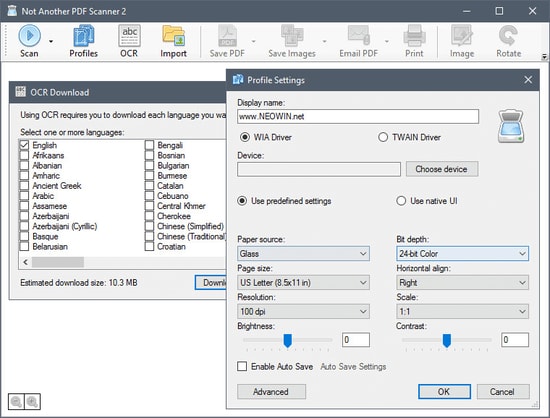
NAPS2

NAPS2 (Not Another PDF Scanner 2) is an amazing free scanner software to humble you with its relaxing functionality. For those who are keen to save their precious time and avoid hand-wringing on multiple clicks, this best document scanner software is a boon.

Notable Features of NAPS2:

  • This PDF scanner is compatible with all file formats.
  • The OCR tool (Optical Character Recognition) supports over 100 languages.
  • It supports WIA and TWAIN.
  • It allows you to combine documents along with tweaking and finishing the resolution, paper size and more.
  • It is open source and also makes the process of scanning documents fast and effortless.

Pros

  • Easy-to-use interface
  • In built OCR engine
  • WIA & TWAIN support
  • Open source
  • Available for Free

Cons

  • Lacks advanced features

Download Now


2. CamScanner

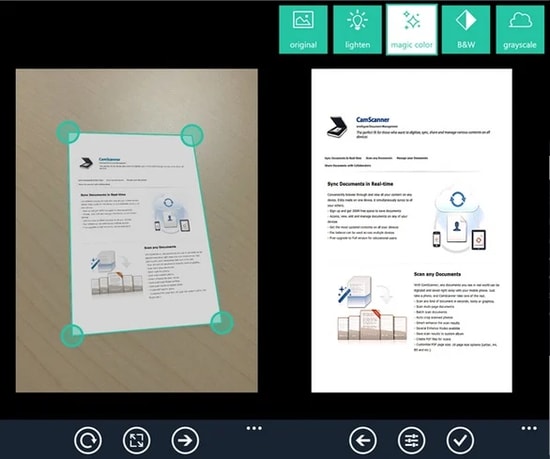
CamScanner

CamScanner is another free scanner software for Windows PC users to help them with the editing, conversion and even, wireless printing functions. It is one of the best photo and document scanning software available out there.

Notable Features of CamScanner:

  • OCR is supported by this document scanning utility.
  • It allows you to sync, share and combine the data.
  • You can go for wireless printing.
  • It features auto-correction of images.
  • It has a user-friendly interface.

Pros

  • Intuitive and clear User interface
  • Combine multiple images
  • Advanced Features
  • Eliminate background elements.

Cons

  • Multiple in app purchases
  • Occupies large space

Download Now


3. ScanSpeeder

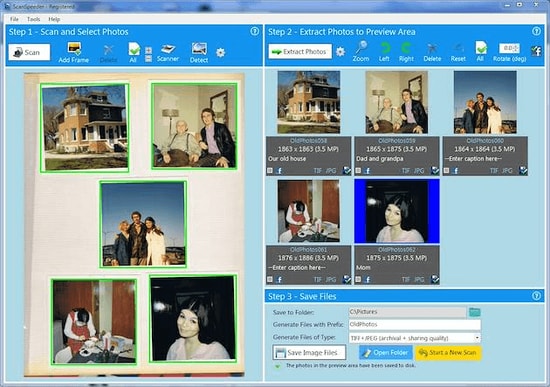
ScanSpeeder

The next alternative for a free scanner app Windows 10 is ScanSpeeder. It is one of the best document scanner software for Windows 10 to use easily. Even if you are not a techy person, this tool will help you in the smoothest and most efficient way possible, be it editing the documents and photos or sharing them.

Read Also: How to Turn PDF into Word Document

Notable Features of ScanSpeeder:

  • ScanSpeeder allows you to crop, straighten and adjust the overall composition of documents and photos.
  • It is easy-to-use and delivers the functionality in a snap.
  • It has a free trial version to let you explore its supersmooth service.

Pros

  • Can be used for both personal and professional purposes
  • Automatic backup to keep data safe
  • Notifies if automatic Backup process fails
  • Restoration of data is easy

Cons

  • Functionality is weak
  • Basic features only

Download Now


4. PaperScan

PaperScan Scanner Software

Get yourself relaxed with this best free scanner software with a graphic user interface. It converts documents into PDF and supports multiple file formats at your best convenience. It offers free as well as pro version.

Notable Features of PaperScan:

  • It features the flatbed support.
  • It supports multiple file formats including PDF, JPEG, PNG, JBIG2 and TIFF.
  • It has integration with WIA and TWAIN.
  • It features auto-correction of images.

Pros

  • Free Version Available
  • Encrypted PDFs
  • Multiple device support
  • Over 30 languages supported

Cons

  • Annoying ads
  • Free version offer basic functions only

Download Now


5. CloudScan

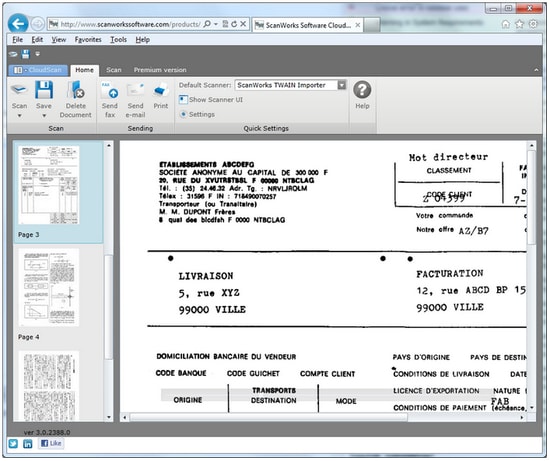
CloudScan

Made for the hassle-filled times when you just wish to save added office tasks, or to convert them into the quickest pace, CloudScan is everything you need. This free scanner software for PC features a user-friendly interface and allows you to share the files with other networks.

Notable Features of CloudScan:

  • It features easy sharing with networks.
  • It allows you to scan and convert files steadily.
  • It allows you to edit the documents easily.

Pros

  • Beginner friendly interface
  • Simple settings
  • Does not require any additional set up
  • Reads invoice layout for any doc

Cons

  • Advanced features missing
  • Pricing is comparatively higher

Download Now


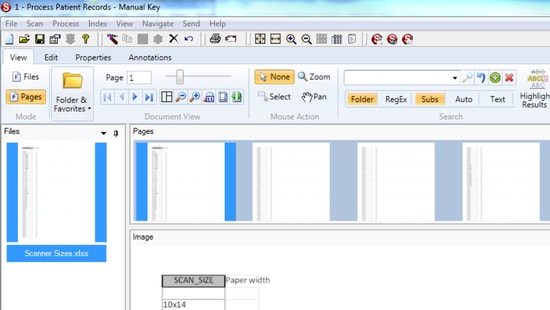
6. SimpleIndex

SimpleIndex

Make most of the digital perks to use for documents with this amazing PDF scanner application for PC. It comes with a number of easy to use features, making it one of the best document scanner software for Windows 10, 8, and 7.

Notable Features of SimpleIndex:

  • It is time-saving and affordable.
  • It indexes the documents in sequence.
  • It supports ISIS and TWAIN.

Pros

  • Clean and easy interface
  • Electric Imprinting
  • Reliable software
  • OMR option to mark checkboxes
  • Cons of SimpleIndex

Cons

  • Bit Expensive
  • Cannot be integrated with mobile device
  • Compatible with Windows device only

Download Now


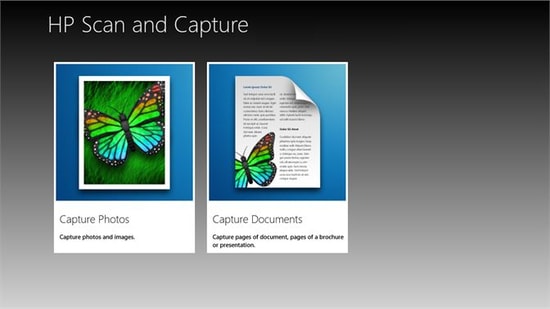
7. HP Scan and Capture

HP Scan and Capture

Rejoice in this free document scanning software made for Windows 10. HP Scan and Capture tool allows you to convert the document into PDF and then save it in the local storage. Let’s have a look at some of its other potent offerings that make it one of the best free document scanner software available for Windows users.

Read Also: How to Convert PDF to Excel Offline

Notable Features of HP Scan and Capture:

  • It features easy document management as it detects HP devices and allows users to scan and edit the documents.
  • It is compatible with other devices.
  • Files can easily be saved in local storage.

Pros

  • Scan documents in bulk
  • Handwritten docs can also be scanned
  • Simple UI

Cons

  • Only available for Windows

Download Now


8. Office Lens

Office Lens

Office Lens is known as the best PDF scanner application for Windows 10 operating system and lets you convert your documents into PDF and share them. It betters productivity and is incredibly useful in enhancement of various types of files.

Notable Features of Office Lens:

  • It can be accessed in both the Windows and the mobile phones.
  • This free scanner software supports OCR (optical character recognition) functionality.
  • The files can be saved in local storage types such as PDF, picture, Word or Excel.

Pros

  • Easy to use
  • Scan documents through different devices
  • Complete integration with OneDrive
  • Easy sharing and accessibility
  • Available for free

Cons

  • OCR feature requires manual work
  • Default options are ordinary

Download Now


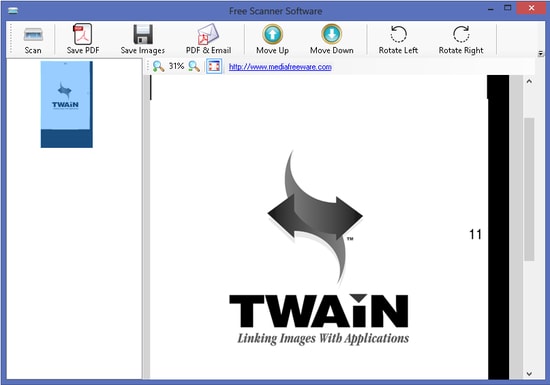
9. Free Scanner

Free Scanner

As the name suggest the free scan software Free scanner is packed with essential features. This free scanning software for Windows 10 may prove to be of big help to you. Enhance document scanning efficiency with this amazing free scanner software which features an user-friendly interface.

Notable Features of Free Scanner:

  • It is compatible with the network scanners.
  • It supports various file formats.
  • It supports Windows 10, 8 and 7.

Pros

  • Simple to use
  • Beginner friendly
  • Supports multiple languages
  • Multiple scanning options
  • Customisable

Cons

  • Poor UI
  • Performance issues

Download Now


10. PDF Document Scanner

ez PDF Document Scanner

This easy-on-mind PDF scanner software free features important functions such as scanning, editing, conversion of files into other formats. Apart from this, below are some of its prominent features that make it one of the best scanner applications to scan documents to PDF.

Notable Features of PDF Document Scanner:

  • It allows adjustment and enhancement of documents.
  • The digitized files can be saved to external sources and cloud storage.
  • It is free to use.

Pros

  • Customize documents
  • Scan multiple file formats
  • Open source and Free
  • Available for multiple formats

Cons

  • Does not support low end devices

Download Now


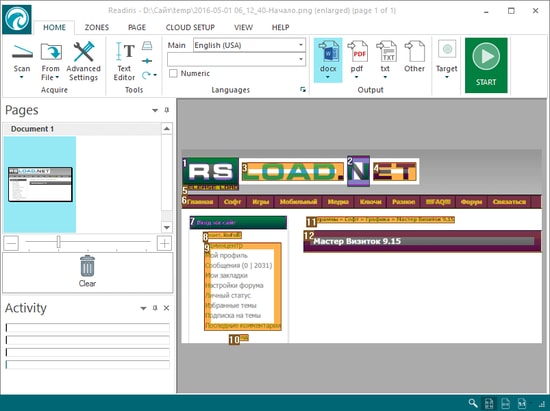
11. Readiris Pro

Readiris Pro

Readiris Pro is one of the best document scanner software for PC offering you multiple choices in editing and converting any document in required format. Moreover, it is user-friendly and is compatible with all editions of Microsoft Windows operating system.

Read Also: Best Duplicate Photo Finder for Windows 10

Notable Features of Readiris Pro:

  • It supports all file formats such as PDF, JPEG, HTML, TXT, GIF, PNG and more.
  • It features GUI and supports TWAIN.
  • It supports over 130 languages.
  • It features easy sharing.

Pros

  • Graphical user Interface is highly intuitive
  • Share Text with users for reviews
  • Convert video to audio files
  • Add digital signatures to your docs for data security
  • Convert docs to PDFs

Cons

  • Keyboard shortcuts are missing
  • Multiple pricing plans makes it complicated to work on Free version
  • Toggle between different functions is difficult

Download Now


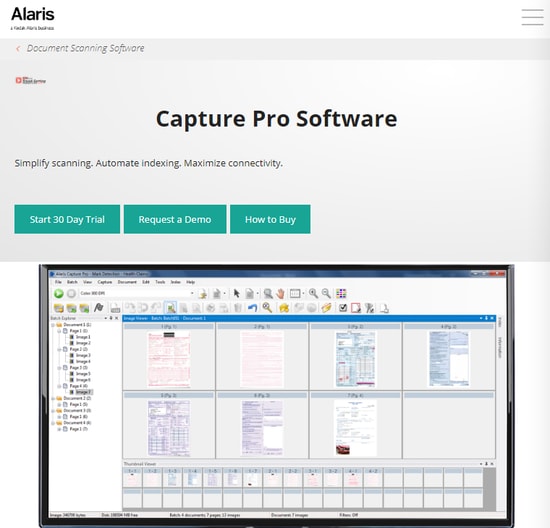
12. Alaris Capture Pro

Alaris Capture Pro

Alaris Capture Pro is one of the best document scanning software for Windows 10 that comes with a lot of amazing features. It has functions such as data indexing, neat scanning along with its ability to scan multiple documents and data capturing.

Features of Alaris Capture Pro:

  • It features OCR and barcode reader.
  • It allows the conversion of PDFs into editable documents.
  • It features the barcode reader.
  • It supports WIA and TWAIN.

Pros

  • HD images with the Perfect Page feature
  • Workflows are streamlines
  • Microsoft SharePoint integration

Cons

  • Free version has limited features
  • No option for single document scans
  • Rotate, crop, or other basic features missing.

Download Now


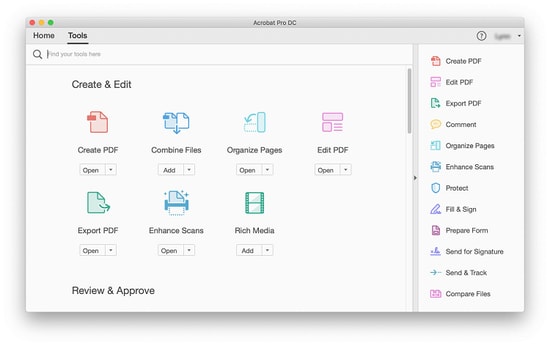
13. Adobe Acrobat DC

Adobe Acrobat DC

If there is a software in this list which you may already be familiar with, it has to be Adobe Acrobat DC. It is a go-to PDF scanner for its exciting features that you cannot skip. View, edit, print the documents and you can share them with multiple users. Let’s stretch a little more to the parameters of its multiple features.

Notable Features

  • Share, edit, scan, and even sign.
  • It renders your data secure if you are an individual user.
  • It makes words such as collaborate and organise sound handy and easy.
  • It is integrated with Adobe Document Clouds and thus, the commenting and sharing come easy.
  • Not to mention, you have a choice to archive and store the files.

Pros

  • Simple User interface
  • Quick searches with indexing feature
  • Edit data and texts even in the tables
  • Maintain consistency through Templates

Cons

  • Issues while launching
  • Frequent Freezes and crashes

Download Now


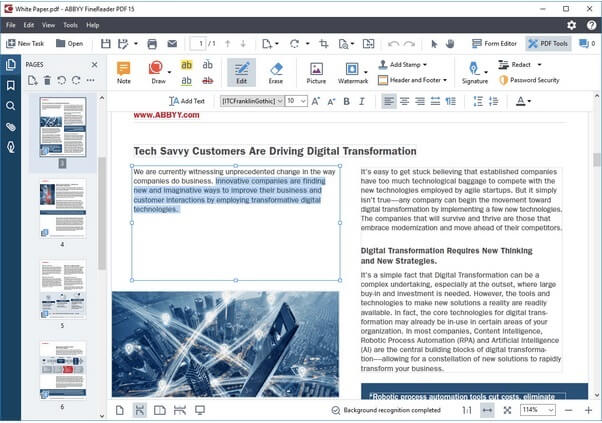
14. ABBYY Fine Reader

ABBYY Fine Reader

Here comes the next one on our list of best document scanning software i.e ABBYY fine reader. For all those who are looking for a professional photo and document scanning tool, ABBYY Fine Reader can be the best free document scanner software to use. This file sharing software offers a huge list of features that makes it easy for you to scan and edit the document easily. Apart from just editing all the documents single-handedly, you can collaborate with your colleagues and edit in real-time.

Notable Features of ABBYY Fine Reader

  • Using ABBYY Fine Reader you can convert into various formats.
  • It lets you compare various documents of different formats easily.
  • The software offers high document accuracy.
  • You can edit in real time with your colleagues.

Pros

  • Supports multiple languages
  • Advanced functionalities available
  • Simple and intuitive interface
  • Excellent performance

Cons

  • Versioning is unavailable

Download Now


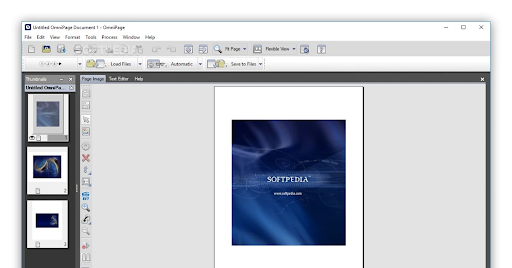
15. OmniPage Standard

OmniPage Standard

Nextly, we have OmniPage Standard on our list of the best document scanning software. It is highly popular for its high-speed scanner and the ability to read touchscreen monitors and pads. As far as the features are concerned, below is what you should know about this software before giving it a well-deserving try.

Notable Features of OmniPage Standard

  • High accuracy
  • Easy-to-use tools and flexible options
  • Retains the formatting of the original document
  • One-step Kindle integration
  • Recognizes 120+ languages
  • Supports multiple formats such as PDF
  • Support for Microsoft Office, HTML, and Corel WordPerfect
  • Converts any photo into a readable format
  • Best-in-class OCR capabilities

Pros

  • The user Interface is clean
  • Great Customer support
  • Add the required text to your images
  • Export docs or images to your social channels such as Facebook

Cons

  • Limited features in Free version
  • Paid option is quite Expensive

Download Now


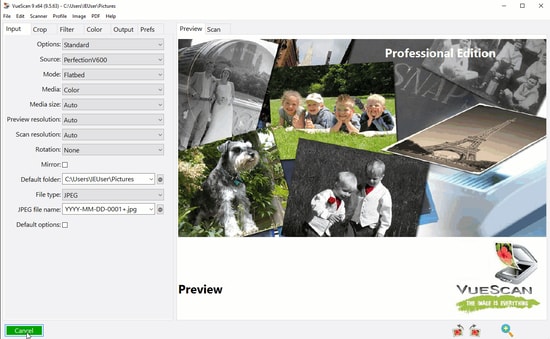
16. VueScan

VueScan

The next best free document scanning software on our list is VueScan. If you are looking for an easy alternative this one right here is a beginner friendly tool. One major advantage of the software is you can scan unlimited documents. So if you are working with an organization and have multiple documents to scan make use of VueScan.

Notable Features of VueScan:

  • Scan PDFs as single or multiple page documents
  • Automatically detects colors
  • Scan JPEG, TIFF, and other format images.
  • Automatic naming of files
  • Integrated Photoshop to edit
  • Scan films
  • Available for Windows, Linux, and macOS
  • Advanced controls for Scanning
  • Timely updates

Pros

  • Free Trial version available
  • Multiple options to customize
  • Scanning quality is High
  • Scans PDF, JPEG, and other file formats

Cons

  • Outdated user interface
  • Performance issues

Download Now


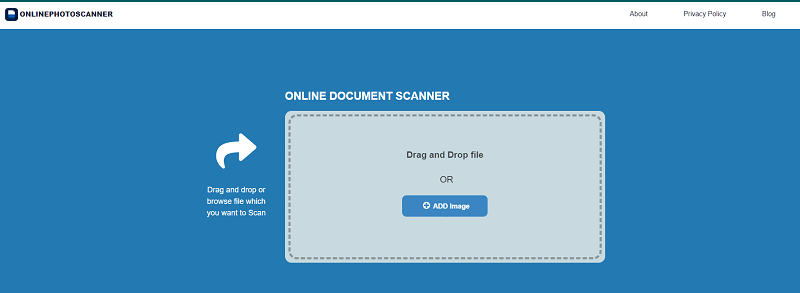
17. Online Photo Scanner

Online Photo Scanner

The last tool on this list of the best free document-scanning software is Online Photo Scanner. Just like the name of the tool, Online Photo Scanner allows you to scan your pictures and images online. This makes it quite feasible for beginners and professionals to scan the images instantly without downloading any tool.

Notable Features of Online Photo Scanner:

  • Works on multiple OS
  • No need to download a standalone tool.
  • Instant results
  • Simple user interface
  • Smart performance
  • Reliable scanning features

Pros

  • Completely free
  • Drag and drop support
  • Download as an image or PDF as required

Cons

  • Limited features for scanning
  • Can not match the relevance of paid tools.

Download Now


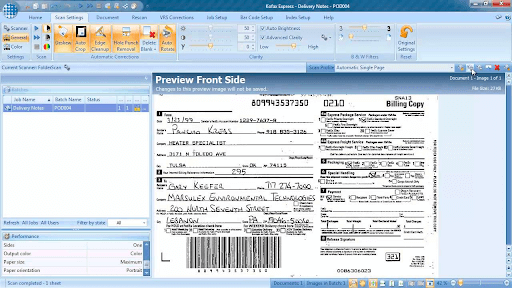
18. Kofax Express

Kofax Express

Next, we have Kofax Express on our list of the best document scanner software for distributed picture capture and high-volume scanning tasks. It boasts all the essential features, such as a simple “point-n-click” scan and the following offerings to justify its position in this article.

Notable features of Kofax Express

  • Boasts a barcode reader
  • Supports document indexing and PortScan processing
  • Helps you with faster document digitization
  • Round-the-clock customer support

Pros

  • Effortless batch scanning
  • Support for web platforms, cloud, and SaaS
  • Top-notch image correction after scan

Cons

  • Outdated interface
  • Some unfixed bugs

Download Now


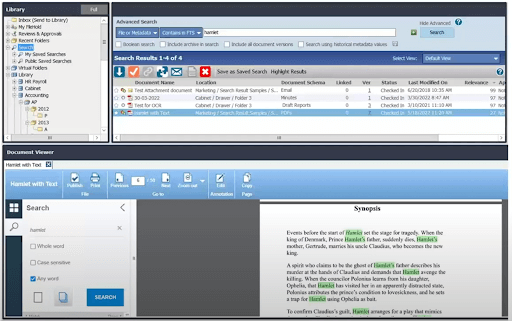
19. FileHold

FileHold

FileHold is the next name on this list of the best free document scanner software for Windows. This tool is not an ordinary one. Using this professional solution, you can easily manage online and offline documents.

Notable features of FileHold

  • Allows you to upload and digitize documents
  • Sign document online
  • Easily accessible on phone, Windows, and more.

Pros

  • Easy to use
  • Smart UI
  • Beginner friendly

Cons

  • Can be too expensive

Download Now


Scanning Software – FAQs

Q1. What is scanning software?

Answer: Scanning software is a tool that enables editing documents or pictures instantly before storing them digitally. In addition to this, the software can help you convert the scanned docs or photos into a PDF format and make changes or edit them quickly. Go through the full list in the article above to find the best scanning software for Windows 11, 10, 8,7.

Q2. What is the best free scanning software for Windows 10?

Answer: The most commonly used and one of the best free scanner software for Windows 10 is Adobe Acrobat DC. The free version of the software has restricted functionalities that can be unlocked by switching to the upgraded premium version.

Q3. How do I scan a PDF file in Windows 10?

Answer: The above article mentions a list of free scanner software for Windows 10, 11, or older version devices. These doc scanner for PC can scan PDF file and allows users to edit or make changes to them quickly and easily. Adobe Acrobat Dc is one of the best scanner software to scan PDFs, images, or other documents.

Q4. Can I scan documents using Adobe Acrobat for free?

Answer: Yes, Adobe Acrobat enables users to scan documents for free. But the free version of this best document scanning software has restricted features. To use the whole capability of the tool upgrade to the premium version.

Q.5 What is the best free photo scanning software?

The best free photo scanning software for Windows is CamScanner, ScanSpeeder, CloudScan, and OfficeLens. These tools provide some of the best and the most advanced features ever for your scanning requirements.

Q.6 What is the best scanner for Windows 10?

Tools like CamScanner, ScanSpeeder, CloudScan, and OfficeLens are some of the best scanner for Windows 10. Using these, you can scan any type of document with ease.

Q.7 Is the Windows Scan app free?

Yes, the Windows Scan app is free to download and use on any supported Windows device for every user globally.


Conclusion

That’s a wrap from our end on our list of best scanning software for Windows10, 11 or older version devices. These best free scanner software are bagging increased popularity due to their efficient features and added functions that we all have been deprived of in traditional scanning. Besides, the fact that it cuts costs, reduces the utility of paper and of course, eliminates the loss of important documents and of course, saves the ever-growing size of bundles of documents.

And returning back to here, we hope this list helps you in figuring out the best document scanner software. Tell us about it in the comment section below.

Author

Jyotsana

Jyotsana is a technical writer with a non-technical background. An eye of detail and a knack for writing helps her to write technology related content.
Apart from writing, she is a coffee connoisseur and an aesthete who rejoices in poetry and music during leisure.

View all posts

Related Posts
Best Drag Clicking Mouse (Gaming, Wireless & Cheap)

Best Drag Clicking Mouse in 2024 (Gaming, Wireless & Cheap)

May 23, 2024
0

Are you looking for the best drag-clicking mouse? Then, you have come to the right place. In this article, you will find the 8 most popular gaming mouse. Continue reading!

Wireless gaming mice provide the same level of accuracy as excellent gaming mouse without the inconvenience of wires. There is no dragging, and there is no pulling on the cable when it gets trapped under the corner of your display; there is only action that is cable-free to accommodate your gaming style.

The necessity for quicker click rates is something that you may have observed if you play video games regularly. You must deal with the damage more rapidly than your opponent, and that too correctly. It is one of the more effective methods for doing this, although it does need the use of a specialist mouse that is capable of withstanding the intensity of the gesture.

In this post, we will discuss the best mouse for drag clicking that you can use in 2024 to enhance your overall gameplay.

8 Top-Rated Drag Clicking Mouse in 2024

After thorough research, we have compiled a list of the 8 most powerful gaming mice that will surely take your gaming experience to the next level. Our list of best drag-clicking mouse helps you make an informed decision. Without further ado, let’s get started!

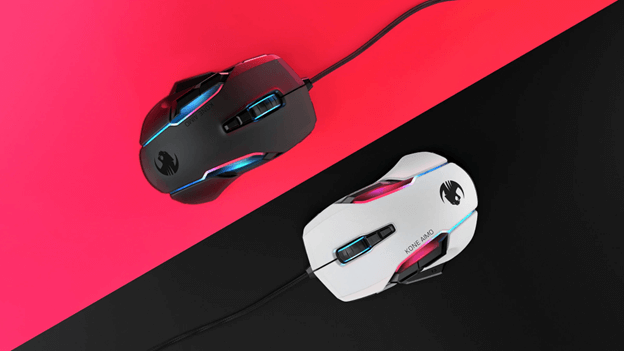
1. Roccat Kone Aimo Remastered

Roccat Kone Aimo Remastered

Roccat Kone Aimo Remastered is one of the intelligent gaming mice for drag-clicking. The Roccat Kone Aimo Remastered may be very pricey, particularly due to the number of features that it has. To begin, it enables players who have a decent amount of experience with drag-and-drop clicking to achieve frame rates of about sixty.

In addition to your skill and the outstanding accuracy it provides, the fact that the CPS is so good may be because it is large and made of a material that is gripping, which its predecessor does not have. If you are particular about cleanliness, this best gaming mouse for drag-clicking can be a good choice for you since it is resistant to dirt.

It is possible to program it to store up to 24 different functionalities, despite the fact that it only has 12 buttons. Additionally, you have the ability to customize its five different light zones to suit your preferences.

The fact that it makes use of optical switches, makes it more resistant to wear and has a longer lifespan. It is important to note, however, that these switches do not depend on a physical mechanism but rather on electric stimuli.

Get it Now

Also Read: Pictek Gaming Mouse Driver Download and Update


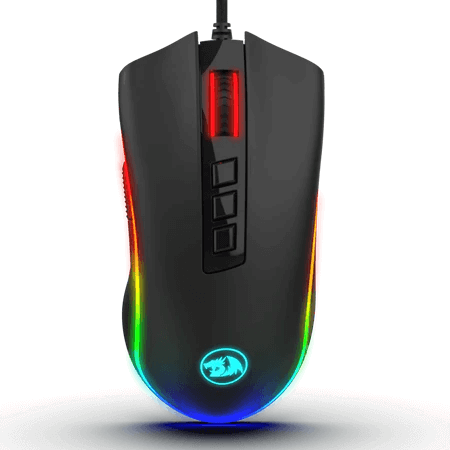
2. Redragon M711 Cobra

Redragon M711 Cobra

With around 20 clicks per second, the M711 Cobra from Redragon is another best drag-clicking mouse that you can use. Furthermore, in addition to its relatively large size, this mouse has two buttons on the side, which not only make it simple to reach them but also provide a good grip for your hand. It also has a reasonable latency rate, which is particularly impressive considering how sensitive it is to clicks.

This mouse with a drag-clicking mechanism has two onboard switches that allow for simple modifications to the DPI. While the first one saves predetermined DPI settings, the second one gives you the ability to modify it using the software that comes included with it. You can download the corresponding software online because it does not come on a CD.

Not only does it come with DPI switches, but it also has seven programmable buttons that allow you to save macros and actions. Please take note that the program is only compatible with PCs running Windows; nevertheless, you may still use it as a mouse on macOS.

Get it Now


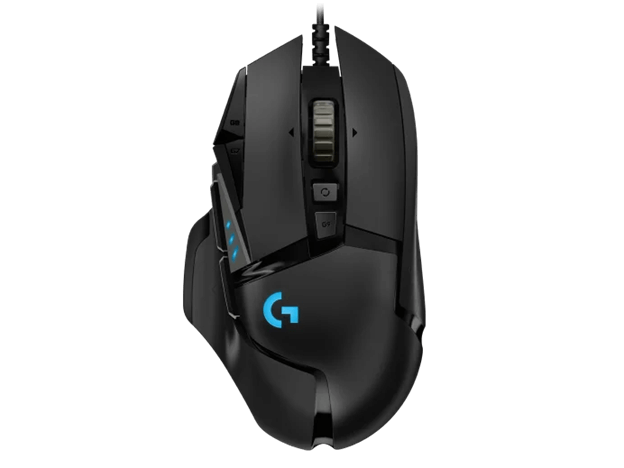
3. Logitech’s G502 HERO

Logitech’s G502 HERO

Not only does Logitech’s G502 HERO excel in terms of its customizable buttons, but it also excels in terms of its grip and its immersive experience.

You may set it with a variety of instructions using the Logitech G HUB, which comes with eleven buttons. Furthermore, you are able to store five distinct profiles thanks to its onboard memory resources. In this manner, you can continue to utilize the mouse settings you want on every computer you operate.

To discover the weight profile that best suits your needs, you can attach or detach five weights weighing 3.6 grams each. It is essential to have a more comfortable hold on your mouse to achieve high CPS rates. Together with its high DPI range of up to 25,600, it also provides for improved cursor mobility, and it does so without taking acceleration into account.

The lighting system of the Logitech G502 HERO is able to synchronize with the colors and themes that you choose inside the game, which may assist in creating an atmosphere that is more conducive to an immersive experience. Overall, it is the best mouse for drag clicking available in the market.

Get it Now

Also Read: Best Game Boosters and Optimizers for Windows PC


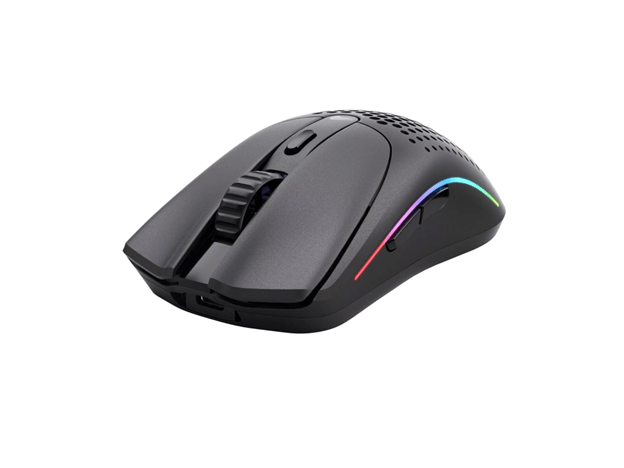
4. Glorious Model O 2 Wireless

Glorious Model O 2 Wireless

Glorious Model 0 2 Wireless is another best drag-clicking mouse. This wireless gaming mouse is competitive because it not only comes with all of the essential features and specifications that are required for this industry, but it also comes at a price that is quite reasonable.

The maximum pixel density (DPI) of the BAMF 2.0 optical sensor is 26,000, which is much higher than the DPI of the Model O, which did not come out until 2020. As far as the appearance and sensation are concerned, the whole mouse is amazing. If a mouse with holes can be considered traditional, then the style is more traditional than other mouse designs.

In terms of its design, this mouse has a honeycomb pattern that ensures fine airflow for your palms. However, despite the fact that it may result in some clutter on your setup (unless you appropriately arrange your cables), its cable is also resistant to dragging.

Get it Now


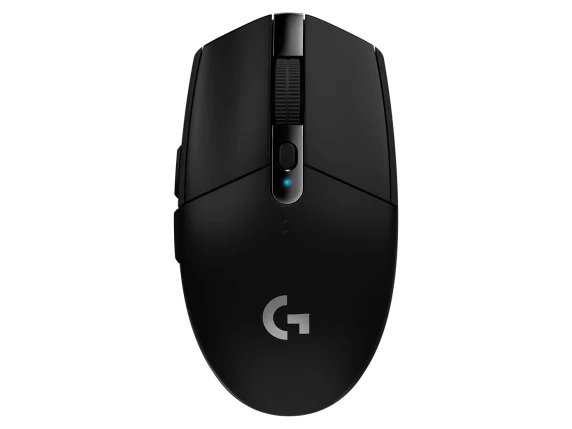
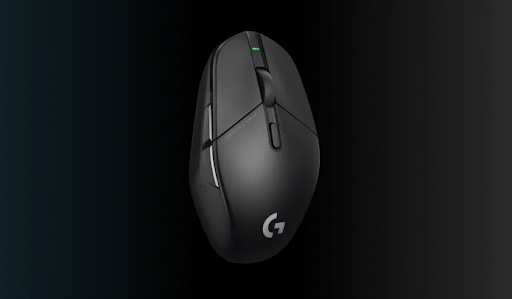
5. Logitech G305 Lightspeed

Logitech G305 Lightspeed

The Logitech G305 Lightspeed is the company’s most affordable wireless gaming mouse, and it is known for its excellent performance. An affordable peripheral that offers good performance without breaking the bank. The pricing is in the middle of the spectrum, which puts it in competition with some excellent wired mouse; nevertheless, there is no compromise in terms of either performance or design.

Although components like the scroll wheel and buttons do not have the same luxury feel as those found in the G502, they are still much superior to anything that can be found in a low-cost gaming mouse. It can operate on a single AA battery for more than two hundred hours, which helps to keep the cost low in comparison to being rechargeable.

For many years, Logitech has been using a tiny, ambidextrous design, which served as the inspiration for the form of the G305. When compared to its pricing, the G305’s quality and performance are two of its most notable characteristics.

Get it Now

Also Read: Best Free PC Games Downloading Sites 


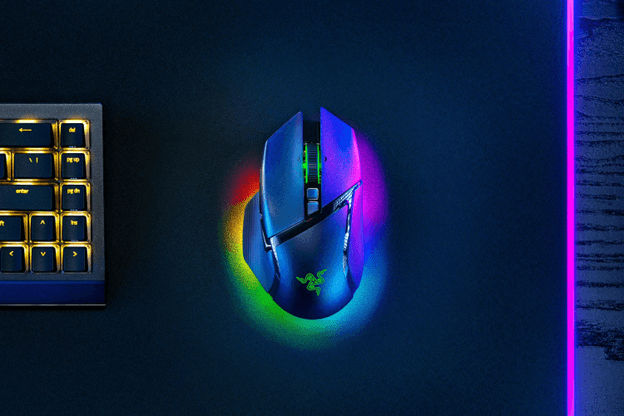
6. Razer Basilisk V3 Pro

Razer Basilisk V3 Pro

If you are seeking a mouse that can do a variety of tasks, the Razer Basilisk V3 Pro can be a fantastic option for you. Wired or Bluetooth connectivity is available for usage with this device. Apart from its suitable connectivity prospects, it also has other robust edges.

With its wireless charging design, it takes the term “wireless” to a whole new level; all you have to do is place it on the charging station that it comes with. Even more impressive is the fact that the battery may endure for a very long time. Compared to other mice, this one is a little bit more expensive; nonetheless, the features that it comes with make it well worth the money.

For instance, it provides capabilities like the sniper button and unlimited scroll, which are not available on other mouse models. These functions are not available on other mice. With a maximum DPI of 30,000, this device’s outstanding DPI range allows for rapid cursor movement as well as precision.

Get it Now


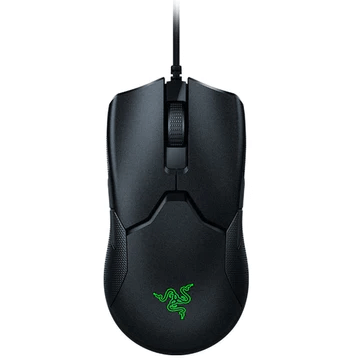
7. Razer Viper 8KHz

Razer Viper 8KHz

The next name on this list of the best drag-clicking mouse is the Razer Viper 8KHz. It is difficult to locate mice suitable for left-handed persons – the Razer Viper 8KHz is a fantastic option for left-handed users due to its neutral physical factor.

The construction of this mouse is such that it is not only lightweight but also comes with rubber on its sides, which provides an extraordinary grip. There is also a wireless version of it, in addition to the fact that it often comes with a sturdy braided cable.

In addition to this, it comes with a customized RGB lighting system and eight programmable buttons, all of which may be saved to the onboard memory of the device. It is also possible to modify its DPI to a maximum of 20,000. In addition to this, its polling rate of 8000 Hz results in insignificant latency rates, which in turn allows you to experience faster response times.

Get it Now


8. Logitech G303 Shroud

Logitech G303 Shroud

If you are still looking for the best drag-clicking mouse, then you may consider using the Logitech G303 Shroud mouse. The mouse uses the Delta Zero sensor technology for navigation. This mouse is quite lightweight and allows you to play games, work like a professional, and do a lot more with ease. The small and soothing LED light of the tool is also quite easy on the eyes and useful at night.

Get it Now

Also Read: Best Free Game Recording Software for Windows PC


Closing Words

When putting out your gaming setup, there are a lot of things to think about, particularly about the keyboard and mouse that you will be using. A good example would be to think about whether or not you want a keyboard that is specialized to macOS and a mouse that allows you to drag and drop. After all, it is your gameplay on the bar.

You will have an advantage over your opponents and targets if you utilize the right gaming mouse for drag-clicking. This will allow you to deal with damage more swiftly and precisely. The Logitech G502 HERO is, in our opinion, the greatest mouse for drag-and-drop clicking. Roccat’s Kone Aimo Remastered, on the other hand, can be just what you need if you are seeking the most value for your money.

Thus, you can choose the best drag-clicking mouse depending on your gaming requirements. Hopefully, you found the above-provided list helpful. If you have any questions or better suggestions, do tell us in the comments section below.

For more tech-related tips and other stuff, you can subscribe to our Newsletter.

How to Fix IDT High Definition Audio CODEC Driver Problem on Windows PC

How to Fix IDT High Definition Audio CODEC Driver Problem on Windows PC

October 6, 2021
0

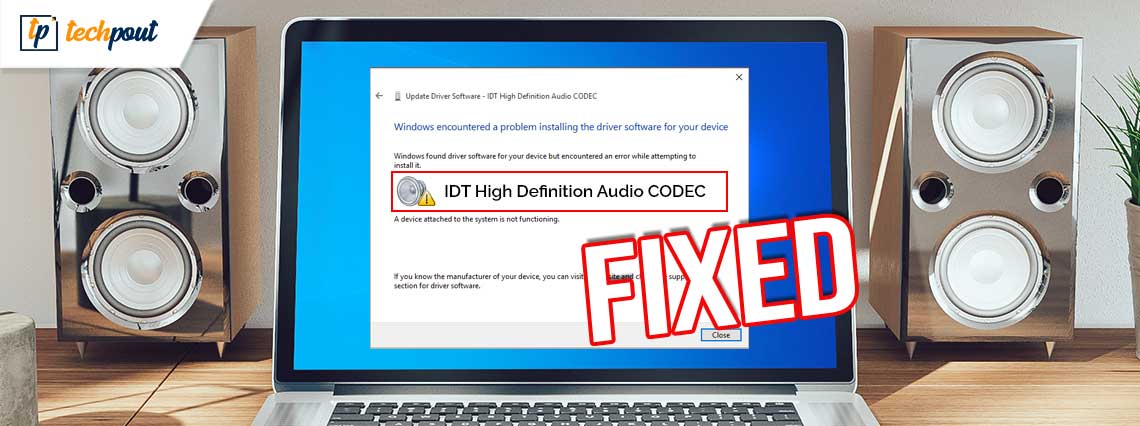
A precise troubleshooting guide to fix IDT High Definition Audio CODEC driver problems on Windows 10, 8, 7 PC.

Did you just upgrade to Windows 10 and are unable to hear any sound from your audio device? Well, if yes, then you are not alone, there are a lot of Windows 10 users who witnessed the very same issue. However, this could occur due to outdated or faulty drivers. The error message simply pops up by saying IDT high definition audio CODEC driver error. When the respective drivers goes missing or out of date, then it prevents delivering the proper sound.

However, don’t worry, as it can be fixed quite easily & quickly. If you don’t know, how, then you have come to the right place, here we have created a list of easy solutions explaining how to fix IDT High Definition Audio CODEC driver problem.

A List of Solutions to Fix IDT High Definition Audio CODEC Driver Problems on Windows PC

Go through each method mentioned below to fix IDT High Definition Audio CODEC driver issues on Windows PC.

Solution 1: Update your Audio Drivers

Since the issue is related to drivers, hence you should keep updating the drivers from time to time. The users can either download the drivers manually or automatically. For better understanding, we have explained both the approaches, let’s read them:

Manual Driver Update: IDT high definition audio CODEC a device attached to the system is not functioning? Then, update drivers manually, for this, you can use the manufacturer’s official website. But it might be tougher to find the correct drivers online, specifically for the newbies.

Automatic Driver Update: No worries, if you are unable to detect the most suitable drivers for you. You can do it automatically with the use of reliable driver updater software like Bit Driver Updater.

It is a globally recognized driver updater software that comes with treasures of features to simplify this daunting task. Although the software automatically creates the backup of currently installed drivers so they can be restored whenever needed. With this driver updater tool, one can easily increase the overall performance speed of the PC.

The Bit Driver Updater comes with a special tool called scan scheduler, that allows its users to set the scanning time as per their convenience. Below are the steps which need to be followed in order to update audio drivers with Bit Driver Updater:

Step 1: Download Bit Driver Updater from the button below.

Windows Download Button

Step 2: Then, run the downloaded file and finish the software installation.

Step 3: Launch Bit Driver Updater on your PC and wait until it completes scanning your device for outdated, broken, or faulty drivers.

Step 4: Once the scanning is done, then you need to check the scan results and locate the faulty or out-of-date audio drivers.

Step 5: Next, make a click on the Update Now button presented next to it.

Step 6: If you see that other drivers also need an update, then you can also click on the Update All button to perform driver update for all outdated drivers at once.

Update All Driver with Bit Driver Updater

That’s it! Now, the IDT High Definition Audio CODEC driver problem issue on Windows PC has been fixed. If not, then move on to the next methods mentioned below.

A Point to Remember: Bit Driver Updater possesses a 60-days complete refund policy. Along with this, it also offers round-the-clock technical support, as well as downloads only WHQL certified and reliable device drivers.

Also Read: How to Fix Generic Audio Driver Detected in Windows 10


Solution 2: Reinstall your Audio Drivers

If you still encounter IDT high definition audio CODEC not working even after updating the respective drivers to their newest versions, then reinstalling the audio drivers may work for you. From information gathered online, we realized that this solution actually worked for many Windows PC users.

In order to reinstall the drivers, you need to uninstall the currently installed drivers first. For this, you can seek help from Windows inbuilt utility tool called Device Manager. Here is a quick tutorial to do so with ease:

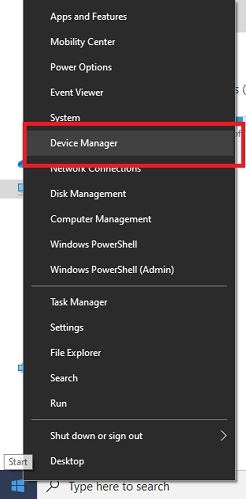
Step 1: Go to the Device Manager window by altogether pressing the Windows Logo + X keys from your Keyboard.

Go to the Device Manager Window

Step 2: Then, choose Device Manager from the quick access menu list.

Step 3: After that, locate the Sound, Video, and Game Controllers category and double click the same category to expand it.

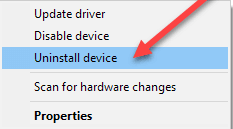
Step 4: Next, click right on the IDT High Definition Audio CODEC device and choose Uninstall from the context menu list.

Click On The Uninstall Device Option

Step 5: Click YES, if a confirmation box prompts.

Step 6: Lastly, reboot your PC.

Once existing drivers are uninstalled, then reinstall the respective drivers from the Official Website of the manufacturer.

Also Read: Intel High Definition (HD) Audio Driver Issue on Windows 10 [FIXED]


Solution 3: Install Driver in Compatibility Mode

Neither updating nor reinstalling the driver helps you fix IDT high-definition audio CODEC issue in Windows PC? Don’t panic, try to install the driver in compatibility mode. Here are the steps to install drivers in compatibility mode.

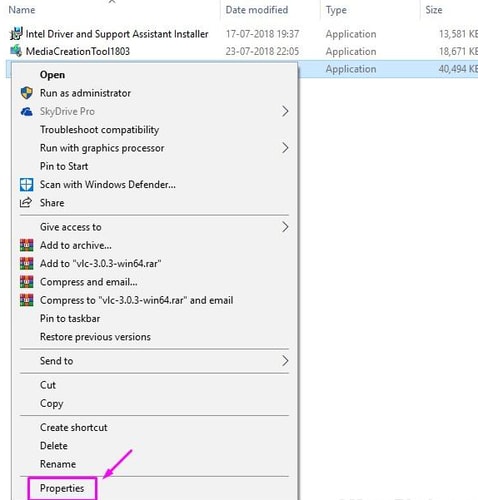
Step 1: Locate the driver downloaded file and click right on it to choose Properties from the option that appears.

Right click on driver application file and choose Properties

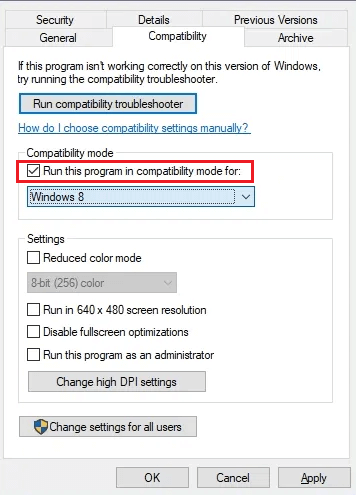
Step 2: Then, switch to the Compatibility tab and tick mark the box presented before Run this program in Compatibility mode for.

Check box of Run this program in Compatibility mode for

Step 3: After that, from the drop-down menu list choose an older version of Windows OS (Windows 7 or Windows 8).

Step 4: Next, make a click on the OK option.

Step 5: Thereafter, start the installation process by clicking double on the driver set-up file. Later on, comply with the on-screen instructions.

Step 6: Reboot your PC.

After the successful installation of drivers, try to check if the solution resolves the problem for you. Unfortunately, if not, then try another solution.

Also Read: Fix Connections to Bluetooth Audio Devices and Wireless Displays in Windows 10


Solution 4: Enabling IDT Audio Associated Services

If none of the above-mentioned solutions worked for you, then, consider enabling the services related to the IDT audio CODEC driver. Changing the Startup of services to Automatic might fix this inconvenience. Here is how to do that:

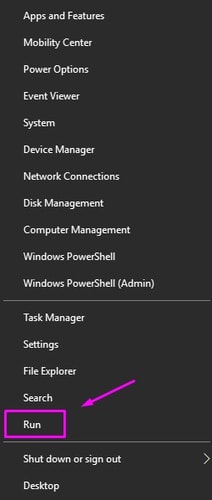
Step 1: Click right on the Start menu button and then choose Run from the quick access menu list.

Click right on the Start menu and choose Run

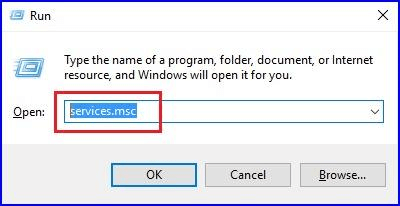
Step 2: This will open the Run dialog box on your screen. Wherein, you need to type services.msc in the text field and then click on the OK option. You can either hit the Enter key from your keyboard.

Type services.msc in Run Utility Box

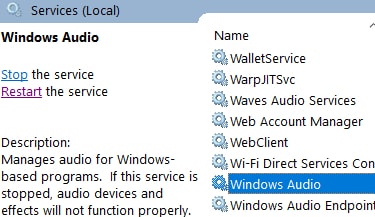
Step 3: Navigate to the Windows Audio option and make right-click on it. Then, choose Properties.

Right click on Windows Audio service and choose properties

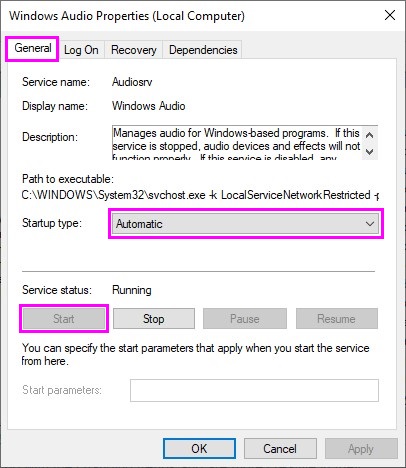
Step 4: Now, choose Startup type as Automatic under the General tab. Next, make a click on the Start button and click on OK to save the recent changes.

Automatic start windows audio service on startup

Important: Perform the same steps for enabling the Multimedia Class Scheduler and Windows Audio Endpoint Builder services.

Step 5: Once done, then reboot your computer.

This should resolve the IDT high definition audio CODEC driver issue on Windows 10, 8, 7 PC.

Also Read: How to Fix Install Realtek HD Audio Driver Failure in Windows 10


IDT High Definition Audio CODEC Driver Problems on Windows PC: FIXED

Thus, you can easily & quickly fix IDT high definition audio CODEC driver problems on Windows 10, 8, 7 PC. We hope this guide helps you in the best way possible.

If you have any questions then do share them with us in the comments below. Also, let us know in the comments which solution worked for you.

Lastly, do subscribe to our Newsletter for reading more helpful guides just like the current one. Apart from that, you can also follow us on our Social Media Platforms for way quicker updates on Facebook, Twitter, Instagram, and Pinterest.

1 Comment
    Joe says: Reply
    December 20th 2021, 1:24 am

    It’s amazing how much relaxation is involved in scanning. I never knew!

Leave a Reply Cancel reply

Your email address will not be published. Required fields are marked *

Sidebar Image bit G ad1

Latest Posts

  • Anytime Astro: Best Website For Online Astrology Consultation
    Anytime Astro: Connect Now For Online Astrology Consultation
    by Somya Shrimal / March 13, 2026
  • Best-Ways-to-Combine-Images-Into-PDF-Files
    Best Ways to Combine Images Into PDF Files
    by Niharika / March 12, 2026
  • Best FREE VPS Hosting Providers
    7 Best FREE VPS Hosting Providers in 2026
    by Devesh / March 12, 2026
  • Best-McAfee-alternative-software-to-use-for-Virus-Protection
    Best McAfee Alternative Software to use for Virus Protection
    by adminuser / February 11, 2026
  • What-is-Flip-Flop-in-Circuite-and-it's-Types
    What is Flip Flop in Circuit and its Types
    by Meet / February 6, 2026

Categories

  • Cyber Security
  • Driver Updater
  • Entertainment
  • Fitness
  • Games
  • How To
  • laptop
  • OS
  • Reviews
  • Tech News
  • Tips & Tricks
  • Top 10
Sidebar Image bit G ad1
Best YouTube to Mp3 Chrome Extensions of All Time 17 Best YouTube to Mp3 Chrome Extensions in 2024by Tanmay Sharma / March 12, 2024
7 Best Free WhatsApp Tracking Apps in 2024by Devesh / March 12, 2024Best Free WhatsApp Tracking Apps
TechPout Footer Logo

We at TechPout promise to put forth stories that help people to learn and simplify their digital life. Our purpose is to share the true essence of technology with our tech-loving community.

Useful Links

  • About Us
  • Contact us
  • Privacy Policy

Popular Posts

  • Best PC Optimizer Software
  • Best Mac Cleaner Apps
  • Best Driver Updater
  • Duplicate Photo Finder and Cleaner Software
  • Best Free Movie Download Sites
  • Best IPTV Players

Follow us

Copyright © 2026 www.techpout.com. All rights reserved
DMCA.com Protection Status