Main LogoLight Logo
  • Reviews
  • Top 10
  • How To
  • Tech News
  • OS
    • Windows
    • MAC
    • iOS
    • Android
  • Categories
    • Driver Updater
    • Cyber Security
    • Games
    • Fitness
    • Entertainment
    • Tips & Tricks
Android iOS Top 10
by Monil

7 Best Barcode Scanner Apps for Android & iPhone (2020)

September 3, 2019
1

In today’s fast-moving market, scanning barcode and QR code have become super easy thanks to the arrival of tons of best barcode scanner apps.

So, if you’re looking for a powerful barcode scanner and QR code reader app that supports all major QR / barcode formats including SMS text, ISBN, URL, product, event, calendar, contact, email, Wi-Fi, location, etc., then you’ve come to the right place. 

Here we bring you the list of best barcode scanner apps for Android & iPhone. 

Explore the list of these best barcode and QR code scanner apps that allows you to quickly scan and recognize the information of any type of barcode / QR code using your phone’s camera.

Let’s scroll through the list!

Table of Contents hide
Barcode Scanner Apps for Android:
1. QR & Barcode Scanner
2. Barcode Scanner
3. QR Code Reader
4. QR Scanner and Barcode Reader
Barcode Scanner Apps for iPhone:
1. QR Code & Barcode Scanner
2. QR Code Reader & Barcode
3. Barcode Scanner – QR Scanner
Final Verdict

Barcode Scanner Apps for Android:

1. QR & Barcode Scanner

QR & Barcode Scanner

QR & Barcode Scanner in today’s highly competitive marketplace ranks among the best barcode scanner apps to scan and decode all major types of barcode formats.

QR & Barcode Scanner is one of the most efficient and user-friendly QR code reader app you will ever need.

With this easy-to-use app, you can automatically scan product barcodes or discount coupon codes in retail stores to save money.

What makes QR & Barcode Scanner a step ahead of its competitors is the ability to scan product codes quickly and accurately.

Download from Play store

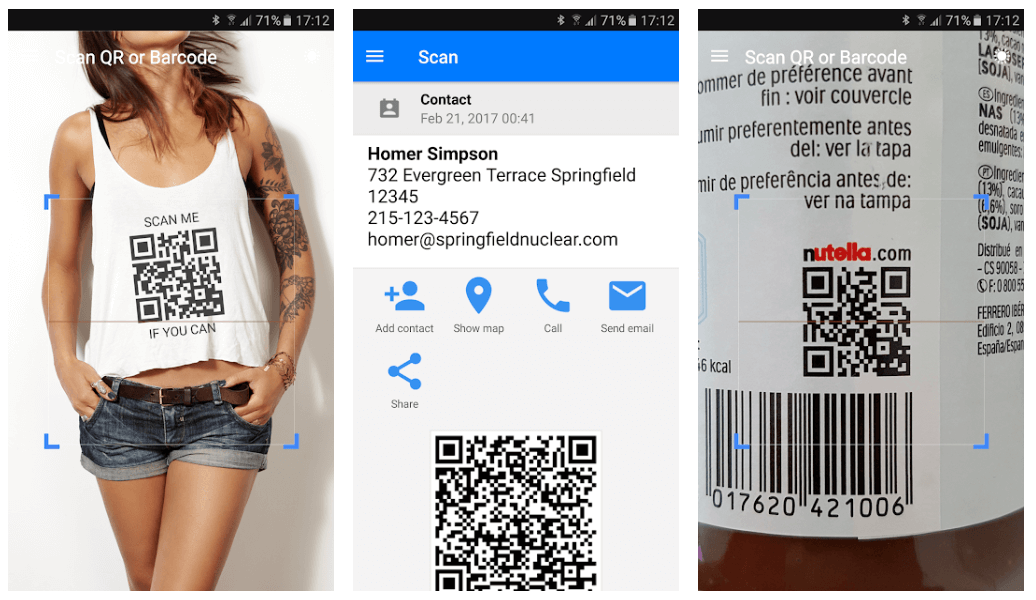
2. Barcode Scanner

Barcode Scanner

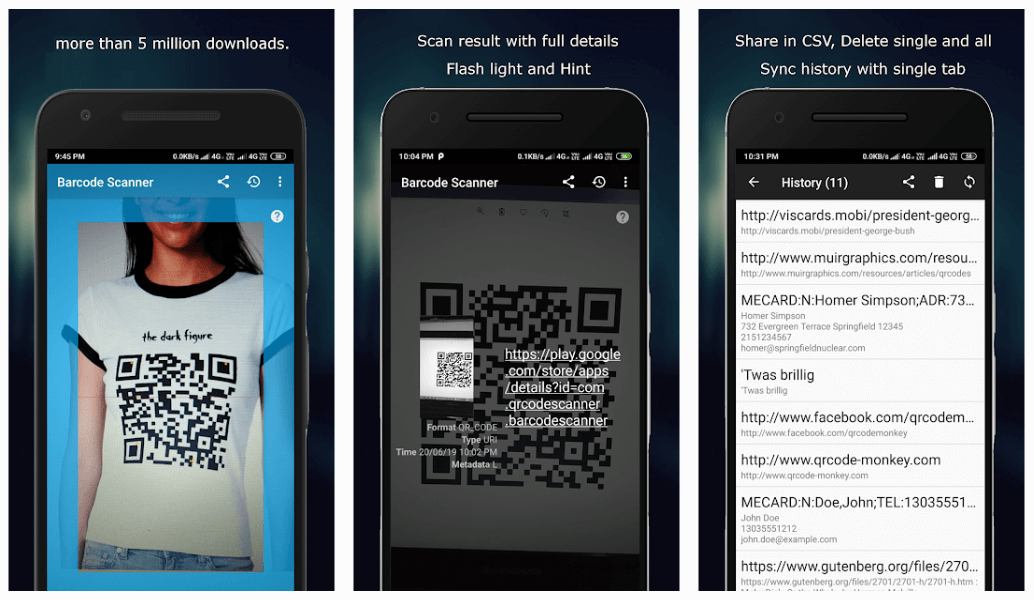
With more than 5 million downloads, Barcode Scanner is a huge contender for the top spot in the list of best barcode scanner apps. 

Barcode Scanner app is known as one of the most powerful and fastest mobile barcode scanners available on the play store.

The best part of this Android barcode scanner is that you don’t need to take a photo or press a button as it can automatically detect & decode any QR / barcode your camera is pointing at.

So, what are you waiting for? Download Barcode Scanner & scan all major types of barcodes without limits!

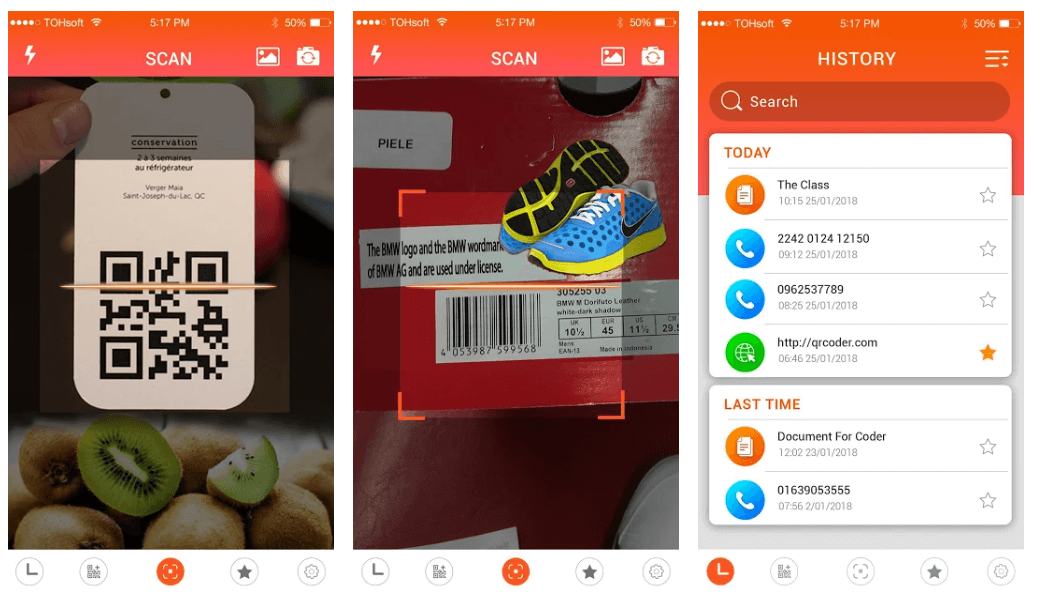
3. QR Code Reader
QR Code Reader

If you’re looking for an app that can automatically recognize all popular barcode or QR code formats, then QR Code Reader is just the perfect app for you.

QR Code Reader is extremely easy to use; simply point the camera at the QR code or barcode, and you’re done! 

With this amazing barcode scanning app, you can search prices, reviews and more about any product details with ease.

DOWNLOAD FROM PLAY STORE

4. QR Scanner and Barcode Reader

QR Scanner and Barcode Reader

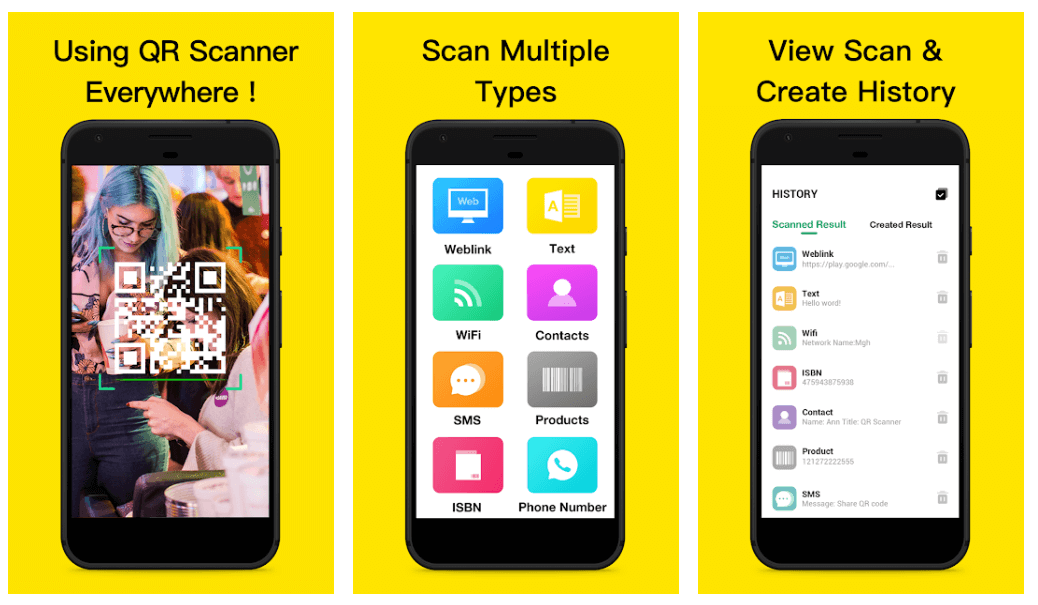
QR Scanner and Barcode Reader are one of the most reliable and user-friendly barcode scanner apps for Android.

This app allows you to automatically scan and read any type of barcode or QR code by using your phone’s camera.

With this powerful QR Scanner app, you can also create & share your own personalized QR codes in multiple formats.

download from play store

Barcode Scanner Apps for iPhone:

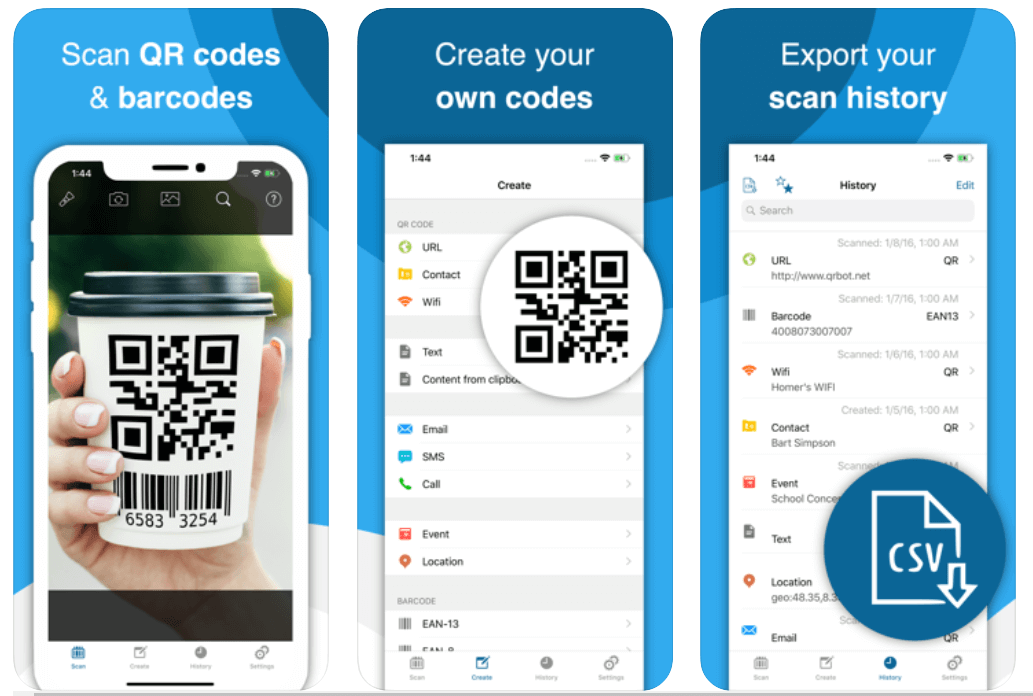
1. QR Code & Barcode Scanner
QR Code & Barcode Scanner

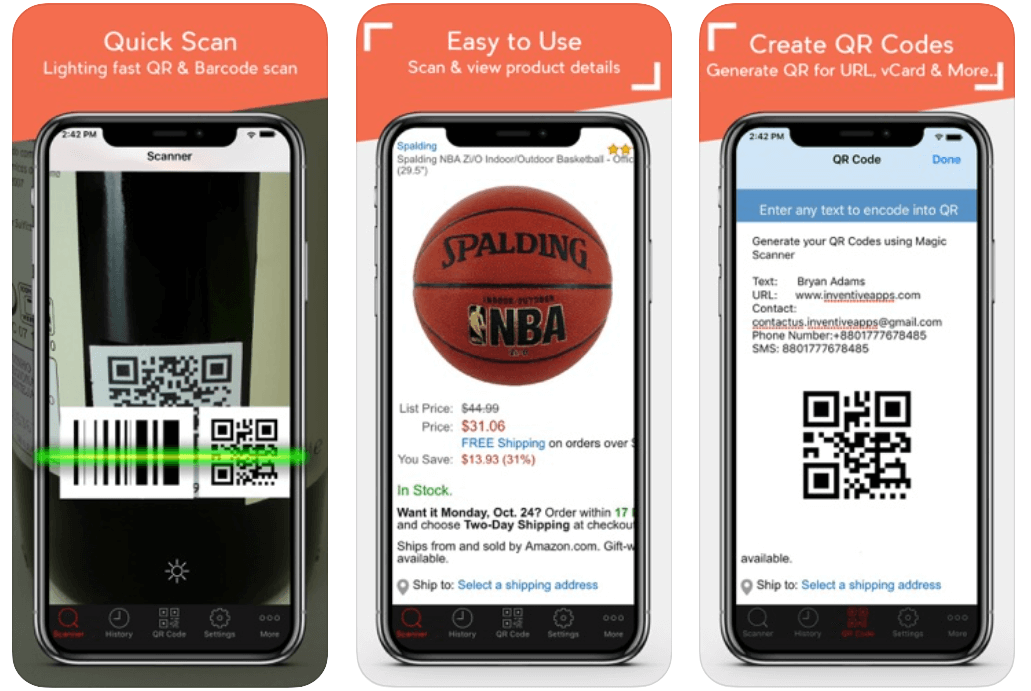
QR Code & Barcode Scanner with its powerful built-in native scanning technology known as one of the best barcode scanner apps.

This mobile barcode scanner allows you to scan, create, and share your own QR / barcodes to add events, connect to Wi-Fi hotspots, open URLs, and much more.

QR Code & Barcode Scanner is without a doubt, an excellent barcode scanner app for the iPhone, allowing you to get additional information from any popular retailers like Amazon, eBay, and more.

download from app store

2. QR Code Reader & Barcode

QR Code Reader & Barcode

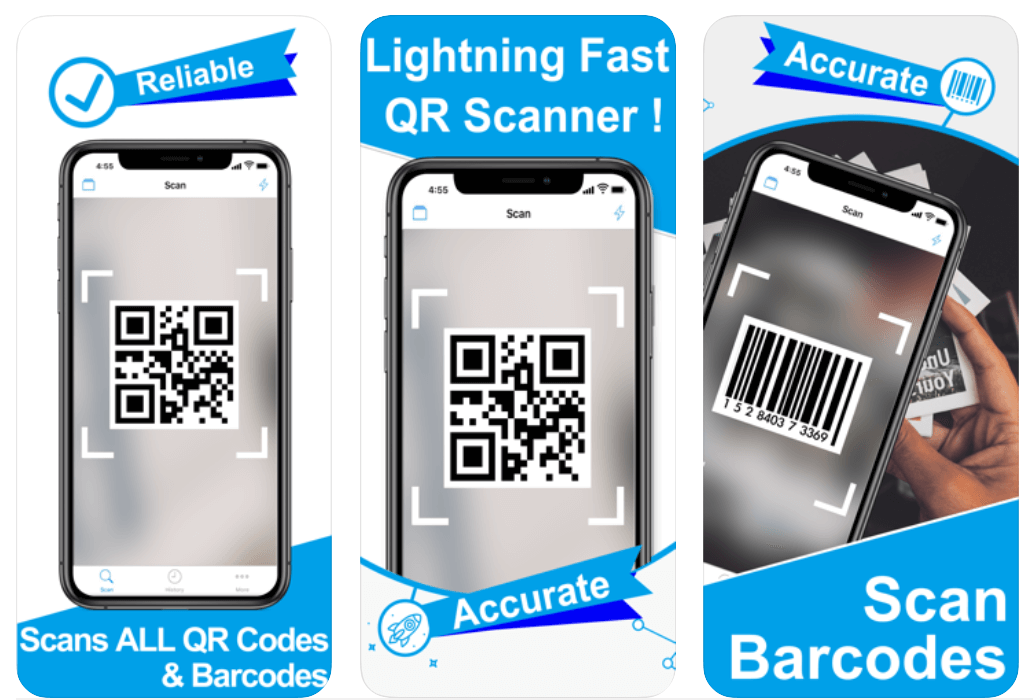
QR Code Reader & Barcode developed by MixerBox is one of the most effective and easy-to-use barcode scanner apps for iPhone.

With this all-in-one mobile barcode scanner, you can scan and read all standard 1D and 2D types of code.

QR Code Reader & Barcode is a must-have app that allows you to instantly scan any type of QR code & view product details on popular online services.

download from app store

3. Barcode Scanner – QR Scanner

Barcode Scanner - QR Scanner

Barcode Scanner is currently rated as one of the best QR code reader apps available in the market.

This mobile barcode scanner does an excellent job in scanning all kinds of barcode or QR code in fast, easy, and most accurate manner.

It also includes a QR Code Generator that lets you create & share your own QR /barcodes through SMS text, Email, Facebook, Twitter, and more.

Barcode Scanner might come last in the list of best barcode scanner apps, but it is definitely worth a try.

download form app store

Final Verdict

The apps listed above are some of the best barcode scanner apps on the basis of ease and popularity.

You can get all of these QR code scanner apps on the Google Play and App Store for free; use them and scan or read any type of barcode / QR code with ease.

So, what are you waiting for? Pick your favorite & scan all major types of barcodes without limits!

Barcode App for Android & iPhoneBarcode ScannerBest Barcode Scanner AppMobile Barcode ScannerQR Code Scanner
Author

Monil

Monil is a professional writer whose forte is absorbing a lot of data and help large technical organizations convey their message clearly across multiple products. An engineer by qualification, his affinity for design enables him to write to inspire, energize, and influence various audiences to uncover their true potential. When not writing, Monil is likely to be found listening to music, traveling, or simply excavating into his favourite cuisines.

View all posts

Related Posts
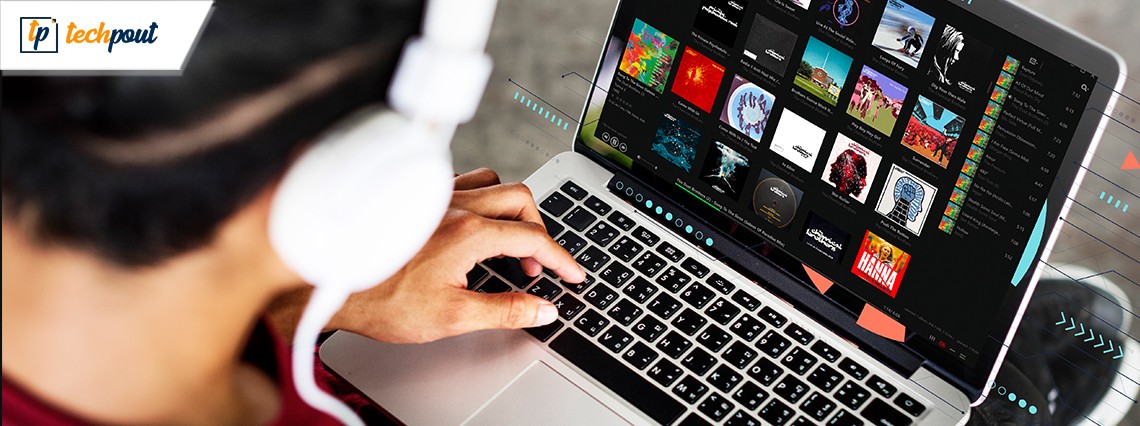
Best Music Player Apps for Windows 10, 11

15 Best Music Player Apps for Windows 10, 11 in 2024

December 26, 2023
0

Listening to music can be great when you have the right music player. In this article, we will help you choose the best music player for Windows 10. Keep reading to know more.

Music/ songs are the best creation that humans did as songs can help in coping with bad moods. Music is the only thing that can help humans to cope with bad moods irrespective of how bad they feel. Now the experience can be increased when you have better elements to accompany you. Music player plays a very important role in helping you.

The music player is designed to make you feel better when listening to music, but some of you are still using the default music software. Worry not, in this article we have mentioned the best Windows music player to use. So without any further delay, let’s take a look at the list of music players for Windows.

Top 15 Best Music Players for Windows 10 to Try in 2024

Below is the list of best music players for Windows 10, 11. Check the list to know more.

1. Dopamine

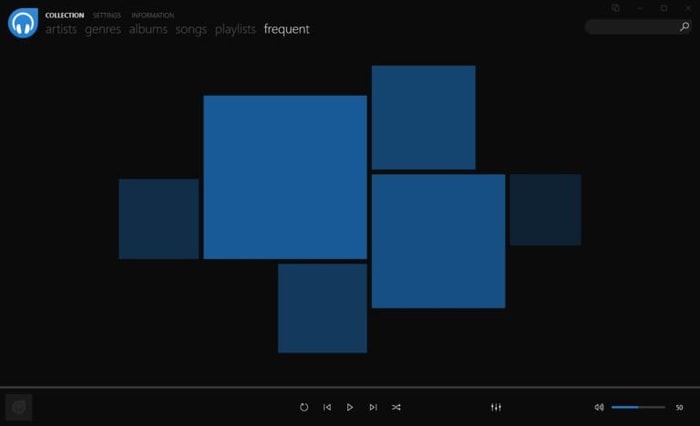
Dopamine

Dopamine is one of the best music players for Windows 10 as it is open-source software and offers various features which most users love. Starting with the download till the time song stops the software doesn’t have any lag, it works at a reputed speed. The software has an easy-to-use interface using which one can easily find the option or settings which he/she is looking for.

This Windows music player supports most of audio file formats including WMA, MP4 FLAC, AAC, APE, WAV, OGG, and OPUS. Though this software might not have a huge list of features still you can find the most relevant features. The software has many features including automatic meta-tagging, scrobbling features, and lyrics display.

Download Now


2. Winamp

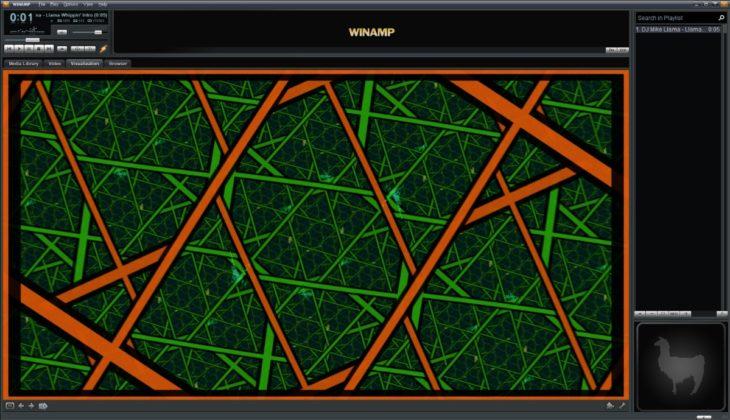
Winamp

Winamp got famous in the 1990s and is still considered one of the best music players for Windows 10. It is free-to-use software that has a simple design. It comes with a multi-panel User Interface and you can even customize it as it offers a variety of options for that. Using the music player you can create a library from the collection. Moreover, you can even create a playlist, get extensive audio support, sync smartphone data, and see visual effects on the screen.

The music player also comes with an in-built web browser. The browser can be used to search for your favorite song or playlist on the web. The software was popular because of its custom skins that can be used to make the software interface more attractive. Other than Windows 10 you can use it in Windows 7, 8, 8.1 too.

Download Now

Also Read: Best Free Music Download Sites to Stream Your Favorite Music Online


3. MusicBee

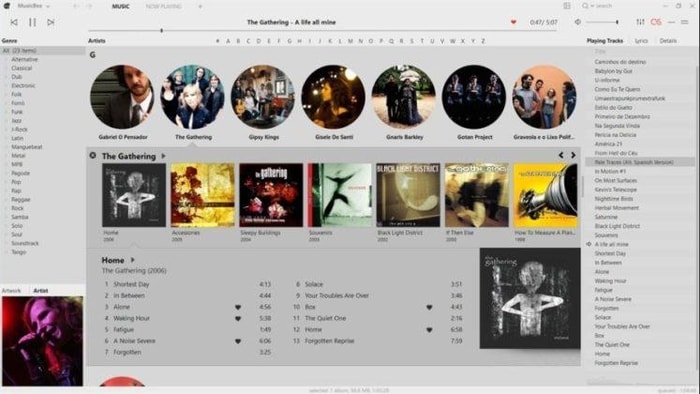
MusicBee

Next Windows player on the list is well-known among the users. MusicBee is the name of the software, it is also considered as one of the best music players for Windows 10. Other than Windows 10 it is also compatible with Windows 7 and 8. The player has a smooth and clean interface that every user wants, it moreover has a complementing color combination.

The creators have thought for the users and made this music player available for free. It can easily import from the iTunes music library as well. Apple users who wish to switch to Windows software can go ahead with MusicBee.

The software supports most of the audio formats like MP3, WMA, AAC, WAV, FLAC, APE, OGG, M4A, TAK, and many others. The audio player can even sync from your Android and iOS devices. It also keeps an eye on the changes which you make on the hard drive and update the library accordingly. If you didn’t like the interface and the color combination of the software, no worries it offers a customization option using which you can easily add plugins and skins.

Download Now


4. foobar2000

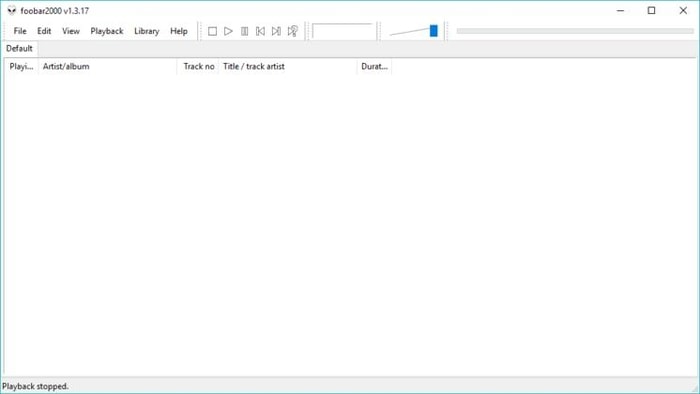
foobar2000

foobar2000 is another best mp3 player for Windows that you can try. This music player offers a modular design with a simple interface to adapt.  You can easily add new components to the audio player and create it the way you want. The best part is that it doesn’t charge any amount from the user, you can use it to customize it for free.

This music player is available for Windows 10 and older versions. It moreover has a portable installation option too. You can choose any option which you like and enjoy the best music listening experience. You can even download the mobile version of the software. It is compatible with Android and iOS devices.

This Windows music player supports various audio formats including MP3, OGG, AAC, FLAC, WMA, WAV, Speed, and many others. It can even access compressed files like GZIP,  ZIP, 7z, and many others.

Download Now

Also Read: Best Video Converter Software For Windows


5. AIMP

AIMP

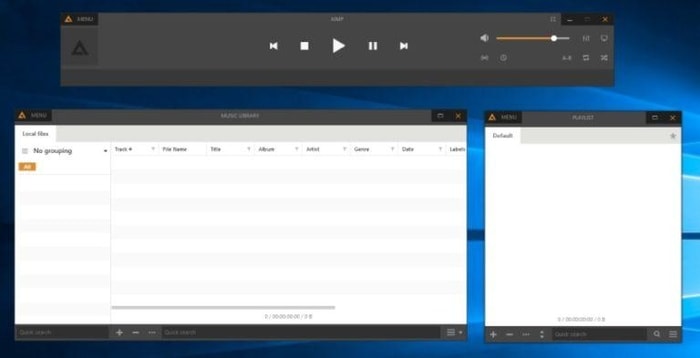
Next up on the list of best music players for Windows 10 is AIMP. The name of this music player is derived from the creator’s name, Artem Izmaylov. If you are one of the users who like the visual appearance of a music player then this software will be a deal-breaker for you. It offers the best interface for managing libraries, creating custom playlists.

This software also offers an equalizer that is very rare to find in music players nowadays. It comes with an 18-band equalizer and a variation of sound effects. Using the player you can easily change the theme of the playlist with just a click.

This player is available on Windows and Android devices. Irrespective of the audio format you can play songs on this music player as it supports almost every audio format. These compatibility options and features make it one of the best music apps for Windows 10 and older versions.

Download Now


6. MediaMonkey

MediaMonkey

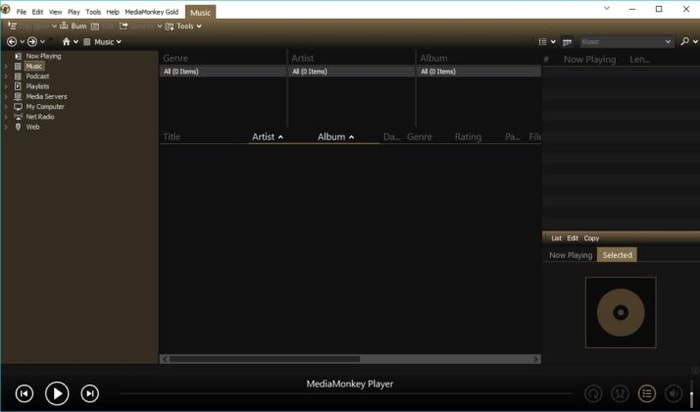
This is another free and one of the best music players for Windows 10. MediaMonkey can help you organize your collection. Though when you first use it you would feel an upgraded version of Windows Media player but it offers a lot more than that. This software can automatically tag audio files, stream audio files, sync files from your devices, burn CDs and DVDs, convert file format,  automatically manage volume, and much more.

The software also has a separate jukebox that can help in switching between the song while you are partying. This music app is also available for iOS and Android devices. You can use this software for free but if you wish to use the premium feature then you have to buy the MediaMonkey Gold subscription.

Download Now

Also Read: Best Free Media Players For Windows


7. VLC

VLC

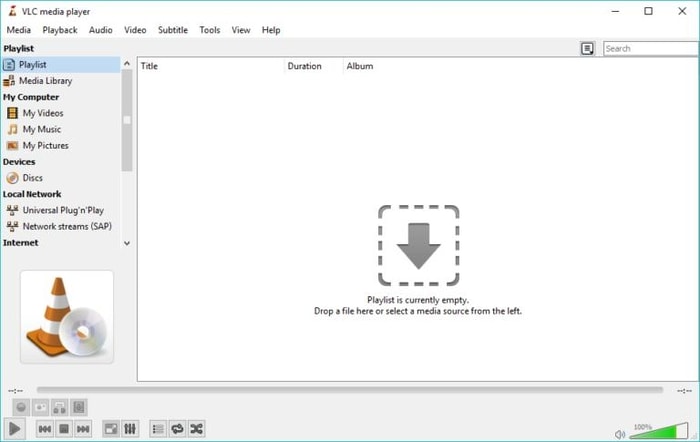
This is a very popular app as it not only helps the user to listen to music but can also be used as a video player. The trust among the users has helped this software to become one of the best music players for Windows 10 and older versions. This is an open-source software which means anyone can use this software easily.

Using the software you can easily create playlists out of your local collection of songs, if you wish you can even stream music through the internet. It also has many online radio services that can be accessed pretty easily. One of the major features which made this software so famous is the advanced management of audio. Unlike other music players, it has a built-in equalizer complemented with advanced options.

Other than these features this Windows music player can support each audio as well as a video file. This software can solve your search for audio and video players. It is compatible with macOS, Windows, Linux, ChromeOS, Android, Windows Phone, Apple TV, etc.

Download Now


8. iTunes

iTunes

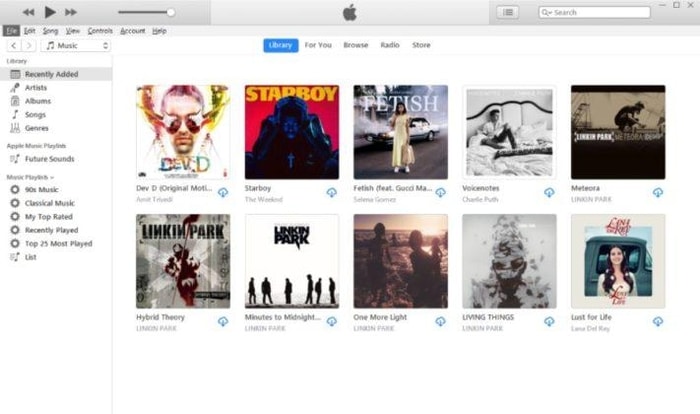
iTunes is the best music player for Apple devices, but did you know you can also use this software on your Windows PC. You can easily install the Windows music player and enjoy endless music for free. Though this music player is only preferred for the user who has the latest PC or laptop as this is bulky software that might affect the processing of your old PC.

The bulkiness of this software is because it offers so many features which can help the user get the best music listening experience. If you have bought an iTunes music store then you can enjoy music online too, but if you haven’t then the music player will only offer the songs which are stored on your computer.

If you are an Apple user and you have purchased Apple Music then you can double fund on listening to music with this music player. iTunes supports most of the audio file formats like MP3, AIFF, AAC, WAV, and Apple Lossless. The software offers some of the standard features like compact mode, equalizer, metadata import, and others. It is compatible with Windows, macOS, and Android.

Download Now

Also Read: Best Free Video Editing Software With No Watermark


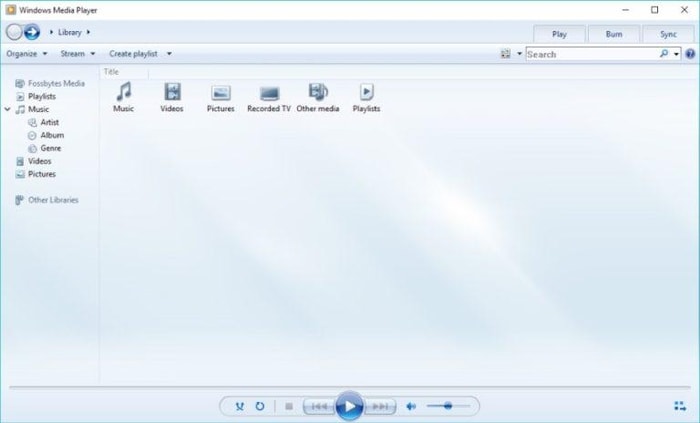
9. Windows Media Player

Windows Media Player

Who doesn’t know about this music player? This is the default music player which Windows users get. The reason behind this software presence in the list of best music players for Windows 10 is the simplicity offered by the player. The best part about this player is that you don’t have to download or install this software, you get it pre-installed in your system.

If you didn’t like the default appearance of the music player you can customize it and change it using various other skins. This Windows music player can play all audio file formats. Other than just playing music you can also watch the video in this software as it supports some of the video formats too.

The software can import meta from the internet and you can even system your audio library from various devices. Just like other third-party software it can also share music libraries over local networks. This is one of the best mp3 players for Windows 10 and older versions as it offers all the necessary features.


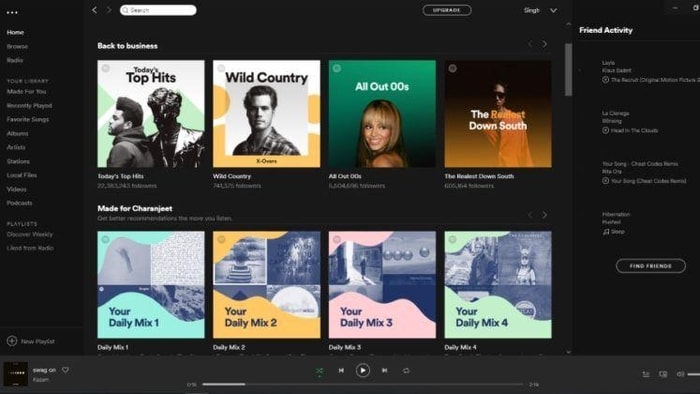
10. Spotify

Spotify

Spotify as a music player is growing rapidly. In the past few years, the number of users using this platform has grown to almost double. The easy-to-use interface and customized playlist help this music player to gain a spot on the best music player for Windows 10 list. The software not only offers local content but also offers online music for the user.

Just like the phone app, you can check your friend’s activity on the right side of the screen. You can even play songs offline, have a private session, listen to music and podcast on the go. Whichever song you want to hear you will find it on Spotify as it can stream millions of songs easily. The software is compatible with macOS, Windows, Android, iOS, and Linux.

Download Now

Also Read: 13 Best Online Video Chat Websites To Make New Friends in 2021


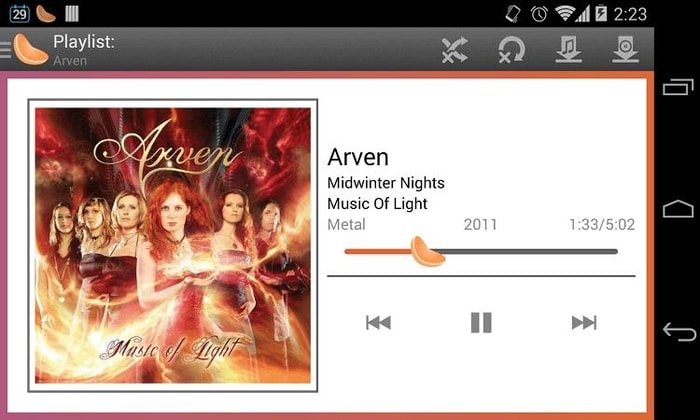
11. Clementine

Clementine

The next software in the list of best music players for Windows 10 is Clementine. This is open-source software that offers the best options for library and database management. It moreover has a built-in file manager that allows you to locate audio files online. The best part about this music player is that it has an easy-to-use interface which makes it easy for every user to navigate.

Using the software you can create custom playlists and play music from CDs too. If you wish to edit tags on MP3 and OGG files, you can also do that with this software easily. The software also supports CUE sheets.  All in all, it is a great option for all of you who are looking for the best music app for Windows 10.

Download Now


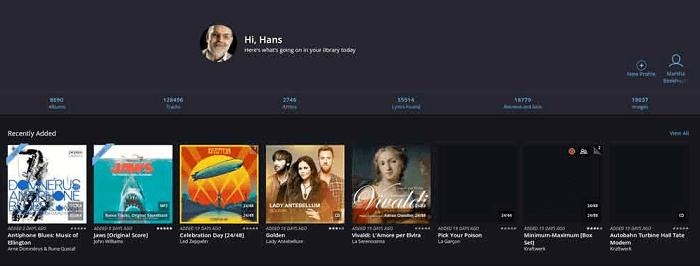
12. Roon

Roon

Roon music player offers lots of features to its users which is why it is on the list of best MP3 players for Windows 10. This music player is although not available for free, you need to pay $12.99/month to use it. The features offered by the software are worth the price.

Using the software you can witness detailed metadata including reviews, ratings, release date, and genre of music. You can easily search for the song or the artist in order to listen. It moreover displays lyrics of the songs which will help you understand the song better.

Download Now


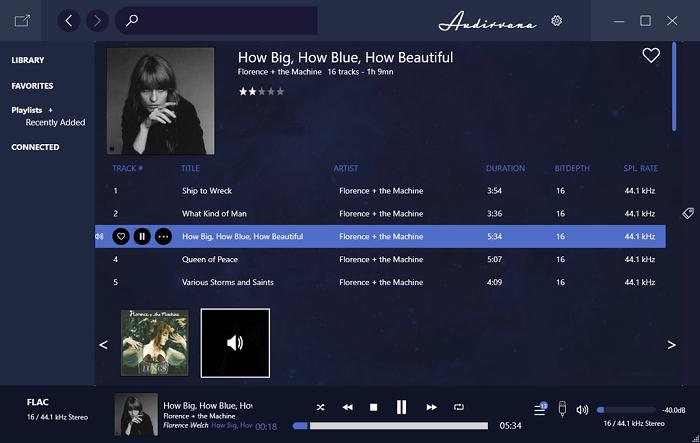
13. Audirvana

Audirvana

The next music player on our list of best music players for Windows 10 is Audirvana. The reason why we have kept this music player, at last, is that it requires a $74 subscription to use it. The software also does not offer features like an equalizer. It only aims at providing the best music-hearing experience to the users.

The software supports various audio file formats including FLAC, Apple Lossless, AIFF, WAV, M4A, MP3, WavPack, Cue Sheets, and many others. It also offers small filtering options to create playlists. Using the software you can even edit the metadata as per requirements.

Download Now

Also Read: How To Extract Audio From YouTube Videos? Check 5 Methods!


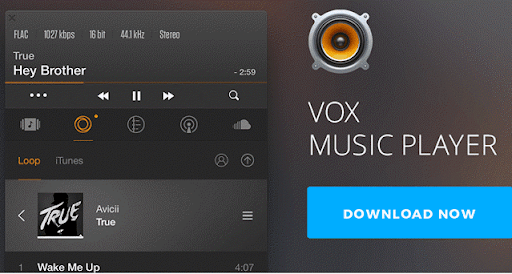
14. VOX Universal

VOX Universal

The next best music player app for Windows 10 is VOX Universal. With high-quality music, the app also offers several embedded features. It has built-in equalizers of its own to tune up your audio as required. Also, you can enjoy more than 30,000 radio stations.

Moreover, the stereo quality can also be improved with the app. You can also import collections from different applications.

Add iTunes or other personal music lists to enjoy them on your Windows. It also supports Spotify and SoundCloud to sync your favorite playlists on your Windows 10 device.

The Premium version costs $4.99 per month. This offers high-quality sound, Sonos & DLNA Support, sync sample rate, and other similar features.

Download Now


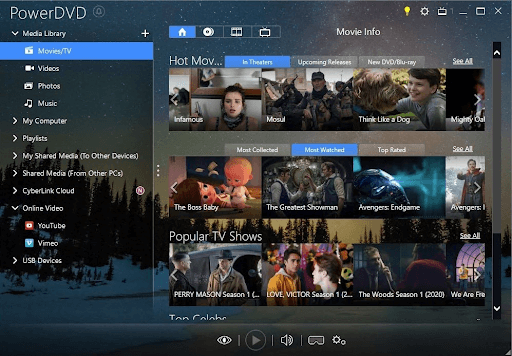
15. PowerDVD

PowerDVD

Let us introduce you to PowerDVD. It is among the best apps to play music on Windows. You can use this application to compose and organize your favorite music and play it whenever you want.

As far as features are concerned, PowerDVD boasts 8K YouTube channel viewing options, resume playback (starts the music from where you left off even if you switch the device), media library personalization, all-time content access via CyberLink cloud, and HP video playback support (in 4k, AVC, HEVC, and XAVC-S) delights the users.

Download Now


Final Words: 15 Best Music Player Apps for Windows 10, 11 in 2024

To enhance your music listening experience we have mentioned the software above. You can choose the best music player for Windows 10 that suits your requirements and needs. We hope that we have offered relevant information to you in order to choose the best Windows music player. We would love to hear from your side. You can write your part in the comments section below. For more such technology-related articles subscribe to our newsletter.

Fix: USB OTG Issues in Android Devices

Fix: USB OTG Issues in Android Devices

May 26, 2020
0

Smartphones are highly popular for their advanced working and handy design. The USB technology along with USB OTG has brought a revolution to the smartphone’s capabilities and has taken it a notch ahead.

If your device is running out of space you can easily plug in your USB drive to it and access the required files with utmost convenience and ease. 

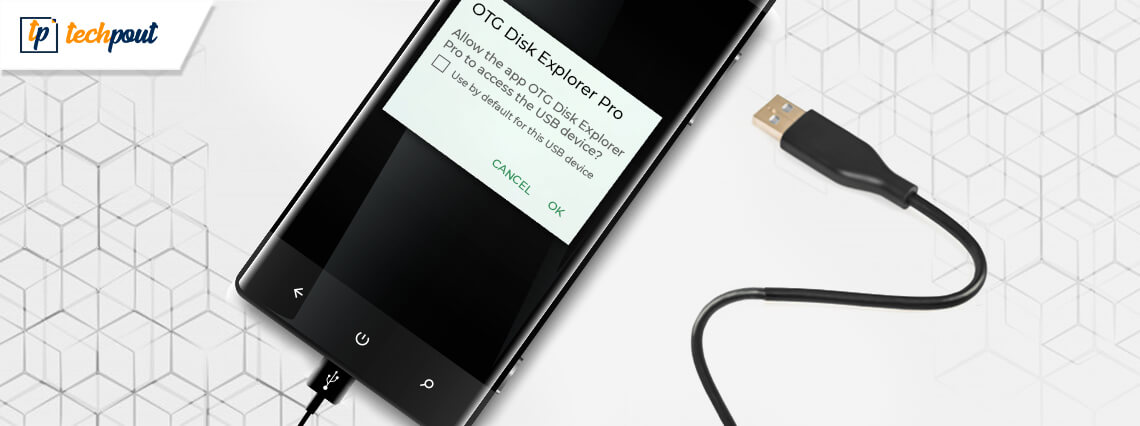
However, there might be times when your USB OTG fails to function and that is exactly what we will be discussing here. Refer to our troubleshooting guide to learn how to fix USB OTG Android, not working errors. 

Reasons Why Your Android Does Not Detect a USB OTG Cable?

There is no surety of successful working when you connect your smartphone and USB stick through a USB adapter, an incorrect and incompatible file format can be one of the few reasons. To avoid such issues, experts recommend that it is always a good idea to check the compatibility and functionality of the required devices. 

Apart from this, you should also keep a check on the USB OTG functionality in accordance to your phone specifications.

Few Tips to Connect USB Stick To Smartphones Using a USB

  • To start with, check whether your Android device supports USB OTG using a USB OTG checker.
  • In the following step, plug in the OTG cable using a micro USB connector and connect the USB connector to the USB stick using OTG cable.
  • Run any file to check if everything is in place.

Read More: How to Enable or Disable USB Ports in Windows 10/8/7

How To Fix ‘USB OTG Android Not Working’ Problem?

Hardware incompatibility, incorrect file format, and unsupported file are a few of the reasons why you are encountering the “USB OTG Android not working” error. Refer to your troubleshooting guide to learn how to fix it. 

1. Check the Compatibility of Hardware Devices with Your Android Smartphone 

When you are unable to connect your phone with a USB device using an OTG cable, it is mostly due to your phone specifications. Either your device is too old to read the USB device or is incompatible with the hardware components attached to it. 

The most simple way to fix your USB OTG problems is to check your Android phone specification, you can do it by searching it on Google, just type the details of your device brand and model name.

Once the results are displayed on your screen check out for the “OTG Support” feature. If your phone does not support this feature, there is no way that you can connect it to a USB device.

2. Fix Your USB OTG Problems Using ES File Explorer

If your phone specifications are enabled for USB OTG cable connectivity but still you are facing issues with it, then there could be a problem with your default file manager. Experts recommend that in such scenarios you can opt for a third-party file manager to access external USB.

ES File Explorer is one of the most trusted and reliable software that can solve all issues related to USB OTG functionality. Post successful installation you will be able to connect your Android phone to a USB. 

3. Change USB Format Using the File Explorer

Caution Note: Before you plan to format your USB, please ensure that you take a backup of all your important files and vital data.

  • To start with, press the Windows + R key to open File Explorer.
  • From the displayed window select My PC from the left pane. Now press the right arrow key to check the existence of the USB drive. If you can see it on the list choose the Format option from the displayed list. (Here you can click on the Properties tab to check the format of your USB drive).
  • Next click on the down arrow key adjacent to File System and select the FAT 32 option from it.
  • Now click on Start and then press OK to validate your actions. 

Read More: How to Install Windows 10 from USB

4. Format your USB Drive As FAT 32

If you are still struggling to fix the ‘USB OTG Android not working’ issue then FAT 32 format will surely help you get rid of it once and forever. Here is the step-by-step procedure to do it.

  • To start with Connect the USB drive to your device and then open “My Computer”.
  • From the list of displayed options select the USB drive and right-click on it.
  • Now, in the next step select the option which says “Format”.
  • From the new window select Quick Format tab and then from the drop down menu select FAT 32.
  • Last, press on the Start button to apply the changes. 

Once you’re through with the above-mentioned steps try connecting your USB OTG to see if USB OTG Android not working issue has been resolved or not. If it persists then there are high chances that these are issues with your Android device.  

For a better experience, it is always recommended to update your device on a regular basis. Try the methods as mentioned above to fix the ‘USB OTG Android not working’ issue and get the best out of this handy and powerful tool. 

1 Comment
    Abid Shehzada says: Reply
    March 28th 2020, 7:56 pm

    Amazing article I like it very much.

Leave a Reply Cancel reply

Your email address will not be published. Required fields are marked *

Sidebar Image bit G ad1

Latest Posts

  • Best Ways to Fix Facebook Session Expired Loop Error  (1)
    Best Ways to Fix Facebook Session Expired Loop Error 
    by Gunjita Sompura / April 28, 2026
  • React vs Vue
    React vs Vue Detailed Comparison in 2026
    by Gunjita Sompura / April 23, 2026
  • Top Image Resizing software for Windows PC 
    by Dikshika Singh / April 21, 2026
  • How-To-Download-and-Install-Windows-Fax-And-Scan-In-Windows-11
    How To Download and Install Windows Fax and Scan in Windows 11
    by Dikshika Singh / April 15, 2026
  • How-To-Run-Control-Panel-As-Administrator
    How To Run Control Panel as Administrator in Windows 10/11 
    by Dikshika Singh / April 14, 2026

Categories

  • Cyber Security
  • Driver Updater
  • Entertainment
  • Fitness
  • Games
  • How To
  • laptop
  • OS
  • Reviews
  • Tech News
  • Tips & Tricks
  • Top 10
Sidebar Image bit G ad1
How To Schedule Emails in Gmail How To Schedule Emails in Gmail For Freeby Diksha Lalwani / September 3, 2019
Apple iPhone 11: Release Date, Price, Specs, Rumours & Moreby Prachi Dani / September 4, 2019Apple iPhone 11 Release Date and Specification
TechPout Footer Logo

We at TechPout promise to put forth stories that help people to learn and simplify their digital life. Our purpose is to share the true essence of technology with our tech-loving community.

Useful Links

  • About Us
  • Contact us
  • Privacy Policy

Popular Posts

  • Best PC Optimizer Software
  • Best Mac Cleaner Apps
  • Best Driver Updater
  • Duplicate Photo Finder and Cleaner Software
  • Best Free Movie Download Sites
  • Best IPTV Players

Follow us

Copyright © 2026 www.techpout.com. All rights reserved
DMCA.com Protection Status