Whenever you try to connect your phone or laptop to the internet, you see a list of Wi-Fi names appear on your screen. Each of those names represents a different wireless network and that name is called an SSID. It is something we use every day, but many individuals don’t really know what it means or how it works.
In simple words, SSID is the name of your Wi-Fi network. It helps your devices find and connect to the right wireless signal. Knowing your SSID is important, especially when you have many Wi-Fi networks around you, like in apartments, offices, or public spaces.
In this complete guide, we will explain what is SSID, the SSID meaning, and why it is essential for your internet connection. You will also learn how to find SSID of Wi-Fi on different devices like phones, laptops, and routers. Whether you just got a new router or are trying to fix a connection issue, understanding SSID Wi-Fi will help you stay connected quickly and safely.
What is SSID?
Before going deeper, let’s start with the basics: what is SSID and what does it actually do?
The term SSID stands for Service Set Identifier. It is the technical name for the Wi-Fi network name you see when your phone or laptop shows available connections. In simple words, the SSID meaning is just the label or title that identifies your wireless network.
Think of it like a name tag for your Wi-Fi. When multiple networks are nearby, the SSID helps your device find and connect to the right one. For example, if you see “Home Wifi” and “Cafe Wifi” on your screen, those are SSIDs that tell you which network belongs to which place.
Every Wi-Fi router or access point broadcasts its SSID Wi-Fi so that nearby devices can detect it. You can either keep the default name that comes with your router (Like TP-Links1234 or Netgear5G) or change it to something personal, such as MyHomeNetwork.
Technically, an SSID can be up to 32 characters long and may include letters, numbers, or symbols. It is case-sensitive, meaning “HomeWiFi” and “homewifi” would be treated as two different networks.
Understanding the SSID meaning is important because it not only helps you identify your Wi-Fi but also ensures that your device connects securely to the correct one. This becomes especially useful when you are in crowded places like apartments or offices, where multiple Wi-Fi networks are active.
In the next section, we will look at how an SSID Wi-Fi works and how your device uses it to stay connected to the internet.
How Does SSID Work?
Now that you know the SSID meaning, let’s understand how it actually works behind the scenes.
Every Wi-Fi network uses an SSID as an identifier. When your router is turned on, it continuously broadcasts a signal that includes this network name, your SSID. Your phone, laptop, or any other device scans for nearby Wi-Fi networks and displays those SSIDs in a list. That is how you get the list of available networks when you try to connect to Wi-Fi.
When you select your network’s name and enter the password, your device remembers the SSID for future use. This means the next time you are within range, your device will automatically reconnect to the same SSID Wi-Fi without asking again.
Sometimes, routers can have more than one SSID. For example, your home router might show two options, one for 2.4GHz and another for 5GHz. Both belong to the same network but are labeled with different SSIDs so that you can choose which one to connect to.
Some individuals prefer to hide their SSID for extra privacy. In this case, the network does not appear in the list, and you have to manually enter the name to connect. However, hiding the SSID does not make the Wi-Fi completely secure; it just keeps it from showing up easily. In short, the SSID works as a name tag that helps devices identify and connect to the right network. Without it, your device would not know which Wi-Fi signal to trust.
Let us understand why the SSID is important and how it helps keep your Wi-Fi connection organized and secure.
Why SSID is Important
The SSID might seem like a small part of your Wi-Fi network, but it actually plays a very important role in how your devices connect and stay secure. In places like apartments or offices, where many networks are available, the SSID helps you quickly identify your network and avoid connecting to unsafe ones. Knowing the correct SSID Wi-Fi ensures that your connection is safe, protecting your personal data from potential threats. Modern routers often support multiple SSIDs, allowing you to create separate networks for family, guests, or smart devices, which helps manage access and keep your main network secure. Additionally, the SSID is essential for troubleshooting connection problems; if your device cannot connect, checking the SSID is usually the first step. Understanding what is SSID and how it works may seem minor, but it has a big impact on your daily internet experience.
Next, we will go step-by-step through how to find SSID of Wi-Fi on different devices so you can identify your network easily.
How to Find SSID of Wi-Fi
Now that you know what is SSID and why it matters, let’s go over how to find SSID of Wi-Fi on different devices.
On Windows
- Click on the Wi-Fi icon in the bottom-right corner of your screen.
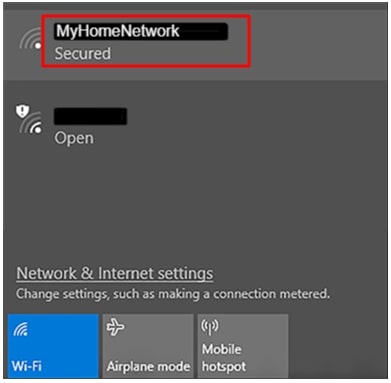
- A list of available networks will appear.
- The name of the network you are connected to is your SSID.
You can also open Settings > Network & Internet > Wi-Fi to see the same list.
On macOS
- Locate and click the Wi-Fi icon at the top-right corner of your screen.
- The network with a check mark beside it is your current SSID Wi-Fi.
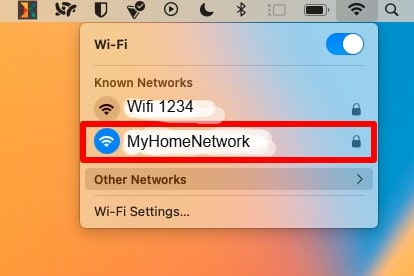
To see more details, go to System Settings > Network > Wi-Fi.
On Android Phones
- Open Settings > Network & Internet > Wi-Fi.
- The network name at the top of the list is your current SSID.
- Tap on the network to see more connection details.
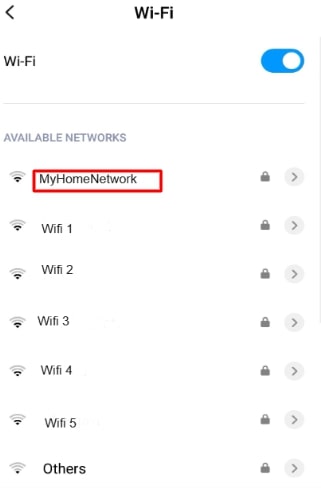
If you are not connected, you will still see a list of nearby SSIDs that your device can connect to.
Also know: How to Check and Change NAT Type in Windows
On iPhone or iPad
- Go to settings > Wi-Fi
- The network name with a blue check mark is the SSID you are currently using.
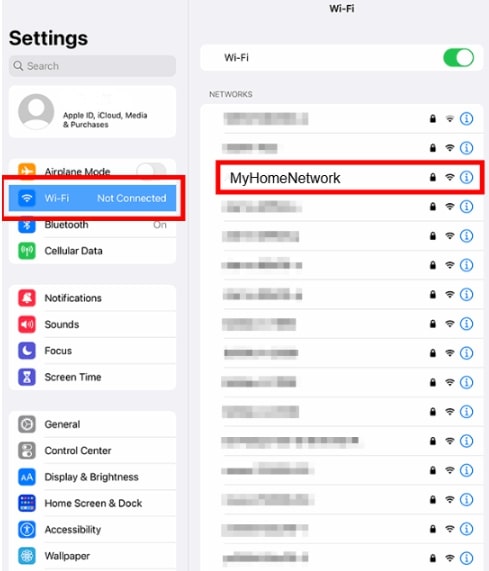
You can tap the “i” icon beside it to view more details about your SSID Wi-Fi.
On Your Router
- If you cannot find it on your device, you can check your SSID directly on your router.
- Look for a sticker or label on your router; it usually displays the default SSID and password.
- You can also log in to your router’s admin panel by typing your IP address in your browser.
- After logging in, go to Wireless Settings or Wi-Fi Settings, where you will see the SSID name.
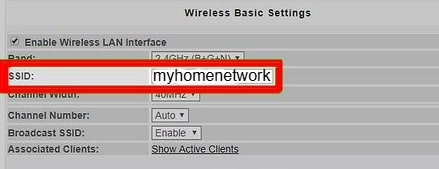
By following these simple steps, you can easily identify your SSID Wi-Fi on any device. Knowing this helps you connect to the right network and avoid confusion, especially when several Wi-Fi signals are nearby.
Now, let’s learn how to change your SSID if you want to personalize your Wi-Fi name or make it more secure.
How to Change Your SSID
Now that you know how to find SSID of Wi-Fi, you might want to personalize it. Changing your SSID is simple and can make your Wi-Fi easier to recognize or more secure. Instead of keeping the default name given by your router, you can set it to something unique. Follow these steps:
- First, make sure your device is connected to your Wi-Fi network. Open a web browser and put your router’s IP address in the address bar.
- You will be asked to log in. Enter your username and password. If you changed these details before, use your updated login credentials.
- Once you are in, look for a section named Wireless Settings, Wi-Fi Settings, or Network Settings.
- In this section, you will see your current SSID. Simply delete it and enter your new preferred Wi-Fi name. Avoid using personal details like your name, address, or phone number.
- After entering the new SSID, click Save or Apply. Your router will restart, and your Wi-Fi name will change. You’ll then need to reconnect your devices using the new SSID.
Remember, even though the SSID name makes your network recognizable, it does not protect it by itself. You still need a strong Wi-Fi password and good encryption (like WPA3 or WPA2) to stay secure.
Also know: Can the Wi-Fi Owner See What Sites I Visit on My Phone?
Tips for Securing Your Wi-Fi Network
Knowing your SSID Wi-Fi is just the first step in managing your network. To make sure your Wi-Fi is safe and reliable, you need to follow a few security tips.
- Use a Strong Password – Include uppercase, lowercase letters, numbers, and symbols to keep your Wi-Fi safe.
- Enable WPA2 or WPA3 Encryption – These are the most secure options to protect your internet traffic.
- Change Default SSID – Pick a unique Wi-Fi name to make it easy to identify and avoid revealing your router type.
- Keep Your Router Updated – Install firmware updates regularly to fix security issues.
- Limit Devices and Use Guest Networks – Create a separate network for visitors and control the number of connected devices.
Conclusion
The SSID is more than just a Wi-Fi name; it helps you connect to the right network and stay safe online. Knowing your SSID Wi-Fi, how to find it, and how to secure your network ensures your internet connection is reliable and protected. By following these steps, you can manage your SSID confidently, prevent unauthorized access, and make your Wi-Fi experience smoother.