Main LogoLight Logo
  • Reviews
  • Top 10
  • How To
  • Tech News
  • OS
    • Windows
    • MAC
    • iOS
    • Android
  • Categories
    • Driver Updater
    • Cyber Security
    • Games
    • Fitness
    • Entertainment
    • Tips & Tricks
How To
by Jyotsana

How To Send Message To Someone On WhatsApp Who Is Not In Your Contact List

October 16, 2020
1

Despite the upgrades and exciting features over the years that WhatsApp has into, you still need to save the contact in your phone to commence the conversation. But that doesn’t echo a straightforward NO to messaging an unsaved contact on WhatsApp. If you are wondering how to send a message to the number not in your contact list, this article is here for you.

Table of Contents hide
Send Message to an Unsaved Contact on Your WhatsApp
How to Send Message to an Unsaved Number If You are an iPhone User
How to Send Message to an Unsaved Number If You are an Android User

Send Message to an Unsaved Contact on Your WhatsApp

If the unsaved number you are meaning to send a message to is registered on WhatsApp, you will have to start by creating a WhatsApp link to be able to send a message to the number that is not in your contacts list. When you click on the link, a chat with that person will automatically open up.

Here’s what you have to do to create the link:

  • First, open your preferred browser Chrome, Firefox or Safari. 
  • Stop yourself at the web address bar to type: https://wa.me/<phonenumber>
  • Replace the last part (“phonenumber”) with the unsaved number you want to send a message to.
  • As you add that number, make sure to add region code and do not put + , () or 00. It should look like this: https://wa.me/910987654321 
  • As you type the URL in the browser, you will now see the big green message icon on the new web page. Tap on it to open chat with that number which you just typed in your WhatsApp.

Read Also: How to Show or Hide WhatsApp Status from Specific Contacts


How to Send Message to an Unsaved Number If You are an iPhone User

Are you looking for a way to send messages in a number that is not added in your WhatsApp contacts on iPhone? Great. You can try this method to message the unsaved number on WhatsApp. It involves Siri (iOS 12 and above) for the steps to get started.

Here’s how to do that:

  • Open Shortcuts in the Settings.
  • Now, enable Allow Untrusted Shortcuts.
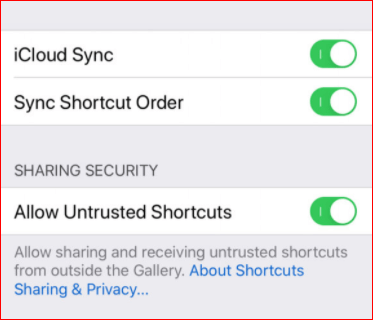
Enable Allow Untrusted Shortcuts

  • Now that you are allowed to run Siri Shortcuts from everyone and anyone, you can open this link and click on the Get Shortcut button to download it. You will be redirected to the Shortcuts app. 
  • Now, Tap Add Untrusted Shortcut.
  • Find the WhatsApp to non-contact shortcut in the My Shortcuts tab. Then, tap Add to Home Screen to create a quick launch shortcut on the home screen.
  • Now, you will need to enter the recipient’s number. Mention the country code along with the number. Then, you’ll be redirected to WhatsApp with a new message window open.

Read More: Find Someone On Snapchat Without Username & Phone Number


How to Send Message to an Unsaved Number If You are an Android User

If you are an Android user then you can try the method below to send a message to an unknown number on WhatsApp.

  • Open your phone’s keypad.
  • Type the number.
  • Once you have typed the number, select it on the keypad.
  • Now, there will be a few options to take action on that number like Call, Cut, Copy etc.
  • Check to see if there’s a drop-down button further for more options to send messages on third-party text messaging tools. If it is there, you might be able to get WhatsApp in the list which you can select to send a message to that unsaved number.

Note: This trick does not work on all iPhone & Android phones. You must have Android 9 and above OS to get access to this trick which is only available on the selects or you can apply the method of creating the link to start messaging.


Conclusion

You just learned the best methods and tricks on how to send WhatsApp messages without adding contact. Whether you are an iPhone user or the Android one, give these tricks a try. It does require extra actions as compared to sending messages to the saved numbers but if you are up for that, then you can perform the steps. If you found this section helpful, don’t forget to let us know in the comments.  

Author

Jyotsana

Jyotsana is a technical writer with a non-technical background. An eye of detail and a knack for writing helps her to write technology related content.
Apart from writing, she is a coffee connoisseur and an aesthete who rejoices in poetry and music during leisure.

View all posts

Related Posts
How to Fix Facebook Dating Not Showing Up for Android & iPhone

How to Fix Facebook Dating Not Showing Up for Android & iPhone

May 17, 2024
0

Is Facebook Dating not showing up? Don’t worry, temporary technical glitches with the application can cause this issue. After reading this guide, you will be able to solve the problem. Continue Reading!

Facebook Dating is one of the newest features of the Facebook application. Facebook Dating is a space within Facebook that allows users to meet and interact with the people who share their interests. With Facebook Dating, you can meet new people and for some, there are chances to start a relationship as well. To get started, you only need to create your dating profile. In Dating, you can send messages to people you are interested in. If someone likes you back, then you will start chatting with them on Dating.

Using Facebook Dating is really wonderful, but recently a lot of people across the world have reported issues with FB Dating. They stated Facebook Dating is not working or showing up on iPhone & Android. Are you also facing issues with Facebook’s Dating feature? Fortunately, there are various solutions available to solve this problem.

FYI: You won’t be able to use FB Dating on your computer. Currently, the Dating feature is only accessible on Facebook apps for iPhone and Android. In addition to this, the dating facility is presently available in only 52 countries. So, if your region doesn’t support Dating or you are below 18, then FB Dating will not show up.

Why is my Facebook Dating Not Showing Up?

If you are experiencing issues with Facebook Dating, then it’s probably because of one of the following reasons:

  • The Facebook Dating server is down.
  • Using an outdated version of Facebook.
  • Perhaps, you’ve blocked the notifications.
  • The cache data on your device is corrupted.
  • Issues with your internet connection.

Solutions to Fix Facebook Dating Not Showing Up for Android & iPhone

Now that you know the causes of Facebook Dating not showing up or working, let us proceed with the solutions to resolve the problem. Without further ado, let’s get started!

Solution 1: Check your Internet Connection

Before trying more advanced methods, you need to first check your internet connection. Your internet connection is likely slow or unstable, hence you are unable to access FB Dating. Therefore, make sure you are relying on an active, fast, and consistent connection.

Also Read: How to See Who Viewed Your Facebook Profile


Solution 2: Check the Availability of Facebook Dating Feature

The prime reason why you are unable to access Facebook’s Dating feature is its unavailability in your region. The Dating feature was introduced in 2019 in Colombia & later launched in various countries. Check the list provided below of the regions/countries where FB Dating can be used easily:

Region / Country Region / Country 
Argentina Estonia
Austri Finland
Belgium France
Bolivia Germany
Brazil Guyana
Bulgaria Hungary
Canada Italy
Chile Iceland
Cyprus Ireland
Croatia Laos
the Czech Republic Liechtenstein
Denmark Lithuania
Ecuador Luxembourg
Malaysia Poland
Malta Portugal
Mexico The Philippines
The Netherlands Romania
Norway Singapore
Paraguay Slovakia
Peru Slovenia
Sweden Suriname
Spain Switzerland
The United States The United Kingdom
Uruguay Vietnam

Solution 3: Check the Facebook Dating Service

If you’re having trouble with FB Dating like Facebook Dating not showing up on iPhone & Android, then you must check if the Facebook Dating server is down. To do so, you can use the Down Detector site.

In case, the result displays that the Facebook service is down, then you will have to wait until the FB team fixes the problem. However, the website displays that there are no issues with Facebook service, then you can use the next solutions to solve the problem.

Also Read: Facebook Messages Sent But Not Delivered


Solution 4: Update Facebook App

Facebook launched its Dating feature in 2019, so if you are using the Facebook version older than that, then it might be possible Facebook Dating doesn’t show up on your device. Hence, it is crucial to update the application to use FB Dating, without any hassles. For that, follow the steps below:

  1. Open the App Store on iPhone and Play Store on Android.
  2. Next, go to the search bar and type Facebook.
  3. Tap on Facebook to proceed.
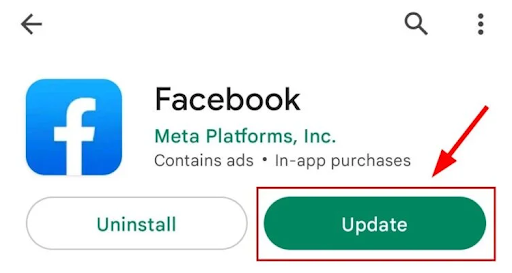
  4. Tap on the Update option to begin the installation process.Update option to begin the installation process
  5. Wait for the process to finish. Once completed, log in to your Facebook account, and the FB Dating option will now be accessible.

Solution 5: Enable the Facebook Notifications

If you have disabled or blocked notifications for Facebook, you won’t receive any notifications about Facebook Dating. This may lead to Facebook Dating not showing up on Android & iPhone. To fix the issue, you can try to enable Facebook notifications. Follow these steps:

  1. On your mobile (iPhone or Android) device, open Facebook.
  2. Locate and tap on the Hamburger icon.
  3. Now, navigate to Settings and Privacy > Settings > Notification Settings.
  4. Here, you can select how you get notifications and what you get informed about.

Once you have modified the settings, you can now use Facebook Dating and check if this works. If not, try the next solution.

Also Read: Sorry, This Content Isn’t Available Right Now: Facebook Error [Fixed]


Solution 6: Facebook Location Permission

Granting location access permission to Facebook is another way to solve the Facebook Dating app not showing up problem. Here is how to grant permission for the application.

  1. On your mobile device, open Settings.
  2. Scroll down until you see the Apps section and tap on it.
  3. Look for Facebook in the search bar and tap on it.
  4. Under Permissions, tap the App Permissions option.
  5. Tap Location and grant it if it has been denied.
  6. Now, clear the cache data and launch Facebook again.

Solution 7: Clear Cache Data

The cache data may help you run the application faster than usual. But, if the app’s cache data is corrupted, then issues like ‘Facebook dating not showing up’ can occur. To solve the problem, you can try to delete the cache data on your mobile device.

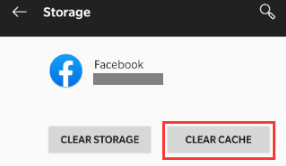
On Android, simply go to Settings, then Apps & Notifications. Now, find and tap on Facebook, then head to Storage. After that, tap on the CLEAR CACHE option to get the task done.CLEAR CACHE option to get the task done

On iPad or iPhone, open Settings, look for Facebook, and tap on it. Now, simply enable the Reset cached content option.


Solution 8: Reinstalling the Application

Last but not least, you can try to uninstall the Facebook application, and then install it again on your mobile device. By uninstalling Facebook from your mobile device, you can automatically remove all hidden glitches within the app. After that, you can reinstall it to utilize it as expected.

On Android

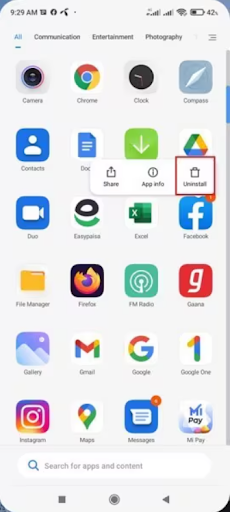
  1. On your home screen, locate Facebook, tap and hold the application until the Uninstall option appears. Choose this option to immediately delete the app.Facebook, tap and hold the application until the Uninstall
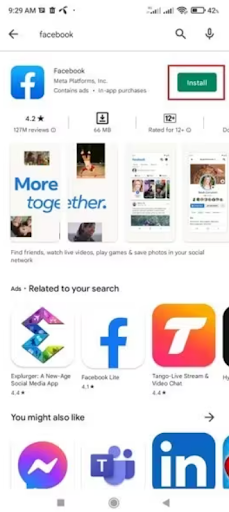
  2. Now, launch the Play Store, search for Facebook, and tap on the Install option to reinstall it on your device.Facebook, and tap on the Install

On iPhone

  1. Tap and hold the Facebook application.
  2. Now, choose the Remove app option to uninstall the application.
  3. Once uninstalled, go to the App Store, and enter Facebook in the Search box.
  4. Tap on the Cloud icon available next to it to install the app again.

Solution 9: Contact Facebook Help Center

If none of the above fixes help you resolve the issue of Facebook dating doesn’t show up issue, then it’s time to get in touch with Facebook’s professional technical support team. Facebook’s dedicated support team will surely help you out.

Also Read: How to Recover Permanently Deleted Messages On Facebook Messenger


How to Fix Facebook Dating Not Showing Up (Android & iPhone): Explained

Facebook Dating helps you make new connections and start new relationships with people of your interests. However, according to many people worldwide, the Facebook Dating app is not working properly or not showing up at all. Are you also having problems when using Facebook Dating? Nothing to worry about, by trying the above-shared solutions, you will be able to solve the problem in no time and get things back on track.

Hopefully, you found the article helpful. If you have any questions or better suggestions regarding this problem, please feel free to drop them in the comments section below. Lastly, do subscribe to our Newsletter so you never miss any tech updates.

What is VPN and How does it Work? {Complete Guide}

What is VPN and How does it Work? {Complete Guide}

March 16, 2022
0

Normally, if you connect to the internet data flows freely while you shop, surf, or even perform bank transactions online. This makes your data vulnerable to data leaks and frauds online. In the digital world, nothing really remains private. What can you do If you wish to stay Private even when you are online?

Switch to one of the best free VPN services. A Virtual Private Network ensures security between users and their internet. It encrypts the data in a virtual tunnel which leads to safe browsing. The following advantages come in handy with a virtual private network

  • Hides the private information
  • Saves data and bandwidth throttling
  • Allows access to services blocked in your region
  • Scalable Networks
  • Reduced support cost
  • Secures data
  • Allows you to use the internet freely

You can use these networks on Android, iOS, macOS, or Windows platforms. There are a lot of VPN alternatives available. Surfshark is among the most popular VPNs available online. You can try Surfshark for free which allows you to access more than 3200 servers across 65 different countries. Along with the basic functionalities of VPNs Surfshark offers additional features such as a user-friendly interface, enhanced customer support, and a 30-day return policy.

The write-up below mentions all that you need to know about a Virtual Private Network and how it makes a secure choice for your data.


Why is VPN Important?

Almost all the daily tasks are performed online. From being connected to our friends online to bank transactions for major purchases everything can be done with a single click. Make sure all the relevant information does not lie on street. If the data is not encrypted it can end up attracting leaks, frauds, and hackers.

Using a Virtual Private Network (VPN) can decrease the chances of getting misused or traced by hackers. It blocks access to your personal information, browsing history, or other activities. While choosing a VPN service make sure you check the speed, reputation, features, and encryption type of the protocol. Many users are trapped in the free VPN software that can annoy you with ads and limited download facilities. Moreover, these free alternatives can also compromise the security protocols for encrypting data. Therefore, it is advisable to pick the type of VPN protocol that fits in well with your requirements.

Also Read: Best Free VPN For Mac


Types of VPN Protocols

The encrypted connections used by VPN are referred to as Tunnels. The following list contains the different ways in which a user can set up their VPN connection.

1. Open VPN

The Open VPN is most commonly used protocol. Its encryption is based upon OpenSSL and the SSLv3/TLSv1 protocols. It is available for Windows, Linux, routers, Android, and other platforms. It is considered one of the best choices for VPN service.

2. PPTP

The Point to Point tunneling Protocol i.e PPTP has certain leaks but provides high-speed internet. It is preferred by users who prioritize speed of internet over data security. It is mostly used by users to surpass the limitations of streaming speed.

3. IKEv2/IPsec

The VPN protocol is based on IPSec that enables users to connect and switch networks quickly. The capability to switch quickly makes it a perfect choice for users using the VPN service on their smartphones as smartphone users often switch between WI-Fi and mobile data networks.

4. IPsec/L2TP

The protocol type combines IPSec with L2TP to encrypt data and build a secure connection. This makes the second-best choice after OpenVPN.

5. WireGuard

The WireGuard VPN is a new protocol that is designed to run on Linux with the aim to perform well when compared to OpenVPN or IPSec. The protocol is still in the development phase therefore the OpenVPN remains a safe choice to make.

6. Softether

The Softether is an open-source app that can work on different platforms. But unlike the above-listed protocols, Softether can not run as a stand-alone VPN protocol.

Also Read: Best VPN For Gaming | Establish Secure Connections


How does a VPN work?

The working of a VPN might be a little complicated, but it is simple to connect to a VPN. Just subscribe to the VPN provider and download the software. Install the VPN with help of the instructions displayed on the screen. Once done, choose the server that you wish to connect to and wait till the VPN completes the rest of the process.

Once the VPN is connected it encrypts the data traffic and shares it to VPN server in a secure connection format. The data is now decrypted by the server to share it with the internet and receive a reply. The receiver traffic from the internet is encrypted and then again shared with the user. This data is further decrypted for you to understand or use.

The complete working process of VPN happens in the background and no noticeable change is observed while you use the network software.

The overall working of VPN can be summed up in the following 4 steps.

  1. Create your account and Sign up on the website of VPN software you wish to download.
  2. Download the software and Install it by following the on-screen instructions.
  3. Launch the software and log in with your credentials.
  4. Select the VPN server you wish to use and turn it on for your device.

Also Read: Free vs. Paid VPN: Which is Better for Security Management?


Closing Lines on Virtual Private Network

With help of a VPN despite being anonymous online, you can stay safe and protected. Although there are multiple alternatives available, users often subscribe to VPN services to keep the connection secure. You can find the best providers for VPN or even create your VPN to keep all your data encrypted.

If you need any further assistance feel free to drop your questions below. For more technical blogs, don’t forget to subscribe to our newsletter.

1 Comment
    Michale says: Reply
    October 18th 2020, 2:10 am

    Thanks for your marvelous posting! I actually enjoyed reading it, you’re a great author.

Leave a Reply Cancel reply

Your email address will not be published. Required fields are marked *

Sidebar Image bit G ad1

Latest Posts

  • Anytime Astro: Best Website For Online Astrology Consultation
    Anytime Astro: Connect Now For Online Astrology Consultation
    by Somya Shrimal / March 13, 2026
  • Best-Ways-to-Combine-Images-Into-PDF-Files
    Best Ways to Combine Images Into PDF Files
    by Niharika / March 12, 2026
  • Best FREE VPS Hosting Providers
    7 Best FREE VPS Hosting Providers in 2026
    by Devesh / March 12, 2026
  • Best-McAfee-alternative-software-to-use-for-Virus-Protection
    Best McAfee Alternative Software to use for Virus Protection
    by adminuser / February 11, 2026
  • What-is-Flip-Flop-in-Circuite-and-it's-Types
    What is Flip Flop in Circuit and its Types
    by Meet / February 6, 2026

Categories

  • Cyber Security
  • Driver Updater
  • Entertainment
  • Fitness
  • Games
  • How To
  • laptop
  • OS
  • Reviews
  • Tech News
  • Tips & Tricks
  • Top 10
Sidebar Image bit G ad1
How To Change IP Address in Windows 10 How To Change IP Address in Windows 10? Try Easy Methods!by Jyotsana / October 12, 2020
How to Sync Contacts from Gmail to iPhone and iPad? Try 3 Ways!by Jyotsana / October 18, 2020How To Sync Gmail Contacts to iPhone or iPad
TechPout Footer Logo

We at TechPout promise to put forth stories that help people to learn and simplify their digital life. Our purpose is to share the true essence of technology with our tech-loving community.

Useful Links

  • About Us
  • Contact us
  • Privacy Policy

Popular Posts

  • Best PC Optimizer Software
  • Best Mac Cleaner Apps
  • Best Driver Updater
  • Duplicate Photo Finder and Cleaner Software
  • Best Free Movie Download Sites
  • Best IPTV Players

Follow us

Copyright © 2026 www.techpout.com. All rights reserved
DMCA.com Protection Status