Imagine working with survey results, inventory lists, or crucial financial reports, where clean and accurate data is the priority. Duplicate entries, such as an item added twice in the inventory list or survey responses with repetitive entries, can clutter the information and interfere with your decision-making. However, if you know how to remove Google Sheets duplicates, you can handle data cleaning confidently to manage large datasets in this one of the best free spreadsheet software and make the right decisions.
Before understanding the various step-by-step methods to delete duplicates in Google Sheets in this article, let’s help you identify them.
How to Check for Duplicates in Google Sheets
You can use conditional formatting and a custom formula generated with Gemini to find and highlight duplicates in Google Sheets. Here is how.
- Open the spreadsheet and click any cell in it.
- Enter the = sign and click Generate formula with Gemini.
- Tell the Gemini AI what you want from it. For example: Create a formula that locates and highlights all duplicate values in pink.
- Press Enter.
- After Gemini responds with a plan and formula, click
Now that you have the duplicates, you can decide to keep or delete them.
How to Delete Duplicates in Google Sheets
Various methods are available to get rid of duplicates in Google Sheets, including the built-in tool, formulas, pivot tables, conditional formatting, and Apps Script. The built-in Remove Duplicates tool is the easiest option and is recommended for beginners or anyone who wants a quick, manual fix, especially for large datasets.
Formulas such as UNIQUE or QUERY are useful when you want a dynamic table that updates automatically as your data changes, without altering the original data. Pivot tables are useful for analyzing or summarizing data while removing duplicates at the same time. Conditional formatting is best for visually identifying duplicates before removing them manually.
Apps Script is ideal if you need to automate duplicate removal or handle continuous updates in larger or more complex sheets. Below are all the methods explained step by step, so you can choose the one that best fits your needs.
Method 1: Remove duplicates in Google Sheets using a built-in tool
- Select the cell range from which you want to remove the duplicates.
- Follow the path Data menu > Data cleanup > Remove duplicates.
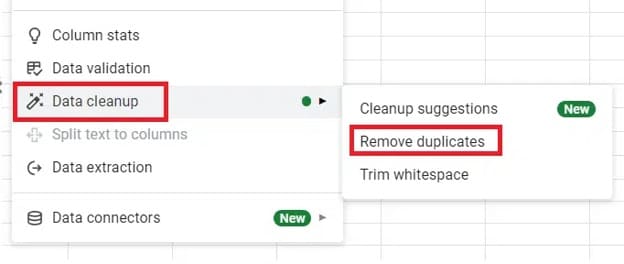
- Ensure Data has header row is selected if your data has a header row.
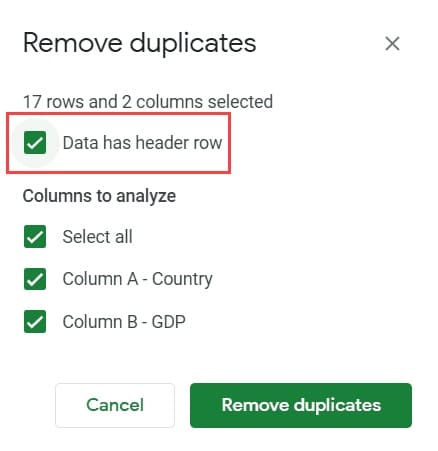
- In the Columns to analyze section, ensure Select All is selected. If you check only a single column in the Remove Duplicates options, it removes only the duplicates that appear in that column and the whole row with the duplicates, unlike when Select All is selected.
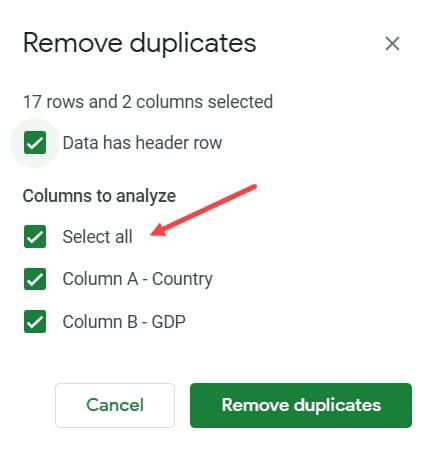
- Click Remove Duplicates.
- Lastly, click Ok.
Also know: How to Change the Sound of Your Google Assistant’s Voice
Method 2: Use formulas to delete duplicates in Google Sheets
You can use UNIQUE and QUERY functions to clear duplicates in Google Sheets. Below is how to remove duplicates in Google Sheets using formulas.
Use the UNIQUE function to delete duplicates in Google Sheets
The UNIQUE function creates a separate dynamic table that updates automatically when you change the original data, based on the current columns. Importantly, using UNIQUE does not modify or remove your original data at all. The original dataset remains untouched, and the function simply displays a different table with only unique values. This makes UNIQUE a safe method for anyone who wants to remove duplicates while preserving all original information.
- Select the starting cell of your new table.
- In the selected cell, enter the formula: =UNIQUE(COLUMN_START: COLUMN_END). In this formula, change COLUMN_START and COLUMN_END to your column’s start and end.
- Press the Enter key to get a table without any duplicates.
Use the QUERY function to remove duplicates in Google Sheets
While the QUERY function is not a dedicated formula for deleting duplicates in Google Sheets, it filters and manipulates data based on specific criteria and can be used to remove duplicates. Here is how to get rid of duplicates in Google Sheets using the QUERY function.
- Select the cell range that contains the data you want to delete duplicates from.
- In a blank cell, type the formula: =QUERY(A1:B11, “SELECT A, B, COUNT(A) GROUP BY A, B LABEL COUNT(A)’Count'”,1). In this formula, replace A1:B11 with the cell range you wish to check for duplicates and adjust the references to these columns in the query.
- Press Enter to get a new cell range with only unique values from the actual range and an extra column to know the values that appeared more than once.
Method 3: Remove duplicates in Google Sheets using pivot tables
Pivot tables rotate the data set to view it from another perspective or perform data reorganization before changing it. Displaying the data in the pivot table locates and removes duplicates. Below is how to remove all duplicates in Google Sheets using pivot tables.
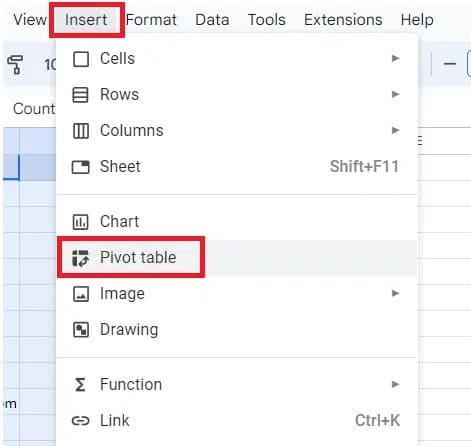
- Click the Insert
- Select Pivot table from the Insert menu.
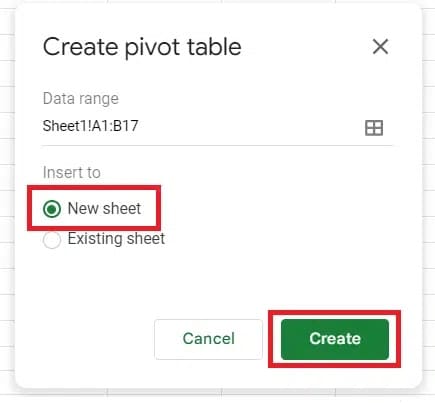
- Select the data range for analysis and specify whether the pivot table will be created in a new or existing sheet.
- Click the Create button.
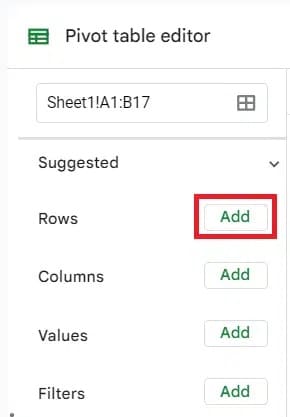
- To add rows to your pivot table, click Add (Rows section) and then select the column.
- Uncheck the Show totals box and then repeat this action for every column separately to get a pivot table without duplicates.
- To know the duplicate entries, navigate to the Pivot table editor’s Values section and click Add.
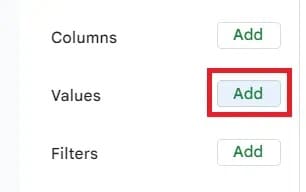
- Select the column or columns you want to analyze for duplicates and choose COUNTA in the Summarize by field to get a column with numbers. 1 number means there is a single entry. 2 or more means duplicate entries.
Also know: How To Setup and Use Google Docs Offline
Method 4: Use conditional formatting to delete duplicates in Google Sheets
Conditional formatting is not a dedicated method to remove duplicates in Google Sheets. To delete Google Sheets duplicates using conditional formatting, you need to identify and highlight duplicates and then delete them. Here is how to do this.
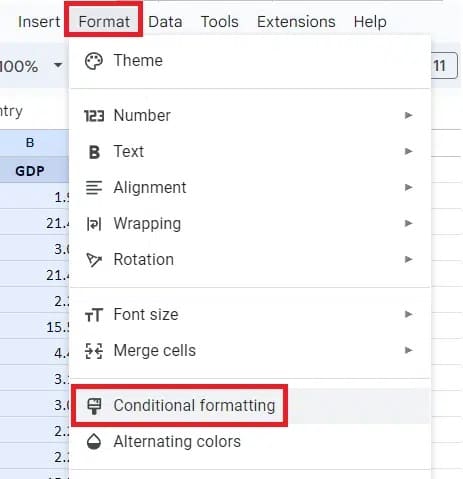
- Click the Format
- Click Conditional Formatting in the Format menu.
- To highlight duplicates in one column, select the column range and apply the formula: =COUNTIF($B$1:$B1,B1)>1. Replace the values in this formula with your column range.
- To highlight duplicates in multiple columns, select the data range and apply the following formula.
=(COUNTIF($A$1:$A,$A1)>1)*
(COUNTIF($B$1:$B,$B1)>1)*
(COUNTIF($E$1:$E,$E1)>1)*
(COUNTIF($I$1:$I,$I1)>1)
Replace the values in the above formulas with the columns you selected.
- After highlighting the duplicates in Google Sheets, select the cell range you want to clear of duplicates.
- Click
- Click Data Cleanup.
- Click Remove duplicates.
- Check if the chosen data range has a header row.
- Choose the columns with duplicates.
- Click Remove Duplicates.
- Lastly, click OK to delete duplicates in Google Sheets.
Method 5: Use Apps Script to get rid of duplicates in Google Sheets
Apps Script is a method advanced users can use to create a custom function to remove duplicates in Google Sheets and delete duplicates according to the preset conditions. This approach is helpful when your sheet accumulates new entries continuously. With Apps Script, you can set the conditions, such as columns to analyze, in the function and run it to get rid of duplicates. Here is how.
- Click the Extensions
- Click Apps Script in the Extensions menu.
- To analyze all columns in the sheet and remove duplicate rows, insert the following script into the code block.
function removeDuplicates() {
var sheet = SpreadsheetApp.getActiveSheet();
var data = sheet.getDataRange().getValues();
var newData = [];
for (var i in data) {
var row = data[i];
var duplicate = false;
for (var j in newData) {
if (row.join() == newData[j].join()) {
duplicate = true;
}
}
if (!duplicate) {
newData.push(row);
}
}
sheet.clearContents();
sheet.getRange(1, 1, newData.length, newData[0].length).setValues(newData);
}
- Change the project name.
- Click Save project.
- Click
- Next, click Review Permissions and select the Google account.
- A warning window appears. Click
- Click Go to **** (unsafe).
- Confirm the duplicate removal function is executed.
- After the duplicate removal function is executed, click Run to remove duplicates in the active Google Sheet.
- You can also customize the Apps Script function to remove duplicates in a specific range. For example, below is the script to delete duplicates in the B1:F range.
function removeDuplicates() {
var sheet = SpreadsheetApp.getActiveSheet();
var rng = sheet.getRange(“B1:F”)
var data = rng.getValues();
var newData = new Array();
for(i in data){
var row = data[i];
var duplicate = false;
for(j in newData){
if(row.join() == newData[j].join()){
duplicate = true;
}
}
if(!duplicate){
newData.push(row);
}
}
rng.clearContents();
sheet.getRange(1, 1, newData.length,
newData[0].length).setValues(newData);
}
That’s all for the methods to remove Google Sheets duplicates. Below, we answer a few related questions to clear up any remaining confusion.
Also know: Best Google Chrome Extensions | Chrome Security Plugins
Frequently Asked Questions
Q1. How to remove duplicates in Google Sheets but keep their position?
To remove duplicates but keep their position, i.e., delete duplicates without changing your data set’s order, you can identify and highlight duplicates using conditional formatting and then remove duplicates manually, as explained in the guide above.
Q2. How do I quickly delete duplicates in Google Sheets?
The quickest way to remove Google Sheets duplicates is using the built-in Remove Duplicates tool. To get rid of duplicates, select the cell range with duplicates, follow the path Data menu => Data cleanup => Remove duplicates, check if the chosen data range has a header row, select the columns to perform the analysis for duplicates, and then click Remove Duplicates.
Q3. How to remove duplicates but keep the first instance in Google Sheets?
You can use the built-in remove tool or the UNIQUE function to delete duplicates but keep the first instance in Google Sheets. It deletes duplicate rows and keeps only the first copy in Google Sheets.
Q4. How to remove duplicates in one column in Google Sheets?
You can use the UNIQUE function, as explained in the guide above, to delete duplicates in one column in Google Sheets. Alternatively, you can identify duplicates using conditional formatting and then remove them manually.
Q5. How to remove duplicates in Google Sheets from two or more different columns?
To get rid of duplicates in Google Sheets from 2 or more different columns, you can use the pivot table to remove duplicates in a separate sheet automatically, the UNIQUE function to remove duplicates from an integral data range, or the QUERY function.
Q6. How do I prevent duplicates in Google Sheets?
You can block duplicates using Data Validation to prevent them in Google Sheets. To block duplicates with Data Validation, select the column or range where you wish to prevent duplicates, click Data, click Data Validation, click Add Rule, click the Criteria dropdown, click Custom formula is, enter the formula: =COUNTIF(A:A, A1)=1 ( in this formula, change A:A to your selected column letter and A1 to the first data cell, click Advanced Options, click Reject Input, click Show help text, enter a custom alert, click Done.
Hopefully, this makes it clear how to remove Google Sheets duplicates to maintain information clarity and accuracy. If you are a beginner, we suggest using the built-in Remove Duplicates feature. However, if you do not want to alter your original dataset, you can run a Google Sheets formula or create a pivot table. If you are comfortable with coding, you can also use Apps Script. If you want to identify and highlight duplicates and then remove them manually, you can use conditional formatting. If you have any questions or concerns, you can leave us a comment.