Main LogoLight Logo
  • Reviews
  • Top 10
  • How To
  • Tech News
  • OS
    • Windows
    • MAC
    • iOS
    • Android
  • Categories
    • Driver Updater
    • Cyber Security
    • Games
    • Fitness
    • Entertainment
    • Tips & Tricks
How To Windows
by Prachi Dani

How To Install Windows 10 From USB Drive (2021 Guide)

November 24, 2020
1

Are you struggling to install New Windows version on your PC? Well, you can quickly boot Window 10/7 using a USB drive. 

With a blink of an eye, you can install the latest version of Windows on your computer system. Here’s everything you should know about Windows 10 bootable USB tool. 

Table of Contents hide
Ensure That Your Device is UEFI Boot Support
How to Prepare Windows 10 Bootable USB Drive
Downloading Windows 10 With a Portable USB Drive
How to Make a Bootable USB Drive

Why Update Your Windows Version Using a USB Drive 

If you are falling short of DVDs and your PC does not have a free optical drive, then USB drive serves the option for booting your system.

This portable device is compatible with almost all desktop gadgets and laptops. Using a mobile device like USB offer a much simpler and straightforward way to boot your device. 

Minimum 8GB of storage is required for this also the USB drive should be well formatted before booting the system.

Read More: How To Update Device Drivers on Windows 10


What You Need Before Installing Windows 10 From USB

Well, this post will guide you on how to Install Windows 10 from USB, but before jumping towards the step. Here are the things that you need before installing Windows 10 from USB. Have a quick look at them!

  • DVD or Windows 10 install .iso file.
  • USB flash drive which has at least 8 GB free space.
  • A PC where you can format the USB Flash Drive.
  • A PC on which you’ll install the new Windows.

So, these are all that you need before installing Windows 10 from USB. After this, follow the following steps!

Step 1:- To format the drive you have to connect the USB flash drive to the other PC that you have. And, later on, make sure to set the partition as Active.

Step 2:- Then, copy and paste the Windows setup file to the formatted USB Flash Drive. And, for doing so, you can use File Explorer.

Step 3:- Now, install the Windows to the new system via connecting a USB flash drive to a new system. After following the directions to install Windows on a new PC, do not forget to pull back the USB flash drive.

This is how you can install Windows 10 from USB drive with much ease.


Ensure That Your Device is UEFI Boot Support

Before we move ahead, let’s first understand the difference between UEFI and BIOS. BIOS stands for basic input/output system and was majorly used to manage data between system devices and OS. 

However, UEFI which stands for Unified Extensible Firmware Interface has wholly taken over BIOS in the last decade. 

Fortunately, you can use either of the two mechanisms to boot your computer using a USB drive. 

Read More: Best Uninstaller Software For Windows 10, 8, 7


How to Prepare Windows 10 Bootable USB Drive

Using Windows 10 bootable USB tools to install windows is the easiest and quickest way. To start with, connect a well-formatted USB drive to your system. There are various ways of installing Windows 10, but the most straightforward and fastest way is with the help of a  windows 10 media creation tool download.

To use this, go to the Windows 10 Microsoft download page. And then hit the “Download tool now” button.

The next step is to create windows 10 installation media, follow the simple steps to get your job done. Ensure that you have a legitimate license to download Windows 10. Once confirmed, you can easily install and run the media creation tool on your system.

  • Next step is to save this lightweight tool on your system.
  • Open the Media creation tool.
  • From the next prompted window, click on “Accept” to confirm.
  • In the displayed window, you will be given 2 options, choose “Create installation media” (ISO file, USB flash drive, or DVD).
  • Click on the “Next” button now.
  • Now set Windows 10 edition, language, and system architecture.
  • In case you are unable to change the settings, uncheck the box with says, “Use the recommended options for this system/PC”.
  • Click on the “Next” button.
  • From the displayed window, choose “USB Flash” followed by the “Next” button.
  • From the list of drives, choose the relevant USB drive and hit “Next” to start the download process.

Downloading Windows 10 With a Portable USB Drive

Once you have successfully created the installation media, installing Windows 10 gets exceptionally easy. You can now use this bootable USB to update the targeted device. 

Switch on the PC you wish to update and then connect the USB drive and wait for it to get detected. Once the USB drive is adequately detected, you can start the installation process. 

You can also similarly install Windows 7. 

Read More: Update Latest Canon Printer Drivers for Windows 10, 8, 7


How to Make a Bootable USB Drive

Follow the simple step-by-step guide to create a bootable USB drive.

  • To start with, you need a minimum of 8GB USB drive.
  • Next, install the Windows media creation tool.
  • To download Windows 10 installation files, run the media creation wizard.
  • Once the installation media is created, eject the USB flash drive.
  • And there you have it, a well-formatted bootable USB drive.

Through the help of the above steps, you can easily create a bootable USB drive to install windows 10 from USB on a new PC.


Closing Words

From here, you’ll be familiar with how you can install Windows 10 from USB on a new PC. Through this write-up, we’ve explained to you how you can make a bootable USB drive. Along with this, we’ve also told you what you need before installing Windows 10 from a USB drive.

Hopefully, now you’ll get to know exactly what you need to do to install Windows 10 from a USB drive. Still, if you’ll face any sort of difficulty while doing so, then do let us know through the comment box below! We assure you to help you out. And, don’t forget to subscribe to our Newsletter to stay updated. Till then, Happy Installing!

create windows 10 installation mediaHow to make a bootable USB drivewindows 10 bootable usb toolwindows 10 media creation tool download
Author

Prachi Dani

Prachi Dani is a technical content writer who specializes in areas of science and technology. She is highly up to date with technological transitions and transformations. Writing is not her passion but the only thing that carries satisfaction in life. If not writing, you may find her engrossed playing action games on her treasured smartphone.

View all posts

Related Posts
How to Remove Your Mobile Number From Truecaller

How to Remove Your Mobile Number From Truecaller

December 17, 2020
1

Do you know how you can remove your number from Truecaller’s database? There is no direct way available to delete the account from the app; however, it is possible to do so by deactivating your Truecaller account, followed by delisting the number.

Truecaller app was first launched exclusively in 2009 by Blackberry. Later the app was released on Android and iOS platforms that could be used to manage calls with the help of the caller ID function.

It gained popularity as it accurately displayed the contact details of unknown callers and thus helped to avoid or block spam callers and telemarketers. But not many people prefer using Truecaller, considering it to be a privacy threat.

In this blog, we will first look at how Truecaller tracks and identifies all phone numbers, followed by which will be the methods of shutting down the Truecaller account.

How Truecaller Identifies the Callers?

Truecaller gains access to the address book of users to collect information about their contacts. This way, through crowd-based outsourcing, it collects the data and stores it in the databases. Thereby, it further identifies the number and displays it accordingly.

This means that even if someone doesn’t use the app, still their data will be available on the Truecaller database that is collected from other people’s phones. Therefore, many people prefer to Unlist their numbers from the Truecaller database.

Truecaller also collects and stores addresses associated with a landline number. Truecaller acquires this data from Telecom companies. Due to this reason, the residential address of a landline number can also be displayed to whoever you are calling, which may be far too risky to reveal to unknown people. The risk of exposure is not only limited to this sphere but even to the extent of discoverability on Google’s search engine.

Read Also:  How to Remove Unwanted Pop-up Ads on Android and iOS


Methods to Deactivate Your Truecaller Account

You can follow the below-mentioned steps to disable the Truecaller account for removing traces of your number from Truecaller’s database. This can be done on Android, iOS, or Windows phones, followed by delisting the mobile number from the Truecaller database.

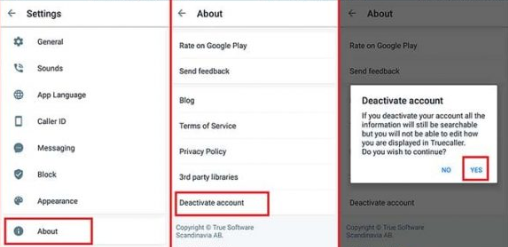
1. Android

  • Go to the application on your Android phone.
  • Tap the icon resembling people that you can spot in the upper left corner of the app screen.
  • Further, go to the Settings.
  • From there, navigate to the ‘Privacy Center’ section.
  • Here you will find the option to Deactivate the account.

Disable The Truecaller Account From Android Devices


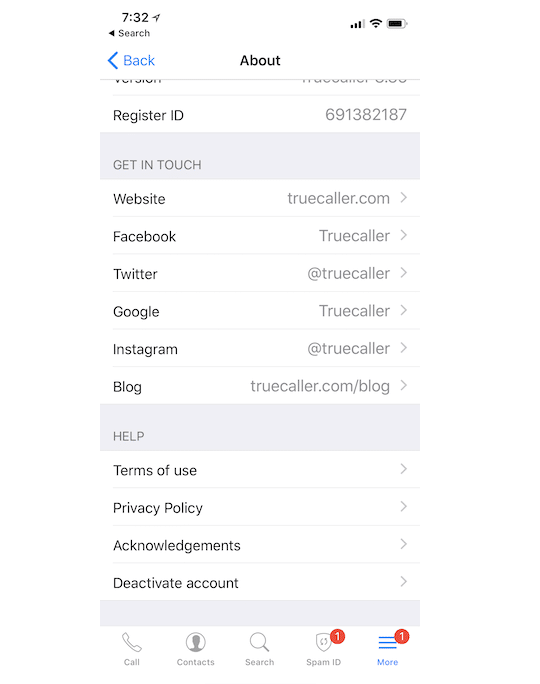
2. iOS

  • Open the application on your iPhone.
  • Tap on the gear icon in the top right corner.
  • Again go to the ‘About Truecaller’ section.
  • As you move down the list, you will be able to locate the option to deactivate your Truecaller account.

Disable The Truecaller Account From iOS Devices

Read More: Best Truecaller Alternative Apps For Android & iOS


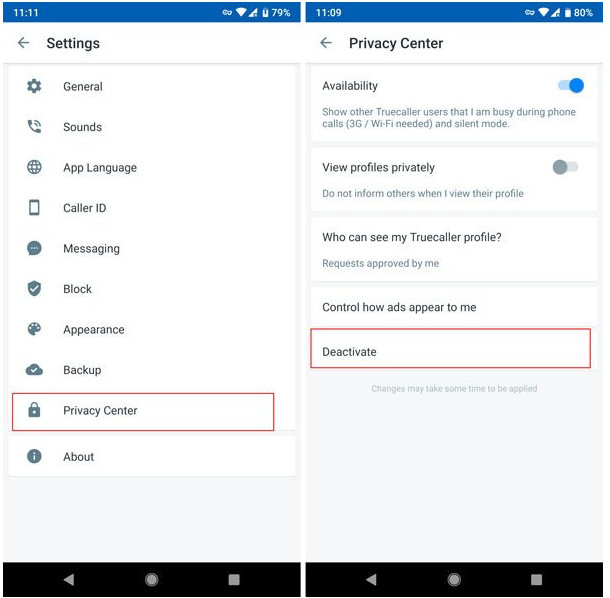
3. Windows Mobile

  • Open the application on your Windows phone.
  • Tap on the three dots located in the bottom right corner.
  • Go to the Settings section of the application.
  • Further tap on the “Privacy Center” option.
  • Here you will find the Deactivate account option.

Disable The Truecaller Account From Windows Mobile


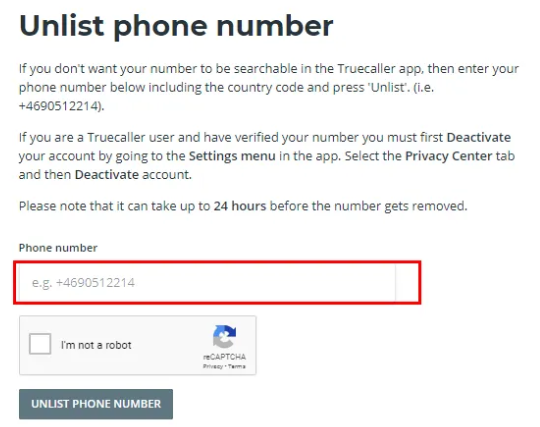
Remove Your Number From Truecaller

  • Once the account is deactivated, then you can proceed to erase the number from the Truecaller database.
  • You can go to the Truecaller unlist page.
  • Enter your phone number, preceded by your country code.
  • Select the reason most appropriate reason to unlist your number from Truecaller.
  • Enter the verification captcha.
  • Finally, tick the Unlist option.
  • Usually, it takes 24 hours to complete the delisting request on Truecaller’s part.

Remove Your Number From Truecaller

Read More:  How To Fix Computer Freezing Problems


Final Thoughts

Therefore, it can be noted that the above-described methods can be used to delete your number from Truecaller and also to remove the account related private information from their databases.

Occasionally, it has been noted that it doesn’t remain off the records forever because tracking continues to happen through other people’s number every time a new person downloads the app and provides access to their contacts list. So, this can lead to the reappearance of the number in the Truecaller database again.

To prevent this from recurring, again and again, you can keep verifying with Truecaller if your number is appearing with them and request them to delete your number.

Download and Update Intel Chipset Drivers for Windows 10, 8, 7

Download and Update Intel Chipset Drivers for Windows 10, 8, 7

November 18, 2021
0

Here you will find the simplest and quickest ways to download, install and update Intel Chipset drivers for Windows 10, 8, 7 PC.

Chipset helps in connecting the CPU with the PC and the peripherals connected to it. Intel chipset is a collection of electronic components in the CPU (Central Processing Unit) of a PC.

Intel chipset driver is a very important piece of software component that is responsible for the accurate flow of data from the CPU to all other connected devices. So, when the corresponding drivers goes missing or out of date you may encounter numerous problems. Therefore, to ensure proper functioning, you should keep your chipset drivers always up-to-date and in good working order.

In this write-up, we are going to discuss the three different strategies to perform the Intel chipset INF update program on Windows PC.

Automatically Download, Install and Update Intel Chipset Drivers Through Driver Updater Software – Experts Recommendation

The Intel Chipset driver files on a Windows operating system PC can be updated in several different ways. But the way which is most recommended by experts is updating the drivers through driver updater software. Among all the different driver updater software available over the internet, the Bit Driver Updater is the most effective and helpful software for this purpose. The detailed process to use Bit Driver Updater software is explained in the article below. Till then download the software via the link here.

Windows-Download-Button

Easy Methods to Download, Install and Update Intel Chipset Drivers for Windows 10, 8, 7

There are various ways to get the latest Intel Chipset drivers installed on Windows PC. Below you can find the most useful and convenient ways of performing the same task. Without further hustle, let’s read them!

Method 1: Manually Download Intel Chipset Drivers through Official Website

Intel keeps on releasing the latest driver updates for themselves. So, you can use the official Intel support to perform the same. Below is how to download Intel chipset drivers using this method.

Step 1: To begin the process, you need to first visit the official website of Intel.

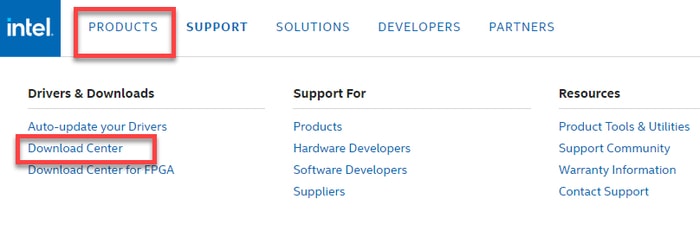
Step 2: After that, head to the Support tab and choose the Download Center.

Download center from Product Menu

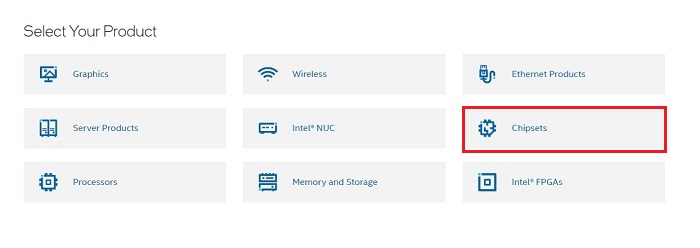
Step 3: Then, choose your product, that’s Chipsets.
Choose Chipsets

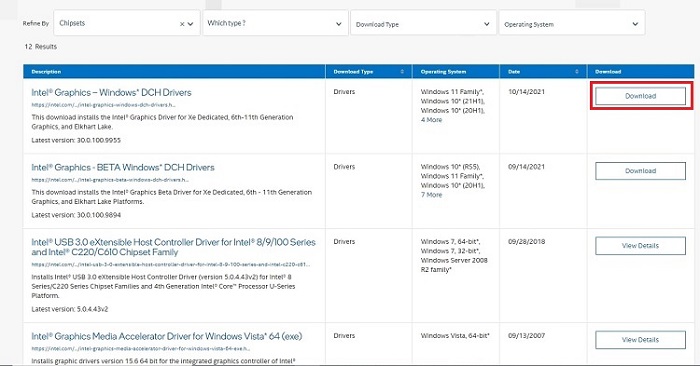
Step 4: Next, select the specification for your Intel® Chipset device software and make a click on the download button shown next to it.
Download Intel® Chipset device software

Wait for the process to finish. Once done, then run the downloaded driver file and follow the on-screen instructions to manually install the drivers.

Also Read: Intel Iris Xe Graphics Driver Download For Windows 10, 8, 7


Method 2: Use Device Manager to Update Intel Chipset Drivers

The second way of downloading and updating the Intel chipset drivers for Windows PC is using Device Manager. It is a Windows default program that manages all the PC drivers and connected hardware. Here are the steps on how to update Intel chipset drivers in Device Manager:

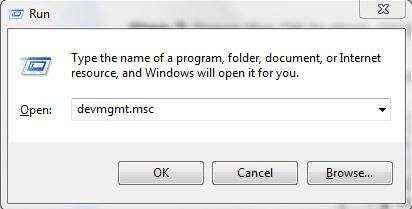
Step 1: To launch Device Manager, you will first need to open the Run Dialog box. To do so, altogether press Windows logo + R keyboard keys.

Step 2: Next, type devmgmt.msc in the Run box and hit the Enter from your Keyboard.

Type devmgmt.msc in Run Dialog Box

Step 3: This will invoke the Device Manager, wherein you need to look for the System Devices option and double click on it to expand the category.

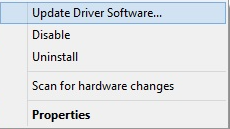
Step 4: Then, right-click on the Intel Chipset driver and choose Update Driver Software… from the context menu list.
Update driver software

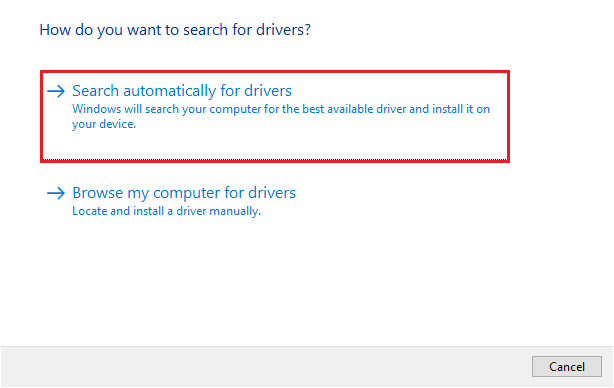
Step 5: From the subsequent prompt, choose the option that says Search Automatically for Updated Driver Software.

Search Automatically for Updated Driver Software

Now, with Windows in-built functionality, Device Manager will start searching for the most suitable drivers and later on, install them too automatically. Once the process is completed, users are expected to reboot your PC to validate the recently made changes.

Above discussed methods can be error-prone and time-consuming in order to download Intel Chipset driver utility, particularly for the newbies. Hence, we recommend you to use the below-discussed method to perform the same task.

Also Read: Intel High Definition (HD) Audio Driver Issue on Windows 10 [FIXED]


Method 3: Automatically Install and Update Intel Chipset Drivers via Bit Driver Updater

There are a plethora of driver updater tools available in the market to make this task of downloading and updating the device drivers easier. However, all of them are not safe to use, but out of all, Bit Driver Updater is worth trying.

It is one of the most powerful tools for performing driver updates, easily & quickly. Millions of users across the globe have shown their support and are still counting on it. Not only for updating the drivers, but it is a perfect solution for enhancing the performance of your complete PC. Here is a step-by-step tutorial to download and update Intel chipset drivers via Bit Driver Updater:

Step 1: Make a click on the download button below to get the setup file of Bit Driver Updater.

Download Button

Step 2: Run the setup file and follow the on-screen instructions to complete the software installation process.

Step 3: Thereafter, launch the driver updater on your system and wait for it to complete the scanning process on your machine.

Note: Usually, Bit Driver Updater automatically recognizes the Windows OS version and accordingly starts searching for the compatible driver updates. But, in some rare cases, it doesn’t start on its own. If that is the case, then you will need to run scanning manually by making a click on the Scan button from the left menu pane as shown below.

Step 4: Now, you can either update device drivers one by one or just with a click of the mouse. In order to update device drivers in one click, you will need to make a click on the Update All button.

Update All Driver with Bit Driver Updater

See, within a few steps, you can update all outdated Windows drivers on your PC. The driver updater has a few in-built tools that include auto backup & restore wizard, scan scheduler, and a system optimizer. It also provides 24/7 technical live support and a 60-days money-back guarantee. However, it is worth noting that these features are only available in the premium version of Bit Driver Updater.

Also Read: Fix ITBM (Intel Turbo Boost Download) Driver Not Available


Intel Chipset Driver Download and Update: DONE

Thus, one can easily download and update Intel chipset drivers on Windows 10, 8, 7 PC. Through this guide, we have brought up the best methods of finding the most suitable Intel chipset drivers.

Was this installation guide helpful? Do tell us in the comments below. Also, let us know if you have any further questions or suggestions regarding the same.

Lastly, before you go, do subscribe to our Newsletter for more informative write-ups. You can also stay in touch with us through Facebook, Twitter, Instagram, and Pinterest.

1 Comment
    How To Format Pen Drive In Windows 7, 8 and 10 | TechPout says: Reply
    January 1st 2021, 6:35 pm

    […] Read More: How To Install Windows 10 From USB Drive […]

Leave a Reply Cancel reply

Your email address will not be published. Required fields are marked *

Sidebar Image bit G ad1

Latest Posts

  • Anytime Astro: Best Website For Online Astrology Consultation
    Anytime Astro: Connect Now For Online Astrology Consultation
    by Somya Shrimal / March 13, 2026
  • Best-Ways-to-Combine-Images-Into-PDF-Files
    Best Ways to Combine Images Into PDF Files
    by Niharika / March 12, 2026
  • Best FREE VPS Hosting Providers
    7 Best FREE VPS Hosting Providers in 2026
    by Devesh / March 12, 2026
  • Best-McAfee-alternative-software-to-use-for-Virus-Protection
    Best McAfee Alternative Software to use for Virus Protection
    by adminuser / February 11, 2026
  • What-is-Flip-Flop-in-Circuite-and-it's-Types
    What is Flip Flop in Circuit and its Types
    by Meet / February 6, 2026

Categories

  • Cyber Security
  • Driver Updater
  • Entertainment
  • Fitness
  • Games
  • How To
  • laptop
  • OS
  • Reviews
  • Tech News
  • Tips & Tricks
  • Top 10
Sidebar Image bit G ad1
How To Update Device Drivers on Windows 10 How To Update Device Drivers on Windows 10? {Simple Guide}by Monil / November 20, 2020
Google Starts Task Mate Testing in India - All That You Should Know!by Harshita / November 26, 2020Google Starts Task Mate Testing in India - All That You Should Know!
TechPout Footer Logo

We at TechPout promise to put forth stories that help people to learn and simplify their digital life. Our purpose is to share the true essence of technology with our tech-loving community.

Useful Links

  • About Us
  • Contact us
  • Privacy Policy

Popular Posts

  • Best PC Optimizer Software
  • Best Mac Cleaner Apps
  • Best Driver Updater
  • Duplicate Photo Finder and Cleaner Software
  • Best Free Movie Download Sites
  • Best IPTV Players

Follow us

Copyright © 2026 www.techpout.com. All rights reserved
DMCA.com Protection Status