Main LogoLight Logo
  • Reviews
  • Top 10
  • How To
  • Tech News
  • OS
    • Windows
    • MAC
    • iOS
    • Android
  • Categories
    • Driver Updater
    • Cyber Security
    • Games
    • Fitness
    • Entertainment
    • Tips & Tricks
Driver Updater How To Tips & Tricks
by Harshita

How to Fix Discord Mic Not Working in Windows 10, 11 (2024)

February 8, 2024
1

Running into Discord Mic not working in Windows 11, 10? If yes, then you have come to the right place. Here you will find different tried and tested solutions that help you resolve the issue. Read more! 

Discord is a platform that is popular not just among gamers, but also among those who are wanting to engage with others who have similar interests. However, some users have claimed that the microphone in Discord is inoperable with Windows 11, 10.

You are able to communicate with other users on Discord using text, voice, and video in either one-on-one or group settings. Although the former operates normally, problems with the microphone could make your audio and video interactions less satisfying.

However, the solutions to these problems are rather straightforward, and you should have no trouble resolving the Discord mic not working on Windows 10, 11. Proceed through the next parts to get as much information as possible on the issue.

Table of Contents hide
Why is My Mic Not Working on Discord?
A List of Solutions to Fix Discord Microphone Not Working in Windows 10, 11
Solution 1: Reboot the Computer
Solution 2: Reset Discord Voice Settings
Solution 3: Set your Microphone as the Default Input Device
Solution 4: Close Discord and Relaunch it with Administrative Privileges
Solution 5: Update your Audio Driver
Solution 6: Reinstall Discord
Discord Microphone Not Working in Windows 11, 10: FIXED

Why is My Mic Not Working on Discord?

Misconfigured settings or problems with the microphone driver are often to fault if you have problems with the microphone in Windows 11/10, whether it be with particular applications like Discord or throughout the whole operating system. This might be due to the fact that the microphone driver has become obsolete.

Aside from that, if Discord is unable to access your microphone, you won’t be able to make use of it when you’re communicating with other users on the site. In addition, it’s possible that the issue is related to a defect in the currently existing version of the application or the operating system that’s installed on your PC.

Make sure that you give the Discord application a fresh start before moving on to more involved troubleshooting methods to resolve the Discord mic not working in Windows 11, 10. In addition, if you are using a wired microphone, try reconnecting the cord to your microphone, and if you are utilizing a wireless microphone, try repairing the Bluetooth connection to your microphone.

A List of Solutions to Fix Discord Microphone Not Working in Windows 10, 11

In this tutorial, you’ll discover three simple solutions to solve the Discord mic not working in Windows 11/10. Start at the top of the list and work your way down until you discover the solution that works.

Solution 1: Reboot the Computer

It might sound like a basic hack, but sometimes it works wonders. To restart the computer, go to the desktop, press the Alt + the F4 key simultaneously to bring up the Shut Down Windows box, and then choose Restart from the dropdown menu. Now, in order to restart the computer, click the OK button.

Check to see whether the problem of the mic not working on Discord has been resolved or not. If the cause of the issue was anything as simple as a bug, the microphone should be functioning normally again immediately. In the event that the problem still exists, you should go on to the following technique.

Also Read: Best Discord Music Bot in 2023 (That Still Works)


Solution 2: Reset Discord Voice Settings

Resetting the voice settings on Discord is another potential solution to this issue. Here is how to do that:

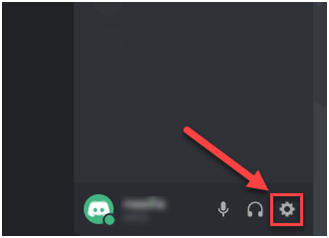
Step 1: From the main page of Discord, choose the gear symbol to access the Settings menu.Open-the-Discord-app-and-go-to-the-Settings
Step 2: Navigate to the Voice & Video menu, and then choose the Reset Voice Settings option.go-to-the-Voice-Video-and-click-on-the-Reset-Voice-Settings
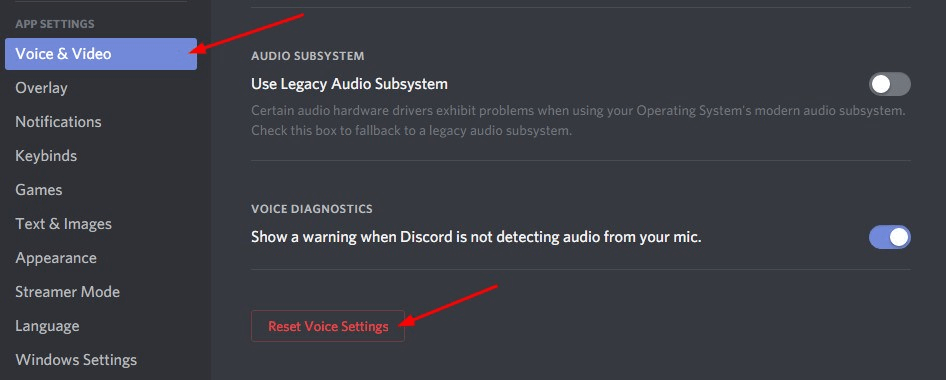
Step 3: Click on Okay to proceed.

Step 4: Once done, then reconnect your mic and simply try to send an audio/ voice message on the Discord application to test the issue. In case, the issue persists, then move on to another solution to fix the Discord mic not working in Windows 11, 10.


Solution 3: Set your Microphone as the Default Input Device

Another workable solution to fix the headset mic not working is to set your desired microphone as your default input device. Follow the steps below:

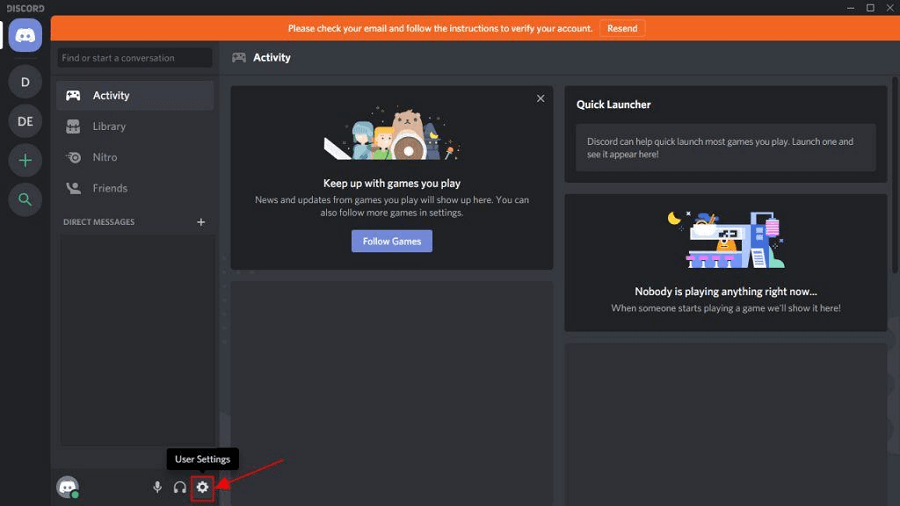
Step 1: Launch the Discord app, and then choose the User Settings icon located in the app’s lower-left corner.Discord User Settings
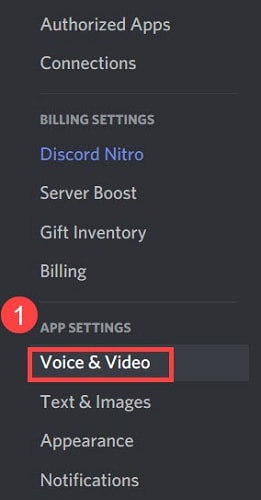
Step 2: Choose the Voice & Video option from the Settings menu of the app.voice and video setting from discord application
Step 3: Next, pick the microphone you want to use by clicking the Input Device dropdown menu and choosing it from the list of available choices that appears.

Step 4: If you want the changes to take full effect, you will need to restart the computer once you have made your option.

Also Read: How to Fix Discord Crashing Issue on Windows PC


Solution 4: Close Discord and Relaunch it with Administrative Privileges

Quitting and restarting the game would likely fix the Discord mic not working problem. This is how you can do it:

Step 1: Navigate to the Discord icon located on your Windows taskbar and right-click on it. Clicking the “Show hidden icons” button will reveal it for you when necessary. After that, choose the Quit Discord option.

Step 2: On your desktop, locate the Discord shortcut icon, right-click on it, and pick the option to “Run as administrator.”

Step 3: When asked by User Account Control, choose Yes from the drop-down menu.

Step 4: Test the functionality of your microphone by attempting to send an audio message using Discord.

Also Read: How to Fix Discord Screen Share Audio Not Working


Solution 5: Update your Audio Driver

An outdated, corrupt, or missing audio driver may be the root of this issue. Simply upgrading the driver for your audio device should fix the issue. You may manually download the appropriate audio driver for your computer, or you can let the computer do it for you automatically.

Manual driver update: If you want to manually update your audio driver, you may do so by visiting the website of the manufacturer of both your audio card and your computer, and looking for the most current version of the right driver. Make sure that the driver you pick is the only one that is compatible with the version of Windows that you are using.

Automatic driver update: If you do not have the time, patience, or computer skills necessary to manually update your video and monitor drivers, you may instead use Bit Driver Updater to do this task automatically. Bit Driver Updater is the free driver updater software and it will automatically detect your computer and search for the appropriate driver for your specific audio card as well as the Windows operating system type you are using. It will then download and properly install the drivers. To use this method, follow the procedure below:

Step 1: Download and install the Bit Driver Updater.

Windows-Download-Button

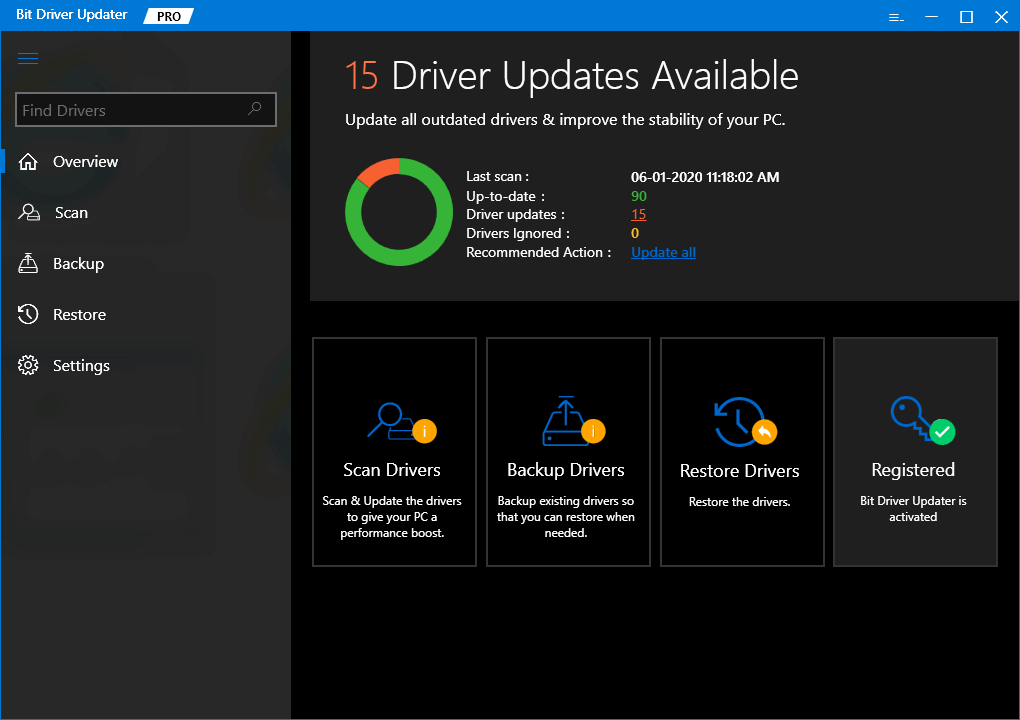
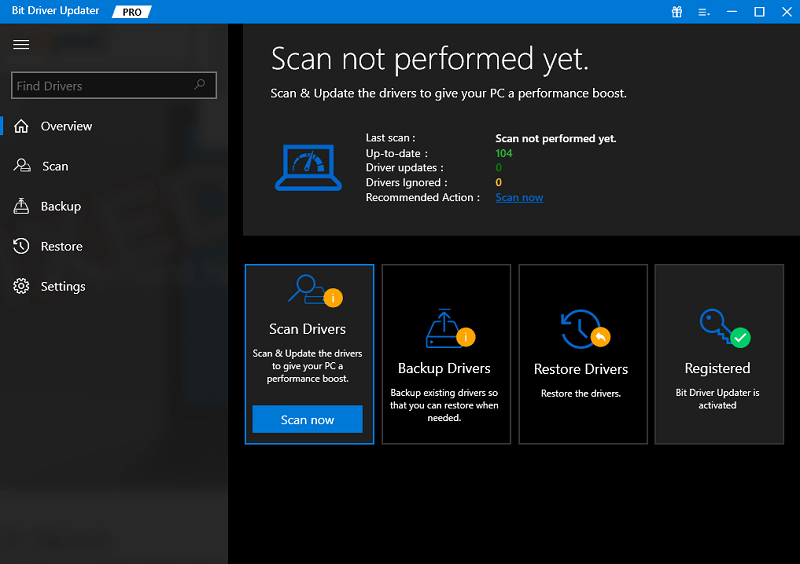
Step 2: Run Bit Driver Updater on your PC and choose the Scan option from the menu available on the left. After that, Bit Driver Updater will scan your computer to look for any problematic drivers.Scan outdated driver of your windows pc
Step 3: You may accomplish this with the free version if you click the Update Now button that is located next to the audio driver that is being flagged. This will install the latest audio driver update automatically on your computer. bit driver updater- update all
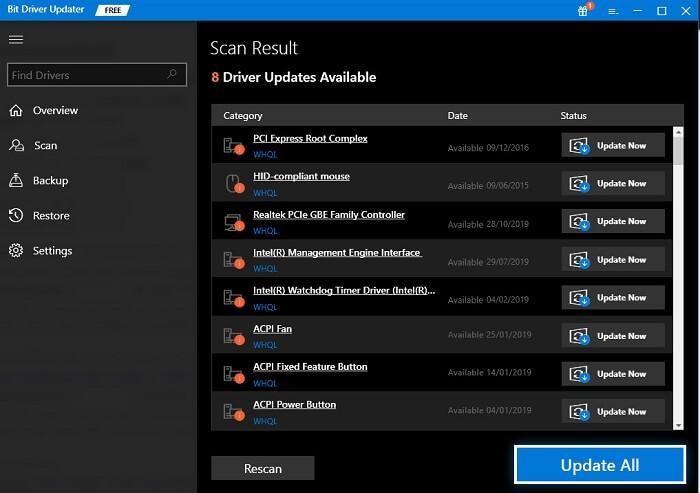
Alternatively, you may click the Update All button to have your system automatically download and install the most recent and up-to-date version of any driver that is either missing or not functioning properly on your system. (You’ll need to upgrade to the Pro edition for this, which includes lifetime free technical support and a 60-day full money-back guarantee.


Solution 6: Reinstall Discord

If none of the solutions presented above worked for you, the issue is most likely related to the program installation, which is what’s preventing the Discord mic from functioning properly on Windows 11/10. In this particular scenario, the only viable solution is to reinstall the Discord client. Here is how:

Step 1: To open the Settings menu, press Windows + I, and then pick Apps from the list of tabs in the navigation bar on the left.

Step 2: After that, go to the right side of the screen and choose Apps & Features.Apps and Features
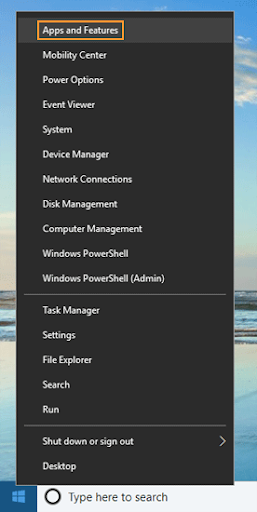
Step 3: Find Discord among the programs that are shown here, click on the ellipsis button that is located next to it, and then pick Uninstall from the selection that appears.

Step 4: Once again, choose Uninstall from the menu that appears in the confirmation box that appears.

After you have completed the process of uninstalling, restart the computer and then download the Discord application. This will definitely fix the mic not working on Discord.

Also Read: How to Fix Discord Stuck on ‘RTC Connecting’


Discord Microphone Not Working in Windows 11, 10: FIXED

If you are encountering problems with the Discord application, one of these techniques should assist to address the problem of your mic not working on Discord. If none of the above methods worked, you may try reinstalling the Discord client on your Windows computer.

Was this guide helpful? Please drop your suggestions or further questions in the comments box below. For more tech-related tips & tricks, you can subscribe to our Newsletter and follow us on Social Media: Facebook, Instagram, Twitter, or Pinterest

Author

Harshita

Harshita Sharma is a technical writer with quite a distinct understanding of the tech realm. She is a tech enthusiast who believes that tech knowledge should reach one and all and tries to convert the sketchy knowledge into the simplest possible form for making people understand the tech world better. When not playing with words, she loves to travel and explore new places. And, is a coffee & cricket connoisseur.

View all posts

Related Posts
How to Connect Airpods to Windows 10

How to Connect Airpods to Windows 10

April 7, 2021
0

To help you with the solution to how to connect AirPods to Windows 10. We have mentioned some of the best ways using which you can connect and enjoy an uninterrupted music experience.

Earlier audio devices required a wire to connect to any computer, laptop, or mobile device, but now with time it has changed and you can connect the devices with Bluetooth. You don’t have to be near to listen to the audio, you can stay away for up to 3 meters or more and still can listen to the music or audio from the devices.

There are many brands having different wireless audio devices which can be used on the laptop. In this article, we will be discussing the issue which is majorly faced by the user while connecting Apple AirPods to Windows 10. The methods can be similar for other wireless audio gadgets and you can try them to connect other devices too.

The Apple AirPods is a very compact audio device that offers great sound quality to the user.  You can easily use your Apple AirPods with your iPhone and your Windows PC without any issue. Follow the steps mentioned below to enjoy a seamless audio experience with Apple AirPods and Windows PC.

Best Way to Connect Apple AirPods to Windows PC

Below we have answered the question of how to connect AirPods to Windows 10. Follow the steps to connect easily.

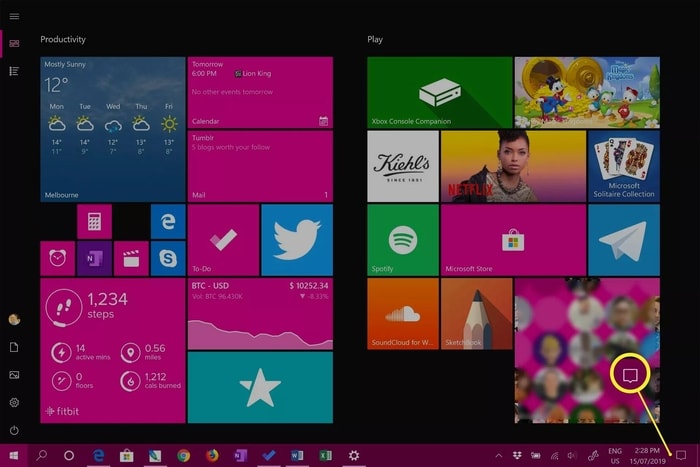
1. Click on the ‘Action Center’ icon from the bottom right corner of the screen.

Click on the Action Center

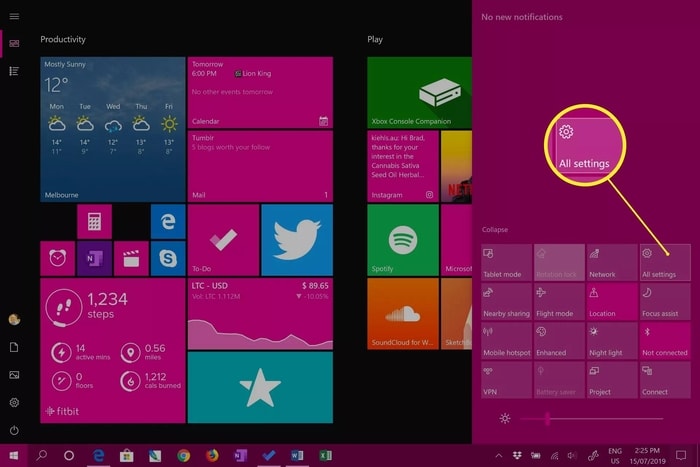
2. Now select the ‘All Settings’ option from the window that appeared.

select the All Settings’

3. In the settings window, click on the ‘Devices’ option.

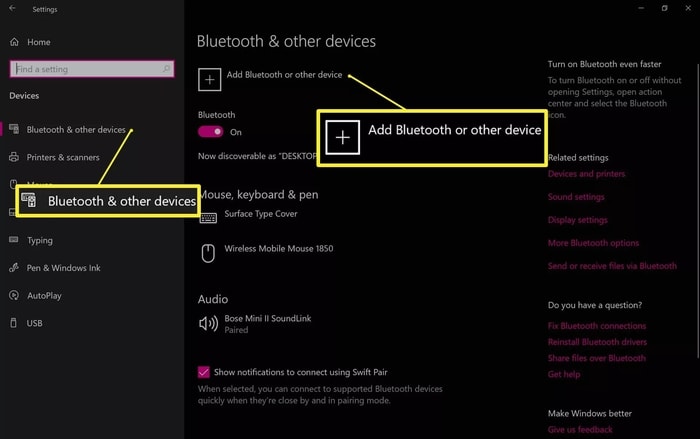
4. Now open the Bluetooth section and then click on the ‘Add Bluetooth or other devices’ option.

open the Bluetooth section and then click on the ‘Add Bluetooth or other devices

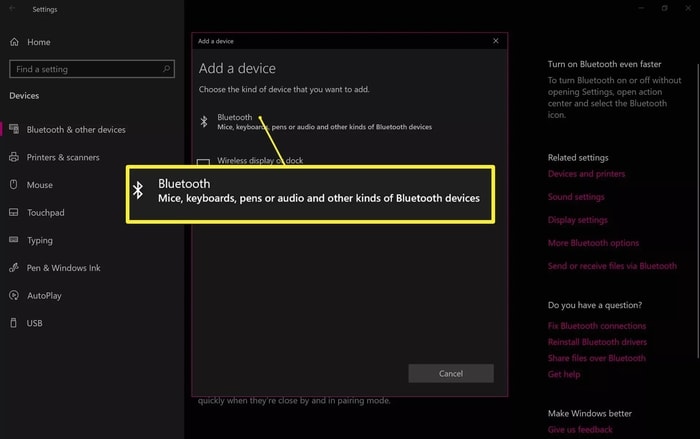
5. To add a Bluetooth device click on the Bluetooth option from the list.

click on the Bluetooth option

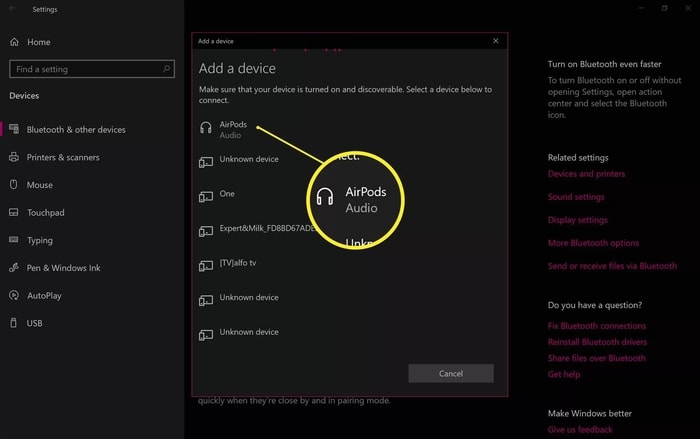
6. In this list, you can observe all the Bluetooth devices available for pairing. Find and click on the AirPods option.

click on the AirPods option

7. Allow the AirPods to pair by clicking on the backside of the case. Press the setup or circular button and keep the lid open.

8. Once the device is connected, you will witness a new pop-up stating ‘Your device is ready to go!’

9. Click on the ‘Done’ option and you are connected successfully.

Your problem of how to connect AirPods to Windows 10 is solved. Follow the steps as mentioned to enjoy an effortless connection between the Airpods and PC.

Also Read: 16 Best Free Audio Editing Software For Windows in 2021


Reconnect to Paired AirPods in Windows 10

Usually, once the devices are paired it will automatically connect when turned on. Similarly, your AirPods should also connect when moved from the case or when the lid opened. If they are not connecting automatically then you need to connect them manually. It is a very simple procedure to connect, follow the below-mentioned steps to reconnect.

  • Open the settings of the computer and click on the Bluetooth settings.
  • In the Bluetooth window, you can observe a list of devices that you have connected to. Click on the AirPod.
  • Two new options will appear, One will ask you to connect and the other option will ask to remove the device. To connect with the AirPods click on the ‘Connect’ option.
  • Once the connection is successful you will hear a connection voice on the AirPods.

This is how you can easily reconnect with the AirPods using your Windows PC. if you are not able to connect with the PC then there can be many issues that may be causing the error in connection.

In most cases, the wireless drivers or Bluetooth drivers are incompatible or outdated which is why the user faces the error. Not only your audio device will face issues while connecting but every wireless device connection will be affected. To solve the issue you need to update the driver and then try connecting the device.

You can either download the drivers from the manufacturer’s website or you can even download a dedicated software that works to keep your device drivers updated. Out of the many driver updater software, we would recommend you to use the Bit Driver Updater software. We have tried and tested this software.

The software is great as it downloads and installs the driver without even disturbing the users. Other than just keeping the drivers updated the software also optimizes the performance of the system. The multi-functionality of the software and its efficiency make it one of the best driver updater software.

Bit Driver Updater Software

After updating the drivers the problem of how to connect AirPods to Window 10 will be solved.

Also Read: 13 Best Free Audio Sound Equalizer For Windows 10 In 2021


Let’s Wrap: How to Connect Airpods to Windows 10

After looking at the steps mentioned above, we hope that you were able to connect your AirPods to Windows 10 PC. If you are having any issue with the connection, please try the last tip which we mentioned specially for the connection error. After applying those steps you can easily rectify the issue of how to connect AirPods to PC in Windows 10. If you still have any doubt regarding this article, please write us down in the comment section below. We will try and solve your issues.

How-to-Set-Out-Of-Office-in-Microsoft-Teams

How to Set Out Of Office in Microsoft Teams

September 12, 2024
0

Are you going on a well-deserved break but confused about how to put out of office in Teams? If yes, here is a quick and simple guide to help you.

Teams, a team collaboration from Microsoft, needs very little of an introduction. Many organizations across the world use this application to communicate with various teams. The reason for the enormous popularity of this app is the availability of a myriad of features. However, the more features, the more it becomes confusing, inducing users to look for guides such as how to set out of office in Teams.

If you are also searching for the same, you are in the right place. This article explains all about setting out of office in Microsoft Teams. Let us begin by understanding this feature in a bit more detail.

What Is Out of Office in Teams

Microsoft Teams, one of the best free video conferencing software, offers a feature where you can let your teammates know about your unavailability for a day or more to communicate with them. You can be unavailable for communication due to any reason, personal or non-personal, informing the teammates that you will not be able to attend to their messages and meetings fosters better understanding among the team members.

You can set out of office in two ways, as a status or as a message. Let us first discuss how to set it as a message.

How to Set Out of Office in Teams Message

Below is how to set an out-of-office message in Microsoft Teams from your desktop and mobile device.

On desktop

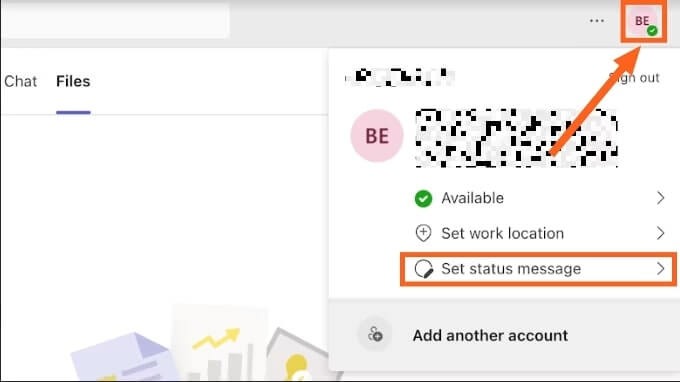
  • First, open Microsoft Teams and choose your profile from the upper-right corner of the application window.
  • In this step, select the Set status message from the menu on your screen.

Set-status-message

  • Next, click on the link to Schedule out of office.
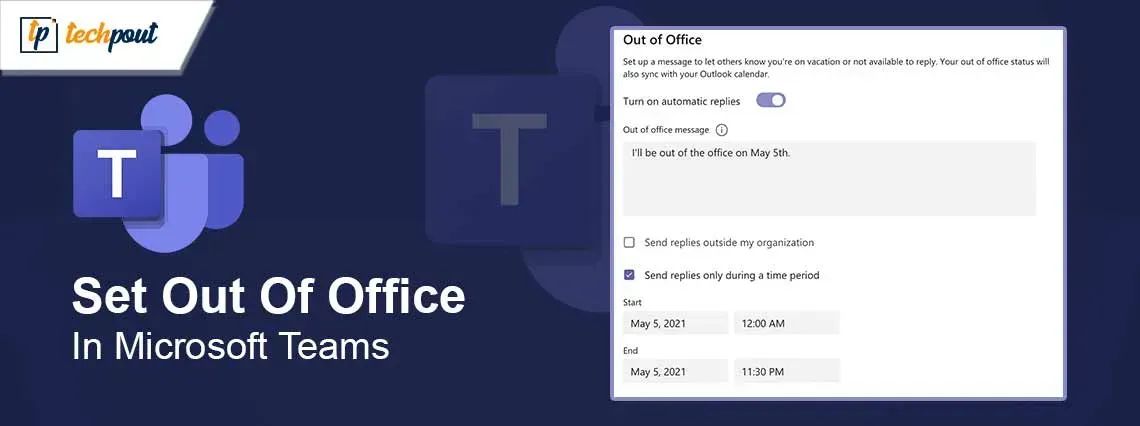
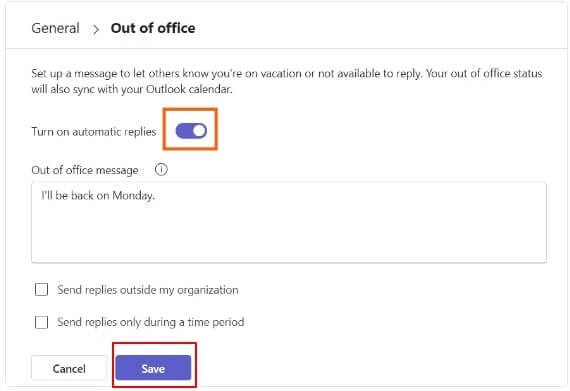
  • In this step, input your out-of-office message (for example, I’ll be back on Monday), Turn on automatic replies to send the message whenever anyone contacts you on Teams when you are away, and click the Save button.

urn-on-automatic-replies

Note: You can further turn on the “send replies outside my organization” and/or “send replies only during a time period” (to send the message during a particular time period) settings and choose the save option.

On mobile

  • First, open the Microsoft Teams mobile application and tap on the profile icon.
  • Secondly, choose the Set status message from the profile menu.
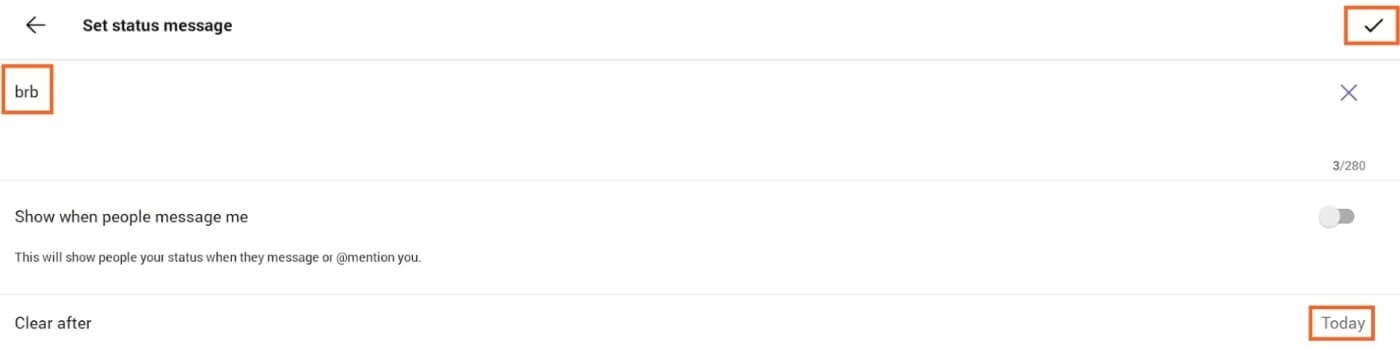
  • In this step, type your message, choose Show when people message me (if you want people to see the message when they contact you on Teams), select when you wish to clear the message, and click the Check button.

Show-when-people-message-me

The above section discussed how to set out office messages in Teams. In the next section, we discuss how to set it as a status.

Also know: How to Fix Microsoft Teams Camera Not Working


How to Set Out of Office in Teams Status

Below is how to put out-of-office in Teams as a status on desktop and mobile applications.

On desktop

  • First, open Teams 365 and choose your profile from the top-right corner.
  • In this step, choose the Set status message from the on-screen profile menu.
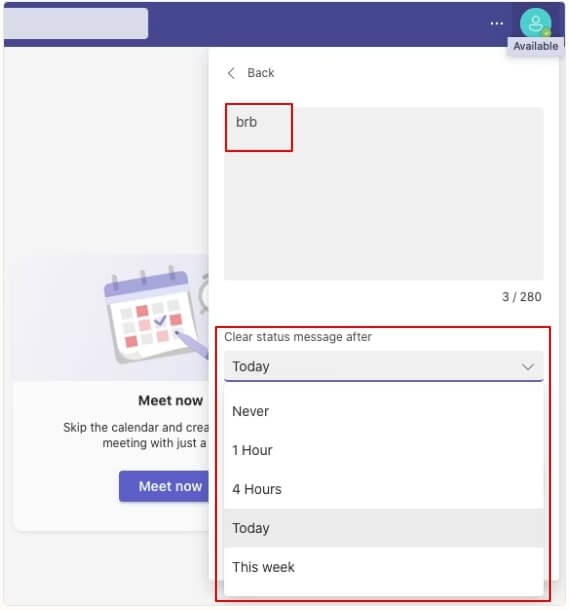
  • Next, you can type the status message (for example, brb) and choose when to clear the status message.

Clear-message-after

  • You can now click on the Done button.
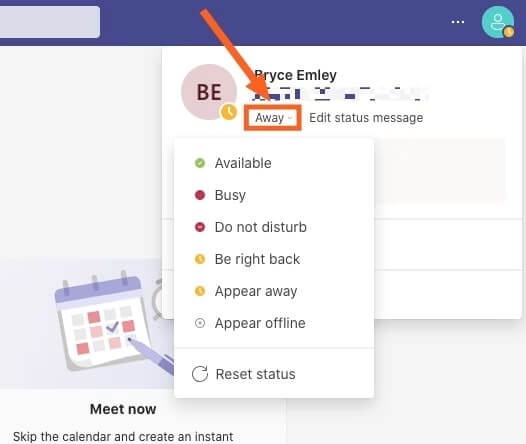
  • In this step, click on the Availability menu (by default, your availability is set as available).

Availability-menu

  • You can now change your availability to the desired away status.

On mobile

  • First, open the Microsoft Teams 365 application.
  • Secondly, select your profile option and tap on the availability icon that displays you as available.
  • You can now choose the desired status to stay away from Teams.

Please note that if you are a Microsoft Teams 365 user, you are required to change your status from away to available when you are back on Teams. As a bonus for our readers, the following section elaborates on how to perform this action.


Removing Out of Office Status from Teams

The below steps explain how to remove the out-of-office message status in Teams 365 on mobile and desktop.

On desktop

  • First, open your Microsoft Teams 365 and click on your profile icon.
  • Secondly, hover your mouse cursor over the status message and choose Delete (trash bin icon) from the available options.
  • Next, click on the availability icon and choose Available from the on-screen status options. After you are back on Teams on the desktop, you can add Microsoft Teams backgrounds for a better experience.

On mobile

  • First, open the Team 365 application on your mobile device.
  • Next, select the away status message.
  • In this step, tap X and then tap on the checkmark to ensure the change gets saved.
  • You can now go back to the profile menu and choose Available from the availability options.

Also know: Best Free Skype Alternatives You Should Try


Summing Up

This article explained how to set out-of-office in Teams as a message and status to get the much-needed break without causing any of your teammates a problem. We hope you found this guide helpful. However, if you have concerns, suggestions, or questions about this article, you can leave a comment for us to know and address your queries.

1 Comment
    HyperX Cloud 2 Mic Not Working On Windows 10 [Solved] says: Reply
    December 25th 2020, 11:31 am

    […] Read Also: How To Fix Discord Mic Not Working Issue […]

Leave a Reply Cancel reply

Your email address will not be published. Required fields are marked *

Sidebar Image bit G ad1

Latest Posts

  • Best-Free-Online-Portfolio-Websites-in-2026
    Best Free Online Portfolio Websites in 2026
    by Niharika / March 16, 2026
  • Anytime Astro: Best Website For Online Astrology Consultation
    Anytime Astro: Connect Now For Online Astrology Consultation
    by Somya Shrimal / March 13, 2026
  • Best-Ways-to-Combine-Images-Into-PDF-Files
    Best Ways to Combine Images Into PDF Files
    by Niharika / March 12, 2026
  • Best FREE VPS Hosting Providers
    7 Best FREE VPS Hosting Providers in 2026
    by Devesh / March 12, 2026
  • Best-McAfee-alternative-software-to-use-for-Virus-Protection
    Best McAfee Alternative Software to use for Virus Protection
    by adminuser / February 11, 2026

Categories

  • Cyber Security
  • Driver Updater
  • Entertainment
  • Fitness
  • Games
  • How To
  • laptop
  • OS
  • Reviews
  • Tech News
  • Tips & Tricks
  • Top 10
Sidebar Image bit G ad1
13 Best Free Malware Removal Tools for Windows PC in 2021 5 Best Free Malware Removal Tools of 2024by Devesh / February 8, 2024
10 Best Free PDF To JPG Converter In 2024 To Use Onlineby Devesh / February 8, 2024Best Free PDF To JPG Converter
TechPout Footer Logo

We at TechPout promise to put forth stories that help people to learn and simplify their digital life. Our purpose is to share the true essence of technology with our tech-loving community.

Useful Links

  • About Us
  • Contact us
  • Privacy Policy

Popular Posts

  • Best PC Optimizer Software
  • Best Mac Cleaner Apps
  • Best Driver Updater
  • Duplicate Photo Finder and Cleaner Software
  • Best Free Movie Download Sites
  • Best IPTV Players

Follow us

Copyright © 2026 www.techpout.com. All rights reserved
DMCA.com Protection Status