Main LogoLight Logo
  • Reviews
  • Top 10
  • How To
  • Tech News
  • OS
    • Windows
    • MAC
    • iOS
    • Android
  • Categories
    • Driver Updater
    • Cyber Security
    • Games
    • Fitness
    • Entertainment
    • Tips & Tricks
Top 10 Windows
by Snigdha

13 Best Free DVD Ripper Software for Windows 10

December 15, 2023
1

Looking for a decent DVD ripper for your Windows 10 PC? Ripping is the process of extracting certain parts or the whole digital content from a container. DVD rippers help to convert the extracted contents into a file that can be stored in the system easily. The extracted content in the destination format is called a rip.

A DVD ripper is a program that changes a DVD or Blu-ray movie into the ISO format file usually. This could aid in stocking up your favorite movies, TV or web series. You could also convert it into a suitable file format which would be supported by your smart device.

These kinds of applications are still in demand because they can be used to back up important files. Ripping a DVD can seem to be a mind-numbing and cumbersome task; however, it can be a cakewalk if you have a good DVD ripper software with you. What’s even better is that some of these tools can also be used as best DVD burner software.

Therefore, in this article, we have curated a list of best DVD rippers available in the market, which you can procure and utilize as per your needs. 

Table of Contents hide
Notable DVD Rippers For Windows 10:
1. WinX DVD Ripper Platinum
2. HandBrake
3. DVDFab
4. Freemake Video Converter
5. MakeMKV
6. WonderFox DVD Ripper Pro
7. VLC Player
8. Aimersoft DVD Ripper
9. Magic DVD Ripper
10. DVD Shrink
11. DVD Decrypter
12. Leawo DVD Ripper
13. Prism Video Converter
Frequently Asked Questions

Notable DVD Rippers For Windows 10:

DVD files are usually quite large that makes it a bit difficult to copy the content entirely, therefore a DVD ripping software is capable of re-encoding the content to fit them into smaller files. We will look at 13 best DVD rippers for Windows 10 in this post.

1. WinX DVD Ripper Platinum
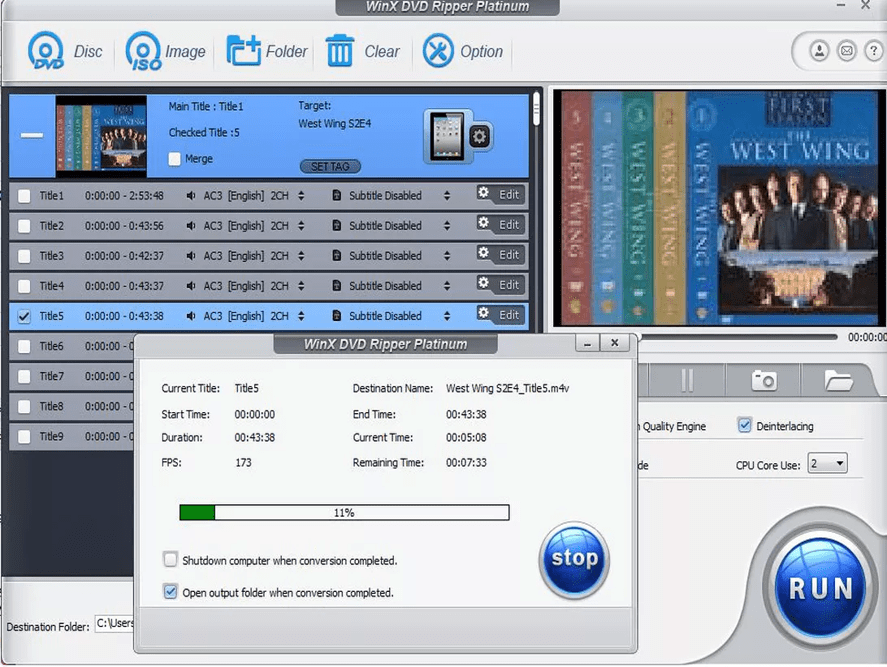
WinX DVD Ripper Platinum
Image Source: Winxdvd

Do you like to collect and keep favorite movies with you? Well, this ideal DVD ripper tool can assist you in converting your favorite movies into suitable file formats, so that you can always have them with you. 

Let us see what this application can do for you?

The type of input files that this best DVD copy software supports are DVDs, DVD folders, ISO files, and images. With a 30-day money-back guarantee, this ripper tool can backup and digitize DVDs into more than 350 output file formats for Apple, Microsoft, Android, Sony and several other platforms like Chromecast, Blackberry, Samsung and LG TV, etc.

It has advanced features facilitating modification of video resolution, trimming videos, and changing the frame rate. Further, it also helps to exclude titles, includes subtitles and supports various other customizations.

download

2. HandBrake

HandBrake - Free DVD Ripper Software
Image Source: HandBrake

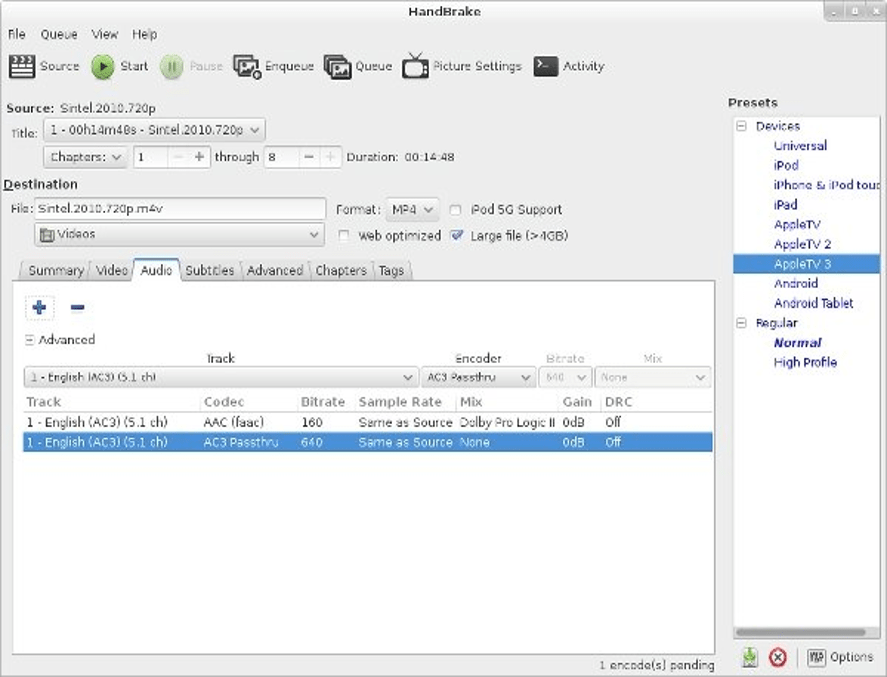
This is a top free DVD ripper tool as it is an open-source application. Alternatively known as video transcoder, this tool offers multiple presets to rip DVDs and extract video files. 

If you are looking for a program that can do multiple conversions, then you could pick this one up as it can simultaneously run a number of encoding tasks for ISO images or disc folders.

However, one limitation of this tool is that it cannot go past copyright protection. This best open source DVD ripper application is compatible with Windows, Linux, and Mac device platforms.

download

3. DVDFab 

DVDFab
Image Source: TechCommuters

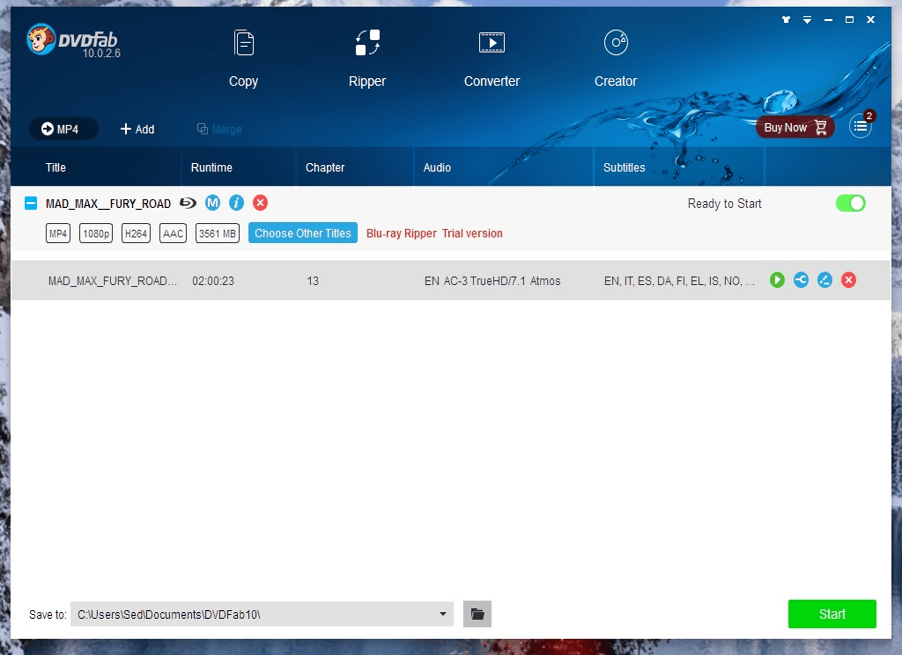
DVDFab undoubtedly offers another excellent choice in the category of DVD ripper applications for Windows 10, as it swiftly rips and converts a DVD into any sort of mainstream video as well as audio formats.

Read More: Best Data Recovery Software For Windows 2020

This best free DVD converter software is also available in a premium version thats offers top-notch features.. It supports Windows 10, 8.1, 8.7 as well as Mac platforms. There are multiple inputs as well as output formats that are supported by this application.

Another notable offering from this software maker is the DVDFab Enlarger AI. Although this is a separate program; however, when coupled with the DVDFab ripper software, it is capable of upscaling the output video quality from 480p to 1080p quality.

download

4. Freemake Video Converter

Freemake Video Converter
Image Source: Uptodown

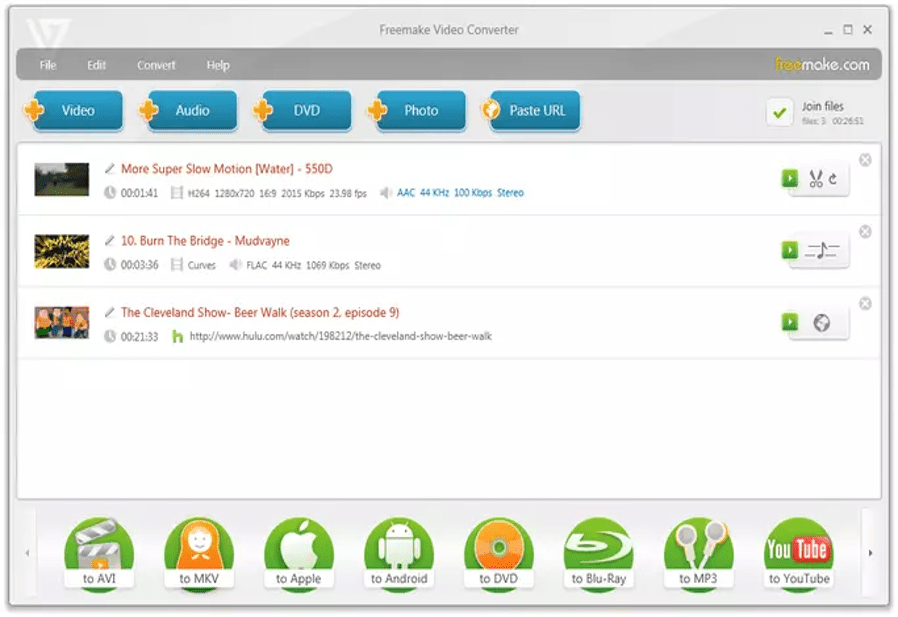
This tool is primarily a free video converter and ripper program. Freemake Video Converter can also burn and generate a disc. It lets you tweak the video content along with offering customizations like subtitle addition, editing a video, etc.

It also offers presets for Android, Blackberry, Apple, Xbox, and Sony devices. It supports more than 500 input formats.
Wondering what else it can do for you? This DVD ripper for Windows 10 lets you download and modify videos from online streaming sites like Dailymotion, YouTube, and Vimeo. You can also use this completely free DVD ripper tool to transform YouTube videos to any other file formats of your preference.

download

5. MakeMKV

MakeMKV
Image Source: Neowin

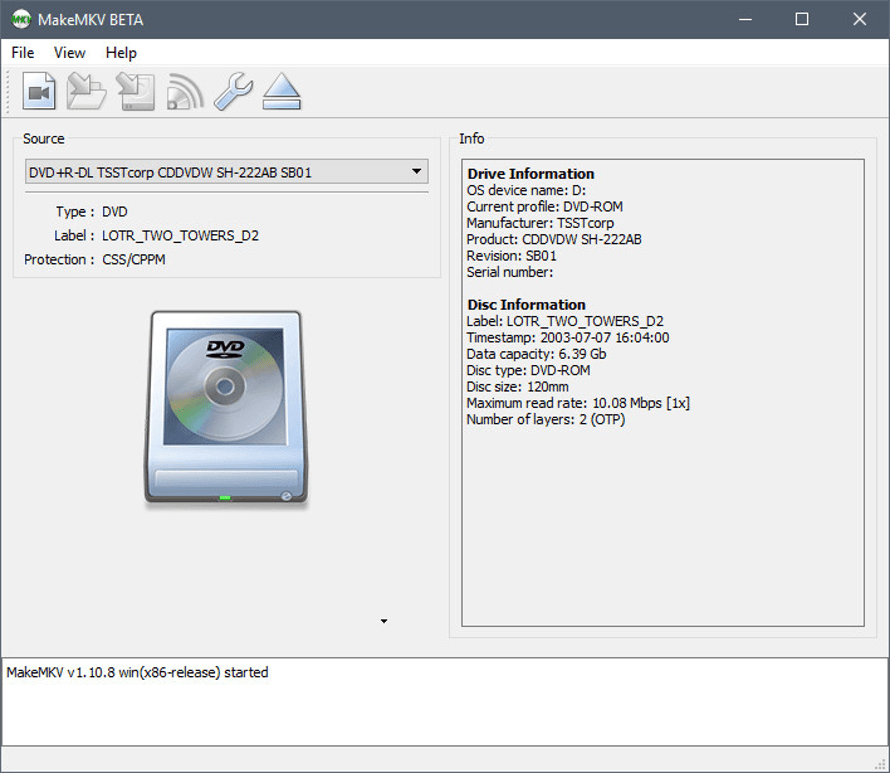
MakeMKV is the best freeware DVD ripper for Mac, Linux and Windows computers. It can read DVDs and Blu-ray discs. This tool is capable of preserving all videos and audio tracks. It is capable of fast conversions and preserves chapter wise information.

There is no need for any other software for decryption or performing conversions. The DVD opening function is a free feature. What’s more interesting is that all features including the Blu-ray decryption and processing are absolutely free in the BETA version.

download

6. WonderFox DVD Ripper Pro

WonderFox DVD Ripper Pro
Image Source: Softpedia

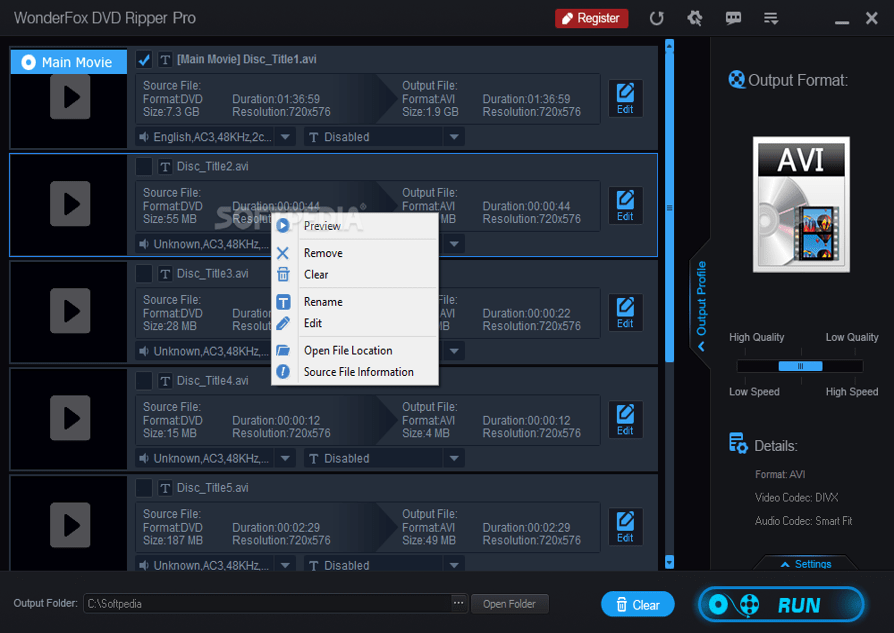
Use this DVD ripper application for Windows 10 to complete your DVD backup in just three simple steps. What makes this tool unique is that it maintains a perfect balance in compression ratio, file size and output quality. 

For instance, it compresses a DVD of 7.5 GB to a digital format of 0.5 to 1 Gb without compromising the video quality

Now swiftly rip your DVD in 20 minutes with this tool. The tool can also intelligently sort the main title of a DVD movie and TV show from a sea of various other videos. It also removes unwanted ads, trailers, video clips, etc. It works best for users who are looking for an all rounder DVD rip software for their windows 10 PC.

download

7. VLC Player

VLC Player
Image Source: Makeuseof

VLC Media Player is much more than a media player app as it can also be used as a DVD or Blu-ray ripper software

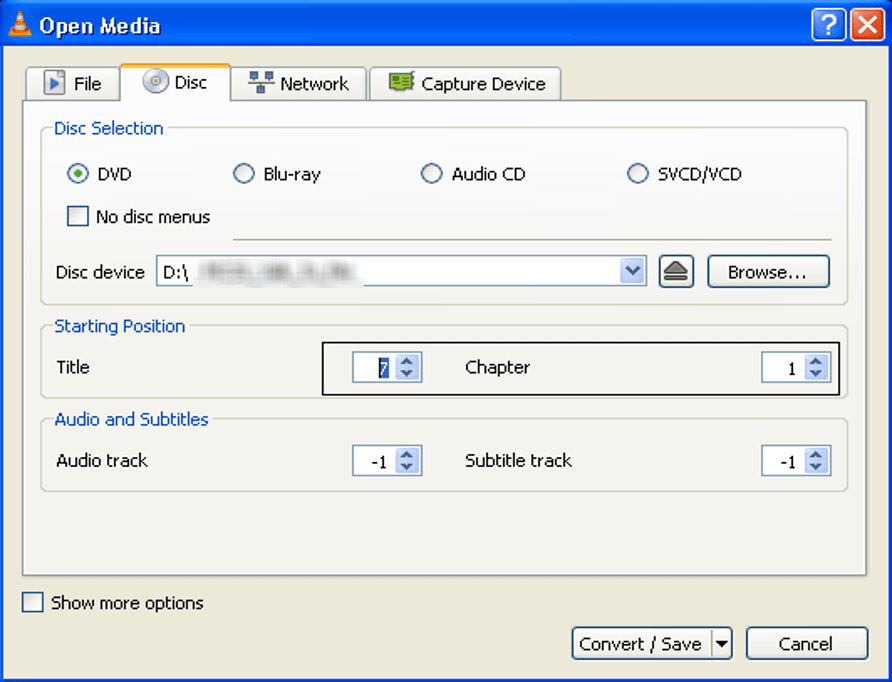
The app can rip a DVD if you go to the “Convert/Save” function under the Media tab.

Further, you can go to the Disc tab and select the DVD or Blu-ray that you wish to backup. Alternatively, you can also use the “No Disc menu” option if you want to skip the menus.

download

8. Aimersoft DVD Ripper

Aimersoft DVD Ripper
Image Source: Softpedia

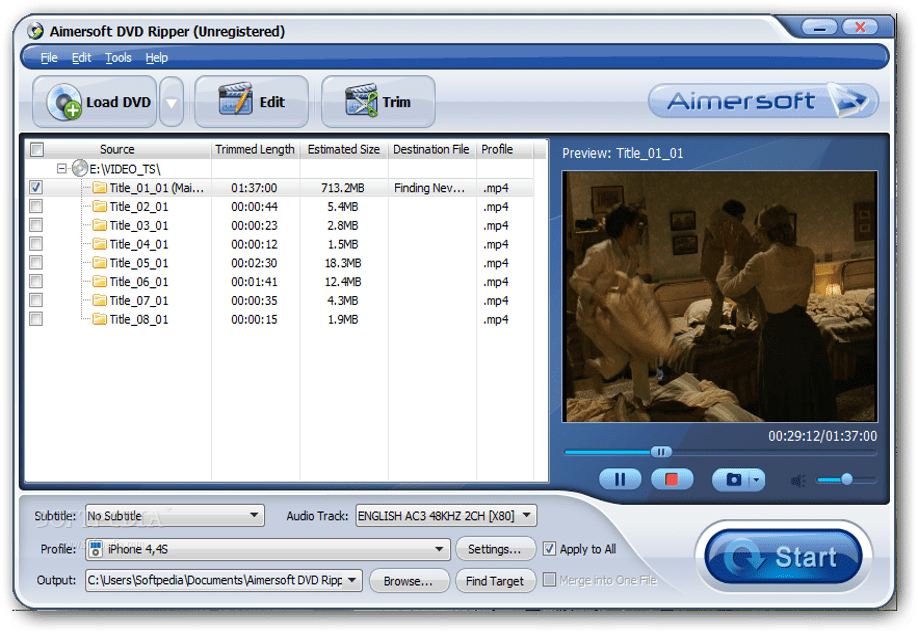
This is one of the best DVD Ripper that can convert more than 200 formats with a speed six times higher than the normal. The output quality of these DVD videos is optimum and very reliable.

Aimersoft can burn DVDs to the following formats like MPEG, MP4, H.264, WMV, MOV, AVI MKV, M4V, and also HD & 3D video formats. It is compatible with iPhones, Samsung Galaxy tab, iPad, Nokia, and other Android smartphone platforms.

The DVD can be changed to FLV, SWF, F4V and other video formats. Audio tracks can be extracted from DVD to M4A, MP3, AC3, WMA, and many more formats.

download

9. Magic DVD Ripper

Magic DVD Ripper
Image Source: Malavida

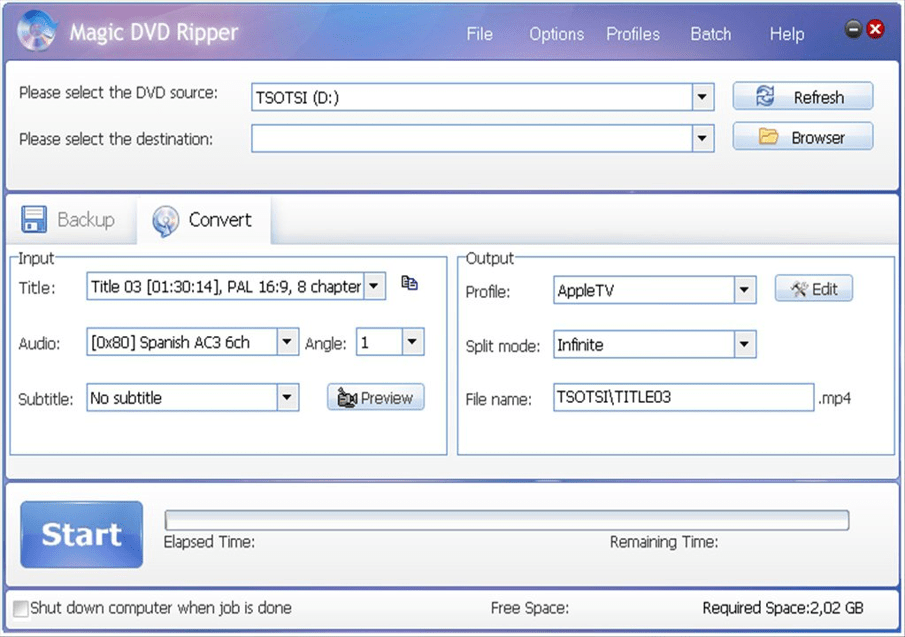
The Magic DVD Ripper can very easily burn the DVD to a blank DVD format or a CD with software format and is a good DVD Ripper Windows 10. You can definitely convert your DVD to AVI, SVCD, WMV, MP3, VCD and other formats. Read More: Best Safe ROM Sites To Download ROMs

There are several features supporting the Magic DVD players such as movies can be copied from DVD to hard drive without any major loss in quality.

Restrictions on DVD can be easily changed like those placed by a particular region, RCE, PuppetLock, etc. A 4.7 GB disk is enough to fit a compressed DVD.

download

10. DVD Shrink

DVD Shrink - best DVD Ripper
Image Source: DVD Shrink

It is an excellent cross-platform DVD ripper freeware. It comes with expert settings and a default compression algorithm to furnish standard quality of output.

The tool has a responsive interface. One limitation of this software is that it has to be used in conjunction with a DVD burning software to create a backup copy of the DVD.

download

11. DVD Decrypter

DVD Decrypter
Image Source: VideoHelp

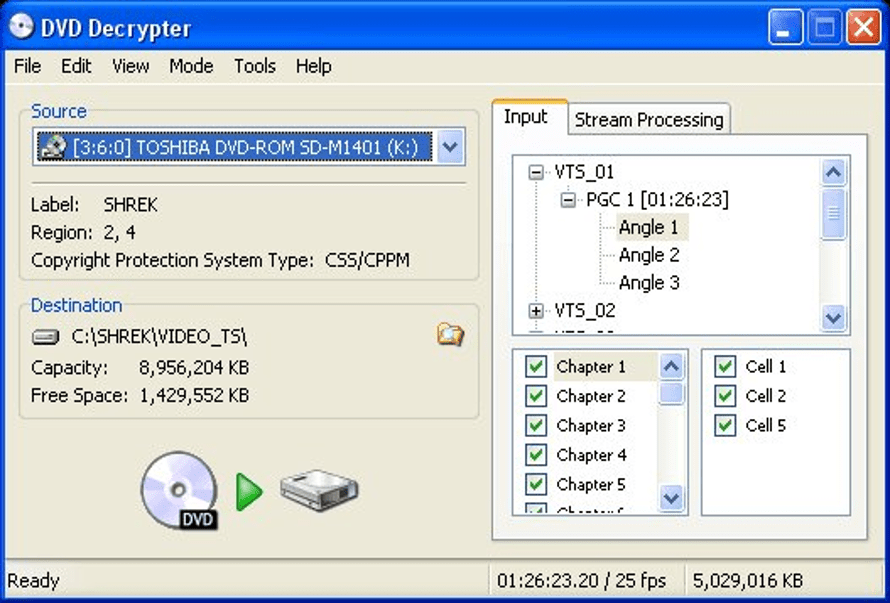
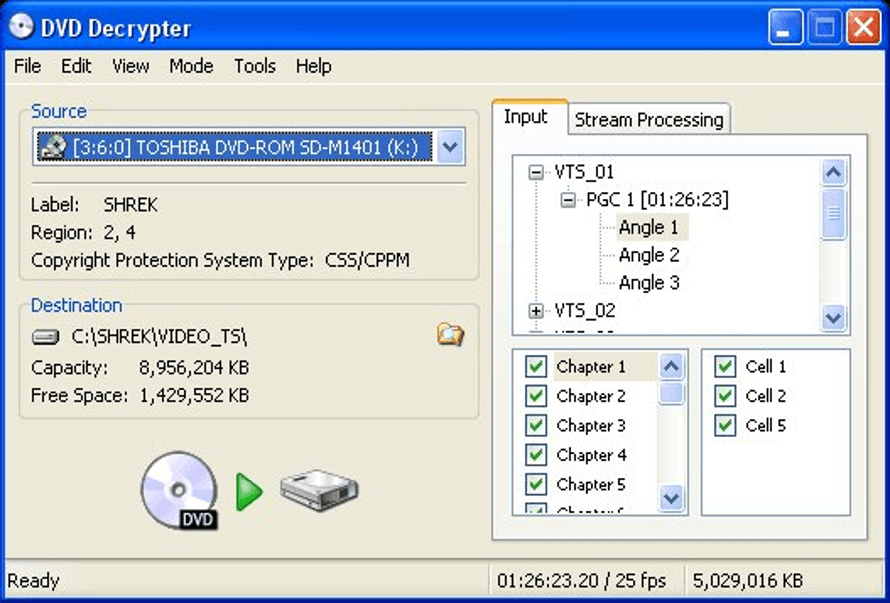
This is another free DVD ripper for Windows 10 and helps to rip a DVD into a single ISO file, VOB file or IFO files enclosed within a folder.

The website interface is simple and offers a lot of customization options. This free DVD decryption software also facilitates the splitting a ripped ISO file into 1 of the 17 available sizes, modifying the read speed apart from associating the tool with other file types.

download

12. Leawo DVD Ripper

Leawo DVD Ripper
Source: Leawo DVD Ripper

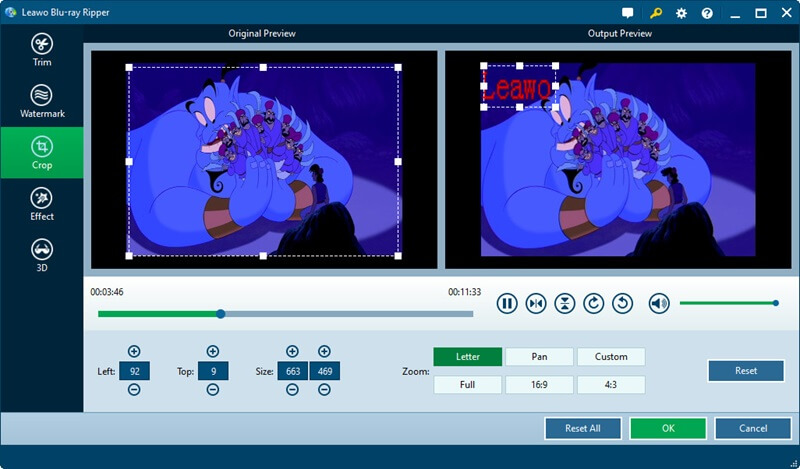
No list of the best DVD ripper software can be complete without Leawo DVD Ripper. You can use this software to convert video/audio in more than 180 popular formats, such as MP4, AVI, MKV, FLV, 3GP, F4V, AAC, etc.

Moreover, this software allows you to change a 2D video into a 3D video through various effects. Furthermore, Leawo DVD Ripper is well known for many other features, like disc restrictions removal, an in-built video editor, an in-built player, and an option to merge videos.

download

13. Prism Video Converter

Prism-Video-Converter
Source: Prism Video Converter

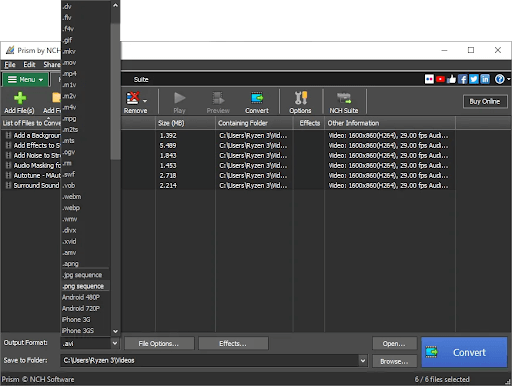
The next best free DVD ripper software in this list is Prism Video Converter. This is an easy-to-use software that allows you to convert the DVD video into other formats. The software supports AVI, MPG, WMV, MP4, VOB, ASF, AMV, and many other formats.
The software can also extract audio from the videos. This tool is an express ripper software that supports multiple formats and resolutions.

download

Frequently Asked Questions

Ques 1. What is the best DVD Rip for Windows 10?

Each of the tools mentioned above is unique in its own way and has a lot to offer. If you are looking for a comprehensive and intelligently designed DVD Ripper application we suggest you pick WinX DVD Ripper Platinum. It offers a simple and fast way to rid of DVDs and is backed with several advanced features. 

video trimming, alteration of frame rate, adjustments in video resolution, and customization are some of the prominent features of this GPU-accelerated DVDrip software for Windows 10 PC. 

Ques 2. Is a Free DVD Ripper program safe to use?

Yes in most of cases, free dvd decryption software is safe to use. However, we suggest you be a bit careful while making your final choice as a few of the tools try to install unwanted programs on your device and in some cases can plague your PC with annoying ads and malware.

Ques 3. What is the best open-source DVD ripper for Windows computers and laptops?

If you are searching for a dedicated open source DVD ripping program then try Handbrake. It is one great way to digitize, back up, and save your movie collection. This multi-platform and totally free DVD ripper tool can help you tweak picture quality, and compress video files and does not put any restrictions on the numbers and length of videos that you wish to rip.


Conclusion

DVDs are mostly encrypted, so it is essential to use a DVD ripper tool that is enabled with decryption ability. While ripping DVDs, you need to be aware of the copyright laws of the region in which you are located, especially if the content that is being ripped is not available on the public domain. Otherwise creating unauthorized copies might be treated as copyright infringement.

If you like creating copies and retaining collections of your favorite shows and movie series, then using a competent DVD ripper for Windows 10 is highly recommended. You could choose an ideal app mentioned in this post that can do the job for you easily.

Author

Snigdha

Snigdha is a technical content writer with expertise in the field of science & technology. Though she has a very diverse academic and professional profile yet she finds writing to be a creative form that she was unable to explore so far. When not writing, she can be found indulging in other forms of creativity like painting or travelling.

View all posts

Related Posts
How to Change Google Drive Folder Location in Windows 10 - Quickly and Easily

How to Change Google Drive Folder Location in Windows 10 – Quickly and Easily

January 18, 2022
0

In the list of cloud services, Google Drive tops the list with Microsoft OneDrive. These drives allow users to sync all their data on the cloud. It allows you to access files and folders anywhere.

Google Drive can be used on your Windows PC. You can download the Backup & sync, Google Drive version on your device. It will back up and restore all your system data. For users who are new might be curious about Where is the Google Drive folder located? How does it work?

As you install Google Drive on your Windows device, a committed folder is created. To find it on your system drive Open C drive and then Users. Select your username and find the Google Drive folder. This folder will have all your drive data saved as backup.

You can change the location of this folder if required. Follow the methods below to change Google Drive folder location in Windows 10.

Methods to Change Google Drive Folder Location:

The write-up below mentions the two different solutions to how to move Google Drive folder in Windows 10. Read on to find the one that works best for you.

#1 Download Google Drive for Desktop and Install it

The users who have not downloaded the Google drive’s client for Backup and sync can follow the steps given below.

Step 1: The first thing to be done is to log out from your Google account on your web browser.

Step 2: Now search Google Drive on your browser. Move to the bottom of the official page and click on Drive for PC or Mac option under the Downloads section.

Step 3: In the new window that appears navigate to Backup and Sync and click on the Download option.

Step 4: To allow permission for download select the option that says ‘Agree and download’.

Step 5: Now provide the location at which you wish to save the downloaded file.

Step 6: Wait till the download completes, move to the location and open the file.

Step 7: Now follow the instructions to install the executable file. Once it is completed, close the window.

Step 8: On your System tray open the Backup & sync section and launch Google Drive.

Step 9: Enter your username and password after clicking on the Get Started option to log in with your account.

Step 10:  Select the ‘Got it’ option once done.  Select your upload preferences such as quality of uploads, etc. Now press the ‘Next’ button.

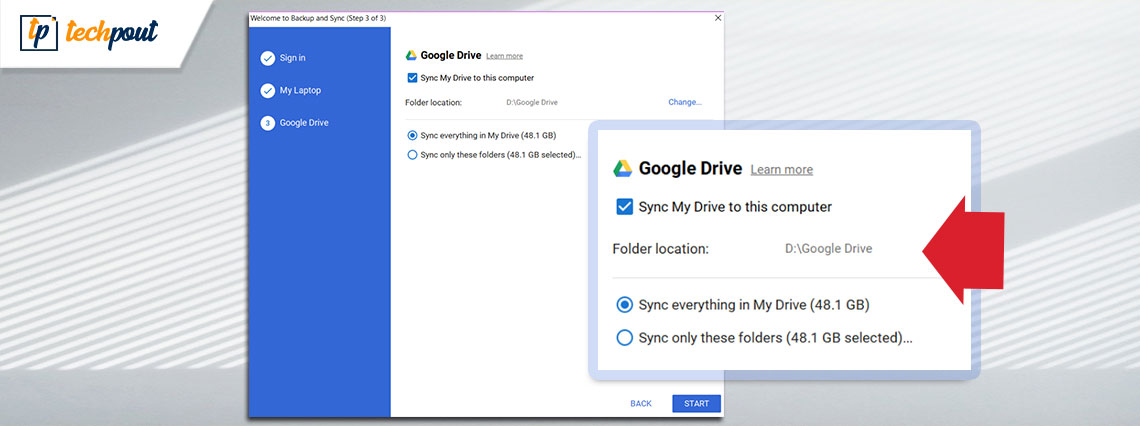
Step 11: On the next page you change your preference for sync. Here you will have the option to change the location of the Google Drive folder.

Step 12: Click on change and move to the required location for your Google Drive folder. Select the existing folder or create a new one to move your Drive folder.

Step 13: Click on Continue and then on Start. Now you can select files you want to create the backup on your Google Drive.

Also See: How to Find and Remove Duplicate Files in Google Drive? 


#2 How to Relocate Google Drive folder

The Google Drive folder is situated at C:\user\<username>\Google Drive. If you already have an installed Backup and Sync version on your Windows PC move it to your required folder. Use the simple steps below to know how to move google drive folder.

Step 1: On the Taskbar find Backup and  Sync and open it. If you are unable to find it on Taskbar look for it in the hidden icons section.

Step 2: Now on the desktop client for your Google Drive click on the ellipsis option i.e three vertical dots to open settings of Google Drive.

Step 3: Open Preferences from the list that appears in the dropdown.

Step 4: In the new screen again open Settings. Click on the Disconnect Account present next to your email.

Step 5: Now Allow the permission to Disconnect your credentials from the Google Drive client.

Step 6: Wait till the account gets disconnected. Now select the ‘Got it’ button.

Step 7: Launch the desktop client for Google drive again from the icon available on the taskbar of your Windows device.

Step 8: Enter your login credentials after clicking on the Get Started option to log in with your account. You can use the same account details again.

Step 9:  Apply your upload preferences such as quality of uploads, etc. Press the ‘Next’ button.

Step 10: On the next page you can change the sync preference for your data. Also, you have an option to change the location of the Google Drive folder. Change it to your desired location.

Step 11: Click on Start once done to begin the backup process for your files and folders.

These are the two methods that can allow users to google backup and sync change folder location on their Windows PC.

Also See: How To Recover Deleted Files From Google Drive 


Conclusion

The above guide can help you to change Google Drive folder location in Windows 10 or other versions. You can follow the simple steps on your desktop client for Google Drive to relocate the folder of your data backup.

If you found this information helpful drop your comments or suggestions below. For more such useful content subscribe to our newsletter. Follow us on Facebook, Twitter, Instagram, and Pinterest.

How to Download Brother MFC9130CW Driver for Windows 10,11

How to Download Brother MFC9130CW Driver for Windows 10,11

October 20, 2022
0

Execute Brother MFC9130CW driver download and update on Windows 10/11 using the simple methods provided in this guide. 

Brother is an amazing brand that offers various printers, copiers, scanners, and other devices to users. The brand has been manufacturing these devices for years.

One such device from the house of Brother is the MFC9130CW printer. The LED printer and copier device is quite efficient and suitable for office and home requirements. You can easily connect the device to your system and use it to scan or print as many documents as required.

However, at times users complain that they are facing some problems with the device. This problem can be of any kind. The most common reason behind such problems is an outdated driver. The driver is a set of files that defines how the system will interact with the connected device. Hence, it plays an important role in running the printer.

So, to help you get across or skip all the problems related to the device like the printer not printing properly, scanning failing, etc., we have brought together this write-up for you. In the coming sections, you will find multiple ways to perform Brother MFC9130CW driver download and update. Using any of the ways, you will be able to install the driver for the printer and run it as required. So, let’s have a look at the same without any further ado.

Methods to Install the Brother MFC9130CW Driver for Windows 10/11

A total of three different methods are listed and explained below. Two of these are manual and the last one is automatic. Feel free to use any of the methods to execute Brother MFC9130CW driver download and update. The methods work for all the major Windows operating systems including Windows 11 and 10.

Method 1: Visit the Official Website of the Manufacturer for Drivers

The first method to execute the Brother MFC9130CW driver download is through the official website of Brother Industries. The official support page of the website contains the drivers for all kinds of devices. Hence you will not face any problems finding the driver. However, as the method is manual, it may take time and effort. Follow the steps below for ease:

  1. Open the brows and visit the official website of Brother Industries.
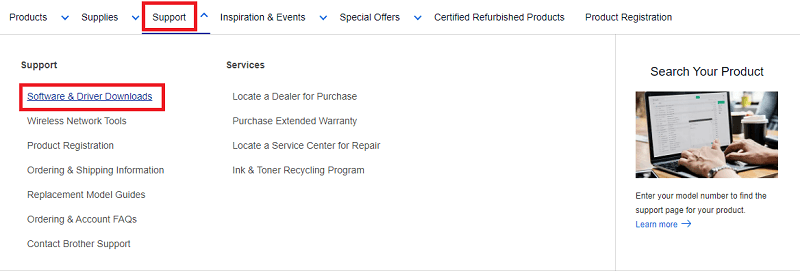
  2. From the menu of the page, click on Support and go to the Software & Driver Downloads.Software & Driver Downloads
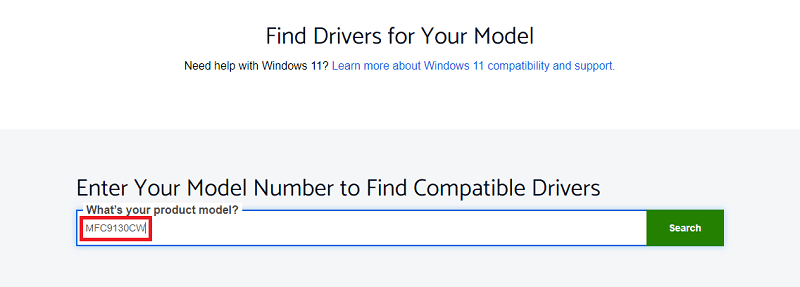
  3. Scroll down the downloads page and use the search section to look for MFC9130CW.MFC9130CW
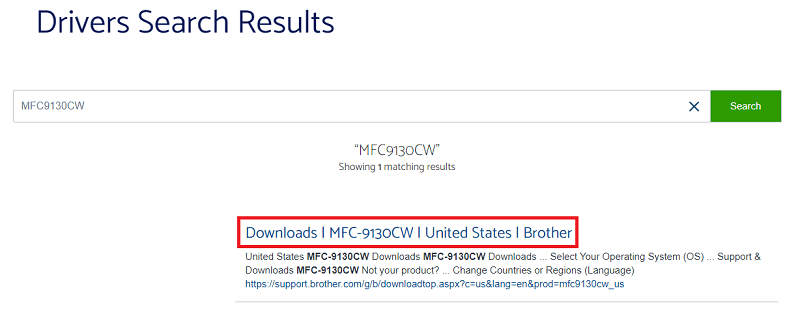
  4. Under the Drivers Search Results, click on the link showing the name of the product.Click on the MFC9130CW result
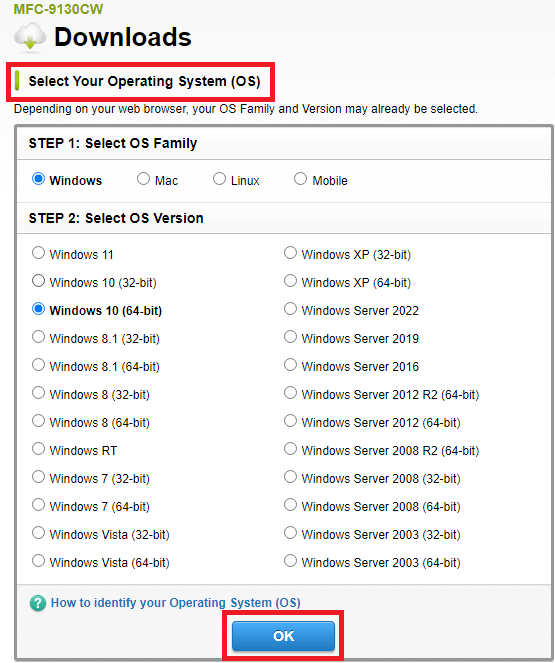
  5. Select your operating system from the list and click Ok.Select your operating system
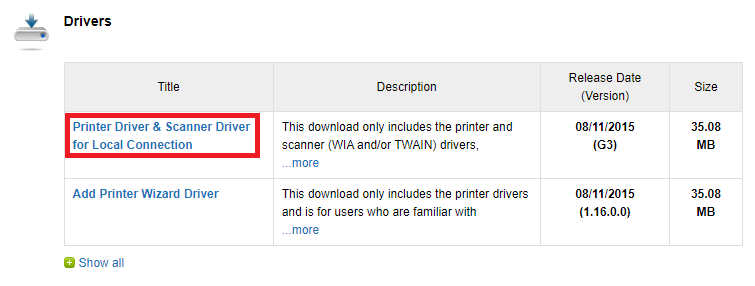
  6. Scroll down to the Drivers section and click on the driver you wish to download.Download Printer Driver
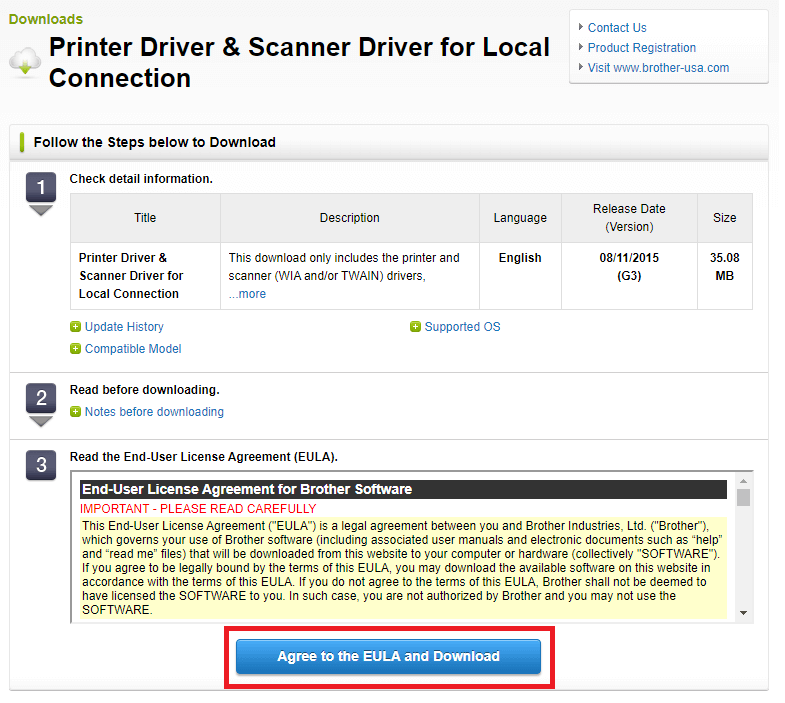
  7. From the driver page, scroll down and click on the Agree to the EULA and Download button to get the driver.Agree to the EULA and Download
  8. Once the file downloads, install the same on your system.

Also Read: How to Download Brother DCP-1510 Driver for Windows


Method 2: Take the Help of the Device Manager

The next method to perform the Brother MFC9130CW driver update for Windows is to use the Device Manager. This is a management utility present on all Windows devices. Just like its name, the Device Manager allows you to control all the devices connected to the OS, integrated or otherwise. You can use the same to get driver updates as well. Follow the steps provided below to know how to use the tool for driver updates:

  1. Right-click on the Windows logo present on the taskbar and run the Device Manager.Open Device manager
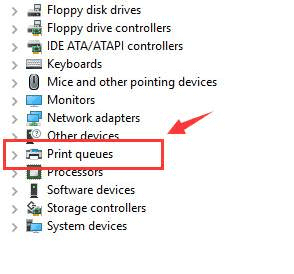
  2. On the utility, look for print device categories and double-click on the same to expand.After Device Manager Opens, Locate and Expand Printer or Print Queues Category
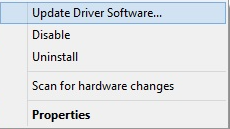
  3. Now look for the Brother MFC9130CW printer and right-click on it for the Update Driver option.Update driver software
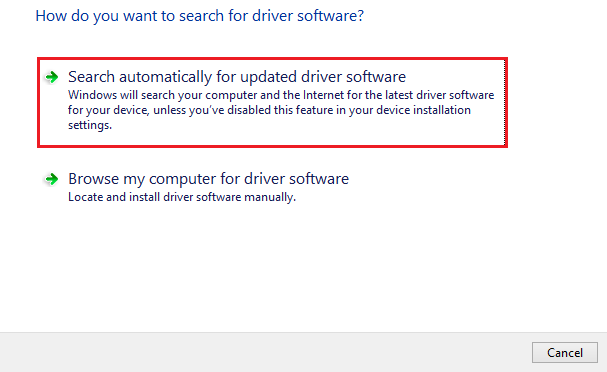
  4. Opt for Search Automatically for Driver Updates to proceed.Search Automatically for Updated Driver Software
  5. Use the instructions that follow to install the driver.

Also Read: Brother HL-3170CDW Driver Download and Update for Windows


Method 3: Get Brother MFC9130CW Driver with Bit Driver Updater

The last, automatic, and best method to execute Brother MFC9130CW driver update for Windows 11/10 is by using the Bit Driver Updater. This tool is one of the best driver updater software for Windows. With a single click of the tool, you can get the latest version of the drivers for the printer and every other device present on your system.

Using this utility, you can not only fix different problems faced with devices but also improve the performance of your system. Apart from instant driver updates, the tool can also help you schedule the task if required. Additionally, you can even create small driver backups with Bit Driver Updater and restore as and when desired.

The best part is that the tool poses no threat of any kind to your system to its data. All the updates provided by the tool are WHQL-certified, including the Brother MFC9130CW driver for Windows 10/11. Hence, there is no risk of malware or virus attacks with the updates. Some of the other features offered by the Bit Driver Updater are-

  • An easy-to-use interface that’s beginner-friendly.
  • Multilingual UI for ease of use.
  • Ignore update functionality.
  • Regular updates for the tool itself.
  • Deep-scanning of the system for outdated drivers
  • Quick installation of drivers
  • Support services for the users of the Bit Driver Updater Pro Version

And that’s not all, you will find a lot more about the tool when you download and use it. For now, let’s have a look at the entire procedure to download and install the driver updates with Bit Driver Updater.

How to Use Bit Driver Updater for Brother MFC9130CW Driver Update?

Follow the procedure below and it will help you download and install the driver for the printer as well as other devices:

  1. Click on the button below and download the Bit Driver Updater setup.
  2. Install the software and run it on your system.
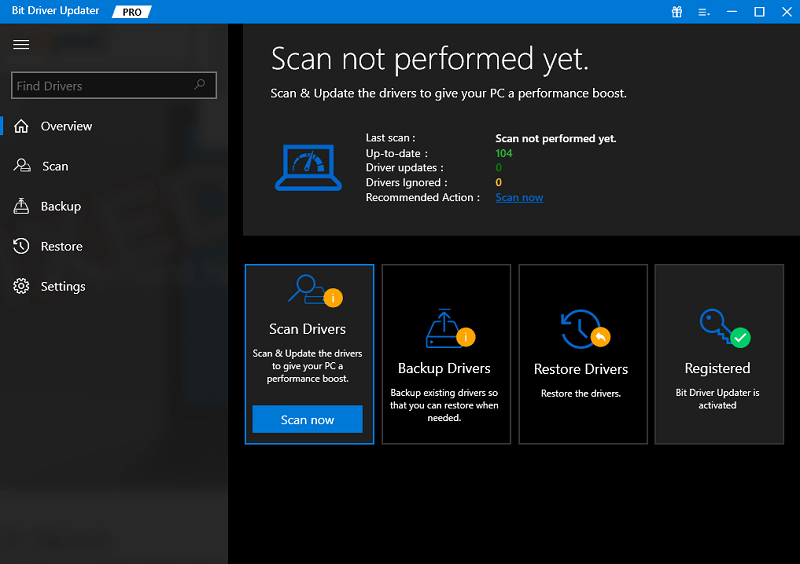
  3. Click on the Scan Drivers button if the scanning of the system does not start automatically.Scan outdated driver of your windows pc
  4. Wait while the scanning proceeds and click on the Update All button after the scan completes. You may use the Update Now button alternatively to download specific drivers.Update all outdated driver of your windows pc
  5. Restart the system when you have successfully downloaded all the required drivers.

Also Read: How to Download & Update Brother MFC7360N Driver


Brother MFC9130CW Driver Download and Update: Successful

As you must have ascertained from the methods provided above, it’s not tough to get the driver for the printer. We hope that the methods helped you thoroughly and allowed you to get the driver with ease. However, you may face some difficulties while using the manual methods to execute Brother MFC9130CW driver download and update. Hence, we recommend that you use the Bit Driver Updater for ease. The tool will do a lot more than just update the driver for Windows 11 and improve the performance of your system instantly.

If you liked the article, then subscribe to our newsletter and get more such guides straight to your inbox. If you have any doubts related to the methods to get Brother MFC9130CW driver, use the comments section. Write your queries or your thoughts related to the title and we will get back to you with accurate responses. That’s a promise.

1 Comment
    6 Best Free DVD Player Software For Windows 10 In 2021 says: Reply
    December 28th 2020, 11:17 am

    […] Read More: Best Free DVD Ripper Software for Windows 10 […]

Leave a Reply Cancel reply

Your email address will not be published. Required fields are marked *

Sidebar Image bit G ad1

Latest Posts

  • How-to-Access-Exchange-Admin-Center-in-Exchange-Online (1)
    How to Access Exchange Admin Center in Exchange Online
    by Niharika / March 25, 2026
  • How-to-View-a-LinkedIn-Profile-Anonymously
    How to View a LinkedIn Profile Anonymously
    by Niharika / March 23, 2026
  • How-to-get-help-with-file-explorer-in-windows
    How to Get Help With File Explorer in Windows 11/10
    by Niharika / March 20, 2026
  • Easy Online Video Editors to Try in 2024
    10 Easy Online Video Editors to Try in 2026
    by Remy Thomas / March 20, 2026
  • how-to-export-bookmarks-from-edge
    How to Export Bookmarks From Edge
    by Niharika / March 18, 2026

Categories

  • Cyber Security
  • Driver Updater
  • Entertainment
  • Fitness
  • Games
  • How To
  • laptop
  • OS
  • Reviews
  • Tech News
  • Tips & Tricks
  • Top 10
Sidebar Image bit G ad1
11 Best Automatic Mouse Mover Software for Windows in 2024 11 Best Automatic Mouse Mover Software for Windows in 2024by Akshara Parnami / December 15, 2023
8 Best Solitaire Games for the iPad and iPhone in 2024by Remy Thomas / December 15, 2023Best Solitaire Games for the iPad and iPhone
TechPout Footer Logo

We at TechPout promise to put forth stories that help people to learn and simplify their digital life. Our purpose is to share the true essence of technology with our tech-loving community.

Useful Links

  • About Us
  • Contact us
  • Privacy Policy

Popular Posts

  • Best PC Optimizer Software
  • Best Mac Cleaner Apps
  • Best Driver Updater
  • Duplicate Photo Finder and Cleaner Software
  • Best Free Movie Download Sites
  • Best IPTV Players

Follow us

Copyright © 2026 www.techpout.com. All rights reserved
DMCA.com Protection Status