Main LogoLight Logo
  • Reviews
  • Top 10
  • How To
  • Tech News
  • OS
    • Windows
    • MAC
    • iOS
    • Android
  • Categories
    • Driver Updater
    • Cyber Security
    • Games
    • Fitness
    • Entertainment
    • Tips & Tricks
MAC Top 10
by Snigdha

8 Best Disk Cloning App For Mac in 2024

January 17, 2024
1

Mac is one of the most efficient machines built till date. Despite that a disk cloning app can help your Mac computer in multiple ways.

Haven’t you ever wondered how you would create a backup of your Mac system conveniently?

How can you transfer data from your Mac system to another system swiftly?

How can you transform the hard drive to SSD hassle-free?

A cloning app for Mac is the answer to these several pertinent questions. Disk cloning tools help in the conversion of Mac hard drive to SSDs and vice versa. A disk cloning software for Mac also helps in backing up your macbook apart from facilitating data transfer.

In this blog, we will look at 8 best disk cloning apps for Mac that can help you achieve the above-mentioned requirements easily.

Table of Contents hide
8 Best Disk Cloning Apps For Mac in 2024:
1. Stellar Drive Clone
2. EaseUS Todo Backup For Mac
3. Chronosync
4. Carbon Copy Cloner
5. Backblaze
6. Carbonite
7. SuperDuper
8. Acronis True Image
Things to Consider in the Cloning Apps for Mac:
Concluding Words

8 Best Disk Cloning Apps For Mac in 2024:

So, here is the elaboration about the 8 powerful cloning apps for Mac that are enabled with exciting features and functions.

1. Stellar Drive Clone
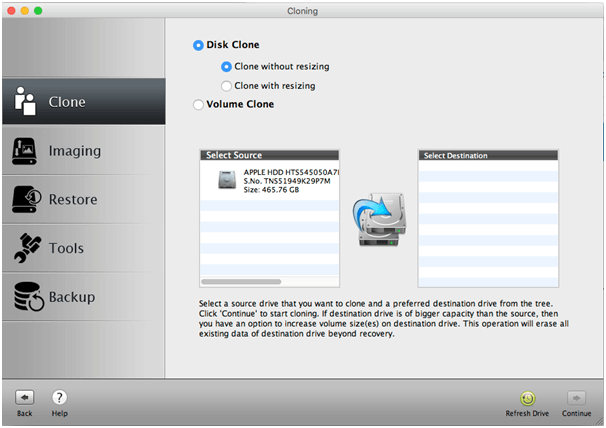
Stellar Drive Clone - Best Disk Cloning App
Image Source: Stellar Clone Drive

Are you in need of a disk cloning app that can duplicate the hard drive of your Mac system perfectly? Stellar Drive Clone is a standout amongst other cloning applications for Mac.

The clone program makes partitions similar to that of the original hard drive. The cloning tool supports different sorts of cloning like HFS-to-HFS, FAT-to-FAT and NTFS-to-ExFAT formats.

You can take a reinforcement of any file or folder as per your needs. You can also use it to clone encrypted Mac drives and volumes. With this app you can clone the Mac Hard drive from Hard Drive to SSD and it also goes the other way around.

Download for MAC OS

Read More: 13 Best Data Recovery Software For Windows


2. EaseUS Todo Backup For Mac
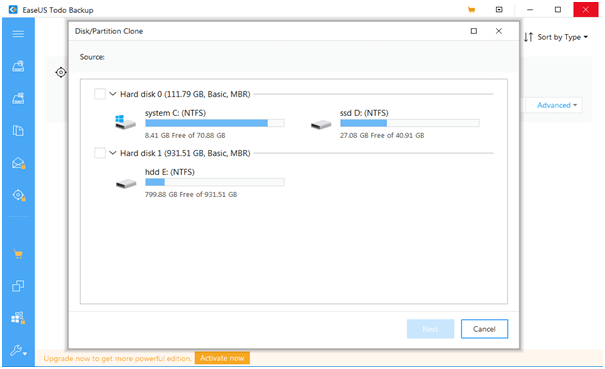
EaseUS Todo Backup - Best Disk Cloning Apps For Mac
Image Source: CNET

A commendable disk cloning app with multitudes of robust and scalable features is available with the EaseUS Todo Backup tool for Mac.

If you are looking for a free Mac cloning software, then this can be your best chance to acquire a cloning app that comes with a 30-day free trial in addition to 30-day money-back guarantee.

Backup data from any Mac device with automated backup schedule feature in stealth mode. Save storage space and also encrypt your backed up data.

Clone the disk volume that can be booted any time with this cloning app for Mac. You can easily restore your system even when the macOS fails with this brilliant cloning app.

Download for MAC OS


3. Chronosync

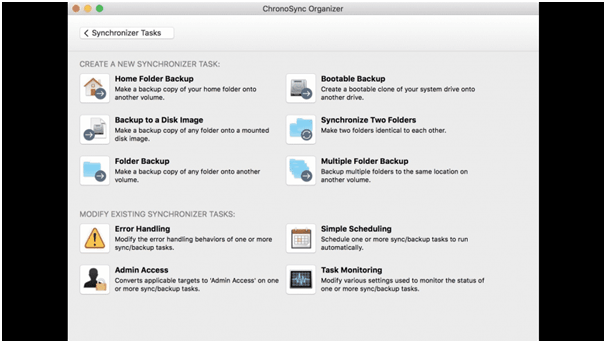
Chronosync - Best Disk Cloning App For Mac 2020
Image Source: Mac Update

A brilliant application to clone macOS, ChronoSync makes an incredible choice for the best disk cloning app for Mac.

Clone the hard drive, make backups of all the excess documents on the cloud to create more space on the computer with this impeccable disk cloning app. This cloning app can be utilized to backup close photographs and various other significant data.

Having a straightforward and intuitive UI makes this app simple to utilize. This cloning app for Mac permits users to schedule an auto disk cloning process every once in a while.

Perhaps the best component of ChronoSync is that it permits users to move optimized files with the help of Chrono Agent.

Download for MAC OS


4. Carbon Copy Cloner

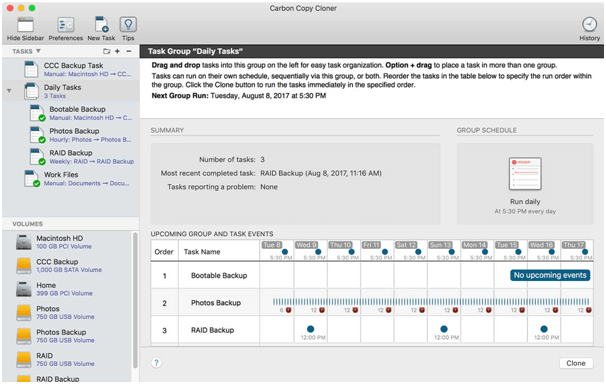
Carbon Copy Cloner - Best Mac Disk Cloning App
Image Source: Bombich

Create bootable backups as well as regular backups with this best disk cloning app for Mac. A minimal and beautiful UI facilitates transfer of files from one to another system with ease.

The cloning coach is an unique feature of this cloning app for Mac for users who are new to the concept of cloning. Schedule automatic backups with this tool and even archive the older versions of files.

Download for MAC OS

Read More: 10 Best Photo Organizer For Mac


5. Backblaze
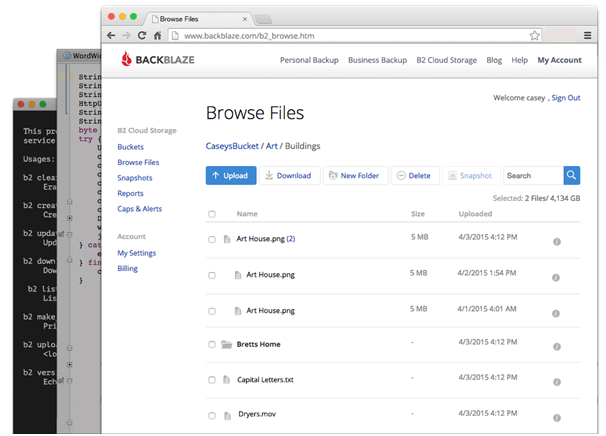
Backblaze - Best Disk Cloning Software
Image Source: Fortune

Backblaze is the best disk cloning software because for a mere $5/month you can duplicate every system in a robust and efficient manner. With Backblaze you can set the data transfer limit and also schedule backups for your Mac system once the system is idle.

The vital information of your system gets uploaded to Backblaze’s secure servers. Thus, this disk cloning app lets you keep all of your files safe and secure.

Download for MAC OS


6. Carbonite

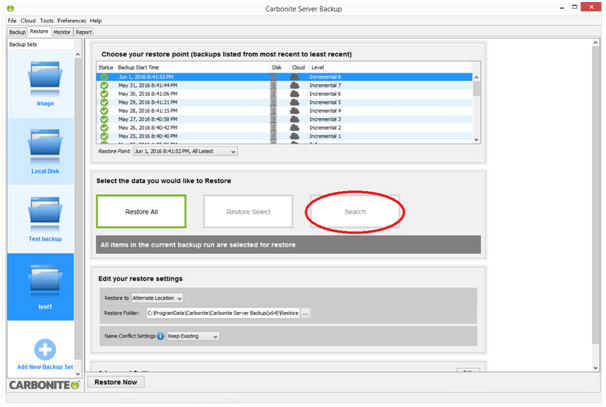
Carbonite - Best Disk Cloning App For Mac in 2020
Image Source: Carbonite

Carbonite offers a bunch of consistent assistance and has hence made it to our list of best disk cloning apps. A free 30 day trial is available for new users. This best disk cloning app for mac has a nominal yearly subscription payment to support you in innumerable ways.

What can you do with this cloning app for Mac?

You can save an infinite amount of information from one machine to their servers. Whenever you sign in, you can restore single files or everything conveniently from their servers to your system.

Thus, the personal cloud backup never lets you worry about losing your precious data. It offers scalable and flexible on-site, offsite, cloud or hybrid data protection solutions available.

Download for MAC OS

Read More: 11 Best Free PDF Editors For Mac


7. SuperDuper
SuperDuper - Disk Cloning App
Image Source: Mac Update

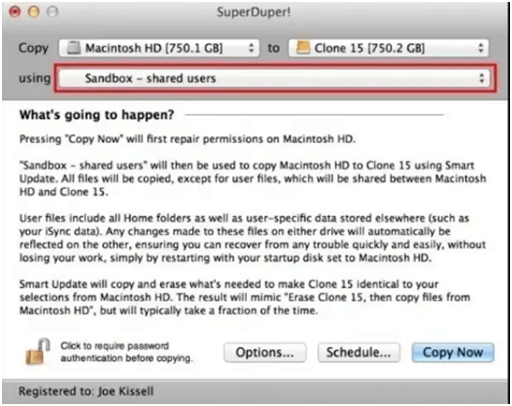
SuperDuper is one amongst the simplest disk cloning apps that  has a free version with all the options and also a premium version. You can create copies of the critical apps and files of your Mac safely just with a few clicks.

This best free cloning software can act as an everyday backup app that copies files and folders to a different Winchester drive, however the key strength of this cloning app lies in the fact that it is capable of making bootable clones.

Download for MAC OS


8. Acronis True Image

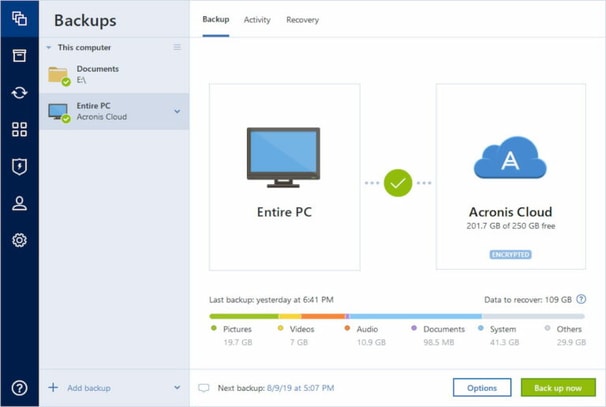
Acronis True Image

Acronis True Image offers a very easy cloning option to the user, as the user can clone the files while performing any task. The Acronis True Image  is available in Mac and Windows for PC. On mobile phones the app is available in Android and iOS. The user can clone the files according to their choice, the app has both options available including select individually or all.

One can create a local backup of data and can replicate whenever needed. The backup can be stored in computer or in cloud from mobile phones, whichever the user chooses. Acronis True Image offers a 30 days free trial for the user and then requires a subscription amount. Windows 7 and later versions are compatible for the software and in Mac macOS 10.11 and later versions are compatible.

Download for MAC OS


Things to Consider in the Cloning Apps for Mac:

No wonder, you can do a lot with the macOS disk cloning software; however, what qualities should you look for in a cloning app?

  • A disk cloning app should be an easy to use tool even for a layman.
  • The cloning software should be compatible with a huge range of macOS versions.
  • Third-party cloning software should not pose a threat to the security to your Mac system. It should be free from adware.
  • When it comes to the features of the disk cloning tool, then you should see if the tool is able to create an exact replica of the Mac disk and is swiftly able to extract a large volume of image files to recover all your system data.

Concluding Words

So, this is all about disk cloning apps at a glance. Mac’s in-built OSX Recovery includes Disk Utility feature. Time-Machine is another in-built backup software of Apple. But like all in-built apps, these tools only have basic features and lack advanced features.

This is where the third-party disk cloning software comes into picture. You can always acquire disk cloning tools to backup your Mac device. A cloning app can prove to be of immense benefit when you are upgrading your macOS.

Author

Snigdha

Snigdha is a technical content writer with expertise in the field of science & technology. Though she has a very diverse academic and professional profile yet she finds writing to be a creative form that she was unable to explore so far. When not writing, she can be found indulging in other forms of creativity like painting or travelling.

View all posts

Related Posts
Best Free Volume Booster Extension for Chrome

7 Best Free Volume Booster Extension for Chrome in 2024

May 12, 2024
0

The booster extensions in this article allow you to enjoy the audio to the fullest by boosting the volume and tweaking the sound directly from the browser.

Google Chrome is among the most loved browsers for enjoying music, viewing webinars, attending virtual meetings, or performing any audio-visual activity. However, despite using a top-notch browser, users play with their computer’s audio settings to get the best experience. If you are one of those users, what if we tell you that you can use volume booster extensions to control the browser’s volume right from the browser without fidgeting with the PC’s settings?

Sounds good, right? If yes, you can continue reading this article to learn more about the extensions to increase Chrome volume, normalize volume levels across websites, and perform other customizations to improve your satisfaction with audio in the browser. Let us dive into them without wasting your priceless time.

7 Best Chrome Volume Booster Extensions in 2024

Here is a ranked list of the best extensions we have carefully picked after thorough research, analysis, and comparison of all available tools based on parameters, such as their features, simplicity of use, etc.

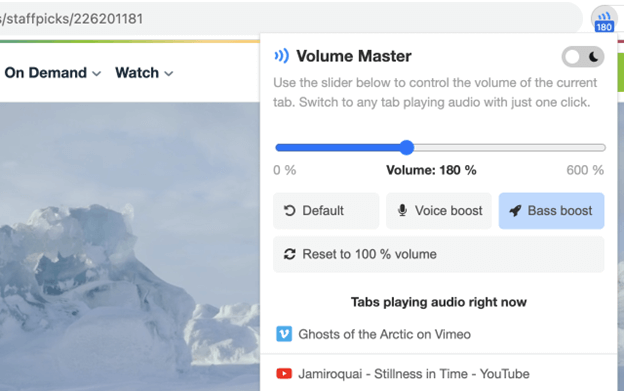
1. Volume Master

Volume Master

Let us introduce you to the Volume Master. Trusted by over 4,000,000 users, this extension allows you to achieve up to a 600% volume boost with the freedom to control the volume of any tab, make dialogues and podcasts crystal clear with voice enhancement, bass boost to improve your music streaming experience, and the following incredible features.

Key features of Volume Master

  • It gives 0 to 600% fine-grained control
  • You can switch between various tabs with a single click
  • Volume Master does not display ads to ensure you have a great experience

Get the Extension Now

Also Read: Best YouTube to Mp3 Chrome Extensions


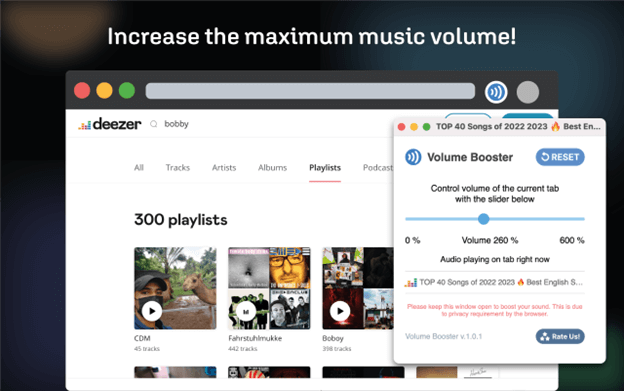
2. Volume Booster

Volume Booster

You can add the Volume Booster extension to Chrome to amplify and increase your max volume. Used by nearly 2,000,000 people across the globe, this extension can boost your volume up to 1000%, increase the volume irrespective of your headphones or speakers, and solve fullscreen problems simply by pressing the F11 key. Moreover, here are a few other features that justify this extension’s position on our list.

Key features of Volume Booster

  • You can effortlessly toggle this extension on or off for various sites
  • It is tested on both Windows and Mac platforms
  • Volume Booster is ad and malware-free

Get the Extension Now


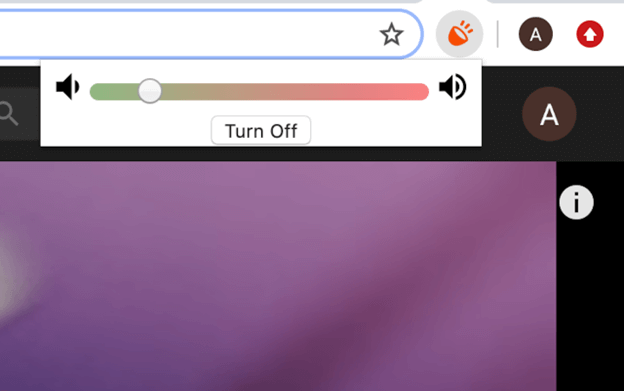
3. Sound Booster

Sound Booster

Over 1,000,000 users trust Sound Booster to amplify their audio experience on Google Chrome. With this free audio booster extension, you can level up the volume up to 600%, use the bass boost option to improve the content’s overall sound quality, have better volume control with the freedom to set individual settings for each tab and benefit from the following features.

Key features of Sound Booster

  • There is an equalizer to amp up your audio experience
  • It is among the easiest-to-use extensions to increase Chrome’s volume

Get the Extension Now

Also Read: Best Equalizer Extensions for Chrome


4. Volume Max

Volume Max

Having a user base of over 1,000,000 users, Volume Max is the next sound booster extension we would like to talk about. You can level the volume up to 600% with Volume Max, elevate your experience with a bass booster, and make the most of the following features.

Key features of Volume Max

  • You can adjust the sound settings according to your preferences
  • It allows you to manage each tab’s volume level separately

Get the Extension Now


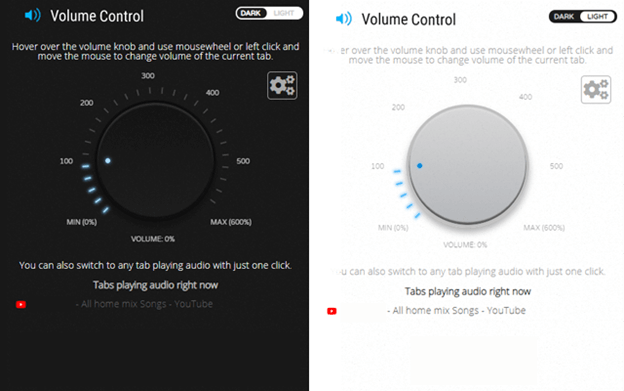
5. Volume Control

Volume Control

You cannot go wrong with Volume Control if you are looking for a simple volume booster extension for Chrome. With this user-friendly extension, you can boost sound by up to 600%, apply a fine-grained control from 0 to 600%, switch between light and dark themes, and enjoy a seamless audio experience with the following features.

Key features of Volume Control

  • You can switch between various tabs with a single click
  • It boasts a friendly knob that changes the sound of the current tab using the mouse wheel

Get the Extension Now

Also Read: Best Free PDF Editor Chrome Extension


6. BassMaster EQ

BassMaster EQ

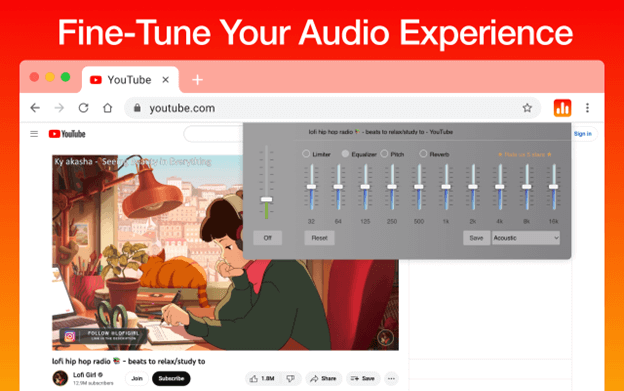
Next, we have BassMaster EQ to help you fine-tune your audio experience. In addition to a simple and clear design, it boasts a sound equalizer with a bass booster to let you effortlessly enhance the audio quality. Apart from this, it boasts the following useful features.

Key features of BassMaster EQ

  • It offers presets for different music genres, such as dance, acoustic, jazz, deep, hard rock, Latin, and more
  • You can use sliders to adjust sound in the current browser tab effortlessly

Get the Extension Now


7. Ears

Ears

We have Ears with over 500,000 users as the next best volume booster Chrome extension. With this simple tool, you can simultaneously change the EQ of all or any of the tabs. All you have to do is go to the website with audio, launch Ears, then raise or lower the filters by dragging the dots. In addition to ease of use, here are some other features of this extension.

Key features of Ears

  • You can use Ears to fine-tune any website’s audio in real time
  • It boasts an option to auto-EQ specific sites, per-tab stereo panning, and other versatile features

Get the Extension Now

Also Read: Image Downloader Extensions for Chrome


Best Volume Booster Extensions- The Conclusion

You can use any of the above sound boosters to tweak the volume according to your requirements for the ultimate experience. However, if you think any of your favorite extensions should be a part of our list you can give it a shout-out through the comments section. Also, feel free to leave a comment if you have any questions or concerns about this article.

How To Force Quit Applications On Mac

How To Force Quit Applications On Mac

November 30, 2022
0

Besides providing a safe and secure environment for your crucial data Mac devices are known for their interface. Running applications and programs is possible without a hitch. But lately, only some users have reported issues with applications not responding. If you are also here to fix the issue, this is the right place.

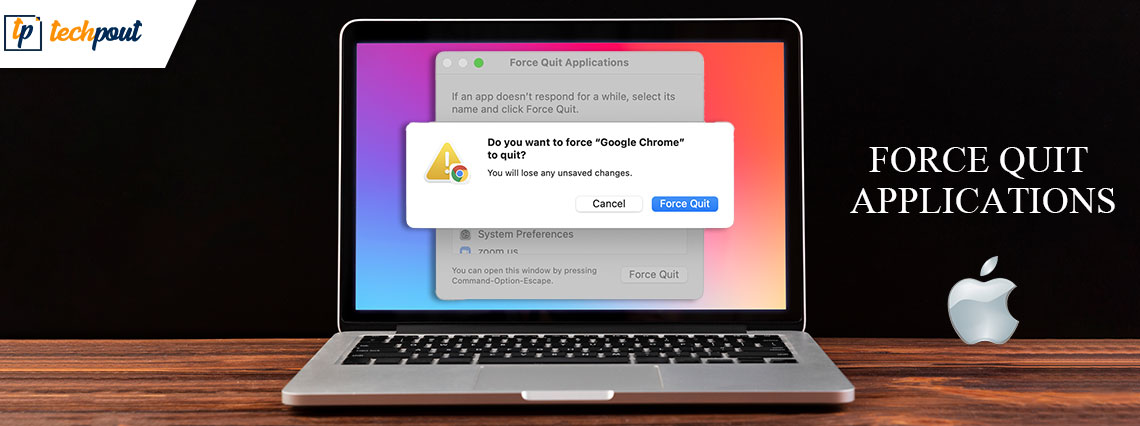
If you are running an app on your Mac and it stops responding, you can force close these applications on Mac. The guide below explains various shortcuts to force quit app on Mac and restart it. However, in normal cases use the shortcut keys Command Q on your keyboard or press the Quit option from the application menu. If this method doesn’t work and the app stops responding, use any one of the following methods.

Simple Alternatives to Force Quit Applications on Mac

No need to apply all the methods, read the steps for each and apply the suitable steps to force quit app on Mac.

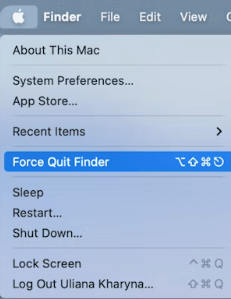
Method 1: Use Apple Menu to Force Quit App Mac

Apply the following steps to force quit the application on Mac using the Apple menu

Step 1: Locate the Apple icon on the left top corner of the application window.

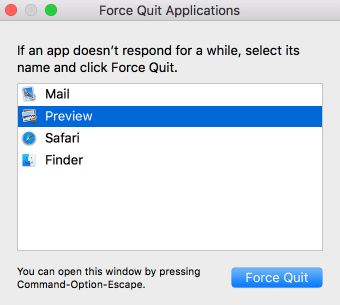
Step 2: Click on the Force Quit option.Force Quit option

Step 3: Select the App which is not responding on your Mac.

Step 4: Press the button to force Quit.

Also Read: How to Mute Tabs in Chrome on Mac and Windows PC


Method 2: Use Dock to Force Close App Mac

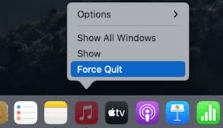
In case the Apple menu method didn’t work as the app window fails to respond, here’s how to force quit applications on Mac via Dock

Step 1: To display the dock menu move the mouse to the app you wish to force close and right-click on it. Click and hold the icon for the app.

Step 2: Hold the Option key (Alt). This will change the Quit menu to Force Quit.Hold the Option key (Alt)- This will change the Quit menu to Force Quit

Step 3: Select the Force Quit option.


Method 3: Use Keyboard Shortcut to Force Close App on Mac

Another alternative to force quit applications on Mac is by using keyboard shortcuts. If any of your Apps running on Mac is unresponsive here is how to force close app Mac.

Step 1: Press Command, Option, and Esc keys together on your keyboard and hold.Press Command, Option, and Esc keys together on your keyboard

Step 2: Select the application you wish to quit from the dialogue box that appears on your desktop screen.

Step 3: Click on force Quit option.Click on force Quit option

This method to force quit an app on Mac is very effective when you are unable to access the mouse or the trackpad is lagging.

Also Read: How to Find iPhone Backup Location on Mac and Windows PC


Method 4: Use Terminal to Force Quit App on Mac

If Command line methods to execute a command or perform a task is your preference this method to force close app Mac can be your pick. Here are the simple steps to apply to force quit applications on Mac through Mac Terminal.

Step 1: Launch Terminal on your Mac.

Step 2: Enter the command mentioned below

killall [application name]

For example, if the Skype application is not responding on your Mac type: killall Skype in the Terminal

Step 3: Click the Enter key on your keyboard. This will instantly force shut the application on your device.

Note: If the name of the application you want to shut consists of more than one word enter the name using quotation marks.

Step 4: The command will force close app Mac on the system level. This means the data will not save automatically.

Pro Tip:

If a particular application hangs frequently on your Mac here are the simple things to be checked:

  • Make sure the app is updated and the latest version released by the manufacturer is installed on your Mac.
  • Check if the cache on your app is cleared. If not, make it a habit to clear its cache at regular intervals if the app is used on a frequent basis.

If the issue persists, uninstall the application or program. Reinstall the program from the official source and this will fix the frequent freezing of app problems on your Mac.

Also Read: How to Fix WindowServer High CPU Usage on Mac [FIXED]


Force Quit Applications on Mac: DONE

We hope you have now learned how to force quit applications on Mac. Choose any one of the above-listed methods to force close App Mac which is not responding. If you need any more help feel free to ask us in the comments box below. Also, for more Mac and Windows tips or guides subscribe to our blog.

To never miss any updates follow us on Facebook, Twitter, Instagram, and Pinterest.

1 Comment
    Darryl Lacy says: Reply
    February 16th 2022, 6:50 pm

    Hi there, I really enjoy reading all of your write-ups. I find all of them very helpful. Thanks, keep up writing!

Leave a Reply to Darryl Lacy Cancel reply

Your email address will not be published. Required fields are marked *

Sidebar Image bit G ad1

Latest Posts

  • Anytime Astro: Best Website For Online Astrology Consultation
    Anytime Astro: Connect Now For Online Astrology Consultation
    by Somya Shrimal / March 13, 2026
  • Best-Ways-to-Combine-Images-Into-PDF-Files
    Best Ways to Combine Images Into PDF Files
    by Niharika / March 12, 2026
  • Best FREE VPS Hosting Providers
    7 Best FREE VPS Hosting Providers in 2026
    by Devesh / March 12, 2026
  • Best-McAfee-alternative-software-to-use-for-Virus-Protection
    Best McAfee Alternative Software to use for Virus Protection
    by adminuser / February 11, 2026
  • What-is-Flip-Flop-in-Circuite-and-it's-Types
    What is Flip Flop in Circuit and its Types
    by Meet / February 6, 2026

Categories

  • Cyber Security
  • Driver Updater
  • Entertainment
  • Fitness
  • Games
  • How To
  • laptop
  • OS
  • Reviews
  • Tech News
  • Tips & Tricks
  • Top 10
Sidebar Image bit G ad1
Best Free PDF Editors For Mac in 2024 12 Best Free PDF Editors For Mac in 2024by Snigdha / January 17, 2024
10 Best File Sharing Software for PC in 2024by Tanmay Sharma / January 17, 202410 Best File Sharing Software for PC-Online & Offine Transfer Files
TechPout Footer Logo

We at TechPout promise to put forth stories that help people to learn and simplify their digital life. Our purpose is to share the true essence of technology with our tech-loving community.

Useful Links

  • About Us
  • Contact us
  • Privacy Policy

Popular Posts

  • Best PC Optimizer Software
  • Best Mac Cleaner Apps
  • Best Driver Updater
  • Duplicate Photo Finder and Cleaner Software
  • Best Free Movie Download Sites
  • Best IPTV Players

Follow us

Copyright © 2026 www.techpout.com. All rights reserved
DMCA.com Protection Status