The Windows 10 operating system still functions after its official support ended on October 14, 2025. However, Microsoft no longer rolls out security updates and has stopped offering technical support for Windows 10. Hence, even if you can use Windows 10, your PC is vulnerable to malware infections and other risks due to a lack of security updates. Moreover, help will be limited if you experience problems such as system crashes. For secure and efficient computer performance, it is advised not to wait too long to upgrade to Windows 11. Fortunately, switching to Windows 11 is now quick and easy with Windows 11 Installation Assistant, which does not require any complex steps or processes.
Win 11 Install Assistant is an official tool provided by Microsoft to users with a Windows 10 license to upgrade their Windows 10 systems to Windows 11 easily. This article walks you through the complete details of this tool, including how to download it, install it, and use it. Let’s begin.
What Does the Windows 11 Installation Assistant Do
Windows 11 Installation Assistant or Windows 11 Update Assistant is a tool from Microsoft that lets users upgrade their existing Windows 10 systems to Windows 11. It checks your system automatically to ensure it is compatible with Windows 11, allowing you to migrate from Windows 10 to Windows 11, install Windows 11’s latest version on your PC, and save from the hassle of manually installing ISO files.
Also know: Why Is Your Printer Offline and How to Fix it
Is It Safe to Use Windows 11 Installation Assistant
Being an official Microsoft tool, Win 11 Install Assistant is a totally safe tool you can use to upgrade to Windows 11. Moreover, you can immediately update to Windows 11 without having to wait for the rollout of Windows Updates, prevent potential issues by ensuring your PC meets the Windows 11 installation requirements, and update Windows while preserving your files, settings, and applications.
However, before the Windows 11 Installation Assistant downloads, you must ensure your device fulfills its system requirements.
System Requirements of Windows 11 Installation Assistant
The following are the minimum conditions that your system must meet to download Windows Installer Assistant, install it, and use it.
- Processor: 1 Gigahertz (GHz) or higher with 2 or more cores on a 64-bit processor
- RAM: 4 GB; at least 9 GB of free disk space to download Windows 11
- Storage: A 64 GB or more storage device
- System Firmware: UEFI, Secure Boot capable
- Trusted Platform Module (TPM): TPM version 2.0
- Graphics Card: Compatible with DirectX 12 or higher with WDDM 2.0 driver
- Display: High definition (720p) display that is greater than 9” diagonally, 8 bits per color channel
- Operating System: Windows 10, version 2004 or higher, installed to run Installer Assistant.
If your device meets the above requirements, you can download the Win 11 Install Assistant. If it does not fulfill these conditions, make the required modifications to your system before moving further.
How to Download, Install, and Use Windows 11 Installation Assistant
You can follow the steps below to download the Win 11 Assistant, install it, and use it to upgrade to Windows 11.
Note: Windows Update, Windows 11 Assistant upgrades to Windows 11 while ensuring no data loss. However, it is a smart move to back up your data for additional protection from any unforeseen issues that may cause data loss.
- To begin, go to the official Windows Installer Assistant website.
- Click Download Now.
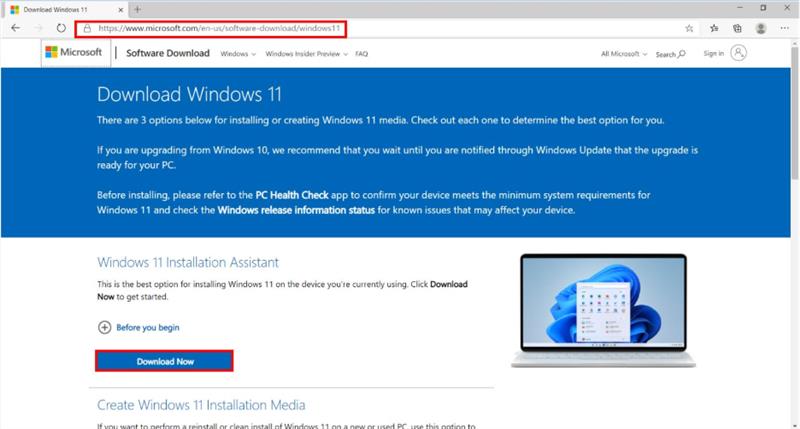
- Next, save the Windows 11 Installation Assistant application file to a location you can access on your PC.
- In this step, go to the location containing the application file.
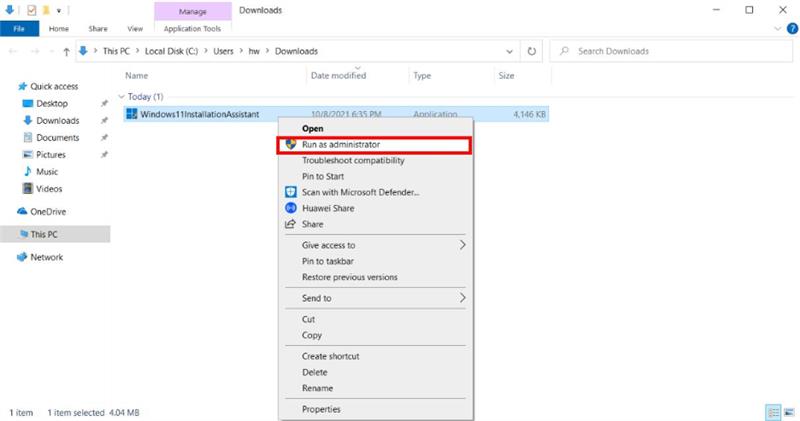
- Right-click the Windows11installationassistant.exe file and select Run as administrator from the options that appear.
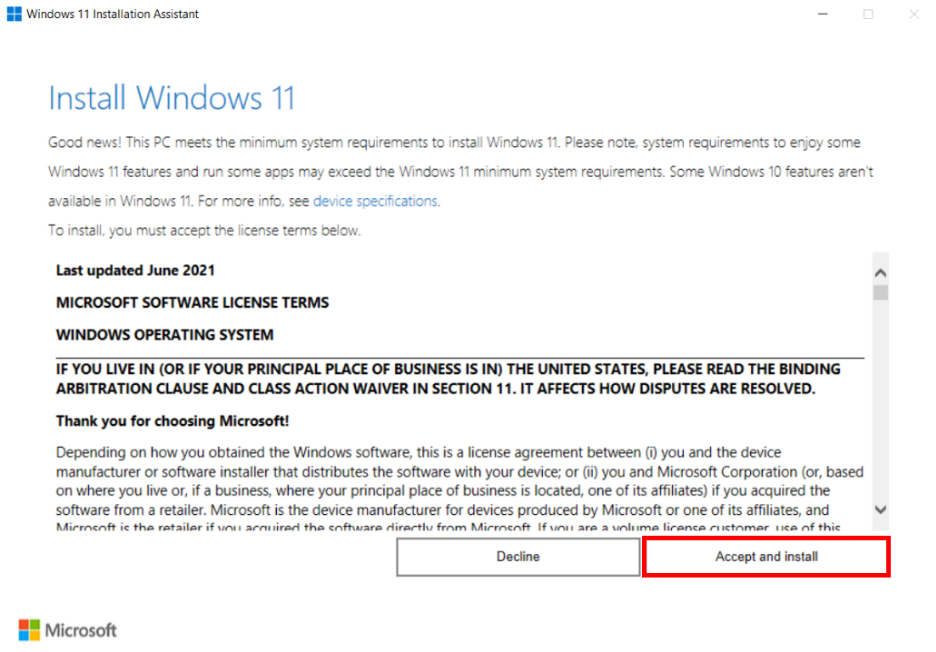
- Read the Microsoft Software License Terms and click Accept and Install.
- When the “Use the PC Health Check app to check compatibility” prompt appears, click Get PC Health Check app and follow the directions that appear on your screen to download and install the health check app, and check whether your PC can be upgraded to Windows 11.
- If your PC can be upgraded, click Refresh to begin installing Windows 11.
- After the installation is complete, reboot your PC.
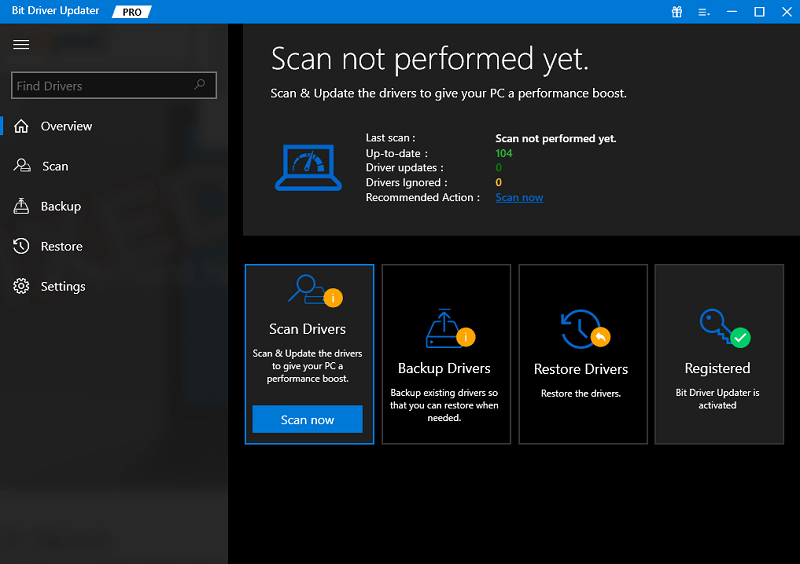
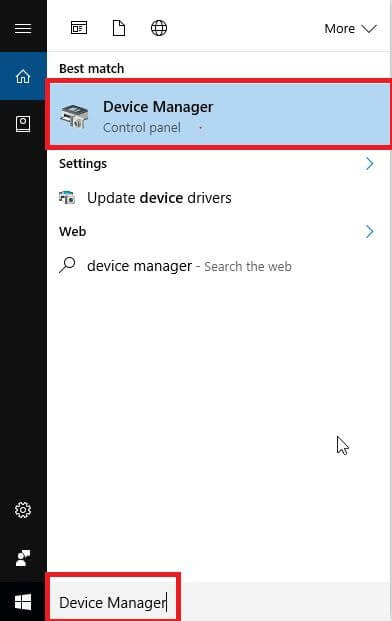
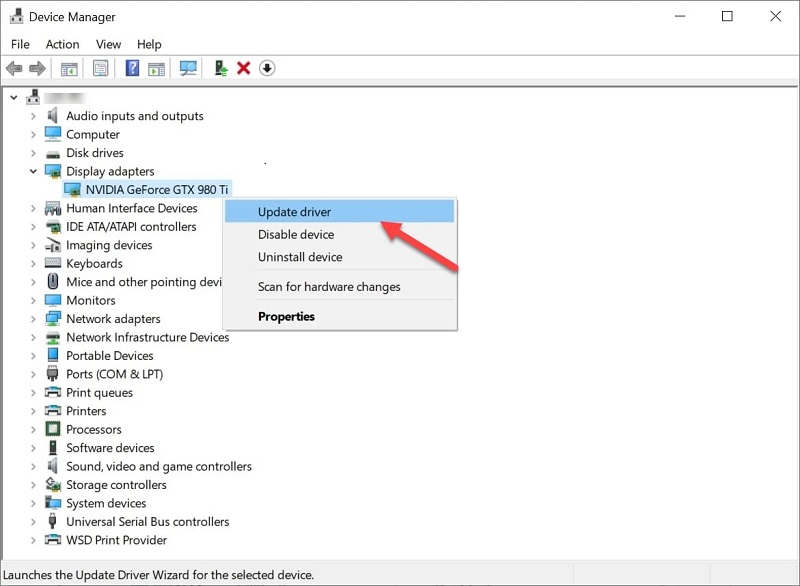
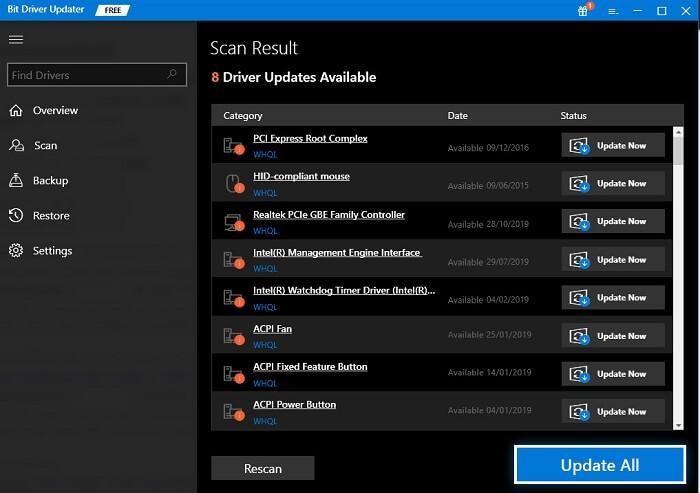
- Once your computer restarts, you can update drivers and apps to make sure they are compatible with Windows 11.
That is how to perform an immediate Windows 11 upgrade from Windows 10 using the Windows 11 Installation Assistant without any complex steps. Hopefully, this guide will help you switch to Windows 11 smoothly. However, if you have any concerns or questions, you can drop us a comment.
Frequently Asked Questions
Q1. What is Windows 11 Installation Assistant?
Ans. Windows 11 Installation Assistant is an official software from Microsoft to help users upgrade their systems from Windows 10 to Windows 11 easily, without any complicated processes, such as installation media creation.
Q2. Why do I need a Windows 11 Installation Assistant?
Ans. Win 11 Install Assistant is a much-needed tool to upgrade to Windows 11 hassle-free without waiting for Windows Updates (they are rolled out gradually), prevent potential system issues (this tool ensures your PC meets the Windows 11 requirements before installation), and migrate to Windows 11 while preserving your settings, apps, and files.
Q3. How long does Windows 11 Installation Assistant take?
Ans. Windows 11 Installer Assistant may take nearly an hour for its download, verification, and Windows 11 installation. You can continue using your PC during this process. However, remember to save your work regularly.