Main LogoLight Logo
  • Reviews
  • Top 10
  • How To
  • Tech News
  • OS
    • Windows
    • MAC
    • iOS
    • Android
  • Categories
    • Driver Updater
    • Cyber Security
    • Games
    • Fitness
    • Entertainment
    • Tips & Tricks
How To
by Snigdha

How to Remove Your Mobile Number From Truecaller

December 17, 2020
1

Do you know how you can remove your number from Truecaller’s database? There is no direct way available to delete the account from the app; however, it is possible to do so by deactivating your Truecaller account, followed by delisting the number.

Truecaller app was first launched exclusively in 2009 by Blackberry. Later the app was released on Android and iOS platforms that could be used to manage calls with the help of the caller ID function.

It gained popularity as it accurately displayed the contact details of unknown callers and thus helped to avoid or block spam callers and telemarketers. But not many people prefer using Truecaller, considering it to be a privacy threat.

In this blog, we will first look at how Truecaller tracks and identifies all phone numbers, followed by which will be the methods of shutting down the Truecaller account.

Table of Contents hide
Methods to Deactivate Your Truecaller Account
1. Android
2. iOS
3. Windows Mobile

How Truecaller Identifies the Callers?

Truecaller gains access to the address book of users to collect information about their contacts. This way, through crowd-based outsourcing, it collects the data and stores it in the databases. Thereby, it further identifies the number and displays it accordingly.

This means that even if someone doesn’t use the app, still their data will be available on the Truecaller database that is collected from other people’s phones. Therefore, many people prefer to Unlist their numbers from the Truecaller database.

Truecaller also collects and stores addresses associated with a landline number. Truecaller acquires this data from Telecom companies. Due to this reason, the residential address of a landline number can also be displayed to whoever you are calling, which may be far too risky to reveal to unknown people. The risk of exposure is not only limited to this sphere but even to the extent of discoverability on Google’s search engine.

Read Also:  How to Remove Unwanted Pop-up Ads on Android and iOS


Methods to Deactivate Your Truecaller Account

You can follow the below-mentioned steps to disable the Truecaller account for removing traces of your number from Truecaller’s database. This can be done on Android, iOS, or Windows phones, followed by delisting the mobile number from the Truecaller database.

1. Android

  • Go to the application on your Android phone.
  • Tap the icon resembling people that you can spot in the upper left corner of the app screen.
  • Further, go to the Settings.
  • From there, navigate to the ‘Privacy Center’ section.
  • Here you will find the option to Deactivate the account.
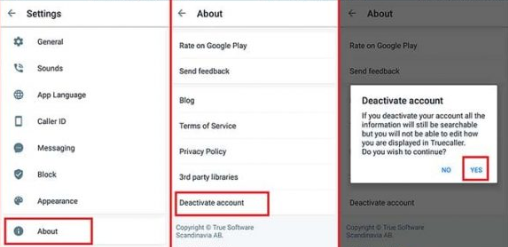
Disable The Truecaller Account From Android Devices


2. iOS

  • Open the application on your iPhone.
  • Tap on the gear icon in the top right corner.
  • Again go to the ‘About Truecaller’ section.
  • As you move down the list, you will be able to locate the option to deactivate your Truecaller account.
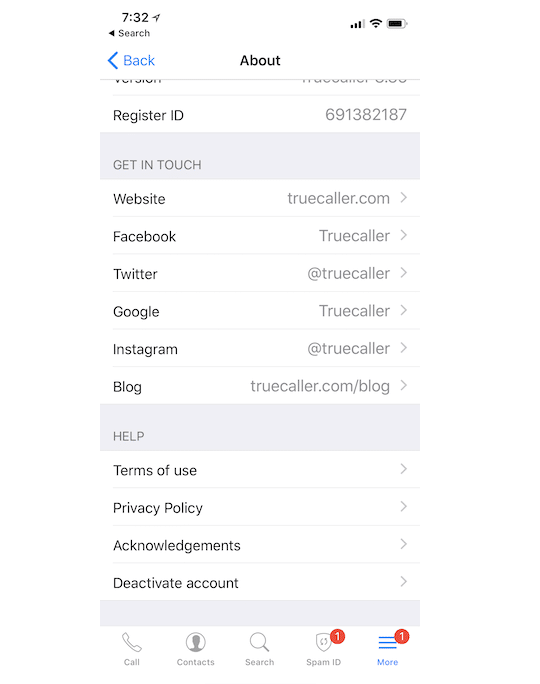
Disable The Truecaller Account From iOS Devices

Read More: Best Truecaller Alternative Apps For Android & iOS


3. Windows Mobile

  • Open the application on your Windows phone.
  • Tap on the three dots located in the bottom right corner.
  • Go to the Settings section of the application.
  • Further tap on the “Privacy Center” option.
  • Here you will find the Deactivate account option.
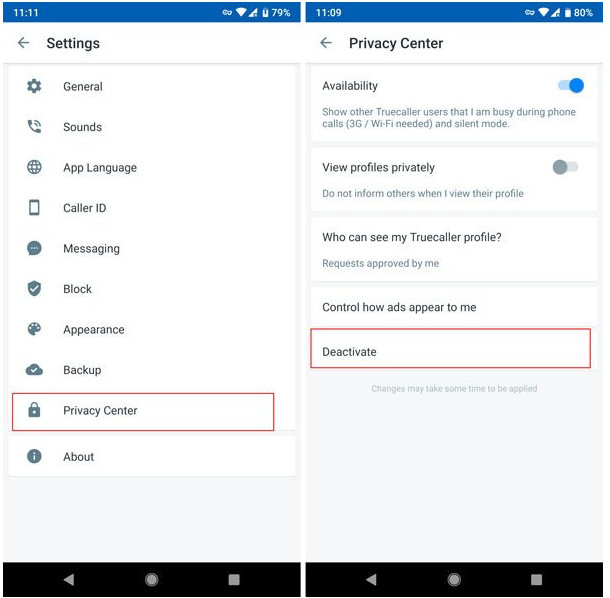
Disable The Truecaller Account From Windows Mobile


Remove Your Number From Truecaller

  • Once the account is deactivated, then you can proceed to erase the number from the Truecaller database.
  • You can go to the Truecaller unlist page.
  • Enter your phone number, preceded by your country code.
  • Select the reason most appropriate reason to unlist your number from Truecaller.
  • Enter the verification captcha.
  • Finally, tick the Unlist option.
  • Usually, it takes 24 hours to complete the delisting request on Truecaller’s part.
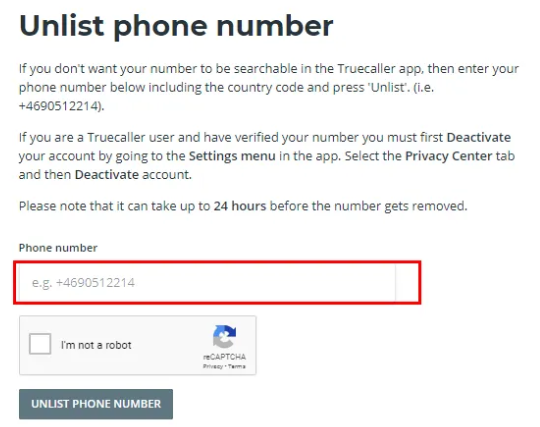
Remove Your Number From Truecaller

Read More:  How To Fix Computer Freezing Problems


Final Thoughts

Therefore, it can be noted that the above-described methods can be used to delete your number from Truecaller and also to remove the account related private information from their databases.

Occasionally, it has been noted that it doesn’t remain off the records forever because tracking continues to happen through other people’s number every time a new person downloads the app and provides access to their contacts list. So, this can lead to the reappearance of the number in the Truecaller database again.

To prevent this from recurring, again and again, you can keep verifying with Truecaller if your number is appearing with them and request them to delete your number.

Author

Snigdha

Snigdha is a technical content writer with expertise in the field of science & technology. Though she has a very diverse academic and professional profile yet she finds writing to be a creative form that she was unable to explore so far. When not writing, she can be found indulging in other forms of creativity like painting or travelling.

View all posts

Related Posts
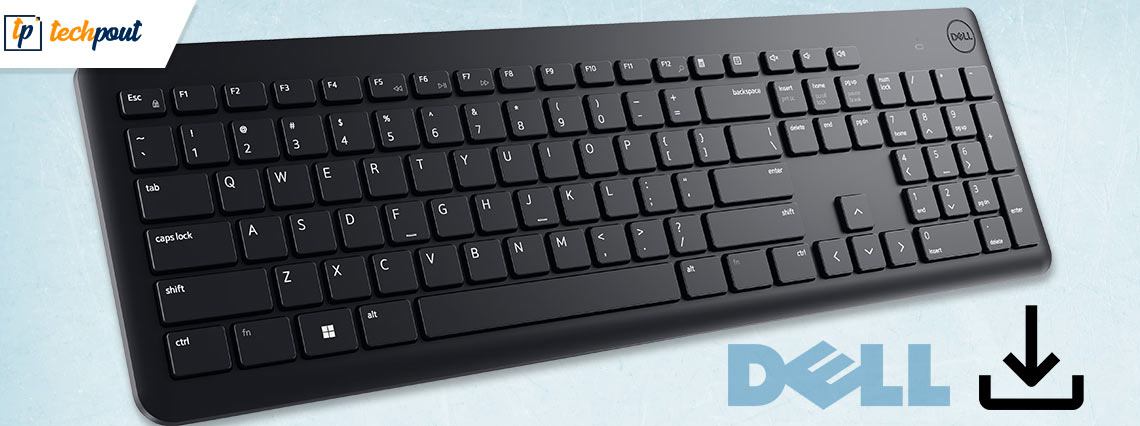
Dell Keyboard Driver Download and Update in Windows 10, 11

Dell Keyboard Driver Download and Update in Windows 10, 11

January 11, 2023
0

Just like other system hardware Dell keyboard requires a compatible driver to function properly. These drivers help in communicating with your operating system and performing the desired functions. To maintain the efficiency of Dell keyboard drivers the manufacturers i.e Dell release regular updates on their official website. Also, these updates provide bug fixes and improvements.

However, some users reported issues while downloading the Dell keyboard driver update on their Windows 11, 10, or older version devices. If you also fall in this category this guide is for you. Read the complete guide to identify

How to Perform Dell Keyboard Driver Download and Update for Windows 10 and 11?

The section below has partly manual and automatic methods to download and update Dell keyboard drivers for Windows 11, 10, or older version devices. No need to apply the steps for all these methods, just identify the suitable option and use it on your device.

Method 1: Dell Keyboard Driver Update with Device Manager

Unaware of your system specifications? Don’t panic, the automatic utility of Windows i.e Device Manager can download Dell keyboard driver or other drivers in a partly automatic way. This utility is the driver directory of your Windows device. Here are the simple steps you need to follow for the Dell keyboard driver update on Windows 11, 10, or other devices.

Step 1: Use Windows and X shortcut keys to open the Quick Access menu on your device. Select Device Manager from the list. Open Device manager

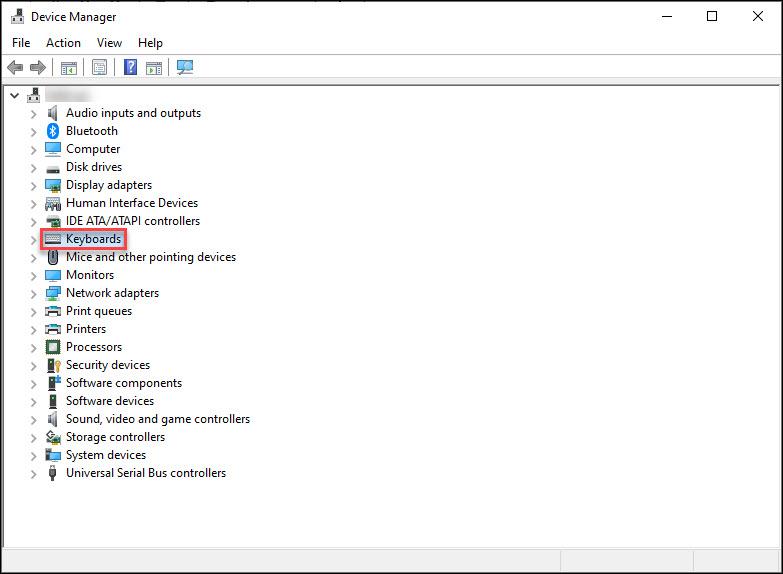
Step 2: Open the Keyboards category and locate the Dell Keyboard driver under this category. If you are unable to find these drivers under the keyboards category, look for it under Human Interface Devices. Device Manager Keyboard

Step 3: Right-click on the Dell Keyboard driver for Windows 11 or your respective device and choose the Update Driver software option.

Step 4: In the following dialog box select the automatic driver search option to install the Dell keyboard driver update automatically.

Once the installation completes, make sure to Restart your PC to bring these driver updates into effect. However, if you still find Dell keyboard driver updates a complicated task, use the fully automatic method given below.

Also Read: How to Download Dell Audio Driver for Windows


Method 2: Dell Keyboard Driver Update via Bit Driver Updater (Automatic)

The above way is partly manual but if you still want to simplify driver updates, the best choice is Bit Driver Updater. This driver updater software can make your life easy and download dell keyboard driver and other system drivers with just a single click. Moreover, the tool has some other notable features too that are mentioned below.

Features of Bit Driver Updater:

  • Quick and easy system scan to identify pending updates.
  • Schedule driver updates.
  • Restore and Backup
  • WHQL certified drivers
  • 100% money back guarantee for up to 60 days of Pro version purchase
  • 24*7 tech support

And to use the full potential of the driver updater tool you must upgrade to the Pro version.

Update Dell Keyboard Driver for Windows 11, 10 via Bit Driver Updater:

Step 1: Download the Bit Driver Updater software below.

Windows Download Button

Step 2: Follow the instructions that pop up on your screen to install the tool.

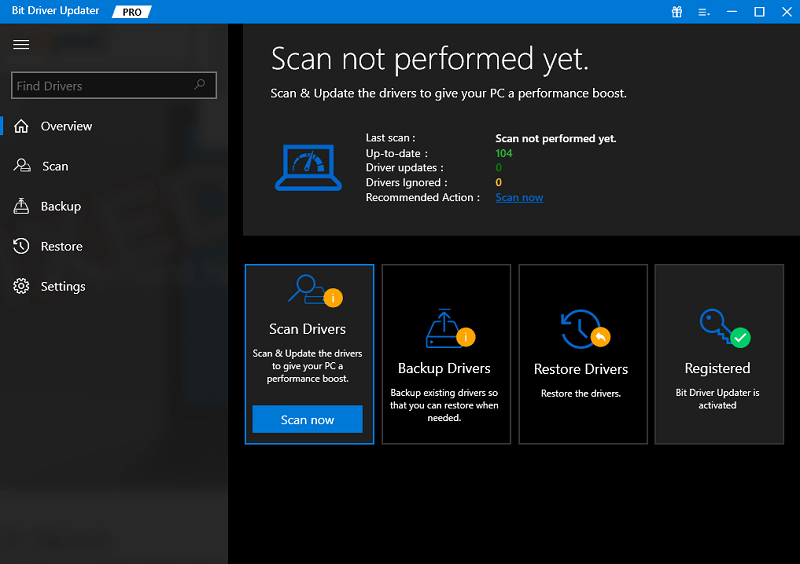
Step 3: Double-click and launch the tool. Click on the Scan Drivers option to begin the search for the Dell keyboard driver update.Scan outdated driver of your windows pc

Step 4: Wait till the process completes and the list of all the pending driver updates is depicted.

Step 5: Click on the Update Now option next to Dell Keyboard driver for Windows 10 or 11. Moreover, with the Pro version of Bit Driver Updater you can use the Update All option present at the end of the list.Update all outdated driver of your windows pc

Note: If you are using the free version of the software you can only download one update at a time.

Step 6: Click on the downloaded Dell Keyboard driver update and apply the steps to install it on your device.

Restart your computer to bring the updated drivers into effect.

This method is convenient for both beginners and professionals. You can not only download Dell keyboard drivers but all the other system drivers with just one click. The process is handy and 100% reliable. Also, all the user queries are addressed by a 24*7 available support team.

However, if you don’t want to rely on an external tool, you can download the Dell Keyboard driver updates from the manufacturer’s website.

Also Read: How to Update and Reinstall Keyboard Drivers on Windows


Method 3: Dell Keyboard Driver Update via Official Website (Manual)

If you have the time and patience for a manual Dell Keyboard driver download, head to the official website of Dell. Make sure you are aware of the requirements of your operating system to find compatible drivers. Once you have the version and bit type i.e 32 bit or 64 bit apply the below-mentioned steps to download and update Dell keyboard drivers on Windows 11, and 10.

Here is how it can be done.

Step 1: On your browser open the official website of Dell. Else, directly visit the Dell Drivers and Download section Here.Dell Drivers & Downloads

Step 2: Search for Dell Keyboard Drivers with their respective model numbers.

Step 3: Download the drivers compatible with your Windows operating system.

Step 4: Once the download completes, follow the on screen steps to install Dell Keyboard driver for Windows 11,10, or older version devices.

Also Read: Dell Drivers Free Download and Update for Windows


Download and Update Dell Keyboard Driver: DONE

And it’s done. In the above guide, we have mentioned the best yet simplest methods for Dell keyboard driver download and update. Read all the methods and apply the steps for the one that is feasible for you. However, if you want an easy way to download the Bit Driver Updater software. The tool not only downloads Dell Keyboard driver updates but can download all other system driver updates with just a single click.

If you need any more information ask us in the comments section. Also, you can leave your views or suggestions in the space below. If you found the article helpful don’t forget to subscribe to our blog for similar tech guides. Additionally, to never miss any updates follow us on Facebook, Twitter, Instagram, and Pinterest.

How To Fix SIRI Not Working On Mac

How To Fix SIRI Not Working On Mac? Try These 5 Best Fixes!

October 3, 2020
0

If you have recently come across the ‘Hey Siri not working’ issue on your Mac (which of course can be one of the most random and common issues in your Macbook), then here is the section for you to go into the causes and fixes for this problem. This article explains the effective ways to fix the issue related to Siri’s functionality.

5 Best Ways to Fix Siri Not Working on Mac

Given that there can be different reasons for why Siri is not responding; you may find a perfect way out of this problem in the list below. These steps will help you find out the cause behind it allowing you to save your time and energy. 

Here are the ways to get rid of Hey Siri Not Working error:

1. Check If Siri is Enabled on Your Mac

Sometimes, Siri audio problem Mac can arise out of as slightest the reason as just not-turned on feature. While it can be the reason due to which Siri is not responding, checking if it is disabled during recent updates or any other setting becomes one of the most important ways to rid yourself of this problem. Here’s how you can fix this issue:

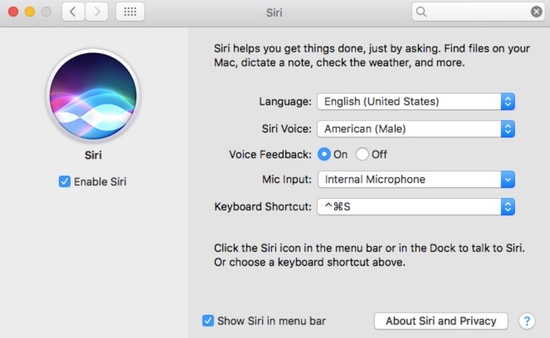
  • Open System Preferences on your MacBook and jump to Siri.
  • Now, see if the Enable Ask Siri box is checked.

Check Siri Enable On Mac

To troubleshoot Siri Not Working problems with these steps, you can tweak the settings by disabling or enabling the Voice Feedback and by changing settings to the default action. Besides, you can undo the settings again. Sometimes, it is that simple to get out of this situation.

Read Also: How To Clear or Reduce System Storage On Mac


2. Resync Siri

Since Siri is easy to find on the Apple devices, you can sync it with iCloud but sometimes, iCloud ends up fluctuating while it synchronises which may cause Siri to lose its functionality. To resynchronise Siri on your system and to fix this issue quickly, follow these simple steps:

  • The first step is to go to System Preferences again.
  • Now, tap on Apple ID and find Siri on the list.
  • Then all you have to do is uncheck Siri and check it again to restart and strengthen the connection.

These quick steps will hopefully troubleshoot your issue and make Siri connection work well on your Mac.


3. Check Your Mic

When you are facing Siri audio problem Mac and if you haven’t made a check on your microphone status then here is the reminder: Do it. There is a possibility that Siri is not functioning due to the glitches in the microphone. Yes, fluctuations in your mic can cause Siri to not respond. To check if this one is the issue in your case, follow the steps mentioned below:

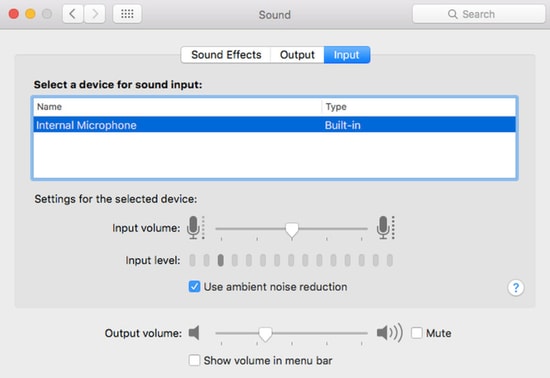
  • Open System Preferences and go to Sound.
  • You will end up at options such as Sound Effects, Output, Input. You have to tap on the Input option.

Check Your Siri Mic

  • Now, you have to see the parameter of Input sound that is already set and speak to see if it makes any difference.

If you are using any external microphone, make sure that it is connected perfectly. This issue counts among the most common glitches behind Siri is not responding situation. So, it is best to check the microphone quality.


4. Check If Siri is Restricted

The latest macOS update has introduced a feature for restricted device usage. Your device usage time is looked after by this feature, letting the appropriate use of the screen in and ensuring productivity. Since this one is a useful feature to take something from, it is possible that you end up enabling some restrictions on Siri. To make sure if it has caused the Siri not working issue and to fix it, follow these steps:

  • Take yourself to the System Preferences and then, Screen Time.
  • Now, scroll through Content & Privacy Restrictions settings and view the list of apps that you find there.
  • Turn off the button next to Content & Privacy and uncheck each and every option that has Siri mentioned. It will free your Siri of any restriction and yes, Siri is not responding issue will clear away.

Read Also: How to Factory Reset Mac to Factory Settings


5. Check the Internet Connection

This one may sound obvious to many of the readers here and it is possible that you have already performed this tricked multiple times. After all, it is natural to often overlook the issue of weak internet connectivity. Apart from checking the microphone settings, ensuring the finesse of internet connection is mandatory. Just a healthy reminder, check if your internet is working well as it will wipe off your problem easily and let you move ahead with other actions to fix this issue.


Hey Siri Not Working Issue: Resolved

It is okay to come across the Siri not working glitch on Mac since there can be several reasons that cause it and most of them are the tiniest ones. When you face this issue, all you have to do is perform these checks on your system and troubleshoot the problem, be it the microphone or internet, or sometimes a blind check on some system settings, it can be eliminated in no time. 

Let’s hope that Siri not working on a Mac situation is now wiped off from your system and do not forget to go to the comment section and share your experience with these quick ways to fix this issue.

1 Comment
    Praise Anwuta says: Reply
    April 21st 2020, 12:37 pm

    Thanks for sharing the blog! It’s Really Amazing.

Leave a Reply Cancel reply

Your email address will not be published. Required fields are marked *

Sidebar Image bit G ad1

Latest Posts

  • How-to-get-help-with-file-explorer-in-windows
    How to Get Help With File Explorer in Windows 11/10
    by Niharika / March 20, 2026
  • Easy Online Video Editors to Try in 2024
    10 Easy Online Video Editors to Try in 2026
    by Remy Thomas / March 20, 2026
  • how-to-export-bookmarks-from-edge
    How to Export Bookmarks From Edge
    by Niharika / March 18, 2026
  • Best-Free-Online-Portfolio-Websites-in-2026
    Best Free Online Portfolio Websites in 2026
    by Niharika / March 16, 2026
  • Anytime Astro: Best Website For Online Astrology Consultation
    Anytime Astro: Connect Now For Online Astrology Consultation
    by Somya Shrimal / March 13, 2026

Categories

  • Cyber Security
  • Driver Updater
  • Entertainment
  • Fitness
  • Games
  • How To
  • laptop
  • OS
  • Reviews
  • Tech News
  • Tips & Tricks
  • Top 10
Sidebar Image bit G ad1
Fixed: Black Screen Problems on Windows 10 [Solved] Fixed: Black Screen Problems on Windows 10 [Solved]by Snigdha / December 16, 2020
The Audio Service is Not Running On Windows 10 [Solved]by Harshita / December 18, 2020The Audio Service is Not Running On Windows 10 [Solved]
TechPout Footer Logo

We at TechPout promise to put forth stories that help people to learn and simplify their digital life. Our purpose is to share the true essence of technology with our tech-loving community.

Useful Links

  • About Us
  • Contact us
  • Privacy Policy

Popular Posts

  • Best PC Optimizer Software
  • Best Mac Cleaner Apps
  • Best Driver Updater
  • Duplicate Photo Finder and Cleaner Software
  • Best Free Movie Download Sites
  • Best IPTV Players

Follow us

Copyright © 2026 www.techpout.com. All rights reserved
DMCA.com Protection Status