Print Management in Windows helps control various printers or print servers. Through this tool, you can troubleshoot printer driver conflicts, manage your printers, and control the print queues better. This article explains quick, easy methods to open this tool to manage print jobs, beginning with a brief overview.
What Is Print Management in Windows
Print Management is a tool to control and monitor connected printers, ongoing print jobs, and the print queue. Since this feature is not available in Windows 11 Home Edition by default, you must first install it.
To install Print Management, press Win + I, click Apps, click Optional Features, click the View Features option next to Add an optional feature, type Print Management in the search box, tick the tool checkbox, click Next, click Install, allow the installation to complete, and then restart your computer.
After installing Print Management in Windows 11, you can open and use it easily to fix problems such as the printer not working or slow printing.
How to Open the Windows Print Management Tool
To open the Print Management tool, you can use the Run command, Control Panel, Windows Search, File Explorer, Start Menu, Task Manager, or Windows PowerShell (Admin) (if you are an advanced user comfortable with command-line interfaces). Below are all these methods in detail; choose the one you find most convenient.
Method 1: Use the Run command to open Print Management
- Press Win + R to access the Run command box.
- Type printmanagement.msc in the Run box and press Enter.
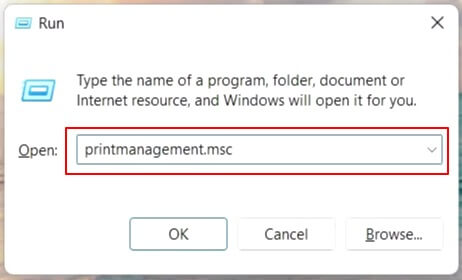
- The Print Management console opens immediately. You can click Print Servers to add or remove printers and drivers, configure the printer port, print a test page, view the printer queue, etc.
Also know: How to Fix Encryption Credentials Have Expired (Printer Issue)
Method 2: Open Print Management in Windows using Control Panel
- Click the Start button.
- Type Control Panel in the search bar and click the matching search result.
- In the Control Panel, click the View By drop-down and select Large Icons or Small Icons.
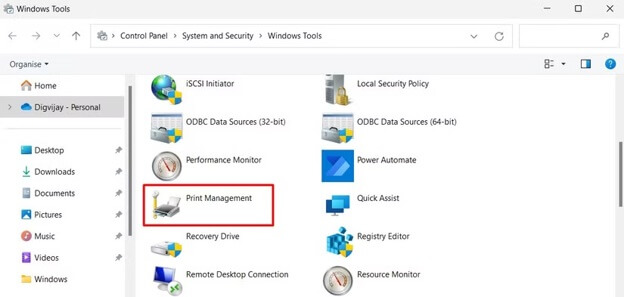
- Click Windows Tools.
- Lastly, double-click Print Management to open it.
Method 3: Search for Print Management
- Click the Start button.
- In the search bar, type print management.
- Click Print Management in the search results.
Method 4: Access Print Management console using File Explorer
- Press Win + E to open File Explorer.
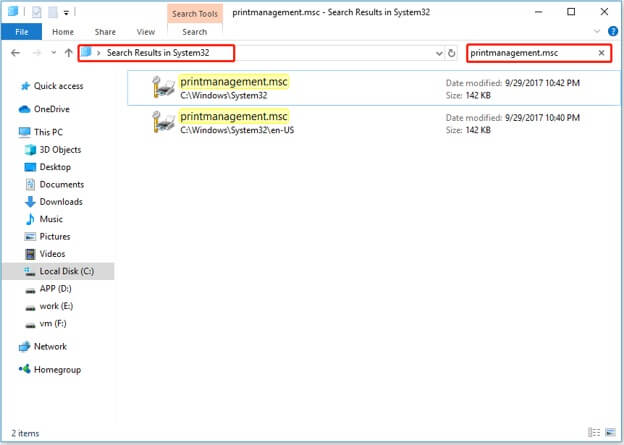
- In File Explorer, navigate to C:\Windows\System32.
- Type printmanagement.msc in the search bar.
- Lastly, click the executable file to launch the Print Management application.
Method 5: Use the Start Menu to find Print Management
- Click the Start button.
- Next, click All Apps.
- Select Windows Tools from the bottom of the menu list.
- Double-click Print Management to open it.
Method 6: Access Print Management using Task Manager
- Press Ctrl + Shift + Esc to open Task Manager.
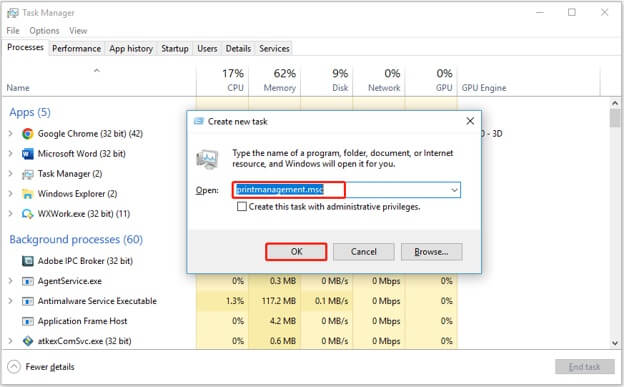
- In Task Manager, click Run new task.
- Type printmanagement.msc in the Create new task window and press Enter or click OK.
Method 7: Use Windows PowerShell (Admin) to open Print Management
- Right-click the Start button.
- Click Windows PowerShell (Admin) in the menu that appears.
- In the Administrator Windows PowerShell, copy and paste the command msc and press Enter to open Print Management.
If you have any persistent confusion, you can check answers to commonly asked questions about Print Management in Windows to clear your doubts.
Also know: Why Is Your Printer Offline and How to Fix it
Frequently Asked Questions
Q1. How to open Print Management?
To launch Print Management in Windows 11, click the Start button, type Print Management in the search bar, and then click the matching result. For details and other methods to access this tool, refer to the guide above.
Q2. What is the keyboard shortcut to open Print Management?
While Ctrl + P is the general document print shortcut, there is no direct shortcut to open the Print Management tool. You can create a desktop shortcut to open Print Management. To do this, press Win + E, navigate to C:/Windows/System32, type printmanagement.msc in the search bar, press Enter, right-click the search result, go to Show more options, click Create shortcut, click Yes to confirm, and then double-click Print Management on your desktop to open it.
Q3. Why can’t I find Print Management in Windows 11?
Print Management is an optional feature; it is only available on Pro and Enterprise editions. Home edition users must install it manually. Hence, you may not find it if you have Windows 11 Home edition. You can install it through Settings.
Hope this helps you open Print Management in Windows to manage your printers and print jobs easily. You can comment with your questions if any confusion persists.