Have you ever opened your Mac and realized all your important notes are gone? Many users report that their notes disappeared from Mac suddenly and without warning. It is frustrating, especially if you rely on the Notes app to manage your to-do lists, work ideas, or school notes.
If you have found yourself saying, “My notes disappeared on my Mac, now what?”, don’t worry. In most cases, your notes aren’t gone forever; they are just hidden, unsynced, or accidentally deleted. This guide will explain why your Mac notes disappeared and how to get them back quickly and easily.
Why did My Notes Disappeared from Mac?
There are many reasons why notes on Mac disappeared. Here are the most common ones:
- iCloud Sync Issues – Most individuals use iCloud to sync notes between devices. If the sync fails due to a poor internet connection, disabled settings, or low iCloud storage, your notes might not appear.
- iCloud Terms & Conditions Update – Sometimes, after Apple updates its iCloud terms, your access to Notes may be restricted until you accept the new terms. During this time, your notes might seem to vanish.
- Accidental Deletion – You may have accidentally deleted a note on one device, and due to iCloud syncing, it got deleted everywhere.
- macOS Update Bugs – If your MacBook notes disappeared after installing a macOS update (like Sequoia, Sonoma, or Tahoe Beta), the update may have corrupted your Notes database. As a result, your notes on Mac disappeared or become unreadable.
- You are Logged Into the Wrong iCloud Account – Notes saved in one iCloud account won’t appear if you are logged into another account.
- Hidden Folders in Notes App – If the Notes app’s sidebar is hidden, you might not see all the folders containing your notes.
- Storage Full – If your Mac or iCloud storage is full, your notes may not be saved or synced properly.
- Temporary or System Errors – Notes can sometimes disappear due to system crashes or app glitches, especially if the app crashes while you are typing.
Now that we know why Mac notes disappeared, let’s fix it step by step.
Best Ways to Fix Notes Not Showing on Mac
Below are some of the most effective ways to bring your missing notes back. If you’ve recently found that your notes disappeared from Mac after an update or sync issue, try these simple methods one by one until your notes show up again.
1. Turn iCloud Sync Off and Back On
One of the easiest fixes if your notes disappeared from Mac after an update or login is to restart iCloud syncing. Follow these steps:
- Go to System Settings.
- Click your Apple ID, then iCloud.
- Find Notes, and turn it off.
- Wait a few seconds, then turn it back on.
- Open the Notes app and check if your notes are back.
This works in most cases when sync fails or is interrupted.
2. Make Sure You are Using the Right iCloud Account
If you have more than one iCloud account, your notes may be in a different one. To check:
- Open Notes.
- Go to the Notes menu > Accounts.
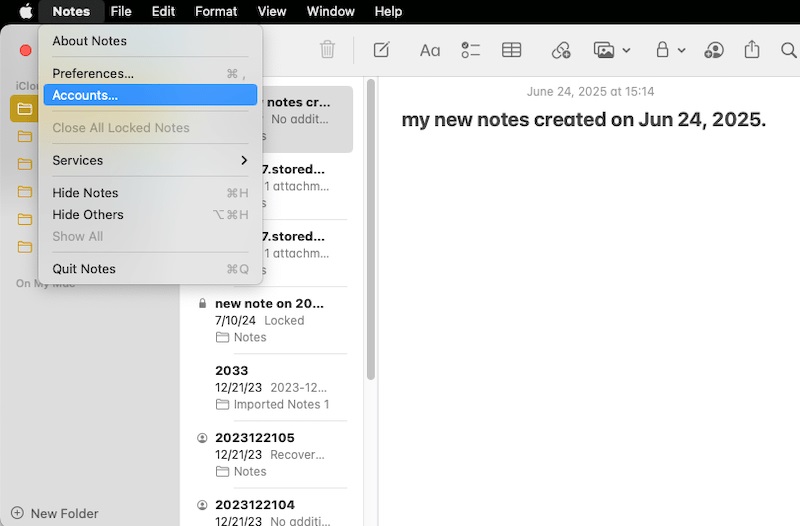
- Make sure you are signed into the correct Apple ID.
After logging into the right account, your notes should sync automatically.
Also know: How to Restore Deleted Notes from iPhone, iPad, Mac
3. Check the Recently Deleted Folder
If you accidentally deleted a note, you might be able to get it back from the Recently Deleted folder. Here’s how:
- Open the Notes app.
- In the sidebar, click Recently Deleted.
- Browse through the notes; if you find your missing one, move it back to a main folder or your iCloud account.
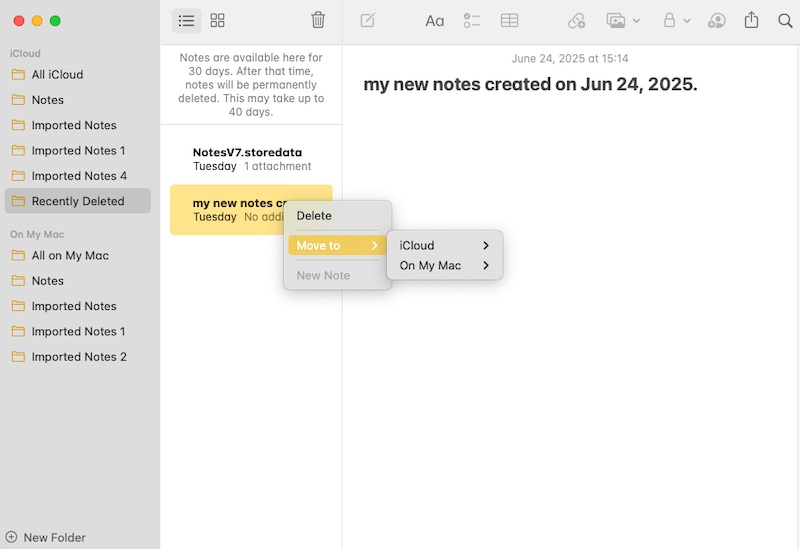
Notes stay here for 30 days before being permanently deleted.
4. Show All Notes Folders
Sometimes, the Notes app does not show all folders if the sidebar is hidden.
- Open Notes.
- Click View in the top menu.
- Select Show Folders.
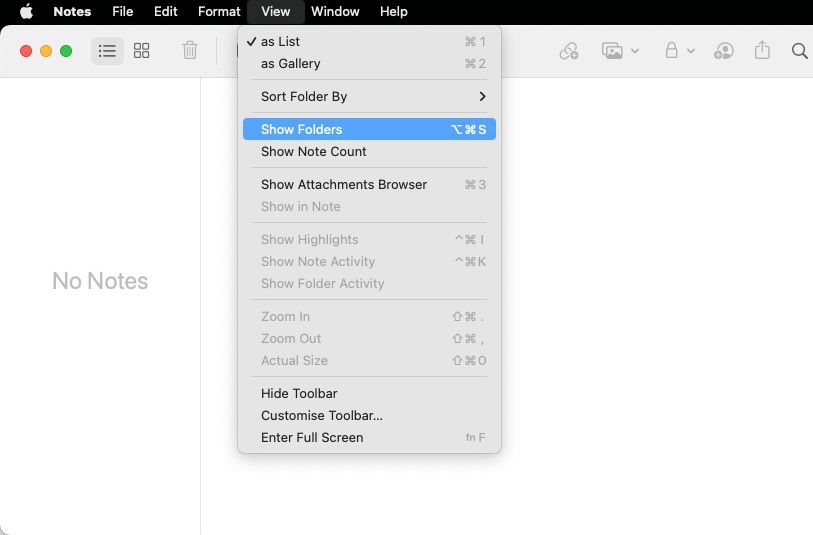
- Browse each folder to see if your notes are stored there.
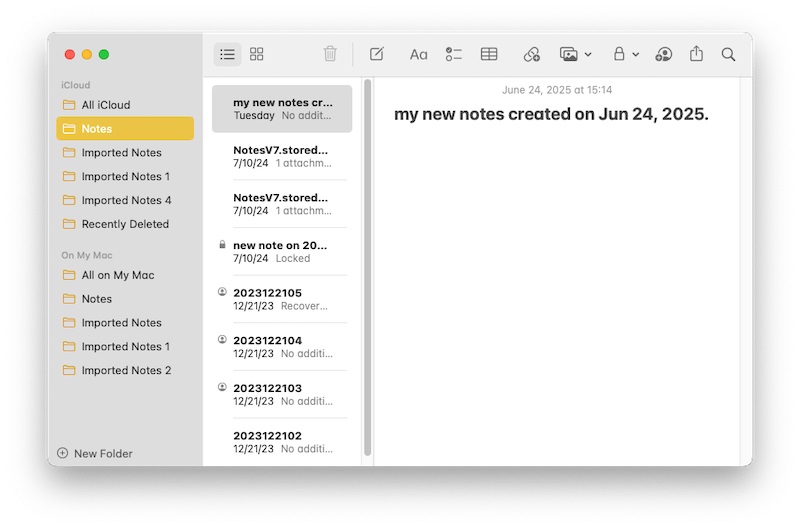
If you use both “On My Mac” and “iCloud” accounts, check both.
5. Recover Notes from iCloud Website
If your MacBook notes disappeared, try checking them on the iCloud website:
- Visit iCloud.com.
- Log in with your Apple ID.
- Click on Notes.
- Check the Recently Deleted folder.
- If your note is there, click Recover.
You can also go to: Account Settings > Data Recovery to find missing notes not in the deleted folder.
6. Use Command + O Trick
Sometimes, pressing Command + O in Notes may help reopen a hidden or recently accessed note. Let’s try it:
- Quit the Notes app.
- Reopen it, then press Command + O.
- Check if the note reappears.
Restart your Mac and try again if it does not work right away.
7. Recover Notes from Mac’s Temporary Folder
If your notes on Mac disappeared during a crash or update, they might be stored in a temporary folder. Follow these steps to recover them:
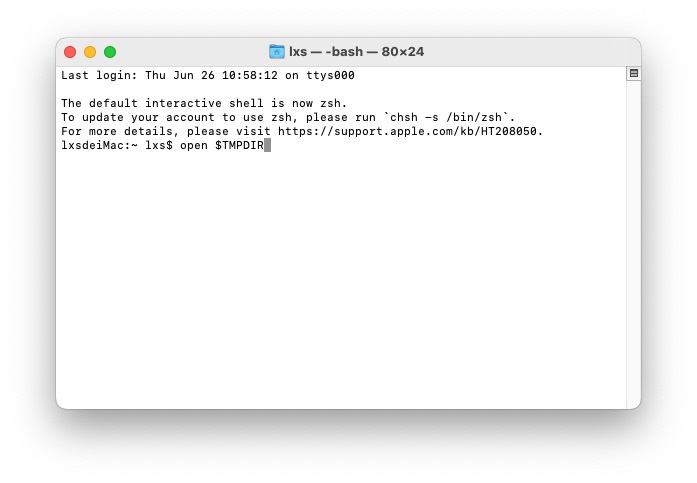
- Open the Terminal app.
- Type this command: open $TMPDIR and press Enter.
- Navigate to: com.apple.Notes > TemporaryItems.
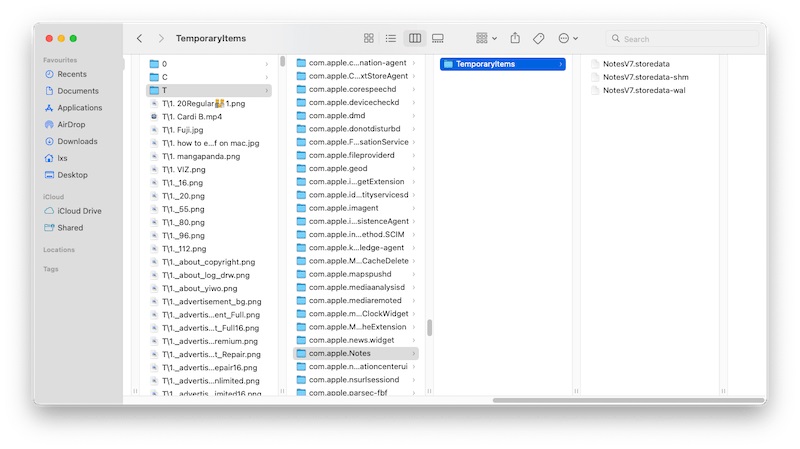
- If you find your notes, copy them to:
~/Library/Containers/com.apple.Notes/Data/Library/Notes/.
Then reopen the Notes app and see if your Mac notes disappeared come back.
Also know: Best Calendar Apps for Mac
8. Free Up Storage Space
If your Mac or iCloud is low on storage, syncing can stop, and notes will not show. To check:
- For iCloud: Go to System Settings > Apple ID > iCloud > Manage Storage.
- For Mac: Open About This Mac > Storage.
- Delete unnecessary files or upgrade your storage plan if needed.
If your notes disappeared from Mac, freeing up space can restore syncing and make them reappear.
9. Delete and Rebuild Notes Library
This is a more advanced fix for corrupted Notes databases.
- Go to this folder:
~/Library/Containers/com.apple.Notes/Data/Library/Notes/
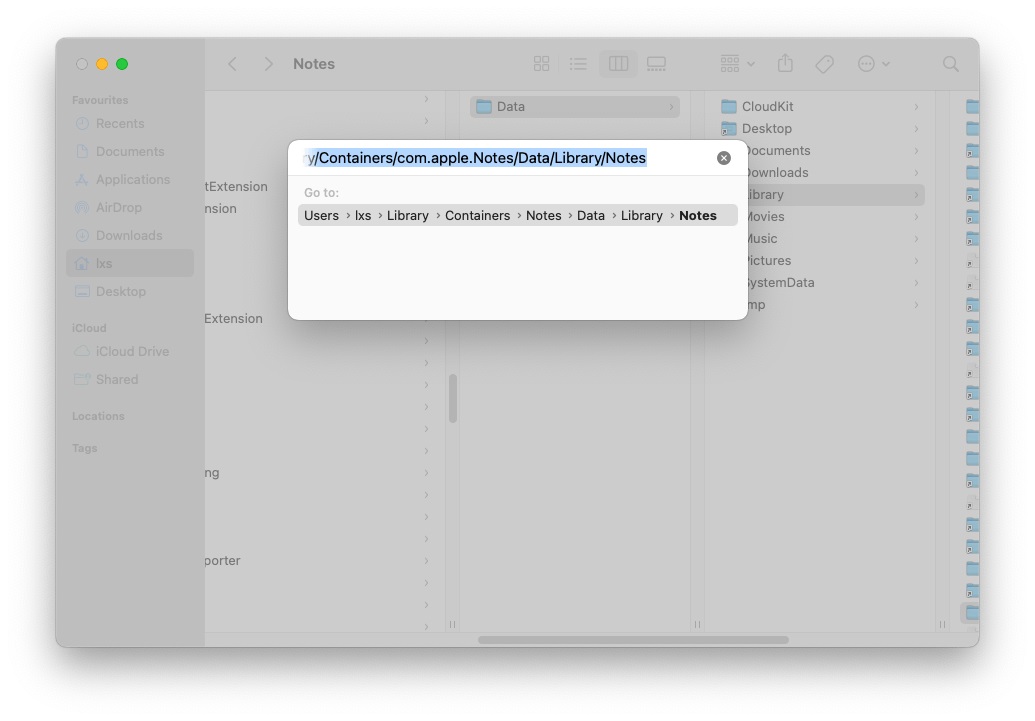
- Copy all files to a safe backup folder.
- Move the original files to the Trash.
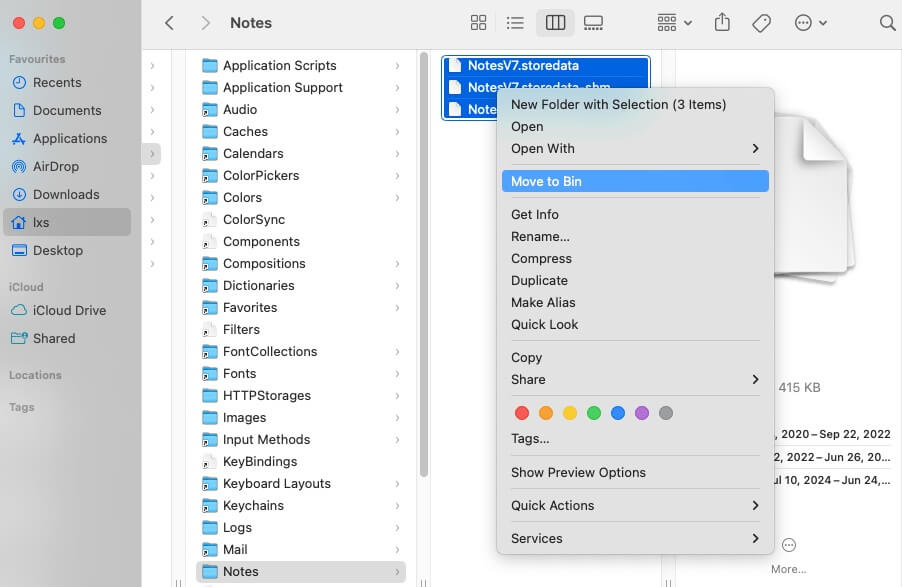
- Reopen the Notes app.
- The app will rebuild the Notes Library, which may restore the missing notes.
If your notes disappeared from Mac, this method can help recover them by forcing the app to rebuild a fresh Notes Library.
Conclusion
Losing your notes can feel stressful, especially if they contain important personal or work-related information. But in most cases, if your Mac notes disappeared, there’s a fix. Whether it is a syncing issue, a hidden folder, or a wrong iCloud account, the above steps can help you recover your data.