Many people enjoy watching movies and using their social media with their headphones or earbuds all the time. And you cannot use the volume of your mobile when you are in some public spaces. It is also very convenient for you to use earbuds or headphones in public spaces. But the process of connecting your new beats, earbuds or headphones with your system can be a little tricky and confusing for some people, especially for beginners you have never done this before.
And there are a few things also mentioned that you need to take care of your earbuds or headphones like switching it on, keeping them to the pairing mode while connecting, stay closer, and much more that you need to keep in mind before connecting.
And you are struggling with the query on ‘How to connect beats headphones?’ but fortunately, with this article you will find the stet-by-step guide for connecting your beats earbuds or headphones to your device whether it is a MacOS or Windows.
Reasons the Beats Headphones Does Not Connects to Laptop
There are different ways to answer the question ‘How to connect beats headphones?’ but if you do not know even after connecting your headphones or your earbuds to your laptop your system cannot recognize the beats earbuds or headphones. There could be any reason for that to happen like interrupted connection, beats earbuds or headphones might get unpaired between, or your system might not recognize your beats earbuds or headphones even after connecting it, and many more.
Here are the following reasons why your system is unable to recognize your beats earbuds or headphones while you connect it to your system.
- Re-pair the headphones: Sometimes without your knowing, your earbuds or headphones can get disconnected from your system. If you try to connect your headphones from your system and it is unable to recognize the headphones, then you must make sure that the headphones are accurately connected or not. Sometimes your system faces failure or errors in connecting from your beats headphones.
To re-pair the beats earbuds or headphones from your Windows device, the following are the steps you must follow:
Step 1: Go to the ‘Settings’ of your system and open ‘Bluetooth and Device’ then click on the three-dot icon on the right side of the headphones you have connected with.
Step 2: Click on the ‘Remove Device’ option.
Now you can again pair beats headphones with your system.
And to re-pair the beats earbuds or headphones from your Windows device, the following are the steps you must follow:
Step 1: On your macOS, go to the ‘Apple’ and then open ‘System Preference’.
Step 2: Select ‘Bluetooth’ and go to your beats headphones. Then click on it and then select the option of ‘Disconnect’.
Now your headphones are completely disconnected from your system. And now you can again pair beats headphones to your system.
- Volume: This is one of the silliest reasons you can think of, but a lot of times it works like everything. So first, you must make sure that the volume in your system is sufficient for you to hear in your headphones. And sometimes people do keep their volume lower than expected because of headphones, but it can turn off sometimes, so make sure that you do not make the same mistake.
- Turn off the device: In many wireless connections, the frequency of other devices can affect the connections of your headphones with your system. So, you might need to reconnect your beats headphones again.
- Driver: An outdated driver may also lead to the error of not connecting your earbuds or headphones to your system many times. You can use many free driver updaters to keep your driver updated to connect to the external Bluetooth earbuds or headphones
How to Connect Beats Headphones in Windows
Your beats earbuds or headphones can connect to any of your device like Windows laptop, your iPhone, iPad, or your macOS, but the question arises is, ‘How to pair beats earbuds to your system?’ The following steps can be easily used by you to connect beats earbuds or headphones to laptop in Windows:
Step 1: First, you need to turn on the beats headphones. For that press and hold the power or connect button present on your headphones for like four to five seconds.
Step 2: If it is turned on, then an integrated LED will start flashing on your earbuds or headphones.
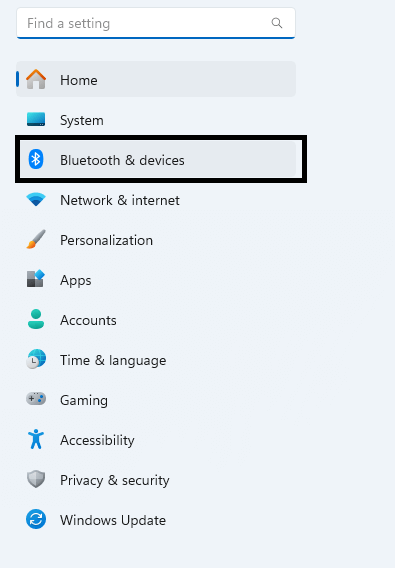
Step 3: Go to the ‘Settings’ in your Windows. And search for ‘Bluetooth & Devices’ option and open it.
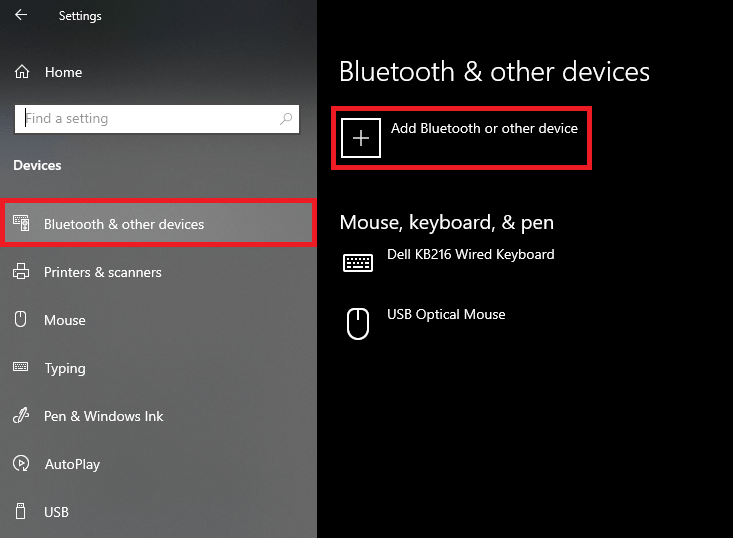
Step 4: Click on ‘Add Device’ then select your Bluetooth device out of the list. And click on the name of your earbuds or headphones.
Step 5: Then wait a few seconds; it will automatically connect to your system.
Also know: How to Unforget a Bluetooth Device on iPhone, Android and Laptop
How to Connect Beats Headphones in Mac OS
To connect your beats earbuds or headphones with your macOS is not so difficult also, you just need a few steps that are quick and easiest to use. You just need to make sure that you are using the process accurately, and your beats audio drivers are up to date to use because the outdated version does not support all the versions of your macOS.
And when it comes to the question ‘How to pair beats earbuds or headphones?’ The easiest way to do so is to use the system settings. And the following are the steps to use that:
Step 1: First, you need to turn on the beats earbuds or headphones. For that press and hold the power or connect button present on your headphones for like four to five seconds.
Step 2: If it is turned on, then an integrated LED will start flashing on your earbuds or headphones.
Step 3: Now go to the ‘Apple’ menu on the top left corner of your Mac. And click and open the ‘System Settings’.
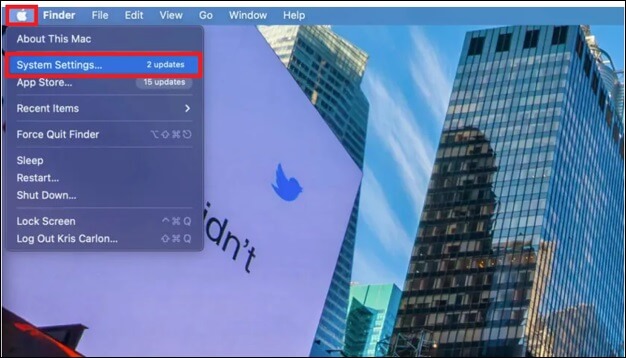
Step 4: Search for ‘Bluetooth’ and toggle the mouse to the Beats Headphones or whatever is the name of your earbuds or headphones if you have set some.
Step 5: Then click on ‘Connect’ and click on ‘Accept’ if it asks for your confirmation.
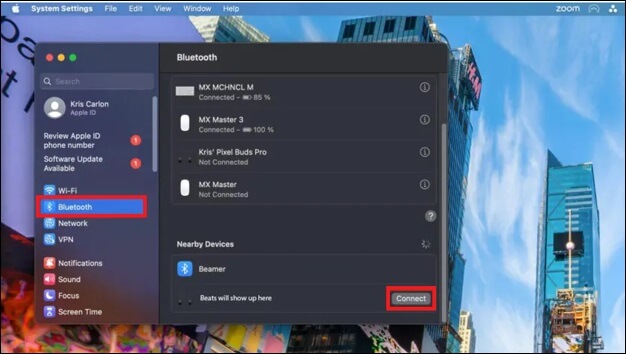
And now your earbuds or headphones are connected with your MacOS, and you are good to go with that.
Also know: How to Find Lost Bluetooth Earbuds That are Turned Off
Frequently Asked Questions (FAQs)
Q1. What are the reasons that you are unable to connect beats to your laptop?
Ans. You are unable to connect the beats earbuds or headphones because of a few reasons like having glitch in Bluetooth frequency or might be your system is not in pairing mode, or there is possibility that your earbuds or headphones is still connected to something already.
Q2. Can you connect the beats earbuds or headphones to multi devices at the same time?
Ans. No, you cannot connect the beats earbuds or headphones to multiple devices at the same time, but you can pair it with multiple devices at the same time.
Q3. Is it possible to update the beats earbuds or headphones with a computer or laptop?
Ans. Yes, you can easily update the beats earbuds or headphones using your computer or laptop, or you can also update it using iPad, iPhone, Android, Windows, or macOS.
To resolve the query of ‘How to pair beats earbuds or headphones to your system?’ These were the main methods you can use. And by following the given steps in this article you can easily connect your beats, earbuds or headphones with your system by yourself. You just need to take care that there are no other devices whose frequency might affect the connectivity with your Bluetooth.

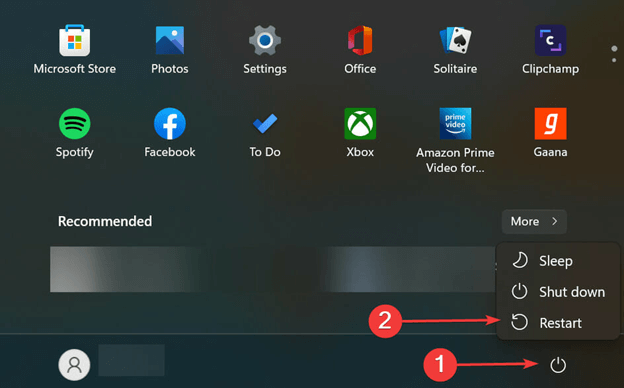
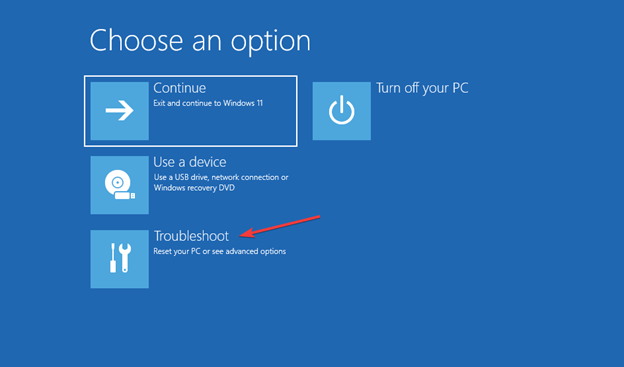
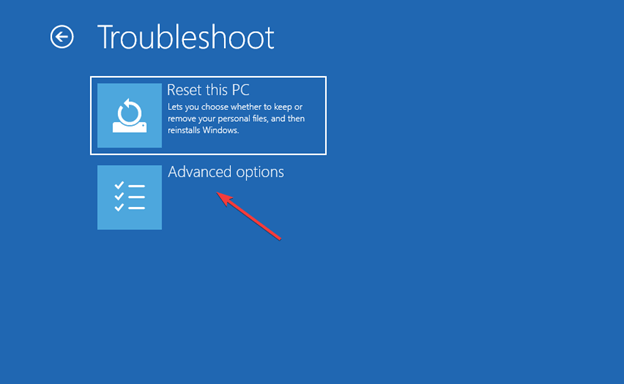
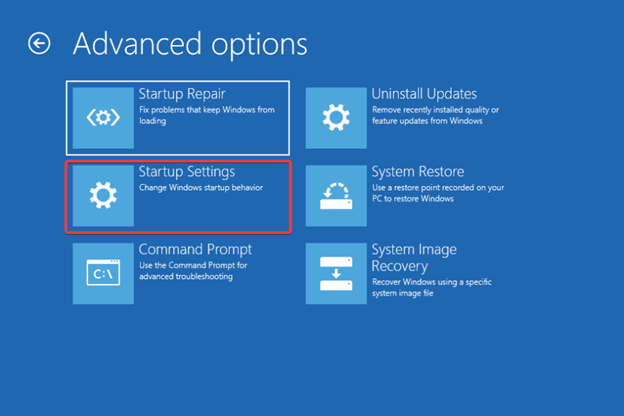
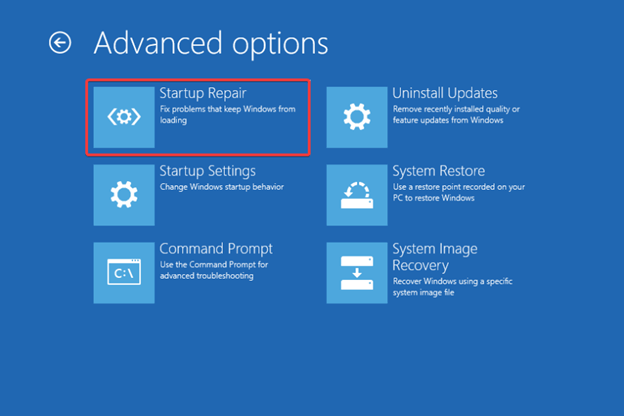
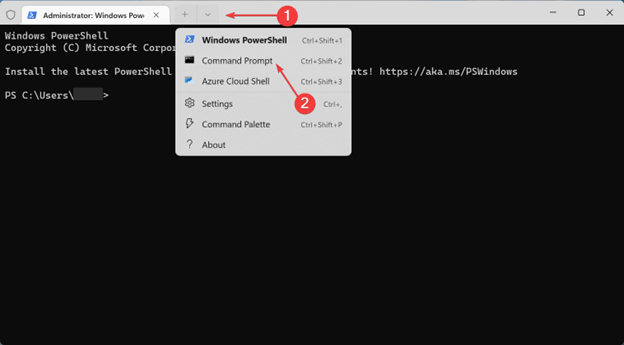 Windows 11 users can now select the top arrow and then choose Command Prompt from the on-screen menu.