The Exchange Admin Center is a dashboard that is used for online, and hybrid Exchange deployments. The new Exchange admin center unlocks the features to restore mailboxes, migrate data, and much more. There were two interfaces back in 2010 for the Exchange server called Exchange Management Console and Exchange Control Panel.
Then, the Microsoft Exchange Server 2013 was optimized with more features, including on-premises hybrid Exchange deployments, online Exchange deployments, and more user-friendliness. With the latest Microsoft 365, you have a cloud-based system, and you can easily access the files from anywhere in the world; you just need a very good internet connection.
Let us understand in this article more about the ways to access the Exchange admin center online.
Ways to Access Exchange Admin Center
There are two primary methods to access Exchange Online. The detailed steps are mentioned below for you to understand properly.
Method 1:
This is the necessary process to access the new Exchange admin center from either Microsoft 365 or Office 365. This is the most basic and quickest way to exchange admin centers online for an Exchange server.
Step 1: Open Microsoft 365 or Office 365 on your laptop or the system you are currently using.
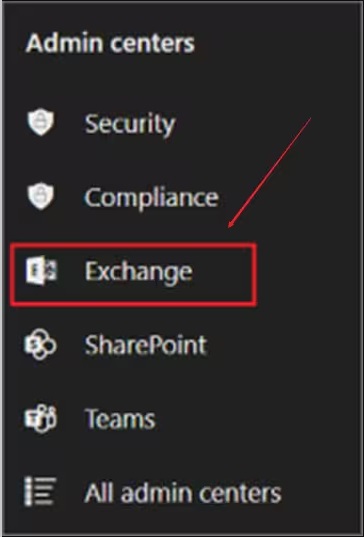
Step 2: Go to the ‘Admin Centers.’
Step 3: A list will open in front of your screen; search for the option of ‘Exchange.’
Now you can simply access the Exchange admin center in Exchange Online on the system you are using.
Method 2:
The other method is to directly use the Exchange admin center URL.
You will get direct client access services after the Exchange admin center URL is redirected based on the virtual directory of the Internet Information Services. You can follow either an external or internal Exchange admin center URL. When you log in to your admin page, you will find a customizable dashboard, and more details are given about the features you can customize on your home page.
To understand the features and the interface of the Exchange admin center, continue reading.
Understanding the Interface and Features
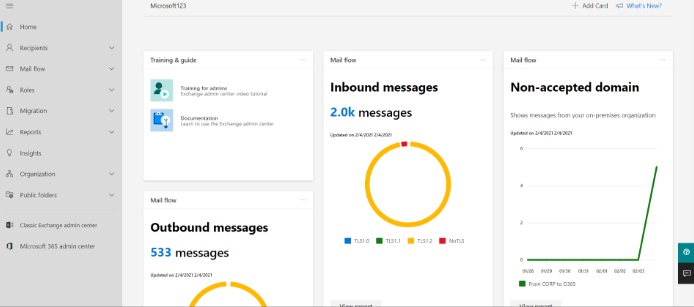
Home page
There, you can customize the home page of your Exchange admin center by selecting themes, settings, languages, and time zones according to you using the settings bubble.
Here is a list of all the settings you can customize on your own.
- To personalize the dashboard, just click on ‘+ Add Card’ present on the topmost part of the homepage and drag it to any location you want to set it into.
- Click on the ‘What’s New’ feature to understand the new updates in the Exchange admin center.
- To switch the user and sign out from the current user, click on the ‘My account’ title and sign in to the other account.
- You can get video tutorials and other related documentation by selecting ‘Training for admins’ in the feature ‘Training & Guide’ in the new Exchange admin center.
Also know: Microsoft Edge WebView2 Runtime & Download it for Windows 11
The intra-campus navigation here refers to the redirecting of the Exchange Online from the premises Exchange.
And if you do not have any Exchange online then you can simply click on the Office 365 link, which will take you to the page.
Feature Pane
This is the primary level of the navigation feature for every task you perform in the Exchange admin center. And then the feature pane further divides into several other sections, like recipients and compliance management.
The following are the features available in the features pane.
- Recipients: This is used for viewing and managing your mailboxes.
- Mail Flow: To track messages, manage domains remotely, and alert management.
- Roles: This feature is used in managing administrator roles.
- Migration: Using this feature, you can migrate mailboxes in batches.
- Reports: Viewing of reports and migration batches on mail flow can be done using this feature in the feature pane.
- Insights: Getting recommendations on insights and trends can be done and used in fixing issues in the mailbox and mail flow.
- Organization: Helps in managing sharing and apps for organizations.
- Public Folders: Use this to manage and view the public folders.
By selecting ‘Classic Exchange Admin Center’ and ‘Microsoft 365 Admin Center’ from the bottom of the left navigation panel.
Tabs
There is also a facility to change your current hybrid deployment settings or to run the Hybrid Configuration Wizard in the Setup page.
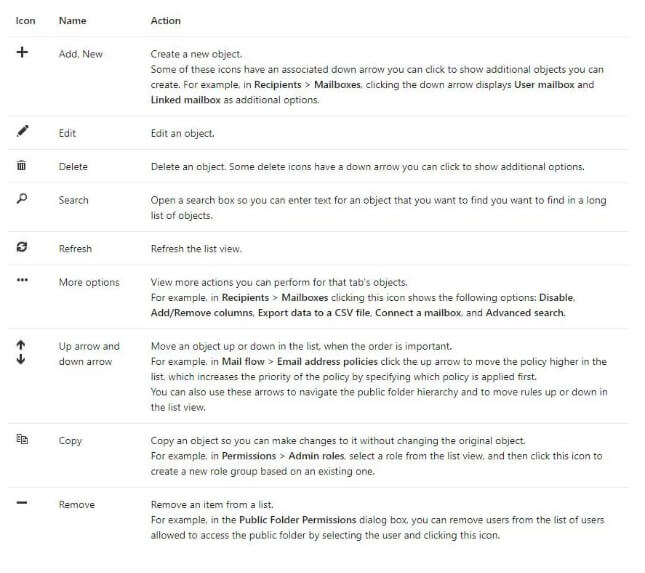
Toolbar
When you click the most tabs icon on the taskbar, conduct special activities. You simply need to hover your mouse over the symbol to find out about the action connected with that setting or icon while using it.
List Viewer
The objects present in the tab, or most of the objects in multiple tabs, are displayed in a list view for you to configure easily. It also provides you with the paging feature to skip the results you want to find. Additionally, the Exchange admin center offers you the ability to make a list of about twenty thousand objects in a single list.
You can change or adjust the size of the page according to the comfort of your list. You can export your data from a recipient list view to a CSV file.
Details Pane
The details pane displays the information related to the object you select in the list. You will get rapid management of activities for some object kind using this details pane.
You can also do some quick management tasks in the details pane for some object types.
Likewise, this feature also allows bulk editing of multiple objects. To select multiple objects to edit in bulk in the details pane, follow the given steps.
Step 1: Select multiple objects you want to edit.
Step 2: Press the ‘Shift’ key while selecting the objects and drag it down across the list.
Step 3: Or you can simply press ‘Ctrl’ while selecting each object.
Notifications
The notification viewer tab in the Exchange admin center displays the information about certificates, the states of mailbox movements, and much more.
Here is the list of some examples of what the notification viewer presents the content.
- The expiration date of the certificates.
- The states of the mailbox migrations can be detected by using it. This feature is also known as the Mailbox Replication service tasks.
- You can also use the notification viewer to view email notifications while completing tasks.
- It also helps in creating ‘.pst’ files using the content of the mailbox.
Also know: How to Set Out Of Office in Microsoft Teams
Frequently Asked Questions (FAQs)
Q1. Can we run the hybrid configuration?
Ans. Yes, you can easily change your current hybrid deployment settings.
Q2. Is there an option to switch between your on-premises Exchange deployments?
Ans. Yes, you can switch your Exchange Online using the cross-premises navigation feature.
Q3. Can the Exchange admin center be accessed on a Mac as well?
Ans. You can access the Exchange admin center from any device you have, which also includes Mac, Linux, and Windows.
Office 365 is the older version of Microsoft 365, so if you want to access more features, then update your system today. It has more advanced features, and it is more user-friendly.
So the article above has every detail elaborately mentioned to make you understand how to access the Exchange admin center in Exchange Online. The main facility it provides is that you can access any device, like Mac, Linux, and Windows, as well.

![Asus Touchpad Not Working on Windows 10 [Solved]](https://wpcontent.techpout.com/techpout/wp-content/uploads/2020/06/01170830/Asus-Touchpad-Not-Working-on-Windows-10-Solved.jpg)