Main LogoLight Logo
  • Reviews
  • Top 10
  • How To
  • Tech News
  • OS
    • Windows
    • MAC
    • iOS
    • Android
  • Categories
    • Driver Updater
    • Cyber Security
    • Games
    • Fitness
    • Entertainment
    • Tips & Tricks
Android How To
by Diksha Lalwani

How To Create An App For Android

August 4, 2019
1

With the fast-paced journey of the technology around us, day-by-day we are becoming more and more dependent and skewed towards digital resources of living, aka gadgets and applications. 

The creative soul inside all of us comes alive once in a while for different purposes. Building an app from scratch is one of those purposes. We are surrounded by apps completely (that’s literally so true), and it isn’t a guess that we would like to have one of our own apps at some point.

And hence, we’ll tell you how to create an app using app builders.

Why You Might Want to Create a Mobile App?

There can be a multitude of reasons for your decision to jump into the app development world. You might have the greatest idea the world has seen in a long time. Or an idea that could help a lot of people. Maybe you just want to have fun and not looking forward to an extensively made application. But for many, it’s a way to boost up their business and build a more profound consumer-based network. 

Why an Android App is Necessary for Your Business?

  • You can build better customer relationships easily
  • Your online app business can stay open 24/7
  • You can reach to your customers all day, every day without fault
  • You can create better business plans by tracking your customers’ choices and needs
Table of Contents hide
Some Basic Steps to Create an App (For Mid-Range to Advanced Developer):
How to Create an App Without Coding?
1. Appy Pie
2. Mobile Roadie
3. Andromo App Maker
4. App Makr
5. MIT App Inventor
Best App Builders With and Without Coding Requirements
1. GoodBarber
2. Buzztouch
3. Xamarin

Some Basic Steps to Create an App (For Mid-Range to Advanced Developer):

Step 1. Having a great idea for the app.

Step 2. Having a wireframe/ blueprint of all the features in the app.

Step 3. Picking IDE and learning the basics of Java (you have to!)

Step 4. Building the layout and acquiring the images.

Step 5. Finally, writing the code and implementing advanced functionalities.

Step 6. Adding some final finishes and touch-ups.

Step 7. Admiring, publishing, and using your app.

How to Create an App Without Coding?

Not all of our work at Silicon Valley and have great computer skills (and by great, I mean, extraordinary). To be truthful here, heavy coding looks like alien jargon to me. Now don’t come at me, I know it’s the same for many of you. But that doesn’t mean we can’t dream, right? 

Keeping us mere mortals in mind, the gods of the tech sector have blessed us with various applications and software that deliver our app dreams to us, without asking for any coding or technical knowledge in return. Some of those incredible creations are:

1. Appy Pie

This is undoubtedly one of the best free app builders out there, regardless you are a coder or not. Even though it has different price points for different tiers of functions, its free version makes up for most of the basic needs of amateur app developers.

This DIY and super easy to use tool helps in making app creation, a fast and unique experience. It comes with an array of unique features and competitive analytical abilities. 

It has dragged and dropping a building ecosystem that makes it a favorite of app developers, old and new, all over the world. 

2. Mobile Roadie

Mobile Roadie is the big star amongst all the app makers. Its list of clients includes Universal, Disney, and TED.org. Because of such a clientele, it charges quite a bit for its services. 

But in its defense, it provides its users with a collection of design choices, amazing templates, and their customization space. It even has community features like chats and fans walls.

However, small businesses and amateur developers hesitate to invest in it just because of its heavy pricing.

3. Andromo App Maker

With a user base of more than 1 million, there are no doubts regarding Andromo App Maker’s supremacy and excellence.

It allows access to its users to build their first apps completely free of cost; they just need to sign up with Andromo. They can inculcate all their desired activities like music, videos, surveys, maps, and a lot more features. And with one-click, the app is created and ready to be uploaded.

To all those who always think and ask, “How to create an app and make money?” Andromo app is your solution, people (It claims earnings of around $10,000 for top apps). It has features like polls and ads that you can affix to your app. This way, you build a paying app with ease and simplicity.

4. App Makr

This one is a really basic and humbly interfaced application for people who are miles away from coding knowledge – regarded as one of the best app builders for 2018 and 2019.

One can simply go to the website, enter the preferred app name, and begin to follow the steps by using its easy modules. The designs can be changed or tweaked as per the user’s wishes. 

App Makr is surely a great app developing a tool for doubtful beginners.

5. MIT App Inventor

Children love it, school kids love it, college students love it, and we love it too. MIT App Inventor has a very basic and user-friendly interface that aids you in developing a high impact and complex app. 

It is a block-based tool and doesn’t require coding basics for a fully-functional and intuitive app creation. 

One of the very best features of MIT App Inventor is that you can see the working of your developed app in real-time by connecting your mobile phone to it.

Best App Builders With and Without Coding Requirements

1. GoodBarber

GoodBarber is the next best friend to those newbies who don’t know the ABCs of coding but want a marketable app. It consists of around 50 professional themes, incredible content creation tools, and customization tools.

The interface is similar to a website creating a platform, and the app is highly impactful for organizations like NGOs, restaurants, local businesses, etc.

2. Buzztouch 

It is another great comprehensive online tool that allows the user to operate with pre-written plugins and even customize them to form new features without any restrictions. 

On its website, one can go through a complete guide about its working and learn a great deal from it.

Buzztouch is a sure shot solution for many Android app developers.

3. Xamarin

Xamarin is a cross-platform tool that is used to build apps using Visual Studio. It lets the user create programs using a single code base (with C#) and ensures a fast and flawless experience. It has comprehensive hardware support and has code reusability attached to it too. 

It obviously comes with a bit of a learning curve but is perfect for novices in the coding world.

Now you can put questions like “How to create an app for free?”, and “How to create an app and make money?” to rest. These app builders are a great addition and decision to make in your budding app developer life.

app buildersbest free app builderhow to create an app and make moneyHow to create an app for AndroidHow to create an app for freehow to create an app without coding
Author

Diksha Lalwani

Diksha Lalwani is an aspiring content marketer and a self-declared bibliophile. An English honors graduate, she likes to keep up with the recent happenings around the world and form an opinion. Her interest in anything and everything tech made her follow the path into becoming a technical writer.

View all posts

Related Posts
Epson-XP-245-Driver-Download-and-Update-For-Windows-10,-11

Epson XP 245 Driver Download and Update For Windows 10, 11

April 5, 2024
0

Read this article to learn different methods to download and install the latest Epson XP 245 driver for Windows 10/11.

Epson is well-known for producing best-in-class and affordable printers. Epson XP 245 is one of the excellent printers available and is renowned for delivering high-quality prints with great value. However, in order to maintain the smooth operation and consistency of the printer, you should ensure that you have the latest version of printer drivers installed on your computer. Because when these drivers either have gone missing or become out-of-date, your printer abruptly stops functioning properly. Therefore, you should keep the Epson XP 245 driver up-to-date for better performance. The post helps you find the correct driver for your Epson XP printer in the best way possible.

How To Download, Install & Update Epson XP 245 Driver For Windows 10, 11

Look at the below-provided methods to perform the Epson XP 245 driver download on Windows 11/10. Without further ado, let’s get started!

Method 1: Download & Manually Install the Epson XP 245 Driver From the Official Website

Epson provides regular driver updates for their products. So, you can go to the official website of Epson and download the latest driver installer on your own. However, in order to use this method you should know your operating system and all related information. Follow the steps below to perform the Epson XP 245 driver download for Windows 10/11.

Step 1: Visit the official website of Epson.

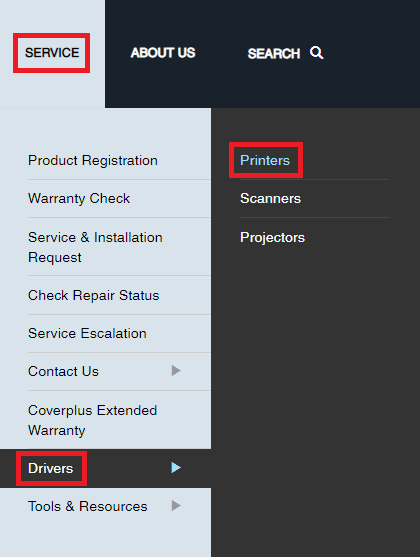
Step 2: Hover over the Service option and choose Drivers from the drop-down menu. Then, choose Printers.Service menu on the homepage of Epson IN and click on Printers under Drivers

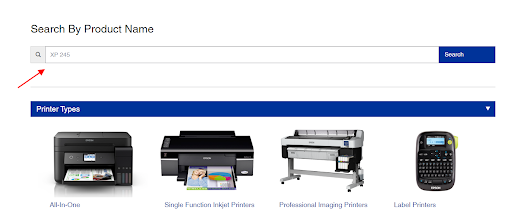
Step 3: Scroll down the page and type XP 245 in the Search box, then press Enter key from your keyboard to proceed.type XP 245 in the Search box

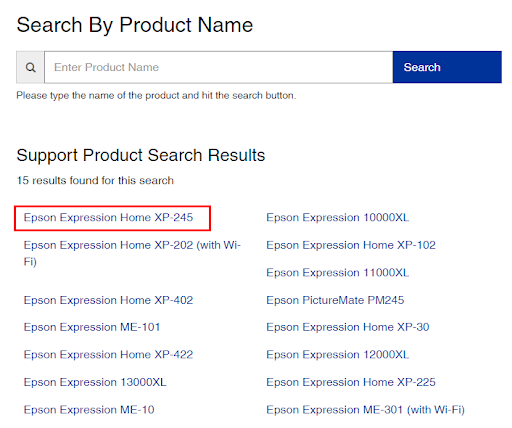
Step 4: Now, choose the best match from the search results i.e., Epson Expression Home XP-245.

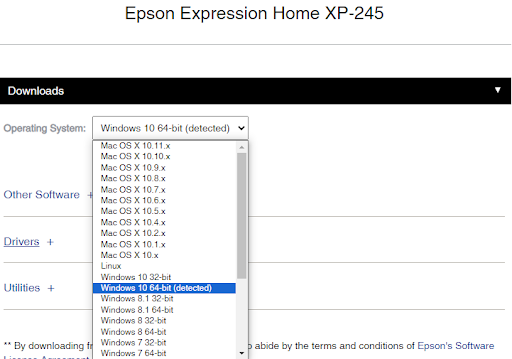
Step 5: Make sure to check if the detected operating system is correct. If not, then choose the correct OS and version from the drop-down menu.choose the correct OS and version

Step 6: Expand the Drivers section to proceed.

Step 7: Click the Download button presented to the available driver installer.Epson Expression Home XP-245

Step 8: Once downloaded, double-click the downloaded file, and follow the on-screen instructions to complete the process.

Step 9: Lastly, restart your computer to apply new drivers.

Also Read: Epson L3251 Driver (Printer and Scanner) Download for Windows


Method 2: Automatically Install Epson XP 245 Driver via Win Riser Driver Updater (Recommended)

Unable to find the right driver manually? Don’t have time, patience, or required computer skills to search for the latest drivers on your own? Don’t worry, you can do it automatically with the Win Riser Driver Updater. Win Riser is one of the most popular driver updating tools available in the market.

This software has the ability to automatically detect your system, deeply scan it for outdated, broken, or corrupt drivers, and replace them with new ones. Not only that, but the tool comes with single-click driver update functionality, which allows users to download the latest version of all PC drivers at once. Win Riser only provides WHQL-tested & authenticated drivers.

You can automatically update drivers either with the free version or the pro version of Win Riser Driver Updater. However, it’s worth noting that the pro version offers round-the-clock technical assistance and unlocks the full potential of the software. Also, the pro version can perform bulk driver downloads in one click.

Now, follow the steps below to automatically download and install the Epson XP 245 driver as well as other system drivers with Win Riser:

Step 1: Download and install Win Riser from the button provided below.

Download-Button

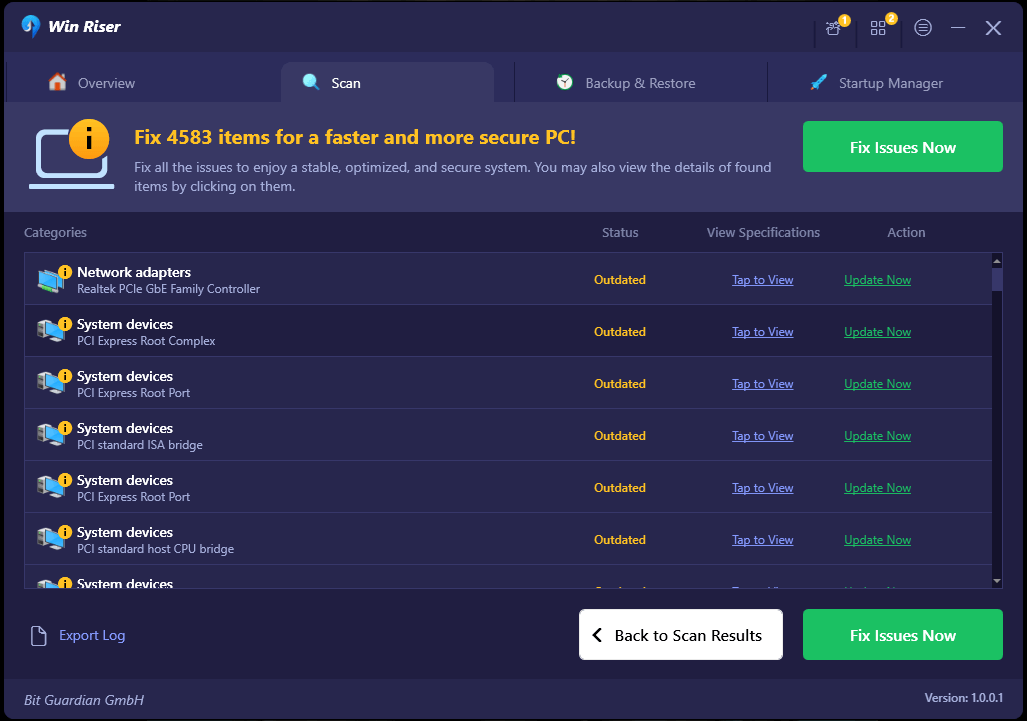
Step 2: After installing, launch Win Riser on your system and wait until it scans your PC for erroneous or outdated drivers.

Step 3: Wait for scanning to be completed. Check the scan results and click on the Fix Issues Now button to install all pending driver updates in one click including the Epson XP 245 driver.Win Riser Update the All Outdated Driver Click On Fixes Now

Step 4: Reboot your PC to apply these new drivers.

That’s all! See how effortless and quick it is to find, download, and install the latest drivers with Win Riser. Additionally, we suggest using Win Riser’s pro version for a better experience and smooth operation.

Also Read: Epson XP-440 Driver Download and Update in Windows 10


Method 3: Update Epson XP 245 Printer Driver in Device Manager

You can use Windows built-in utility tools to find and install the latest version of drivers. To use this method, simply follow the steps below:

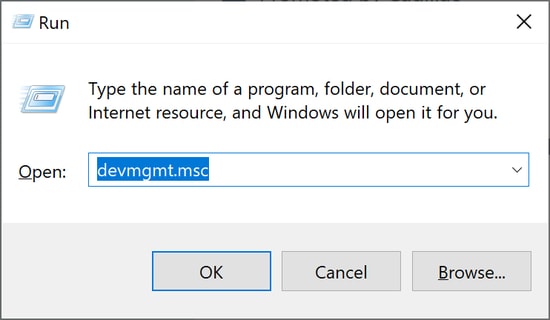
Step 1: On your keyboard, press the Win + R keys together to open the Run Terminal window.

Step 2: Type devmgmt.msc in the Run dialog box and hit the Enter key from your keyboard.Run command devmgmt.msc

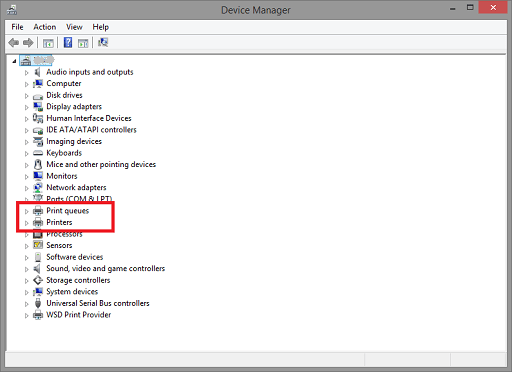
Step 3: This will take you to the Device Manager window. Now, look for the Printers or Print Queues category and double-click on it.Select Print Queues in Device manager

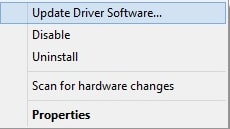
Step 4: Right-click on your Epson printer and choose Update Driver Software to proceed.click on update driver software

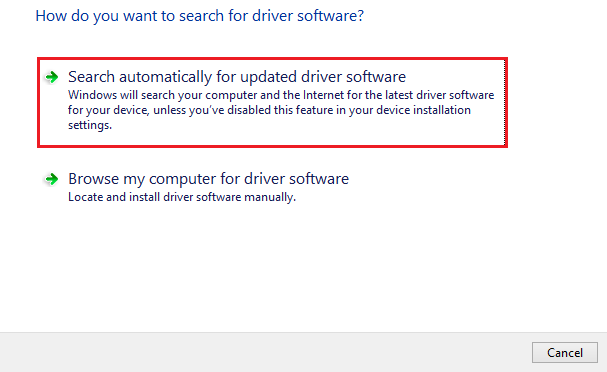
Step 5: From the next prompt, select Search Automatically for Updated Driver Software option.Search Automatically for Updated Driver Software

Now, Device Manager will search for the latest drivers and automatically install the available ones on your PC. Once done, reboot your computer to apply recent changes.

Also Read: Epson WF 2750 Driver Download and Update for Windows 10,11


Epson XP 245 Driver Download and Update for Windows 10, 11: Done

The aforementioned were some of the best methods that you can consider to find correct driver updates for your Epson XP 245 printer. No need to try them all, just work your way down until you find the most suitable method for you.

However, in our opinion, you should automatically update drivers with the Win Riser Driver Updater. The tool ensures better performance, authenticity, and smooth operation.

That’s all! We hope you found this Epson XP 245 driver download guide helpful. Do you have any questions or further information? If yes, then share them with us in the comments section below. Lastly, if you want to read more driver download guides, troubleshooting tips, blogs, and other similar stuff, then you can subscribe to our Newsletter.

Lenovo T500 Driver Download and Update for Windows 10, 11

February 2, 2024
0

For your convenience, here is an article that will provide you with a variety of different ways to carry out the process of executing the Lenovo T500 driver download for Windows 10/11.

Lenovo is without a doubt one of the most well-known electrical brands in the history of the world. The company has been selling a variety of electronic products, including laptops. routers, modems, and other accessories, for quite some time now. The Lenovo Thinkpad T500 is an example of such a device. This laptop, known as the T500, gives you the ability to work, play, and do a lot more with ease.

The compatibility of the laptop is flawless, and it is pretty quick. On the other hand, in order to get the most out of the device, you need to execute the Lenovo T500 driver update. In this essay, we will discuss a variety of different ways to do the same thing with simplicity. If you want to get things done, you are free to employ any of the options that are provided here.

How to Download and Update the Lenovo T500 Driver for Windows 10, 11

In the following sections, you will discover a number of manual techniques, followed by an automated approach, that will allow you to update and install the Lenovo T500 driver for Windows 11/10. Take a look at all of the potential options first, and then choose one of them to carry out the upgrade.

Solution 1: Using the Lenovo T500 Driver Using Win Riser (Recommended)

This is an incredible solution that will successfully complete the Lenovo T500 driver update. You are required to download and make use of the Win Riser utility in order to utilize the automated technique. In addition to that, the tool gives you the ability to arrange things accordingly. Through this, you will have the ability to easily manage your own work, in addition to receiving updates and other functions that enhance performance.

This is a helpful application that enables you to keep all of your drivers up to date, eliminate any superfluous rubbish, remove spyware, and repair registries. When you download and utilize the program, you will have complete knowledge of all it has to offer. For the time being, in order to install the Lenovo T500 driver download, please follow the procedures included below.

  1. You may get the Win Riser software by downloading it by clicking on the download icon on this page.Download-Button
  2. After installing the software, it will be able to start up on its own.
  3. Relax and wait for the scan to finish, as the program will start the process on its own automatically. Click the Fix Issues Now button once it has finished before you proceed.Win Riser Update the All Outdated Driver Click On Fixes Now
  4. Before restarting the system, you should wait for the updates to finish and proceed afterward.

This was an automatic method and now you will have a look at the manual method to install the Lenovo T500 driver for Windows 11/10.

Also Read: Lenovo Drivers Download and Update For Windows 10, 8, 7


Solution 2: Try Windows Update

The following is yet another excellent way for executing the Lenovo T500 driver update and install. You may attempt to install the most recent drivers by upgrading the Windows device you are using. To ensure accuracy, please follow the instructions below:

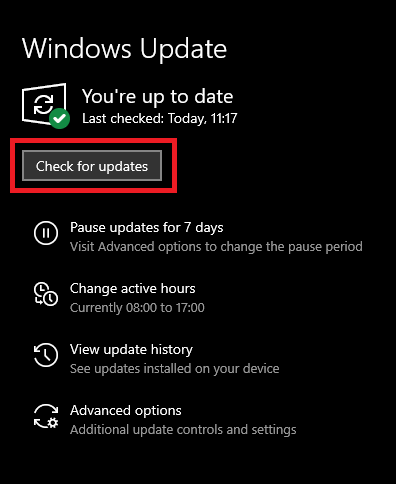
  1. After pressing the Win key and the S key simultaneously, input “updates” and then hit the Enter key.
  2. At this point, the Windows update settings will show, and in order to continue, you will need to click on the option that says Check for Updates.Check for Windows Updates to Get latest Update for the Driver
  3. It is necessary to download and install all of the drivers once the update is available.

If you find that the procedures described above are a bit too hard for you, you may attempt the next solution.

Also Read: Lenovo IdeaPad 100 Drivers Download & Update on Windows 10


Solution 3: Using the Device Manager

Utilizing the Device Manager is the next step in installing the Lenovo T500 driver update for Windows 11. A Windows-integrated tool known as the Device Manager gives you the ability to handle a variety of various devices. As a result, in order to install the driver, follow the instructions below:

  1. Press the Win + X keys, and then choose Device Manager.Select Device manager
  2. Expand various categories by double-clicking.
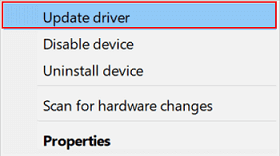
  3. Right-click on individual devices and click on the Update Driver option.Update the Driver in windows 10, 11 PC
  4. Click on search automatically for driver updates to proceed.Search Automatically for Updated Driver Software
  5. Follow the instructions that you see and install the driver.
  6. Restart the system and end the process.

Below is the last method to execute the Lenovo T500 driver download for Windows 11/10.

Also Read: Download, Install & Update Lenovo G50 Drivers for Windows 11, 10


Solution 4: Seek Assistance from the Official Website.

Making use of the official website is the last step in the process of executing the Lenovo T500 driver Windows 11 or 10. On the official website, you may get drivers for a wide variety of different devices. If you want to learn more, follow the steps below:

  1. Initially, go to the official website of the company Lenovo.
  2. You may access the Support menu by clicking on it at the very top.Lenovo Support
  3. Once you have clicked on PC, proceed as stated.
  4. Search for T500 and press Enter.
  5. Simply choose the Downloads button that is located on the page that displays.
  6. Simply click the Download option that is located under the results to get the most recent driver.
  7. Upon completion of the download, the driver should be installed.
  8. Following the completion of the update, restart the system.

Also Read: How to Fix Lenovo Laptop Touchpad Not Working


Finished: Lenovo T500 Driver Download and Update for Windows

That concludes all that we had to impart to you. You may quickly perform the Lenovo T500 driver for Windows 11 or 10 by using any of the techniques described above. When you do get around to updating the driver, the adapter will function flawlessly, and you will be able to use it without encountering any problems.

For any questions or concerns that you may have, we are here to assist you. Send us a message in the comments section below, and we will get back to you as soon as possible. Don’t forget to sign up for our newsletter to get daily updates. If you want to stay up to date, you may even follow our social media profiles. Goodbye for the time being. Have a good time on the next one!

1 Comment
    John Merashi says: Reply
    May 12th 2020, 8:37 pm

    Wow, Great. Such a nice article. It clears my concepts about app development. Really great. Thanks for sharing.

Leave a Reply Cancel reply

Your email address will not be published. Required fields are marked *

Sidebar Image bit G ad1

Latest Posts

  • Anytime Astro: Best Website For Online Astrology Consultation
    Anytime Astro: Connect Now For Online Astrology Consultation
    by Somya Shrimal / March 13, 2026
  • Best-Ways-to-Combine-Images-Into-PDF-Files
    Best Ways to Combine Images Into PDF Files
    by Niharika / March 12, 2026
  • Best FREE VPS Hosting Providers
    7 Best FREE VPS Hosting Providers in 2026
    by Devesh / March 12, 2026
  • Best-McAfee-alternative-software-to-use-for-Virus-Protection
    Best McAfee Alternative Software to use for Virus Protection
    by adminuser / February 11, 2026
  • What-is-Flip-Flop-in-Circuite-and-it's-Types
    What is Flip Flop in Circuit and its Types
    by Meet / February 6, 2026

Categories

  • Cyber Security
  • Driver Updater
  • Entertainment
  • Fitness
  • Games
  • How To
  • laptop
  • OS
  • Reviews
  • Tech News
  • Tips & Tricks
  • Top 10
Sidebar Image bit G ad1
5 Best Duplicate Photo Finder Tools 5 Best Duplicate Photo Finder Tools to Delete Duplicate Photosby Prachi Dani / August 3, 2019
How To View Private Instagram Profiles?by Prachi Dani / August 4, 2019How To View Private Instagram Profiles
TechPout Footer Logo

We at TechPout promise to put forth stories that help people to learn and simplify their digital life. Our purpose is to share the true essence of technology with our tech-loving community.

Useful Links

  • About Us
  • Contact us
  • Privacy Policy

Popular Posts

  • Best PC Optimizer Software
  • Best Mac Cleaner Apps
  • Best Driver Updater
  • Duplicate Photo Finder and Cleaner Software
  • Best Free Movie Download Sites
  • Best IPTV Players

Follow us

Copyright © 2026 www.techpout.com. All rights reserved
DMCA.com Protection Status